Stock Adjustment
Stock Adjustment is the process of updating inventory records to reflect actual stock levels when discrepancies occur — such as losses, damages, incorrect counts, or manual corrections. This ensures your inventory data stays accurate and aligned with physical stock.
Overview
Within inventory management, stock levels sometimes differ from recorded quantities due to counting errors, damaged items, unrecorded usage, or data entry mistakes. The Stock Adjustment feature lets you manually adjust part and supply quantities so the system matches the real world.
Before You Begin
Ensure you have access to the Parts & Supplies / Inventory section of DreamzCMMS.
Have a recent physical count or stock audit ready so you know what corrections need to be made.
Understand which location or store the adjustment applies to, especially if you manage multi-site inventories.
How to Perform a Stock Adjustment
Step 1 — Open Stock Adjustment
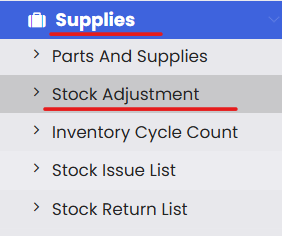
Navigate to the Stock Adjustment menu from the inventory or supplies section. You’ll see a list of past adjustments and options to create a new one.
Step 2 — Create a New Adjustment
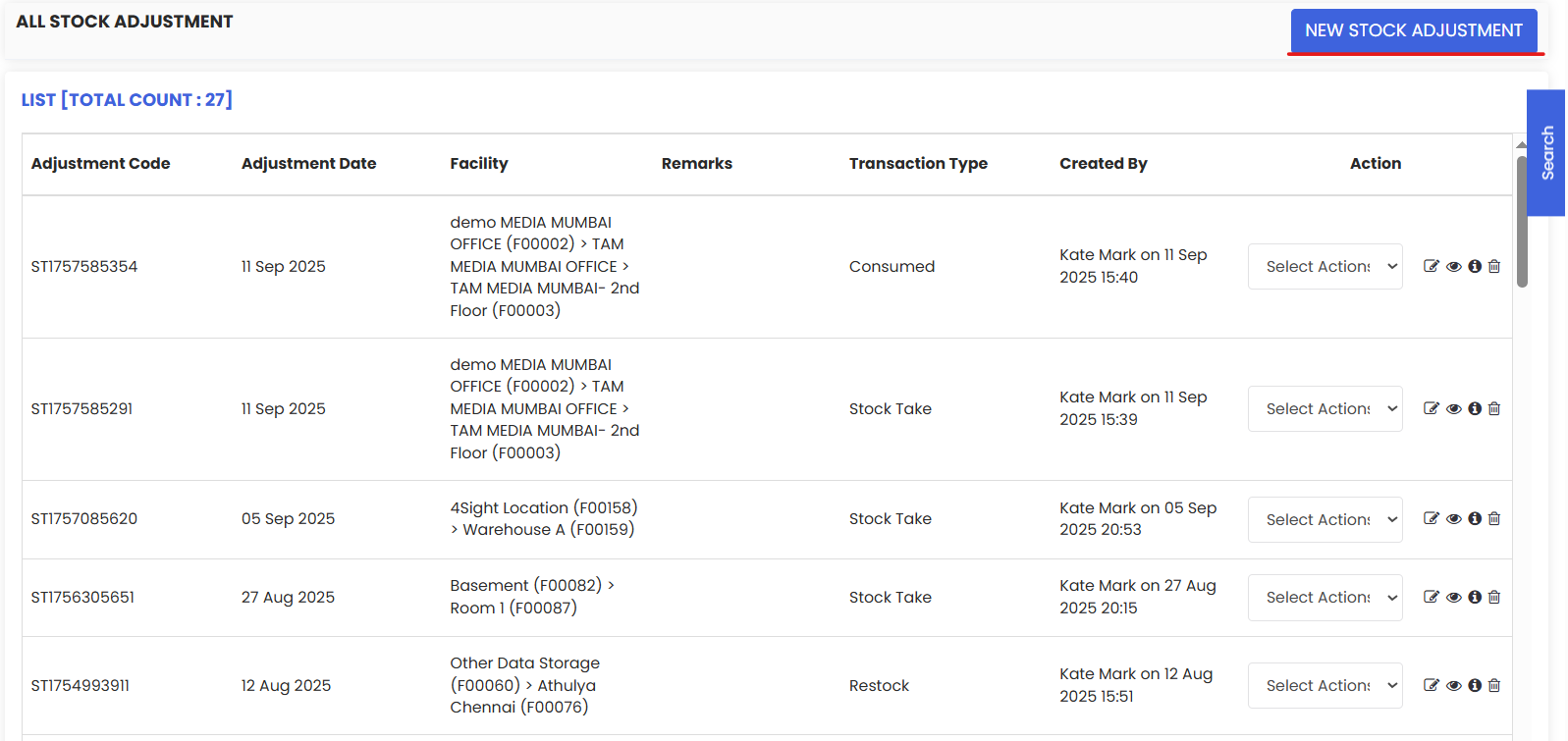
Click New Stock Adjustment to begin. A form will appear where you can enter the adjustment details.
Step 3 — Fill in Adjustment Header Information
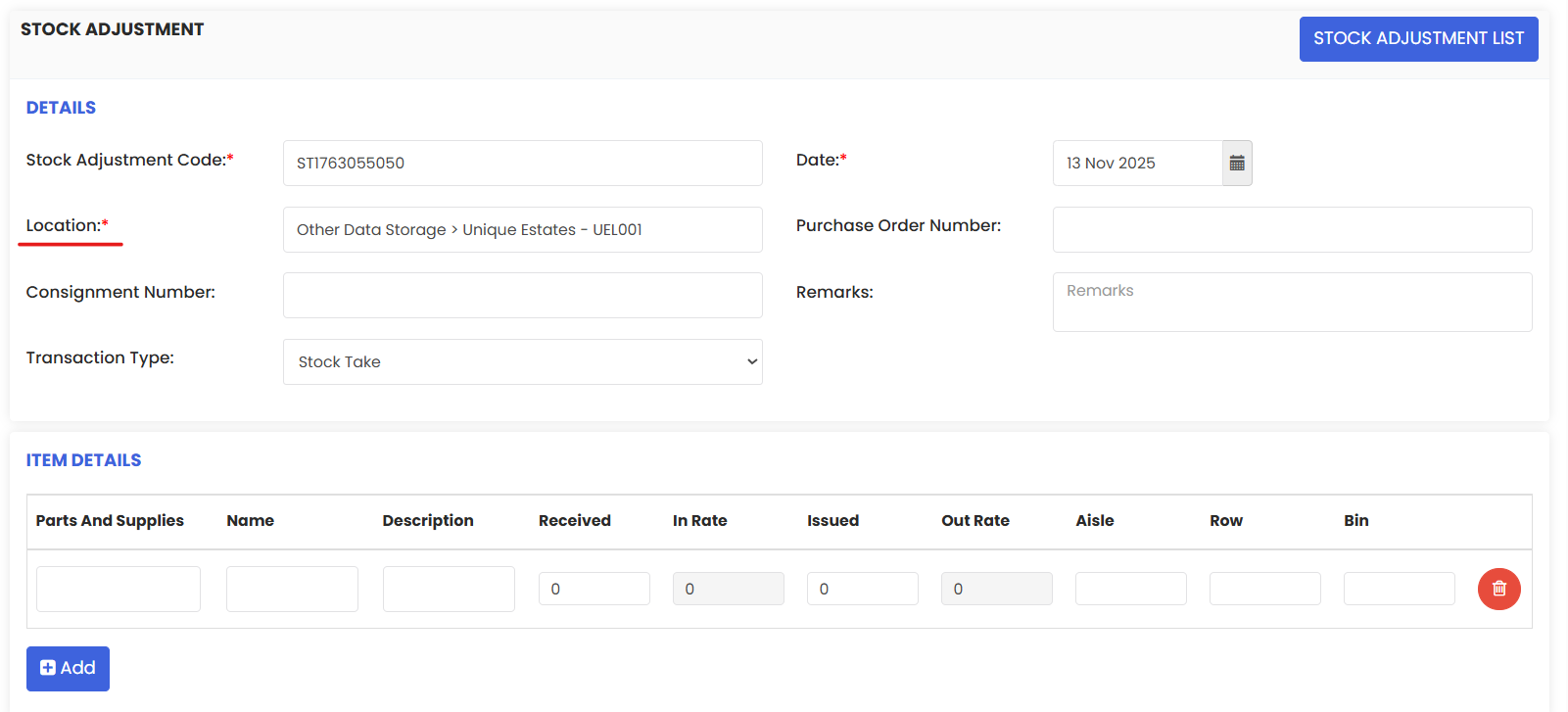
On the adjustment screen:
Adjustment Code — Typically pre-filled or auto-generated.
Date — Defaults to today’s date (you can change it if needed).
Location — Choose the inventory location where the adjustment applies.
These fields help you track which inventory is being corrected and why.
Step 4 — Add Item Details
Under the Item Details section:
Select Part/Supply — Choose the inventory item you want to adjust.
Enter Quantity — Add the received adjustment quantity.
Add More Items — If needed, add multiple supplies by repeating this step.
Recording accurate quantities ensures the system updates stock correctly.
Step 5 — Save the Adjustment
After entering all necessary adjustments:
Click Save to update inventory.
Once saved, the stock levels will reflect the updated quantities on the main inventory screen.

Step 6 — View or Download Adjustment Record
After saving, you can view the adjustment in the list and:
Click View to open the adjustment details.
Download a PDF report to keep a physical or audit copy of the change.
After Adjusting Stock
Once stock adjustments are made:
Inventory levels are updated to match physical counts.
Reports and dashboards will reflect accurate stock quantities for planning, reorder points, and usage tracking.
Auditors and inventory managers can see adjustment histories to investigate discrepancies.
Tips for Effective Stock Adjustment
Perform periodic physical inventory counts to identify discrepancies early.
Always record a clear reason or note for each adjustment for audit trails.
Train staff on adjustment procedures to minimize future errors.
Review adjustment history regularly to detect patterns (e.g., frequent adjustments for certain items).
Frequently Asked Questions (FAQs)
1. What is a stock adjustment?
A stock adjustment is a manual update to inventory quantities to correct discrepancies between recorded levels and actual stock on hand. It ensures inventory accuracy for planning and operations.
2. When should I perform a stock adjustment?
Perform stock adjustments after a physical count reveals differences — for example, due to damage, loss, unrecorded usage, or counting errors.
3. Can I adjust multiple items in one adjustment?
Yes — you can include multiple parts or supplies in a single stock adjustment record by adding each item and its corrected quantity.
4. Will adjusting stock affect inventory reports?
Yes — once saved, inventory reports, dashboards, and available stock figures will reflect the corrected stock levels, improving reporting accuracy.