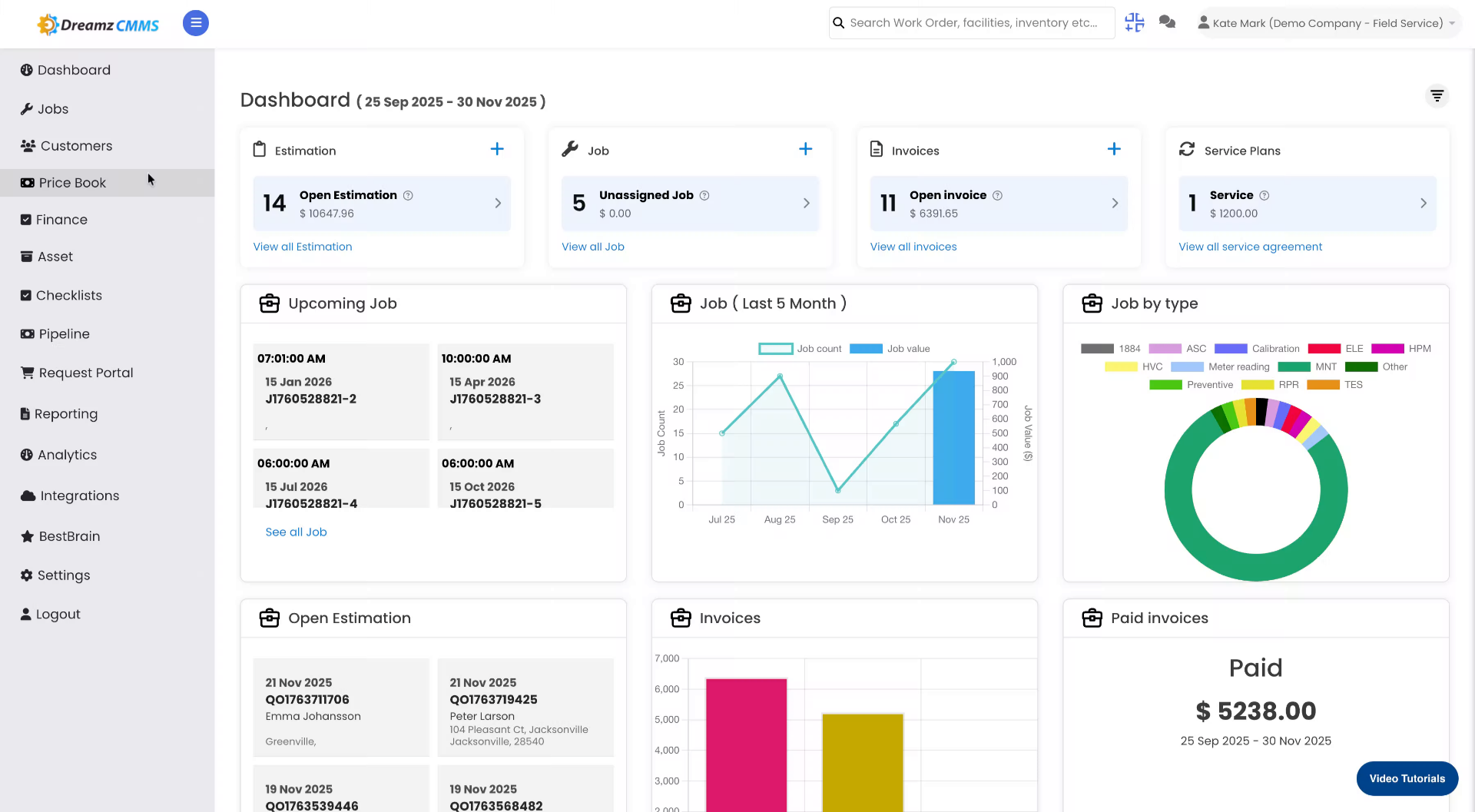
Schedule Jobs and Kanban view

Created by Binita Goswami, Modified on Wed, 26 Nov at 12:04 AM by Binita Goswami


This tutorial demonstrates how to create and schedule a job using the Dreamzcmms platform. You will learn to add job details, assign customers, and manage job views effectively.

Introduction

Video content

Jump to this step in video
02
Navigate to Jobs Section
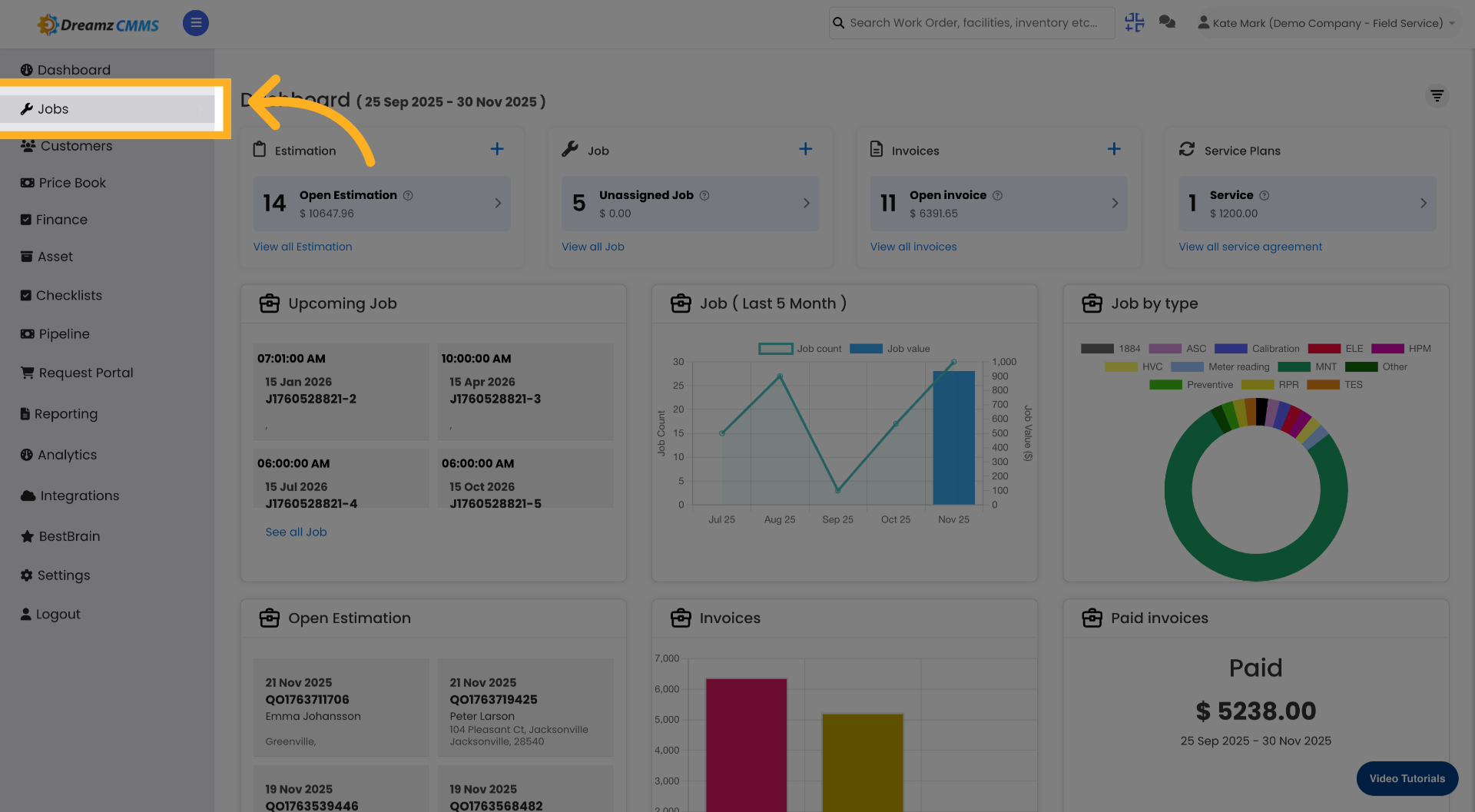
Click the Jobs menu to access the job management area.

Navigate to Jobs Section
03
Open Schedule Tab

Click the Schedule tab to view and manage scheduled jobs.

Open Schedule Tab
04
Add New Job Order
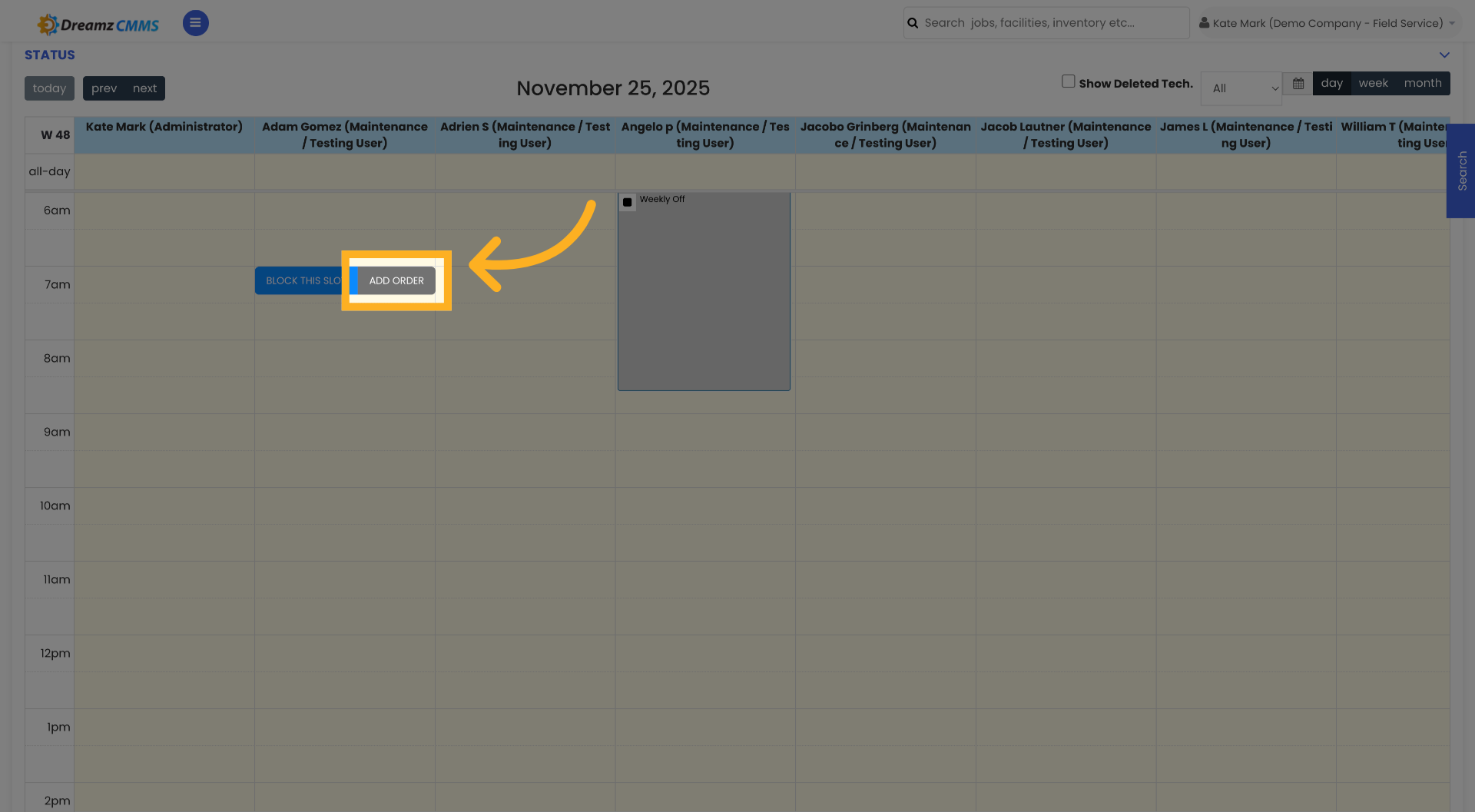
Click the ADD ORDER button to start creating a new job.

Add New Job Order
05
Select Description Field
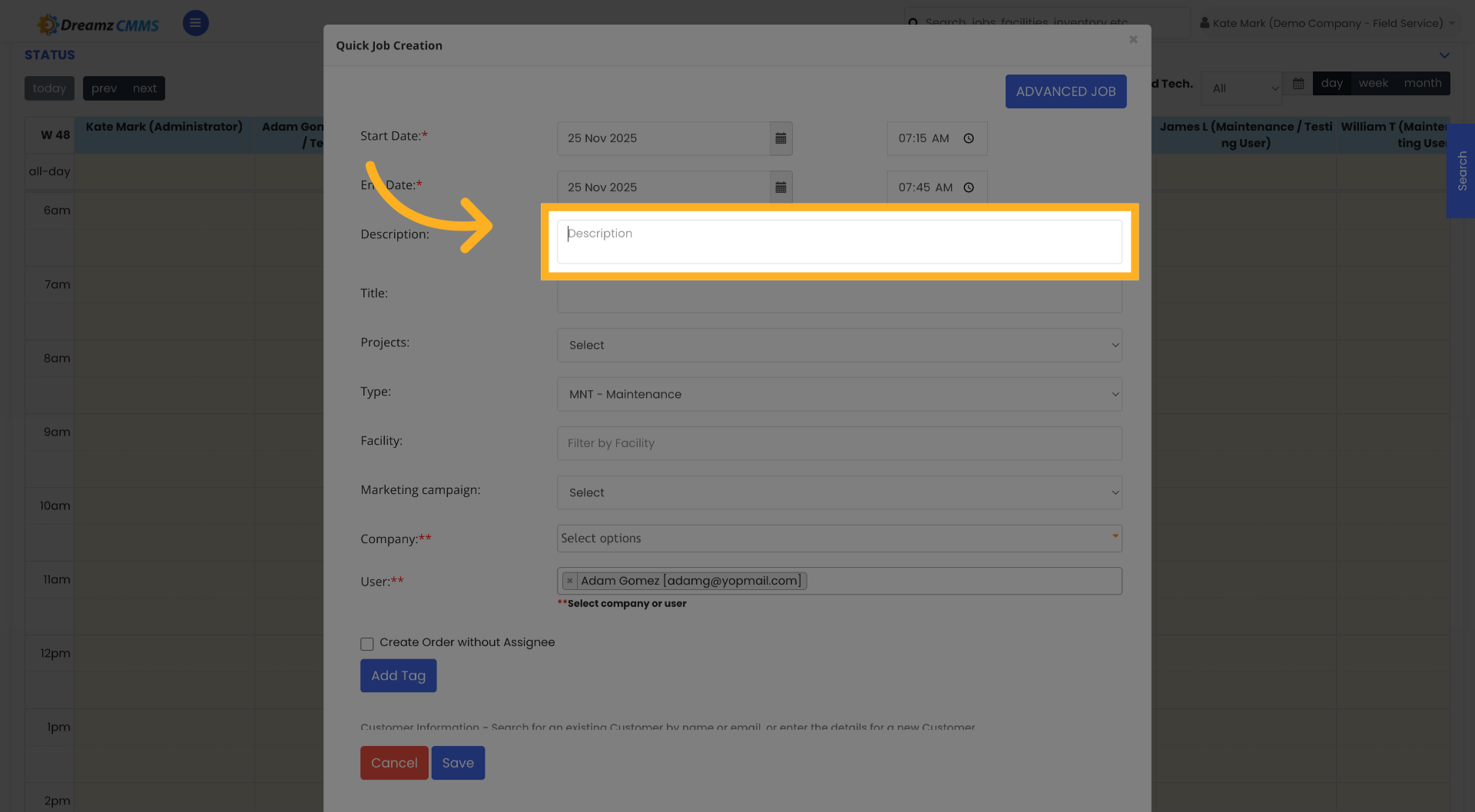
Click the Description field to enter details about the job.

Select Description Field
06
Enter Job Description
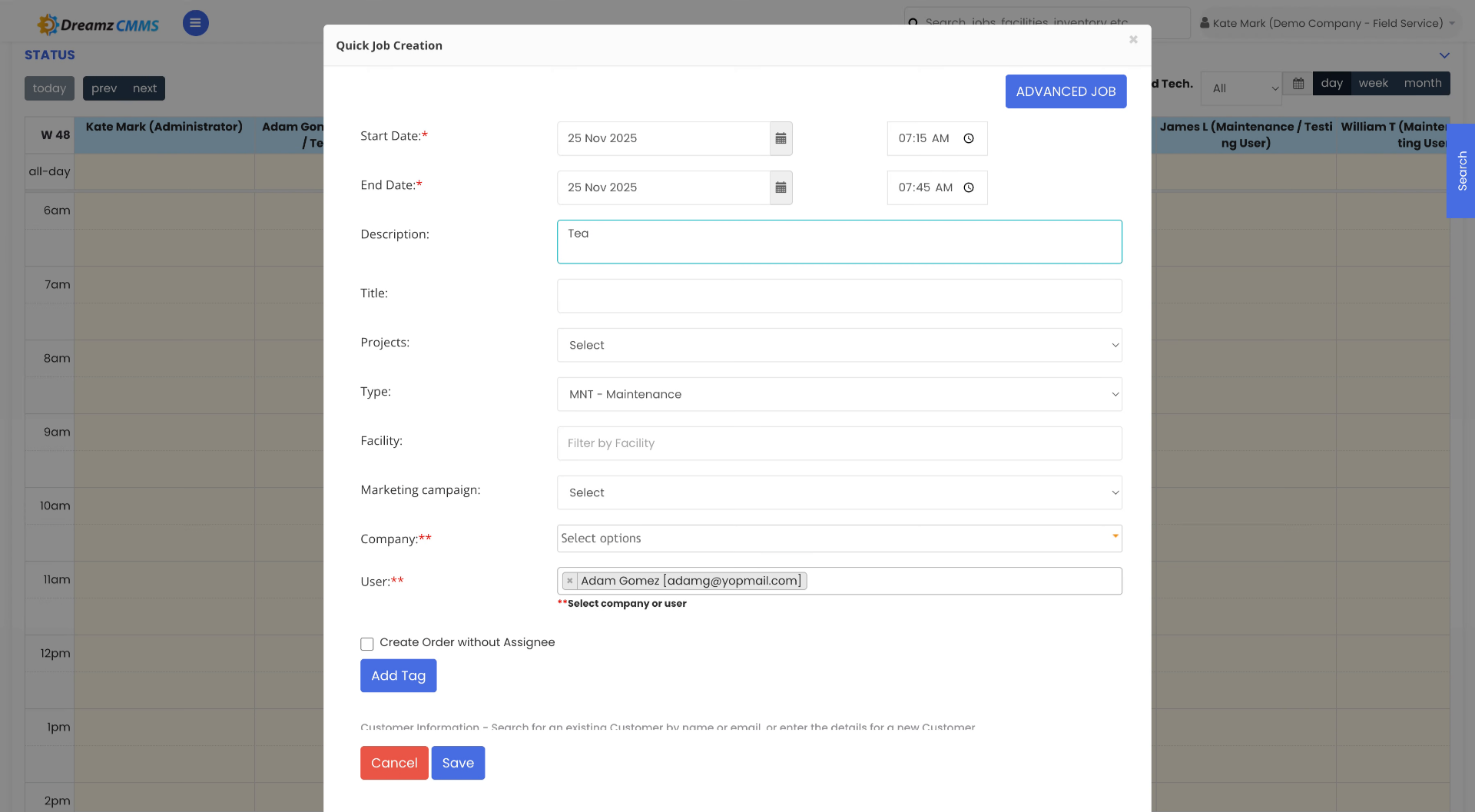
Enter your job description, such as the issue with the tea dispenser.

Enter Job Description
07
Access Additional Details
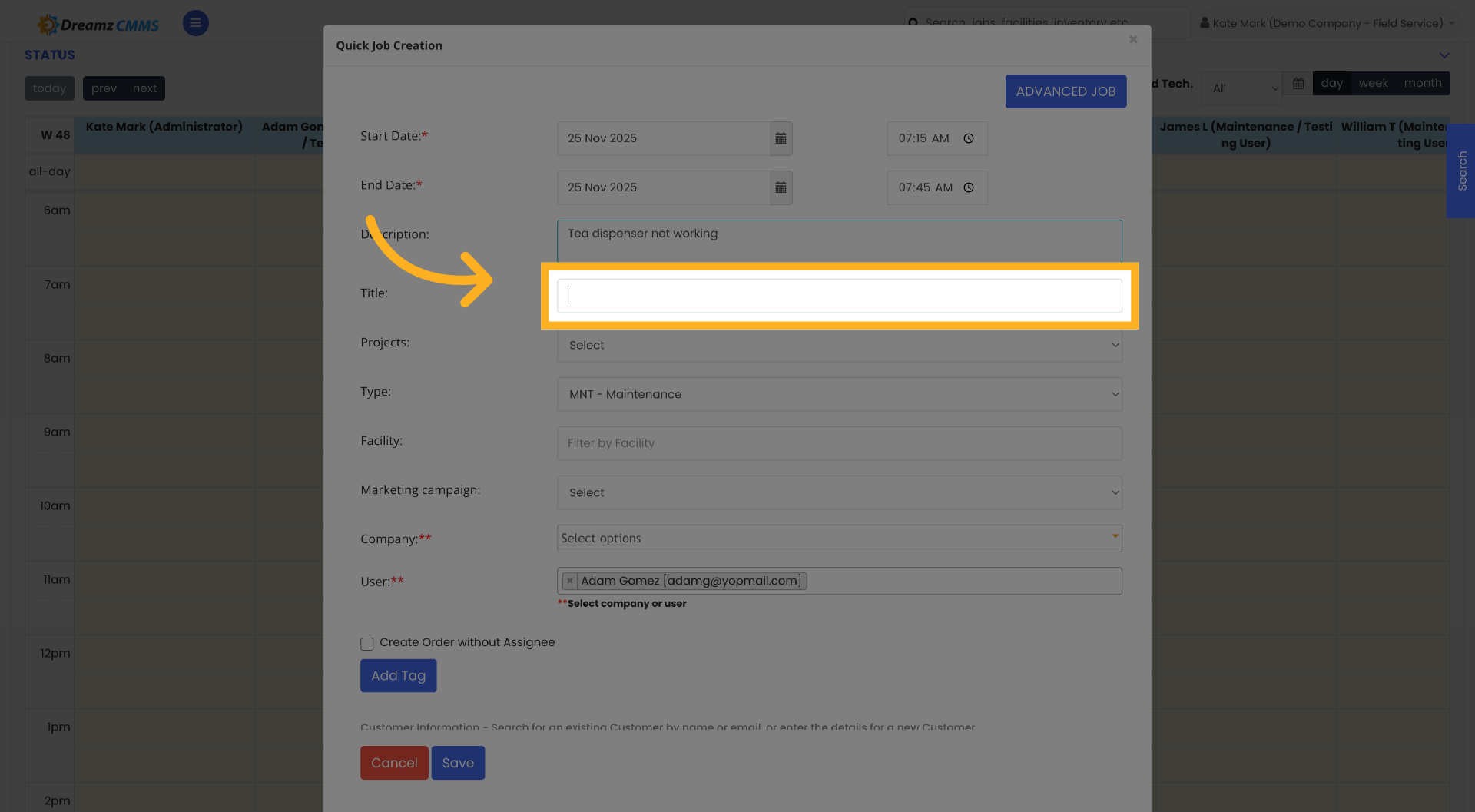
Click the indicated area to add more information about the job.

Access Additional Details
08
Provide Detailed Description
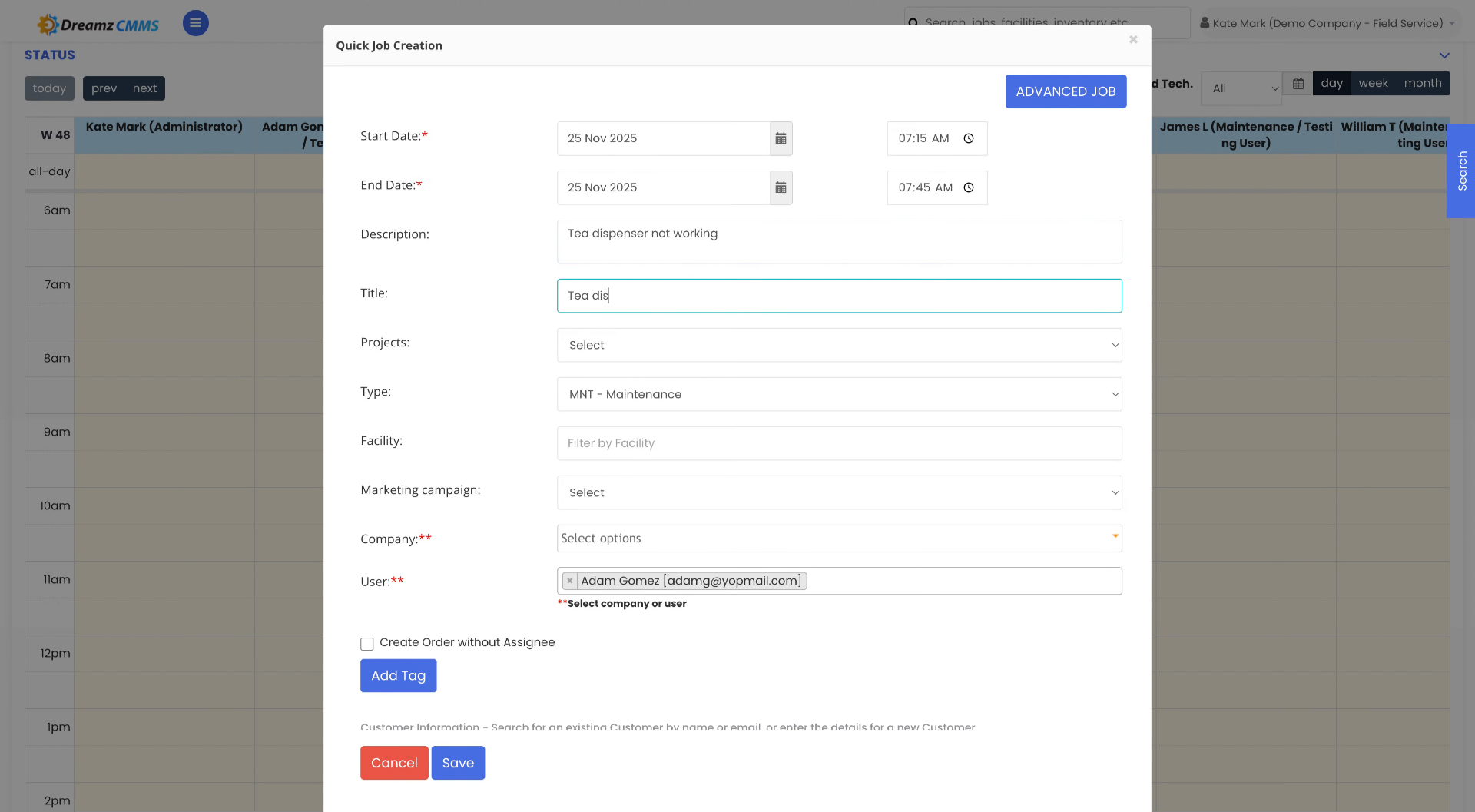
Enter a detailed description explaining that the tea dispenser is not working.

Provide Detailed Description
09
Open Options Menu
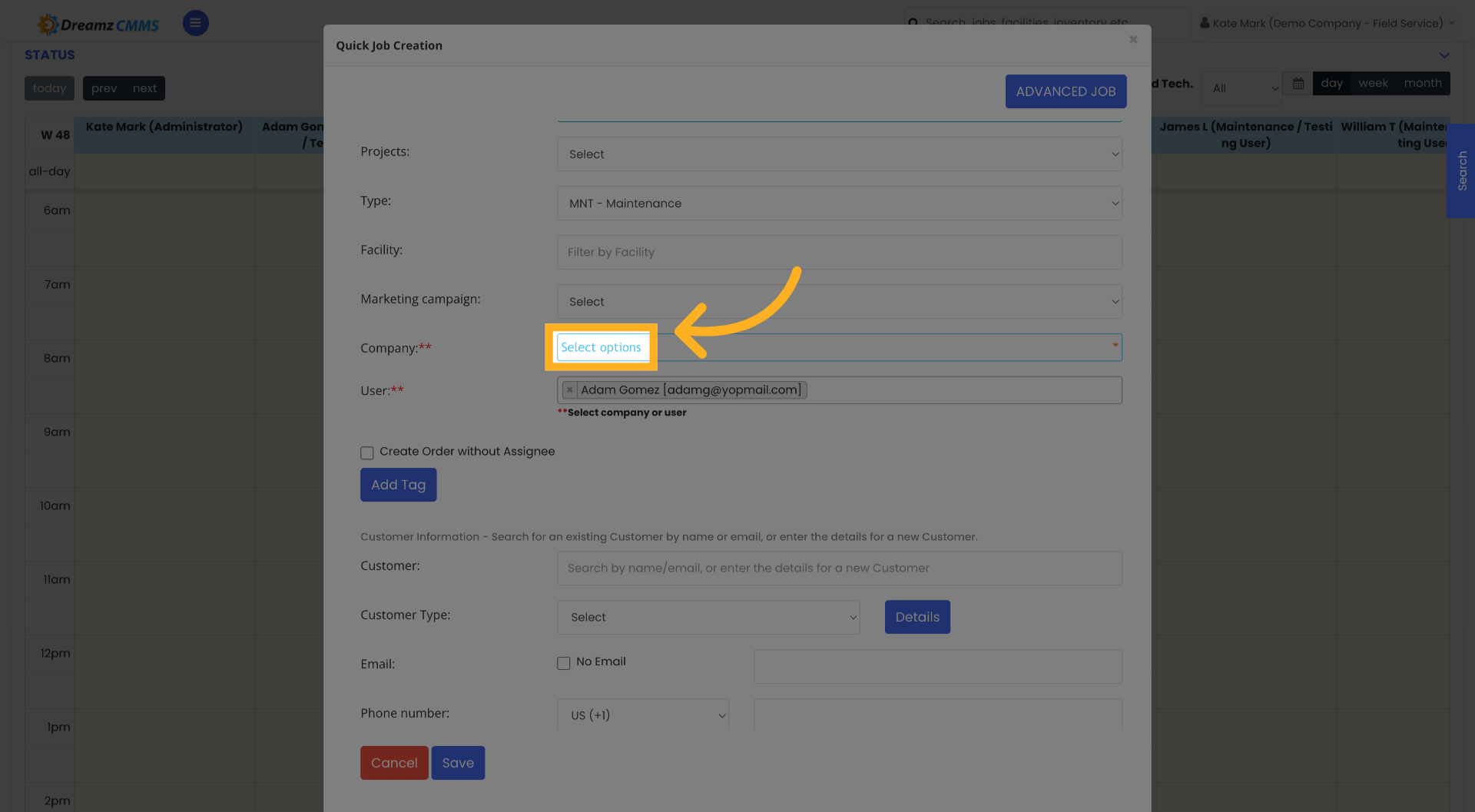
Click Select options to choose relevant job parameters.

Open Options Menu
10
Choose a company to select
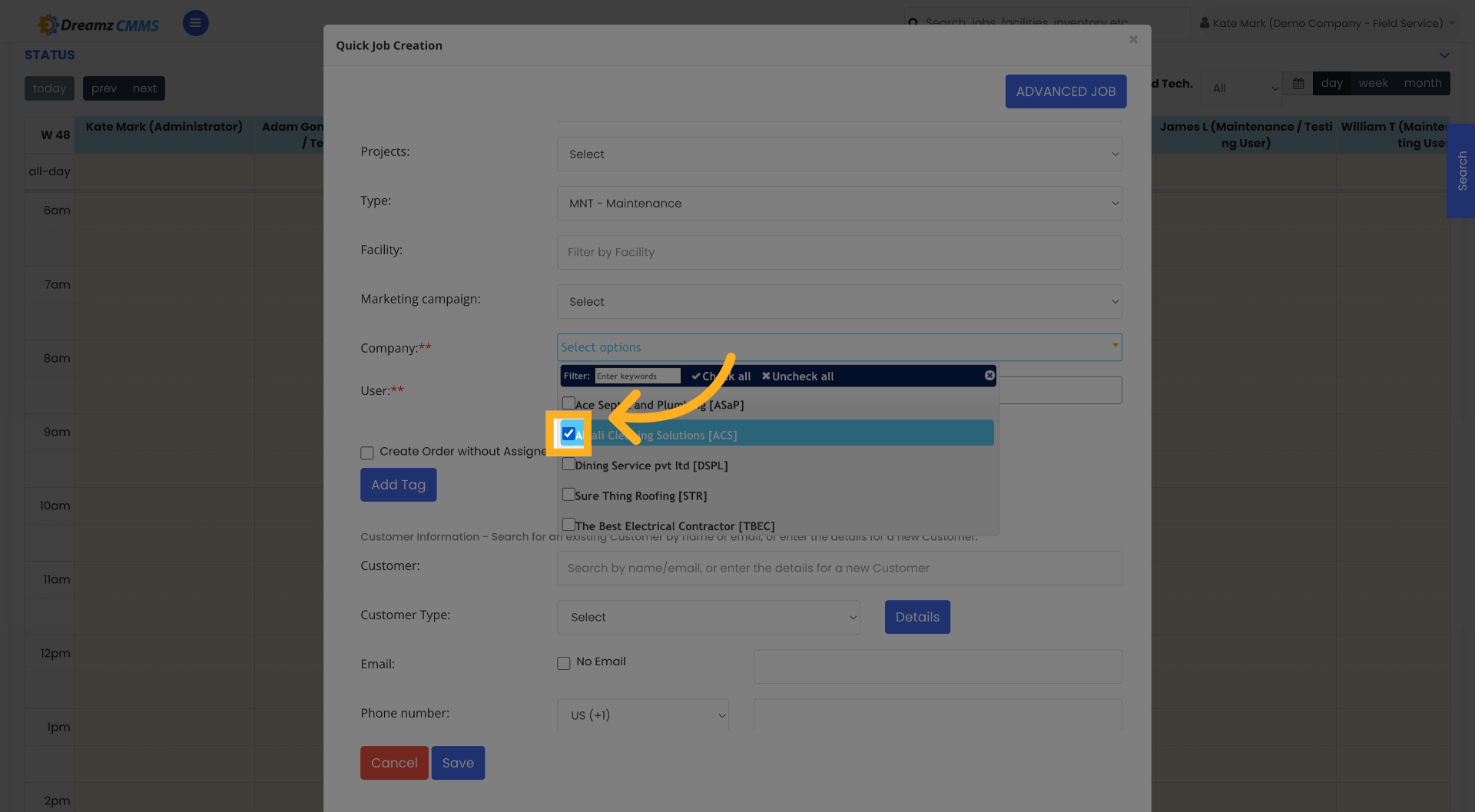
Select a company to associate with the job

Choose a company to select
11
Open Customer Search
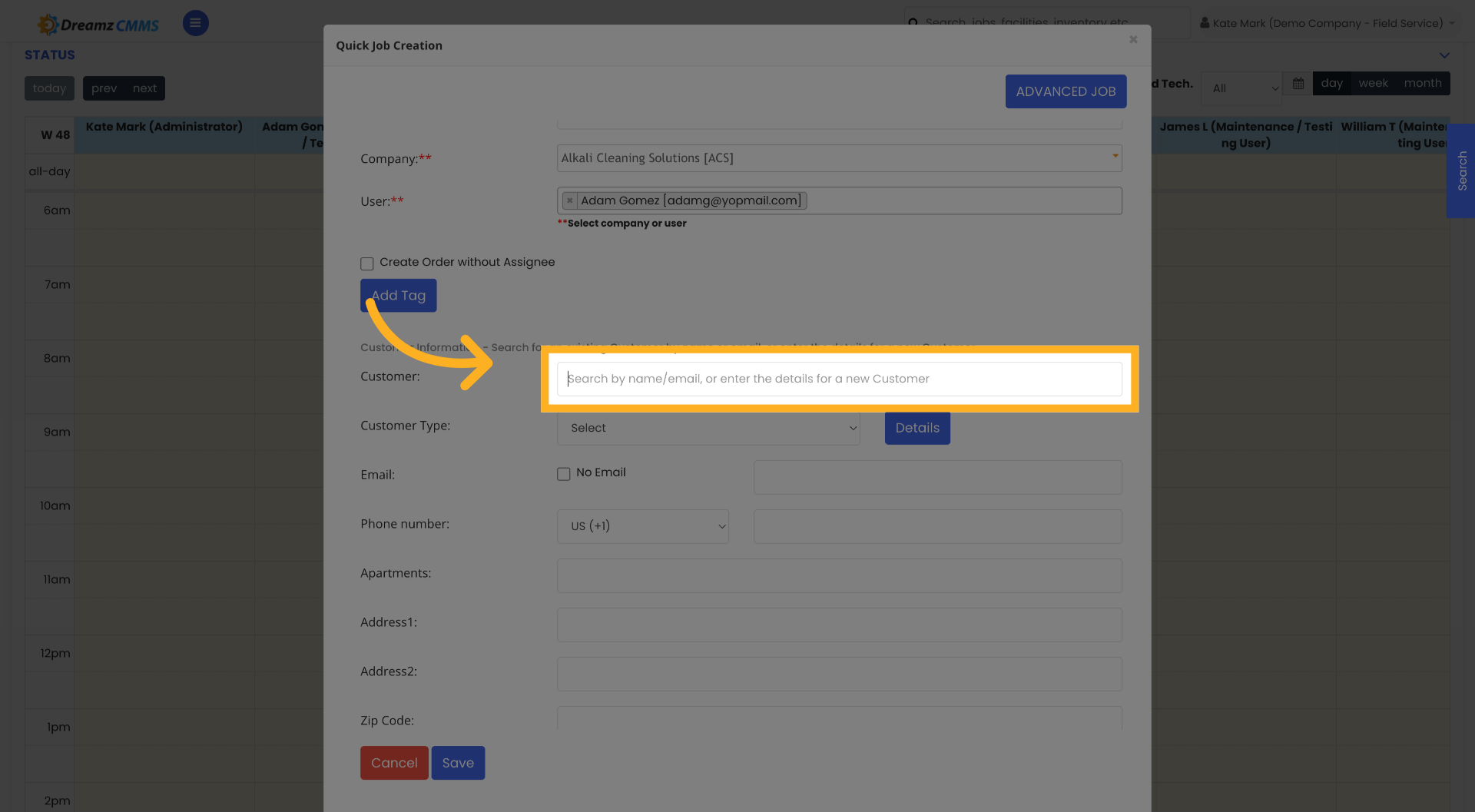
Click the search field to find an existing customer or add a new one.

Open Customer Search
12
Enter Customer Search Term
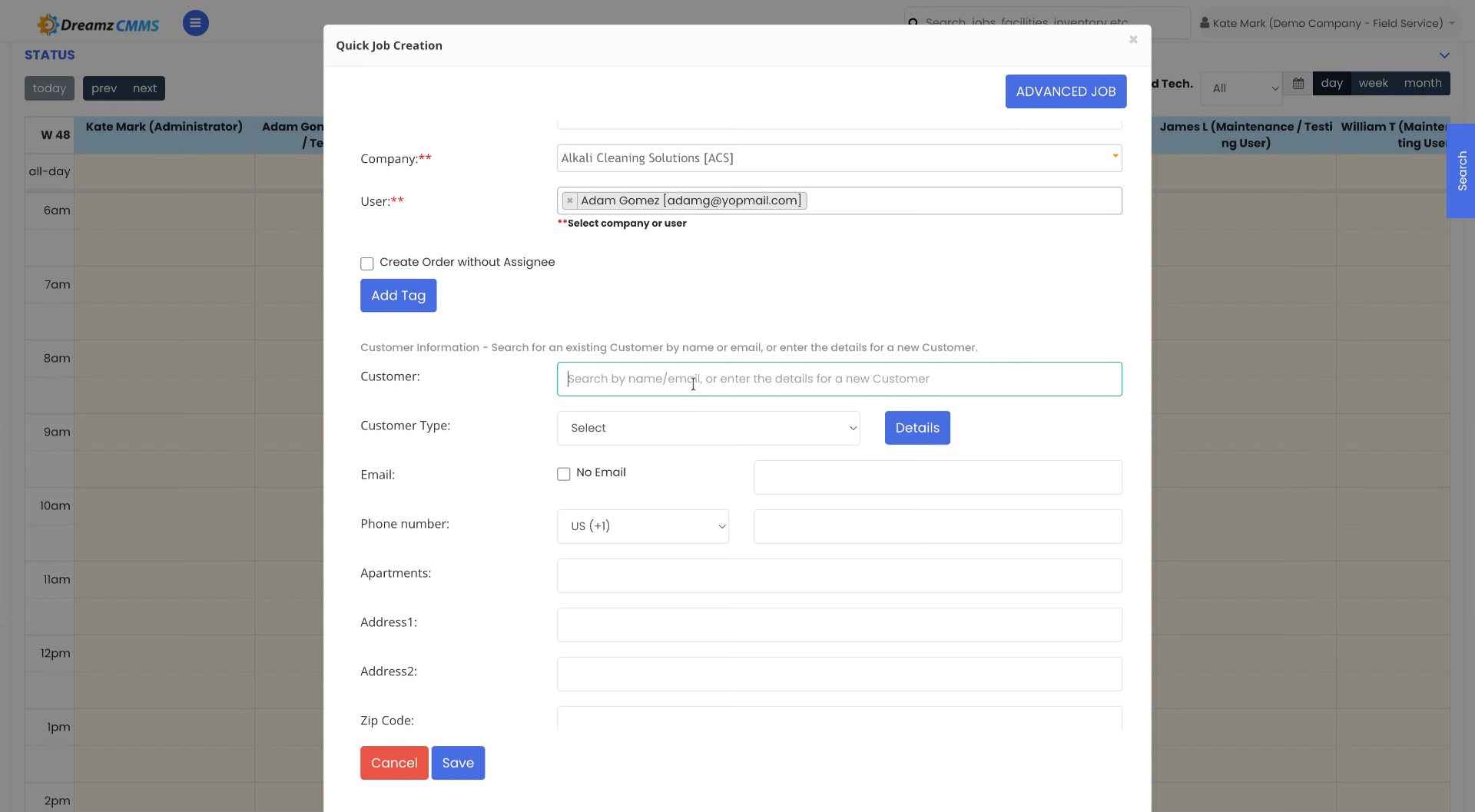
Type customer slowly to search for the customer by name or email.

Enter Customer Search Term
13
Select Customer From Results
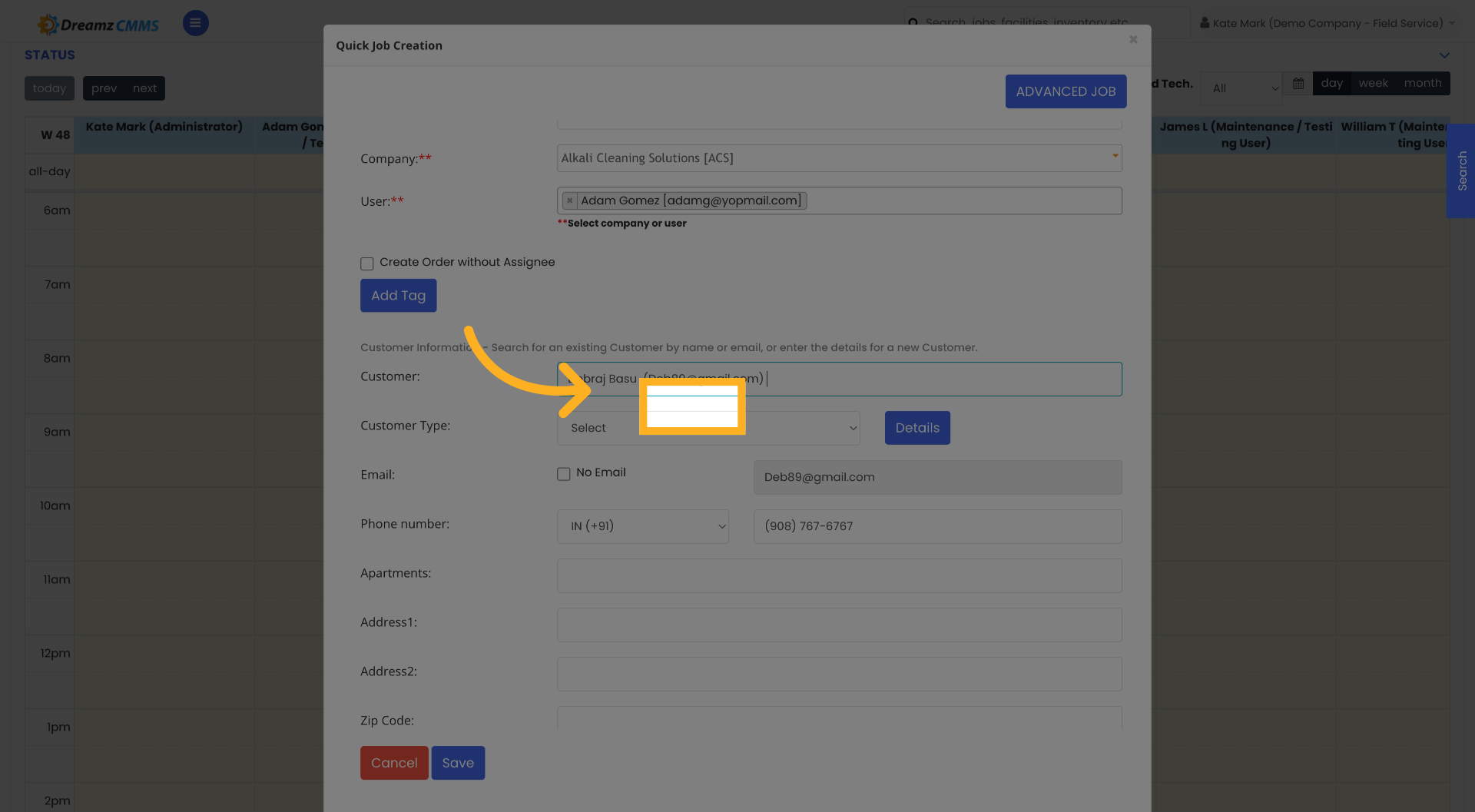
Select a customer from the search results to assign the job.

Select Customer From Results
14
Save Job Details
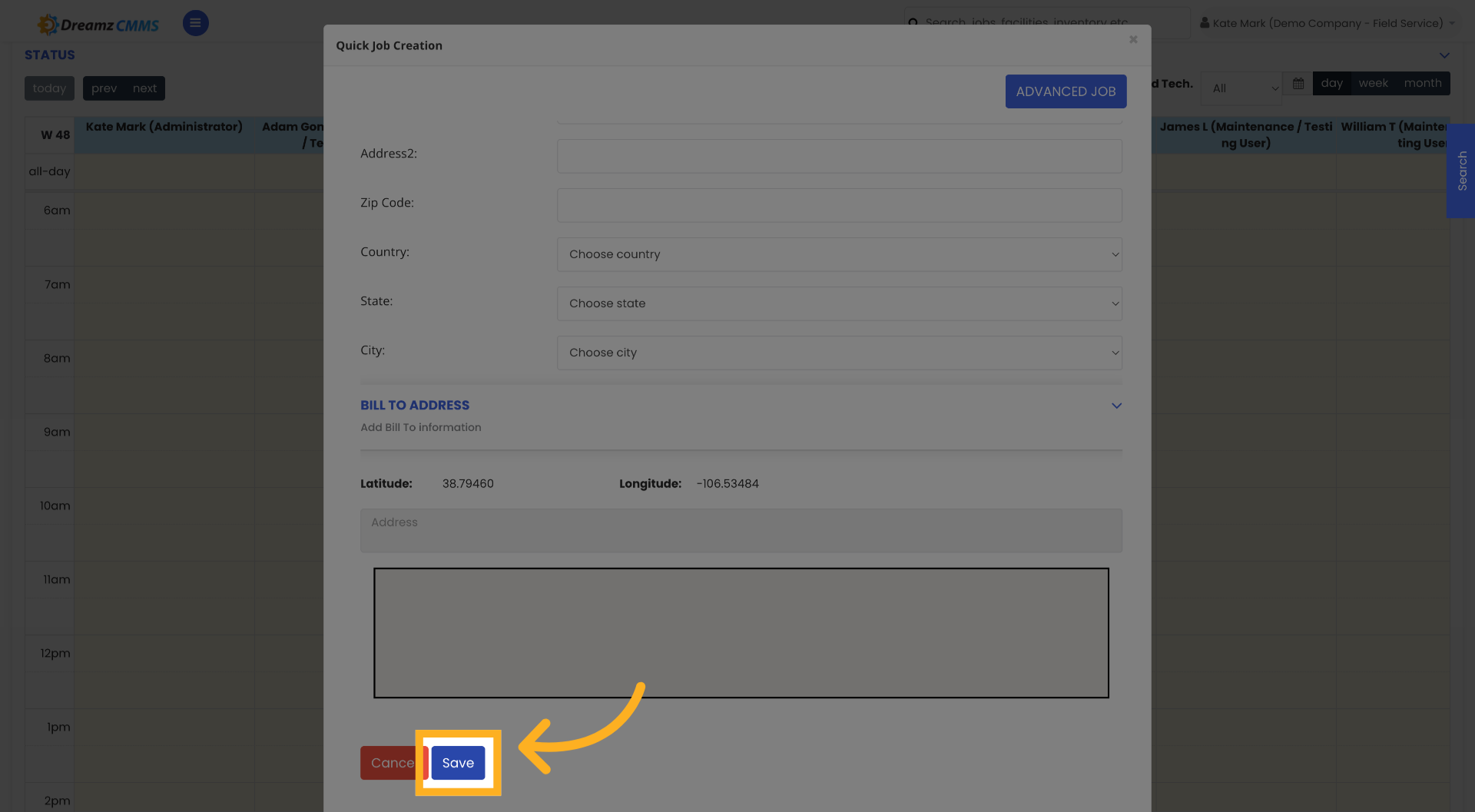
Click Save to store the job information and customer assignment.

Save Job Details
15
Verify Customer Assignment
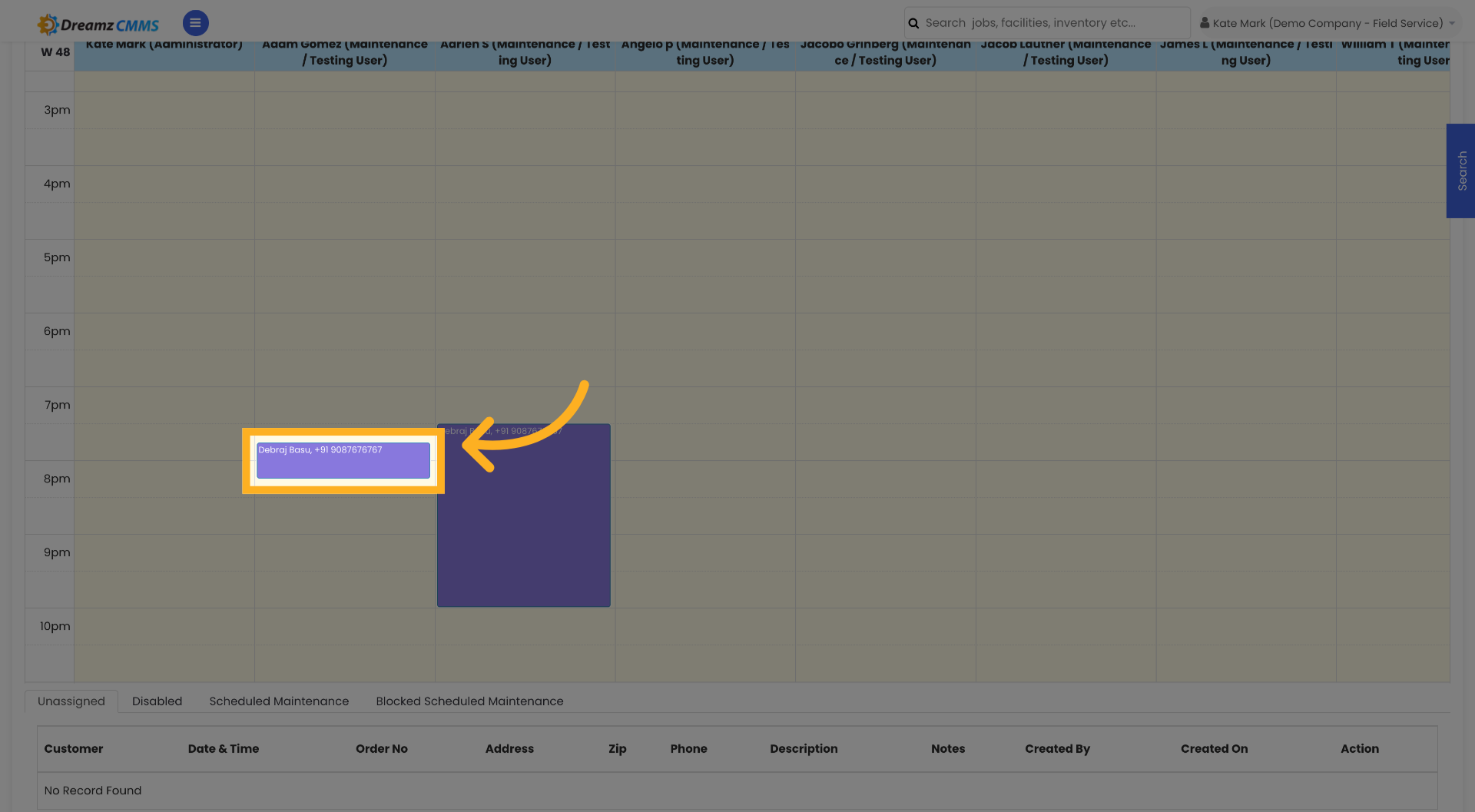
After the job is created goto the job and click on it to edit or update or view it

Verify Customer Assignment
16
Close Customer Details
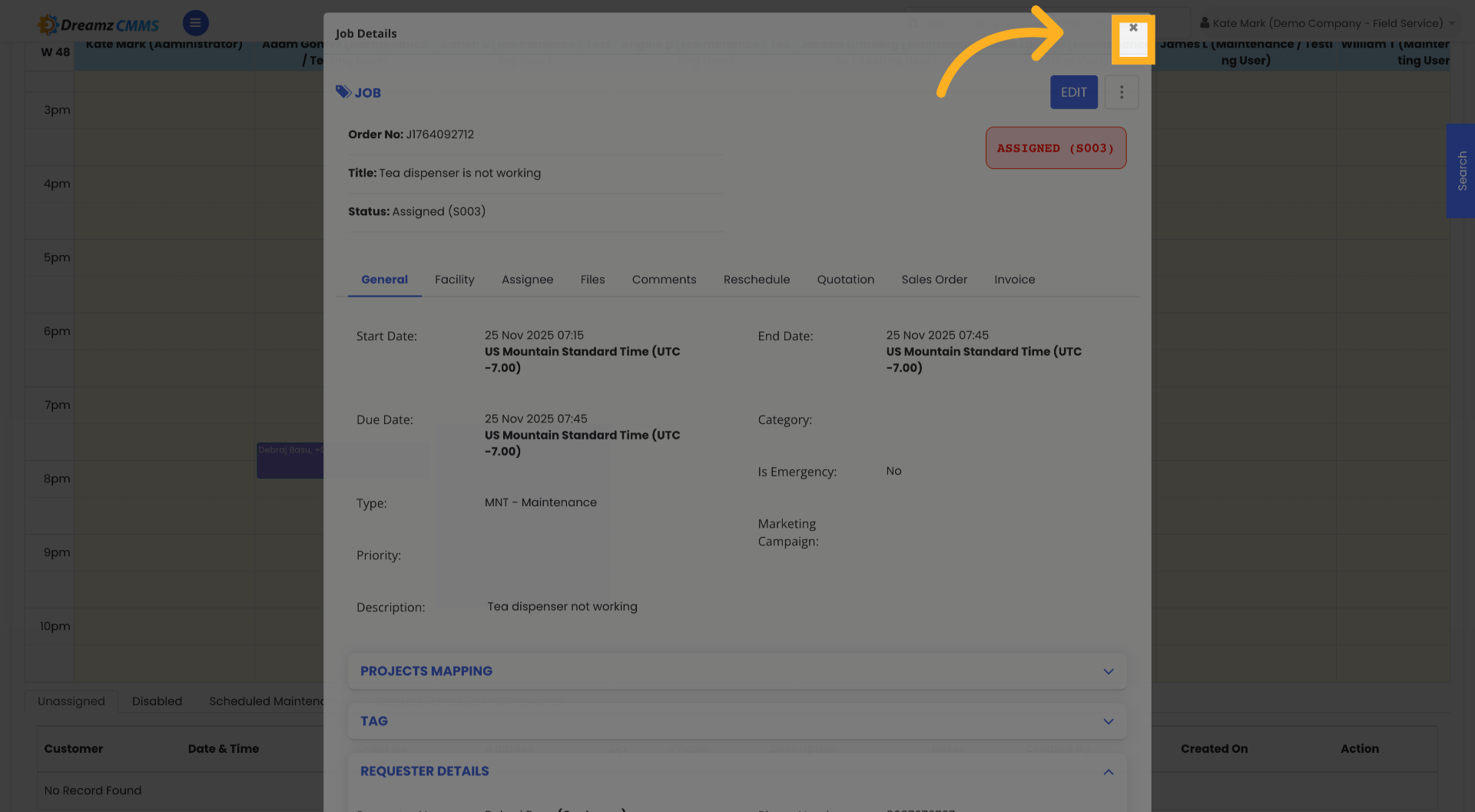
Click the × button to close the customer details window.

Close Customer Details
17
Switch to Kanban View
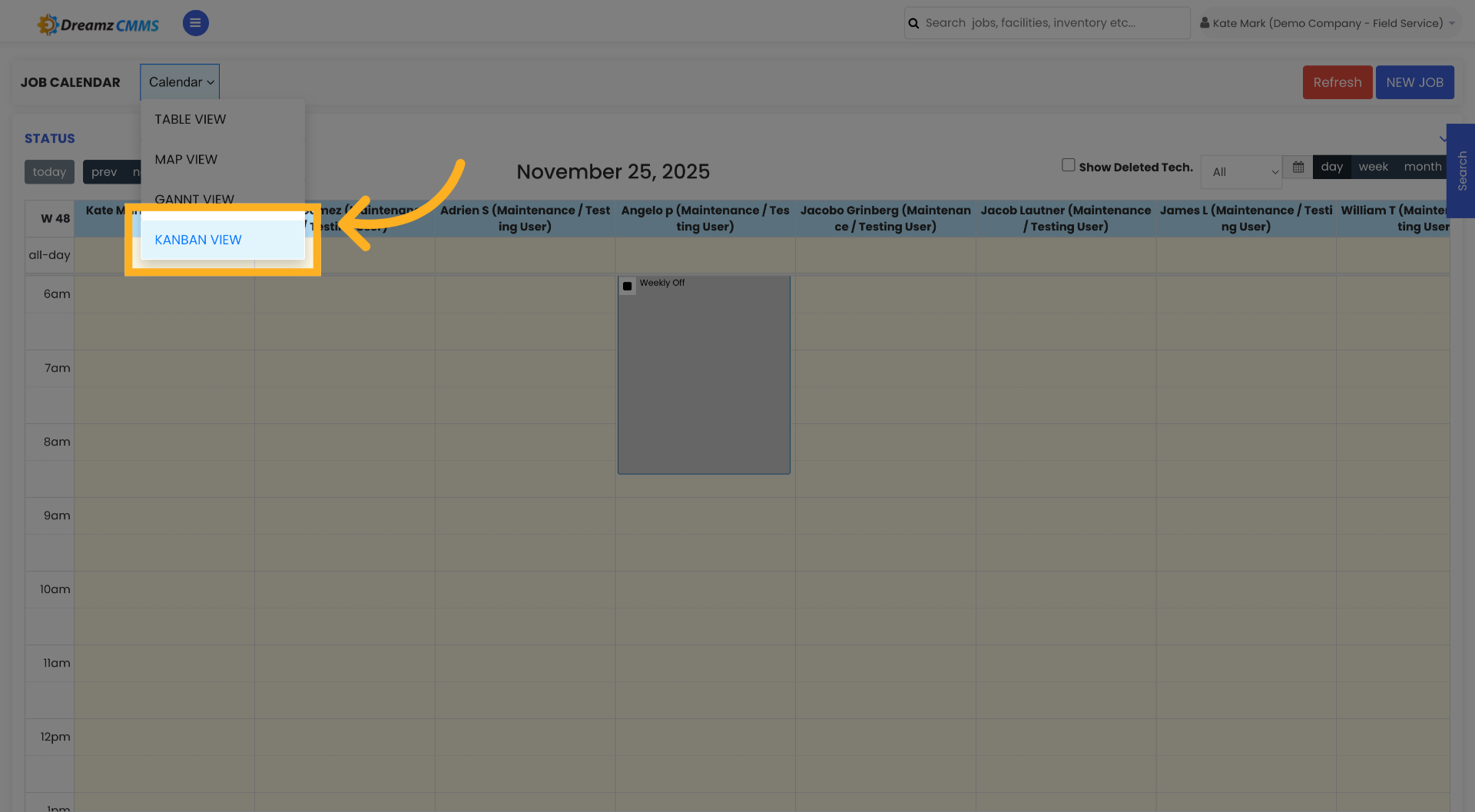
Click Kanban View to visualize jobs in a board layout.

Switch to Kanban View
18
Open Job Details
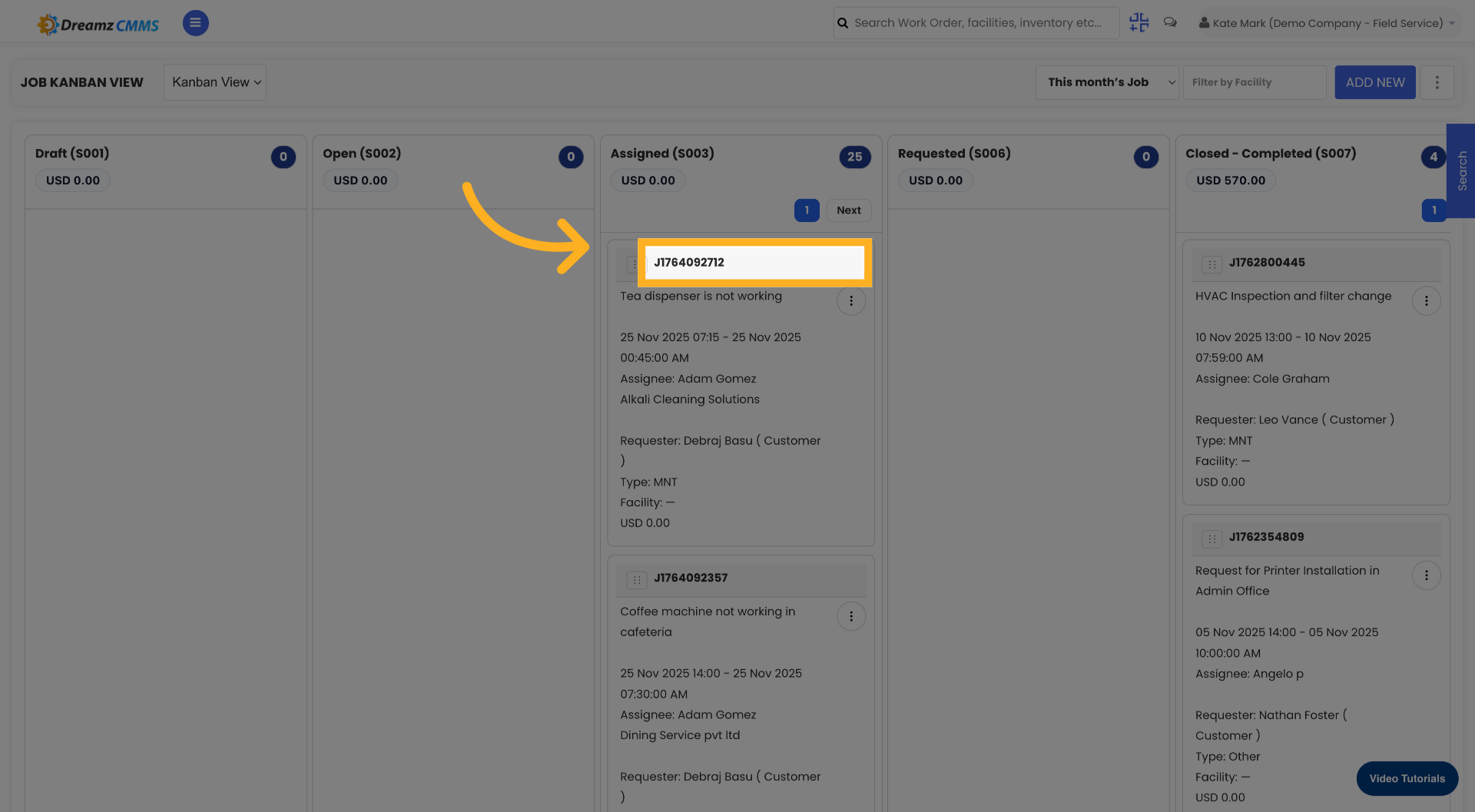
Click the job to view its details.

Open Job Details
19
Reopen Job Details
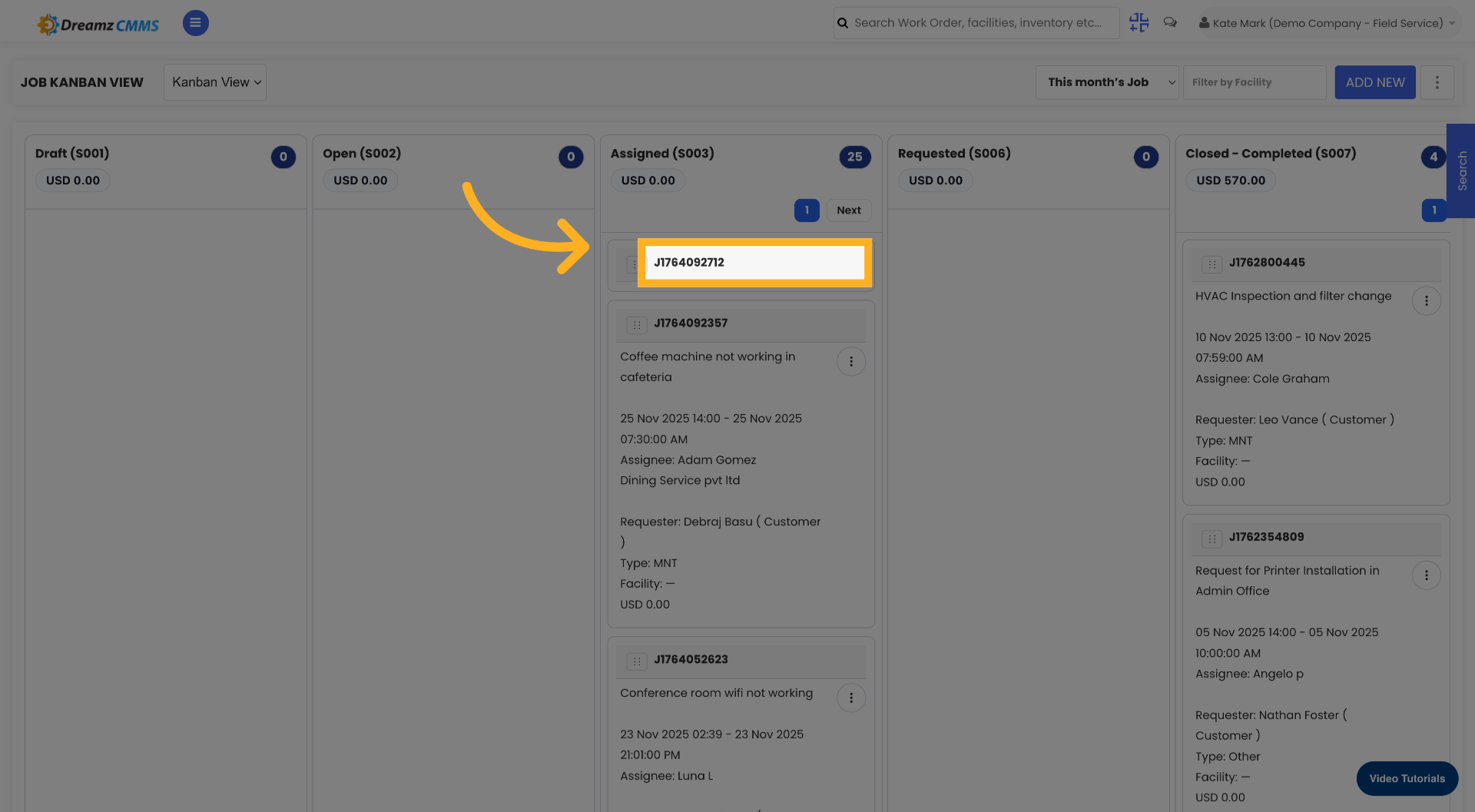
Click on the job again to ensure the job details are fully loaded.

Reopen Job Details

Was this article helpful?

That’s Great!

Thank you for your feedback

Sorry! We couldn't be helpful

Thank you for your feedback

Let us know how can we improve this article!

Select at least one of the reasons

Feedback sent

We appreciate your effort and will try to fix the article