How to Report a Change Request
A Change Request in DreamzCMMS is a formal record used to propose, plan, and track modifications to assets, systems, configurations, or procedures. Unlike a Work Request (which addresses an immediate incident) or a Problem (which investigates a root cause), a Change Request manages the controlled implementation of a fix or improvement — capturing scope, risk, approval, rollout plan, and a back-out strategy to ensure changes are made safely, with full accountability and minimal disruption.
Overview
Change Requests sit under the Incidents module and are designed for modifications that carry a level of risk or require formal sign-off before work begins — such as configuration updates, component replacements, procedure changes, or infrastructure modifications. Each Change Request links to related incidents or problems, routes through an approval workflow, and tracks the full implementation lifecycle in one auditable record.
If you need to log a one-off incident, see Manage Work Requests. If you need to investigate a recurring issue, see How to Report a Problem.
Before You Begin
- You must have Admin or Manager permissions to create and manage Change Requests.
- The facility or asset location must already be set up before linking an asset. See Create Asset Locations
- Identify the approvers who will need to sign off on the change before you begin — they must already exist as users in the system.
- Have your rollout plan and back-out plan ready before submitting, especially for high-risk changes.
How to Report a Change Request
Step 1 – Navigate to Change Requests
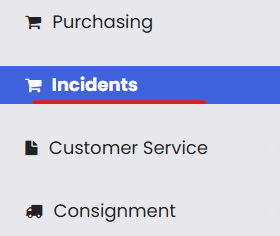
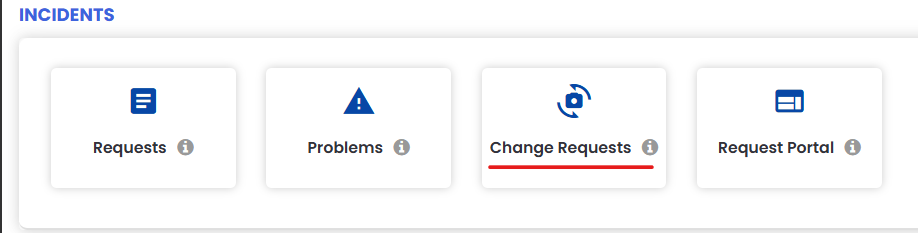
From the left-side menu, click Incidents, then click Change Request. This opens the Change Request listing page, showing all existing change records.
Step 2 – Click "New Request"
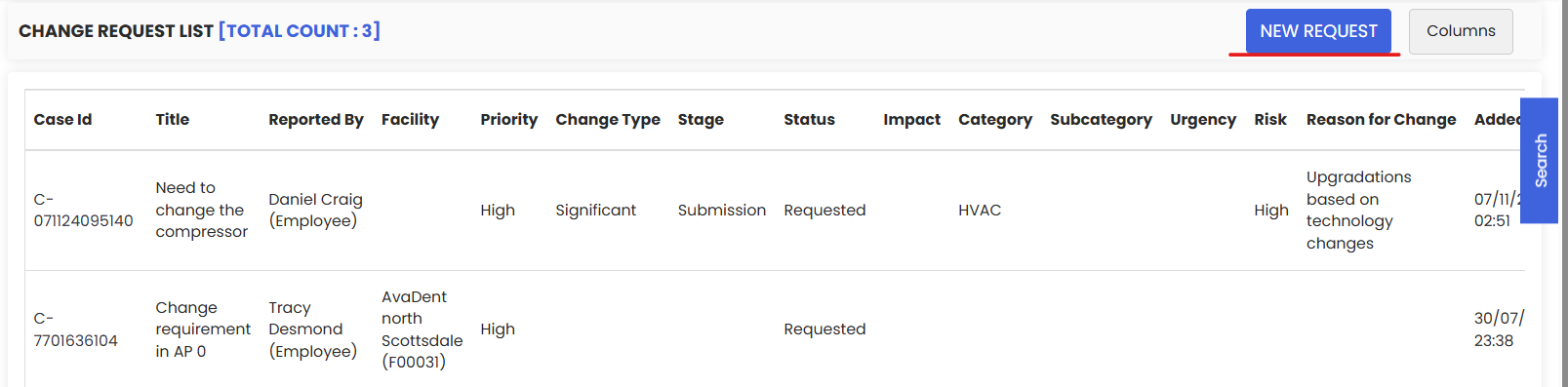
Click the New Request button in the top right corner to open the Change Request form.
Step 3 – Fill in the Request Details
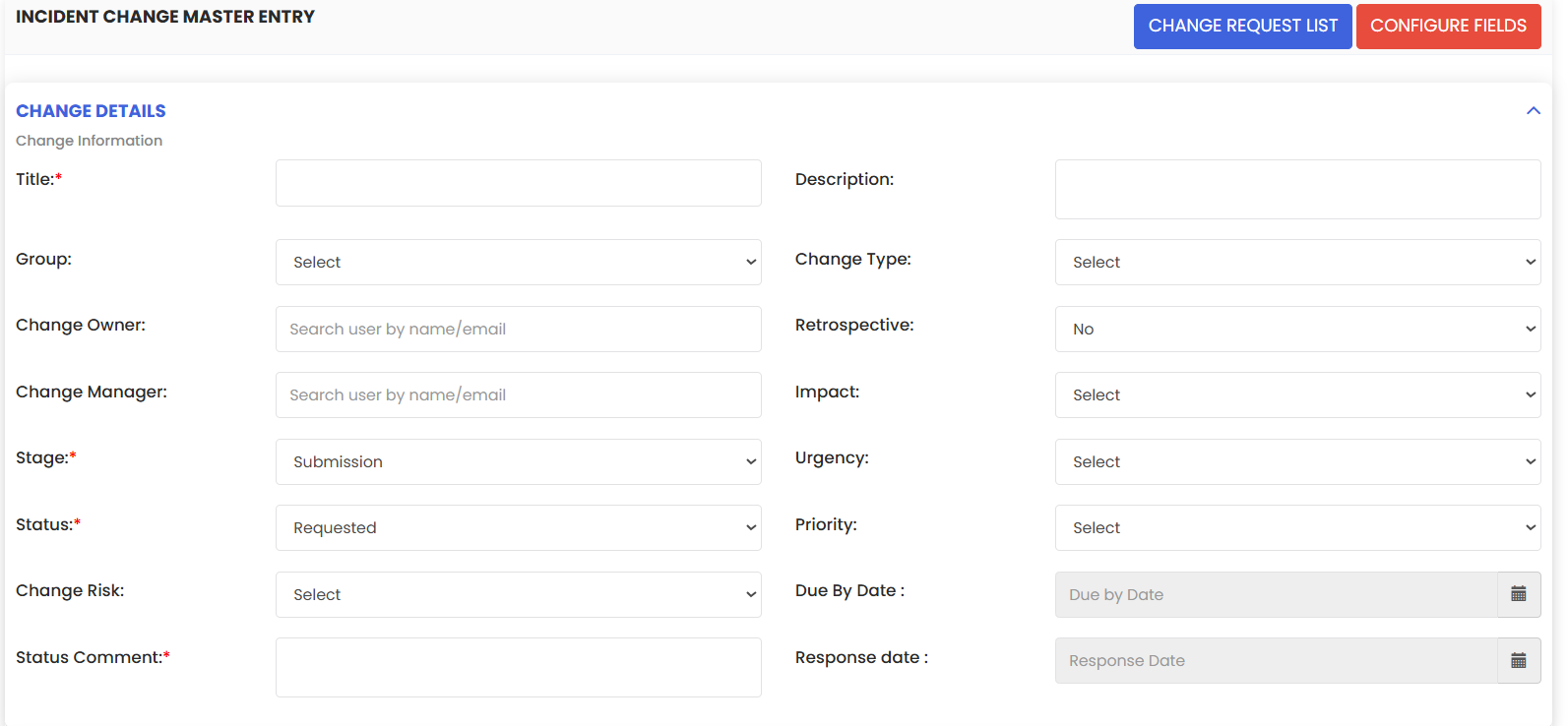
Complete the following fields in the Request Details section:
- Subject — Enter a clear, specific title for the change (e.g., "Replace Cooling Unit Controller Board – Server Room A").
- Description — Provide a detailed explanation of what is being changed, why it is needed, and what the expected outcome is.
- Change Type — Select the type of change (e.g., Standard, Emergency, Normal) based on the nature and urgency of the modification.
- Priority — Set the priority level. Based on the priority selected, the Due Date and Response Date will be automatically populated according to your Incident Priority Master settings.
- Impact — Describe or rate how broadly the change will affect operations, assets, or users.
- Urgency — Indicate how time-sensitive the change is.
- Risk — Document the risk level associated with implementing the change and any known risks or dependencies.
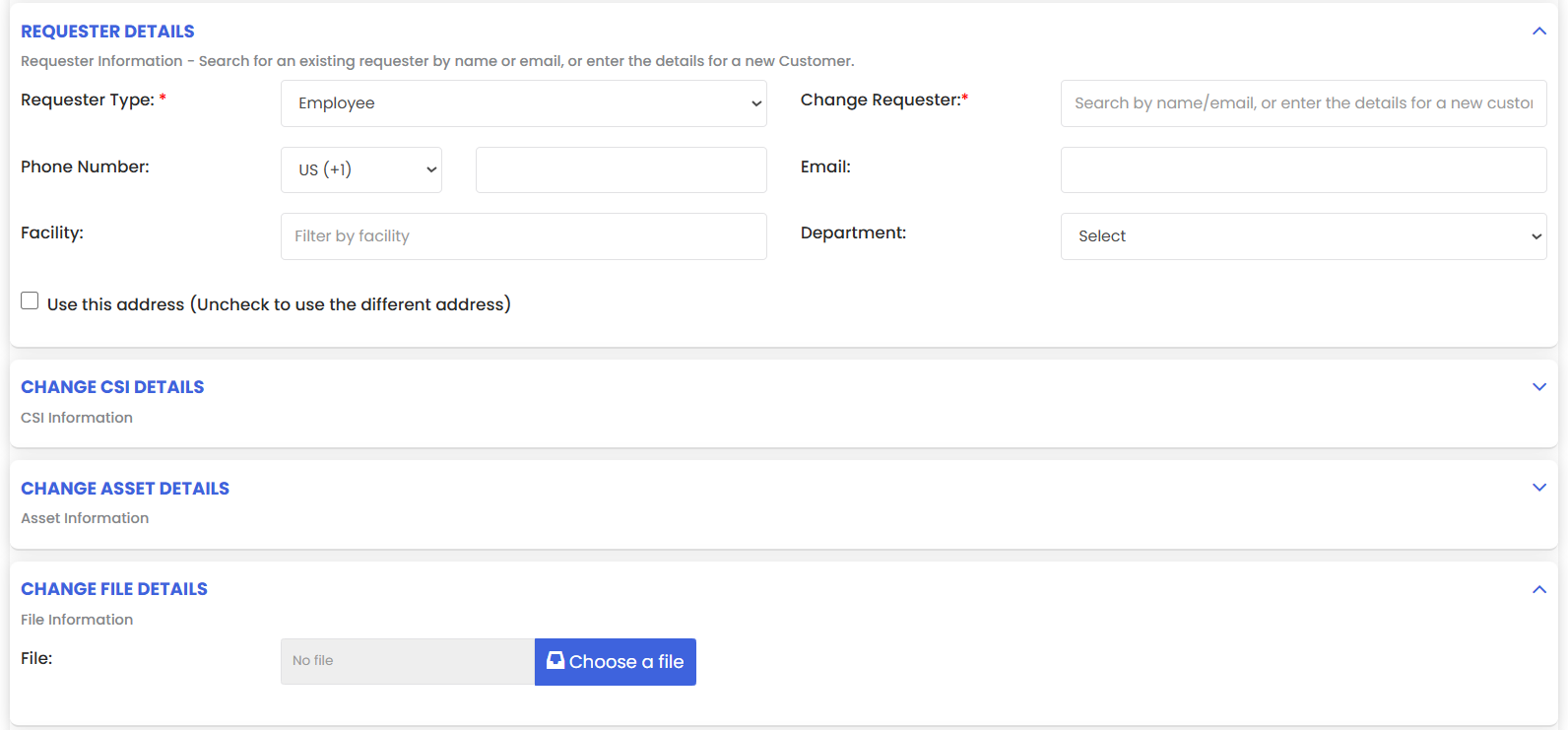
Step 4 – Fill in the Requester Details
In the Requester Details section:
- Requester Type — Select whether the requester is a Customer or an Internal Employee.
- Name — Start typing the requester's name. If they exist in the system, a suggestion will appear — select it to auto-populate their details.
Step 5 – Set the Rollout and Back-Out Plans
Document the implementation approach to ensure the change is executed in a controlled manner:
- Rollout Plan — Describe the step-by-step process for implementing the change, including any scheduled downtime, affected systems, and responsible parties.
- Back-Out Plan — Document the steps to reverse the change if something goes wrong. This is critical for high-risk changes and ensures the team can restore normal operations quickly if needed.
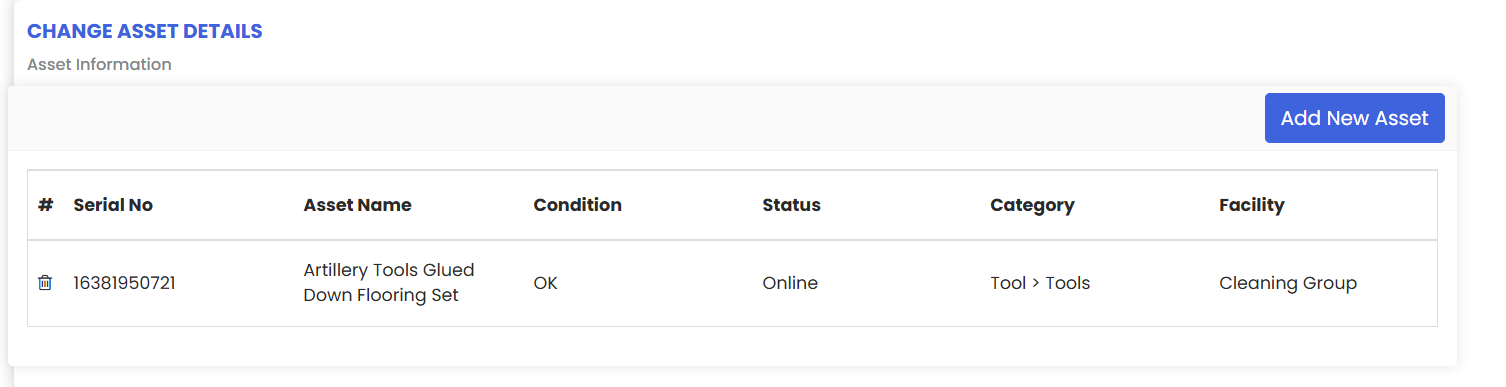
Step 6 – Link the Related Asset
In the Related Asset section, search for and select the asset the change is associated with.
Important: Before selecting an asset, ensure the facility or asset location has already been added to the system. If the asset doesn't exist yet, click Add New Asset to open the asset pop-up, select the relevant asset, and click Add Asset to link it.
Step 7 – Add Approvers
Assign the relevant approvers who must review and sign off on the change before implementation can proceed. The change will route through these approvers as part of the approval workflow.

Step 8 – Attach Supporting Files (Optional)
Click Choose a File to upload any supporting documentation, such as technical specifications, risk assessments, vendor quotes, or diagrams relevant to the change.
Step 9 – Save the Change Request
Click Save to submit the Change Request. It will now appear on the Change Request Listing Page and enter the approval workflow.
Managing Change Requests from the Listing Page
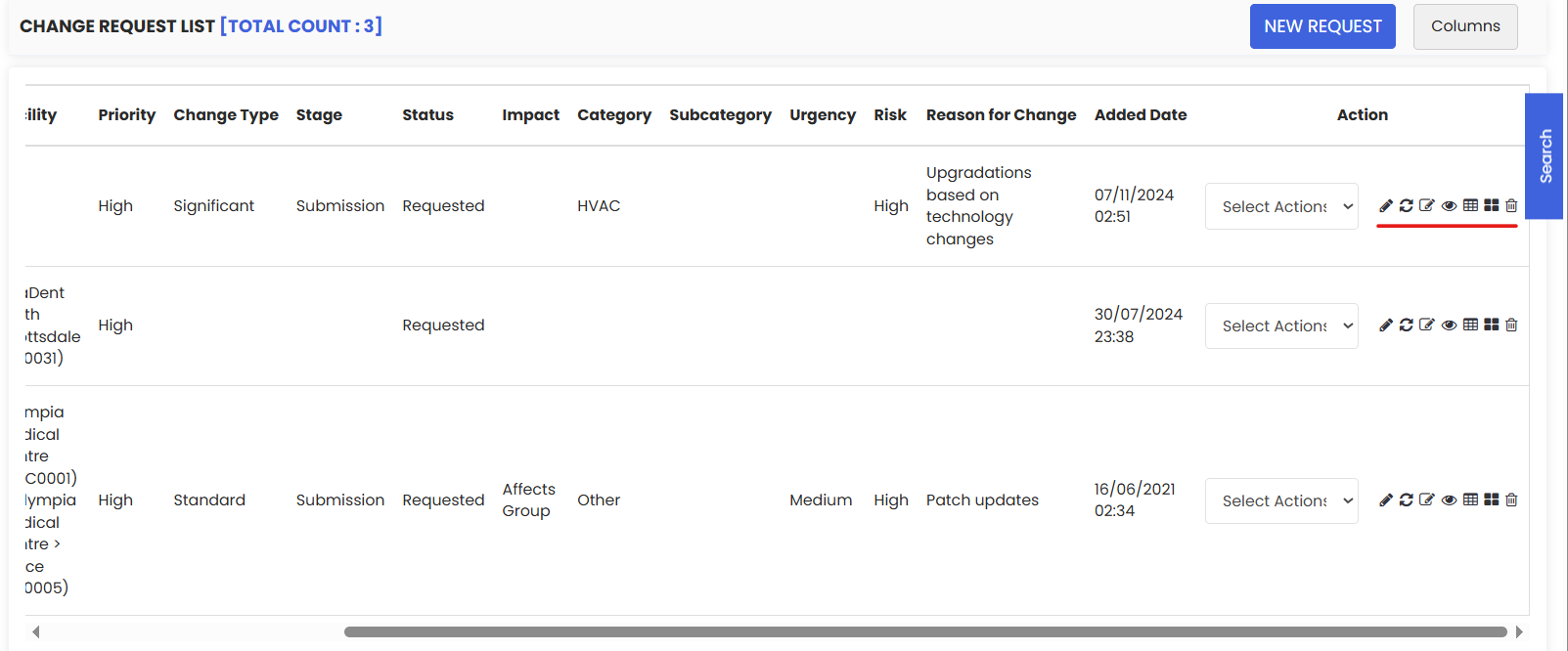
Once saved, each Change Request on the listing page has a set of Action buttons that allow you to:
- Edit — Update the change details as the planning or approval process evolves.
- Update Status — Change the current status (e.g., Pending Approval, Approved, In Progress, Implemented, Closed).
- Add Note — Record internal notes, approver comments, or implementation updates.
- View — Open a read-only summary of the change record.
- Convert to Work Order — Create a Work Order to schedule and execute the approved change.
- Add Purchase Request — Create a linked Purchase Request for any parts or materials needed.
- Delete — Remove the change record from the system.
Tip: Use the Columns option in the top right of the listing page to show or hide columns and tailor the list view to your team's workflow.
After Reporting a Change Request — What's Next?
Once the Change Request is submitted, your team should:
- Route it through the approval workflow — approvers will review and sign off before implementation begins.
- Convert to a Work Order once approved, to schedule and assign the implementation task — see Create and Manage Work Orders ← [HYPERLINK → Work Orders article]
- Update the status at each stage of the implementation to maintain a clear audit trail.
- Document the outcome — once implemented, record whether the change was successful or if the back-out plan was activated.
- Close the Change Request after the change has been verified as complete and stable.
Tips for Reporting Change Requests Effectively
- Be specific about the scope. A vague change description leads to unclear approvals and implementation confusion. Clearly state what is changing, what is not changing, and the expected result.
- Always document a back-out plan. Even for low-risk changes, having a reversal procedure ready reduces response time if something goes wrong during implementation.
- Set realistic risk levels. Under-rating risk can lead to insufficient planning; over-rating causes unnecessary delays. Assess impact and urgency objectively.
- Link to related incidents or problems. Connecting a change to the underlying incident or problem it addresses creates a full traceability chain from issue to fix.
Frequently Asked Questions
What is the difference between a Change Request, a Problem, and a Work Request?
A Work Request logs a single incident to be fixed. A Problem investigates the root cause of a recurring issue. A Change Request formally proposes and manages the controlled implementation of a modification or improvement — often raised as a result of a Problem investigation.
Can a Change Request be implemented without approval?
No. Change Requests are designed to route through an approval workflow before implementation begins. Emergency changes may have an expedited approval process depending on your system configuration.
What happens when I convert a Change Request to a Work Order?
The system creates a new Work Order pre-populated with details from the Change Request. The Change Request remains in the system as the parent record, maintaining the full audit trail from approval through to execution.
Can I link a Change Request to a related Problem or Work Request?
Yes. You can reference related records in the Notes section to build context and traceability. Direct linking between record types depends on your system configuration.