Create and Approve a Purchase Request
A Purchase Request in DreamzCMMS is the formal starting point for procuring parts, consumables, or equipment needed to carry out maintenance work. It captures what is needed, where it is needed, who is requesting it, and who needs to approve it — ensuring every purchase follows a controlled, documented process before any order is placed.
Overview
Purchase Requests are created by maintenance teams or planners whenever stock needs to be replenished or new items need to be procured. Once created, the request is sent to an approver for review. Approved requests can then be progressed into a Purchase Order. The full workflow — from request to approval — is tracked within DreamzCMMS, giving your procurement team complete visibility and control.
Here is a reference video:
Before You Begin
- You must have the appropriate permissions to create Purchase Requests in DreamzCMMS.
- The items you want to request must already exist in your inventory or asset register.
- The approver assigned to the request must already be set up as a user in the system.
- Ensure the department and location details are known before starting.
Part 1 — How to Create a Purchase Request
Step 1 – Navigate to Purchase Requests
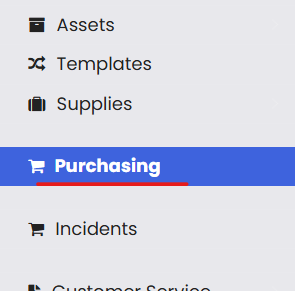
From the main menu, click Purchasing. This opens the Purchasing submenu.
Step 2 – Click "Purchase Requests"
From the Purchasing submenu, click Purchase Requests to open the listing page.

Step 3 – Click "New Purchase Request"
Click the New Purchase Request button to open the request creation form.

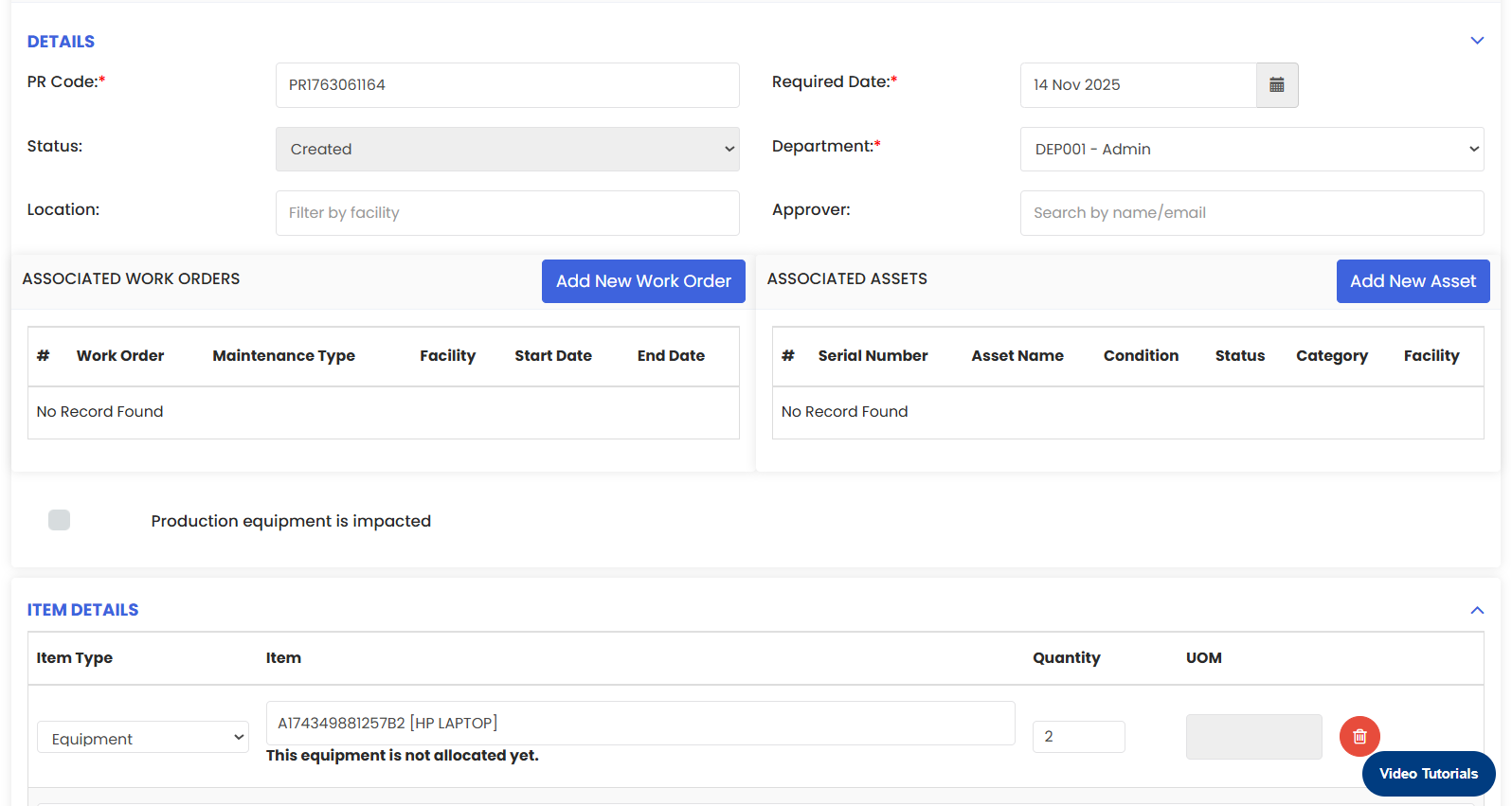
Step 4 – Fill in the Request Details
Complete the following fields:
- Department — Select the department from which the request is being made.
- Location — Select the location or facility where the requested items are needed.
- Approver — Select the user responsible for reviewing and approving this request before it proceeds to purchasing.
Step 5 – Add Items in the Item Details Section
In the Item Details section, add the items being requested:
- Item Type — Select the type of item being requested (e.g., Equipment for asset purchasing, Part for spare parts, or Consumable for consumable materials).
- Item Search — Type at least 3 characters of the asset code or item name to retrieve a list of suggested items. Select the correct item from the suggestions.
- Quantity — Enter the number of units required.

Note: If a similar item exists in the system but has not been allocated to the selected location, a message will appear to alert you. Review this before proceeding to avoid duplicate requests.

Step 6 – Save the Request
Once all details are complete, click one of the following save options:
- Save as Created — Saves the request as a draft. Use this if the request is not yet ready to be sent for approval.
- Send for Approval — Saves the request and immediately routes it to the assigned approver for review.
The new Purchase Request will now appear in the listing page.
Part 2 — How to Approve a Purchase Request
Once a Purchase Request has been submitted for approval, the assigned approver can review and approve it directly from the listing page.
Step 1 – Locate the Purchase Request
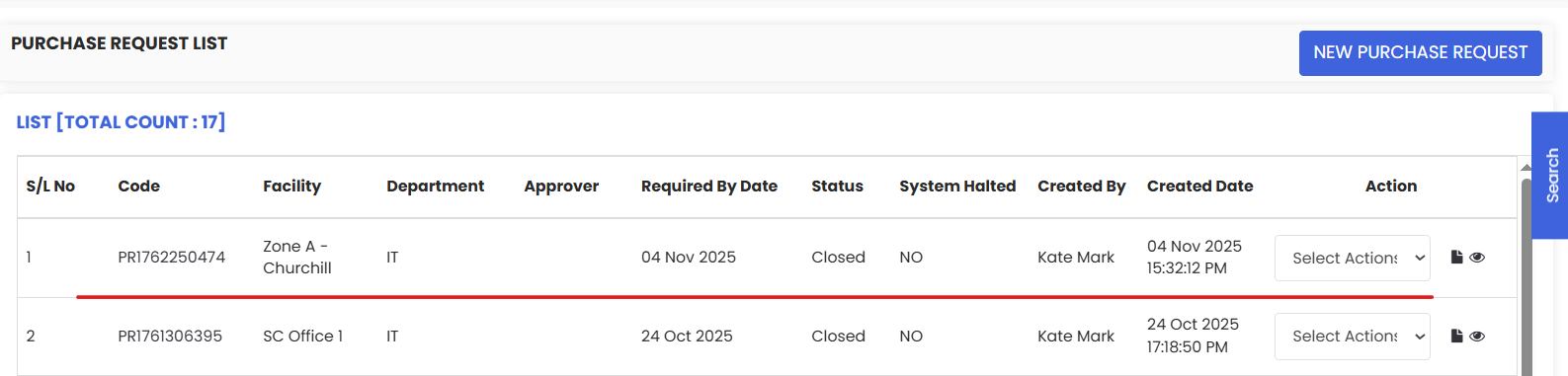
From Purchasing → Purchase Requests, find the request with a status of Sent for Approval in the listing.
Step 2 – Click the Edit Icon
Click the Edit icon on the right side of the request row to open the request details.

Step 3 – Change the Status to Approved
In the request form, locate the Status field and change it to Approved.

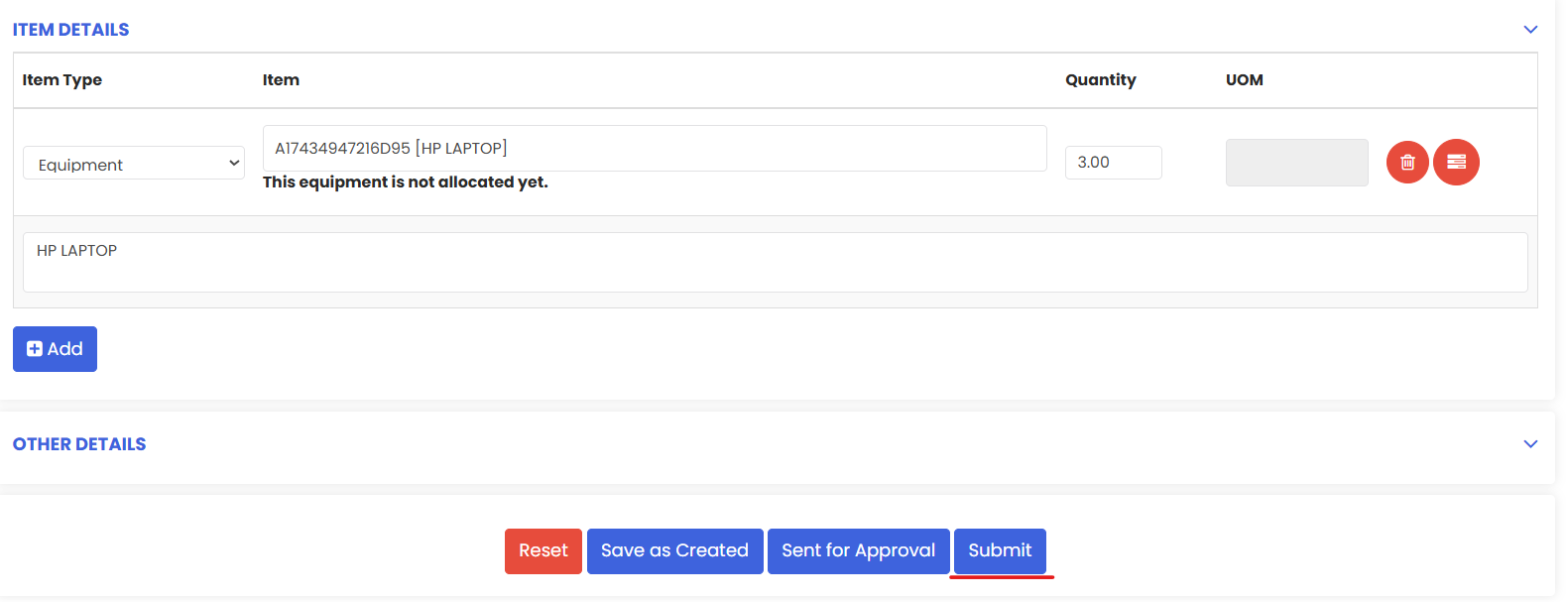
Step 4 – Click Submit
Click Submit to confirm the approval. The status of the request will be updated in the listing page, and the request can now be progressed to a Purchase Order.
The status of the request is now updated to Approved in the listing.

After Creating or Approving — What's Next?
Once the basic information is saved, you can:
- Convert to a Purchase Order — Once approved, the request can be processed into a formal Purchase Order for the supplier.
- Track request status from the Purchase Request listing page to monitor pending approvals and fulfilled requests.
- Review stock levels after items are received to confirm inventory has been updated correctly.
Tips for Managing Purchase Requests
- Always assign the correct approver. An unassigned or incorrectly assigned request will stall in the workflow and delay procurement.
- Use Save as Created for draft requests. If you need to gather more information before submitting, save as Created first and send for approval only when the request is complete.
- Check for existing stock before requesting. Review current inventory levels to avoid raising duplicate or unnecessary purchase requests.
- Be specific with quantities. Request realistic quantities based on actual usage or safety stock requirements.
Frequently Asked Questions
Who can approve a Purchase Request?
Only the user designated as the Approver on the request can approve it. Approvers must already be set up as users in the system before being assigned to a request.
Can I edit a Purchase Request after it has been sent for approval?
Requests in Created status can be edited freely. Once sent for approval, editing may be restricted to prevent changes without re-approval.
What happens after a Purchase Request is approved?
An approved Purchase Request can be progressed into a Purchase Order, which is sent to the supplier to procure the items.
What does the alert about an unallocated item mean?
If a similar item exists in inventory but is not allocated to the requested location, the system will notify you. This helps prevent unnecessary procurement when stock is already available elsewhere in your organisation.
Related Articles
- Create a Purchase Order
- Manage Stock Levels
- Stock Transfer Order
- How to Add BOM to a Facility
- Manage Work Requests