Manage Work Requests
Work Requests in DreamzCMMS are the starting point for capturing and triaging maintenance needs raised by customers or internal employees. They provide a structured way to log incidents, assign them to the right technicians, and track them through to resolution — whether that means converting them into a Work Order, a Job, a Quotation, or a Purchase Request.
Overview
The Work Request module (found under Incidents → Request) centralizes all incoming maintenance and service requests in one place. Admins and managers can create requests directly, while requesters can submit them from their own portal. Each request captures the subject, priority, requester details, related asset, and assigned technician — giving your team everything they need to respond quickly and effectively.
Before You Begin
- You must have Admin or Manager permissions to create and manage work requests.
- The facility or asset location must already be set up in the system before linking an asset to a request. See Create Asset Locations
- The assets you want to link must already exist in your asset register.
- If priority-based due dates and response dates are important to your workflow, ensure your Incident Priority Master is configured beforehand.
How to Create a Work Request
Step 1 – Navigate to Work Requests
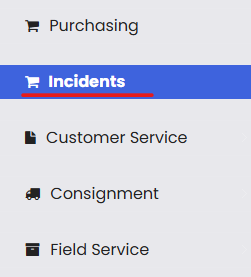
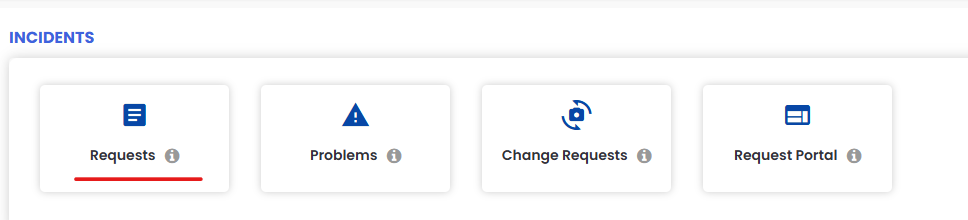
From the left-side menu, click Incidents, then click Request. This opens the Work Request listing page, showing all existing requests.
Step 2 – Click "New Request"
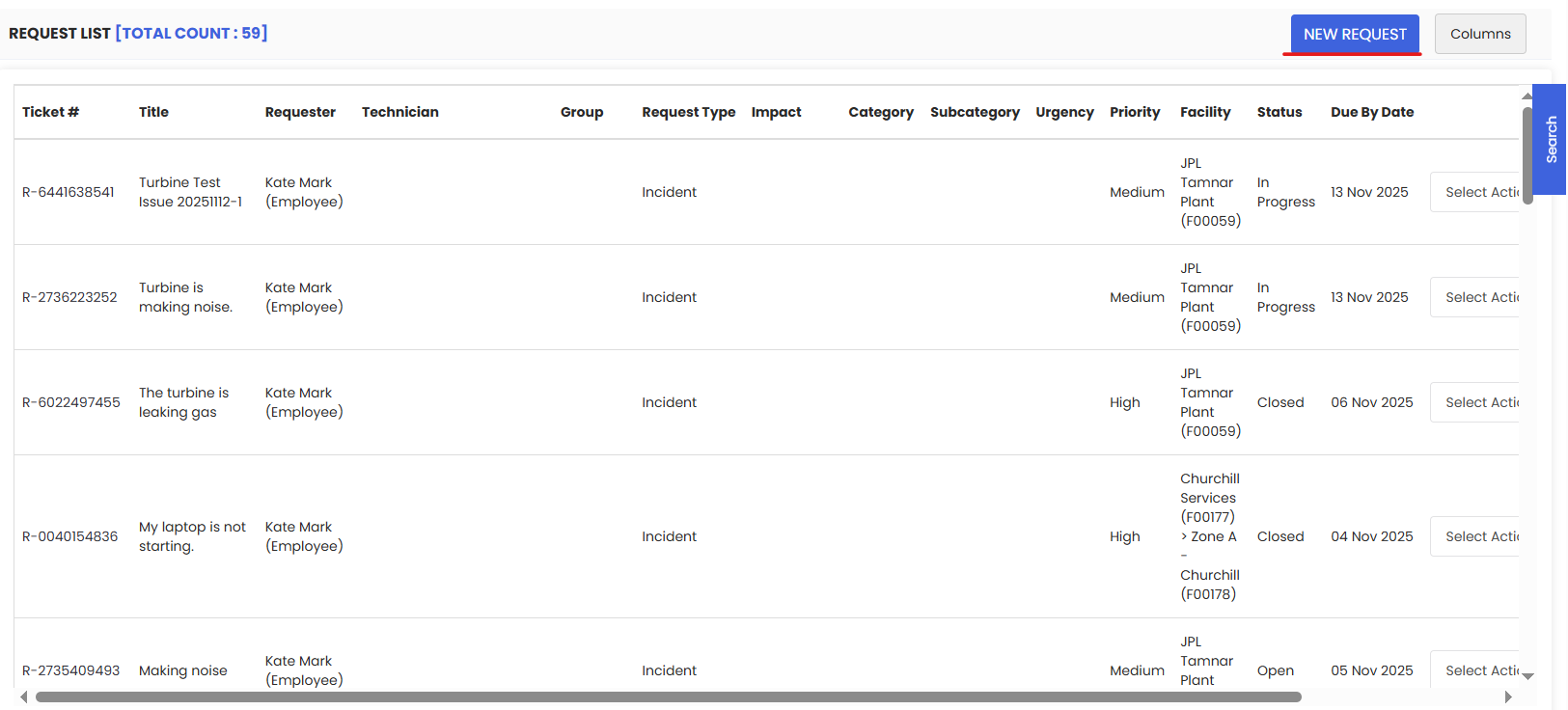
Click the New Request button in the top right corner to open the request creation form.
Step 3 – Fill in the Request Details
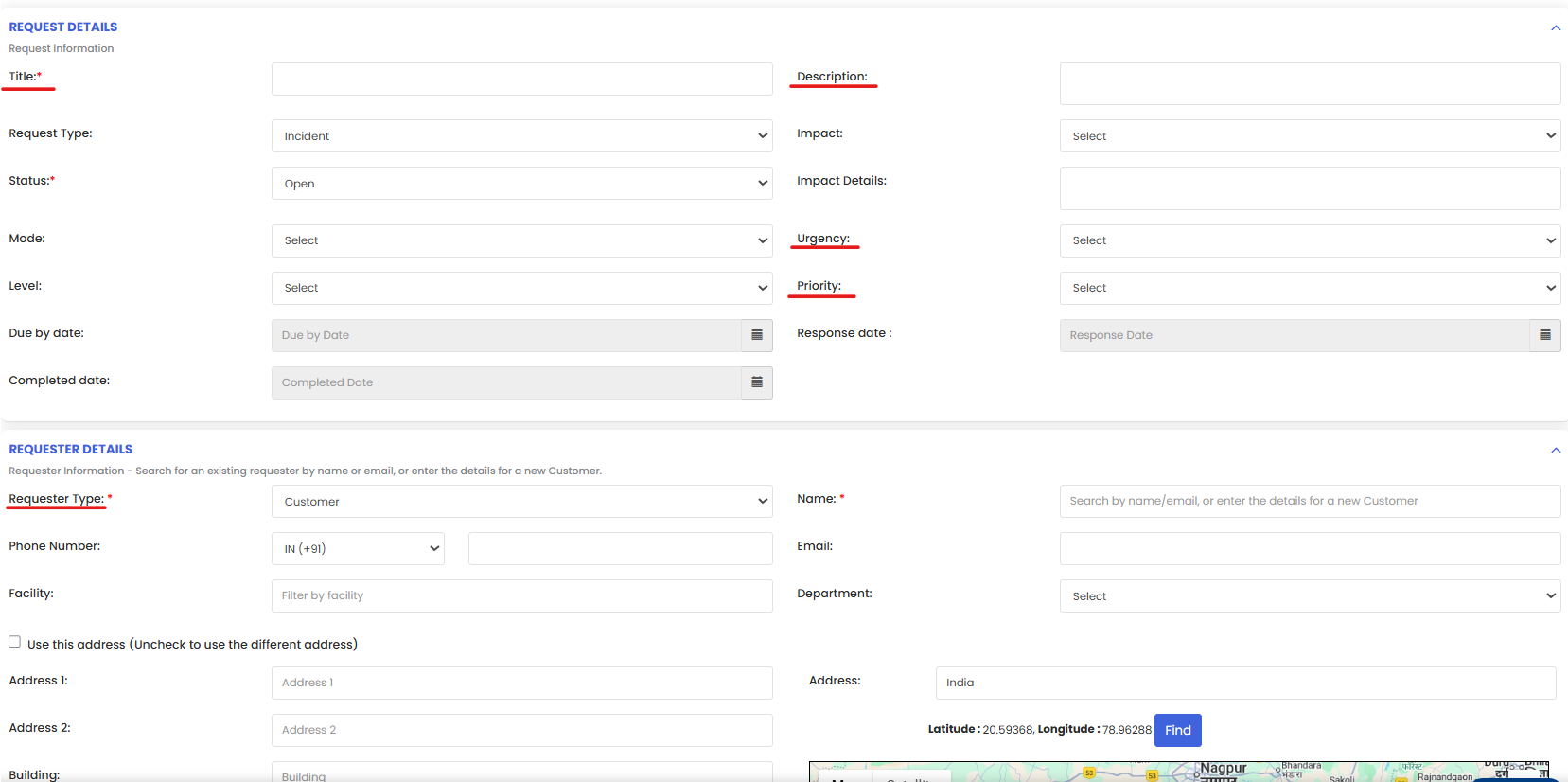
Complete the following fields in the Request Details section:
- Subject — Enter a clear, concise title describing the issue (e.g., "Air Conditioning Unit Not Cooling – Floor 2").
- Description — Provide a detailed description of the problem, including any relevant context or observations.
- Request Type — Select the type of request (e.g., Corrective, Preventive, Emergency).
- Priority — Set the priority level (e.g., Low, Medium, High, Critical). Based on the priority selected, the Due Date and Response Date will be automatically populated according to your Incident Priority Master settings.
Step 4 – Fill in the Requester Details
In the Requester Details section:
- Requester Type — Select whether the requester is a Customer or an Internal Employee.
- Name — Start typing the requester's name. If they exist in the system, a suggestion will appear — select it to auto-populate their details.
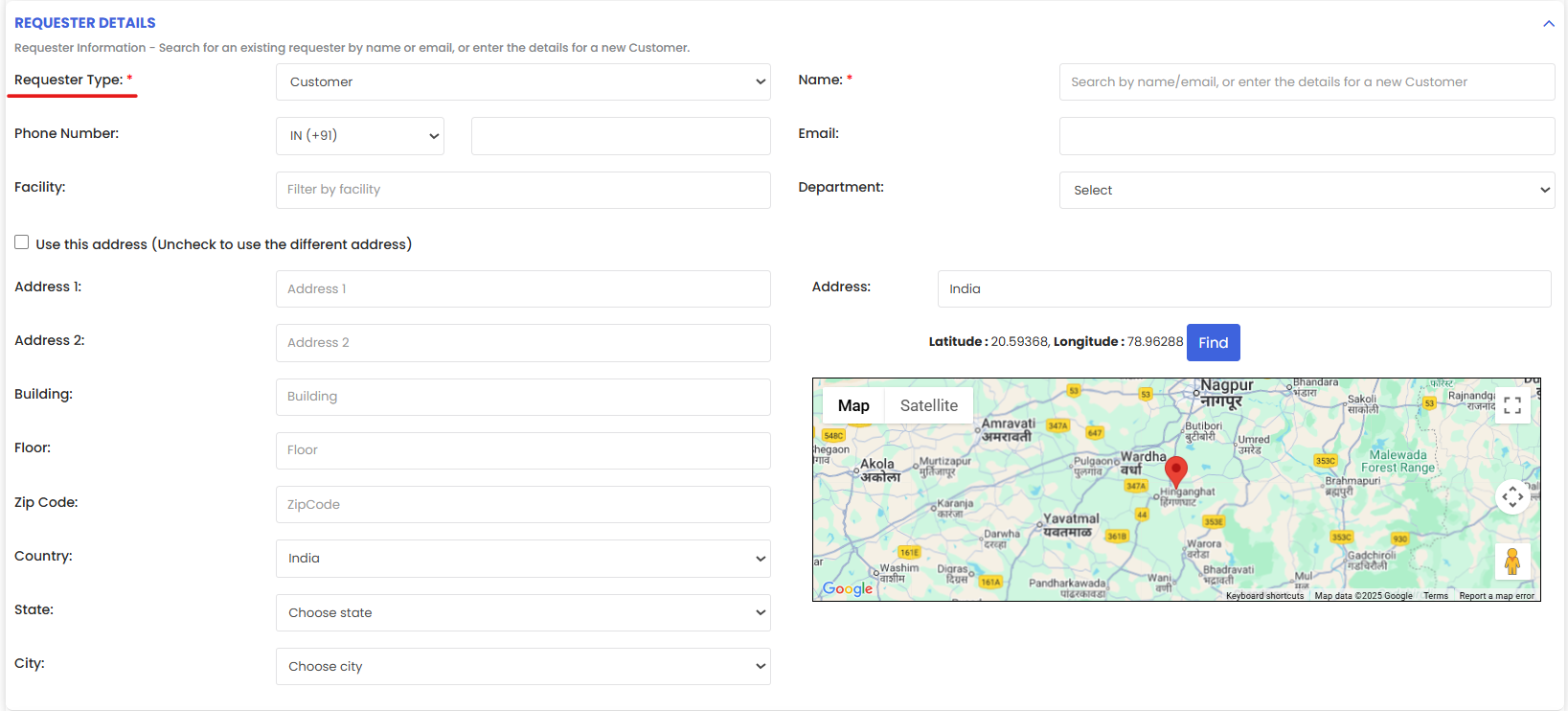
Step 5 – Fill in the Request Grouping and Assignment
- Grouping — Assign the request to the appropriate group or department.
- Technician — Assign the request to the specific technician responsible for handling it.

Step 6 – Link the Related Asset
In the Related Asset section, search for and select the asset the request is associated with.
Important: Before selecting an asset, ensure the facility or asset location has been added to the system. If the asset doesn't exist yet, click Add New Asset to open the asset pop-up, check the box next to the relevant asset, and click Add Asset to link it to the request.

Step 7 – Attach a File (Optional)
If you have supporting documentation such as photos, inspection reports, or error logs, click Choose a File to upload an attachment to the request.

Step 8 – Save the Request
Click Save to submit the work request. It will now appear on the Work Request Listing Page and be visible to the assigned technician.
Managing Requests from the Listing Page
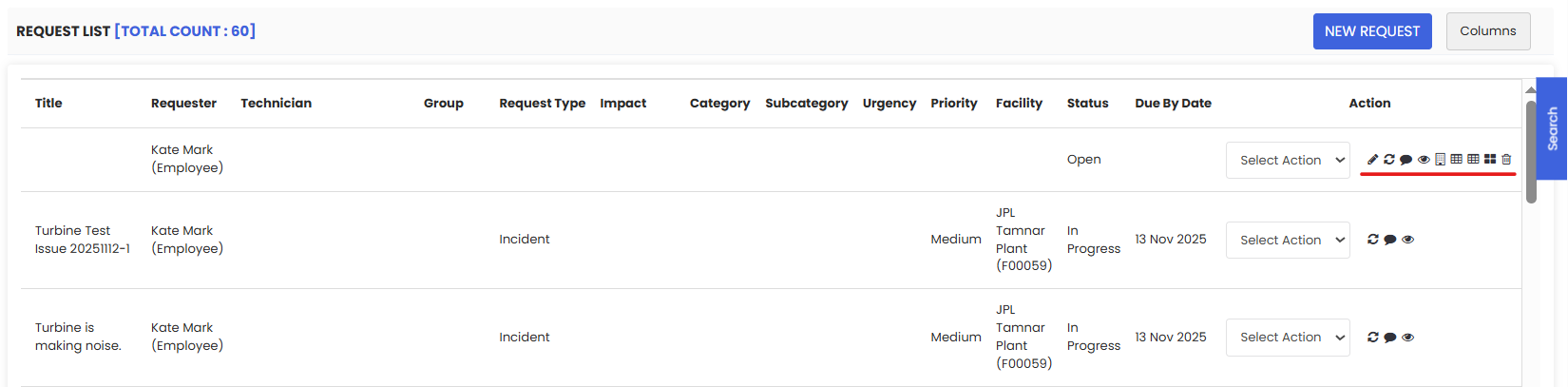
Once saved, each work request on the listing page has a set of Action buttons that allow you to:
- Edit — Modify the request details.
- Update Status — Change the current status of the request (e.g., Open, In Progress, Resolved, Closed).
- Note — Add internal notes or comments to the request.
- Convert to Quotation — Turn the request into a formal quotation for the customer.
- Convert to Work Order — Escalate the request into a full Work Order for scheduling and execution.
- Convert to Job — Convert the request into a Job record.
- Purchase Request — Create a linked Purchase Request for any parts or materials needed.
- Delete — Remove the request from the system.
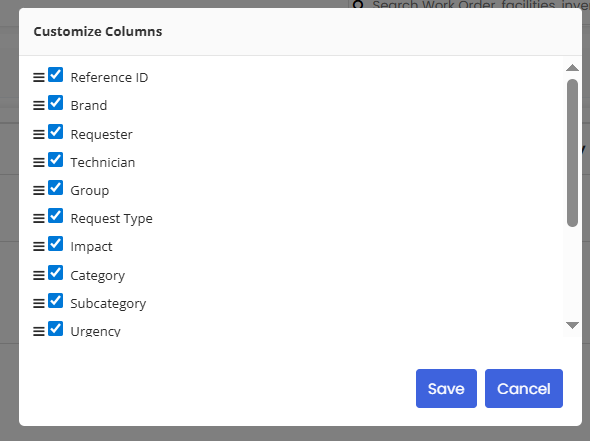
Tip: Use the Columns option in the top right of the listing page to show or hide columns and customise your view to focus on the information most relevant to your team.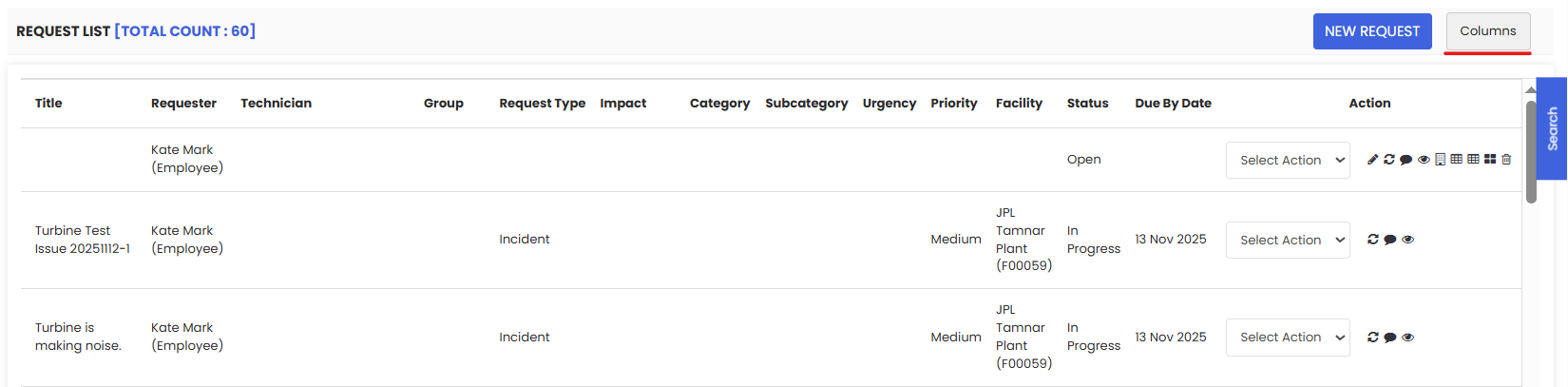
Tips for Managing Work Requests
- Write clear subjects. A descriptive subject line (e.g., "Pump Failure – Building B, Level 3") helps technicians quickly understand the issue before opening the full request.
- Set accurate priorities. Priority determines auto-populated due and response dates — incorrect priorities can cause SLA breaches.
- Always link the related asset. This connects the request to your asset history and makes it easier to spot recurring issues.
- Use the Notes feature. Document any interim actions or updates so the full history of the request is visible to all team members.
- Convert requests promptly. Don't leave requests sitting open — convert them to Work Orders or Jobs as soon as they are validated to keep your maintenance pipeline moving.
Frequently Asked Questions
Who can submit a work request?
Work requests can be created by Admins and Managers from the admin panel. Customers or internal employees may also submit requests through the requester portal, depending on your system configuration.
What happens when I set a priority?
The system automatically calculates and populates the Due Date and Response Date based on the priority level and your Incident Priority Master settings.
Can I link more than one asset to a work request?
Typically, a work request is linked to a single asset. If the issue involves multiple assets, consider creating separate requests or converting to a Work Order where multiple assets can be managed.
What is the difference between converting to a Work Order and converting to a Job?
A Work Order is a full maintenance task with scheduling, parts, and technician assignment. A Job is a broader or more flexible task record. The right choice depends on your organization's workflow configuration.
Can I attach files to a work request?
Yes. Use the Choose a File option on the request form to attach photos, reports, or other supporting documents.
Can I customise the columns shown on the listing page?
Yes. Use the Columns option in the top right of the Work Request listing page to show or hide columns based on your preferences.
Can a work request be deleted?
Yes. Use the Delete action button on the listing page. Note that deleting a request is permanent — consider updating the status to "Closed" instead if you want to retain the record.