ChatGPT said:
Incident Dashboard
The Incident Dashboard is your central command centre for monitoring and acting on all incoming maintenance requests, problems, and change requests in DreamzCMMS. It gives managers and administrators a real-time snapshot of workload, technician performance, request trends, and open issues — all from a single screen, without needing to dig through individual records.
Overview
The Incident Dashboard surfaces the most critical information about your incident pipeline at a glance. From here, you can jump directly to key modules, apply filters, create new requests, and drill into technician-level detail — making it the fastest way to assess the health of your maintenance operations and take action where needed.
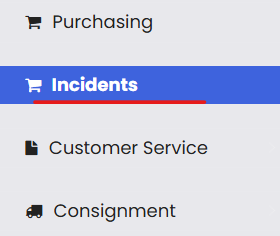
To access the dashboard, click Incidents from the left-side menu. The dashboard opens automatically.
Dashboard Sections Explained
Quick Tiles
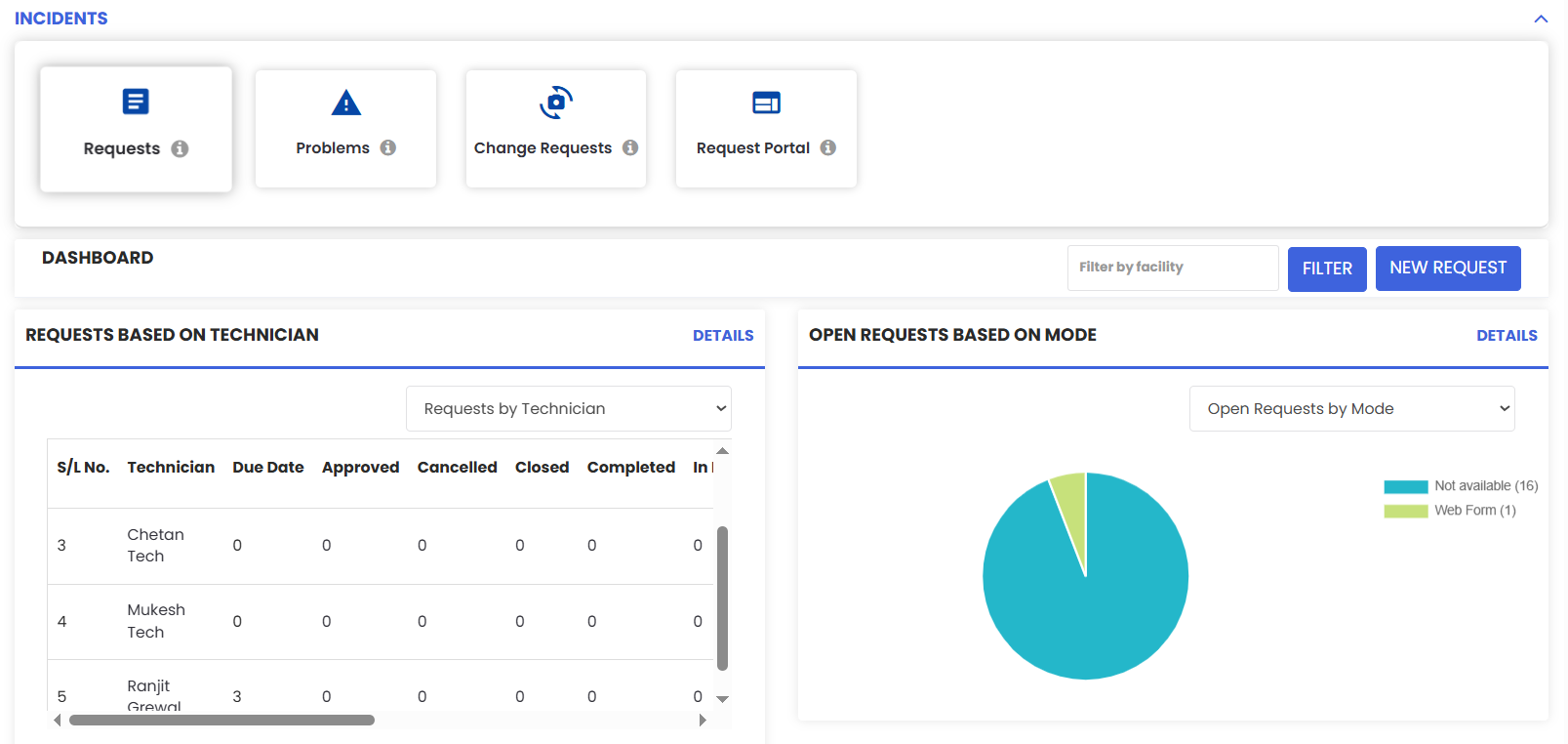
At the top of the dashboard, quick-access tiles let you navigate instantly to the key areas of incident management:
- Requests — Jump to the full Work Request list
- Problems — Jump to the Problem ticket list
- Change Requests — Jump to the Change Request list
- Request Portal — Open the self-service portal where requesters can submit and track their own requests
Filters and Actions
Use the controls at the top of the dashboard to focus the data displayed:
- Facility Filter — Filter all dashboard data by a specific facility or location, useful for multi-site operations.
- New Request — Create a new Work Request directly from the dashboard without navigating away.
Requests by Technician
A detailed table showing how work is distributed across your technician team. For each technician, the table displays a breakdown of request counts by status, including:
- Approved
- Cancelled
- Closed
- Completed
- In Progress
- (and other applicable statuses)
Click Details next to any technician to drill down into their individual request records. This view is essential for identifying overloaded technicians, spotting unresolved backlogs, and ensuring workload is balanced across the team.
Open Requests by Mode
A pie chart showing the channels through which open requests were submitted (e.g., Web Form, Mobile, Portal). This helps you understand how your requesters are interacting with the system and whether any submission channel is generating a disproportionate volume of requests.
Requests — Last 3 Months
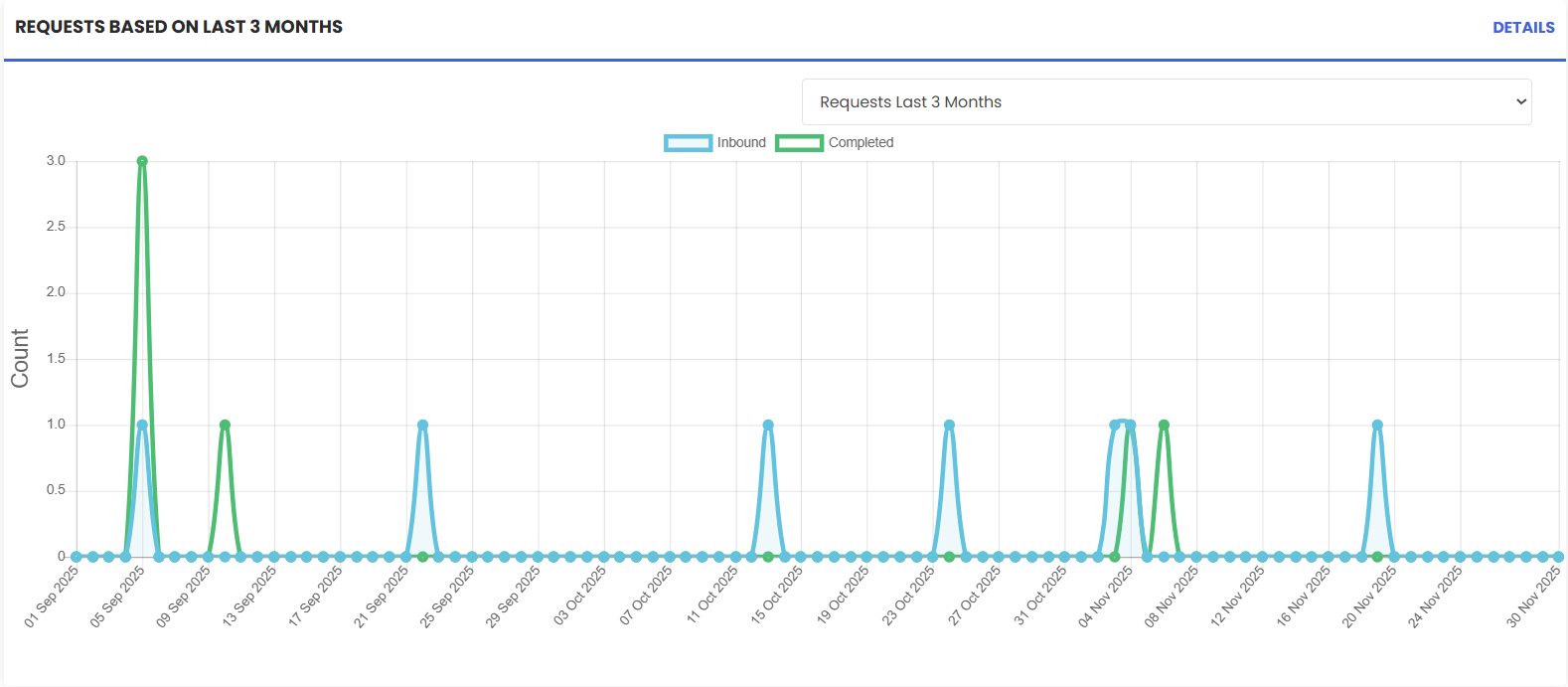
A trend chart comparing Inbound Requests (submitted) versus Completed Requests over the past three months. Use this to:
Spot growing backlogs where inbound volume consistently exceeds completions
Identify periods of high demand or seasonal spikes
Measure whether your team's completion rate is keeping pace with incoming work
Open Problems by Priority
A summary view of open Problem tickets broken down by priority level (e.g., Low, Medium, High, Critical). This gives managers a quick read on the severity mix of unresolved problems and helps prioritise escalation and resource allocation.
Open Changes by Type
A breakdown of active Change Requests grouped by type, giving visibility into what categories of change work are currently in progress across the organisation.
Changes — Last Month
A summary of Change Request activity from the previous month, providing a recent snapshot of how much change work was processed and completed within the period.
How to Access the Incident Dashboard
Step 1 – Click on Incidents
From the left-side menu, click Incidents. The Incident Dashboard will open automatically as the default landing page for this module.
Step 2 – Apply Filters if Needed
Use the Facility filter at the top of the dashboard to focus on a specific site or location. All widgets and charts will update to reflect the filtered data.
Step 3 – Drill Down or Take Action
- Click any Quick Tile to navigate directly to the relevant module.
- Click Details in the Requests by Technician table to view individual records for a specific technician.
- Click New Request to create a Work Request without leaving the dashboard.
After Reviewing the Dashboard — What's Next?
Based on what you see on the dashboard, your next steps might include:
- Triaging open requests and assigning unassigned ones to available technicians — see Manage Work Requests
- Converting validated requests to Work Orders to get maintenance tasks scheduled and underway — see Convert a Work Request to a Work Order
- Setting up automation to reduce manual triage if inbound volume is high — see Work Request Automation
- Reviewing technician workloads using the Requests by Technician table and reassigning tasks if needed
Tips for Using the Incident Dashboard
- Check the dashboard daily. A quick morning review of the trend chart and technician table helps you catch backlogs before they grow.
- Use the Facility filter for multi-site operations. Filtering by location gives site managers a focused view of their own requests without noise from other facilities.
- Watch the Inbound vs. Completed trend. If inbound requests consistently outpace completions over multiple months, it's a signal to review staffing, automation, or triage processes.
- Use the Priority breakdown for problems. A high count of Critical or High-priority open problems warrants immediate attention and escalation.
Frequently Asked Questions
Can I filter the dashboard by date range?
The trend chart displays the last 3 months by default. For custom date range reporting, use the dedicated Reports module for more granular analysis.
Who can see the Incident Dashboard?
The dashboard is accessible to users with Admin or Manager permissions. Technicians may have a limited view depending on their role configuration.
Does the dashboard update in real time?
Yes. The dashboard reflects the current state of your incident data and updates as requests are created, updated, or closed in the system.
Can I create a Work Request directly from the dashboard?
Yes. Click the New Request button at the top of the dashboard to create a Work Request without navigating away from the dashboard.