How to Add Meter Readings and Event Details for Equipment
Tracking how much an asset is actually being used is just as important as knowing where it is. Meter readings in DreamzCMMS let you log usage metrics such as runtime hours, energy consumption, mileage, and cycle counts — giving your team the data needed to schedule preventive maintenance at the right time, not just on a calendar. Regular meter readings improve asset reliability, reduce unexpected breakdowns, and extend equipment lifespan.
Overview
The Metering/Events tab on an equipment record has two distinct functions:
- Meter Readings — Log and track usage-based metrics for the equipment (e.g., hours run, kilometres driven, units produced).
- Asset Events — Record significant events in the equipment's lifecycle (e.g., inspections, breakdowns, modifications, or relocations).
Together, these give your team a complete picture of how each asset is being used and what has happened to it over time.
Before You Begin
- You must have Admin, Manager, or Technician permissions to add meter readings and events.
- The equipment record must already exist in DreamzCMMS. If it doesn't, see How to Manage Various Asset Information or Import Assets from Excel to set it up first.
- For meter readings to trigger usage-based preventive maintenance, ensure your PM schedules are configured to use meter thresholds. See Create and Manage Work Orders
How to Add Meter Readings
Step 1 – Navigate to Equipment
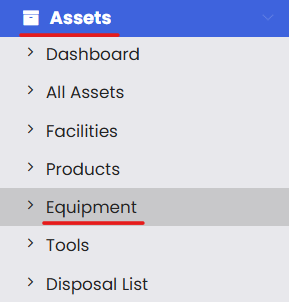
From the left-hand navigation menu, click on Assets, then select Equipment.
Step 2 – Open the Equipment Record
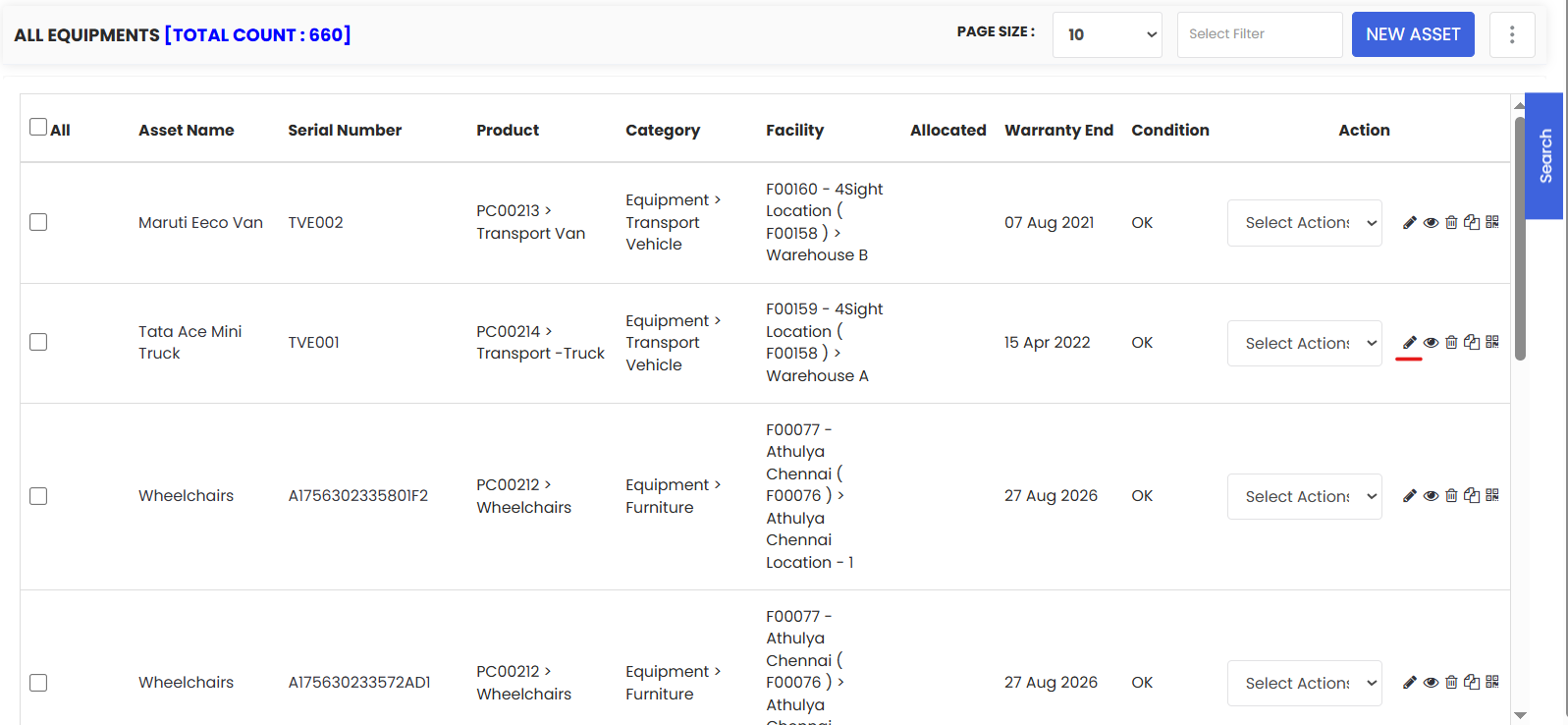
Find the equipment for which you want to add meter readings. Click the Edit icon to open its detail page.
Step 3 – Go to the Metering/Events Tab
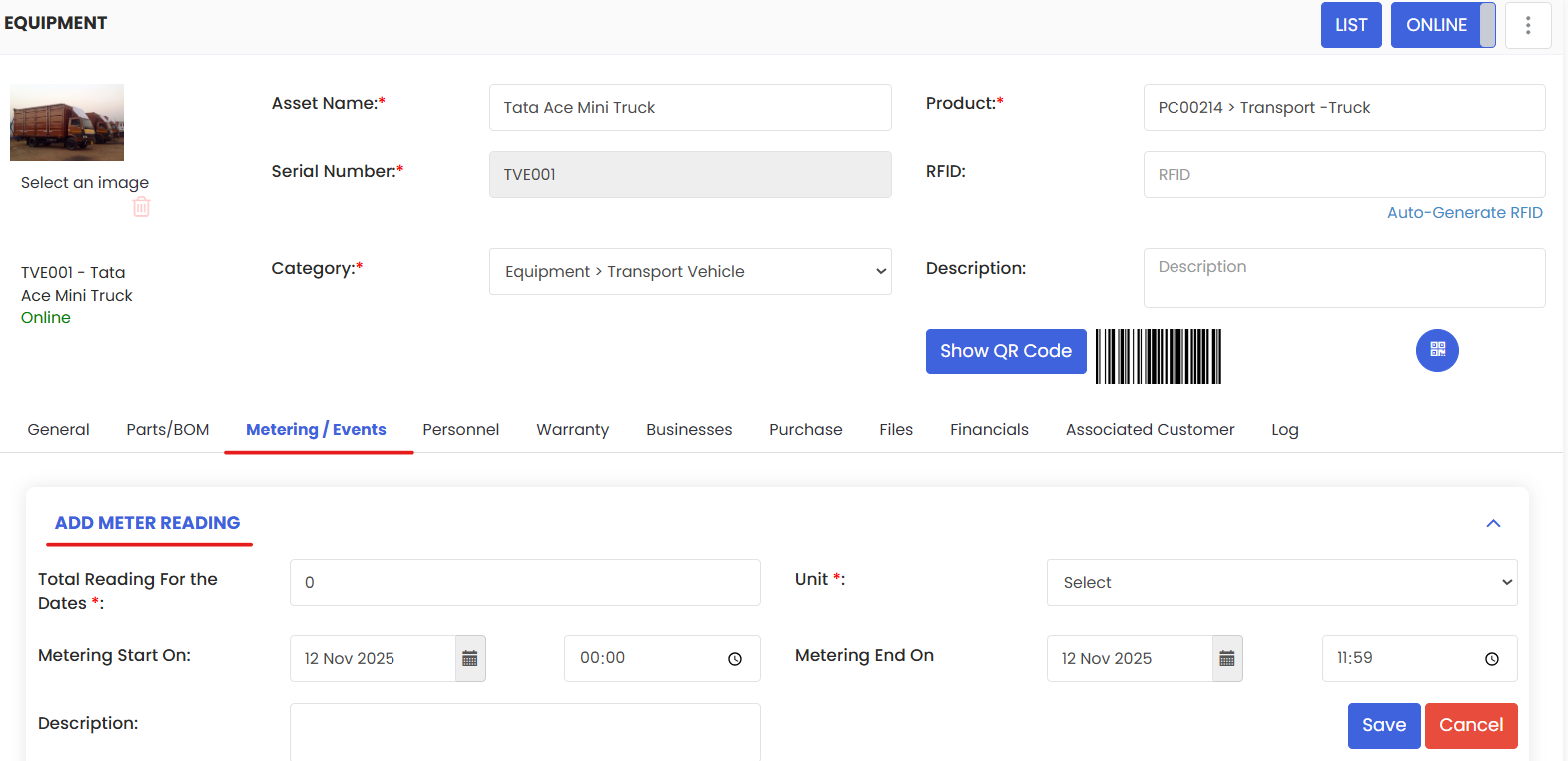
On the equipment detail page, click the Metering/Events tab.
Step 4 – Add Metering Details
In the Metering section, fill in the relevant meter reading details. This typically includes:
- Meter Type — The type of usage being measured (e.g., Hours, Kilometres, Cycles, kWh).
- Reading Value — The current meter reading value.
- Reading Date — The date the reading was taken.
- Notes (optional) — Any additional context about the reading (e.g., "Post-service reading", "Shift end reading").
Step 5 – Click Save
Click Save to record the meter reading. It will be logged against this equipment and contribute to its usage history.
Tip: Log meter readings consistently — ideally at the same interval (e.g., end of each shift, weekly, or monthly) — to build accurate usage trends and ensure PM triggers fire at the right time.
How to Add Asset Events
Asset Events allow you to record important occurrences in an equipment's lifecycle that aren't captured through work orders or meter readings alone.
Step 6 – Go to the Add Asset Event Section
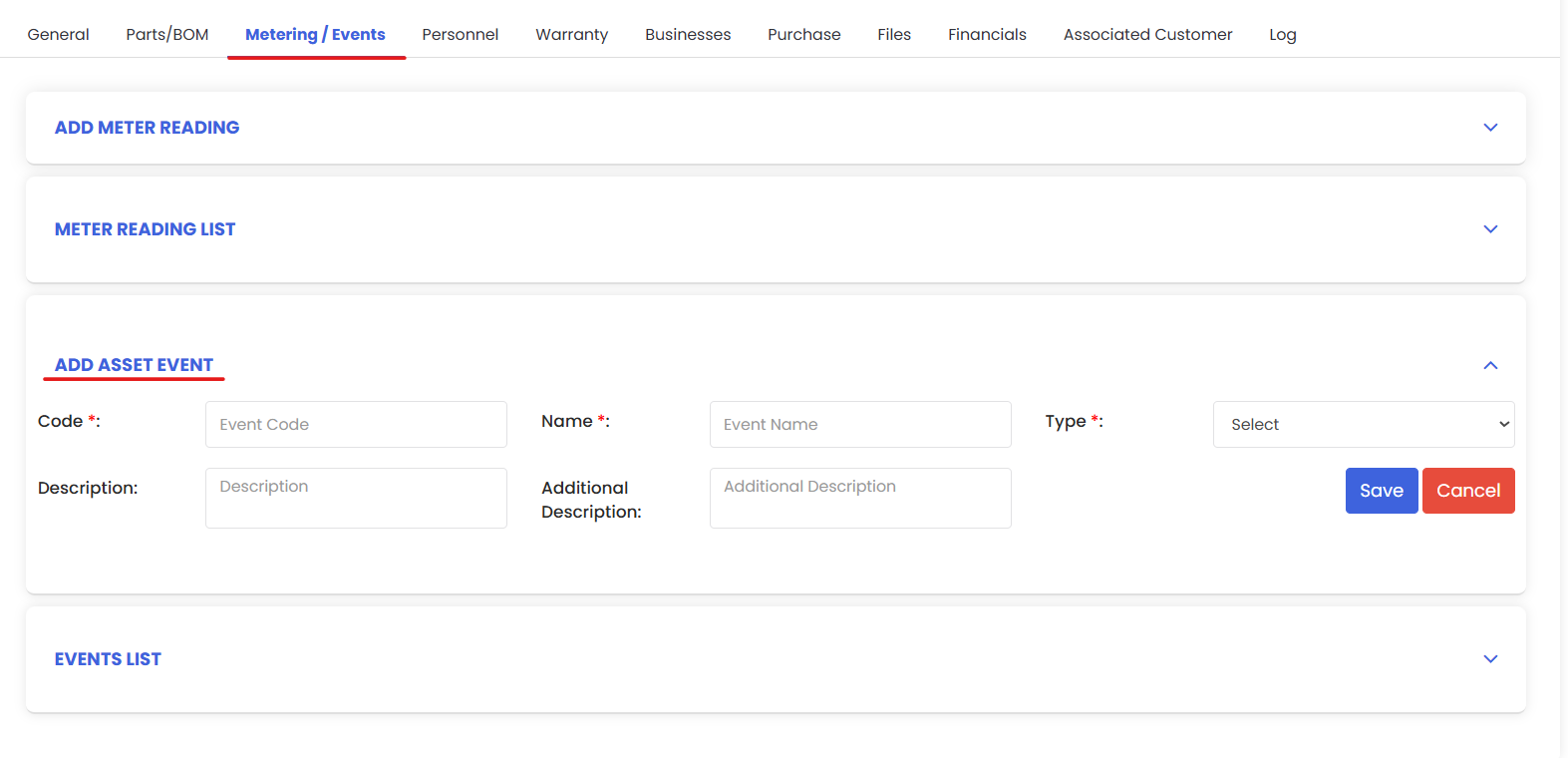
On the same Metering/Events tab, scroll down to the Add Asset Event section.
Step 7 – Fill in the Event Details
Enter the relevant details for the event. This typically includes:
- Event Type — The category of event (e.g., Inspection, Breakdown, Modification, Relocation, Commissioning).
- Event Date — The date the event occurred.
- Description — A clear description of what happened or was observed.
- Attachments (optional) — Upload any supporting documents, photos, or reports related to the event.
Step 8 – Click Save
Click Save to record the event. It will be added to the equipment's event history and visible in the Log tab for a full audit trail.
Tips for Managing Meter Readings and Events
- Assign responsibility — Designate specific team members to log meter readings on a set schedule to ensure data is captured consistently.
- Use Event Types thoughtfully — Consistent event categorization makes it much easier to filter and report on specific types of occurrences across your asset fleet.
- Log events promptly — Record breakdowns or inspections as soon as they occur while details are fresh, rather than retrospectively.
- Attach supporting evidence — Photos of damage, inspection reports, or calibration certificates attached to events create a richer, more defensible maintenance record.
- Cross-reference with work orders — If a meter reading triggers a PM work order, reference the work order number in the event notes for a complete linked history.
Frequently Asked Questions
What types of meter readings can I track?
DreamzCMMS supports various meter types, including hours of operation, mileage/kilometres, energy consumption (kWh), cycle counts, and more — depending on what is relevant to your equipment type.
Can meter readings trigger automatic work orders?
Yes. When meter-based preventive maintenance is configured, DreamzCMMS will automatically generate a work order when a reading crosses the defined threshold (e.g., every 500 hours).
Can I add multiple meter types to the same equipment?
Yes. An asset can have multiple meter types tracked simultaneously — for example, both runtime hours and energy consumption for a generator.
Can I edit or delete a meter reading after it has been saved?
You can review past readings in the Metering section. For corrections, check the available edit/delete options in the reading history, or contact your system administrator.
What is the difference between an Asset Event and a Work Order?
A Work Order is a planned or reactive maintenance task that is assigned, tracked, and closed through a workflow. An Asset Event is a record of something that happened to the asset — it is informational and does not go through an approval or completion workflow. Use events for observations, inspections, or occurrences that don't require a full work order.
Related Articles
How to Manage Various Asset Information