How to Manage Various Asset Information
Managing your asset list involves maintaining a detailed and up-to-date inventory of all assets to improve visibility, tracking, and compliance. Keeping asset information complete supports better decision-making on utilization, maintenance scheduling, and budgeting — and helps your team find what they need fast.
In DreamzCMMS, asset information is organized across multiple tabs within each asset record, covering everything from general details and parts to financials, warranties, and activity logs.
Overview
Asset information in DreamzCMMS can be managed from two areas:
- Equipment — For larger or fixed assets such as machinery, HVAC units, vehicles, or production equipment.
- Tools — For smaller, portable, or handheld items used by your team.
Both are managed the same way and share the same tab structure on their detail pages.
If you haven't created an asset yet, see How to Create an Asset
Before You Begin
- You must have Admin or Manager permissions to edit asset information.
- Have relevant asset details on hand before updating — such as serial numbers, purchase dates, vendor information, and warranty documents.
How to Access Asset Information
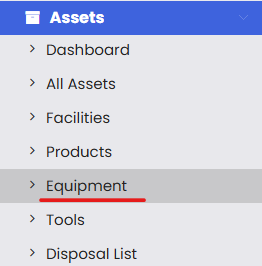
Step 1 – Navigate to Equipment or Tools
From the left-hand navigation menu, click on Assets, then select either Equipment or Tools depending on the asset type you want to manage.
Step 2 – Find Your Asset
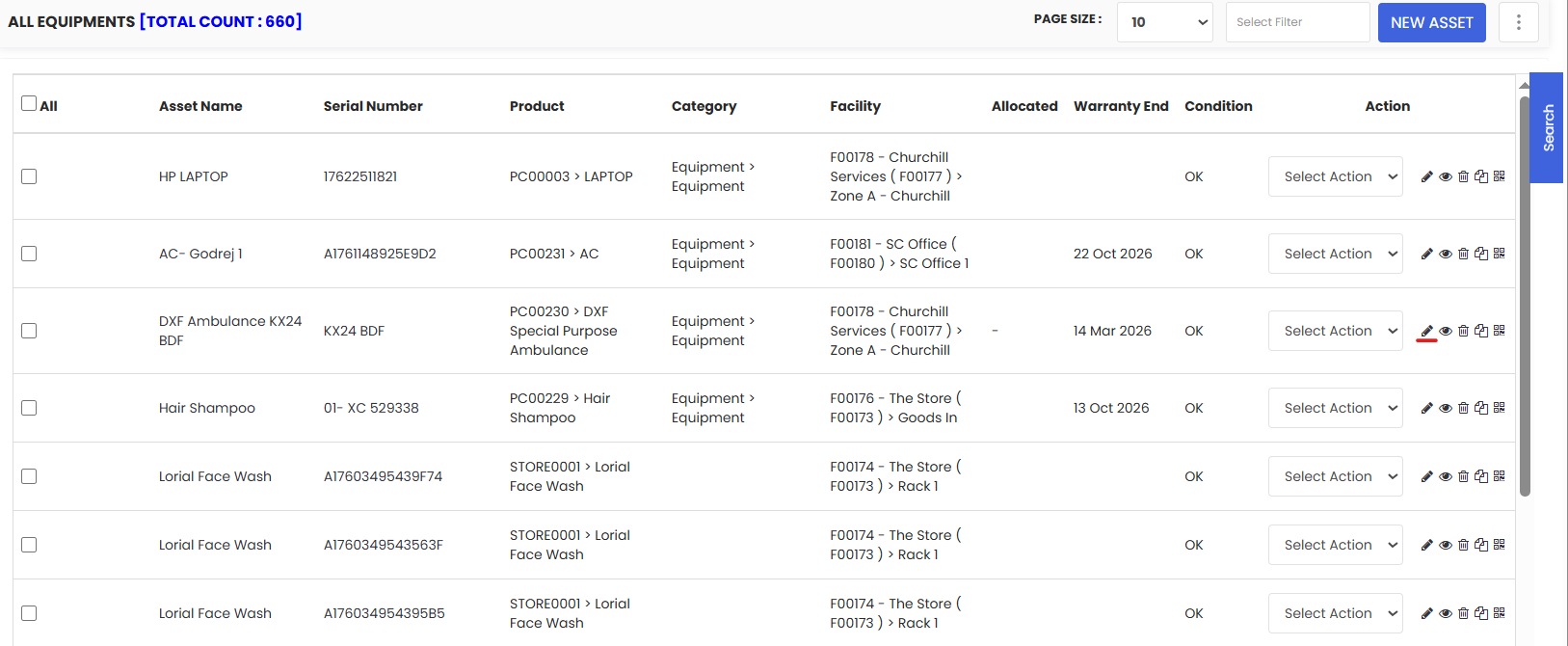
You will be taken to the listing page showing all assets of that type. Use the search or filter options to locate the asset you want to manage.
Step 3 – Click the Edit Icon
Click the edit icon next to the asset to open its detail page. Here you will find multiple tabs, each covering a different aspect of the asset's information.
Asset Information Tabs
General Tab
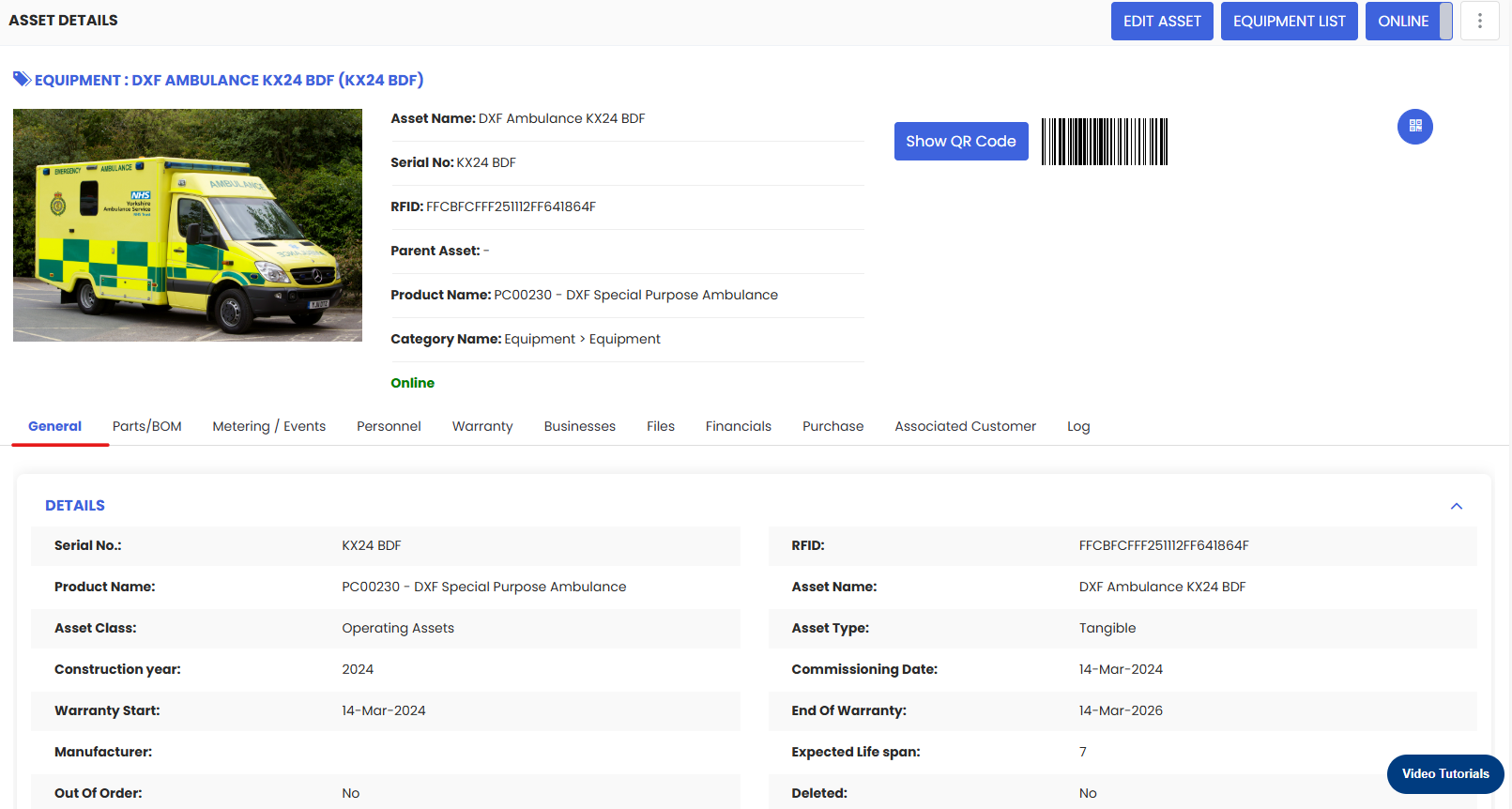
The General tab is where you manage the core details of the asset. This includes:
- Asset name, category, and description
- Serial number, model, and manufacturer
- Location assignment
- Status and condition
Keep this information accurate and up to date as it is used across work orders, reports, and searches.
Parts / BOM Tab
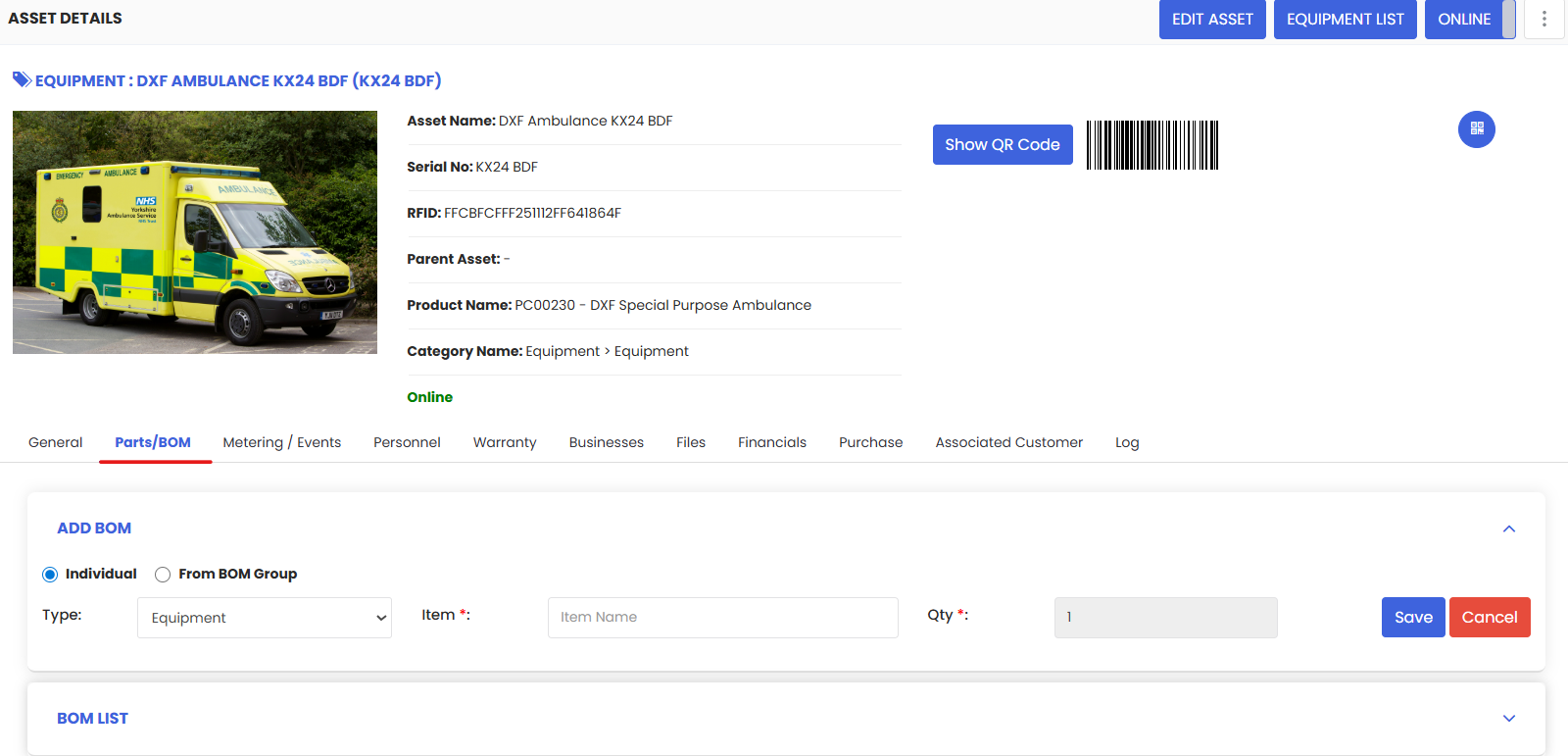
The Parts/BOM tab allows you to define the standard parts, consumables, and kits associated with this specific asset. This ensures technicians always know what materials are needed when performing maintenance.
For detailed instructions on adding parts, see How to Add BOM to a Facility/Location
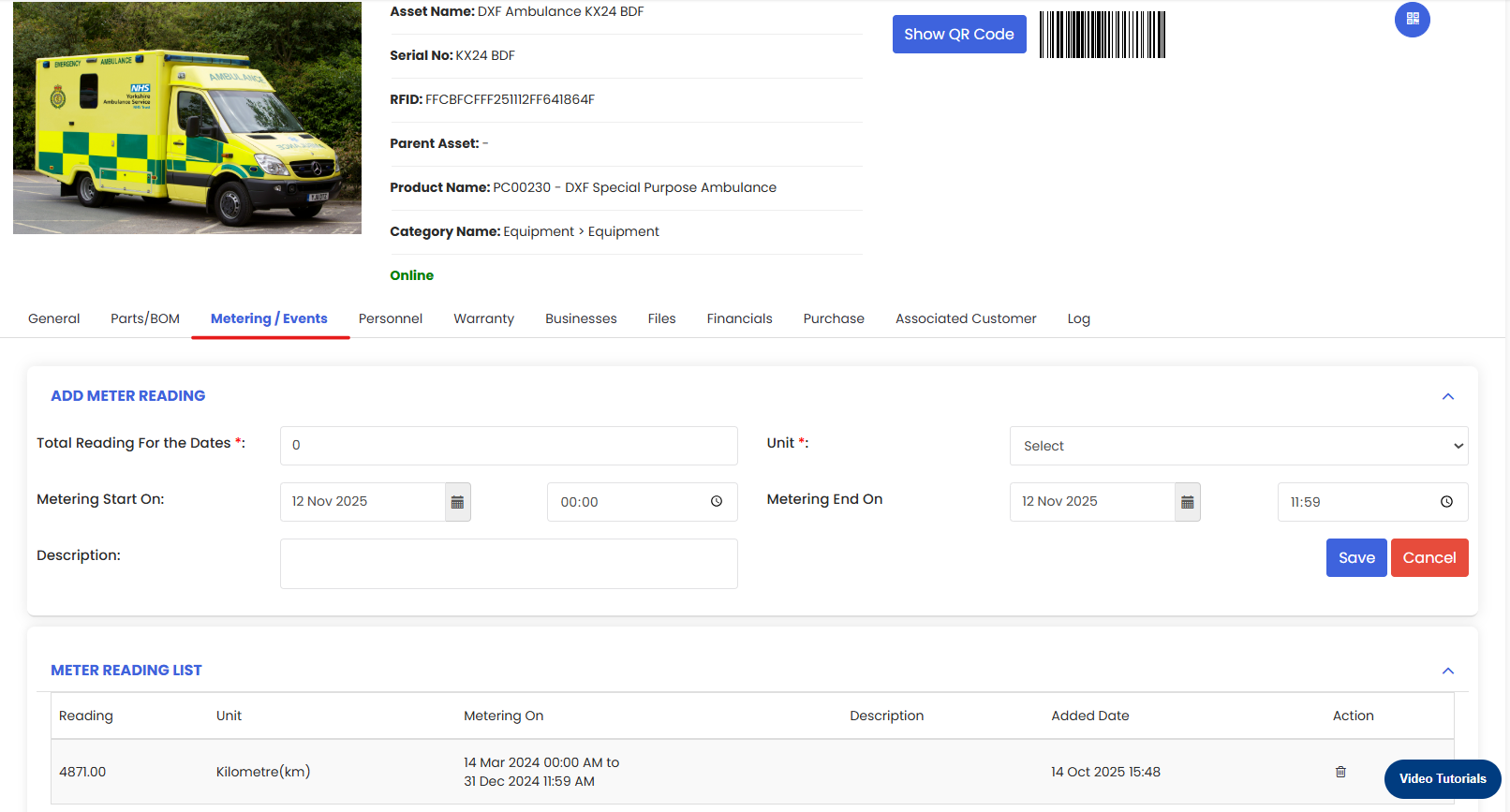
Meter Reading Tab
The Meter Reading tab is where you can log and track usage-based readings for the asset, such as:
- Hours of operation
- Mileage or distance travelled
- Cycle counts or unit production
Meter readings are useful for triggering usage-based preventive maintenance — for example, scheduling a service every 500 hours of operation.
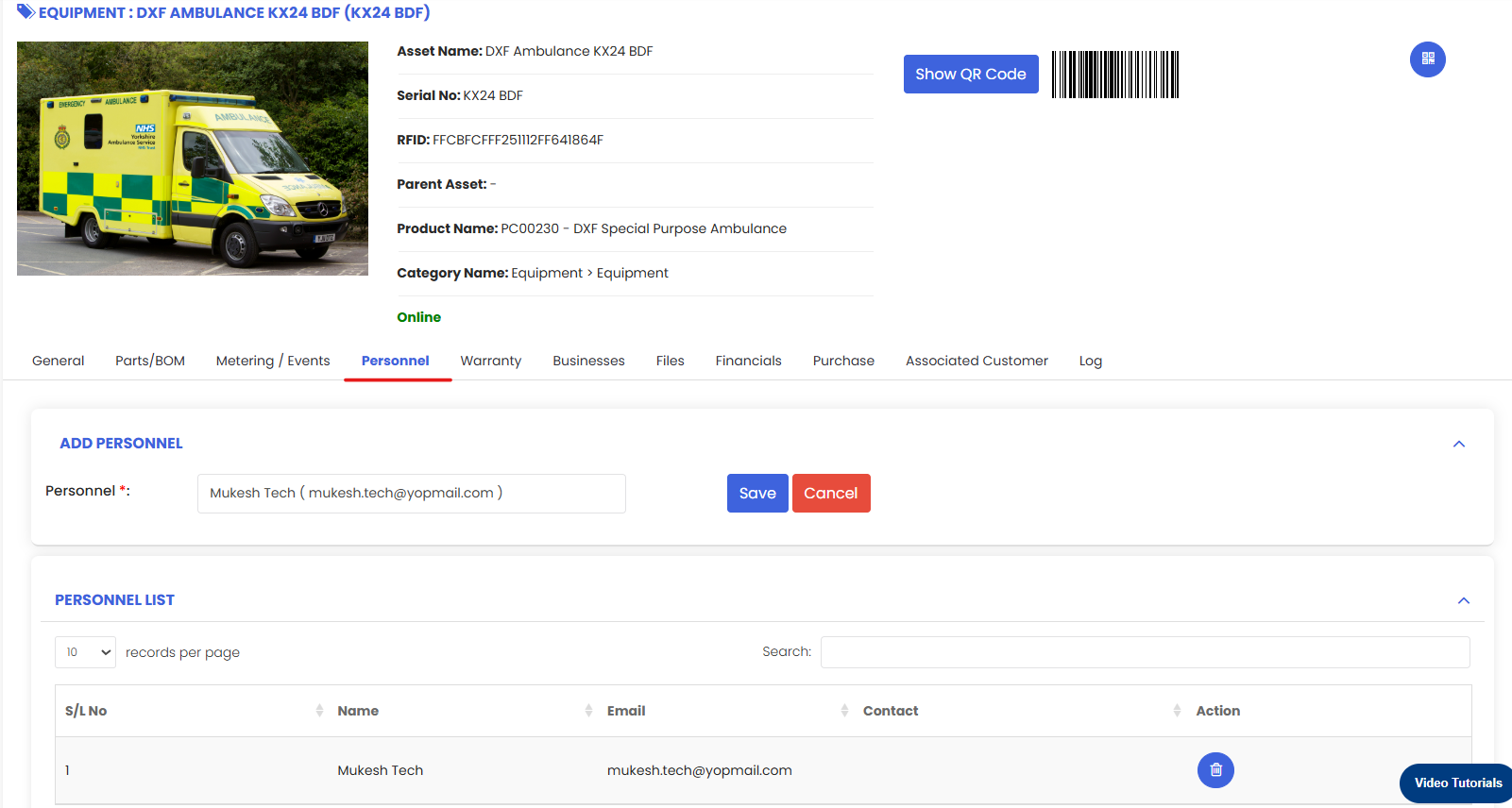
Personnel Tab
The Personnel tab allows you to assign internal users or service companies directly to this asset. Assigned personnel have visibility into the asset's work orders and receive relevant notifications.
For detailed instructions, see How to Assign Personnel to a Location/Facility
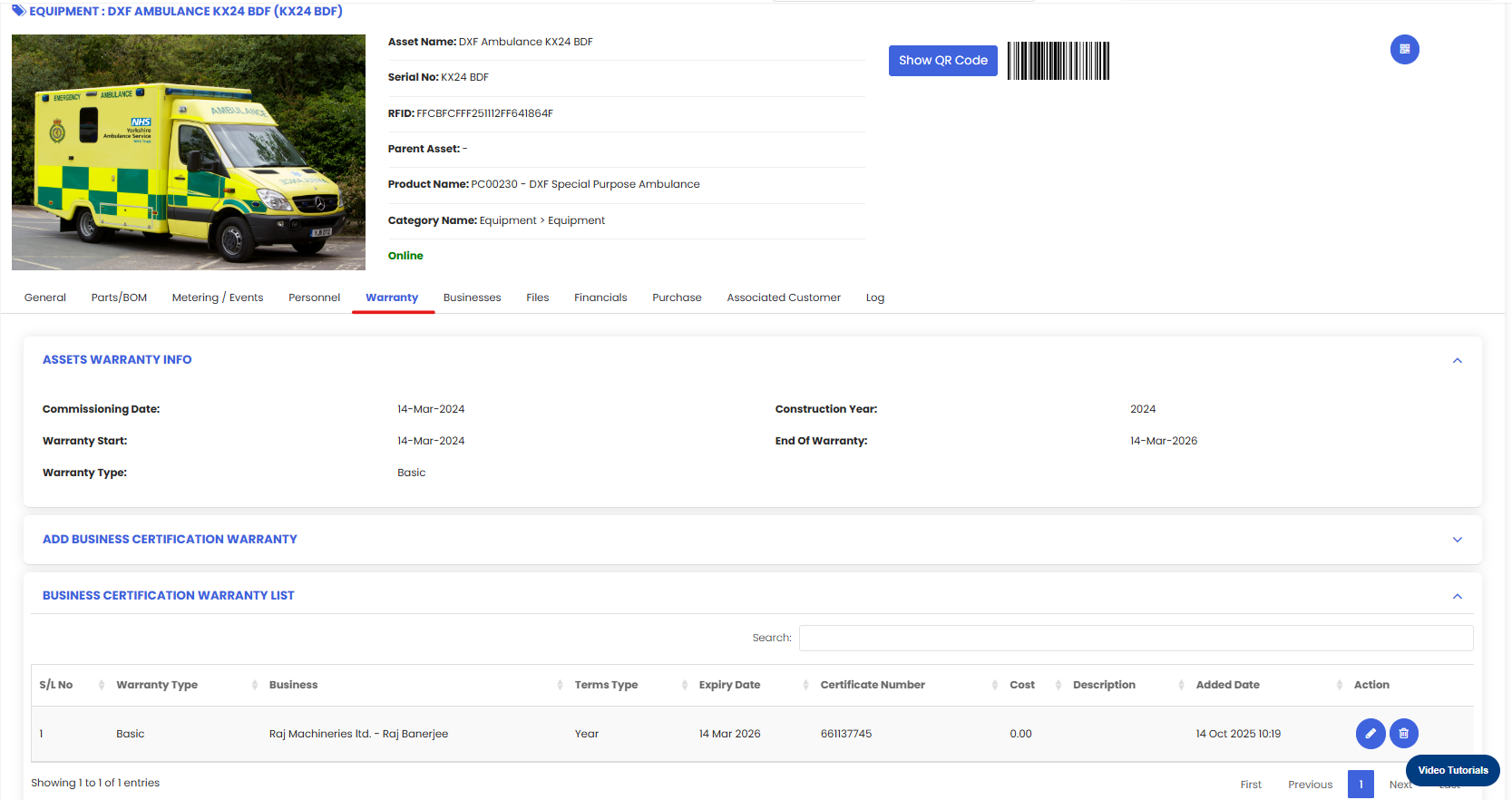
Warranty Tab
The Warranty tab is where you can view and manage warranty information for the asset. This includes:
- Asset Warranty — The standard manufacturer or supplier warranty for the asset.
- Business Certification Warranty — Any additional business-level certifications or extended warranties associated with the asset.
Keeping warranty details up to date helps your team avoid unnecessary repair costs on assets still under coverage.
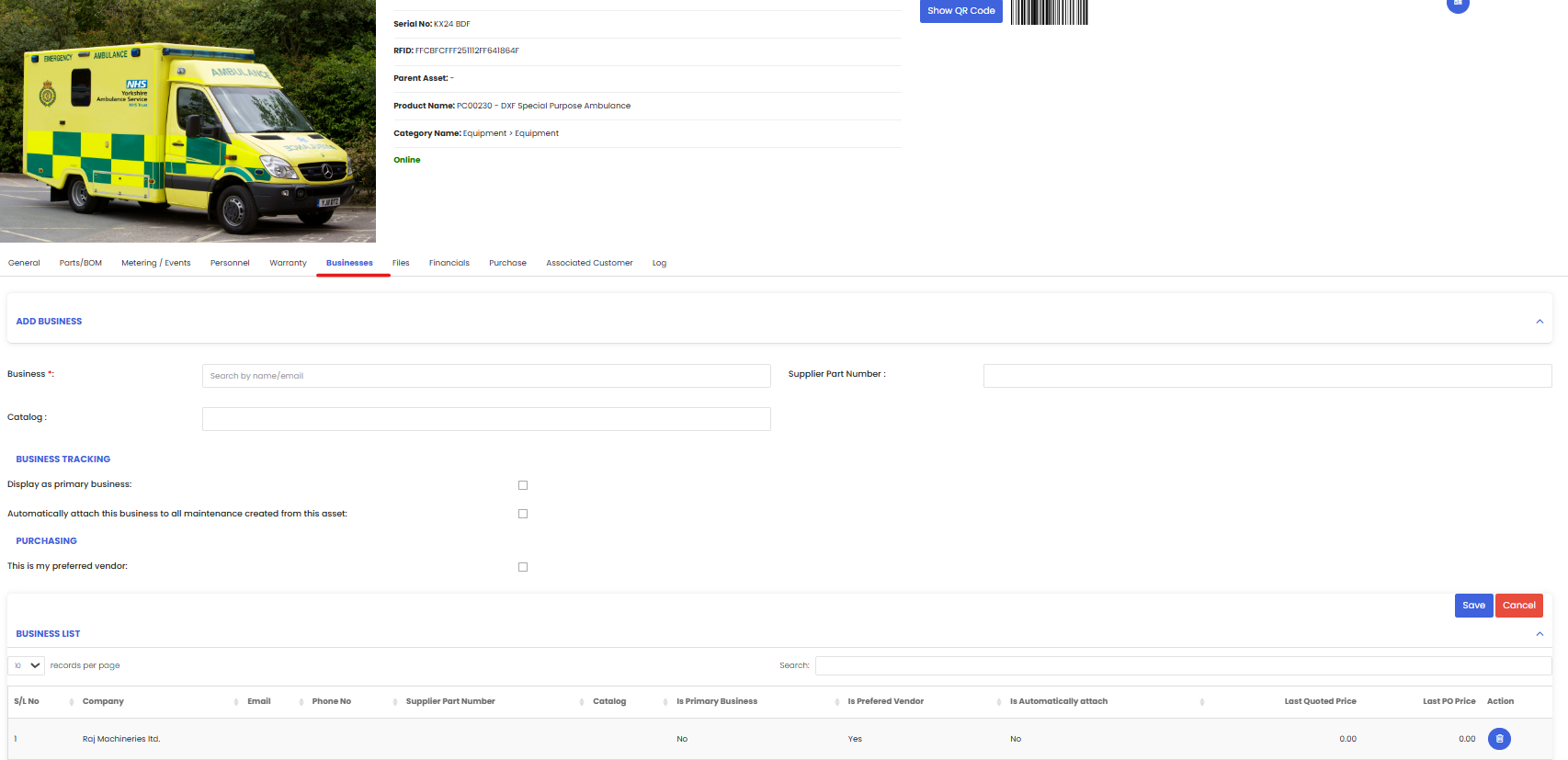
Business Tab
The Business tab lets you manage vendor relationships for this asset. You can:
- Set the vendor from whom the asset was purchased
- Set a preferred vendor for future servicing or repairs
This makes it easy to reference the right supplier when creating purchase requests or scheduling vendor work.
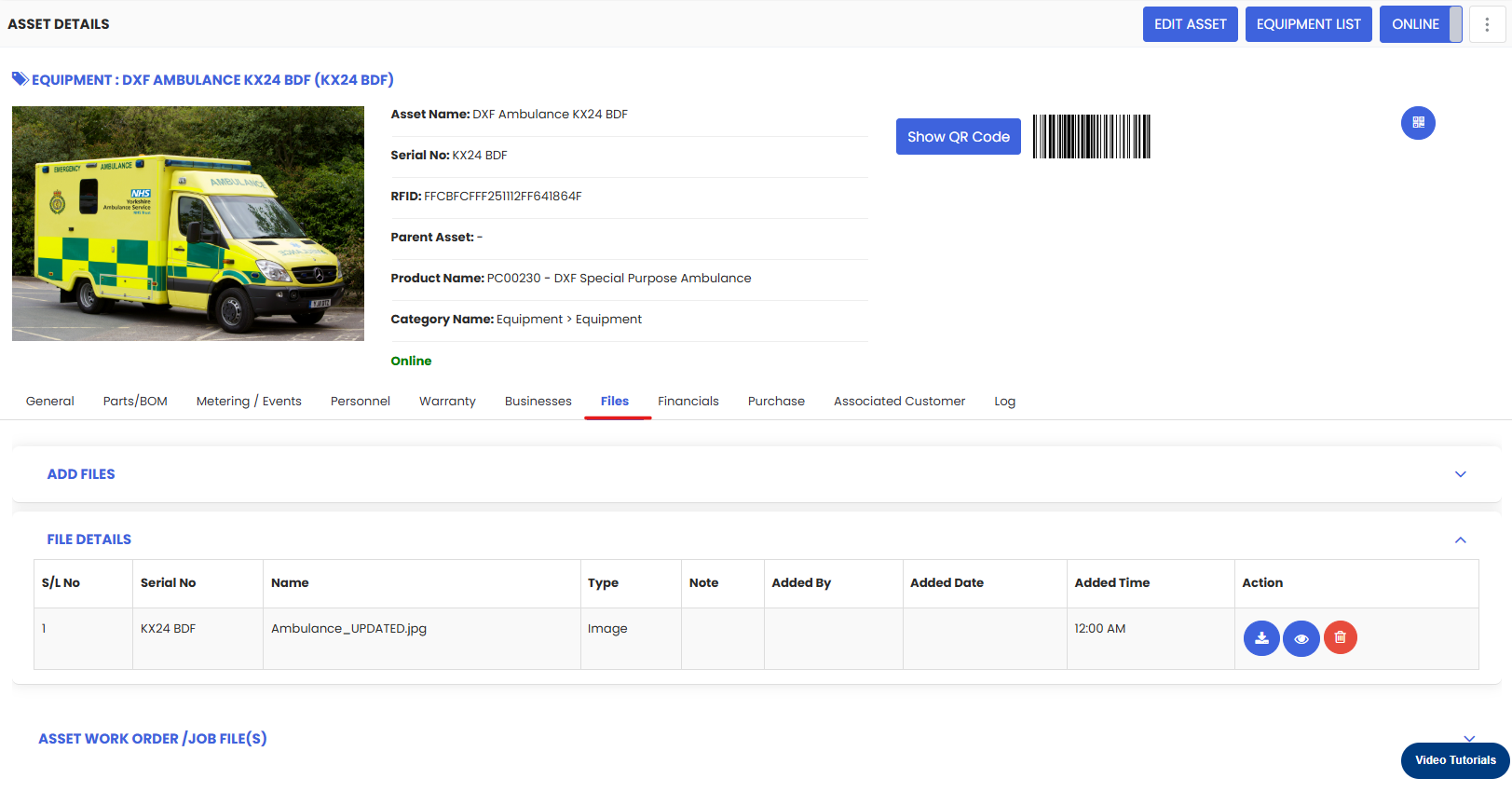
Files Tab
The Files tab stores all documents relevant to this asset, such as:
- Owner manuals and technical documentation
- Warranty certificates
- Inspection reports and compliance records
- Calibration certificates
Centralizing files here ensures your team always has the right documentation at their fingertips.
Financial Tab
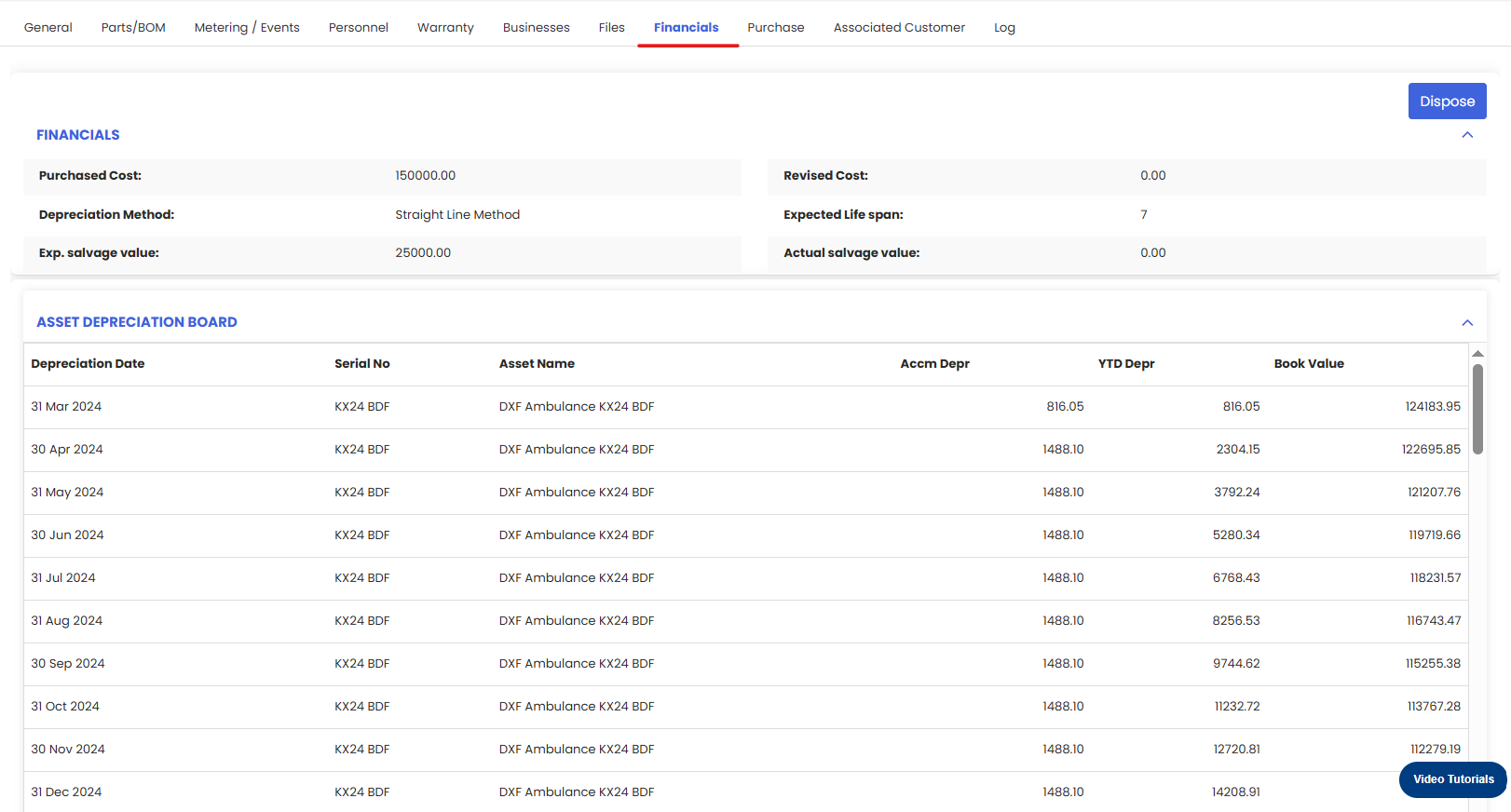
The Financial tab provides a complete financial picture of the asset, including:
- Asset Depreciation — Track how the asset's value decreases over time.
- Expenses — View costs incurred on this asset, such as repairs and parts.
- Asset Revaluation — Record any changes to the asset's book value.
This data is valuable for budgeting, audits, and asset lifecycle decisions.
Purchase Tab
The Purchase tab shows the complete purchase history of the asset, including past procurement records and purchase orders. This helps maintain a clear audit trail from acquisition onwards.
Log Tab
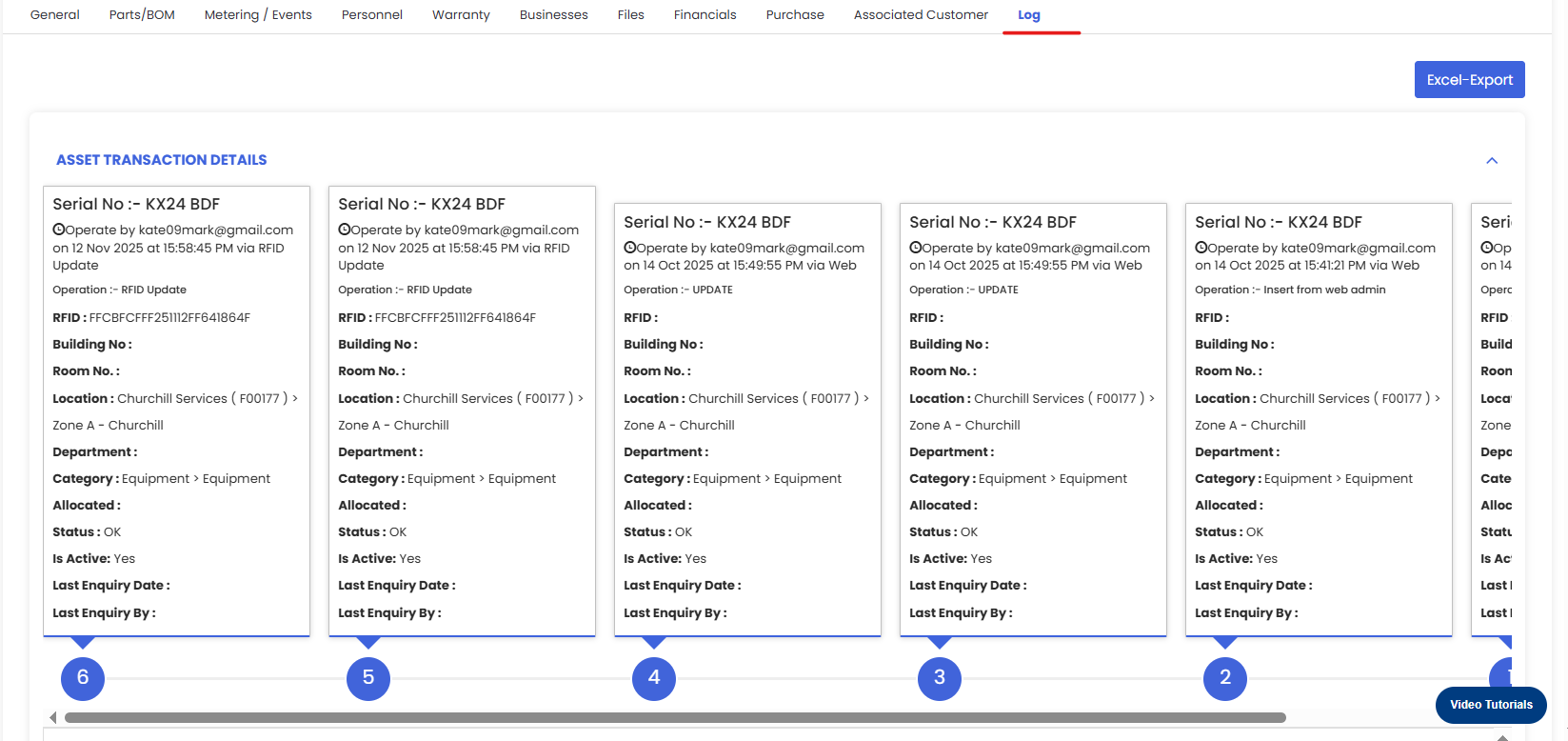
The Log tab provides a comprehensive transaction history of the asset from a single view. This includes:
- Asset movements and location changes
- Maintenance records and work order history
- Any updates or changes made to the asset record
This is your go-to tab for a full audit trail of everything that has happened to the asset since it was created.
Tips for Managing Asset Information
- Fill in the General tab completely when first creating an asset — incomplete records make searching and reporting unreliable.
- Upload key documents to the Files tab right away, such as manuals and warranties, so they're available when needed in the field.
- Set up meter readings for any asset where usage-based maintenance applies — this enables automated PM scheduling.
- Keep the Warranty tab updated to avoid spending on repairs that should be covered.
- Review the Log tab regularly to monitor asset activity and catch any unexpected changes or movements.
Frequently Asked Questions
Can I manage both Equipment and Tools the same way?
Yes. Both Equipment and Tools share the same tab structure and are managed identically. The distinction is mainly for categorization and filtering purposes.
Can I assign an asset to a location from the General tab?
Yes. The location field in the General tab lets you assign the asset to a specific facility. See Create Asset Locations.
Where can I see all work orders associated with an asset?
Work order history is visible in the Log tab. You can also create and view work orders directly from the asset record.
Can I track asset depreciation automatically?
Yes. The Financial tab includes asset depreciation tracking. Set it up once, and DreamzCMMS will calculate depreciation based on the method and values you define.
Can multiple users be assigned to the same asset?
Yes. Use the Personnel tab to assign as many users or service companies as needed.
Related Articles
- Create Asset Locations
- Import Asset Locations
- How to Assign Personnel to a Location/Facility
- Create and Manage Work Orders
- How to Add BOM to a Facility/Location