Product Management
Products in DreamzCMMS are your item master — everything your organization buys, stocks, or uses on jobs. This includes spare parts, consumables, services, and fixed assets. Think of Products as the foundation of your inventory and maintenance operations: before you can assign materials to a work order, build a BOM, or track spending on an asset, the item needs to exist as a Product in the system.
Overview
The Products section under Assets is where you create and manage your complete item catalog. Products act as a superset of equipment — meaning when you create a physical asset (e.g., a pump or generator) it is first defined as a Product, giving it a shared identity across procurement, inventory, and maintenance workflows.
From the Products listing page, you can add new products, edit existing ones, and perform bulk actions to keep your catalog up to date efficiently.
If you have a large number of products to add at once, see How to Import Products
Before You Begin
- You must have Admin or Manager permissions to create or manage products.
- Have key product details ready before creating a new item — such as product name, category, unit of measure, and pricing.
- Establish a consistent naming convention for products before you start building your catalog to avoid duplicates and confusion later.
How to Create a New Product
Step 1 – Navigate to Products
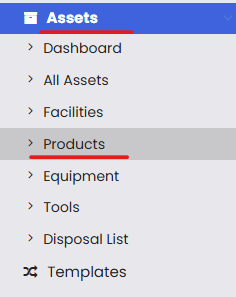
From the left-hand navigation menu, click on Assets, then select Products.
Step 2 – Click "New Product"
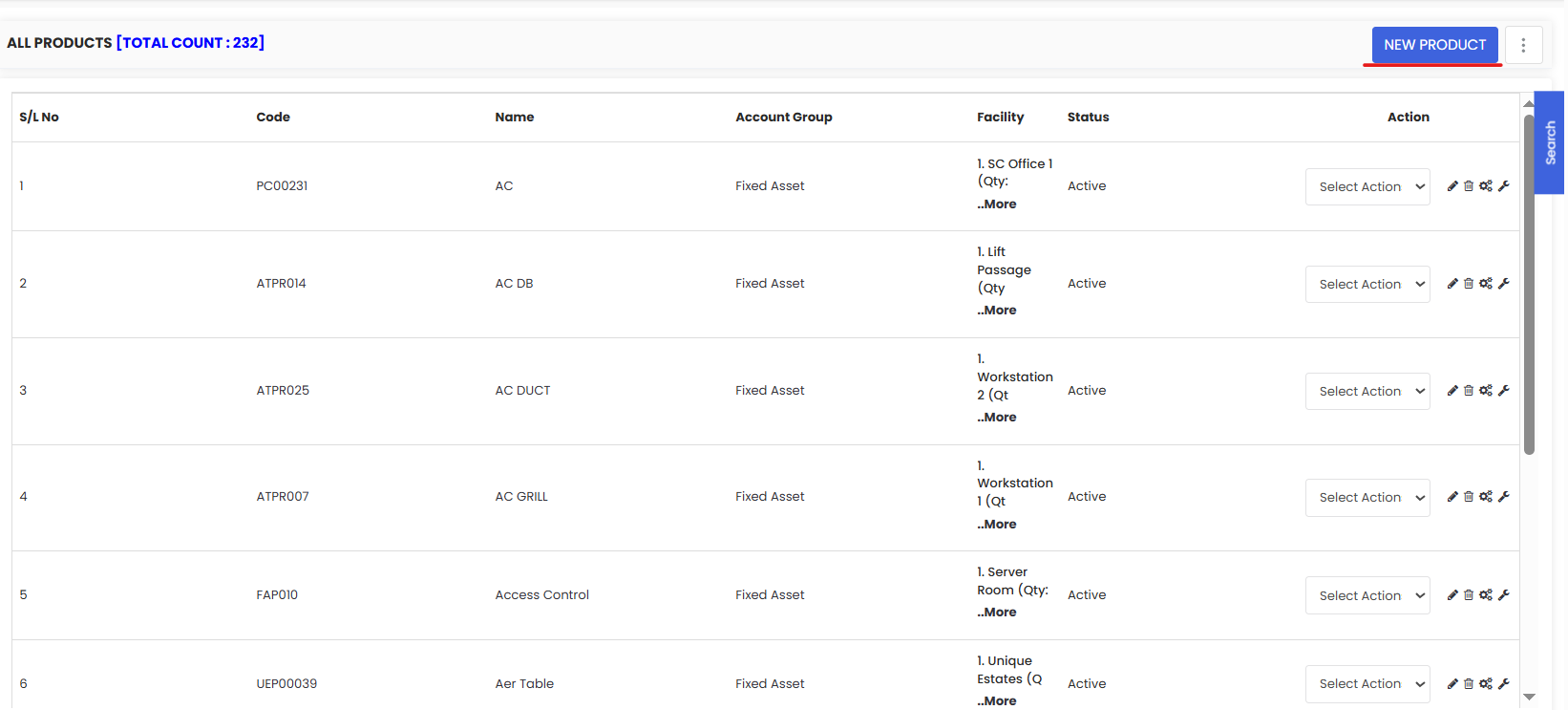
On the Products listing page, click the New Product button to open the product creation form.
Step 3 – Fill in the Product Details
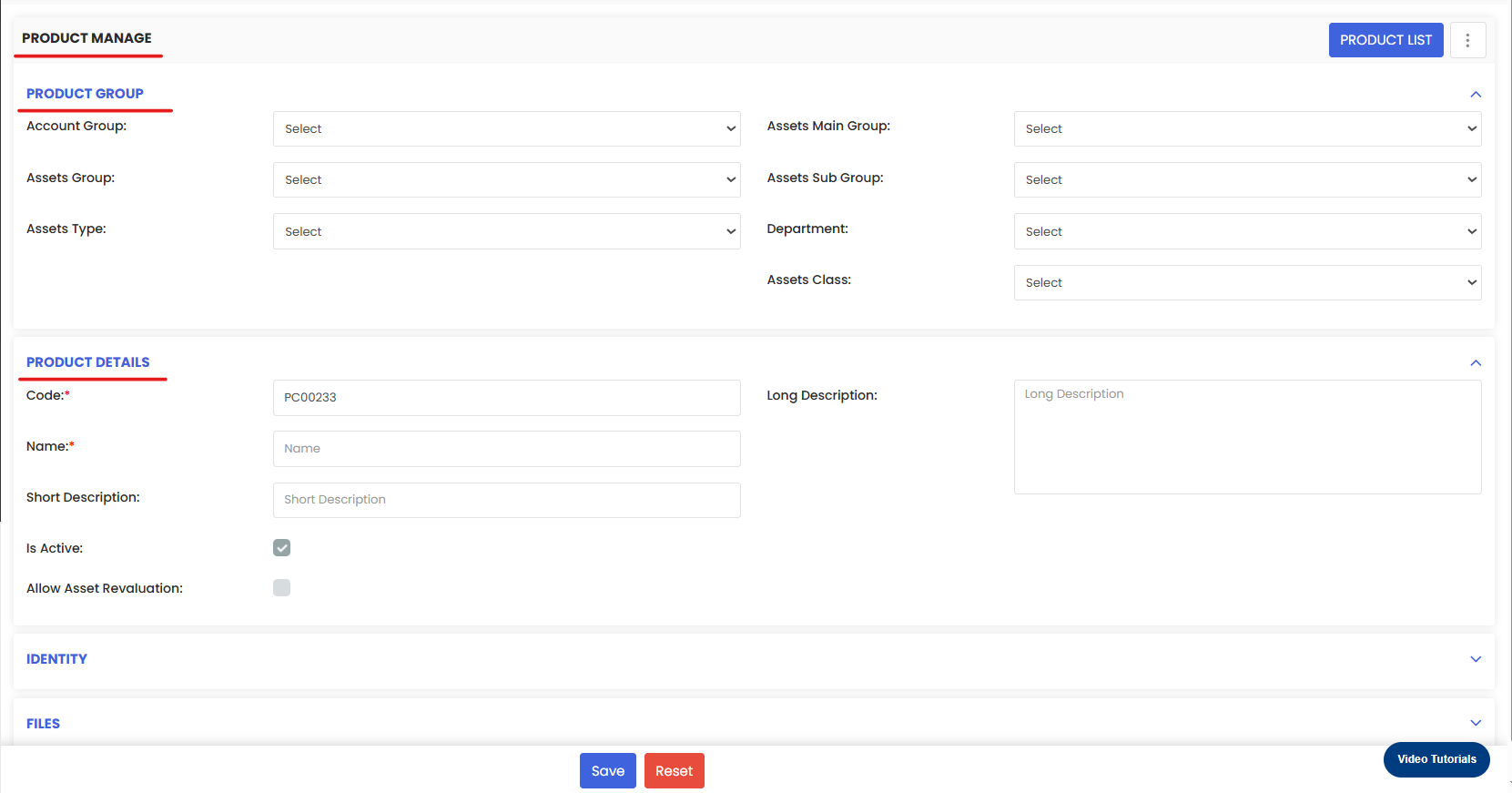
Enter the details for the product you want to add. Common fields include:
- Product Name (required) — Enter a clear, descriptive name (e.g., "Hydraulic Oil 46", "Air Filter – HVAC Unit", "Bearing SKF 6205").
- Category — Assign the product to a category (e.g., Spare Parts, Consumables, Services, Fixed Assets) for easier filtering and reporting.
- Unit of Measure (UOM) — Select the appropriate unit (e.g., each, litre, kg, metre).
- Unit Price — Enter the standard cost of the product for financial tracking.
- Description (optional) — Add any additional details such as specifications, part numbers, or supplier references.
Tip: Use specific and consistent product names from the start. Vague names like "Oil" or "Filter" make searching and reporting difficult as your catalogue grows.
Step 4 – Click Save
Once all the required details are filled in, click Save. The product will be added to your Products listing page and will be available for use across work orders, BOMs, and inventory.
Managing Products from the Listing Page
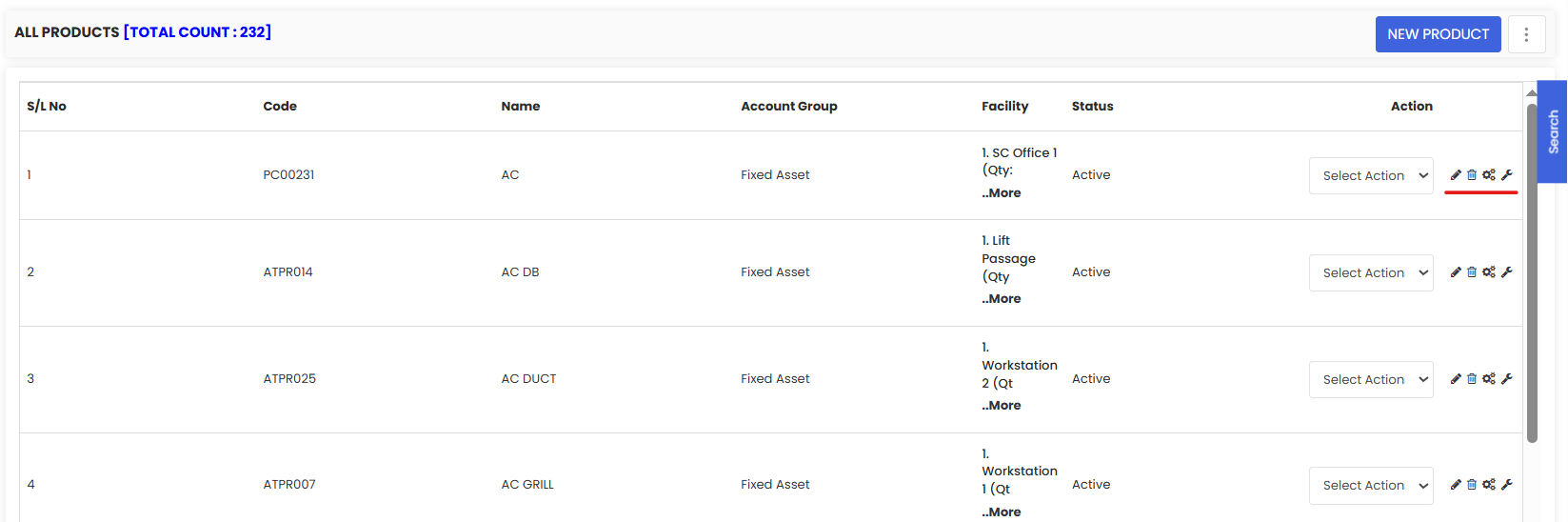
Once your products are in the system, the Products listing page gives you several tools to manage them efficiently:
- Edit — Update a product's details by clicking the edit icon next to it.
- Delete — Remove a product that is no longer needed. Note that products linked to active work orders or BOMs cannot be deleted until those associations are removed.
- Bulk Asset Update — Update multiple products at once, such as changing a category or unit of measure across a group of items.
- Bulk Asset Status Update — Change the status (e.g., active/inactive) of multiple products in one action, useful for decommissioning obsolete items without deleting them.
After Creating Products — What's Next?
Once your product catalogue is set up, you can:
- Add products to a Facility BOM to define standard materials for a location — see How to Add BOM to a Facility/Location
- Link products to asset records via the Parts/BOM tab — see How to Manage Various Asset Information
- Use products in Work Orders to track material usage and costs — see Create and Manage Work Orders
- Import products in bulk if you have a large catalogue to set up — see How to Import Products
Tips for Managing Your Product Catalogue
- Use categories consistently — A well-structured category system makes filtering, reporting, and finding products much faster.
- Set accurate unit prices — This ensures financial reports and work order cost tracking reflect real spending.
- Use Bulk Status Update instead of deleting — Marking a product as inactive keeps your historical data intact while removing it from active selection lists.
- Review your catalogue regularly — Periodically check for duplicates, outdated items, or products with missing information.
- Use Import for large catalogues — If you're onboarding with an existing product list, use the Import Products feature to save time.
Frequently Asked Questions
What is the difference between a Product and an Asset/Equipment?
A Product is the item master record — it defines what something is, its cost, and its unit of measure. An Asset or Equipment record represents a specific physical instance of that product that exists in your facility and is tracked for maintenance. Think of a Product as the "type" and an Asset as the "individual unit."
Can I have multiple assets linked to the same product?
Yes. Multiple individual asset records can reference the same product, which is common for items you have several of (e.g., 10 identical pumps of the same model).
Can I edit a product after it has been created?
Yes. Use the edit icon on the Products listing page to update any product's details at any time.
Can I delete a product that is already in use?
No. Products linked to active work orders, BOMs, or asset records cannot be deleted until those associations are removed. Consider using Bulk Asset Status Update to mark it as inactive instead.
Can I import products in bulk?
Yes. See How to Import Products for step-by-step instructions on bulk uploading via Excel.
Related Articles
- Create Asset Locations
- Import Asset Locations
- How to Assign Personnel to a Location/Facility
- Create and Manage Work Orders
- How to Add BOM to a Facility/Location