Import Assets from Excel
If you already have an existing list of equipment — whether from a spreadsheet, a previous system, or a handover document — you can bring it into DreamzCMMS quickly using the Import Assets from Excel feature. This saves significant time compared to adding each asset manually and ensures your asset register is up and running from day one.
Overview
The Dynamic Assets Import feature allows you to bulk upload equipment records into DreamzCMMS using an Excel file. The import process includes a column mapping step, which gives you the flexibility to match your existing spreadsheet columns to the correct fields in DreamzCMMS — even if your file uses different column names.
If you need to set up your locations before importing assets, see Create Asset Locations
If you only need to add a single asset, see How to Manage Various Asset Information
Before You Begin
- You must have Admin or Manager permissions to import assets.
- Download the sample Excel file from DreamzCMMS before preparing your data to understand the expected format and available fields.
- Ensure your asset data is clean and consistent before uploading — check for duplicate asset names, correct location references, and accurate serial numbers.
- Your locations must already exist in DreamzCMMS before importing assets assigned to them. See Create Asset Locations or Import Asset Locations to set these up first.
How to Import Assets from Excel
Step 1 – Navigate to Equipment
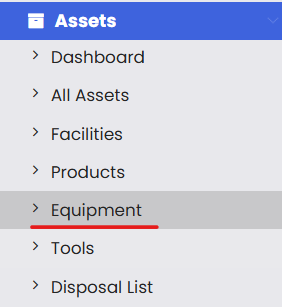
From the left-hand navigation menu, click on Assets, then select Equipment.
Step 2 – Open the Import Option
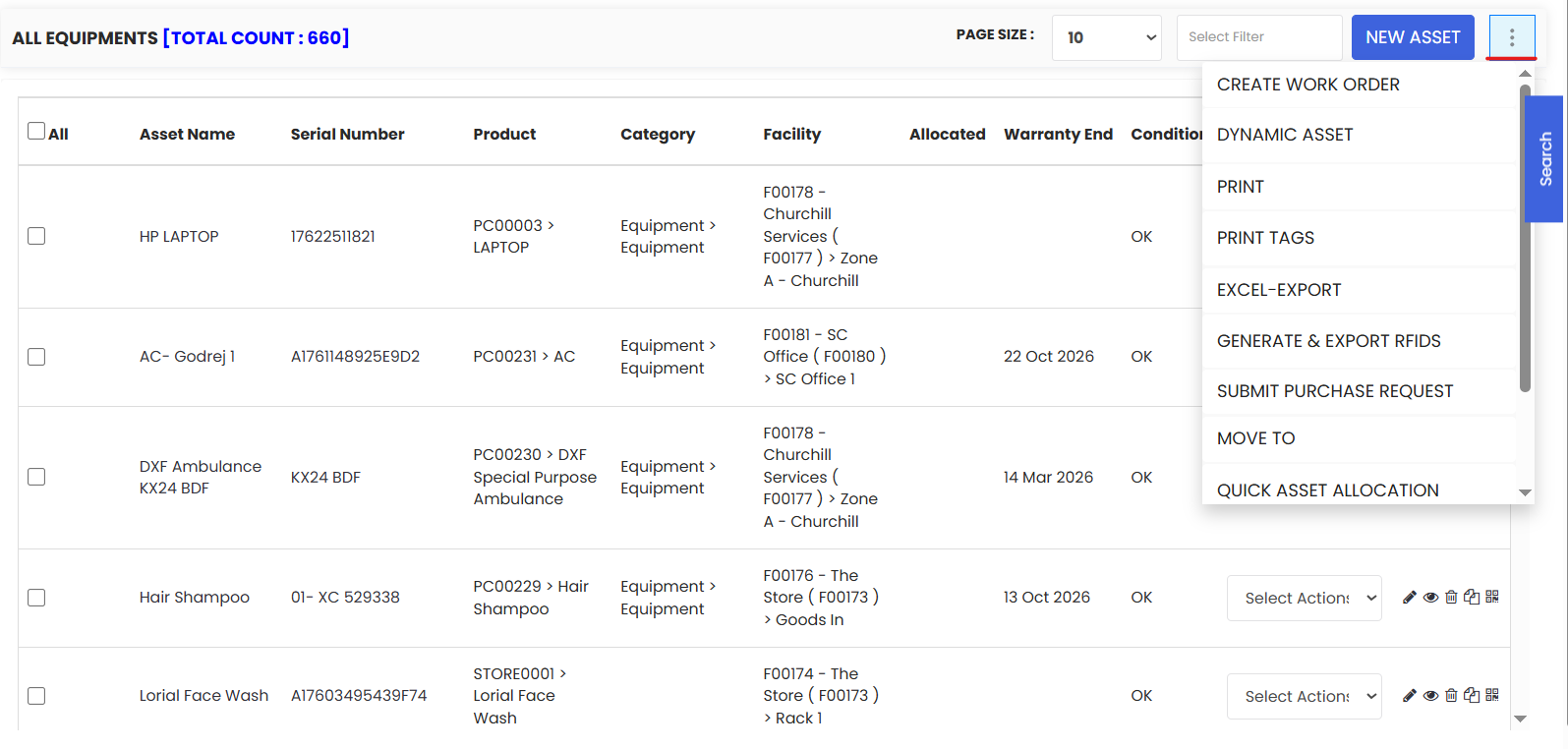
On the Equipment listing page, click the three-dot menu (⋮) in the top-right corner. From the dropdown, hover over More and select Dynamic Assets.
Step 3 – Download the Sample File
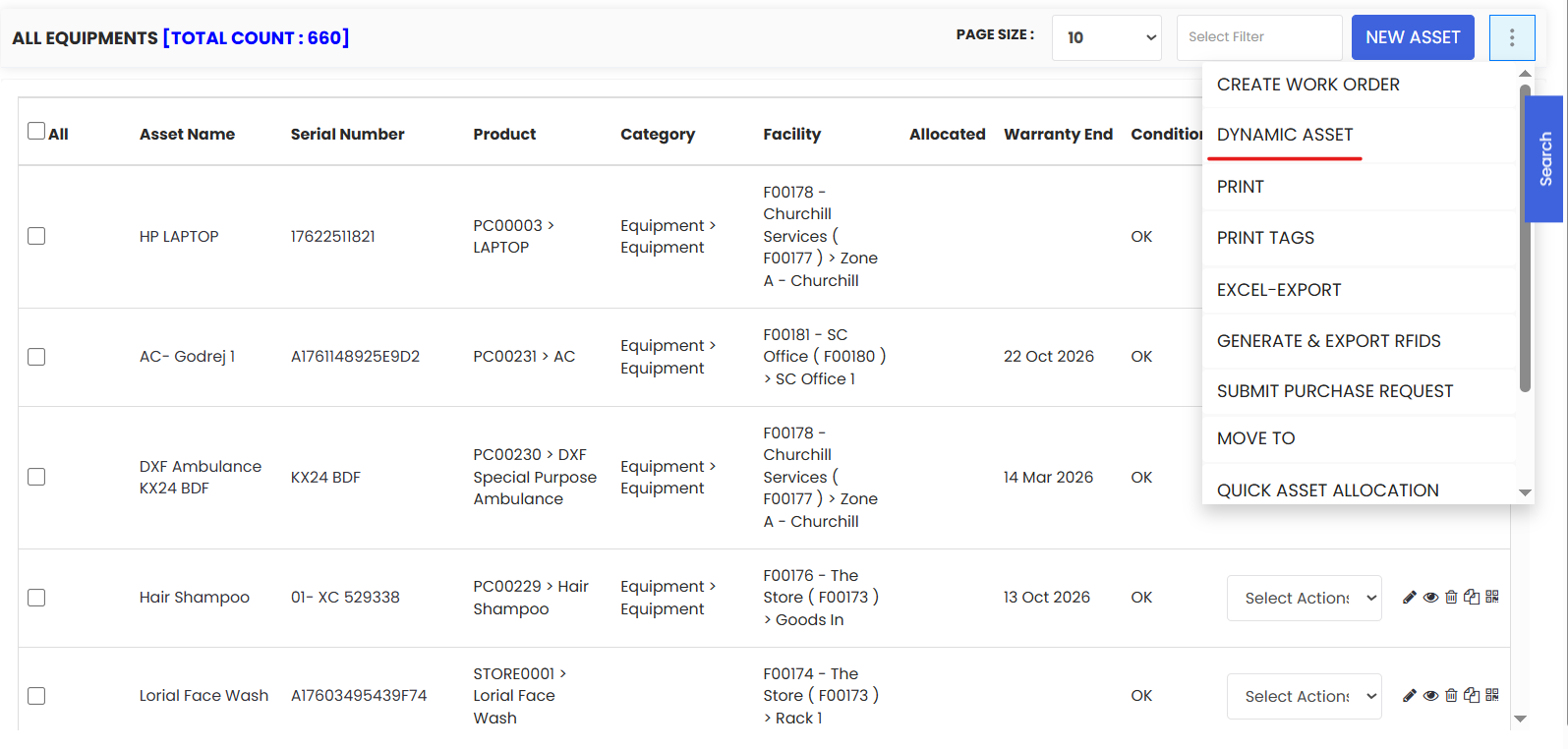
You will be redirected to the import page. Download the sample Excel file provided to use as a reference for how your data should be structured.
Populate your file with your asset data, following the same format as the sample. Once complete, save the file in .xlsx format.
Tips for preparing your Excel file:
- Keep asset names unique and descriptive to avoid duplicates.
- Ensure location names in your file exactly match the location names already in DreamzCMMS.
- Serial numbers, model numbers, and manufacturer details should be accurate — these are key identifiers for maintenance tracking.
- Do not leave required fields blank — check the sample file for which fields are mandatory.
- Save as .xlsx format before uploading.
Step 4 – Upload Your File
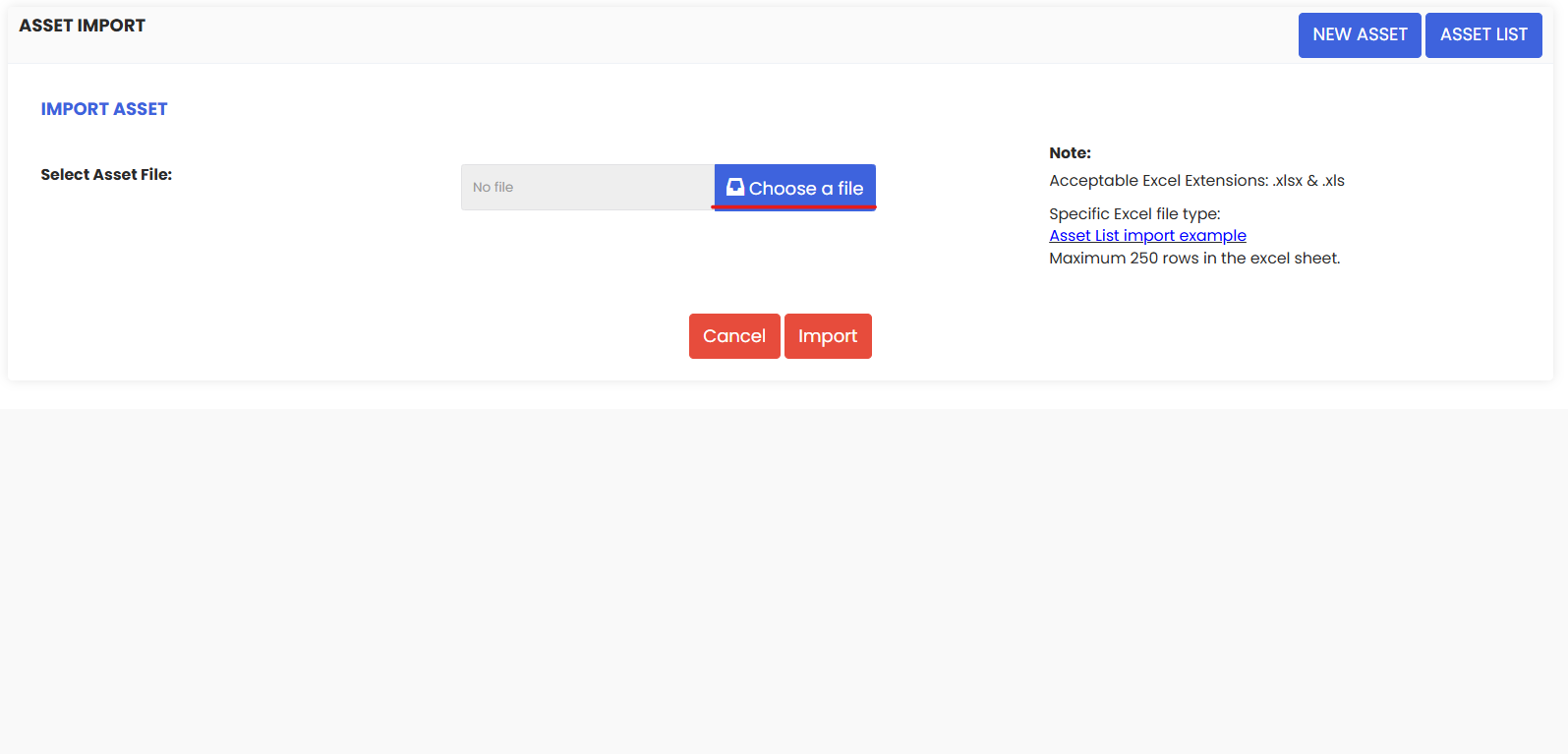
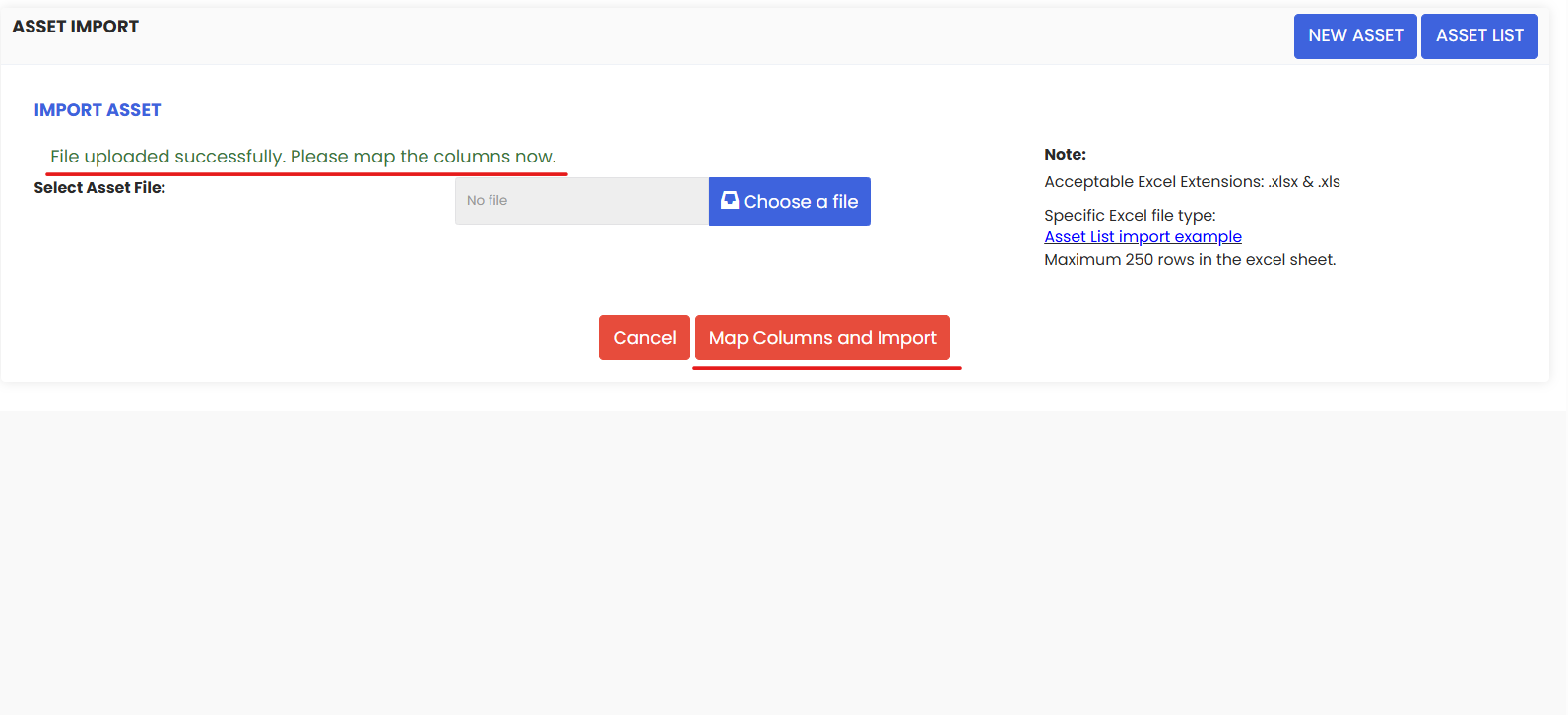
Click Choose a File and select your completed Excel file from your system.
Step 5 – Map Your Columns
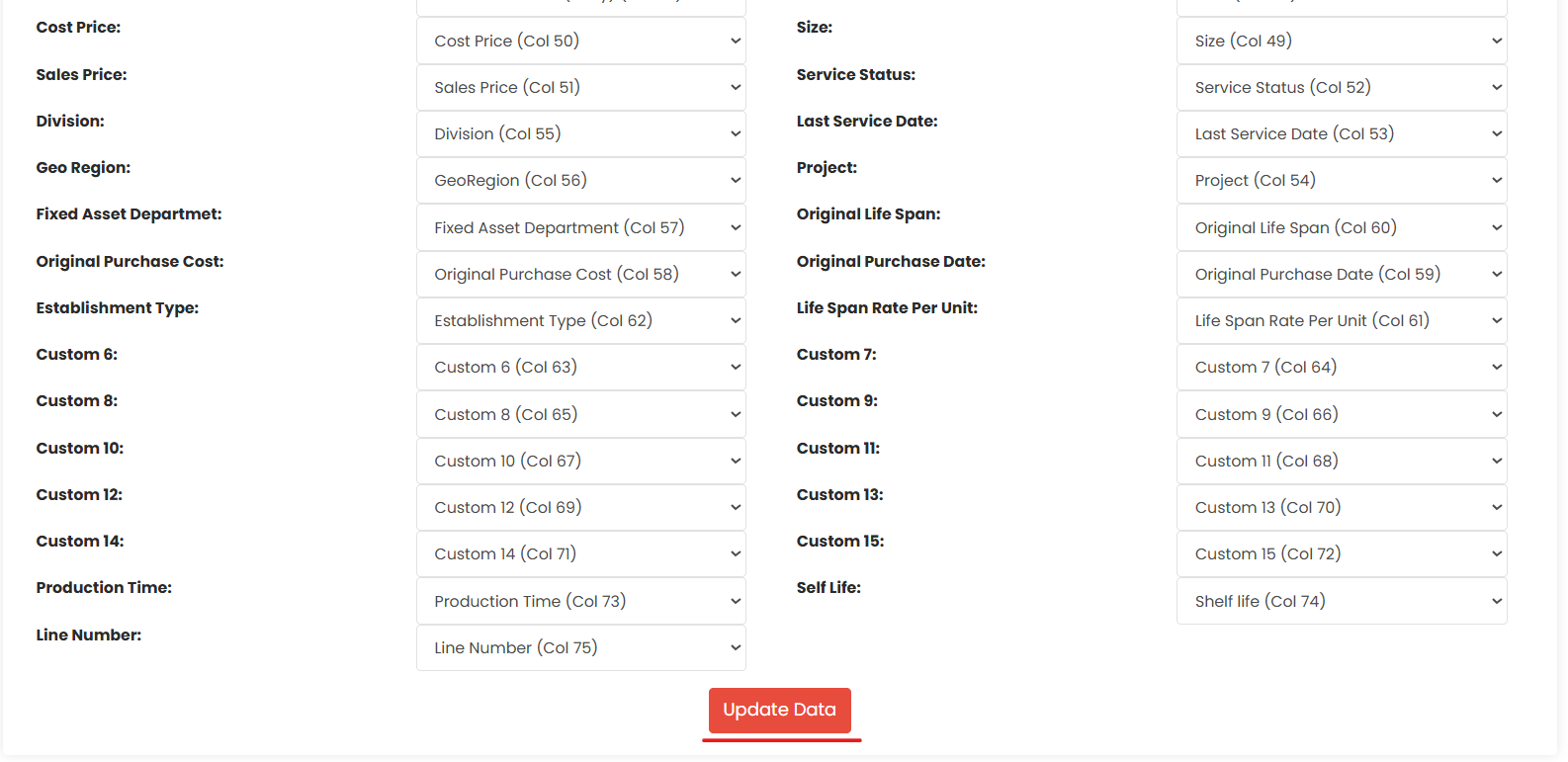
Click the Map Columns to Import button. This will open a column mapping screen where you match the columns in your Excel file to the corresponding fields in DreamzCMMS.
Why column mapping matters:
If your spreadsheet uses different column names (e.g., "Serial No." instead of "Serial Number"), the mapping step lets you align them correctly without having to reformat your entire file.
Review each mapping carefully to ensure every column is correctly matched before proceeding.
Step 6 – Update Data
Once you are satisfied with the column mapping, click Update Data to confirm the field mappings and prepare your data for import.
Step 7 – Start the Import
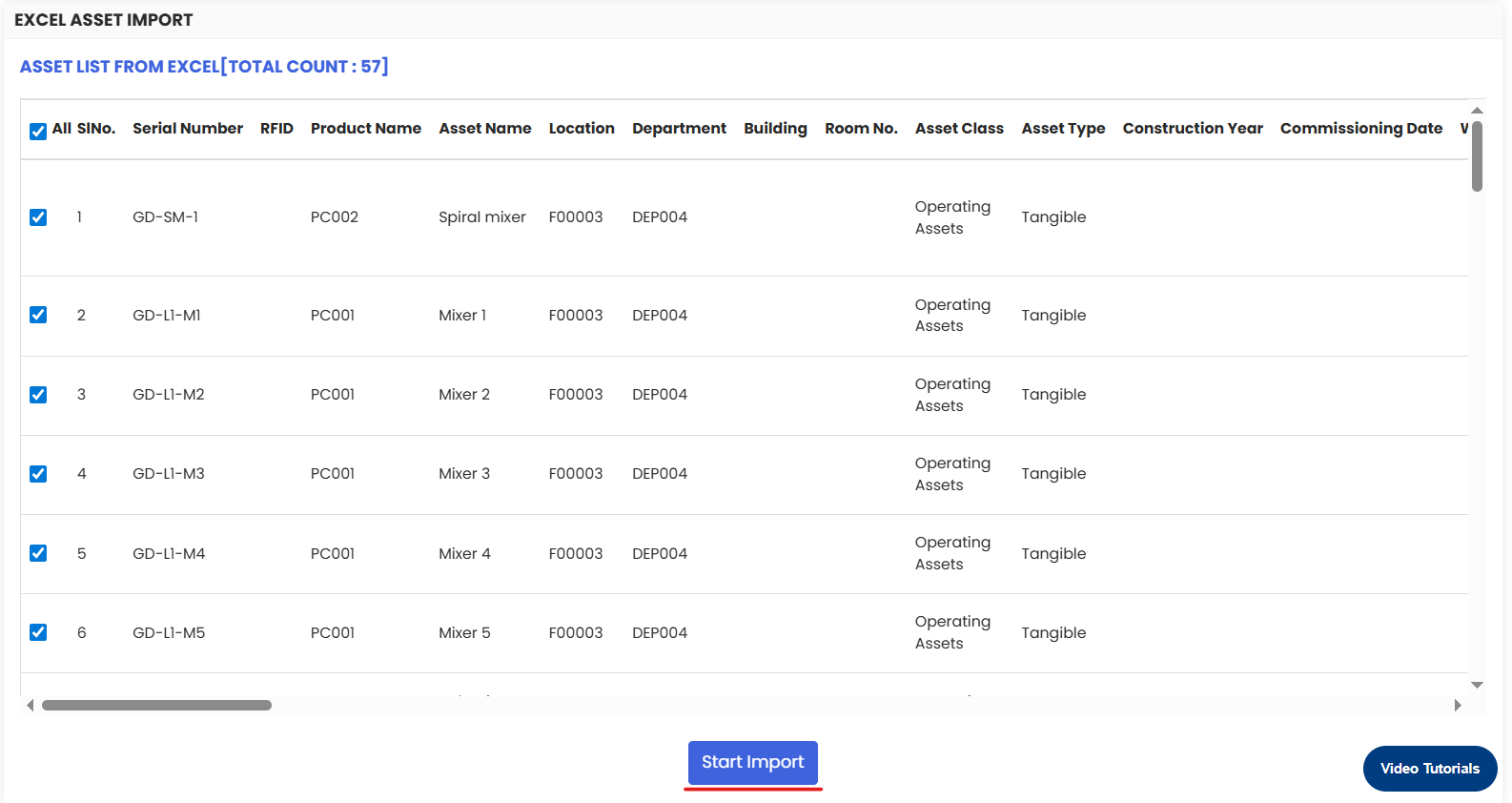
Click the Start Import button to begin importing your assets into DreamzCMMS.
Once the import is complete, your assets will appear in the Equipment listing page and be ready for use across work orders, maintenance schedules, and reports.
Troubleshooting
My import failed — what do I do?
Check that your Excel file is saved in .xlsx format and that all required fields are filled in. Review the column mapping step to ensure no fields were left unmapped or incorrectly matched.
Some assets didn't import correctly.
Go back to your Excel file and compare it with the assets shown in the Equipment listing page. Correct the affected rows and re-import, or manually edit individual records from the Equipment page.
Assets were assigned to the wrong location.
This is usually caused by location names in your file not exactly matching the names in DreamzCMMS (e.g., extra spaces, different capitalisation). Correct the location names in your file and re-import, or update individual asset records manually.
I see duplicate assets after importing.
This can happen if the same file was imported more than once. Use the Equipment listing page to identify and delete the duplicate records.
Frequently Asked Questions
Can I use this feature to update existing assets?
Yes. The Dynamic Assets import supports both adding new assets and updating existing ones. Ensure the asset identifiers in your file match existing records for updates to apply correctly.
Does the order of columns in my Excel file matter?
No. The column mapping step in Step 5 allows you to match your columns to the correct DreamzCMMS fields regardless of their order in your file.
Can I import assets without locations assigned?
Yes, location is typically optional during import. However, assigning locations from the start is strongly recommended for accurate tracking and work order routing.
Can I import both Equipment and Tools using this method?
This import flow is specifically for Equipment. For Tools, check whether a similar import option is available under the Tools section of the Assets menu.
How many assets can I import at once?
There is no specific stated limit, but importing in batches of 500 rows at a time is recommended for easier troubleshooting if issues arise.
Related Articles
How to Manage Various Asset Information