Convert a Work Request to a Work Order
When a Work Request has been reviewed and validated, the next step is converting it into a Work Order — the formal record used to schedule, assign, and execute the maintenance task. Converting rather than recreating ensures all original request details are carried over automatically, saving time and keeping a clear link between the original incident and the work performed.
Overview
In DreamzCMMS, any open Work Request can be converted into a Work Order directly from the Work Request listing page. The conversion pre-populates key details from the request and opens the Work Order form, where you can assign a technician, set scheduling details, add a task checklist, and configure notifications — all before saving and dispatching the job.
If you haven't created a Work Request yet, see Manage Work Requests
Before You Begin
- You must have Admin or Manager permissions to convert a Work Request to a Work Order.
- The Work Request must have a status of Open to be eligible for conversion.
- The technician you plan to assign must already be set up as a user in the system.
- Ensure your labor task checklists are configured if you plan to add them during this process.
How to Convert a Work Request to a Work Order
Step 1 – Navigate to the Work Request List
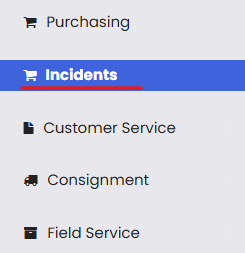
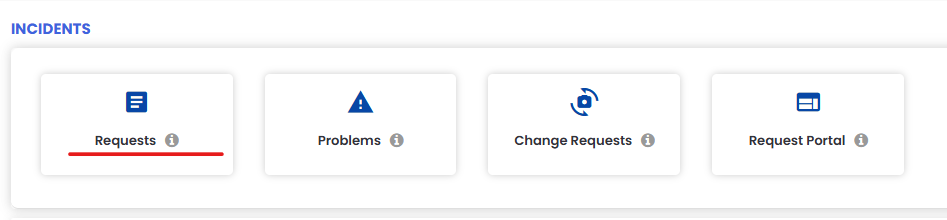
From the left-side menu, click Incidents, then click Request to open the Work Request listing page.
Step 2 – Click the Work Order Icon
Find the Work Request you want to convert. Locate the request with a status of Open and click the Convert to Work Order icon in its action column. This will open the Work Order creation form, pre-populated with details from the original request.

Step 3 – Review and Update the Work Order Details
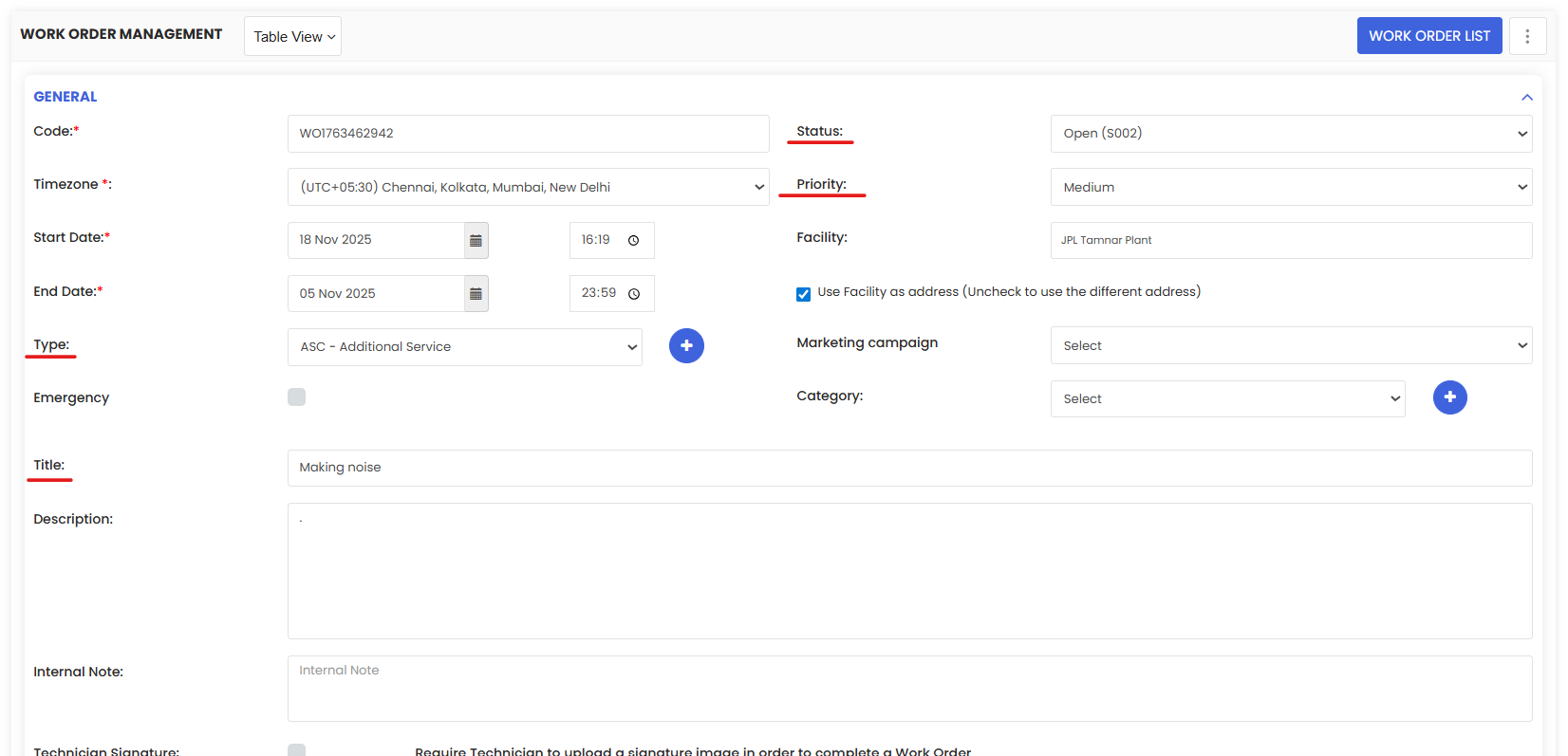
In the Work Order form, review and complete the following fields:
- Title — Enter or update the title of the Work Order to clearly describe the task (e.g., "Repair Air Conditioning Unit – Floor 2").
- Due Date — Set or adjust the deadline by which the work must be completed.
- Maintenance Type — Select the appropriate type (e.g., Corrective, Preventive, Emergency).
- Priority — Set or confirm the priority level (e.g., Low, Medium, High, Critical).
Step 4 – Assign a Technician
Scroll to the Assignee section and assign the Work Order to the technician responsible for carrying out the work. You can search by name or select from the dropdown list.
Tip: Assigning the right technician at this stage ensures they receive notifications and can access the Work Order from their task list immediately after saving.

Step 5 – Add a Labor Task Checklist
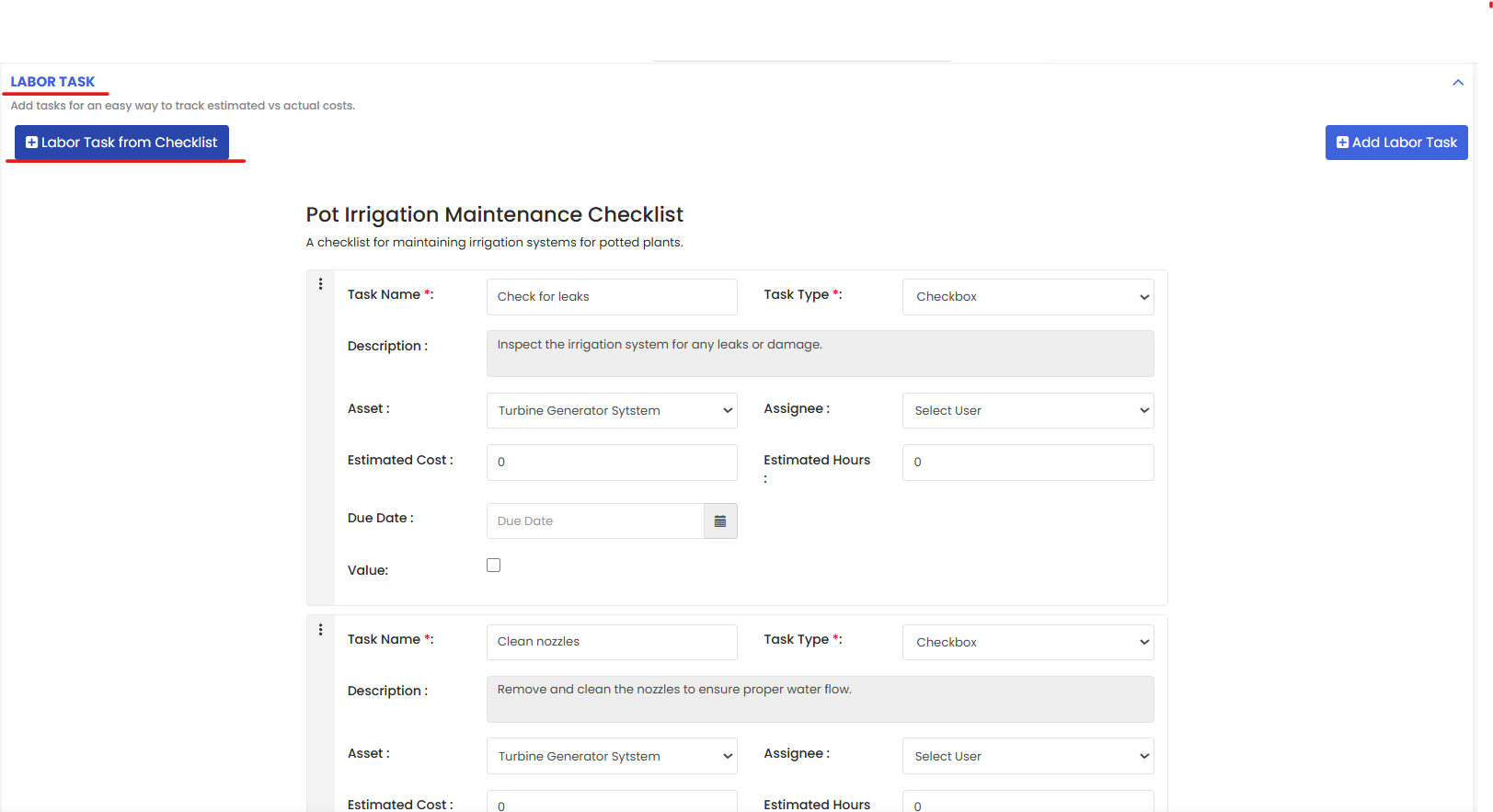
In the Labor Task section, add the checklist of tasks the technician needs to complete as part of this Work Order. This gives technicians a clear, step-by-step guide and allows progress to be tracked against each task.
To add tasks:
- Click Add Task and enter the task description.
- Repeat for each step in the maintenance procedure.
Step 6 – Configure Notifications
In the Message section, set up notifications so the right people are informed at each stage of the Work Order:
- Select Technician — Choose the technician from the dropdown to receive notifications.
- Event Checkboxes — Check the relevant events you want to trigger notifications for (e.g., Work Order Created, Status Updated, Work Order Completed).

Step 7 – Save the Work Order
Once all details are complete, click Save to create the Work Order. The Work Order is now active and visible to the assigned technician. The original Work Request will be updated to reflect that it has been converted.
After Converting — What's Next?
Once the Work Order is saved, your team can:
- Track Work Order progress from the Work Order listing page, monitoring status updates as the technician works through the task.
- Add parts and materials to the Work Order if spare parts or consumables are required
- Create a Purchase Request if materials need to be ordered before work can proceed
- Close the Work Order once the task is complete and update the resolution details for reporting and asset history.
Tips for Converting Work Requests to Work Orders
- Review the original request details carefully before saving. The conversion pre-fills fields, but always verify that the title, priority, and due date accurately reflect the actual task.
- Assign promptly. An unassigned Work Order won't reach any technician — make sure an assignee is always set before saving.
- Use labor task checklists. They create accountability, help technicians follow the correct procedure, and provide a completion record for audits.
- Set up notifications. Without notifications configured, technicians may not be aware that a new Work Order has been assigned to them.
- Keep the Work Order title clear and specific. Avoid generic titles like "Repair needed" — include the asset name and location for faster identification.
Frequently Asked Questions
Can I convert a Work Request that is not in Open status?
No. Only Work Requests with a status of Open can be converted to a Work Order. If the request is in a different status, update it to Open first.
Will the original Work Request be deleted after conversion?
No. The original Work Request remains in the system and is updated to show that it has been converted. This preserves the full audit trail from initial report to completed work.
Can I convert one Work Request into multiple Work Orders?
Typically, a Work Request converts into a single Work Order. If multiple tasks are required, they can be managed as separate labor tasks within the same Work Order, or the request can be duplicated first.
What details are carried over from the Work Request automatically?
Key details such as the related asset, description, priority, and requester information are pre-populated in the Work Order form during conversion.
Can I edit the Work Order after saving it?
Yes. Work Orders can be edited at any point while they are in progress, as long as they have not been closed or locked.
What is a Labor Task Checklist?
A Labor Task Checklist is a list of individual steps or tasks that a technician must complete as part of the Work Order. Each task can be checked off as it is completed, providing a progress record and ensuring nothing is missed.
What happens if I forget to assign a technician?
The Work Order will be saved but will remain unassigned. No notifications will be sent. You can edit the Work Order at any time to add an assignee.