How to Import Products
If you have a large product catalog to set up, adding items one by one can be time-consuming. DreamzCMMS allows you to bulk add or update products using an Excel file, making it fast and efficient to get your product library ready — whether you're setting up for the first time or migrating from another system.
Overview
The Product Import feature lets you upload multiple products into DreamzCMMS at once using a pre-formatted Excel template. Products in DreamzCMMS represent the parts, consumables, materials, and equipment items that are used across work orders, BOMs, and inventory management.
If you only need to add a single product, you can do so manually from the Products page instead.
Before You Begin
- You must have Admin or Manager permissions to import products.
- Download the sample Excel file from DreamzCMMS before preparing your data to ensure your file uses the correct format and column headers.
- Make sure your product data is clean and consistent before uploading (e.g., no duplicate product names, correct units of measure, accurate pricing).
How to Import Products
Step 1 – Navigate to Products
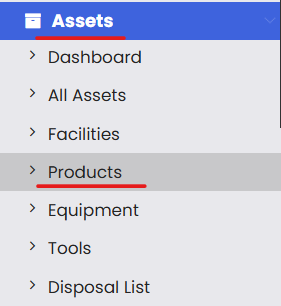
From the left-hand navigation menu, click on Assets, then select Products.
Step 2 – Open the Import Products Option
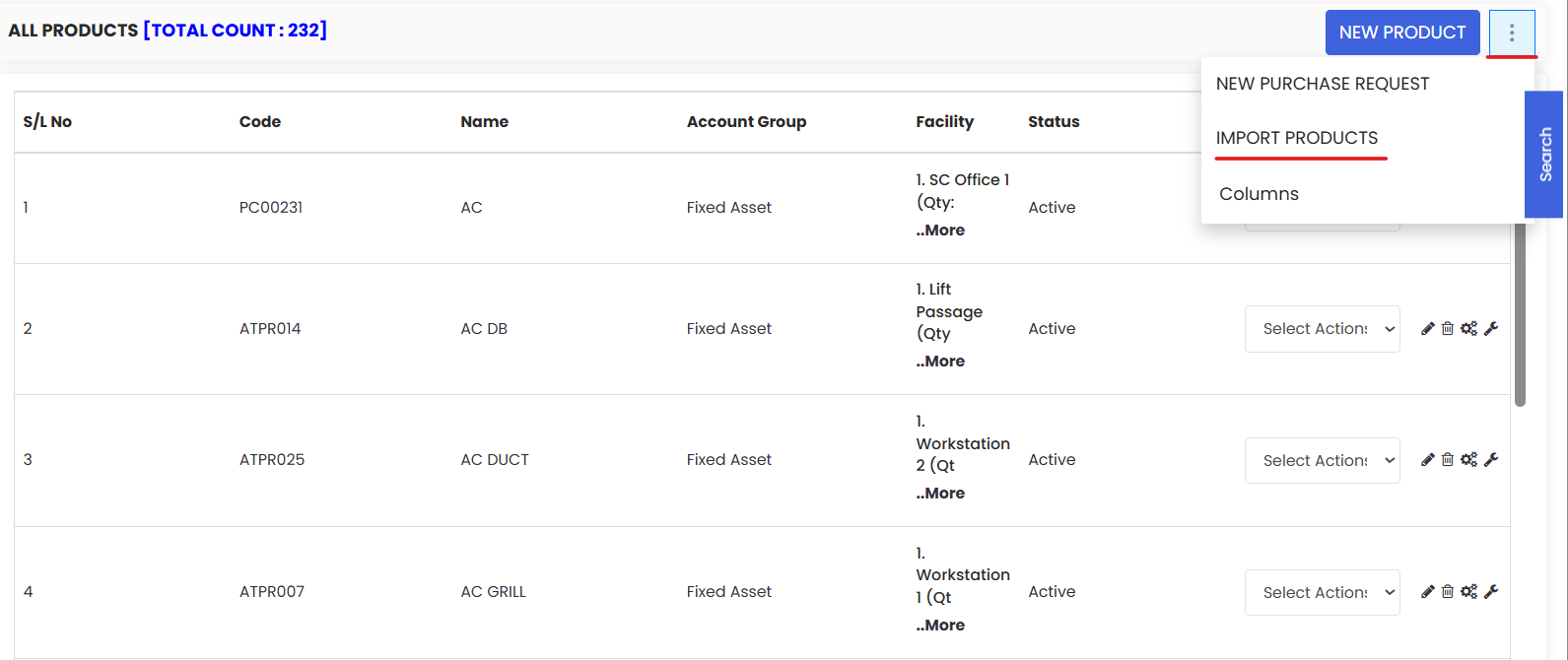
On the Products listing page, click the three-dot menu (⋮) in the top-right corner of the screen. From the dropdown, select Import Products.
Step 3 – Download the Sample Excel File
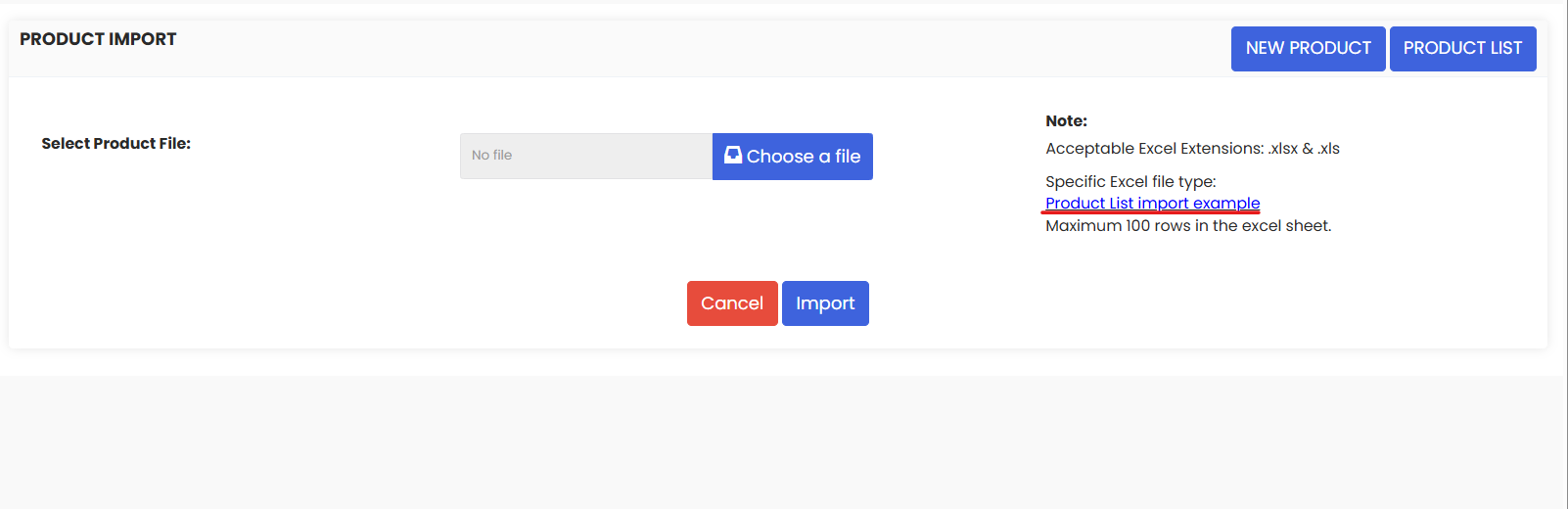
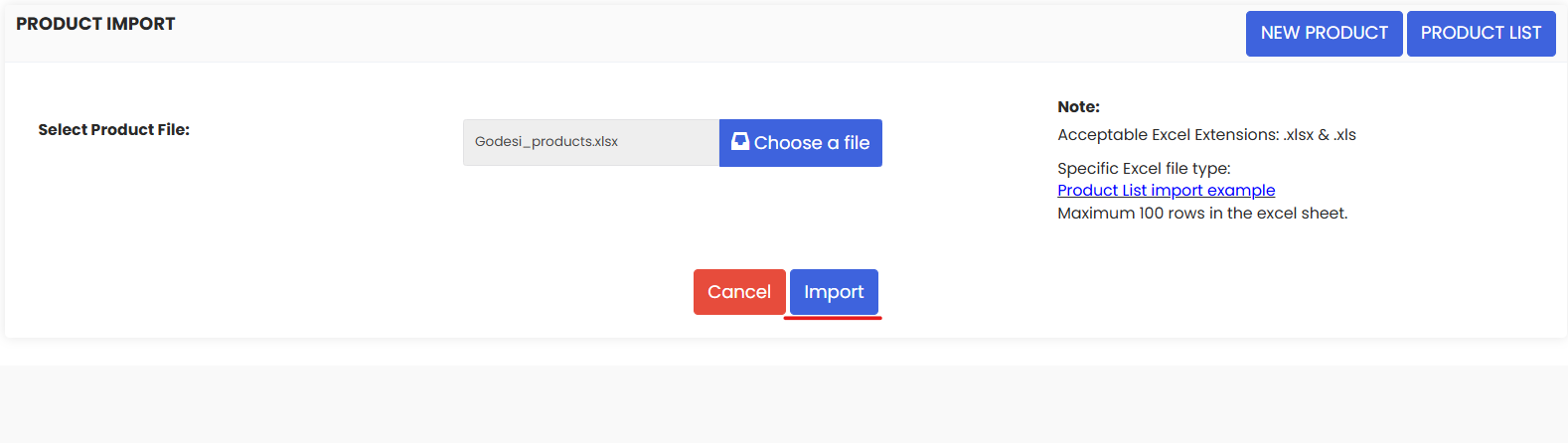
On the Import Products page, click the highlighted sample file link to download the Excel template. This file contains all the required column headers and an example row to guide your data entry.
Open the file and populate it with your product data, following the same format as the sample. Once complete, save the file.
Tips for filling out the Excel file:
- Do not rename, remove, or reorder any column headers — the system relies on them to map your data correctly.
- Ensure product names are unique to avoid creating duplicates in the system.
- Use consistent units of measure (e.g., always "each", "kg", or "ltr" — not a mix of abbreviations).
- Double-check pricing and quantity fields — these must be numeric values only, with no currency symbols or text.
- Please save the file in .xlsx format before you upload it.
Step 4 – Upload Your File
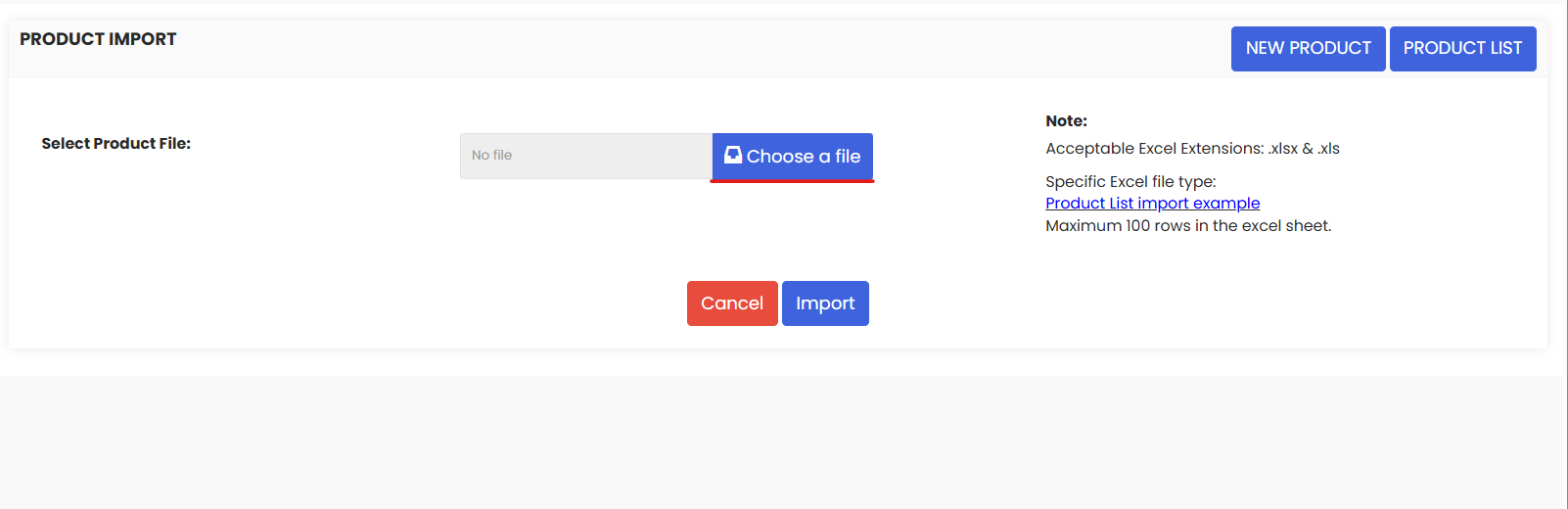
Once your file is ready, click the Upload button on the Import Products page and select your completed Excel file from your system.
Step 5 – Click Import
After uploading, click the Import button to begin processing. DreamzCMMS will read your file and add the products to your system.
Once complete, your imported products will appear in the Products listing page and be available for use across work orders, BOMs, and inventory.
After Importing — What's Next?
Once your products have been successfully imported, you can:
- Review your product list on the Products page to verify that all items imported correctly.
- Add products to a Facility BOM so the right materials are always linked to the right locations — see How to Add BOM to a Facility/Location
- Assign products to assets via the Parts/BOM tab on individual asset records — see How to Manage Various Asset Information
- Use products in Work Orders to track material usage and costs — see Create and Manage Work Orders
Troubleshooting
My import failed — what do I do?
Check that your Excel file matches the exact format of the sample file. Common causes of failure include renamed or missing column headers, unsupported file formats (use .xlsx only), or invalid data types in numeric fields.
Some products didn't import correctly.
Compare your Excel file against the Products listing page to identify discrepancies. You can correct the affected rows in your file and re-import, or manually edit individual products from the Products page.
I see duplicate products after importing.
This can happen if product names in your file were not unique, or if you imported the same file more than once. Use the Products page to identify and remove duplicates manually.
Frequently Asked Questions
Can I use the import feature to update existing products?
Yes. The import feature supports both adding new products and updating existing ones in bulk. Ensure the product names or identifiers in your file match the existing records for updates to apply correctly.
How many products can I import at once?
There is no specific stated limit, but it is best practice to import in manageable batches (e.g., 500 rows at a time) to make it easier to identify and fix any issues.
What types of products can I import?
You can import any product type supported in DreamzCMMS, including parts, consumables, materials, and equipment items.
Can I download my existing product list from DreamzCMMS?
Yes. You can typically export your existing product list from the Products page for reference or to make bulk updates. Check the three-dot menu on the Products page for an export option.
Related Articles
- Create Asset Locations
- Import Asset Locations
- How to Assign Personnel to a Location/Facility
- Create and Manage Work Orders
- How to Add BOM to a Facility/Location