Stock Transfer with Approval Workflow
The Stock Transfer feature in DreamzCMMS allows users to transfer assets or inventory items from one location to another while following a structured multi-level approval workflow. This ensures proper tracking, accountability, and verification at each stage of the transfer process.
The workflow involves multiple roles such as requester, receiver, manager, and finance manager, each responsible for validating and approving the transfer before it is completed.
This guide will walk you through:
Creating a Stock Transfer Request
Completing multi-level approvals
Marking stock as moved and confirming receipt
Verifying the transfer and viewing history
Overview
Stock transfers in DreamzCMMS follow a step-by-step approval process to ensure transparency and control. Each transfer goes through multiple stages including:
Request creation
Receiver confirmation
Manager approval
Finance approval
Physical movement confirmation
Final approval and closure
This structured process ensures that stock movement is properly authorized and recorded within the system.
Here is a reference video:
Before You Begin
Before initiating a stock transfer, ensure the following:
Required locations and users are already configured in the system.
Items or assets to be transferred are available in the source location.
You have the necessary permissions to create and approve stock transfers.
Relevant users (receiver, manager, finance manager) are assigned in the system.
Step 1: Create a Stock Transfer Request
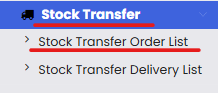
From the left-hand menu, click on Stock Transfer.
Select Stock Transfer → Stock Transfer Order List.
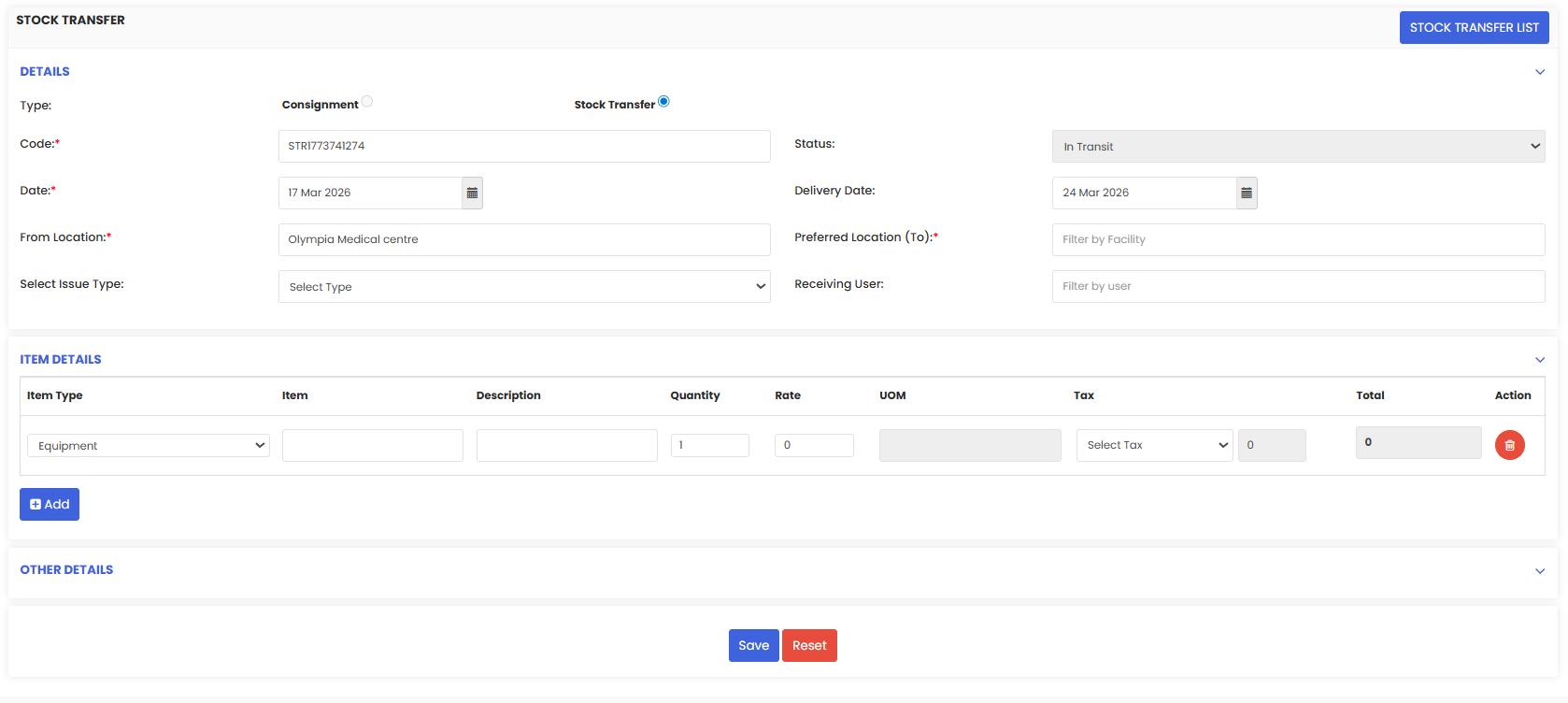
On the listing page, click New Stock Transfer.
The following fields will be pre-filled:
From Location
Date
Status
Enter the required details:
Delivery Date
Destination Location
Receiving User
Select the Item to be transferred (Example: iMac 9 Pro).
Click Save.
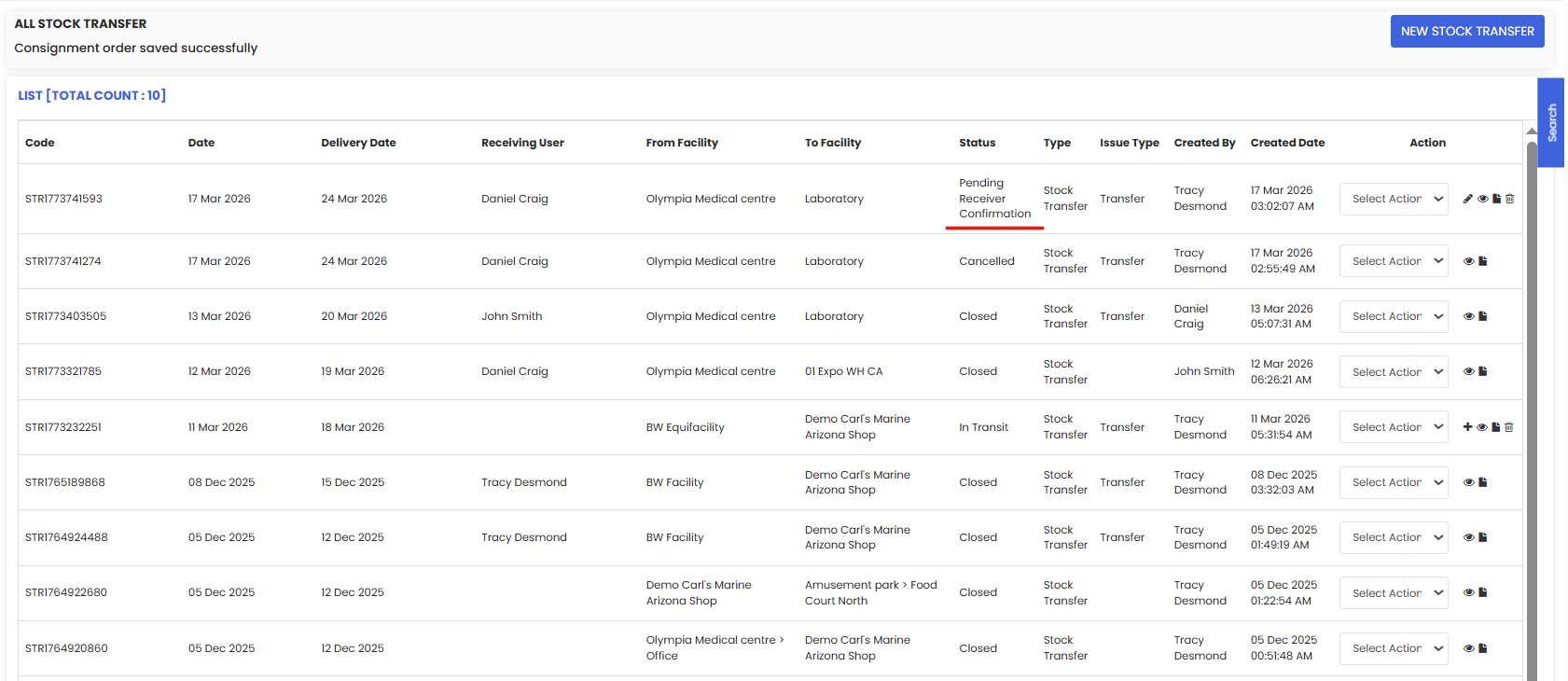
After saving, the status will be updated to Pending Receiver Confirmation.
Step 2: Receiver Confirms Readiness
Log in as the Receiving User.
Navigate to Stock Transfer → Pending List.
Locate the pending stock transfer request.
Click on Confirm Readiness.

Once confirmed, the request is forwarded to the Manager for approval.
Step 3: Manager Approval
Log in as the Manager.
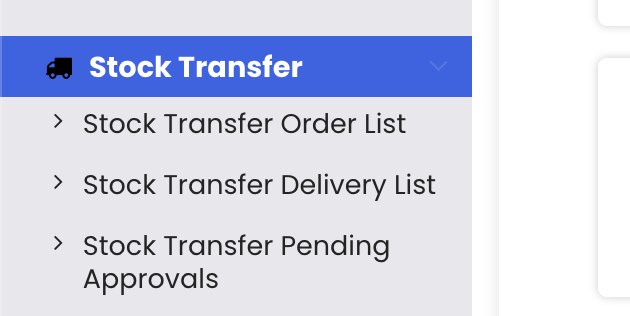
Go to the Pending Approval List.
Locate the stock transfer request.
Click Approve (or Reject if required).
Once approved, the request is forwarded to the Finance Manager for final approval.

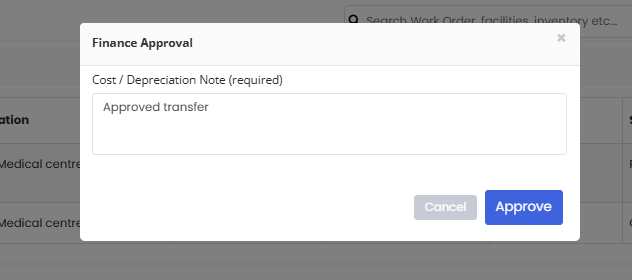
Step 4: Finance Manager Approval
Log in as the Finance Manager.
Navigate to the Pending Approval List.
Locate the stock transfer request.
Add comments if required (Example: This is approved).
Click Approve (or Reject).

After approval, the action buttons will no longer be visible, and the process moves to the next step.
Step 5: Mark Stock as Moved
Log in as the User who created the request.
Go to the Pending Approvals section.
Locate the stock transfer request.
Click Mark as Moved.

Once marked, the receiving user will be notified to confirm receipt.
Step 6: Receiver Confirms Receipt
Log in as the Receiving User.
Navigate to the Pending Approval Stock Transfer List.
Locate the request.
Click Confirm Receipt.

After confirmation, the request moves to the Manager for final approval.

Step 7: Final Manager Approval
Log in as the Manager.
Go to the Pending List.
Locate the stock transfer request.
Click Final Approve.

Once approved, the stock transfer process is completed, and the status changes to Closed.
Step 8: Verify Stock Transfer and View History
Log in as Admin.
Navigate to Stock Transfer Order List.
Locate the completed stock transfer.
Click on the History button to view the complete approval timeline.
To verify asset movement:
Go to Assets → Equipment
Search by location and asset name
The system will show that the asset has been moved to the selected destination location.
Tips for Effective Stock Transfer Management
Ensure correct user assignment
Always assign the correct receiver, manager, and finance manager to avoid delays in approvals.Follow the approval workflow strictly
Each step must be completed in sequence to ensure proper authorization and tracking.Verify item details before transfer
Double-check the item, quantity, and destination location before submitting the request.Track transfer status regularly
Monitor pending approvals to ensure the process moves forward without delays.Use history for audit purposes
The history feature provides a complete audit trail of all actions taken during the transfer.
Frequently Asked Questions (FAQs)
1. What happens after creating a stock transfer request?
After creation, the request moves to the Receiving User for confirmation, followed by approvals from the Manager and Finance Manager.
2. Can a stock transfer request be rejected?
Yes. Both the Manager and Finance Manager have the option to approve or reject the request during their respective stages.
3. Who is responsible for marking the stock as moved?
The user who created the stock transfer request is responsible for marking the stock as physically moved after approvals are completed.
4. How can I verify that the stock has been successfully transferred?
You can verify the transfer by:
Checking the Stock Transfer Order List (status: Closed)
Viewing the History of the request
Searching for the asset in Assets → Equipment under the destination location
Related Articles
- How to Create Jobs
- Job Views in DreamzFSM
- Job List
- Quickly Assign Technicians to Jobs
- Create User/Employee