Manage Work Requests
The Work Request feature in DreamzCMMS allows users to submit maintenance requests whenever an issue or service requirement is identified. These requests help maintenance teams track problems, assign tasks, and ensure that necessary actions are taken to resolve issues efficiently.
Work requests serve as the first step in the maintenance workflow, allowing organizations to capture issues related to equipment, facilities, or services. Once a work request is reviewed and approved, it can be converted into a Work Order for execution by maintenance personnel.
This guide explains how to view, manage, and take action on work requests within DreamzCMMS.
Overview
Managing work requests helps maintenance teams maintain proper communication and track service needs effectively. By using the work request management feature, organizations can ensure that all requests are logged, monitored, and resolved in a structured manner.
With the Manage Work Requests feature, users can:
View all submitted work requests in the system.
Track the status of maintenance requests.
Review request details such as equipment, facility, and request description.
Assign tasks to technicians or maintenance teams.
Convert approved work requests into work orders for execution.
This structured workflow helps organizations reduce delays and ensures maintenance tasks are addressed quickly and efficiently.
Before You Begin
Before managing work requests in DreamzCMMS, ensure the following:
The Work Request module is enabled in the system.
Users have the necessary permissions to view or manage work requests.
Equipment, assets, or facilities are already configured in the system.
Work requests have already been submitted or created.
Here is a reference video:
How to Access the Request Portal
Step 1: Access the Work Requests List
Follow these steps to view and manage work requests.
Log in to the DreamzCMMS system.
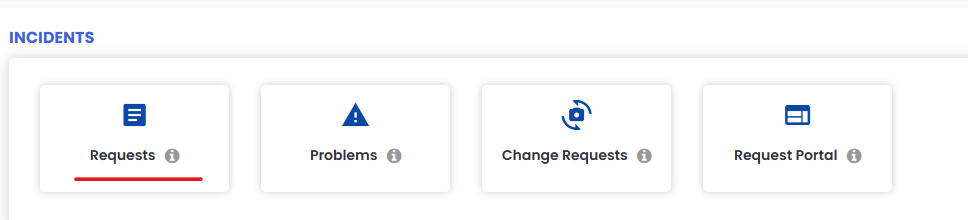
From the left-hand navigation menu, click on Request Portal > Requests.
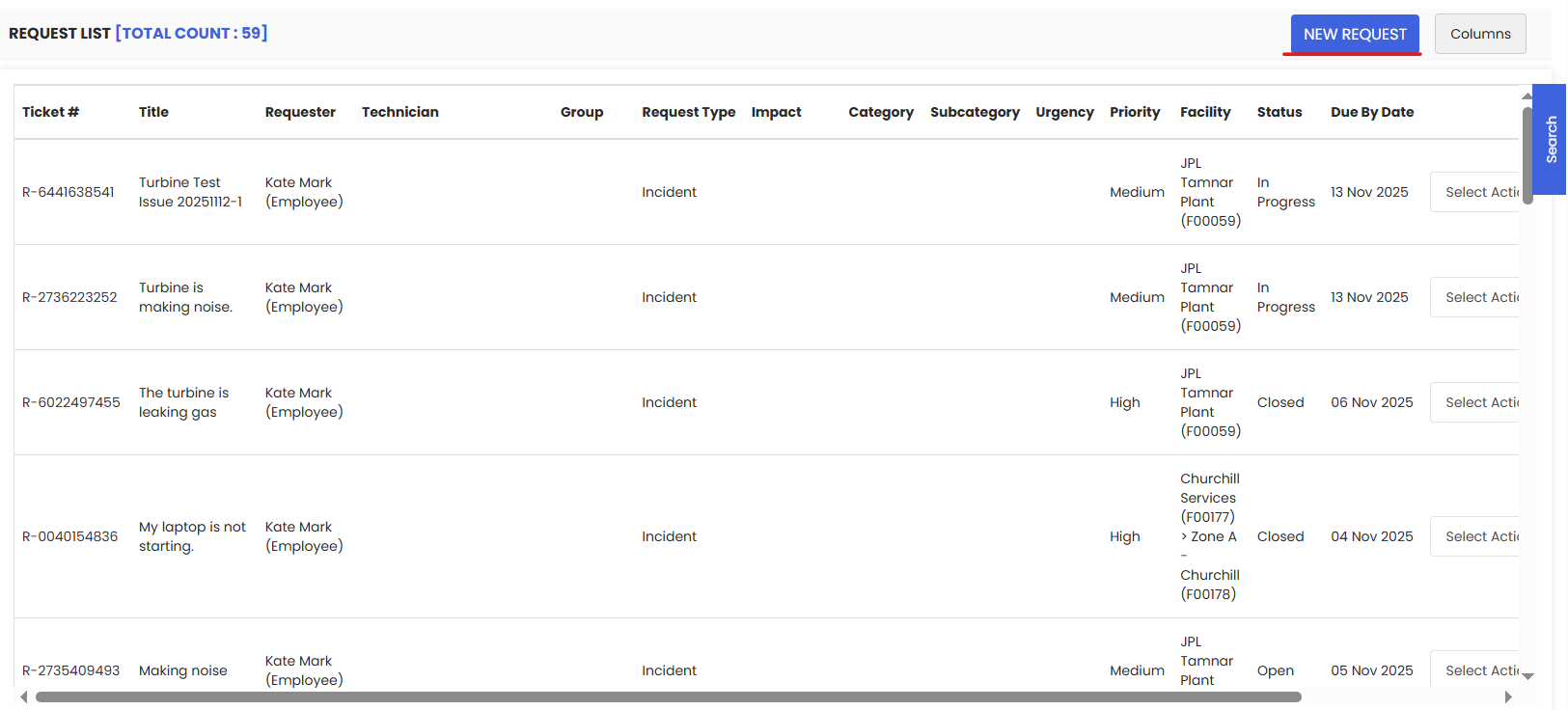
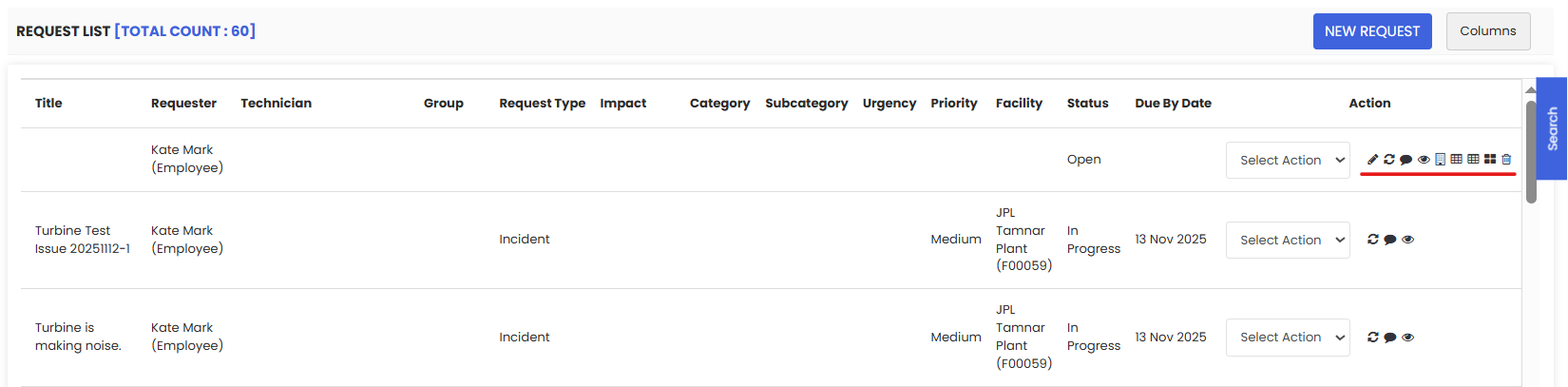
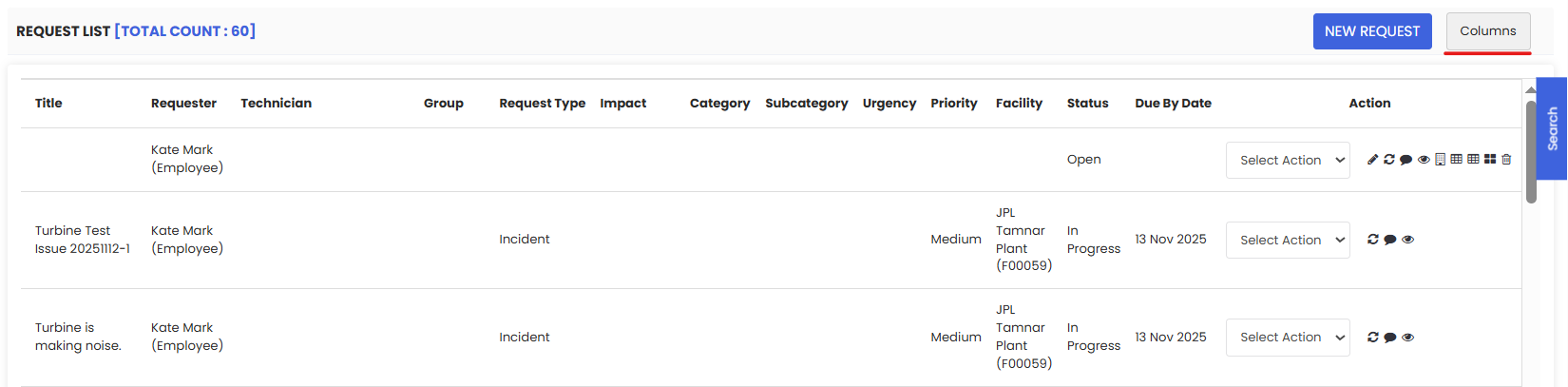
The Work Requests List page will open, displaying all submitted requests in the system.
Each record in the list contains important details such as:
Request title
Request status
Related asset or equipment
Facility or location
Request date
This page provides a centralized view of all maintenance requests.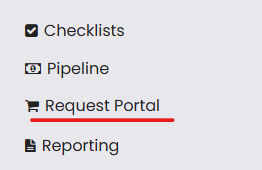
Step 2: Review Work Request Details
Once the work requests list is displayed, users can review individual request information.
Locate the work request you want to review.
Click on the View or Manage option for the selected request.
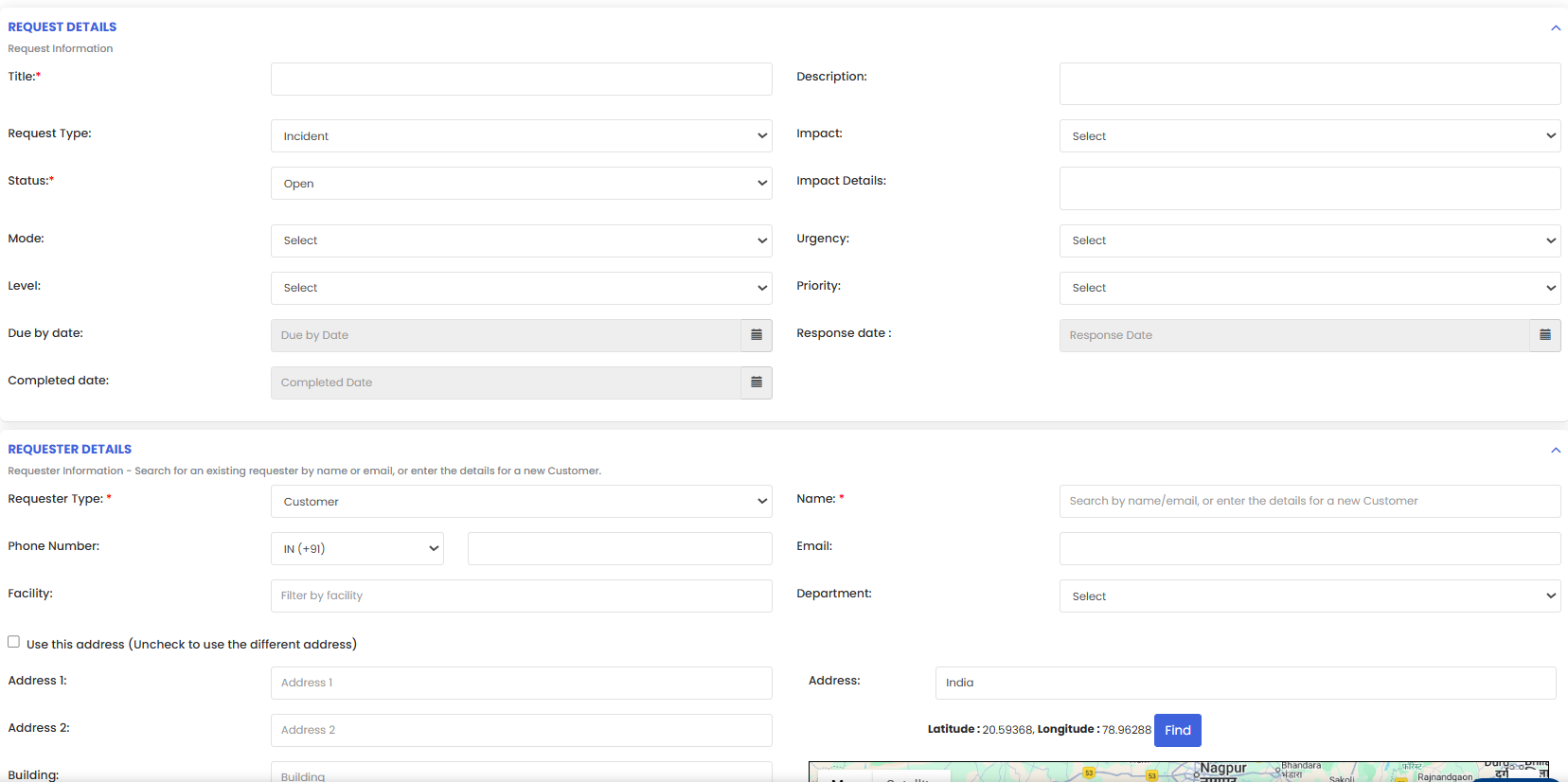
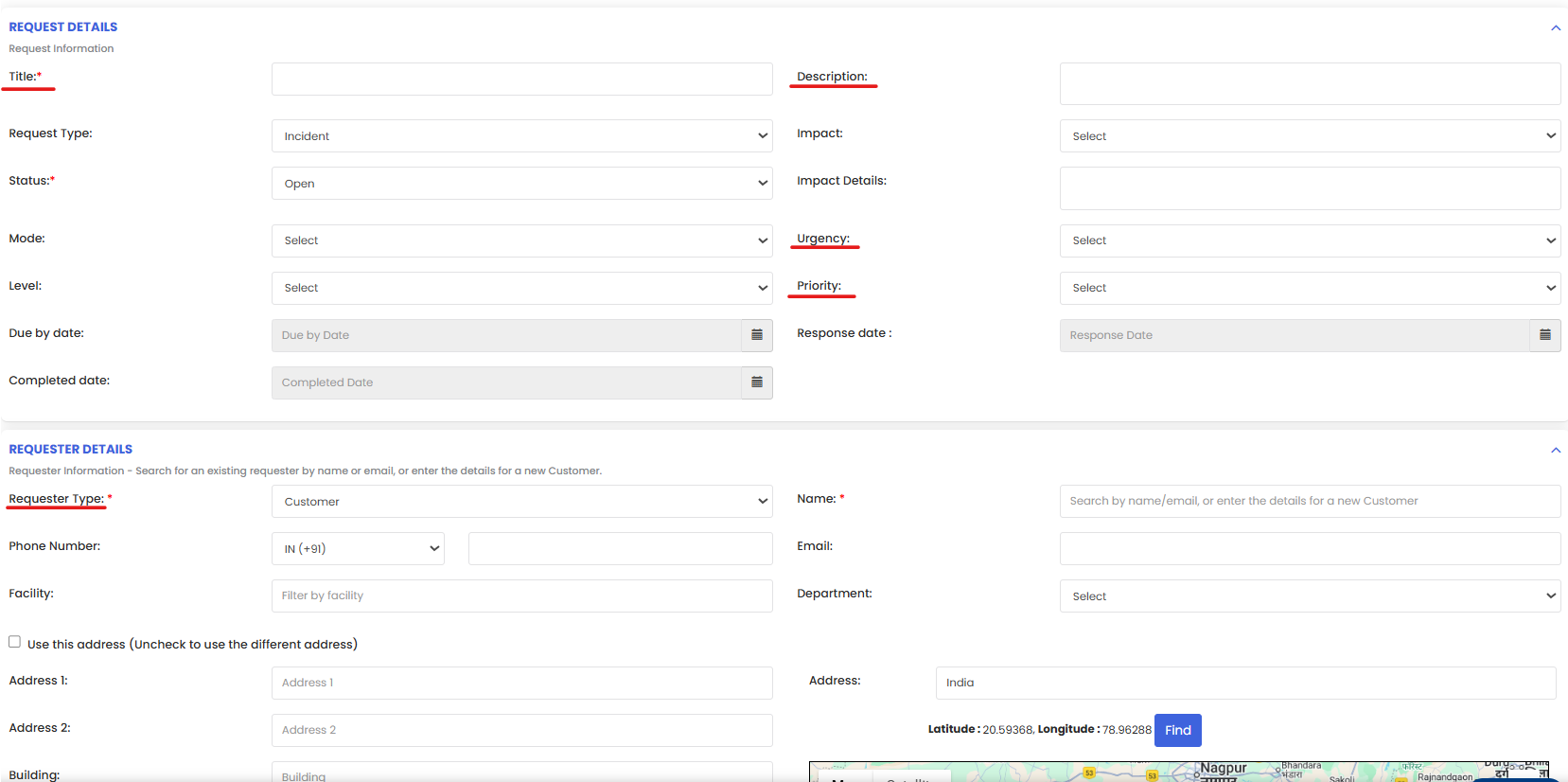
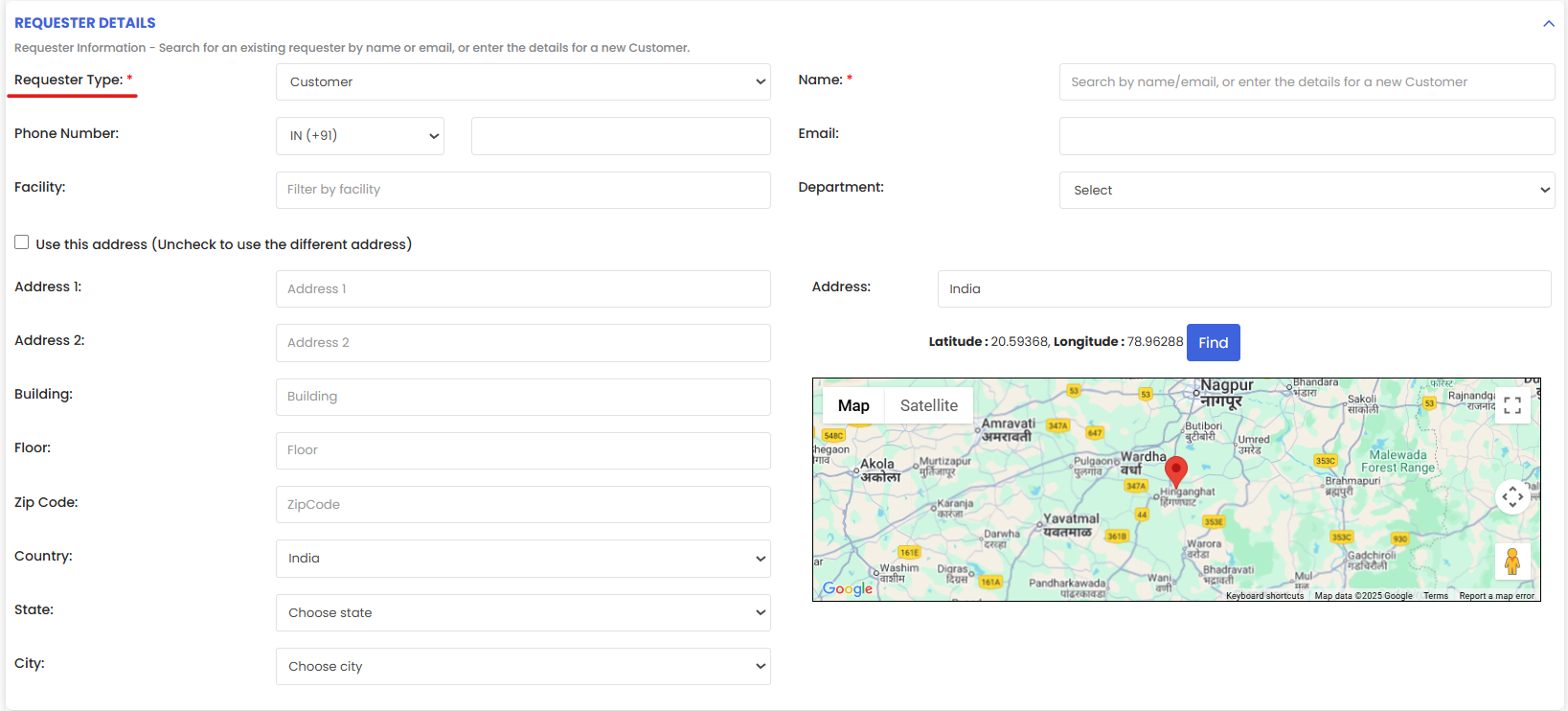
The system will display detailed information about the work request, including:
Request description
Asset or equipment associated with the request
Facility or location
Request status
Additional remarks or notes
This information helps maintenance teams understand the issue before taking further action.
Step 3: Take Action on Work Requests
After reviewing the request details, users can take appropriate action.
Assign the request to the appropriate technician or maintenance team.
Update the request status based on progress.
Add comments or remarks if necessary.
If the request requires maintenance work, it can be converted into a Work Order.
Converting a request into a work order ensures that the task becomes part of the maintenance workflow and can be scheduled and tracked accordingly.



Step 4: Monitor Work Request Status
Once actions are taken, users can monitor the status of the request.
Return to the Work Requests List page.
Check the status column to see updates such as:
New
In Progress
Completed
Converted to Work Order
Tracking work request status ensures that all issues are addressed and resolved in a timely manner.
Tips for Effective Work Request Management
Provide detailed request descriptions
Clear descriptions help maintenance teams quickly understand the issue and plan appropriate actions.Assign requests to the right personnel
Ensure that requests are assigned to technicians or teams with the relevant expertise.Monitor request status regularly
Tracking the progress of requests helps prevent delays and ensures timely completion.Convert requests to work orders when necessary
Converting requests into work orders allows maintenance tasks to be scheduled and tracked systematically.Maintain proper documentation
Recording comments, updates, and attachments helps maintain accurate maintenance records.
Frequently Asked Questions (FAQs)
1. What is a Work Request in DreamzCMMS?
A work request is a maintenance request submitted by a user to report an issue or request service for equipment, facilities, or assets within the system.
2. Who can create or manage work requests?
Users with the necessary permissions in the Work Request module can create, view, and manage work requests.
3. Can a work request be converted into a work order?
Yes. Once a request is reviewed and approved, it can be converted into a work order so that maintenance tasks can be assigned and executed.
4. Why is managing work requests important?
Managing work requests helps organizations track maintenance needs, assign tasks efficiently, and ensure that issues related to assets or facilities are resolved quickly, improving overall operational efficiency.