Incident Fields Configuration
Incident Fields Configuration gives administrators control over exactly which fields appear on the Work Request (incident) form — and how strictly each one is enforced. By marking fields as Required, Optional, or Hidden, you can standardise the information collected at the point of triage, reduce form clutter, support SLA-driven routing, and improve the quality of your maintenance reporting across the request portal, web, and mobile.
Overview
Every Work Request submitted in DreamzCMMS can capture a range of information — from a basic description to asset details, priority levels, and custom fields. However, not every field is relevant to every organisation. The Incident Fields Configuration lets you tailor the form to match your specific workflow by controlling the visibility and requirement level of each field.
Changes made here apply globally across all channels where Work Requests are submitted — including the web portal, mobile app, and technician-facing forms.
Before You Begin
- You must have Admin permissions to access and modify Incident Fields Configuration.
- Consider your triage and SLA requirements before making changes — fields marked as Required directly affect what requesters must fill in before submitting a request.
- If you use Custom Fields (Custom 1–10), ensure they are labelled and configured with the right field names before enforcing them here.
Configurable Fields
The following fields can be configured on the incident form:
| Field | Description |
| Description | The detailed explanation of the issue being reported |
| Impact | The scope of the issue — how many people, assets, or operations are affected |
| Urgency | How quickly the issue needs to be resolved |
| Priority | The overall priority level, often derived from Impact and Urgency |
| Category/Sub-category | The type or classification of the incident (e.g., Electrical, HVAC, Plumbing) |
| Asset | The specific asset the request is related to |
| Facility | The location or facility where the issue is occurring |
| File Attachment | Supporting documents, photos, or reports uploaded with the request |
| Custom Fields 1-10 | Organisation-specific fields for capturing additional information unique to your workflow |
Field Setting Options
Each field can be set to one of three states:
- Required — The field must be filled in before the Work Request can be submitted. Use this for fields that are critical for triage, SLA calculation, or routing (e.g., Priority, Facility).
- Optional — The field is visible on the form but does not need to be completed before submission. Use this for fields that are helpful but not always applicable.
- Hidden — The field is removed from the form entirely and will not be visible to the requester. Use this to keep the form clean and focused by removing fields that are not relevant to your organisation.
How to Configure Incident Fields
Step 1 – Navigate to System Configuration
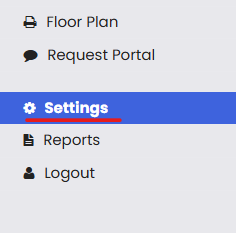
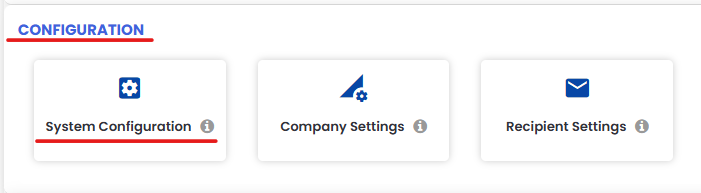
From the main menu, click Settings. Under the Configuration section, click System Configuration.
Step 2 – Open the Incident Configuration Tab
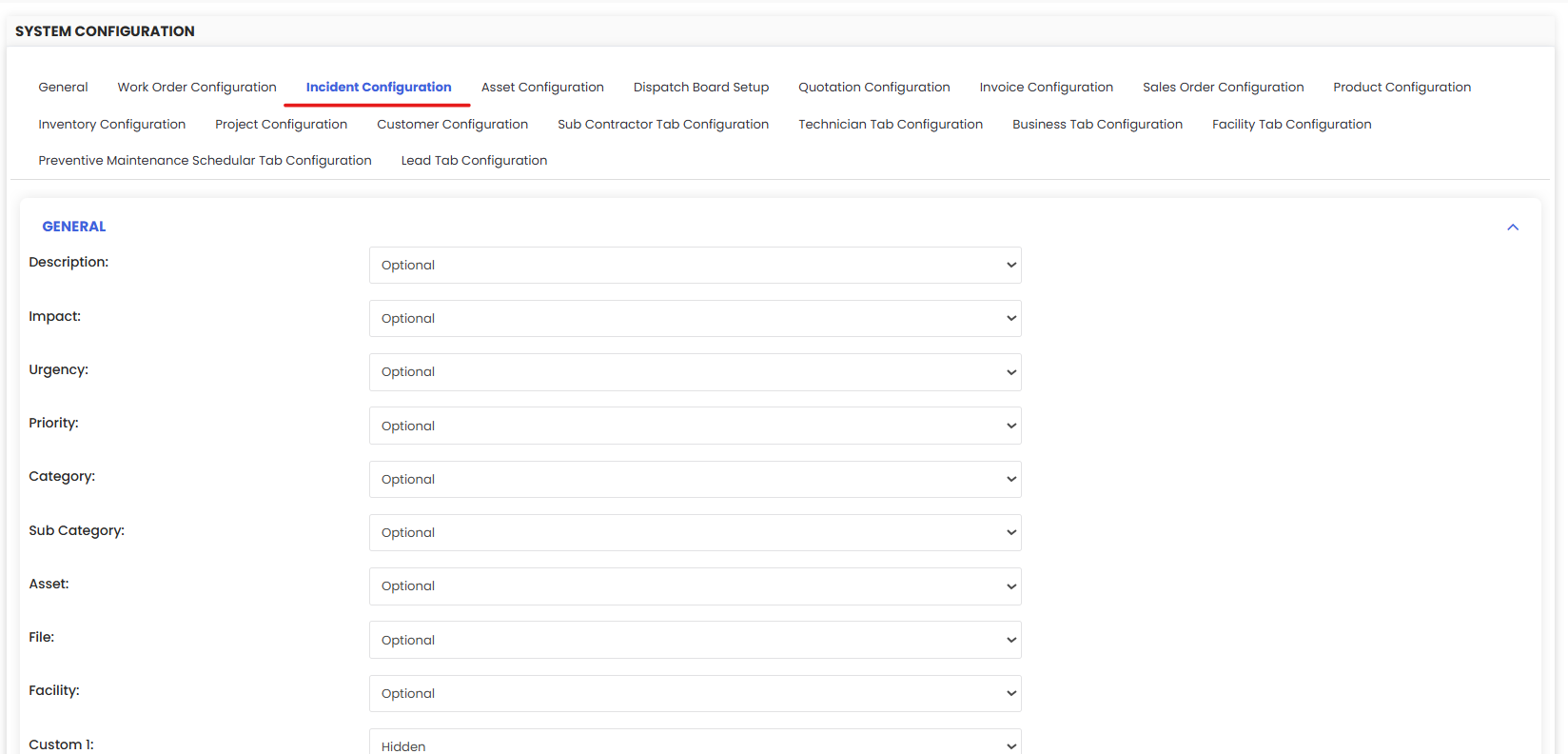
On the System Configuration page, click the Incident Configuration tab. This is where all incident field settings are managed.
Step 3 – Set Each Field's Status
For each field listed, select the appropriate setting from the dropdown or toggle:
- Set to Required if the field must be completed before submission.
- Set to Optional if the field should be visible but not mandatory.
- Set to Hidden if the field should not appear on the form at all.
Work through all relevant fields — including any Custom Fields (Custom 1–10) your organisation uses.
Step 4 – Save Your Configuration
Once you have configured all fields to your requirements, click Save. The updated field settings will apply immediately across the Work Request form on all platforms.
Important: Changes take effect immediately after saving. Requesters submitting a Work Request after you save will see the updated form. Communicate any significant changes to your team beforehand.
Recommended Configuration by Use Case
Lean / Simple Request Form
Hide non-essential fields to keep the form quick and easy for requesters:
- Required: Description, Facility
- Optional: Category, Asset, File Attachments
- Hidden: Impact, Urgency, Custom Fields
Full Triage Form (SLA-Driven)
Enforce all fields needed for accurate priority and routing:
- Required: Description, Impact, Urgency, Priority, Category, Facility, Asset
- Optional: File Attachments, Sub-category, Custom Fields
- Hidden: (none)
Asset-Focused Maintenance Form
For organisations where every request must be tied to a specific asset:
- Required: Description, Asset, Facility, Priority
- Optional: Category, Impact, File Attachments
- Hidden: Urgency, Custom Fields (unused ones)
Tips for Configuring Incident Fields
- Only require what you truly need. Every required field adds friction to the submission process. Over-requiring fields can discourage requesters from submitting issues promptly.
- Use Hidden wisely. Hiding a field doesn't delete data — it just removes it from the form. If your organisation later needs it, you can make it visible again without losing any historical data.
- Align required fields with your SLA rules. If your SLA configuration depends on Priority or Category, make sure those fields are set to Required so they are always populated.
- Label Custom Fields clearly. Before enforcing Custom Fields 1–10, make sure they have meaningful labels so requesters know what information to enter.
- Review periodically. As your operations evolve, revisit this configuration to ensure the form still reflects what your team actually needs.
Frequently Asked Questions
Who can change the Incident Fields Configuration?
Only users with Admin permissions can access System Configuration and modify incident field settings.
Do changes apply immediately after saving?
Yes. Field configuration changes take effect immediately across all platforms — web, mobile, and the request portal.
Will hiding a field delete existing data in that field?
No. Setting a field to Hidden only removes it from the form going forward. All previously captured data in that field is retained in the system.
Can I make a Custom Field required?
Yes. Custom Fields 1–10 can be set to Required, Optional, or Hidden just like any standard field. Ensure the field has a clear, descriptive label before making it required.
What happens if a Required field is left blank?
The system will prevent the Work Request from being submitted until all required fields are completed. The requester will see a validation message prompting them to fill in the missing information.
Does this configuration affect Work Orders as well, or only Work Requests?
Incident Fields Configuration applies specifically to the Work Request (incident) form. Work Order field configuration is managed separately.
Can I have different field configurations for different teams or locations?
The configuration applies globally across all Work Requests. If you need different field sets for different teams or request types, consider using Custom Fields to capture additional context alongside a streamlined core form.