How to Manage Asset Warranty
Keeping track of asset warranty information ensures your team never spends money on repairs that should be covered by a manufacturer or supplier. DreamzCMMS allows you to record, view, and manage both standard asset warranties and business-level warranties directly on each equipment record — giving you full visibility into coverage dates and reducing unnecessary maintenance costs.
Overview
Asset warranty management in DreamzCMMS is handled across two areas of an equipment record:
- General Tab → Date Information — Where you initially enter warranty dates and key date-related details for the asset.
- Warranty Tab — Where you view the full warranty summary and manage both the standard Asset Warranty and any Business Warranty associated with the equipment.
Before You Begin
- You must have Admin or Manager permissions to edit asset warranty information.
- The equipment record must already exist in DreamzCMMS. If it doesn't, see How to Manage Various Asset Information or Import Assets from Excel to set it up first.
- Have your warranty documents ready — purchase date, warranty start and end dates, and any business certification details.
How to Set Up Asset Warranty Dates
Step 1 – Navigate to Equipment
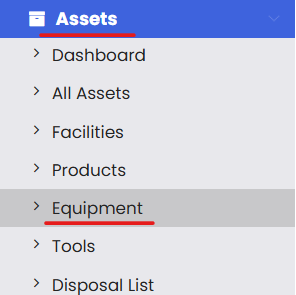
From the left-hand navigation menu, click on Assets, then select Equipment.
Step 2 – Find and Edit the Equipment
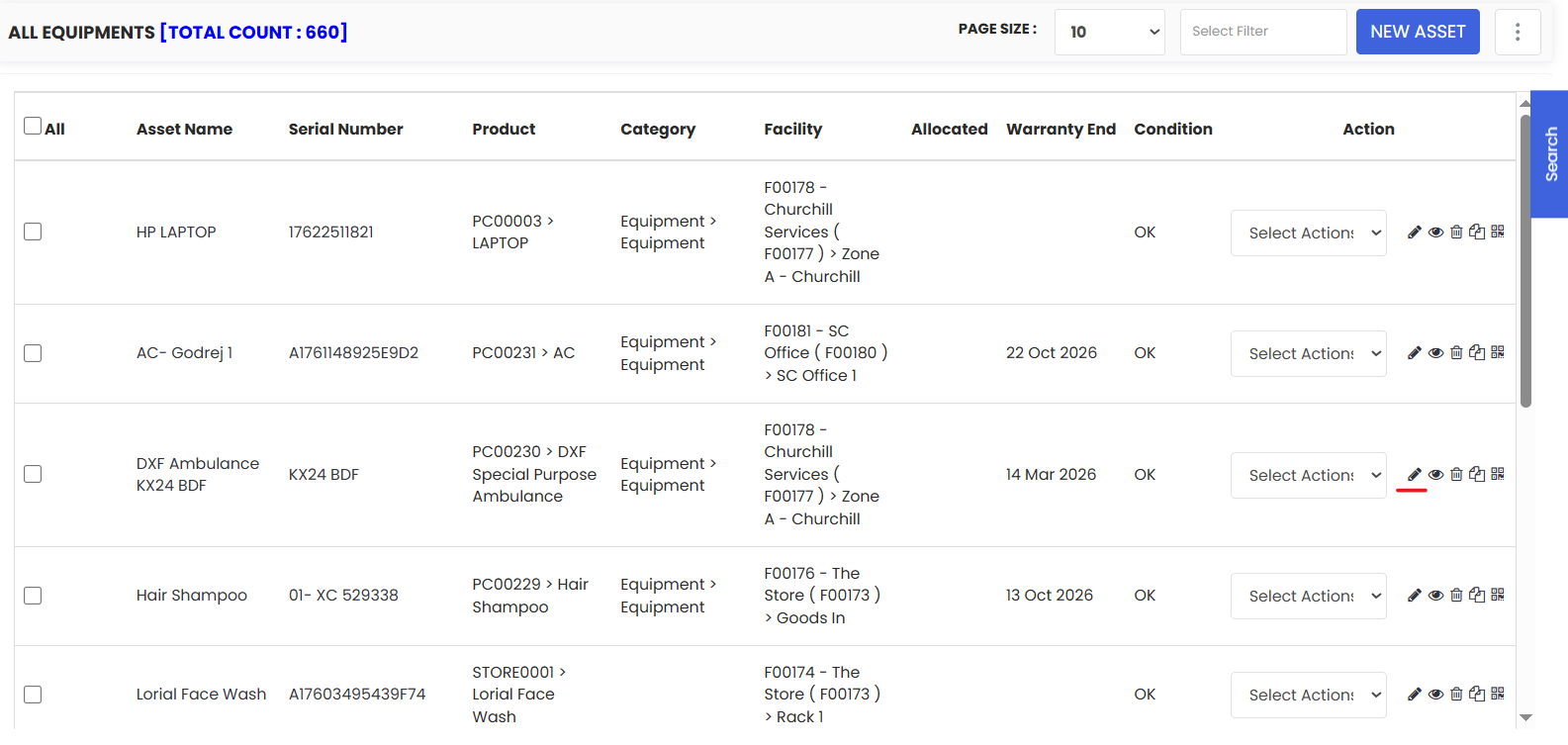
On the Equipment listing page, locate the equipment for which you want to set warranty information. Click the Edit icon to open its detail page.
Step 3 – Go to Date Information in the General Tab
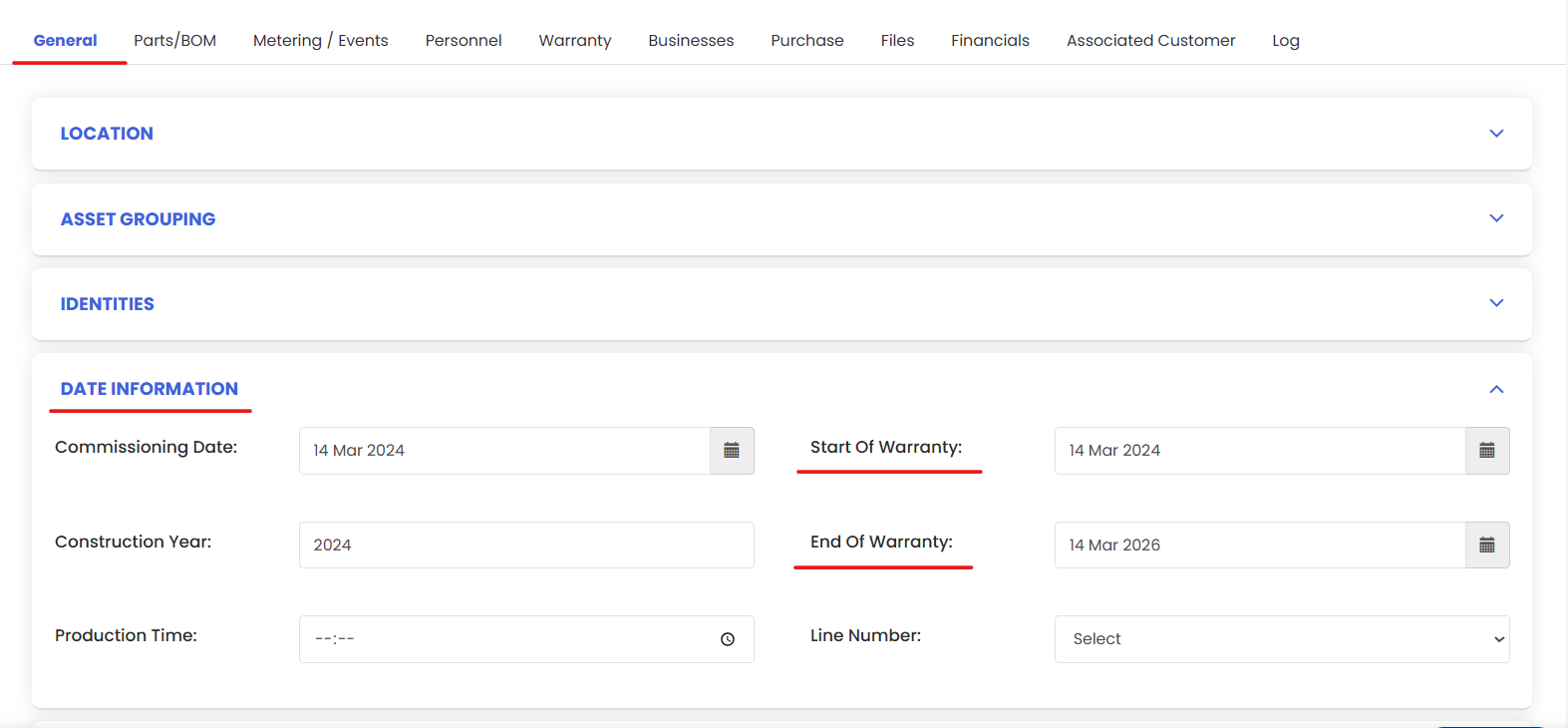
On the equipment detail page, ensure you are on the General tab. Scroll down to the Date Information section and fill in the relevant warranty and date fields, which may include:
- Purchase Date — The date the equipment was acquired.
- Installation Date — The date the equipment was installed or put into service.
- Warranty Start Date — The date the manufacturer or supplier warranty begins.
- Warranty End Date — The date the warranty expires.
- Expected End of Life (optional) — The anticipated date when the asset will be retired or replaced.
Step 4 – Click Save
Once all date fields are filled in, click Save to record the warranty information against the equipment.
Step 5 – Go to the Warranty Tab
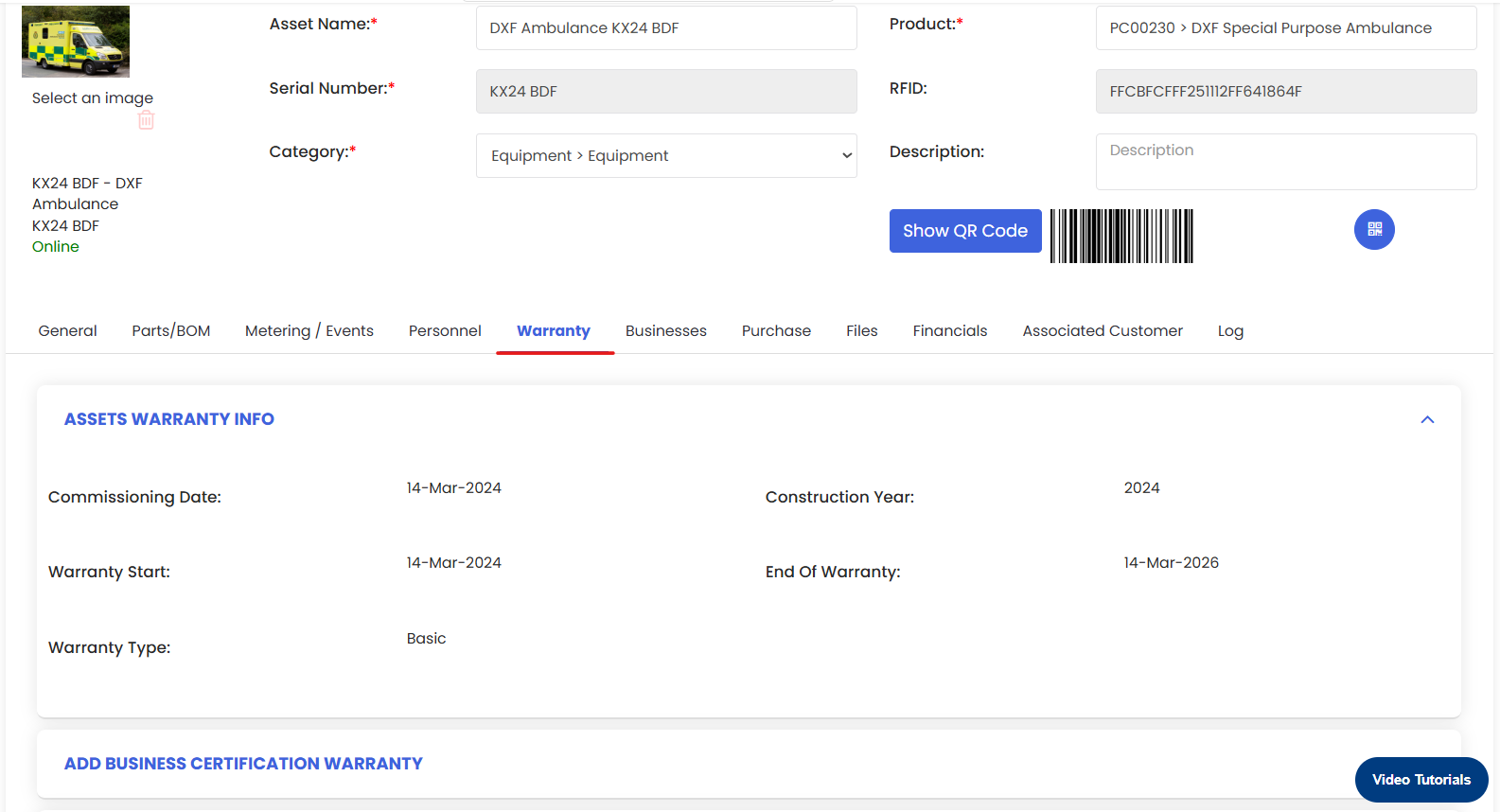
On the equipment detail page, click the Warranty tab. Here you will see a full summary of the asset's warranty coverage, including the dates entered in the General tab.
Managing Asset Warranty
The Asset Warranty section shows the standard manufacturer or supplier warranty for the equipment. Review the warranty details to confirm they are accurate and up to date.
Managing Business Warranty
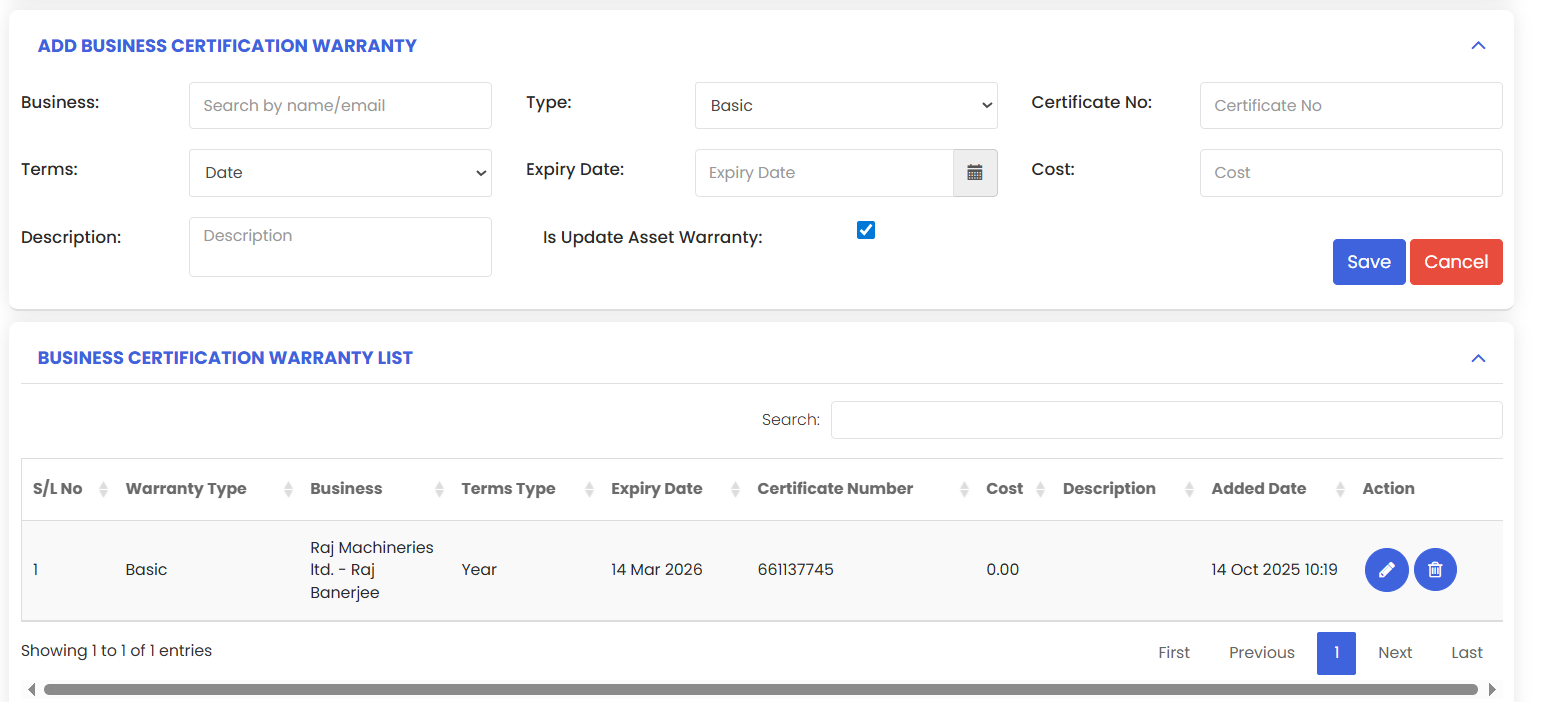
The Business Warranty section allows you to record any additional business-level certifications or extended warranties associated with the equipment. This is useful for:
- Extended warranty agreements negotiated with suppliers
- Business certification requirements (e.g., compliance certifications with defined validity periods)
- Internal service agreements or SLA-based coverage
To add or update a Business Warranty:
- In the Business Warranty section of the Warranty tab, enter the relevant warranty or certification details.
- Update the warranty dates to reflect the correct coverage period.
- Click Save to record the changes.
Tips for Managing Asset Warranties
- Enter warranty dates at the time of asset creation — it's easy to forget once the asset is in active use, and missing warranty windows can cost your organization unnecessarily.
- Set a reminder before warranty expiry — review upcoming expirations periodically so you can raise warranty claims or negotiate renewals in time.
- Upload the original warranty document to the Files tab — having the certificate on record saves time when raising a claim with a supplier.
- Use Business Warranty for extended agreements — if you've negotiated extended coverage beyond the standard warranty, record it here so technicians know what's covered before ordering parts.
- Review warranty status before approving repair costs — always check the Warranty tab before authorizing paid repairs to avoid spending on work that should be covered.
Frequently Asked Questions
Where do I enter the warranty dates for an asset?
Warranty dates are entered in the General tab under Date Information when editing an equipment record. The Warranty tab displays and manages the full warranty details after they have been saved.
What is the difference between Asset Warranty and Business Warranty?
Asset Warranty is the standard manufacturer or supplier warranty that comes with the equipment at purchase. Business Warranty covers additional agreements such as extended warranties, business certification renewals, or internal SLA-based coverage that your organization has arranged separately.
Can I be notified when a warranty is about to expire?
Check your notification settings in DreamzCMMS for warranty expiry alerts. If automated alerts are available, configure them to notify the relevant team members ahead of the expiry date.
Can I track warranties for Tools as well as Equipment?
Yes. The same warranty management process applies to Tools. Navigate to Assets → Tools, find the relevant item, and follow the same steps outlined in this article.
What should I do if a repair is needed on an asset still under warranty?
Before creating a repair work order, check the Warranty tab to confirm the asset is within its coverage period. If it is, contact the relevant supplier or service provider to raise a warranty claim rather than authorizing paid repairs.
Related Articles
How to Manage Various Asset Information