How to Assign Personnel to a Location/Facility
Assigning personnel to a facility ensures the right people are linked to the right locations. This gives your team visibility into who is responsible for each site, ensures they receive relevant work order notifications, and makes it easy to assign tasks to the correct staff or vendors without searching every time.
Overview
In DreamzCMMS, the Personnel tab on a Facility Details page allows you to link two types of contacts to a location:
- Internal Users — Staff members within your organization who are responsible for or work at this facility.
- Service Companies (Vendors) — External companies or contractors who perform onsite work at this location.
Both can be managed from the same tab, keeping all facility contacts organized in one place.
If you haven't set up your facility yet, see Create Asset Locations
Before You Begin
- You must have Admin or Manager permissions to assign personnel to a facility.
- The users you want to assign must already have an account in DreamzCMMS. If they don't, create their user profile first.
- The vendor/service company must already exist in your system before it can be linked to a facility.
How to Assign Personnel to a Facility
Step 1 – Open the Facility Details Page
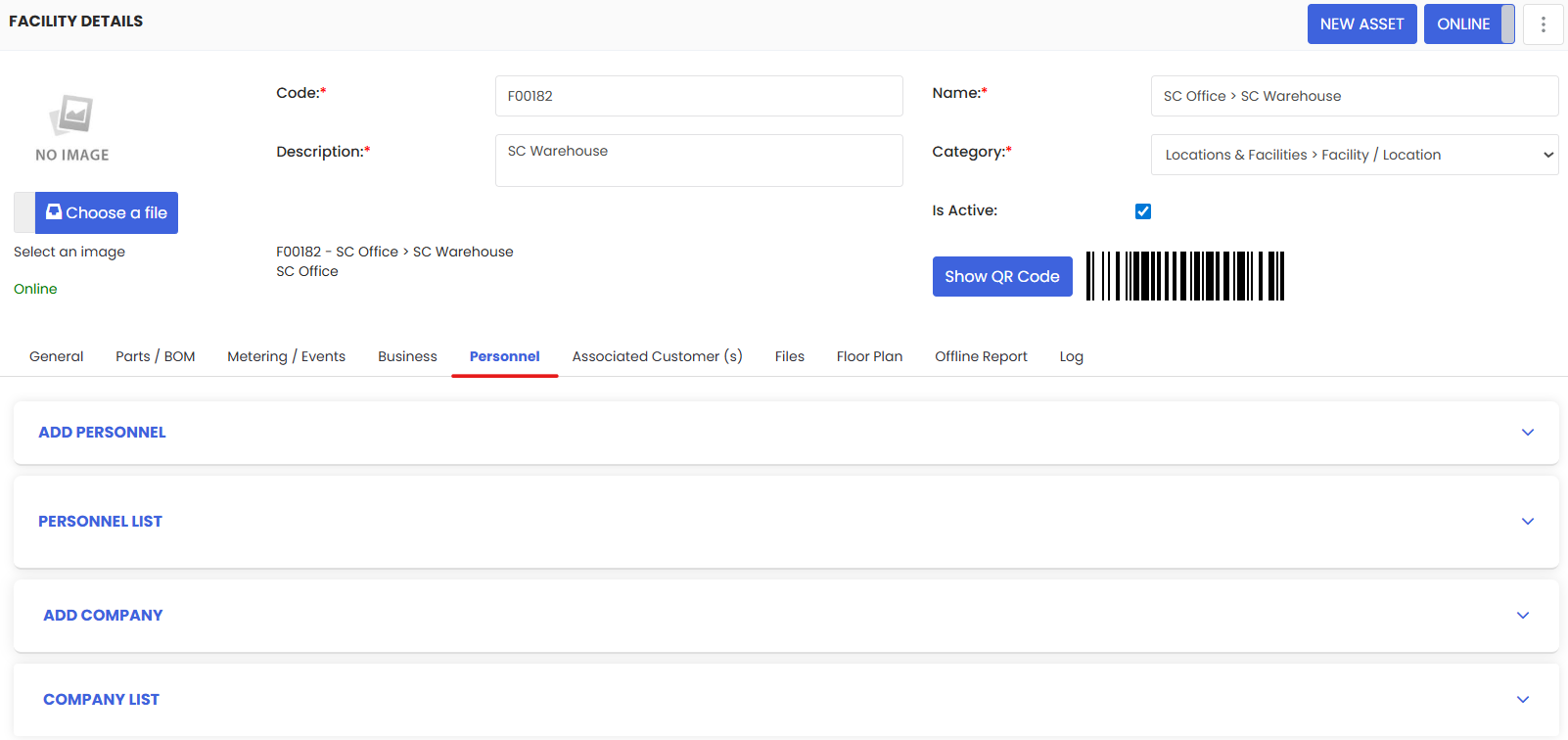
Navigate to Assets → Facilities and click on the facility you want to assign personnel to. This will open the Facility Details page.
Step 2 – Click on the Personnel Tab
On the Facility Details page, click the Personnel tab. This is where all personnel and company assignments for this location are managed.
Adding an Internal User
Step 3 – Select a User
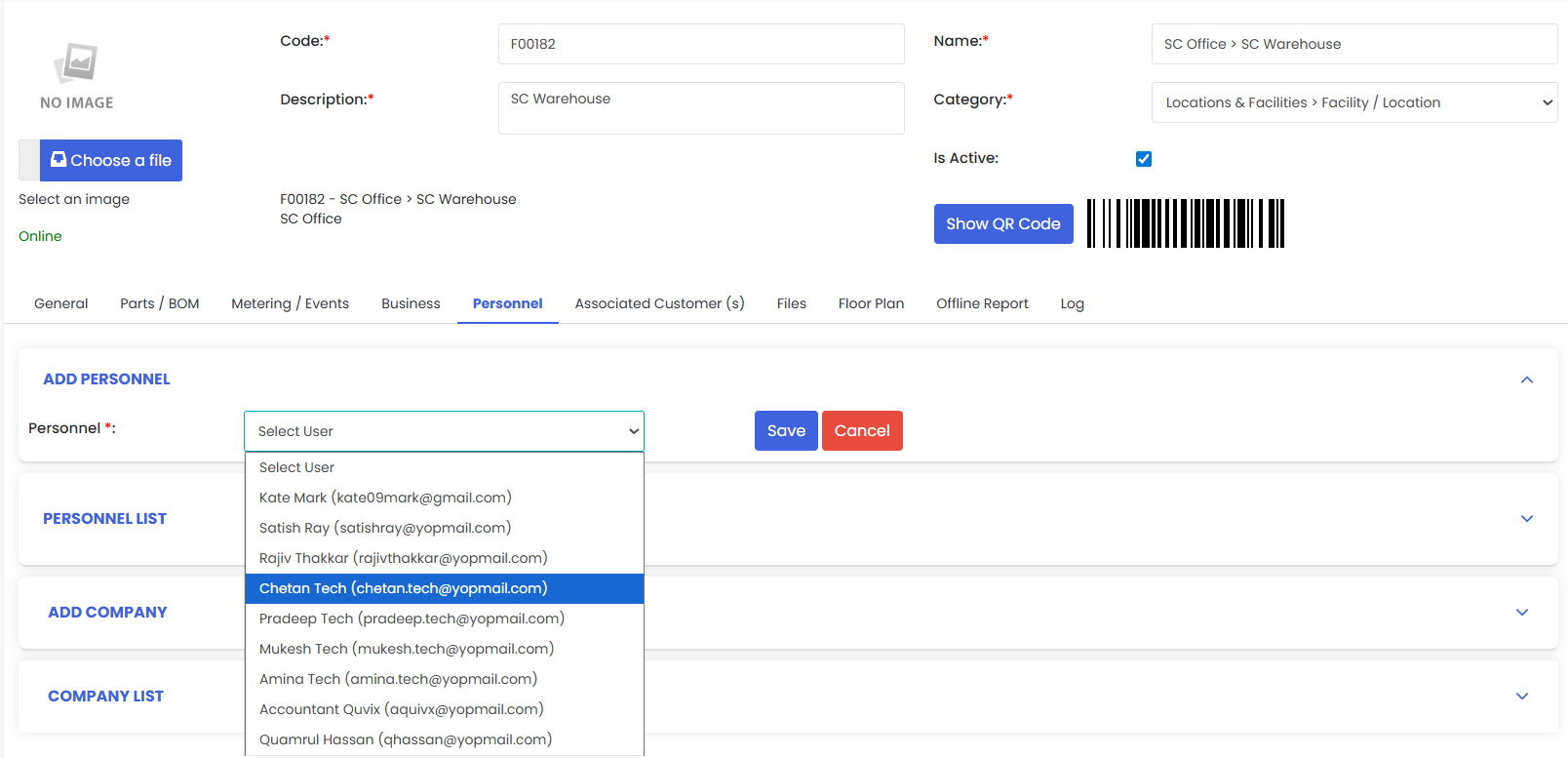
In the Add Personnel section, click the Select User dropdown and choose the internal user you want to assign to this facility.
Step 4 – Click Save
Click the Save button to confirm the assignment.
Step 5 – Verify the Assignment
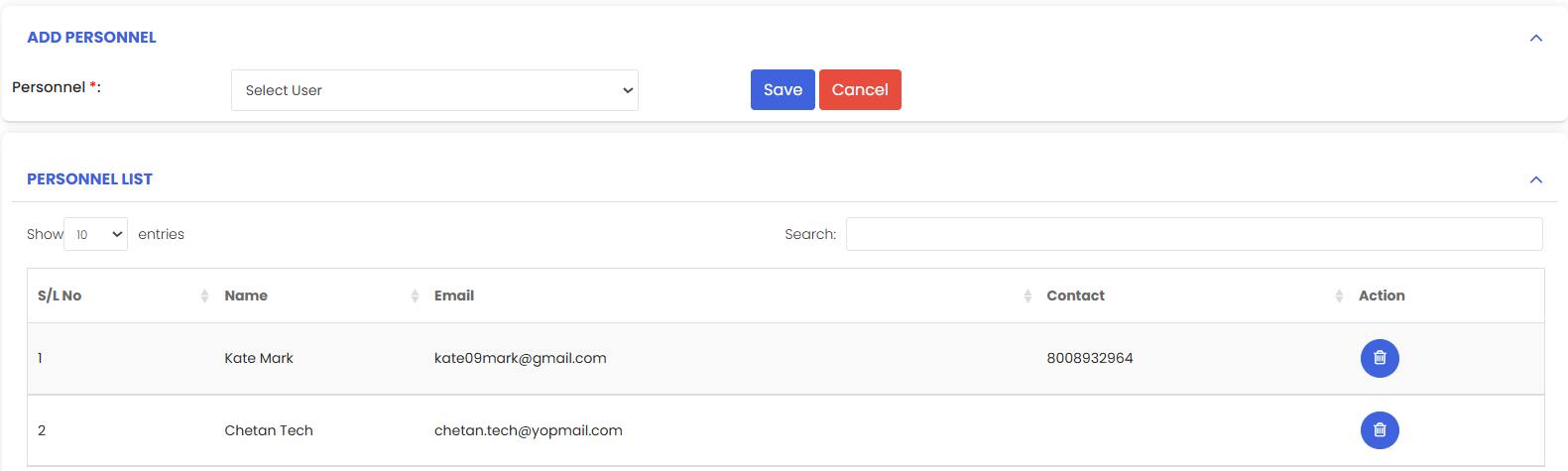
The user will now appear in the Personnel List below. Review the list to confirm they have been added correctly.
To remove a user: Click the trash icon next to their name in the Personnel List.
Adding a Service Company (Vendor)
Step 6 – Select a Company
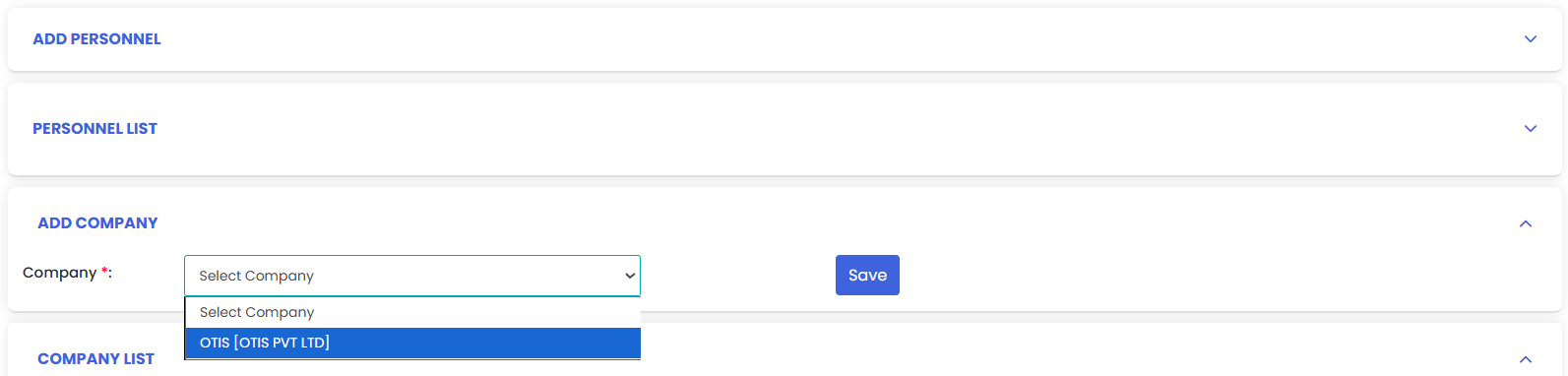
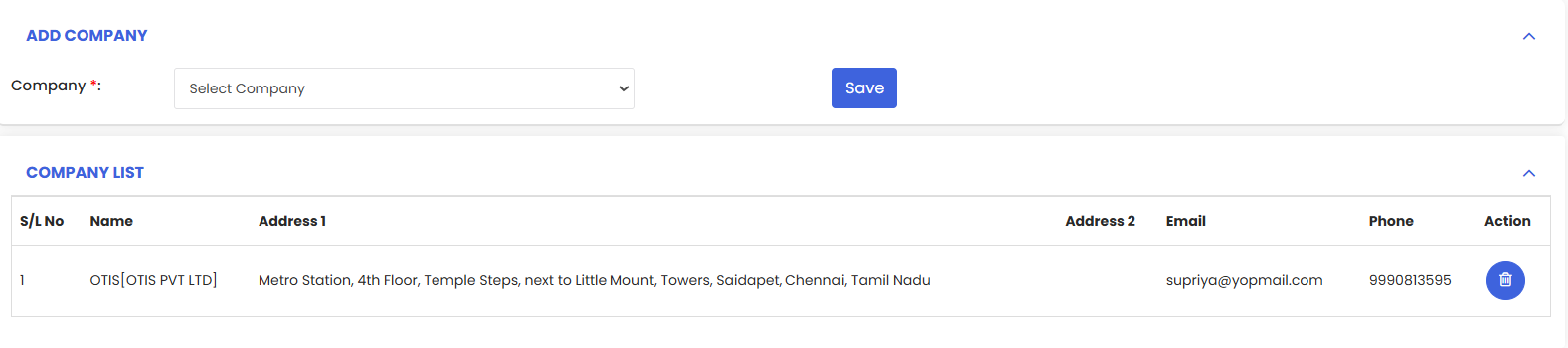
In the Add Company section, click the Select Company dropdown and choose the vendor or service company you want to link to this facility.
Step 7 – Click Save
Click the Save button to confirm the assignment.
Step 8 – Verify the Assignment
The company will now appear in the Company List below. Review the list to confirm it has been added correctly.
To remove a company: Click the trash icon next to its name in the Company List.
After Assigning Personnel — What's Next?
Now that your facility has personnel assigned, you can:
- Create Work Orders for this facility — assigned personnel will have visibility and receive relevant notifications — see Create and Manage Work Orders
- Add a BOM to the facility so assigned technicians always know what materials are needed — see How to Add BOM to a Facility/Location
- Review all assigned personnel periodically to ensure the list stays current as your team changes
Tips for Managing Facility Personnel
- Assign the most relevant users — only link staff who are actively responsible for or working at the facility to keep notifications focused and avoid alert fatigue.
- Use Service Companies for contractors — linking a vendor to a facility makes it easy to reference them when creating work orders for outsourced tasks.
- Keep your lists up to date — remove users or companies that are no longer active at a location to maintain clean records.
- Assign personnel to all key facilities — this ensures work orders are always routed to the right people without manual searching.
Frequently Asked Questions
Can I assign multiple users to the same facility?
Yes. You can add as many internal users as needed. Repeat the process for each user you want to assign.
Can I assign the same user to multiple facilities?
Yes. A user can be linked to as many facilities as required.
Can I assign multiple service companies to the same facility?
Yes. You can link multiple vendors or service companies to a single facility.
What happens when a user is assigned to a facility?
They gain visibility into that facility's work orders and will receive relevant notifications based on their role and notification settings.
Can I edit an assigned user's details from this tab?
No. This tab only manages assignments. To edit a user's profile or permissions, go to the User Management section.
Related Articles
- Create Asset Locations
- Import Asset Locations
- How to Assign Personnel to a Location/Facility
- Create and Manage Work Orders