Creating and Using Checklists in DreamzCMMS: From Builder to Work Order
Inconsistent inspections and missed safety steps cost time and money — and they're hard to catch after the fact. DreamzCMMS solves this with reusable, AI-assisted checklists that attach directly to work orders, guiding technicians step by step on the web and in the field, whether they're in the office or working from the mobile app.
Overview
Checklists in DreamzCMMS start in the Checklist Builder, where you can create one from scratch, let AI draft it for you based on a title, description, or criteria like industry and asset type, or start from a template or the Global Checklist Library. Each checklist is made up of individual tasks with configurable input types, inventory links, and time estimates. Once built and saved, a checklist can be attached to any work order's Activities section, then completed by technicians on the web or from the DreamzCMMS mobile app — with progress, notes, and completion status tracked and available to print or review at any time.
Here is a reference video:
Before You Begin
- You must have access to the Checklists and Work Orders modules in DreamzCMMS, on both the web portal and the mobile app.
- Know which asset type, industry, or task the checklist is for — this helps whether you're using AI generation, a template, or building from scratch.
- Have any inventory items or assets you plan to link already set up in their respective modules, since checklist tasks can reference both.
Building Reusable Checklists
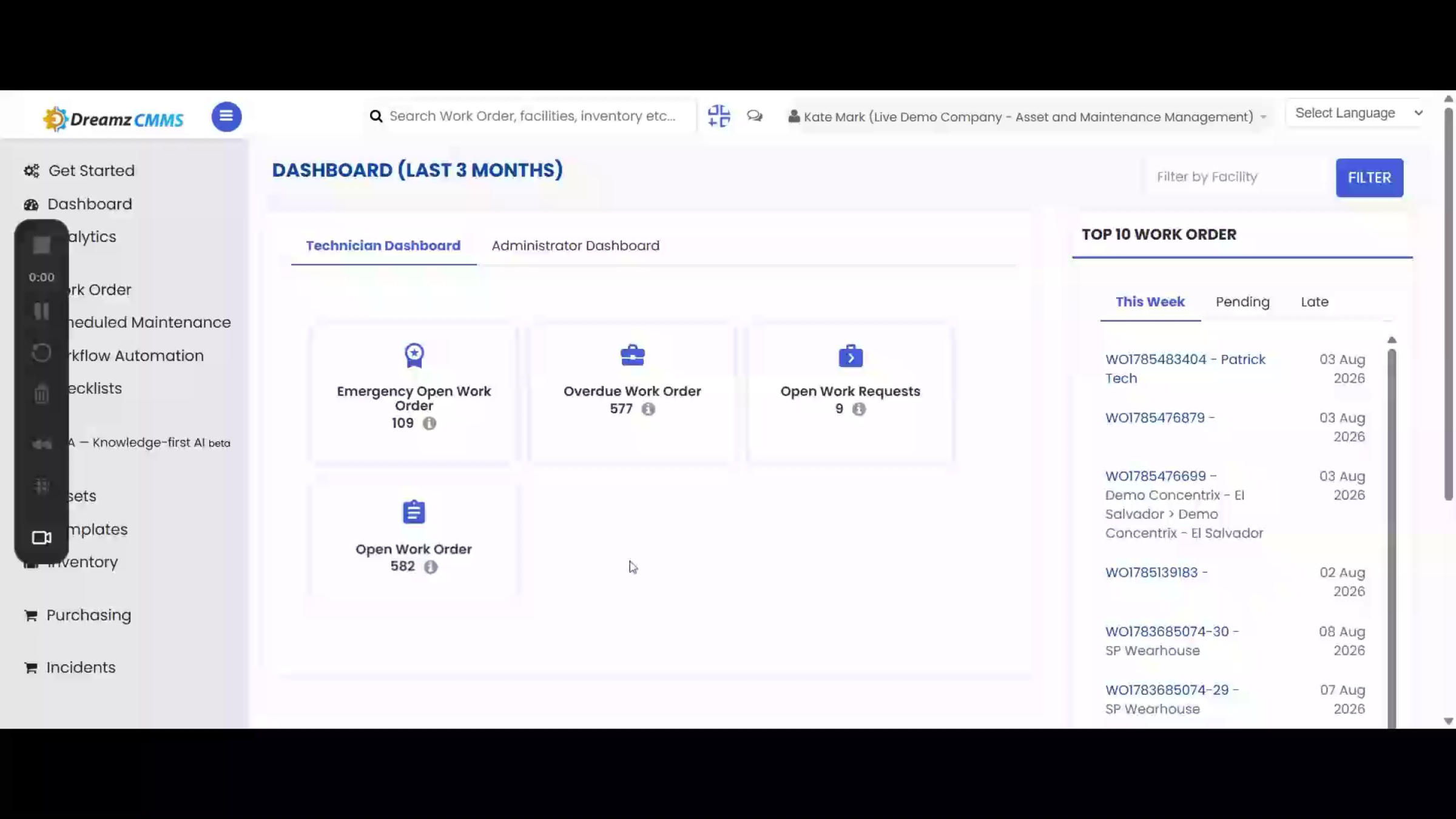
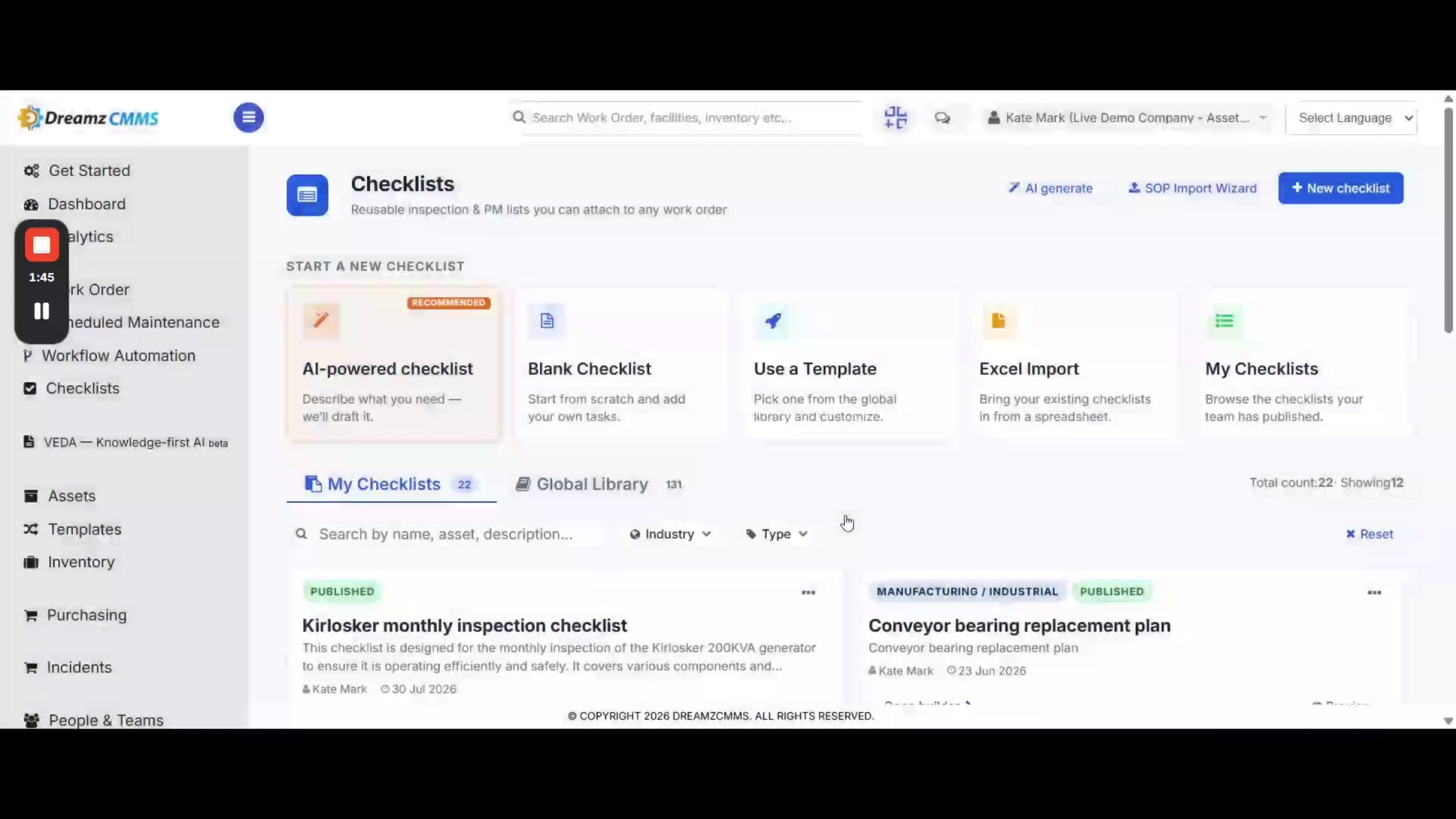
Step 1 – Open the Checklists Page
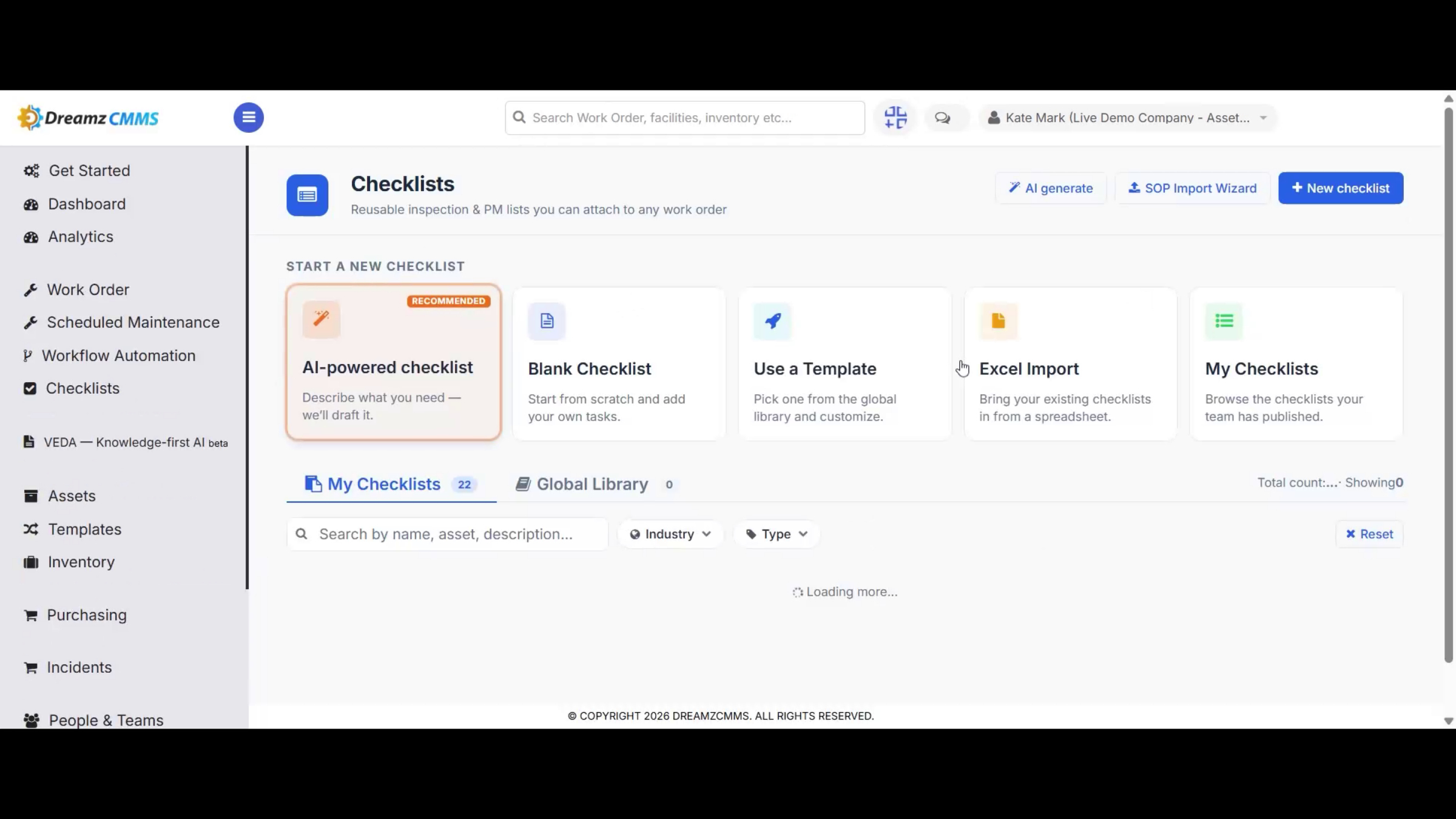
Click Checklists from the left menu to navigate to the Checklists page, where you can build reusable inspection and preventive maintenance (PM) checklists that can later be attached to any work order.
Step 2 – Try AI-Powered Checklist Creation
There are several ways to create a checklist, but the recommended option is the AI-powered checklist. Provide a title and description, or choose relevant criteria such as industry, type, frequency, and asset type, and DreamzCMMS will draft a checklist for you automatically.
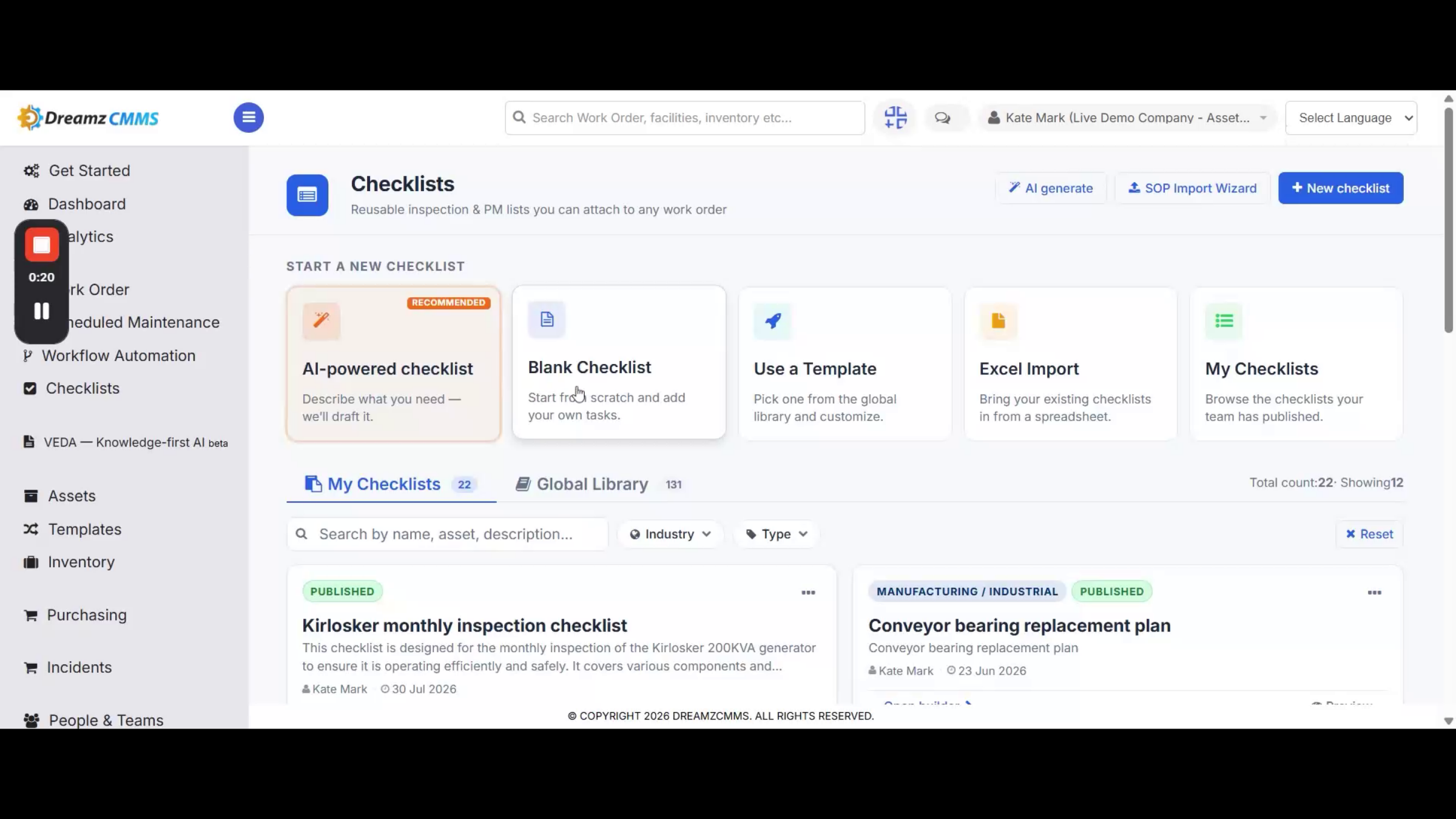
Step 3 – Or Start From a Template
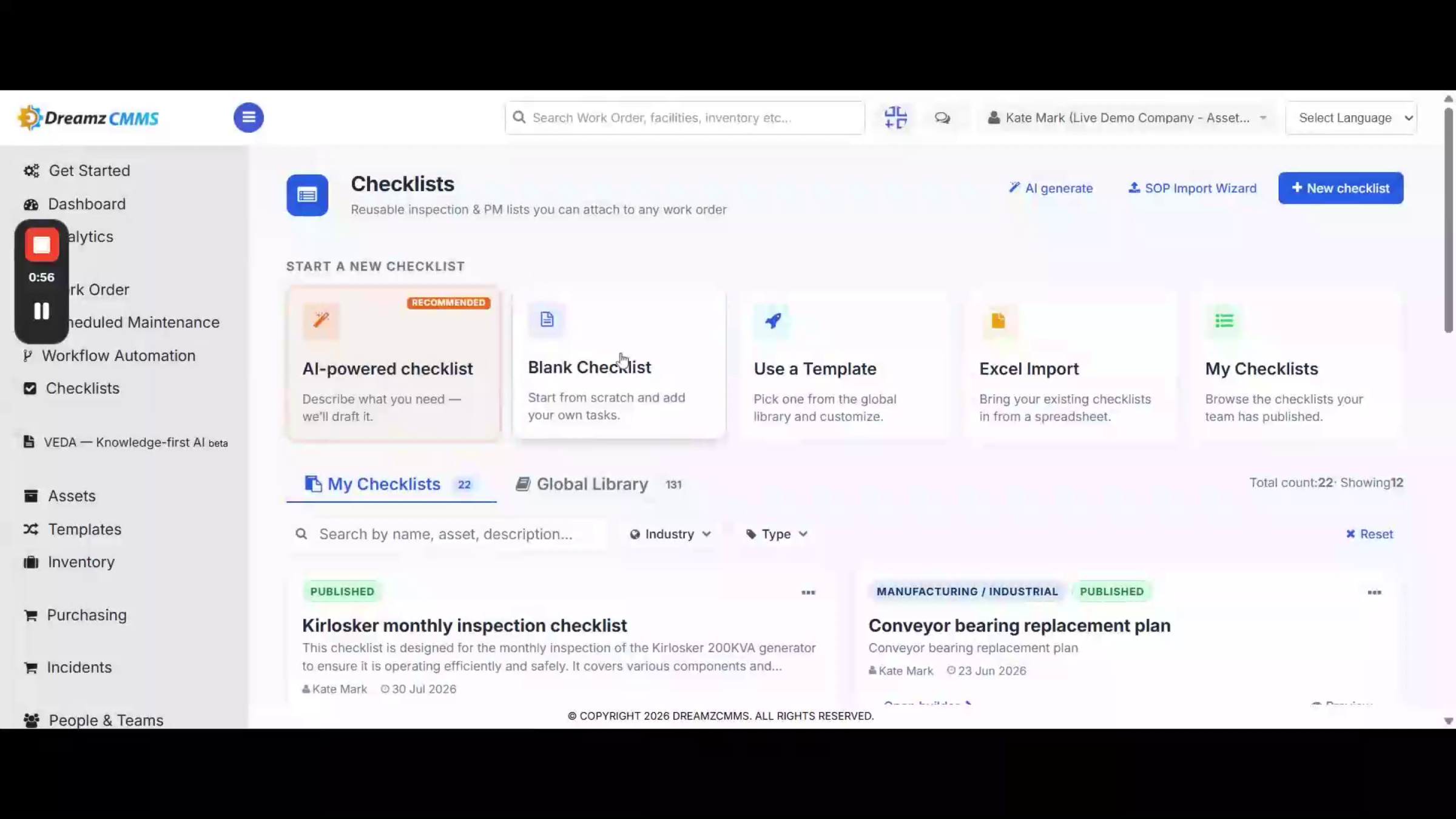
If you'd rather not use AI, you can start with a blank checklist and build it from scratch, or use a predefined template for faster setup.
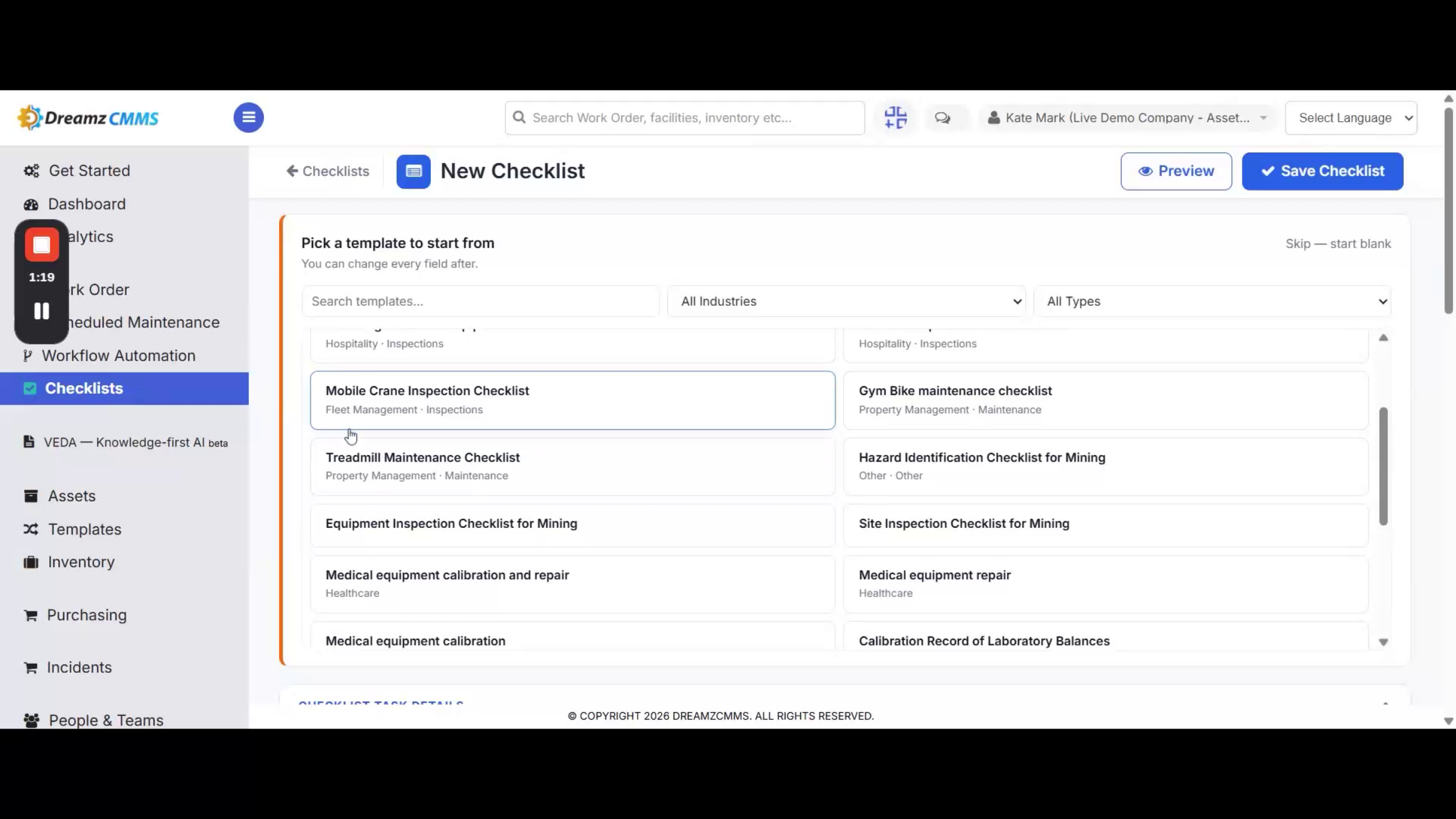
Step 4 – Choose a Checklist Category
Select any relevant category — such as healthcare, hospitality, property management, and more — based on your needs. You can also upload checklist data in Excel format to bulk import checklists.
Building a Checklist From Scratch
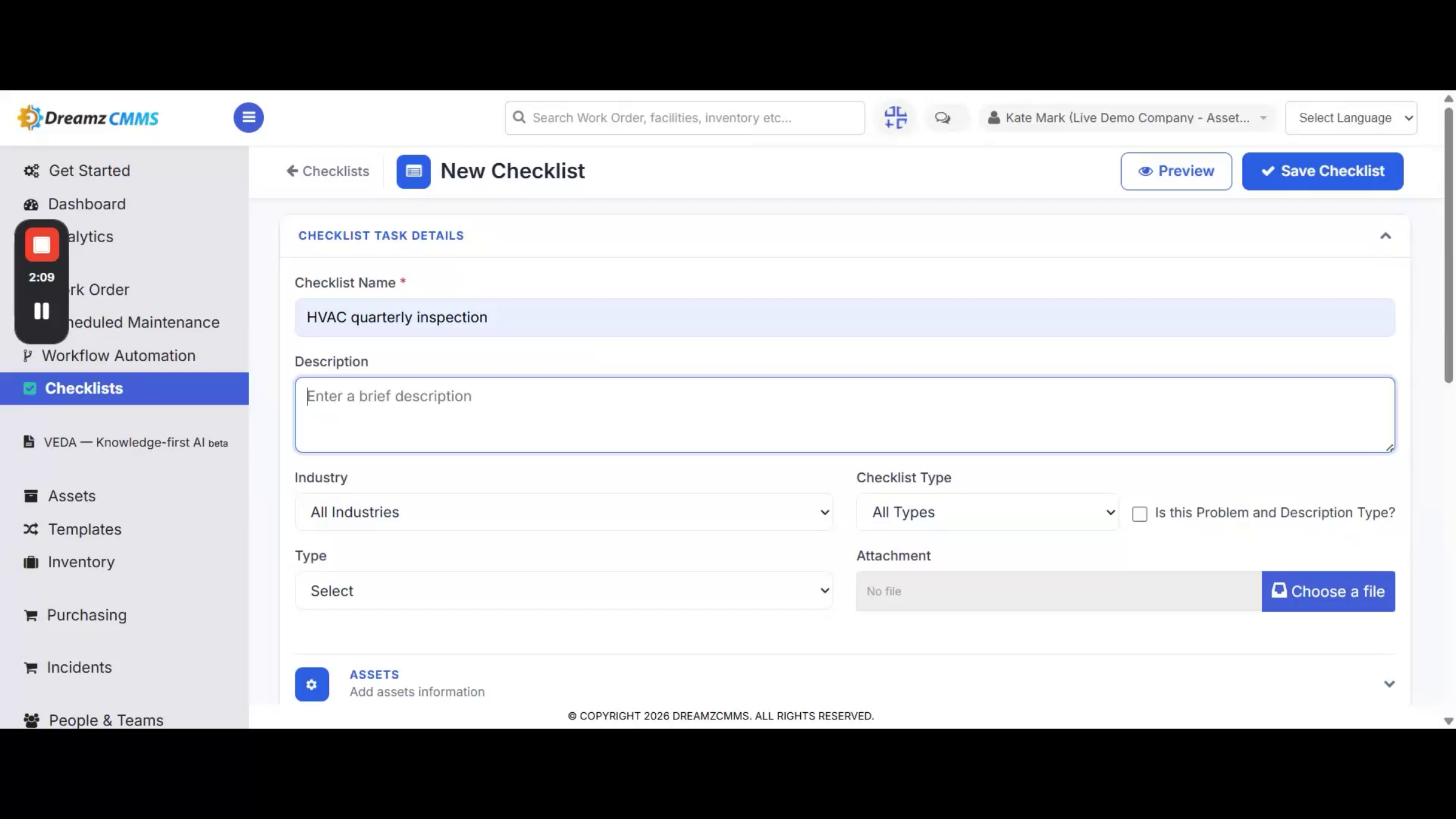
Step 5 – Start a New Checklist
From the Checklist page, click New Checklist to open the builder. Start by entering a checklist name — this field is mandatory.
Step 6 – Add a Description and Categorize It
Add a description to explain what the checklist covers, then select the industry and checklist type to categorize it properly. You can also attach reference files here.
Step 7 – Link Assets to the Checklist
Link specific asset information from the Assets section. Once that's set, you're ready for the core part of the process: the Builder.
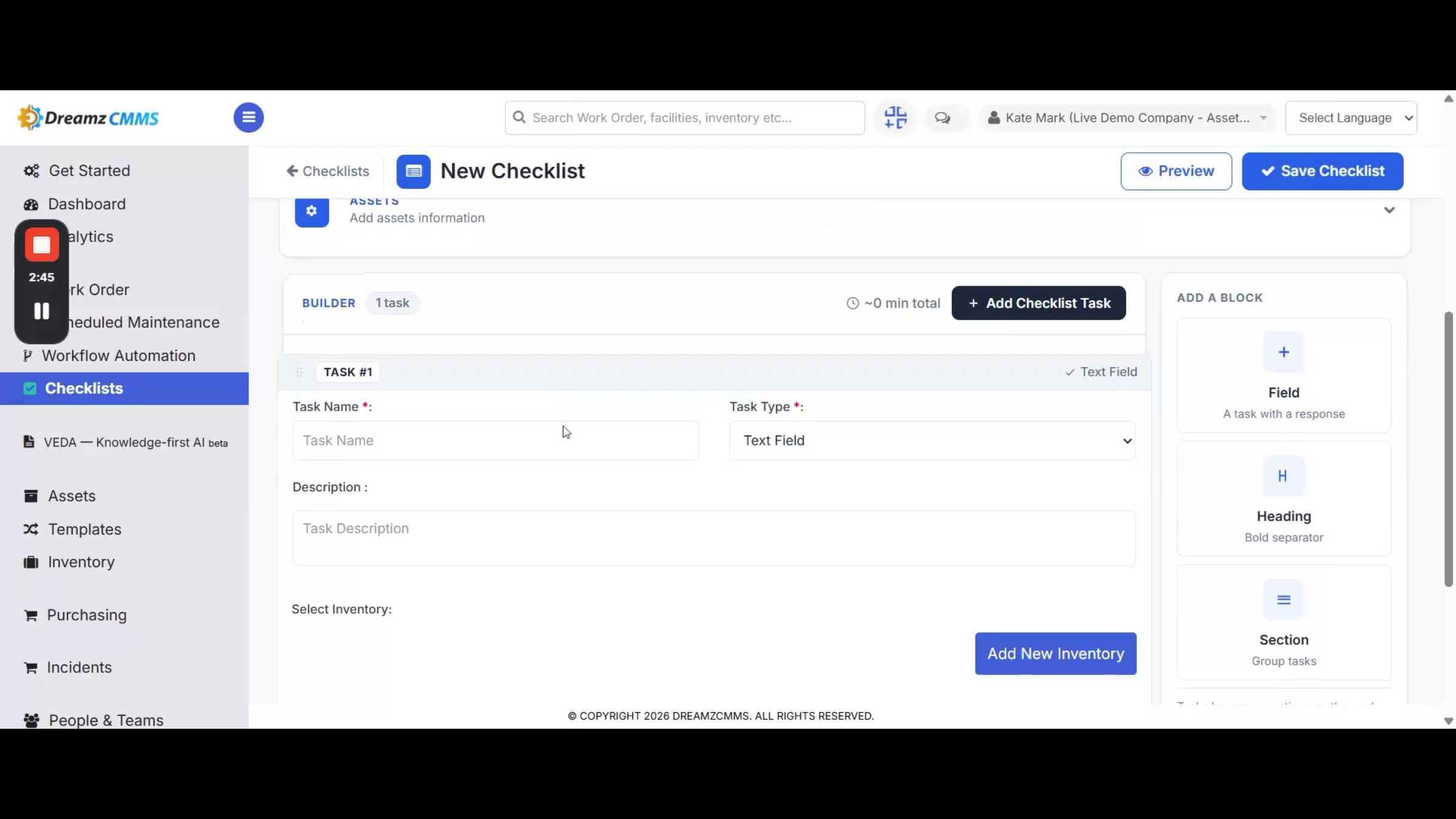
Step 8 – Add Tasks and Choose Input Types
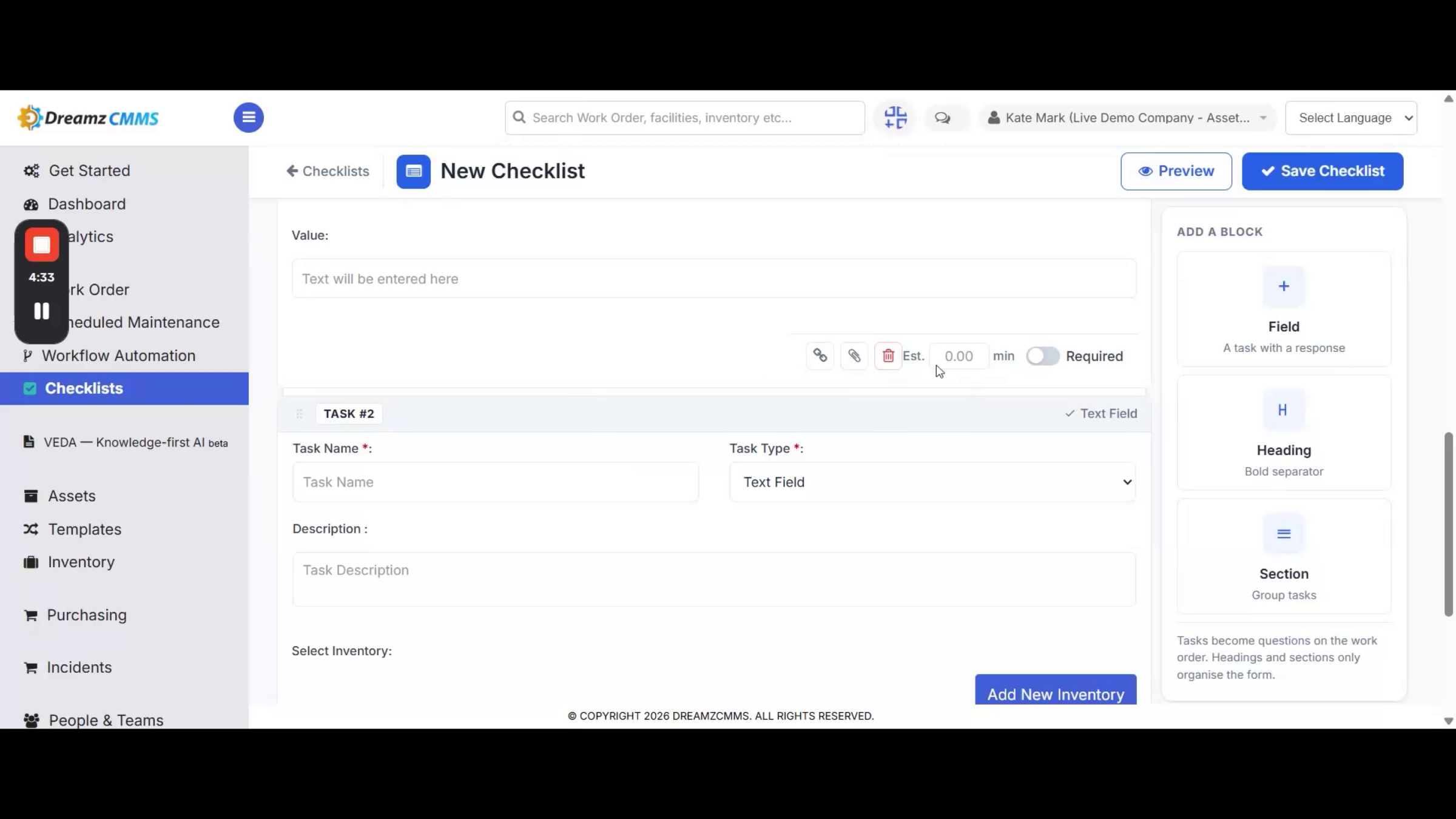
Note: Each checklist is made up of individual tasks. For every task, enter a task name and choose an input type — such as Checkbox, Text Field, Reading, Multiple Choice, and other options available in the drop-down — then add a task description to guide whoever fills it out.
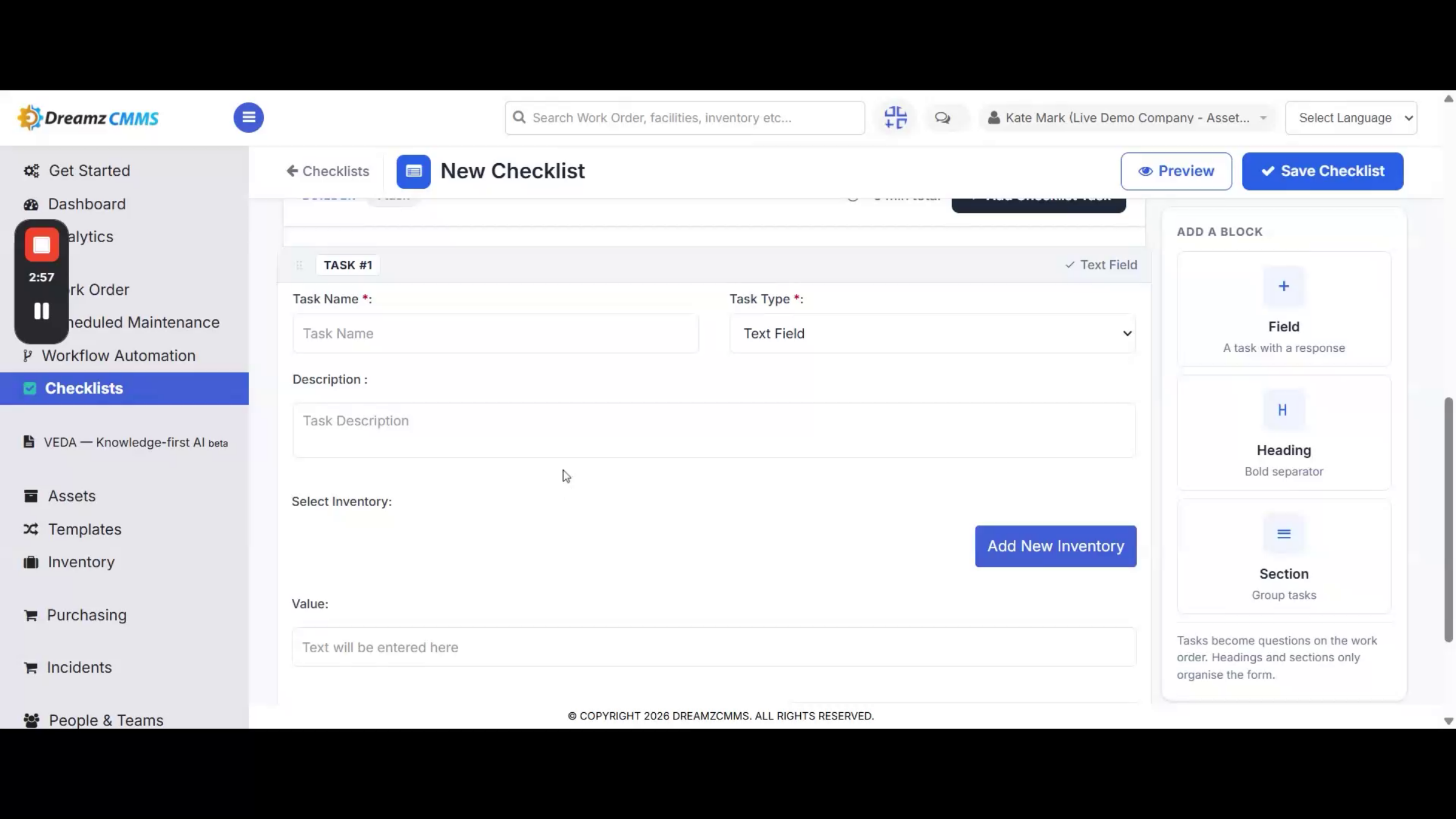
Step 9 – Link Inventory to a Task
If a task involves inventory, click Add New Inventory to link the relevant items, and enter a value if needed.
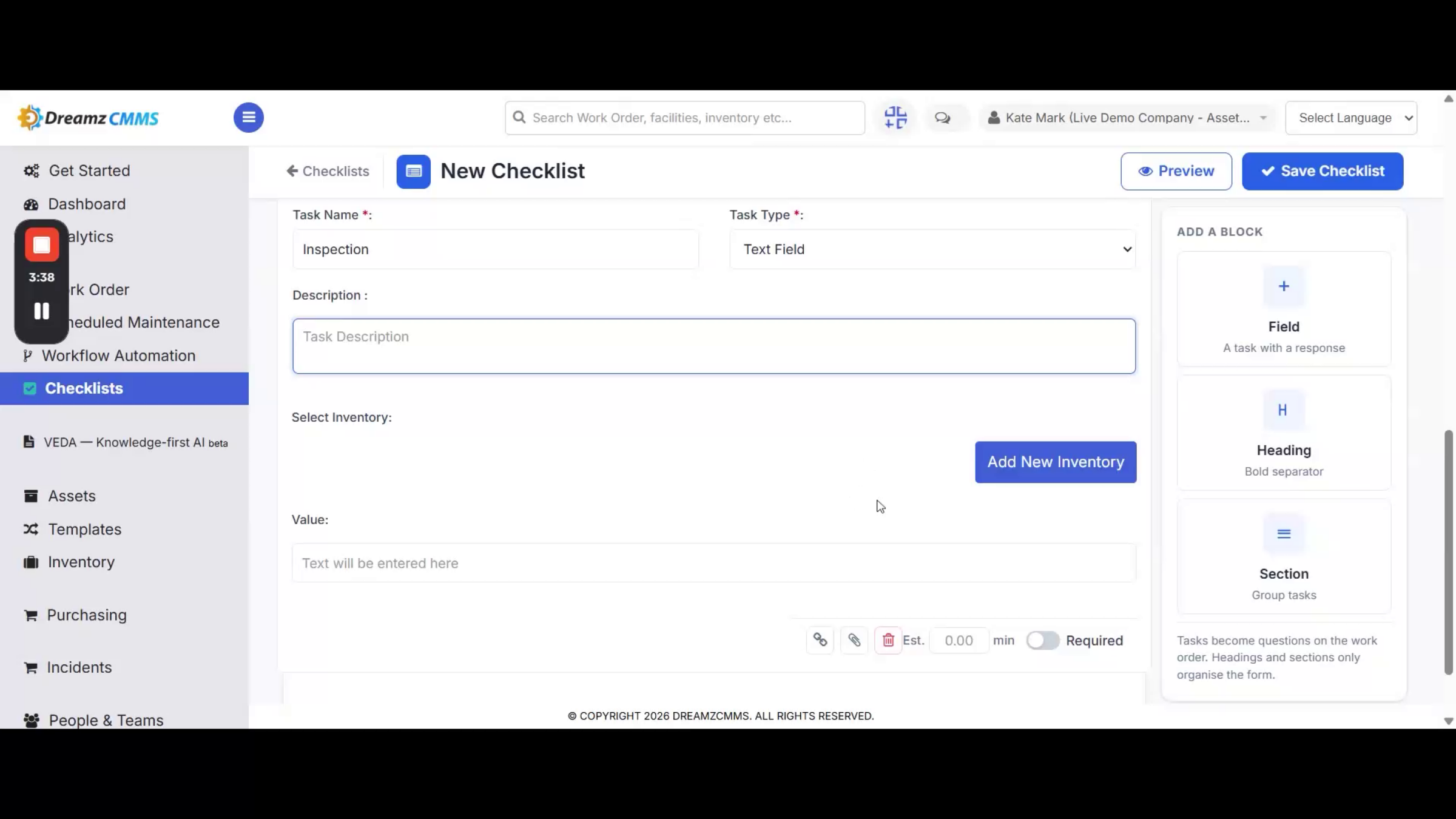
Step 10 – Set Task Time and Requirement Options
You can set an estimated time for a task or mark it as required, so technicians know which items are mandatory before a checklist can be considered complete.
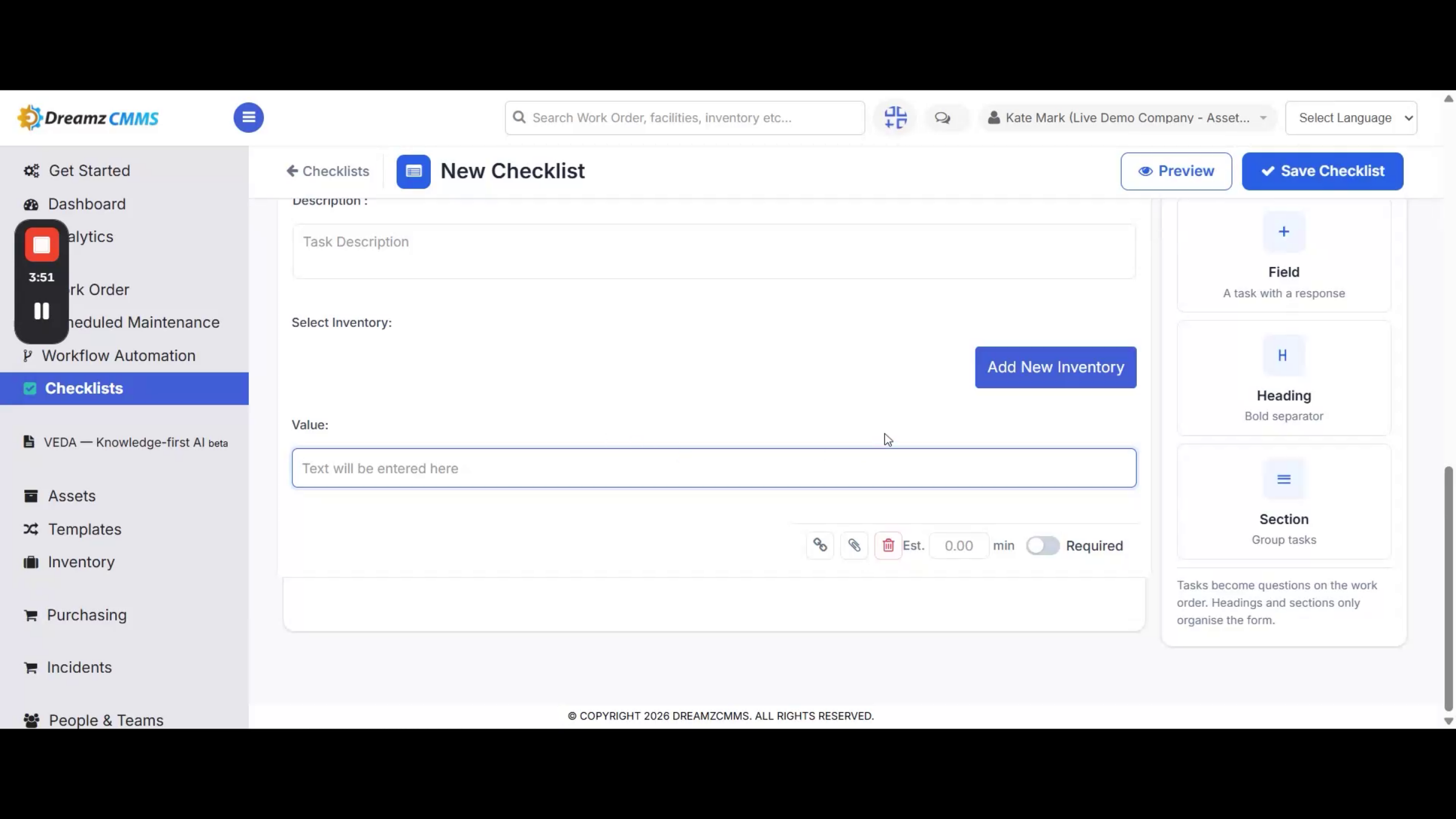
Step 11 – Add or Remove Tasks
Click Add Checklist Task to include another task in your checklist, or use the delete icon next to any task to remove it if needed.
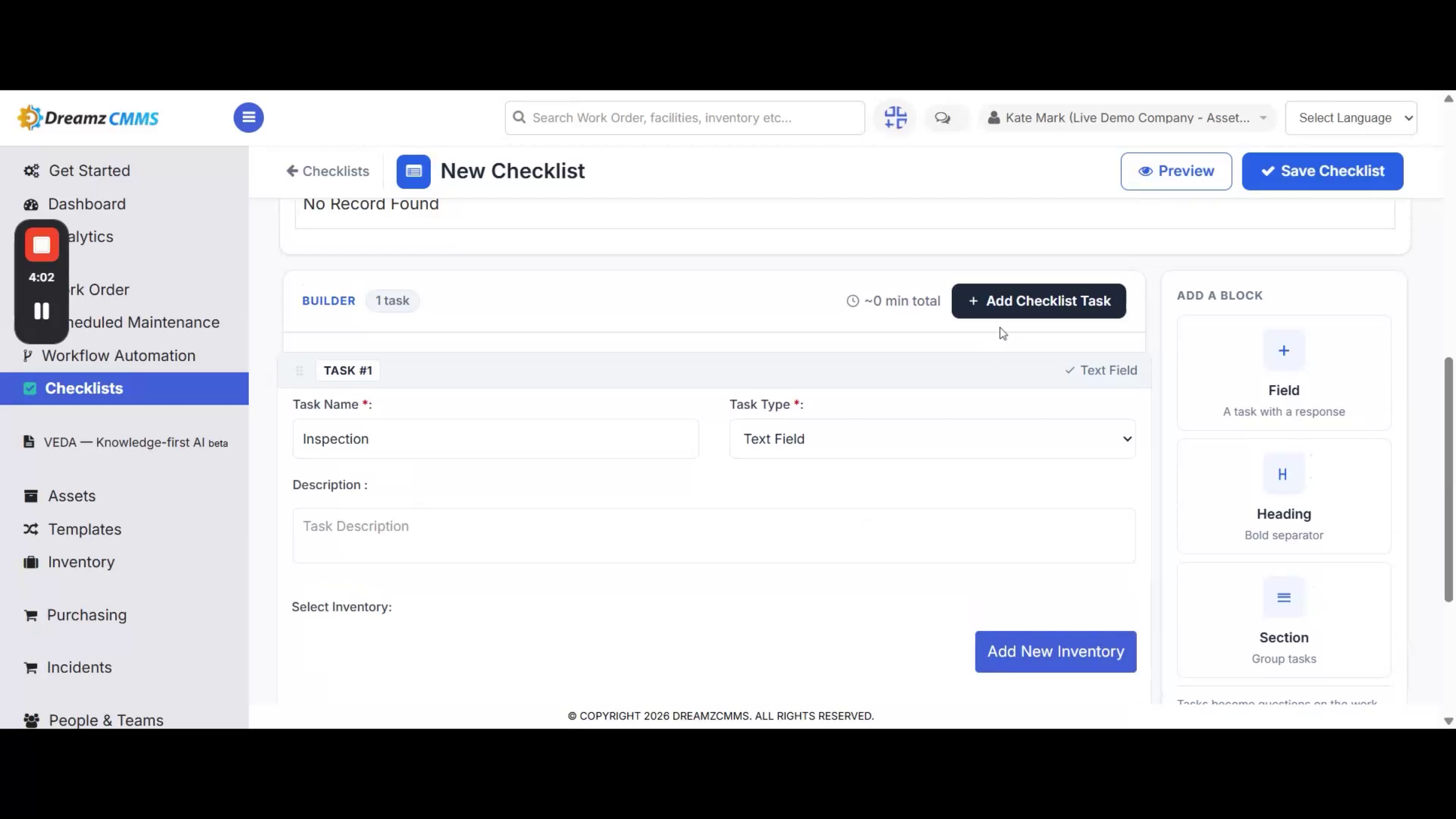
Step 12 – Preview and Save the Checklist
Once your checklist is ready, click Preview to see exactly how it will appear on a work order. When you're satisfied with it, click Save Checklist to publish it.
Reusing and Managing Checklists
Step 13 – Edit or Preview Existing Checklists
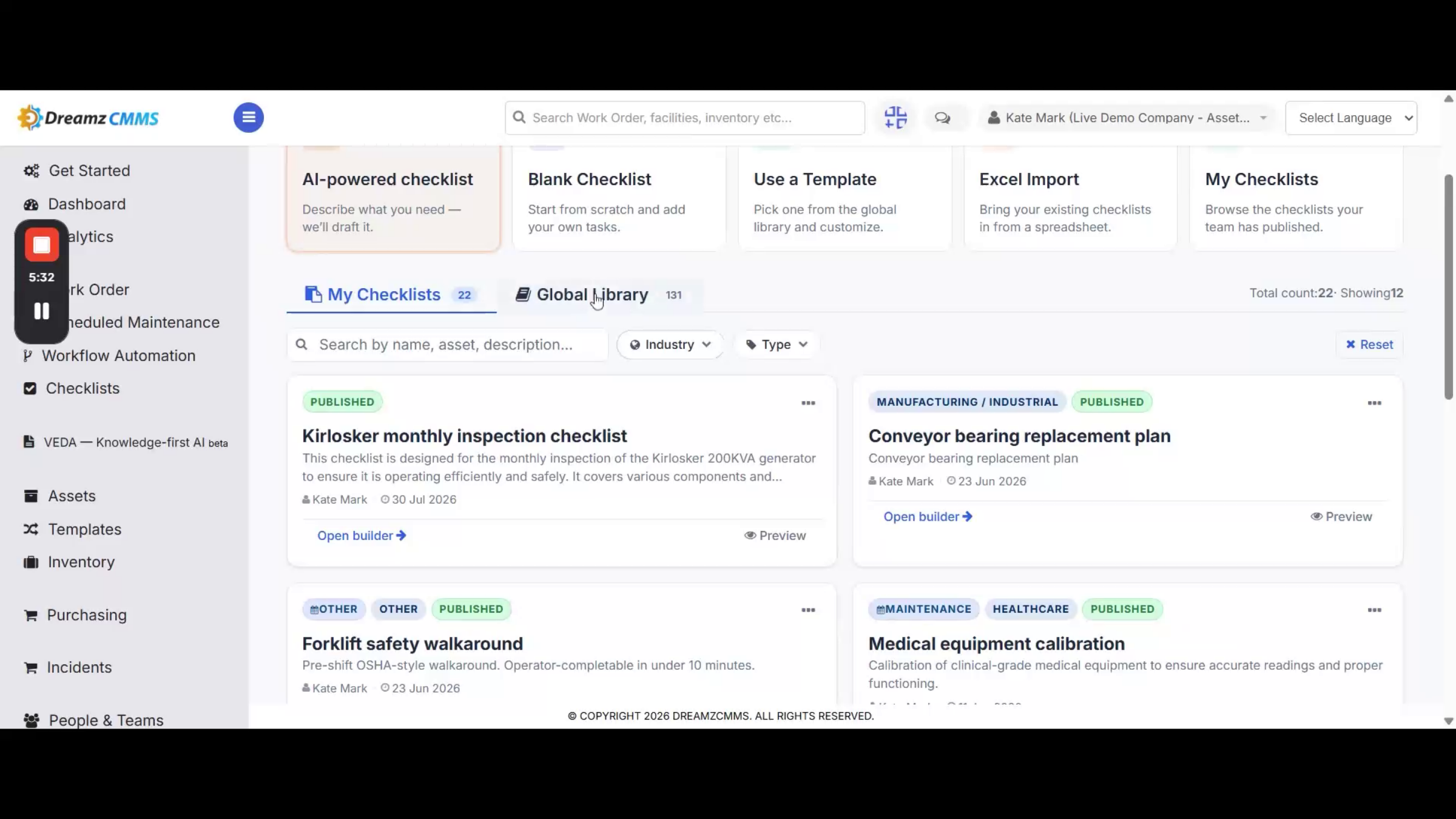
The My Checklist tab shows all the checklists created by you or your team. Click Open Builder to edit a checklist, or click Preview to see how it looks before it's used on a work order.
Step 14 – Browse the Global Checklist Library
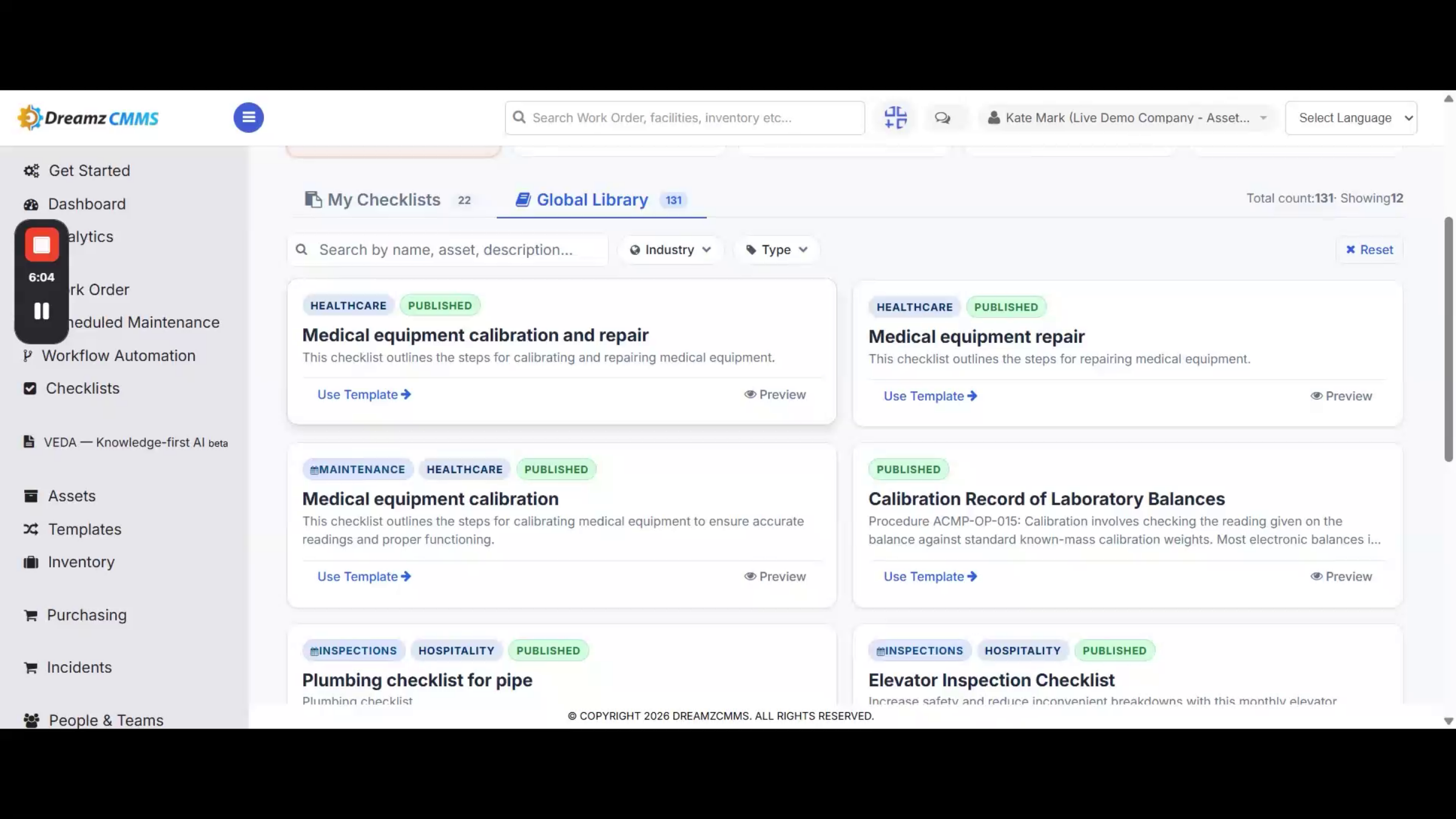
The Global Checklist Library is a central repository of pre-built checklists. Instead of creating checklists from scratch every time, you can access standardized templates for different industries and equipment types, customize them, and save them to your own library to save time.
Adding a Checklist to a Work Order
Step 15 – Open the Work Order's Activities Section
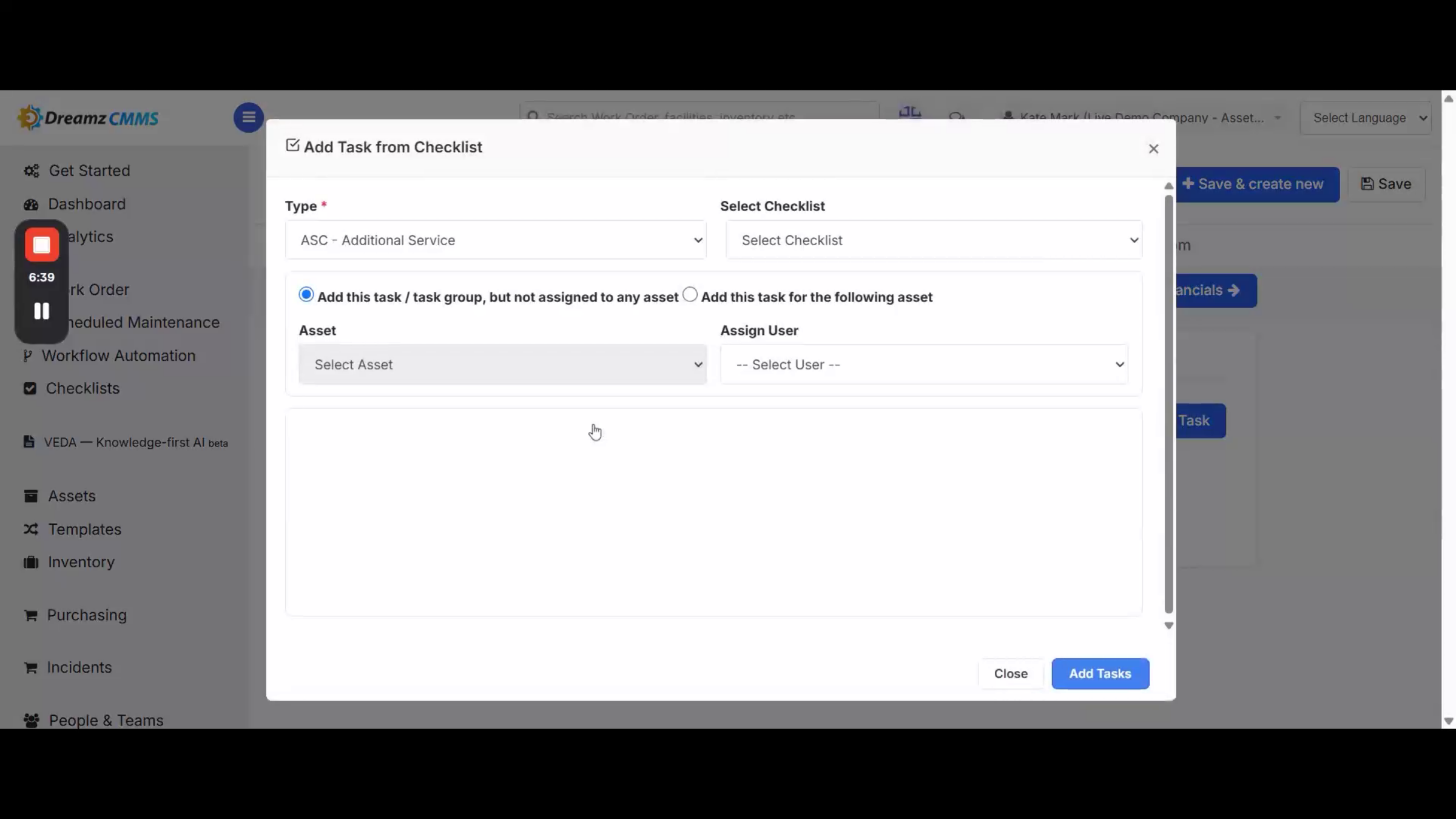
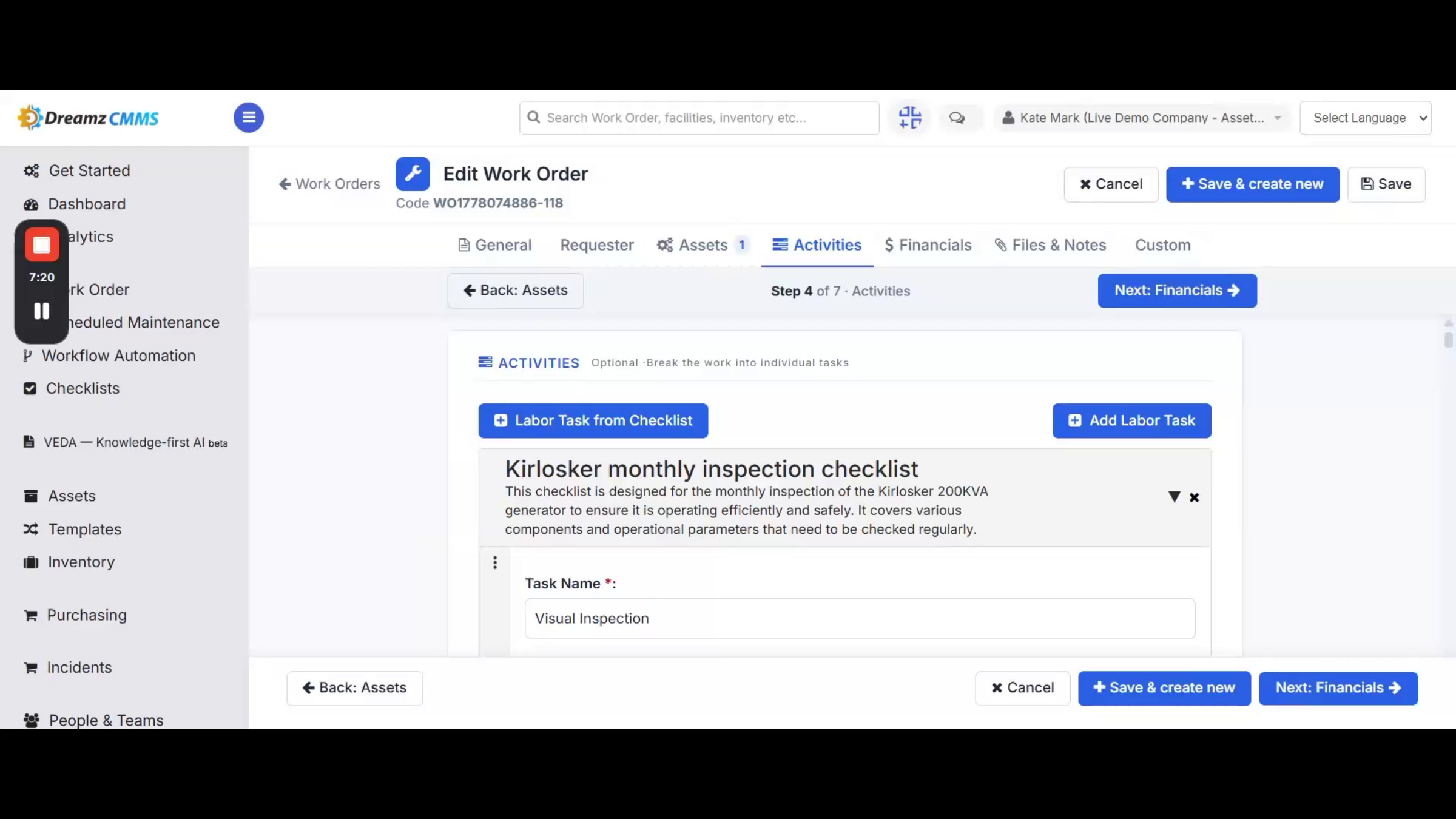
Go to the Work Orders section by clicking Work Orders from the left menu. Edit your desired work order and go to the Activities section, then click the Labor Task From Checklist button.
Step 16 – Select and Add the Checklist
Set the type to Select to view all available checklists. Choose the checklist you want and click Add Tasks to include it in the work order, then click Save to save the work order.
Step 17 – Review the Added Tasks
You can view the tasks you just added from the Tasks section of the work order.
Completing Checklists on Mobile and Web
Step 18 – Open the Work Order on the Mobile App
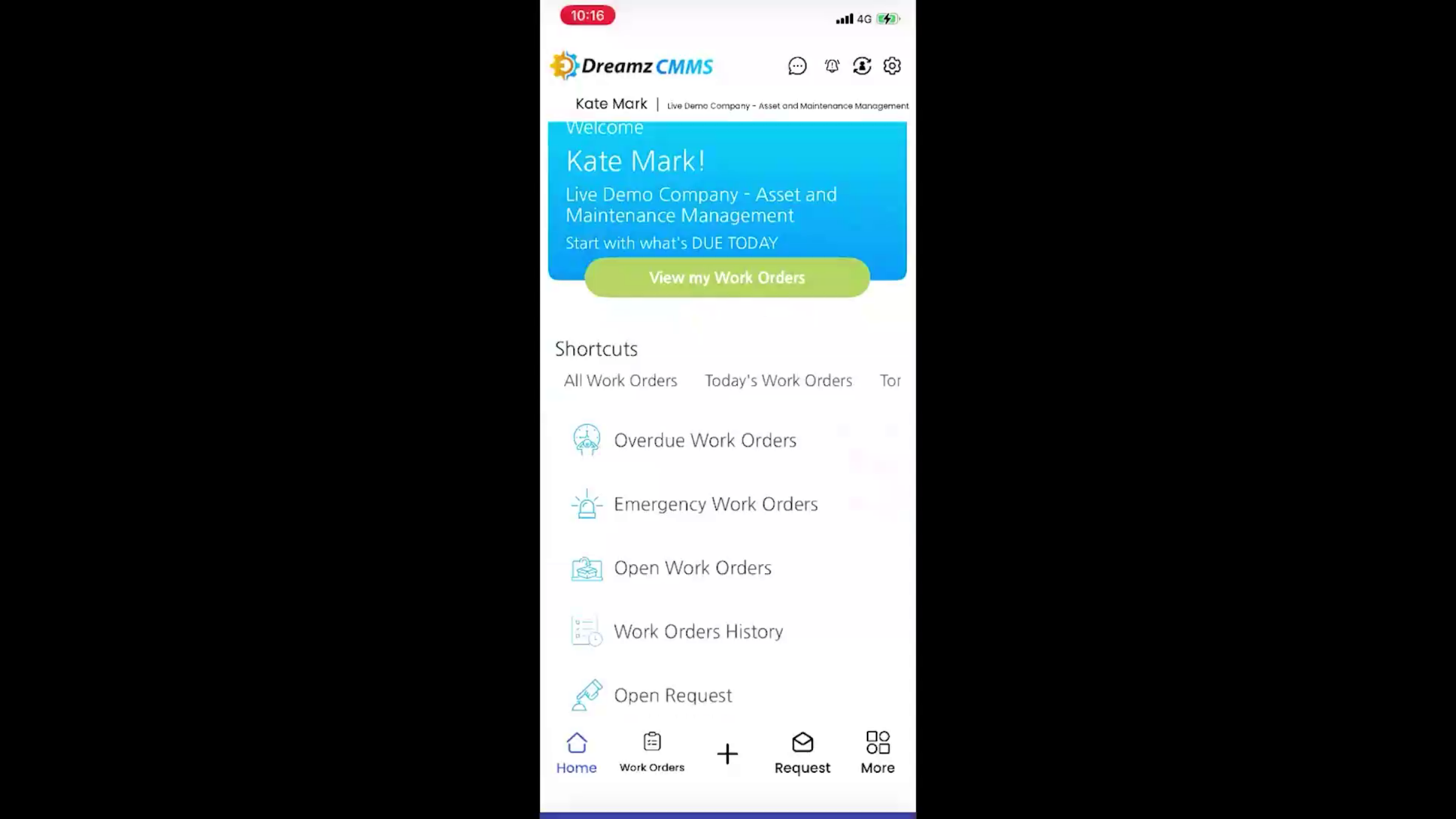
To access the checklist on your device, log in to the DreamzCMMS mobile app. From the Home screen, tap the Open Work Orders menu, search for your work order, and tap it to open its details.
Step 19 – Start the Work Order and Find Its Tasks
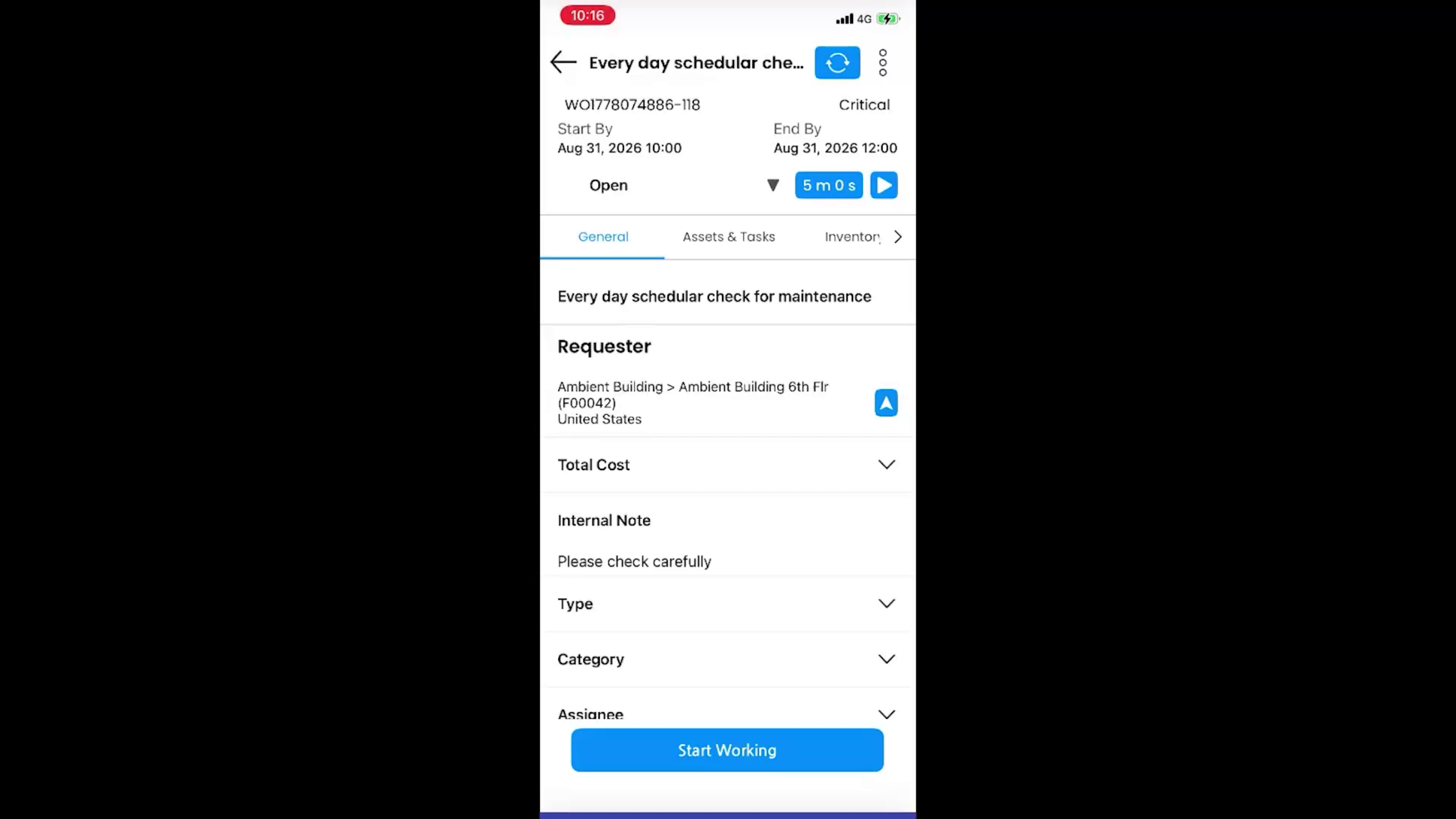
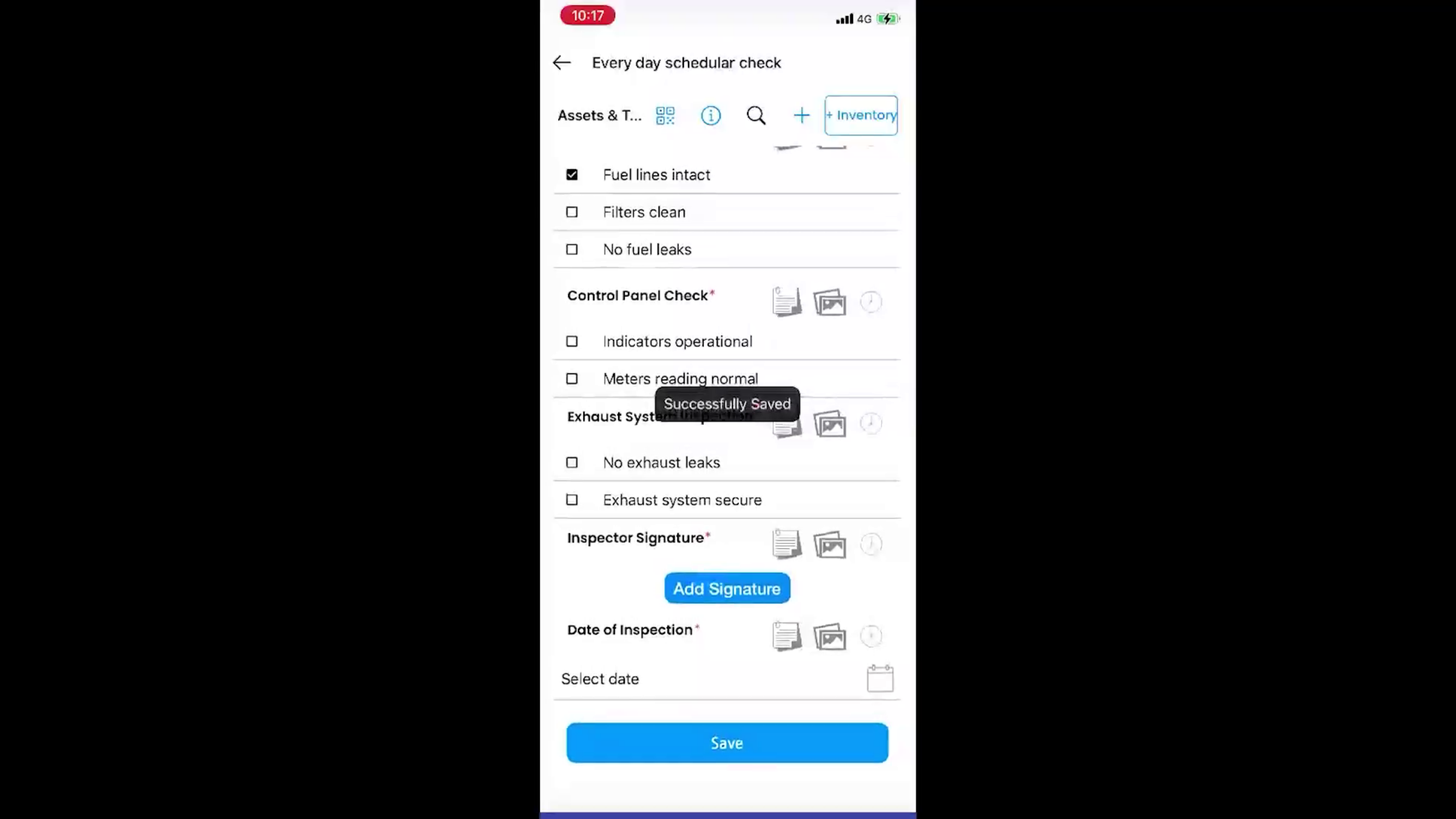
Tap either the Play button or the Start Working button to start the work order, then navigate to the Assets and Tasks section, where you'll find all the tasks that were added.
Step 20 – Complete Tasks and Add Notes
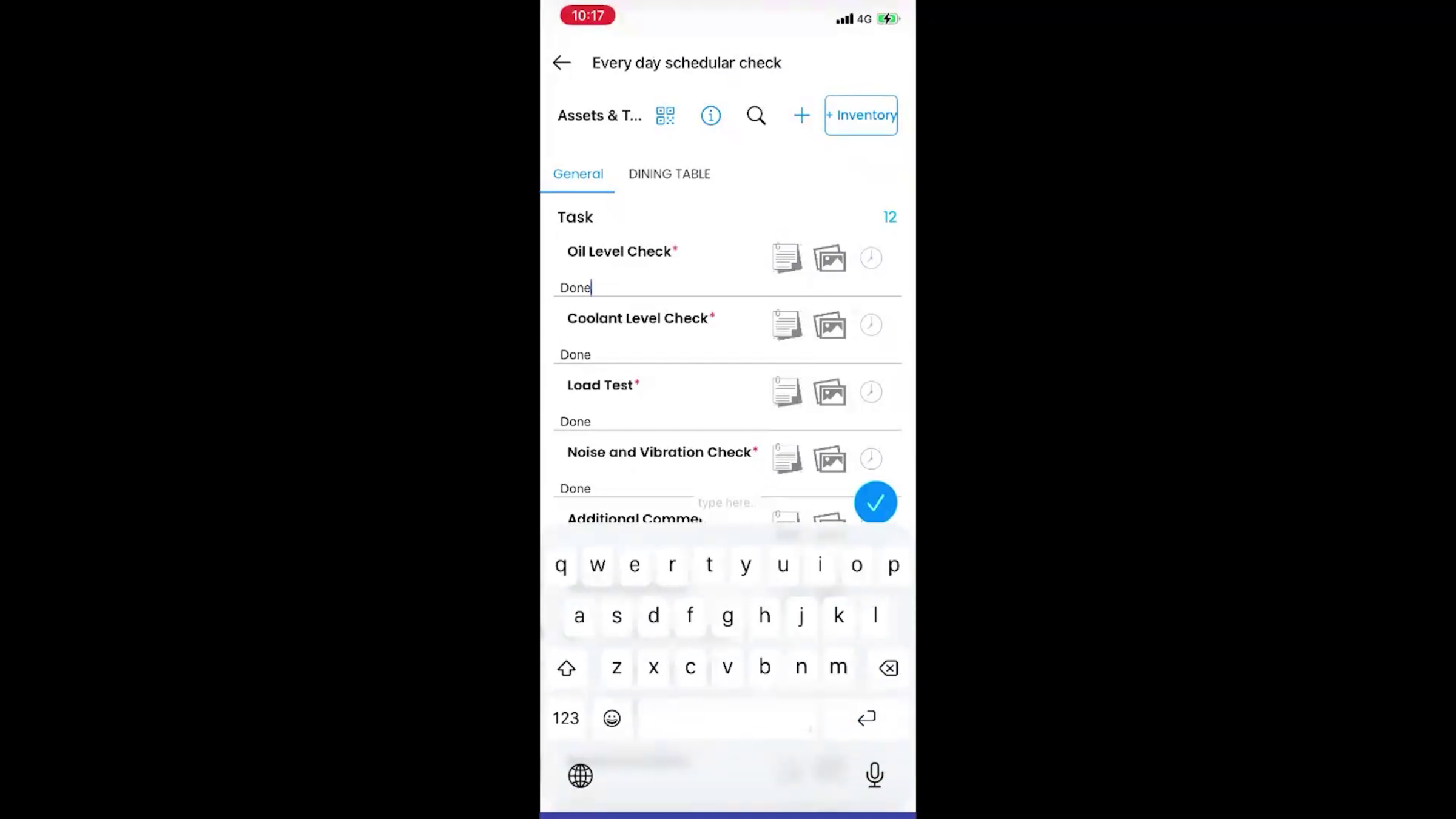
Mark one or more tasks as complete, provide a completion note, enter the time spent, and tap Save.
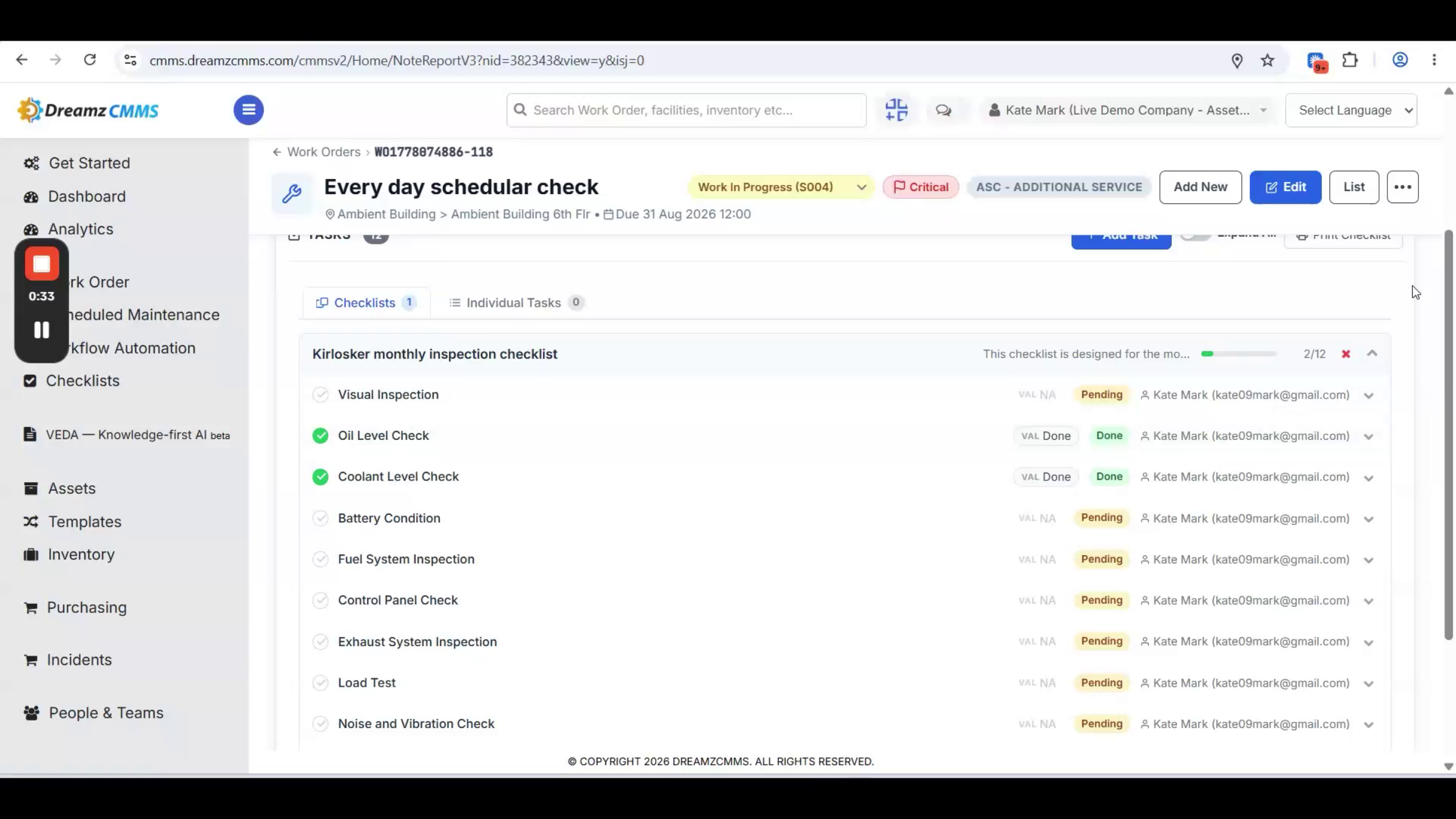
Step 21 – Check Completion Status on the Web
Back on the web, open the same work order to see a quick view of the completed tasks — for example, 2 out of 12 tasks completed. Go to the Tasks section to review the details that were provided.
Step 22 – Print the Checklist Status
You can print the current checklist status at any time using the Print Checklist button — useful for audits, handoffs, or physical records alongside the digital work order.
After Setup — What's Next?
With checklists built, attached to work orders, and completable from both web and mobile, your team has a consistent, auditable way to handle inspections and PMs. Once you're comfortable with the core workflow, you can:
- Build out a library of AI-generated or template-based checklists for your most common inspection and PM tasks.
- Standardize on the Global Checklist Library where possible, customizing only what's specific to your equipment or industry.
- Set required tasks and time estimates consistently so completion reports and printed checklists stay comparable across technicians.
Ready to see checklists in action? Contact DreamzTech to schedule a personalized demonstration.
Tips for Checklist Builders and Technicians
- Let AI draft a first version of a checklist, then edit it — it's usually faster than starting from a fully blank checklist.
- Mark truly critical tasks as required so a work order can't be closed out with a safety step skipped.
- Check the Global Checklist Library before building something from scratch — a close match may already exist for your industry or asset type.
- On mobile, always add a completion note and time spent before saving — this data feeds directly into your web-side completion reports.
Frequently Asked Questions
Do I have to build every checklist from scratch?
No. You can use AI-powered generation based on a title and criteria, start from a template, or pull an existing checklist from the Global Checklist Library and customize it.
Can a checklist task require inventory or a specific reading?
Yes. Each task can use input types like Checkbox, Text Field, Reading, or Multiple Choice, and you can link inventory items directly to a task using Add New Inventory.
Can technicians complete checklists from their phone?
Yes. Technicians can open a work order in the DreamzCMMS mobile app, start it, and complete each checklist task with notes and time spent directly from the Assets and Tasks section.
Can I get a physical copy of a completed checklist?
Yes. The Print Checklist button on the work order lets you print the current checklist status at any time.