Managing FMCG Operations with the DreamzCMMSRFID Mobile App
FMCG manufacturers move fast — cases and pallets come off the line by the thousands, and knowing exactly where every batch is, from production to shipment, is essential. The DreamzCMMSRFID mobile app gives production and warehouse teams one tool to track every case, from the moment it's produced to the moment it's shipped, received, or retired.
Overview
Whether you run one plant or fifty, DreamzCMMSRFID tracks every case and pallet from the moment it comes off the production line, through internal movements between production and storage, transfers between plants and warehouses, right through shipment, and finally to the day it's retired. A full batch or production run is tagged at once through Bulk Serialization, capturing the supplier, tag count, production date and time, line number, and batch or lot number. Once tagged, teams can instantly check what's on hand with Inventory Inquiry, or move cases between facilities using Dispatch and Receive, which logs every item against a unique dispatch reference number. For high-volume operations, a fully automated RFID gate can read pallets and cases as they pass through on a forklift, trolley, or conveyor — no manual scanning required. When a case or batch reaches the end of its life, whether it's expired, damaged, or recalled, Unregister removes it from active inventory while keeping a full record of the transaction.
Here is a reference video:
Before You Begin
- You must have the DreamzCMMSRFID app installed on a handheld RFID scanner or mobile device.
- Your plants, warehouses, and production lines should already be set up as locations in the system.
- If you plan to use the automated RFID gate, make sure the fixed antenna is installed and connected at the dispatch or receiving point before cases start moving through it.
How to Track FMCG Products with the Mobile App
Step 1 – Bulk Serialize a Production Run
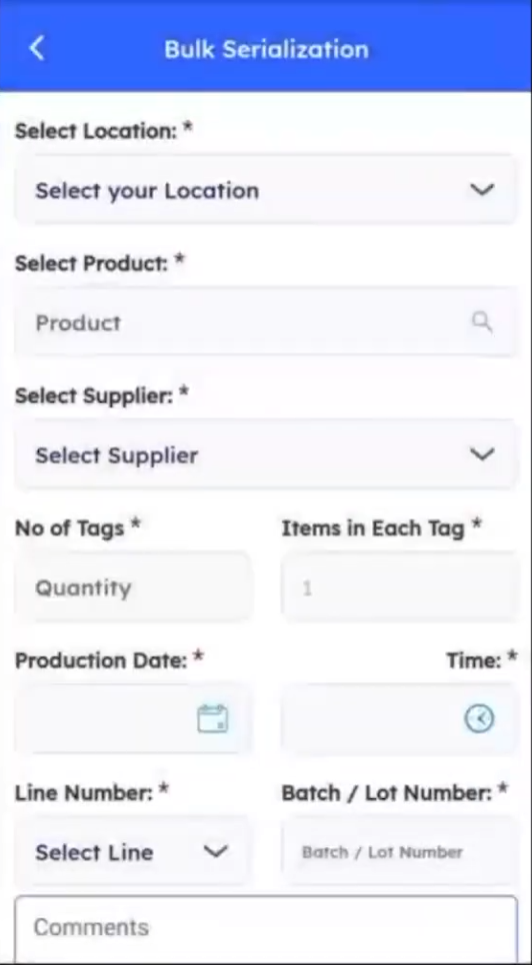
Every product's journey starts with getting it into the system. For a full batch at once — a pallet of finished goods or an entire production run — Bulk Serialization takes over. Select the location and the product, then select the supplier, number of tags, and the production date and time. After that, select the line number and provide a batch or lot number, then hit Continue to scan. From there, point the handheld RFID scanner at the stock. For anything that hasn't been RFID tagged yet, the same scan screen also supports a quick barcode or QR code scan as a fallback.
Step 2 – Check On-Hand Inventory
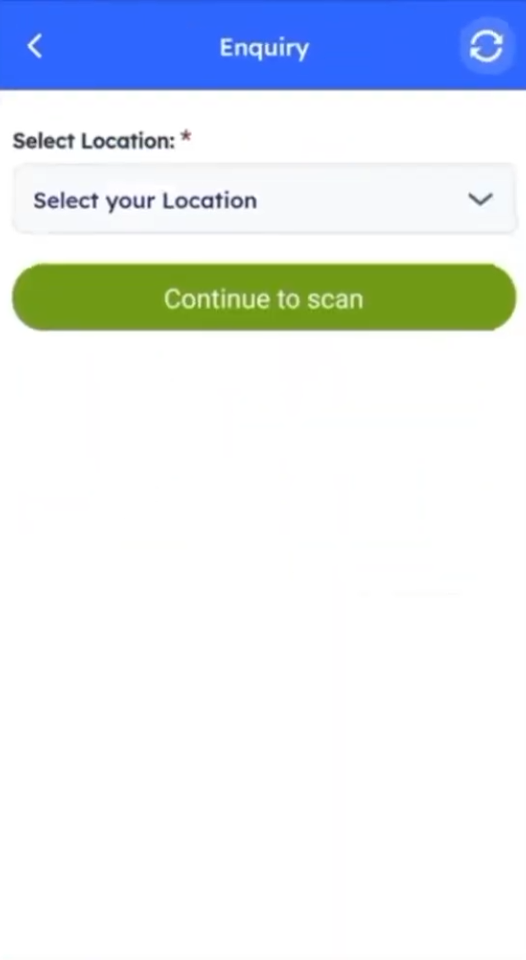
Once your stock has been registered, checking inventory is just as simple. Open the Inquiry screen, select the plant or warehouse, and scan the item to instantly see everything currently on hand, right down to the individual case or SKU.
Step 3 – Dispatch Cases to Another Facility
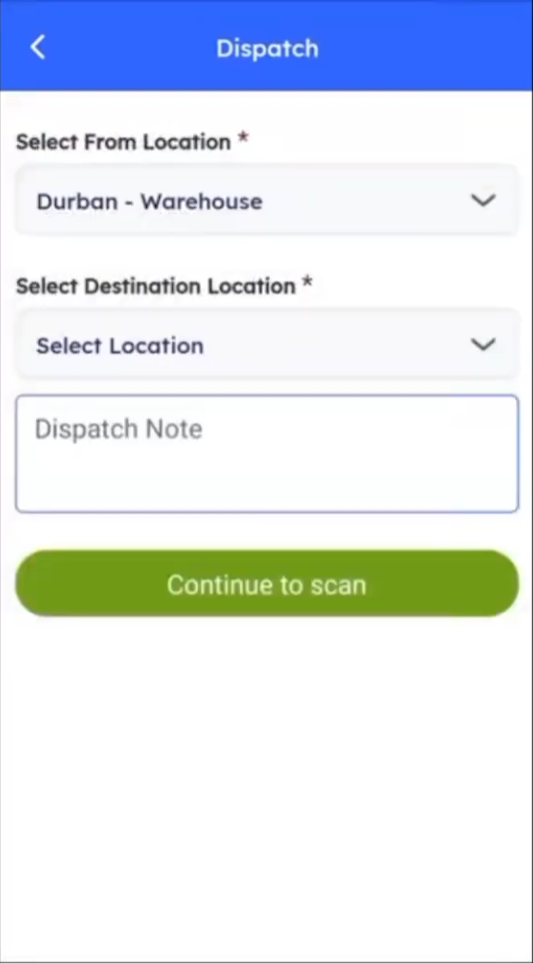
This is where the system becomes especially powerful for FMCG manufacturers operating multiple facilities. From the sending location, open the Dispatch screen, select the source location and destination, add a dispatch note if required, and scan each case before it leaves the warehouse. As each SKU is scanned, it's automatically marked as in transit and linked to a unique dispatch reference number, giving you complete traceability throughout the shipment.
Step 4 – Receive Cases at the Destination
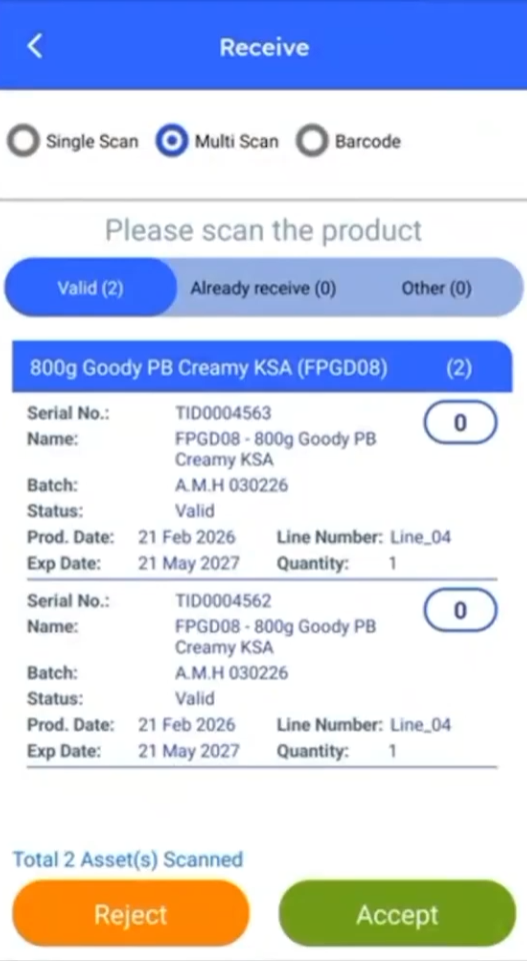
At the receiving location, open the Receive screen, select the plant or warehouse, choose the corresponding dispatch reference number, and scan each incoming case to confirm receipt. As the cases are scanned, they're automatically added to the receiving plant's inventory — keeping stock levels accurate without any manual data entry, and with no spreadsheets or phone calls needed to verify what shipped.
Step 5 – Use the Automated RFID Gate for High-Volume Dispatch
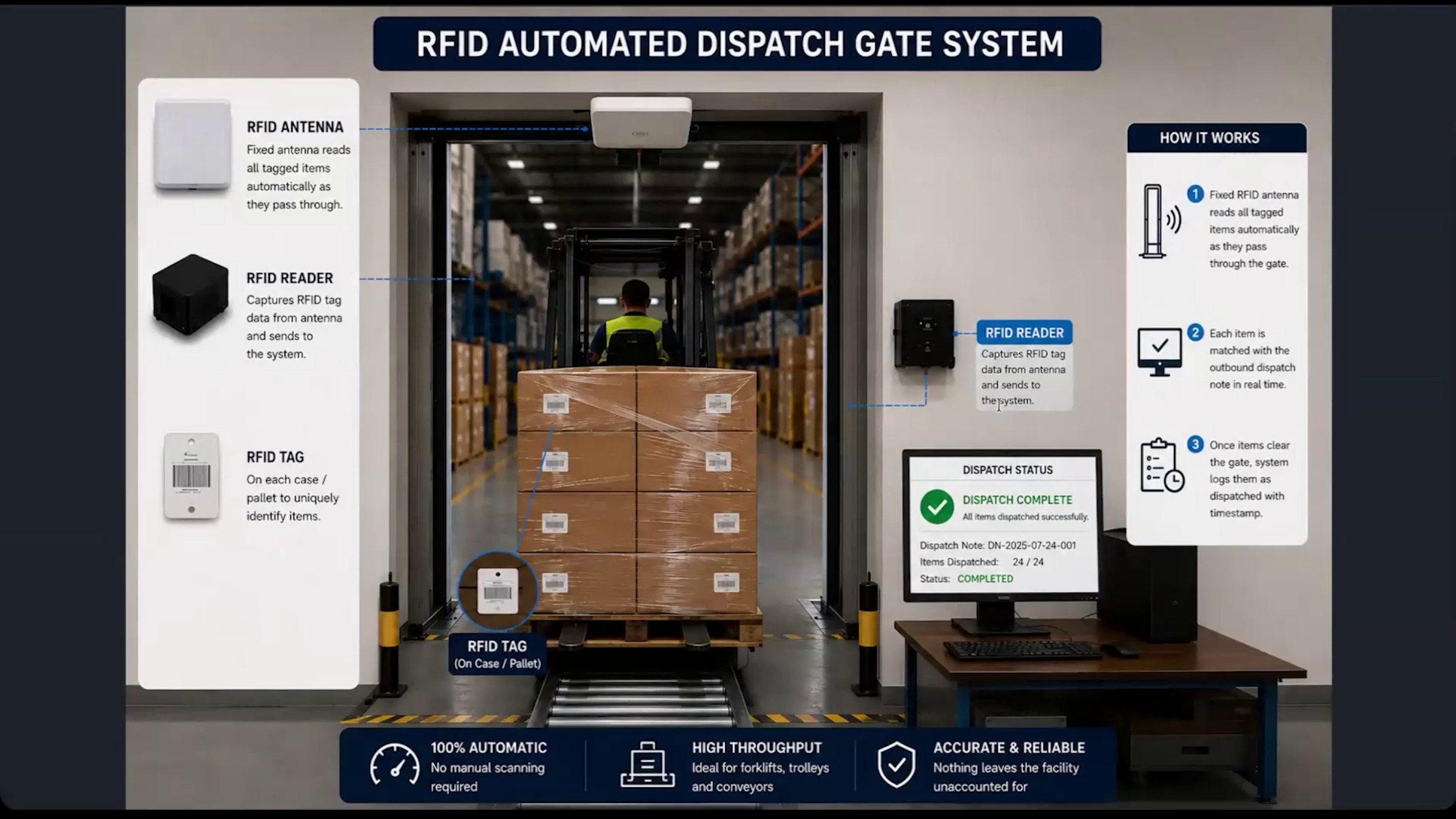
For high-volume dispatch operations, DreamzCMMSRFID supports a fully automated RFID gate, eliminating the need for manual scanning. A fixed RFID antenna is installed at the dispatch gate, and as pallets or cases pass through on a forklift, trolley, or conveyor, every RFID-tagged item is detected automatically and matched against the outbound dispatch note — recording it as dispatched the moment it passes through. The same process works at the receiving location, where the fixed antenna automatically reads all the tags and records the items as received.
Note: The automated RFID gate is designed for high-volume operations and removes the need to scan each case individually — but a handheld scanner is still available at the same dispatch and receiving points as a fallback if an item is missed or needs manual verification.
Step 6 – Remove Expired or Recalled Cases
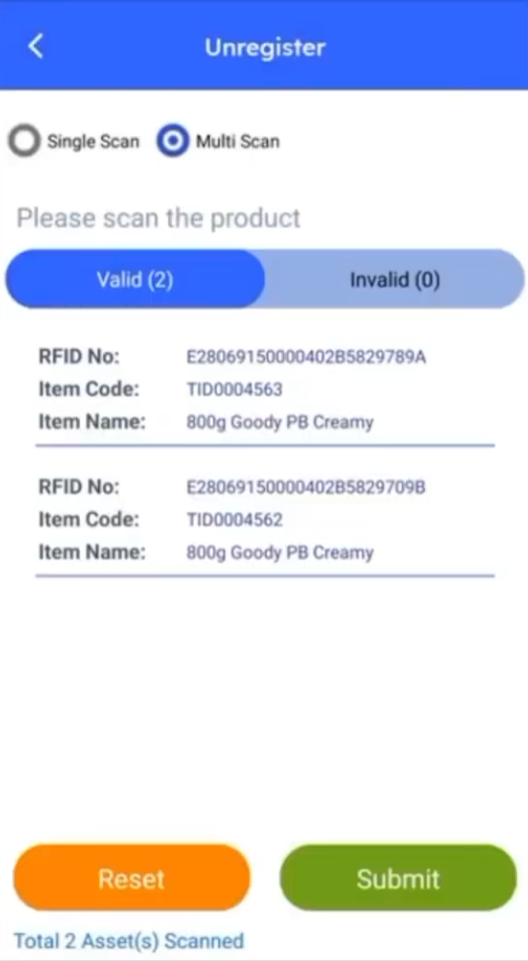
When a case or batch reaches the end of its life — whether it's expired, damaged, or recalled — use the Unregister screen to remove it from inventory. Simply scan the case, and it's removed from active inventory while keeping a full record of the transaction.
After Tracking Your Shipments — What's Next?
With products tracked through bulk registration, checked using Inquiry, transferred between locations through Dispatch and Receive, and removed through Unregister, you have a complete, tamper-proof record of every case. Once you're comfortable with the core workflow, you can:
- Switch over to the web portal, where your plant management team can view and manage complete inventory across every facility.
- Explore the reporting module to see the full audit trail and complete movement history for every shipment.
- Roll out the automated RFID gate at high-volume dispatch or receiving points to cut manual scanning even further.
Ready to see DreamzCMMSRFID in action for your FMCG operation? Contact DreamzTech to schedule a personalized demonstration.
Tips for Production and Warehouse Teams
- Capture the batch or lot number accurately at serialization — it's what ties every case back to its production run if a recall ever happens.
- Always confirm the matching dispatch reference number before scanning a receipt, so shipments reconcile cleanly on both ends.
- Consider the automated RFID gate for any dispatch or receiving point handling high volumes of pallets, since it removes manual scanning entirely.
- Unregister expired or recalled cases as soon as they're identified to keep active inventory counts accurate.
Frequently Asked Questions
Do I still need to scan cases individually if I have the automated RFID gate?
No. The fixed antenna at the gate automatically detects every RFID-tagged item as it passes through on a forklift, trolley, or conveyor, though a handheld scanner remains available as a fallback.
How do I confirm a shipment arrived at the right facility?
Open the Receive screen at the destination, choose the matching dispatch reference number, and scan each incoming case — it's automatically added to that plant's inventory.
What happens to a recalled batch?
Use the Unregister screen to scan and remove the batch from active inventory, while the system keeps a full record of the transaction.
What if a case hasn't been RFID tagged yet?
The same scan screen supports a quick barcode or QR code scan as a fallback, so untagged cases can still be registered and tracked.