DreamzCMMS RFID Web Portal: Master Data, Reports, and Audit Trails
Scanning tags on the shop floor is only half the story — someone still needs to see the full picture back in the office. The DreamzCMMS RFID web portal is where plant management sets up the master data behind the app and pulls the reports that turn every scan into a tamper-proof audit trail.
Overview
Everything drivers and technicians do in the mobile app is backed by master data set up in the web portal: Facility lists every plant and warehouse you operate, and Product holds your complete catalog of tools, components, and equipment types, with Equipment serving as the live registry of every individual tagged asset. The portal is also where bulk RFID tags are generated directly from a product record ahead of a rollout. From there, a full suite of reports — covering scans, transfers, and stock checks — rolls activity up plant by plant, flags mismatches automatically, and exports cleanly to Excel, PDF, or SAP. Together, the app and the portal give you a complete, tamper-proof record of every asset from arrival to retirement.
Here is a reference video:
Before You Begin
- You must have web portal access with permissions to view or manage Facility, Product, Equipment, and Reports.
- Your facilities (plants and warehouses) should already be set up — see Setting Up Plant, Warehouse, and Location Hierarchies if you haven't done this yet.
- Have your product and equipment types on hand if you plan to generate a new batch of RFID tags, since bulk tagging starts from an existing product record.
How to Use the DreamzCMMSRFID Web Portal
Step 1 – Review Your Master Data
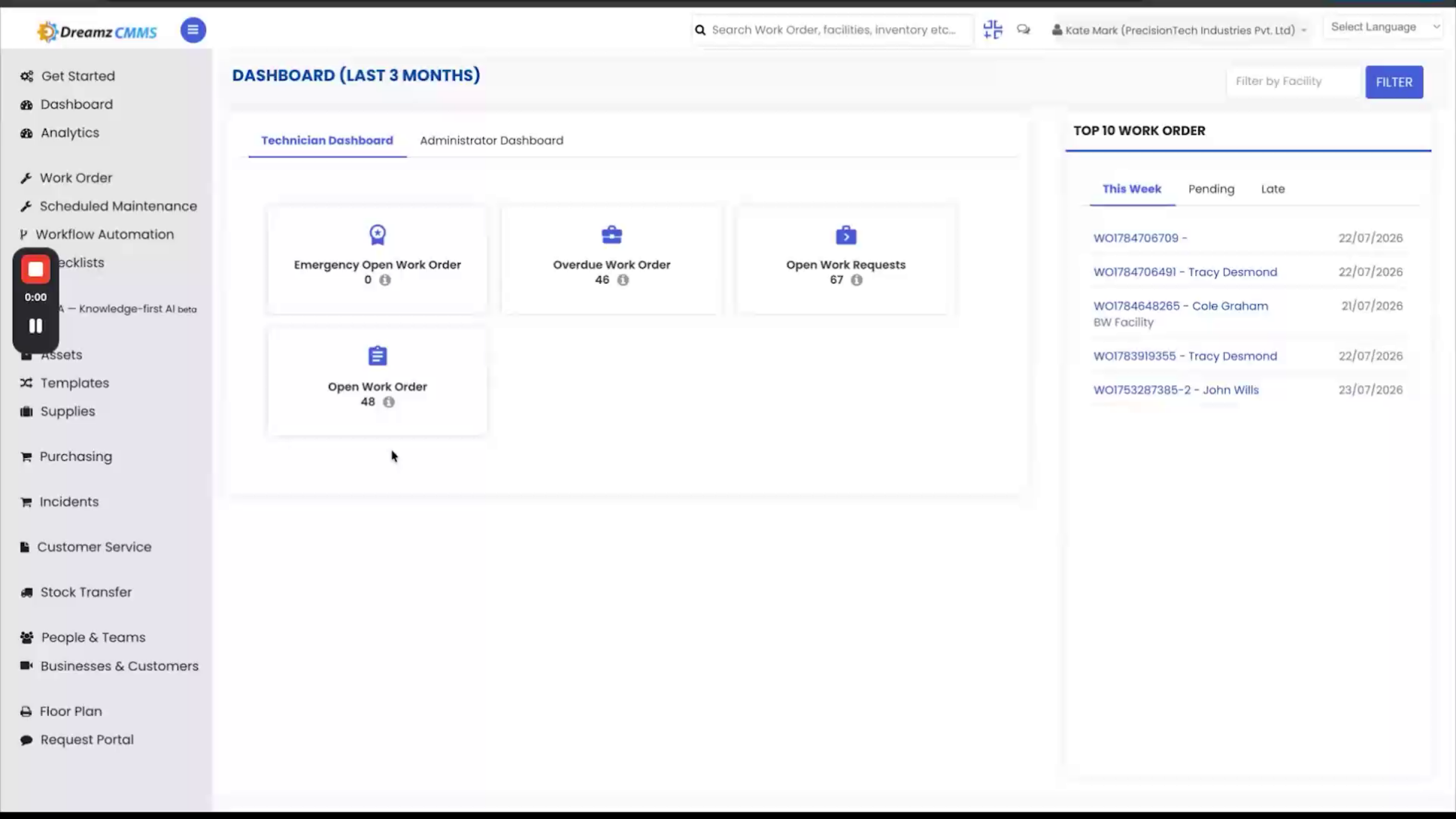
Everything in the app is backed by master data here in the portal. Start with Facility, which lists every plant and warehouse your business operates.
Step 2 – Manage the Product Catalog and Equipment Registry
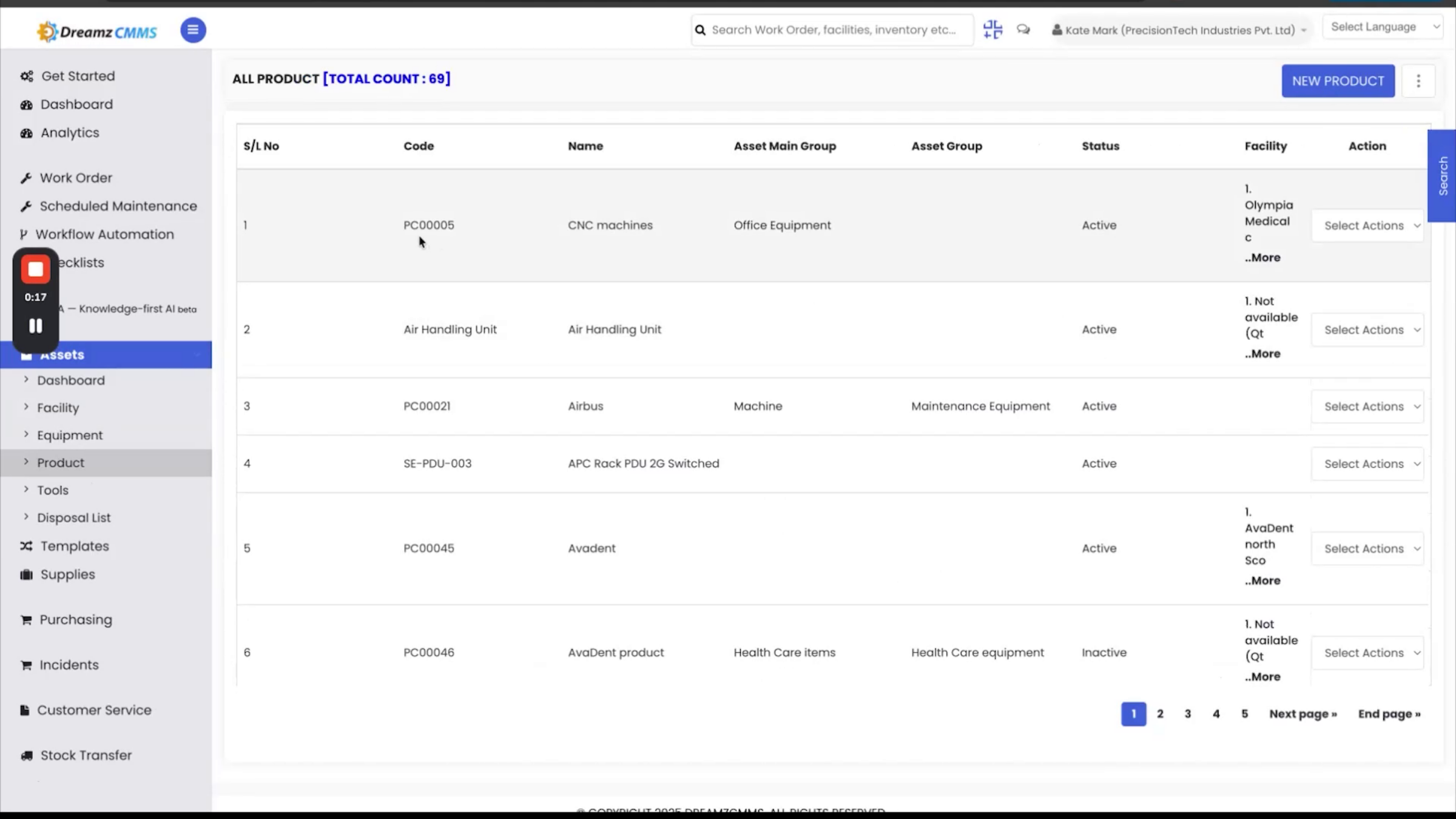
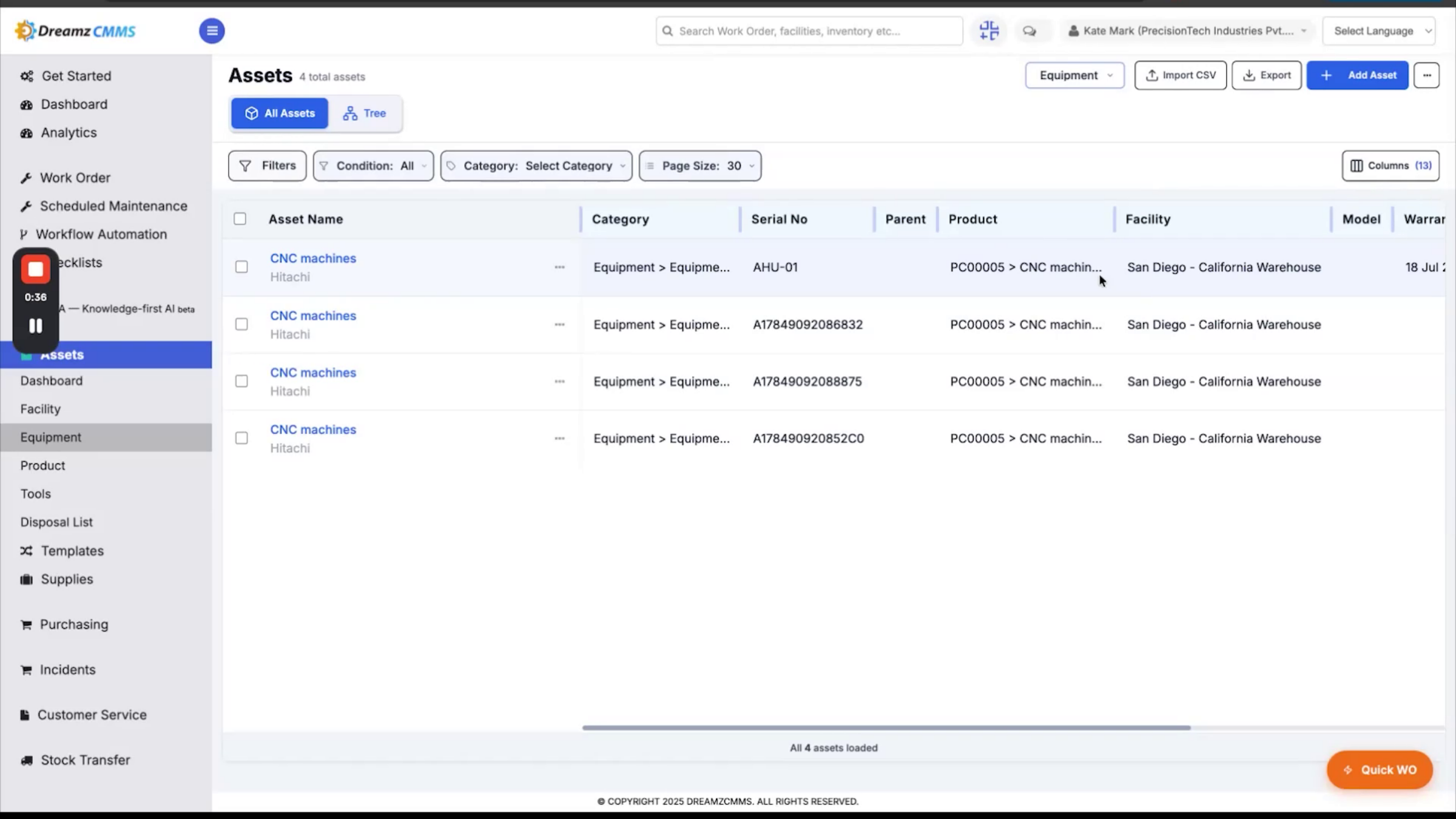
Product holds your complete catalog of tools, components, and equipment types. Equipment is the live registry of every individual tagged asset, each with its own serial number, parent product, facility, warranty, condition, and status.
Step 3 – Generate Bulk RFID Tags from a Product
This is also where bulk tagging originates. The Bulk Asset from Product screen lets your team generate serialized RFID tags directly from a product record. Set the facility, category, and quantity, and the batch is ready to print for the next tooling order or equipment rollout.
Step 4 – Audit Scans by Facility
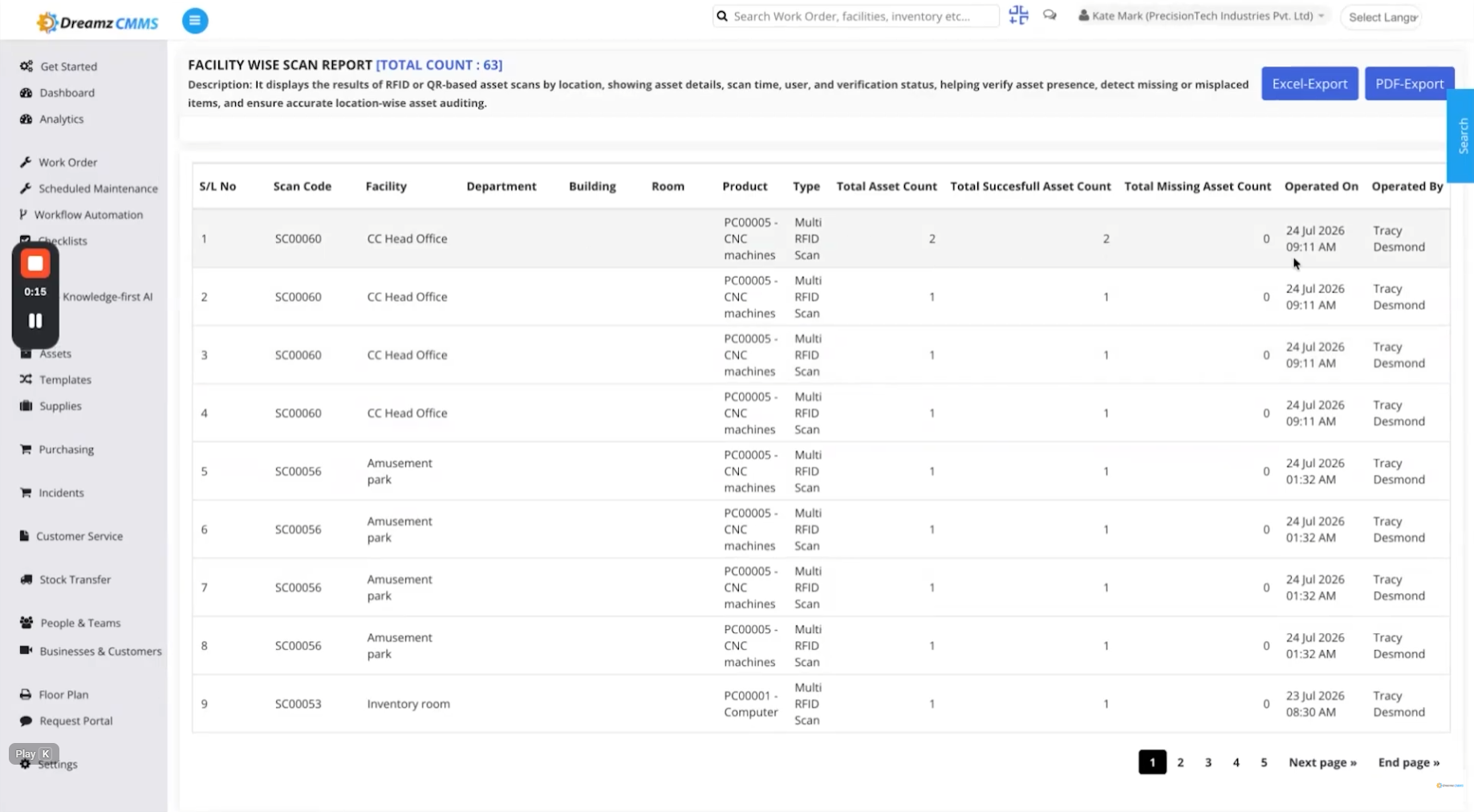
Every action in the app feeds into a report here, so nothing happens without a paper trail. The FacilityWise scan report shows every scan by location, including asset counts, successful reads, and anything missing — letting you audit accuracy plant by plant, right down to the department, building, and room.
Step 5 – Track Transfers Between Locations
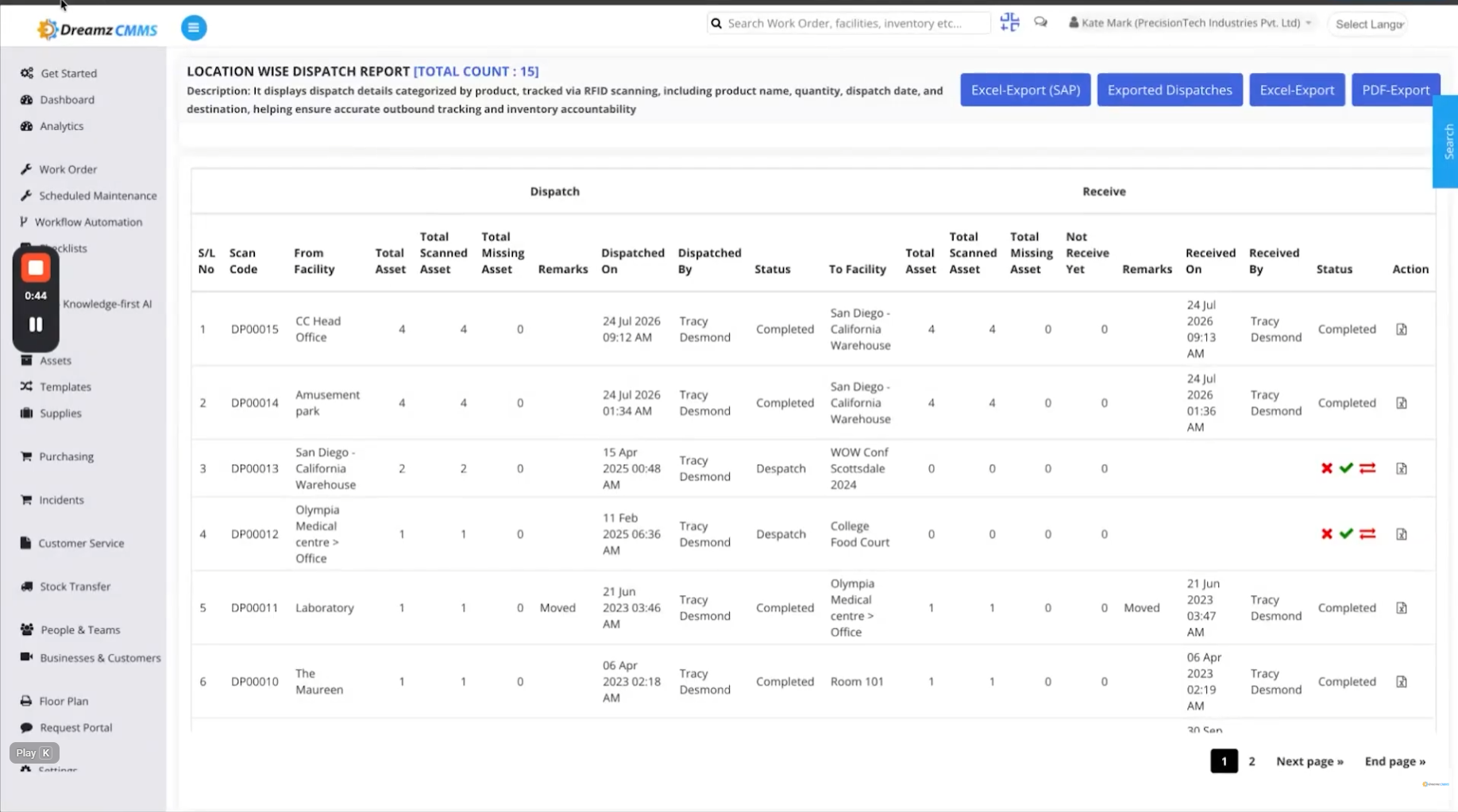
For transfers, the Location-Wise Dispatch Report and the Facility-Wise Dispatch Journey Report both track every transfer end-to-end — what was scanned out, what arrived, and any mismatches automatically flagged for follow-up.
Step 6 – Review Stock Check Reports
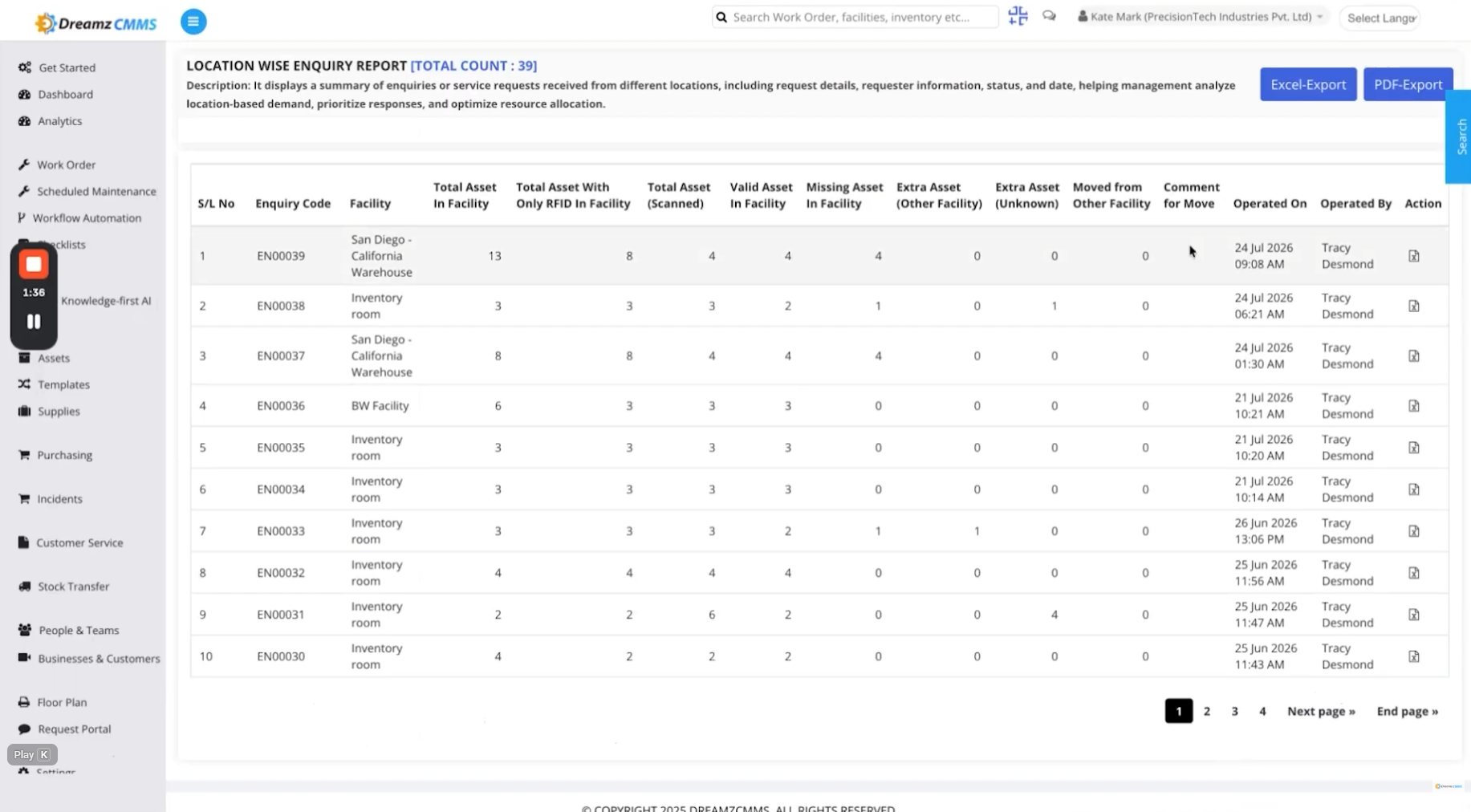
For stock checks, the Location-Wise Inquiry Report and the Inquiry Summary Report roll up every inquiry across all locations, showing valid assets, missing assets, and any unexpected assets appearing where they shouldn't.
Note: All reports can be exported directly to Excel or PDF, with a dedicated SAP export option available for dispatches.
Step 7 – Rely on a Tamper-Proof Record
Between the app on the shop floor and the portal in the office, you get a complete, tamper-proof record of every asset, from the day it arrives to the day it's retired.
After Setup — What's Next?
With master data in place and reports flowing in from every scan, transfer, and stock check, your plant management team has a complete, tamper-proof view of every asset across every facility. Once you're comfortable with the core workflow, you can:
- Set up recurring exports of your key reports to Excel, PDF, or SAP for finance and operations teams.
- Review the FacilityWise scan report regularly to catch accuracy issues down to the department or room level.
- Expand your product catalog and generate new bulk RFID tag batches ahead of upcoming equipment rollouts.
Ready to see the DreamzCMMSRFID web portal in action? Contact DreamzTech to schedule a personalized demonstration.
Tips for Plant Management Teams
- Keep Facility and Product master data current before a rollout — bulk tagging pulls directly from these records.
- Check the Dispatch Journey Report after any interplant transfer to catch mismatches before they become a bigger reconciliation problem.
- Use the SAP export option for dispatches if your finance team already reconciles inventory in SAP.
- Run the Inquiry Summary Report across locations periodically to catch assets appearing somewhere they shouldn't.
Frequently Asked Questions
Where do I generate new RFID tags for an equipment rollout?
Use the Bulk Asset from Product screen in the portal — set the facility, category, and quantity from an existing product record, and the batch is ready to print.
How do I know if a transfer between plants had a mismatch?
The Location-Wise Dispatch Report and Facility-Wise Dispatch Journey Report track every transfer end-to-end and automatically flag mismatches for follow-up.
Can I export reports for my finance or ERP team?
Yes. All reports export to Excel or PDF, and dispatch reports also include a dedicated SAP export option.
What's the difference between Product and Equipment?
Product is your catalog of tool, component, and equipment types, while Equipment is the live registry of every individual tagged asset, with its own serial number, facility, warranty, condition, and status.