RFID Asset Tracking for Manufacturers: From Registration to Retirement
Manufacturers running one plant — or fifty — need to know where every tool, machine, and component is at all times. DreamzCMMS RFID gives shop floor and warehouse teams a single app to track assets from the moment they arrive, through every internal move and interplant transfer, all the way to retirement.
Overview
DreamzCMMS RFID follows an asset through its entire lifecycle. New tools and machines are tagged individually through Register, or in bulk through Bulk Serialization when a full shipment or batch arrives. Once tagged, staff can instantly check what's on hand with Inventory Enquiry or track down a specific item with Asset Locator. Equipment can be moved between production lines with the Move feature, or transferred between plants and warehouses using Dispatch and Receive, which logs every item in transit against a unique reference number. When an asset reaches the end of its life, Unregister removes it from active inventory. All of this activity then feeds into the web portal, where plant management gets the full picture — including the complete audit trail for every transfer.
Here is a reference video:
Before You Begin
- You must have the DreamzCMMS RFID app installed on a handheld RFID scanner or mobile device.
- Your plants, warehouses, and (if you track at that level of detail) departments, buildings, and rooms should already be set up as locations in the system.
- Have your incoming tools, machines, or materials ready to tag — RFID tags are preferred, but barcode or QR codes work as a fallback for equipment that hasn't been RFID tagged yet.
How to Manage Assets with DreamzCMMS RFID
Step 1 – Register a Single Asset
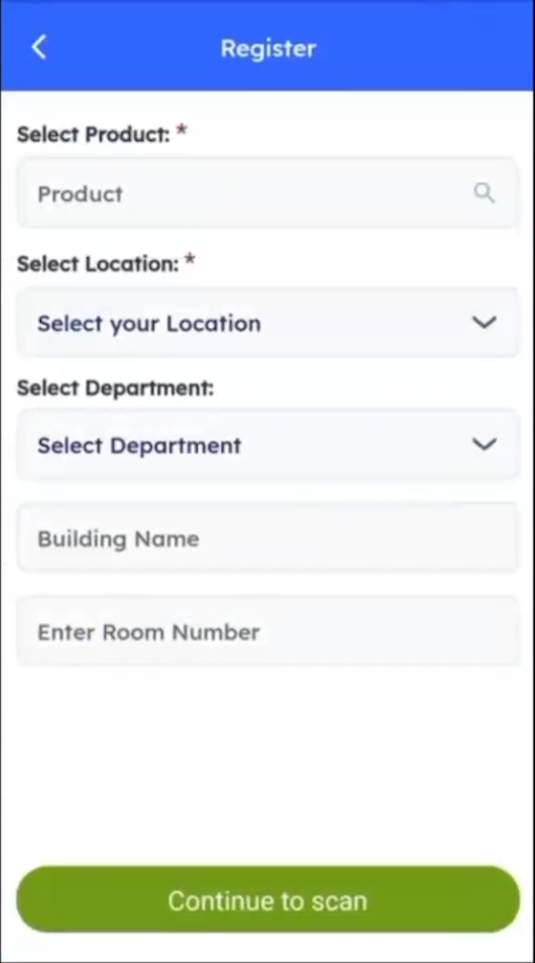
Every asset's journey starts with getting it into the system. For a single tool or machine, use Register. Select the product, then choose the plant or warehouse location — and if you track assets at a more granular level, add the department, building, and room (for example, Production Floor, Building 2, Room 4).
Step 2 – Serialize a Full Shipment or Batch
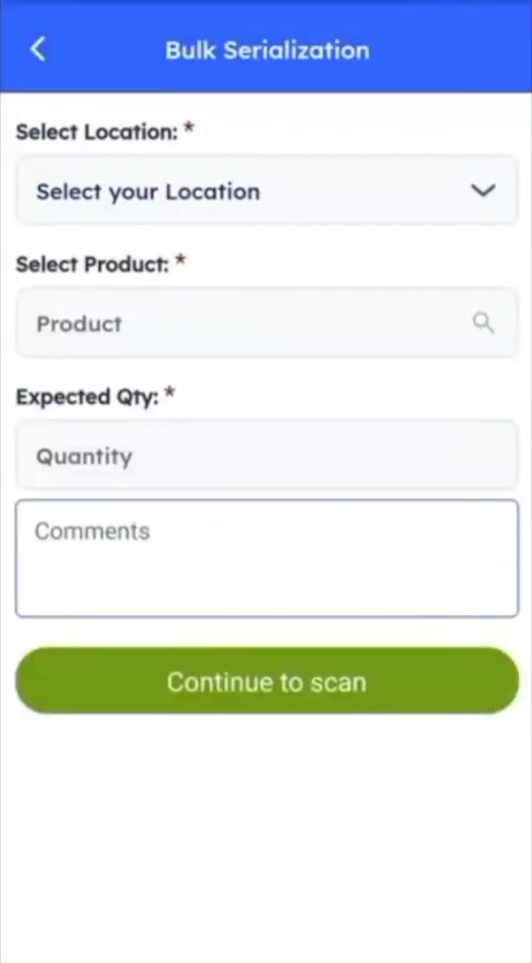
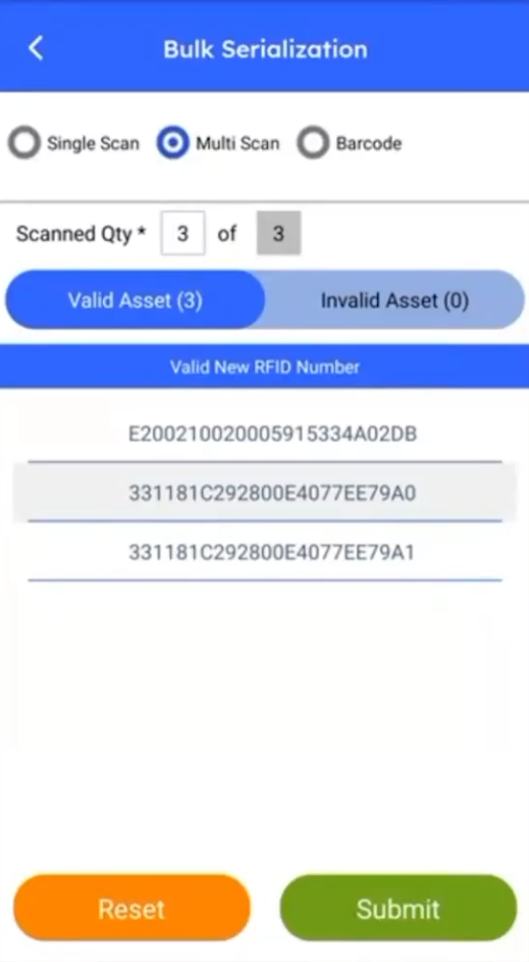
For a full shipment at once — a pallet of raw materials, or a batch of new tooling — use Bulk Serialization instead. Select the location, the product, and the expected quantity, then continue to scan. Point the handheld RFID scanner at the stock and switch to multi-scan to capture every tag within range in seconds, no matter how large the shipment is. The same scan screen also supports a quick barcode or QR code scan as a fallback for anything that hasn't been RFID tagged yet, such as older machinery or third-party tooling.
Step 3 – Check On-Hand Inventory
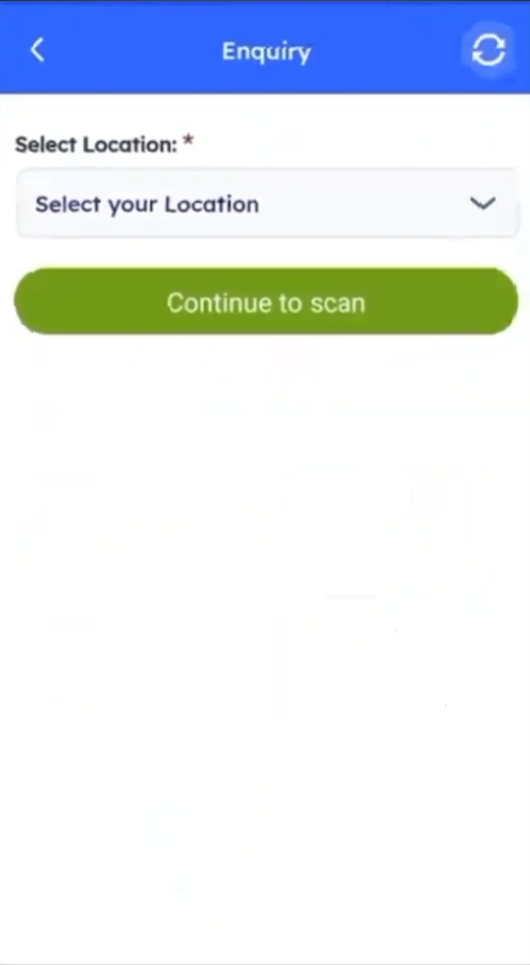
Once stock is registered, checking it is just as simple. Open Enquiry, select the plant or warehouse, and scan to instantly see everything on hand, right down to the individual tool or component.
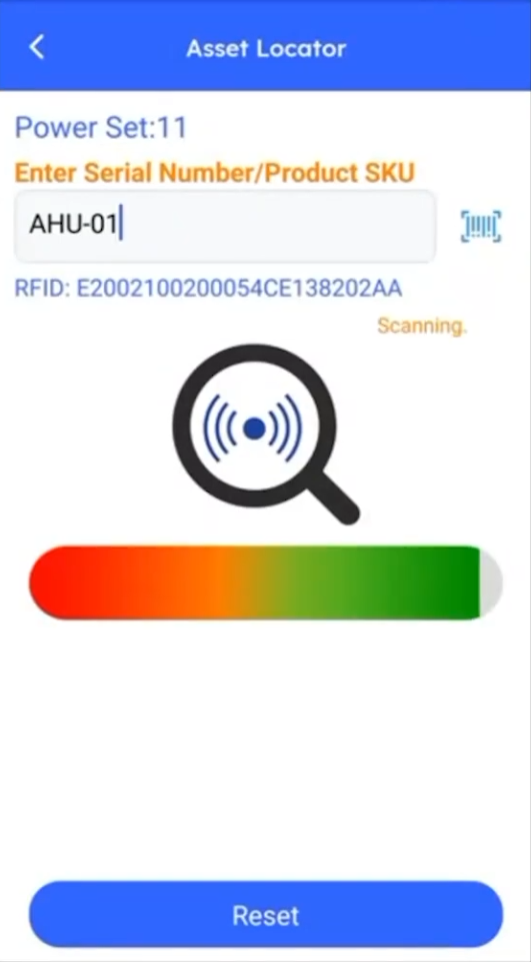
Step 4 – Locate a Specific Tool or Machine
Need to find one specific item fast? Use Asset Locator. Type in the serial number or product SKU, or simply search by RFID, and the app guides you straight to it — no more hunting across the shop floor or tool crib.
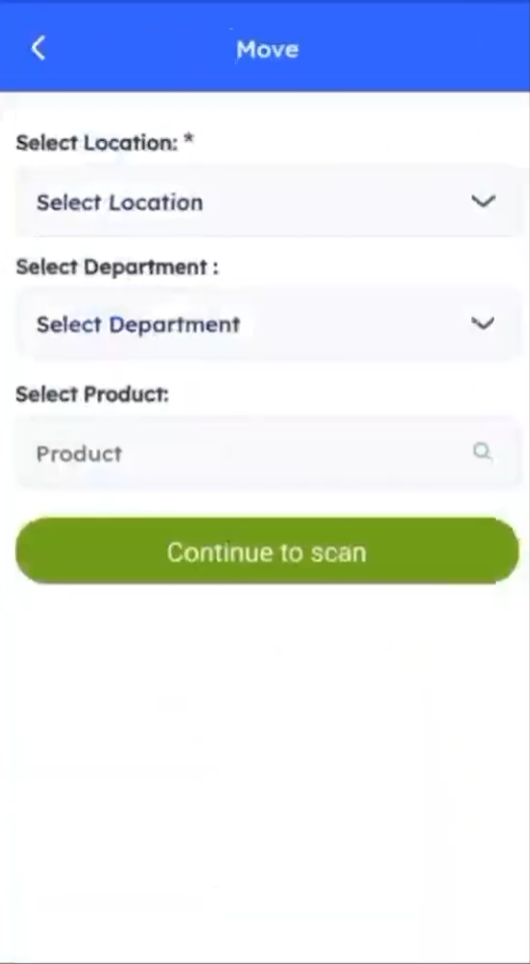
Step 5 – Move Equipment Between Departments
Moving equipment between production lines or departments within the same plant is handled by the Move feature. Select the location, the department, and the product, then scan to confirm the transfer.
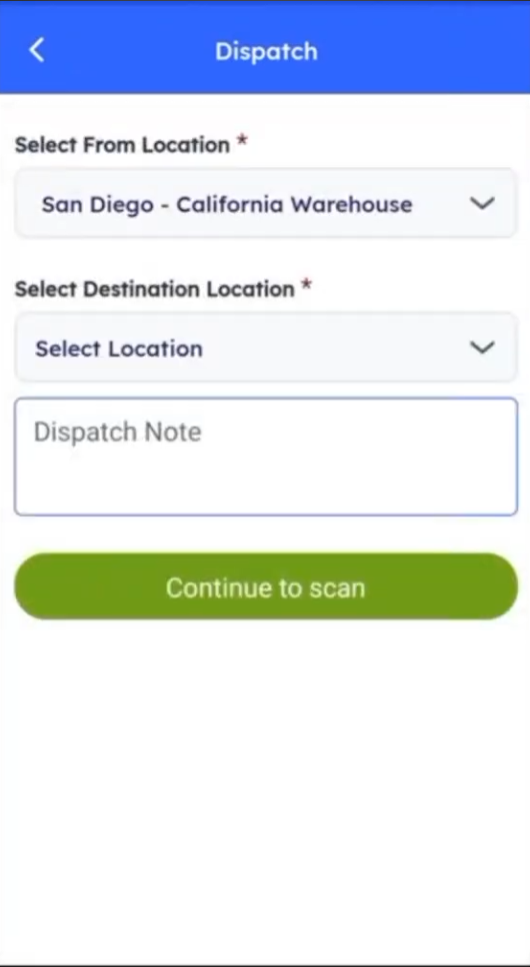
Step 6 – Dispatch and Receive Between Plants
This is where things get powerful for any manufacturer running more than one facility. Say you're moving equipment from a central warehouse to a production plant, or directly between two plants. From the sending side, open Dispatch, select the From Location and the Destination Location, add a dispatch note if needed, and scan every item being sent — each is logged as In Transit under a unique dispatch reference number. On the receiving side, open Receive, select your location, choose the matching dispatch reference number, and scan the incoming stock to confirm arrival. It's automatically added to that plant's inventory, with no spreadsheets or phone calls needed to confirm what shipped.
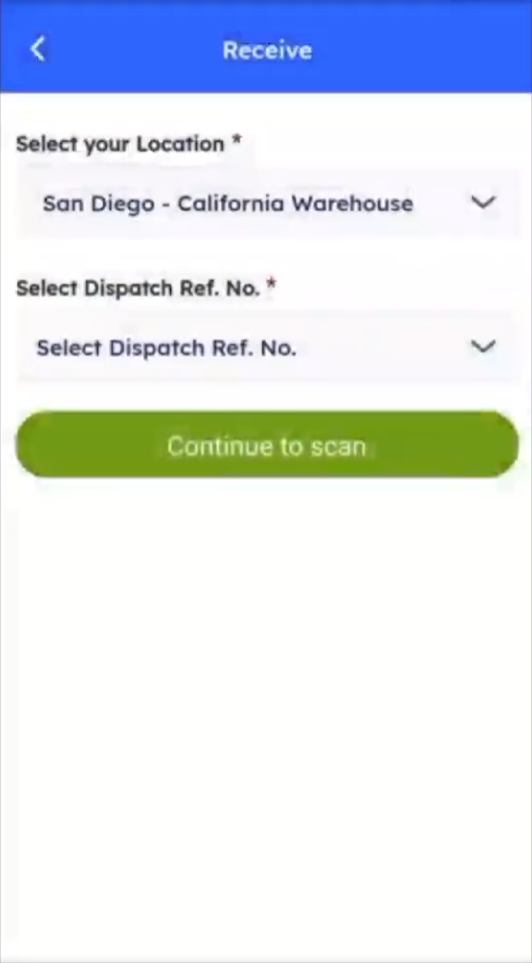
Note: The system tracks each interplant transfer end-to-end, and the complete audit trail for every dispatch and receipt is available in the Reports section of the web portal.
Step 7 – Retire an Asset
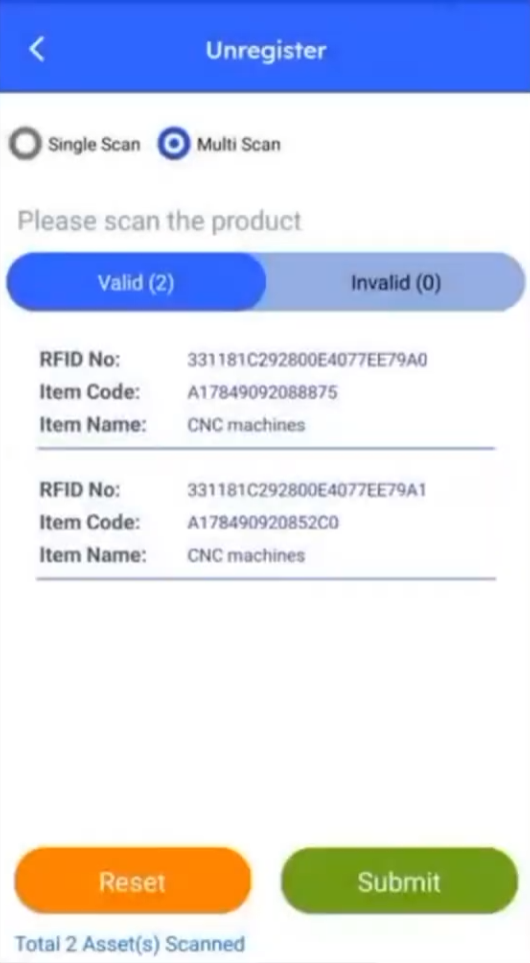
When a tool or machine reaches the end of its lifecycle — whether it's damaged or decommissioned — use Unregister to remove it from the active inventory list with the same quick scan.
After Tracking Your Assets — What's Next?
With assets tagged, checked, moved, transferred, and retired through the app, your plant management team can switch to the DreamzCMMS RFID web portal for the full picture. From there, you can:
- Review the complete audit trail for every internal move and interplant dispatch/receive transaction.
- Pull inventory and asset lifecycle reports across all your plants and warehouses.
- Set up additional locations, departments, and products as your operation grows.
Ready to see DreamzCMMS RFID in action? Contact DreamzTech to schedule a personalized demonstration.
Tips for Shop Floor and Warehouse Teams
- Use Bulk Serialization with multi-scan for incoming shipments instead of registering items one at a time — it's built for exactly that.
- Keep barcode or QR fallback labels on any older machinery or third-party tooling that hasn't been RFID tagged yet.
- Always confirm the matching dispatch reference number before scanning a receipt, so transfers reconcile cleanly on both ends.
- Unregister assets as soon as they're decommissioned to keep your active inventory counts accurate.
Frequently Asked Questions
What if a tool or machine hasn't been RFID tagged yet?
The same scan screen supports a quick barcode or QR code scan as a fallback, so older machinery or third-party tooling can still be tracked.
How do I move equipment between two different plants?
Use Dispatch on the sending side to log items as In Transit under a reference number, then use Receive at the destination plant and select that same reference number to confirm arrival.
Do I need to know an asset's exact location to find it?
No. Asset Locator lets you search by serial number, product SKU, or RFID, and the app guides you straight to the item.
Where can I see the audit trail for a transfer between plants?
The complete audit trail for interplant dispatches and receipts is available in the Reports section of the DreamzCMMS RFID web portal.