AI-Powered Operations Management with DreamzCMMS VEDA
Running a business means questions all day — and the answers scattered across a dozen screens. DreamzCMMS VEDA is one AI assistant across your whole operation, covering assets, field teams, inventory, purchasing, and sales. Ask in plain language, and get your answer in seconds — no dashboards, no digging.
Overview
VEDA sits across every module you run in DreamzCMMS and answers in one place, whether you manage assets, dispatch field technicians, track inventory, process purchase orders, or chase unpaid invoices. It ranks failing equipment, balances technician workloads, flags parts below their reorder point, surfaces compliance and warranty deadlines, and pulls the full quote-to-cash cycle on request. Every conversation is saved and searchable, your AI usage stays transparent, and VEDA works the same by voice, text, document upload, or QR code scan — on web or mobile. From the field to the finance office, it's the same assistant, and it doesn't just answer questions — it can act, like opening a maintenance request already filled in for you.
Here is a reference video:
Before You Begin
- You must have access to DreamzCMMS with VEDA enabled for the modules you want to query — assets, field service, inventory, purchasing, or sales.
- Your asset, inventory, and financial data should already be populated in the system, since VEDA's answers are only as complete as the underlying records.
- If you want to use QR or barcode scanning in the field, make sure your assets already have codes assigned and printed.
Meet DreamzCMMS VEDA
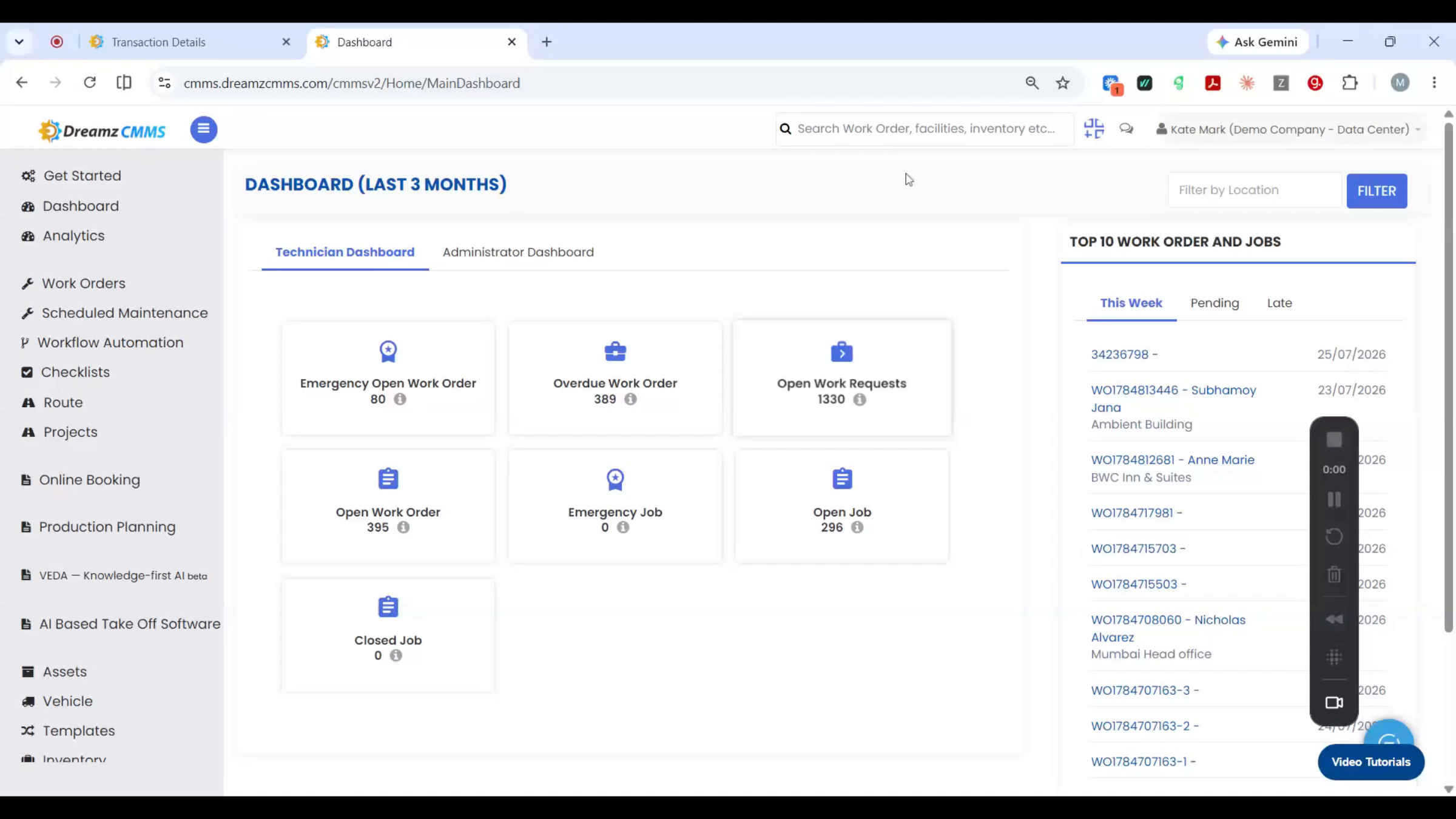
Step 1 – The Problem VEDA Solves
Running a business means fielding questions all day long, with the answers scattered across a dozen different screens and reports.
Step 2 – Introducing DreamzCMMS VEDA
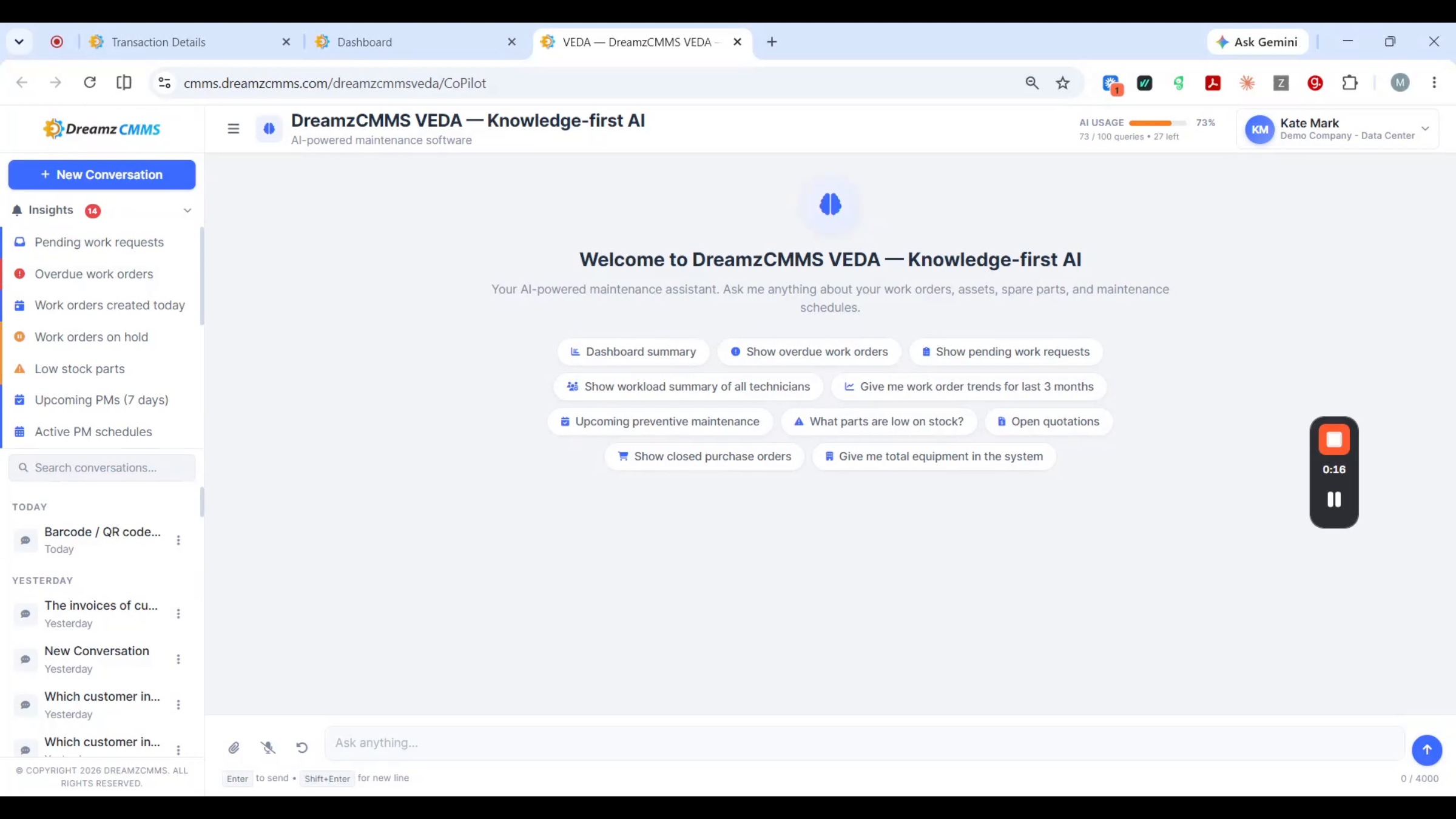
VEDA is one AI assistant across your whole operation — assets, field teams, inventory, purchasing, sales, whichever modules you run. Ask in plain language and get your answer in seconds, without opening a single dashboard.
Step 3 – A Live Snapshot of Your Operation
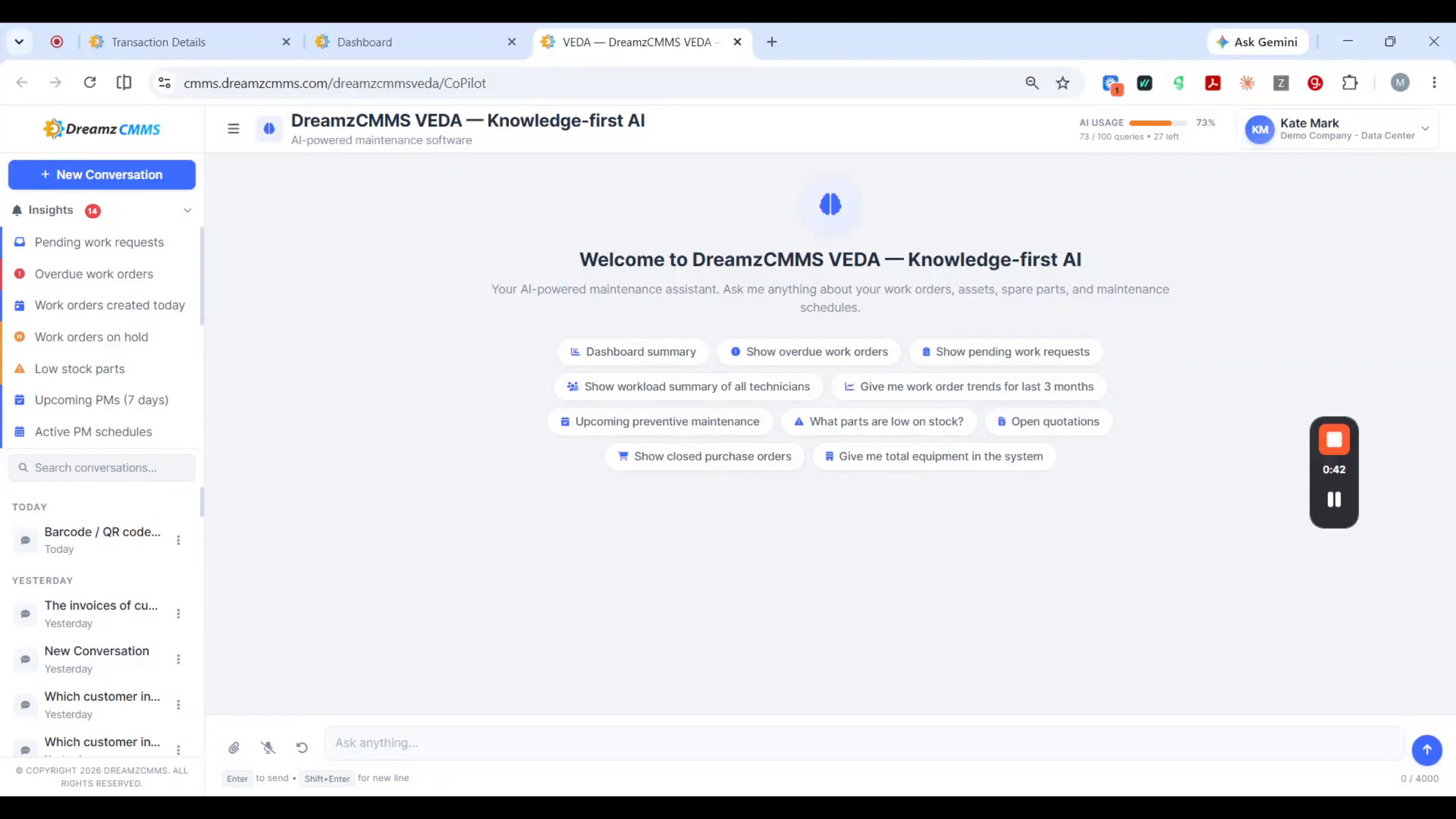
Start with the whole picture: one question, and VEDA pulls a live snapshot across your entire operation.
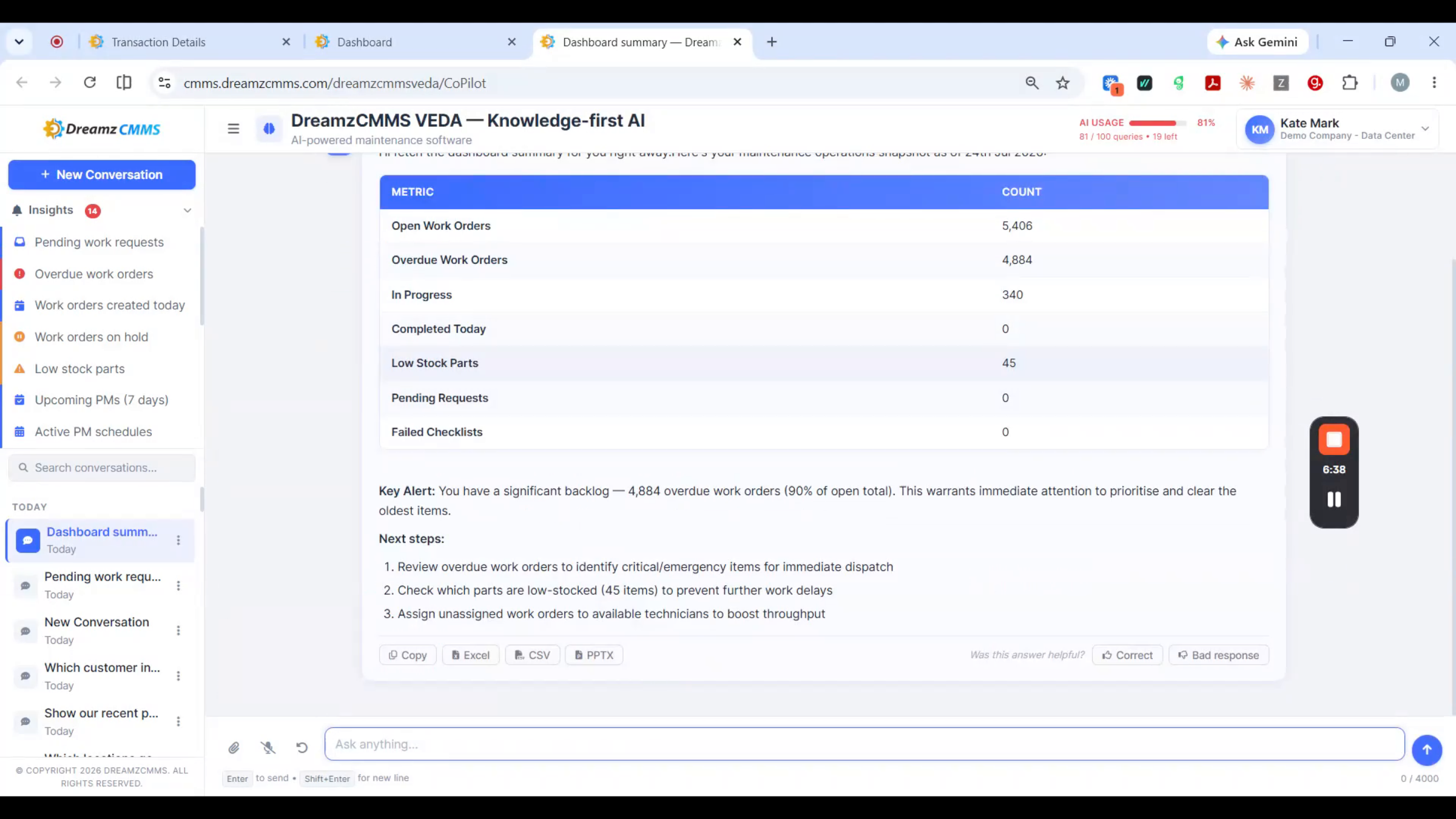
Step 4 – Your Morning Stand-Up Summary
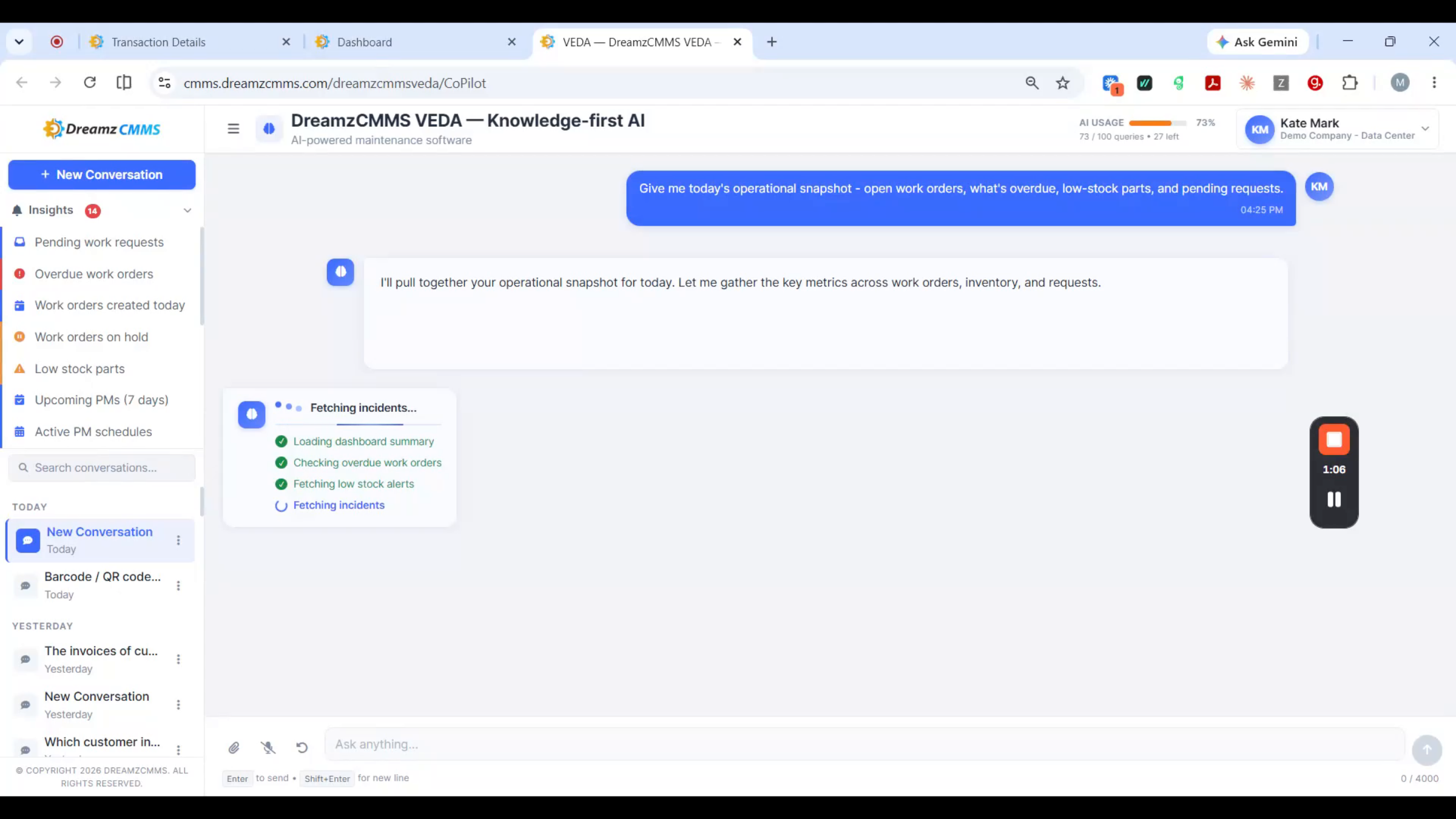
Ask for a summary and VEDA covers open and overdue work, parts running low, and requests waiting on approval — your entire morning stand-up before your first coffee.
Asset and Field Service Intelligence
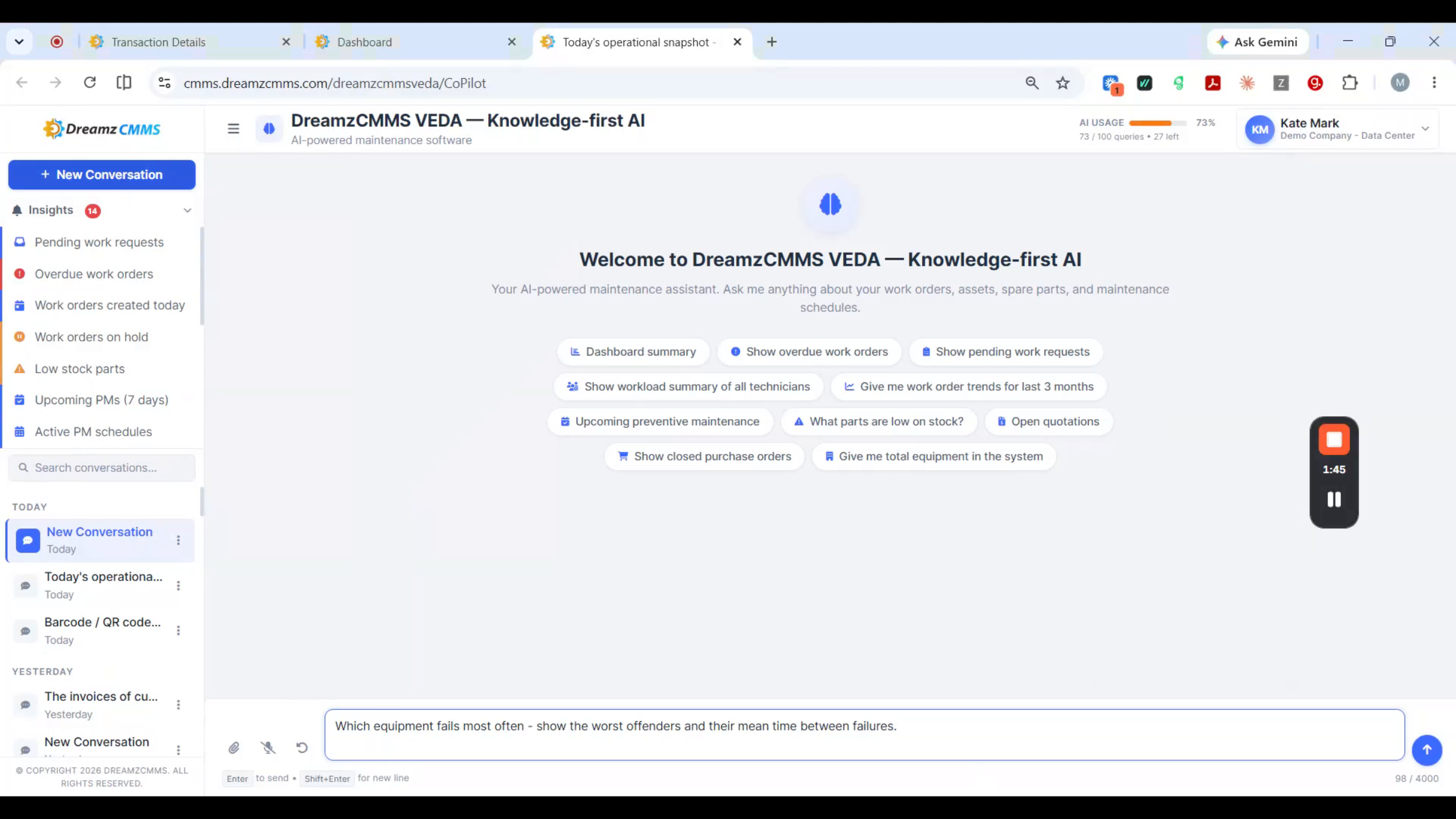
Step 5 – Asset Failure Ranking
For asset management, VEDA ranks the equipment that fails most often, along with mean time between failures, so you can plan ahead instead of just reacting. Scan a QR code or barcode and the full asset history is right there.
Step 6 – Your Field Service Dispatch Board
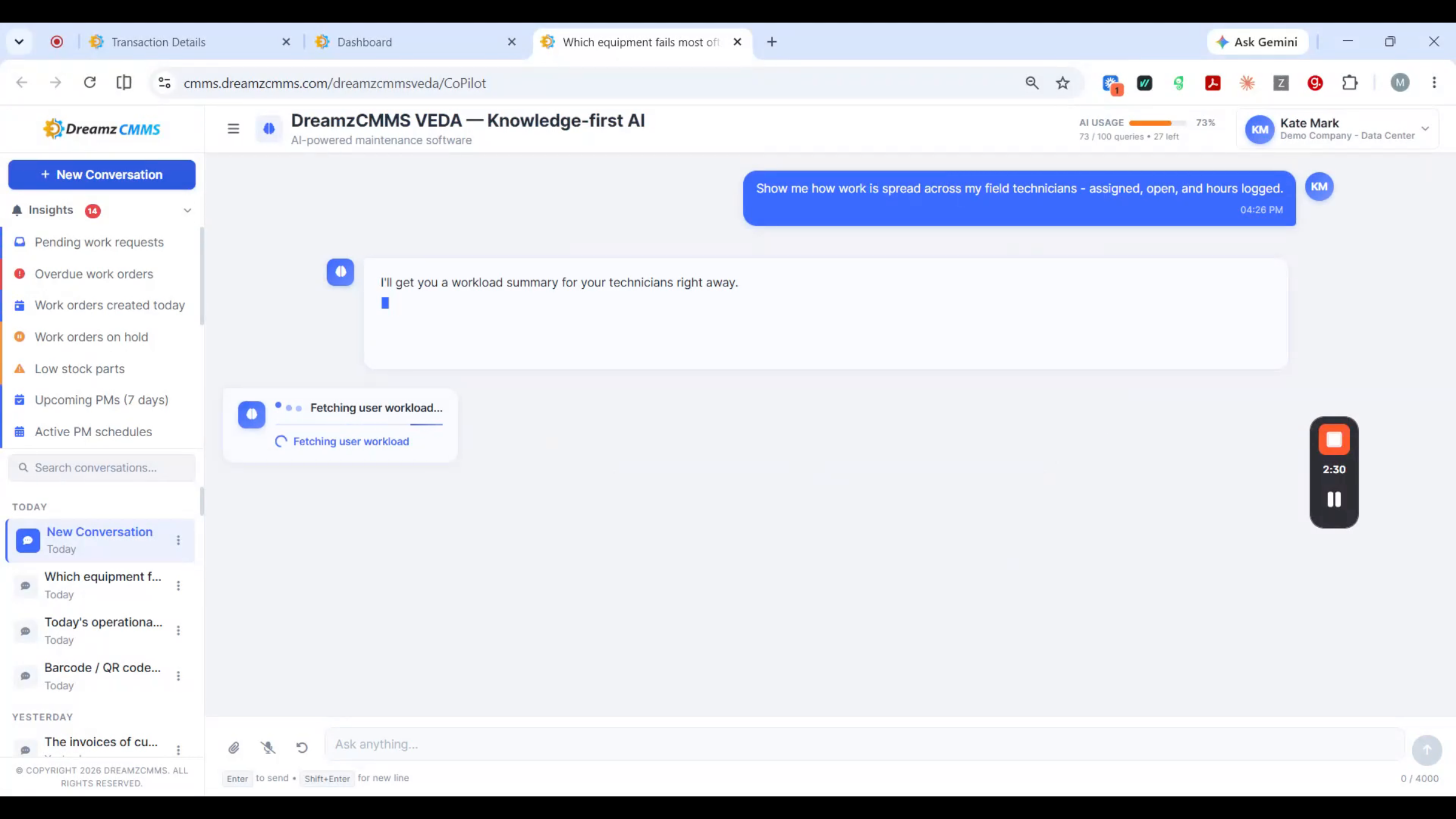
Running field service, VEDA works like a dispatch board built into the chat.
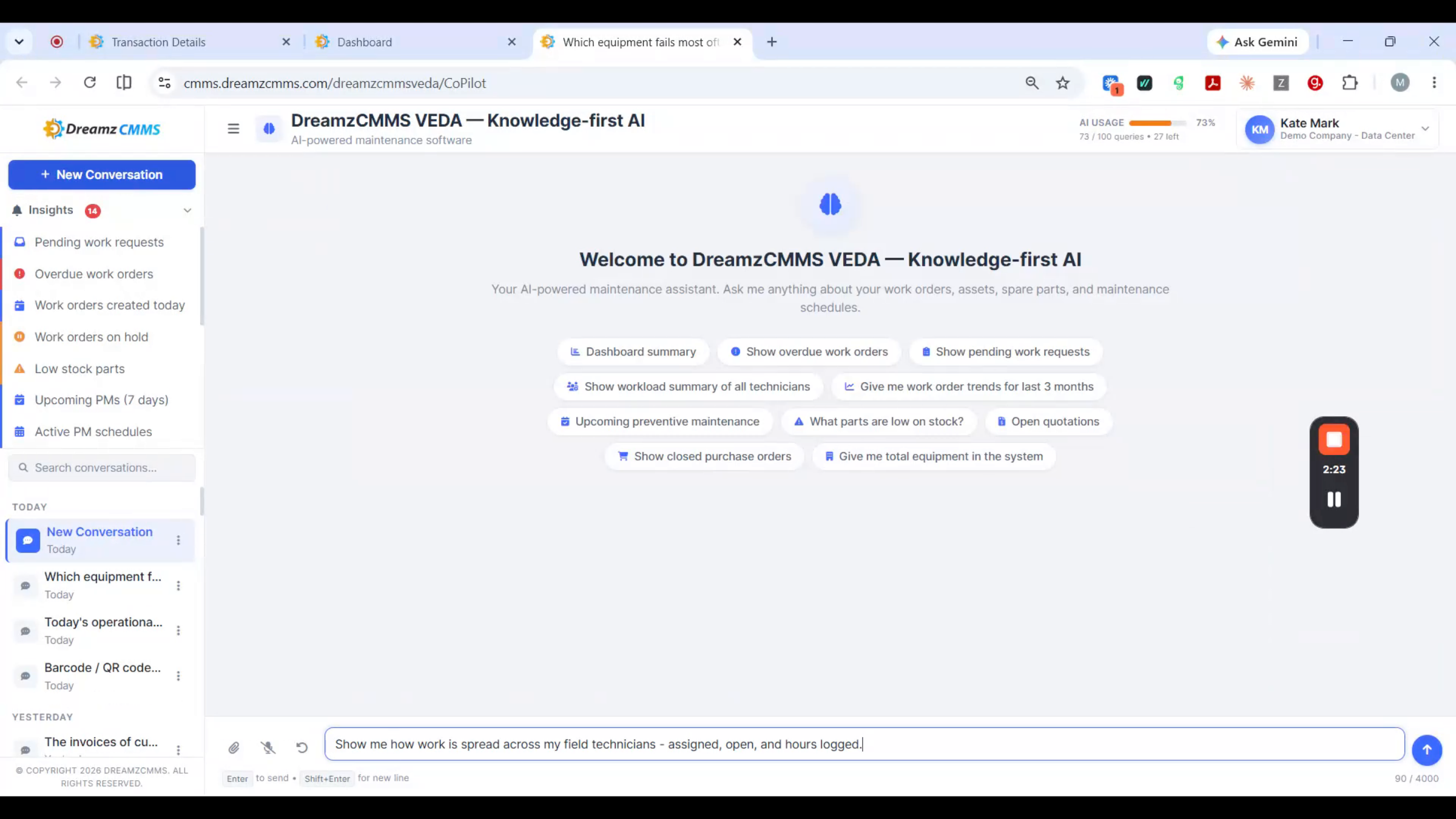
Step 7 – Technician Workload Management
See exactly how work is spread across your technicians, who's overloaded, who's free, and rebalance the day in seconds.
Inventory, Maintenance, and Compliance
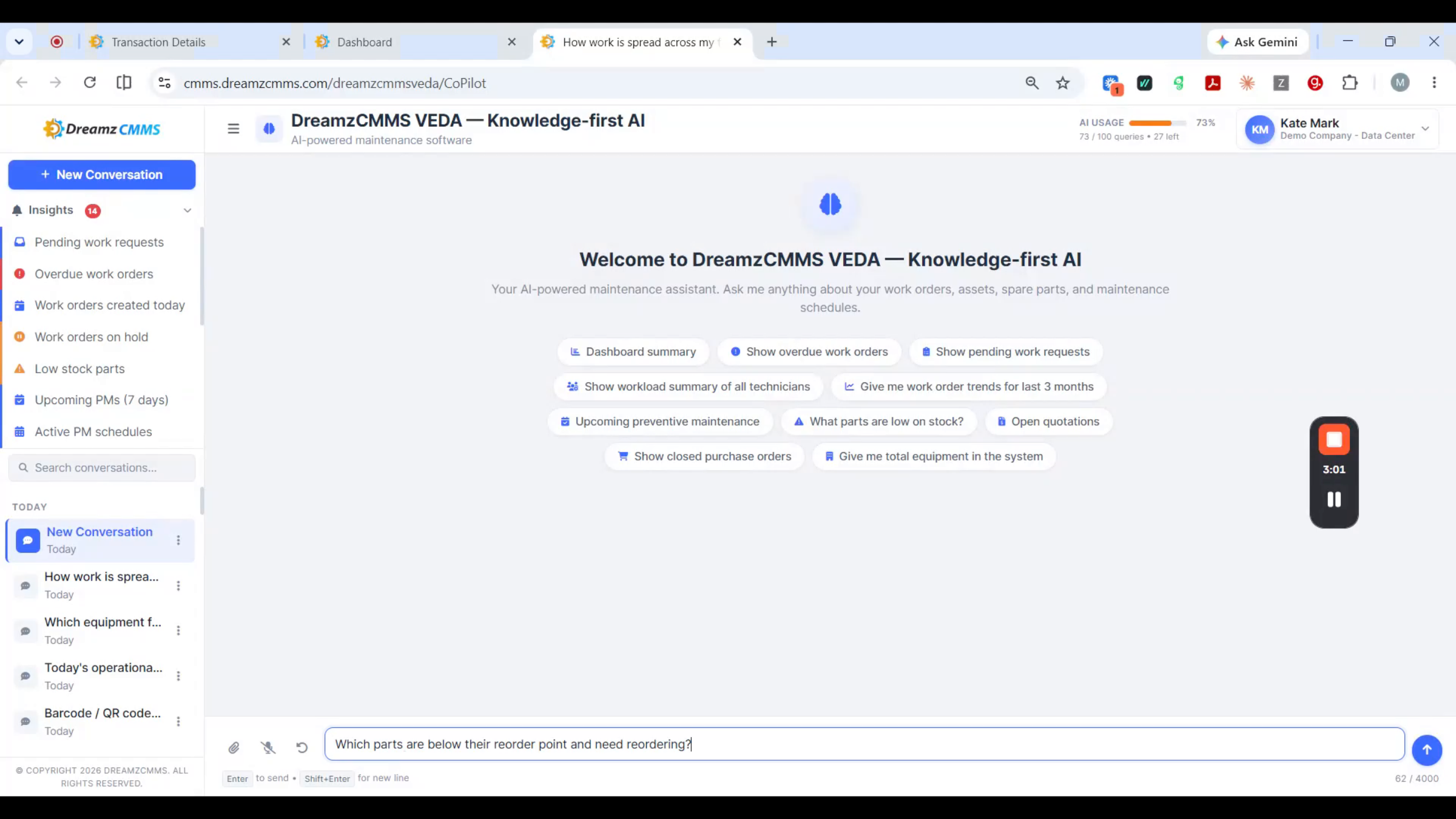
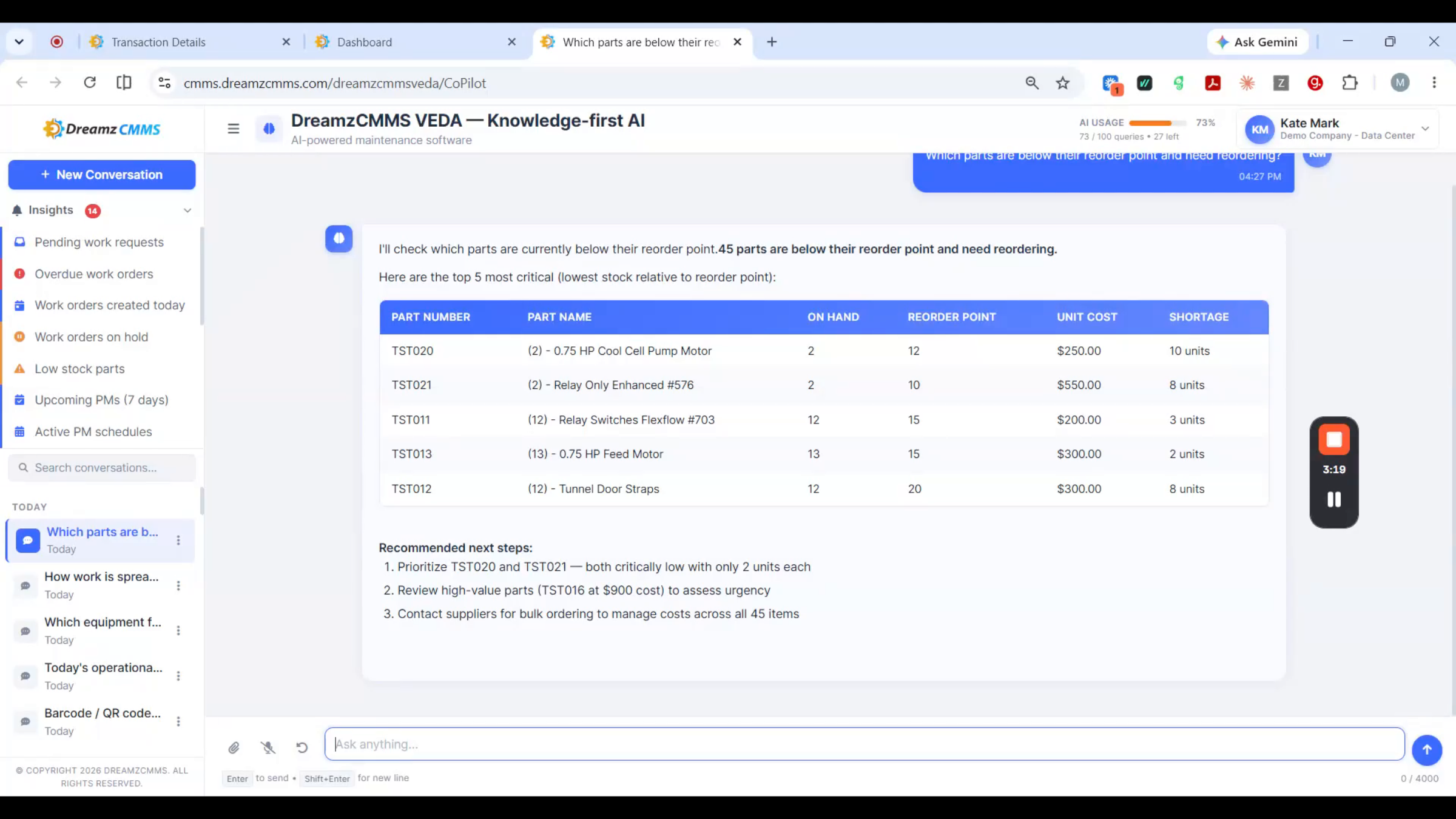
Step 8 – Inventory Pre-Order Alerts
For inventory, VEDA flags every part below its reorder point — what's on hand and who supplies it — so a stock-out never stops a job. It's the same chat box, just a different module.
Step 9 – Why Prevention Matters
For maintenance, prevention is everything — and VEDA is built to help you stay ahead of it rather than catch up after the fact.
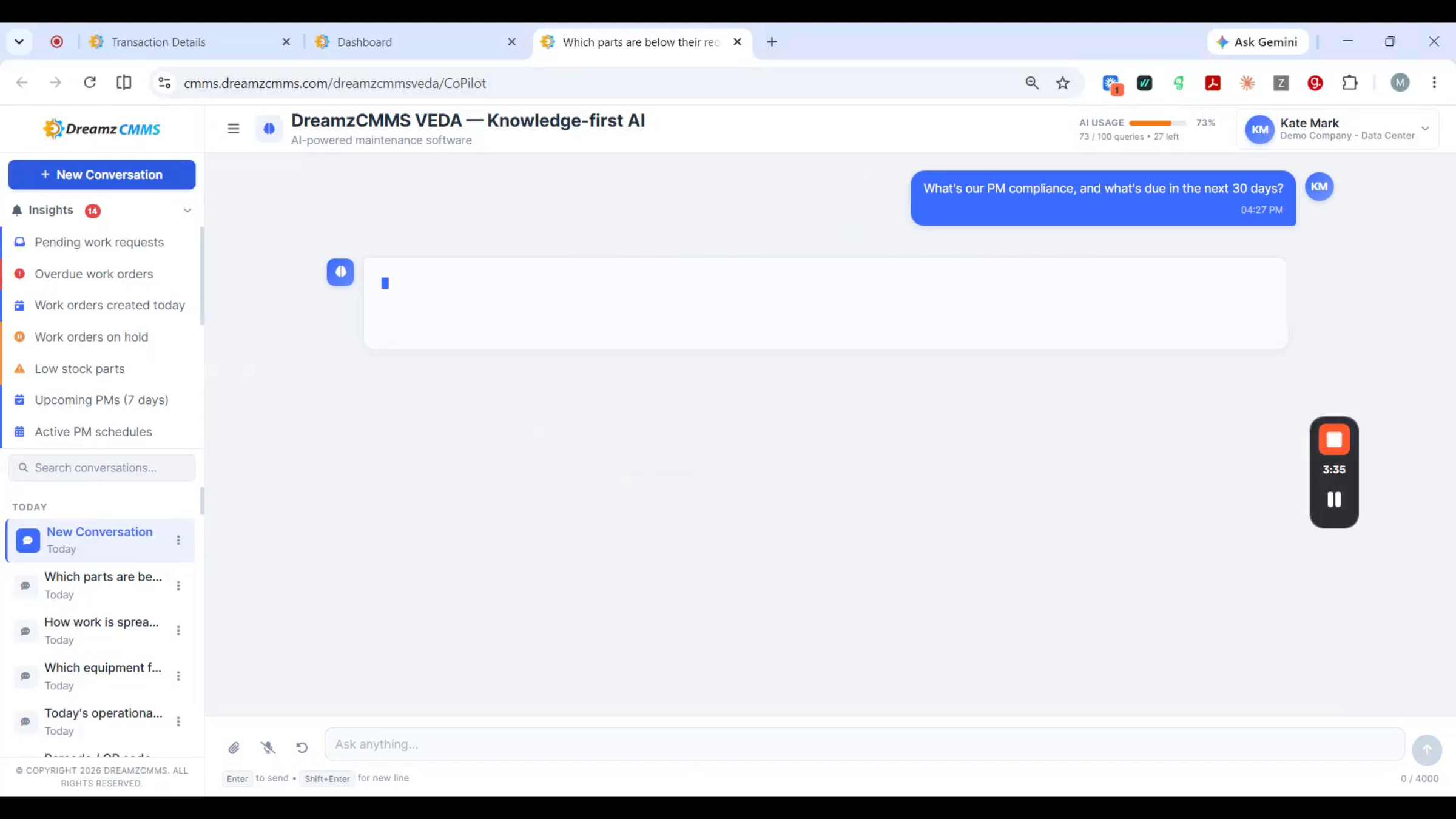
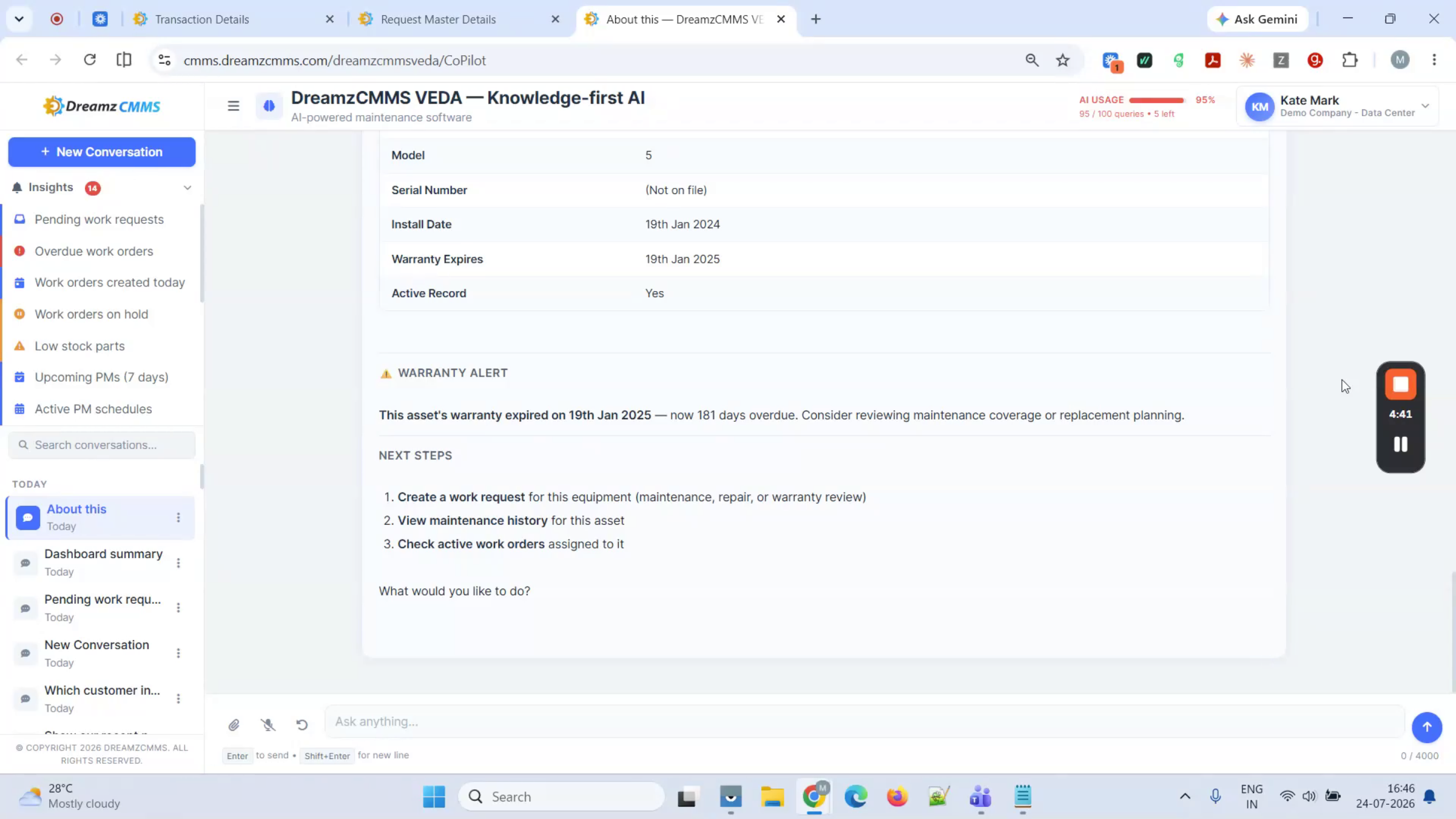
Step 10 – Compliance and Warranty Tracking
VEDA shows your compliance rate and everything due in the next 30 days — warranties protected, audits clean, nothing skipped.
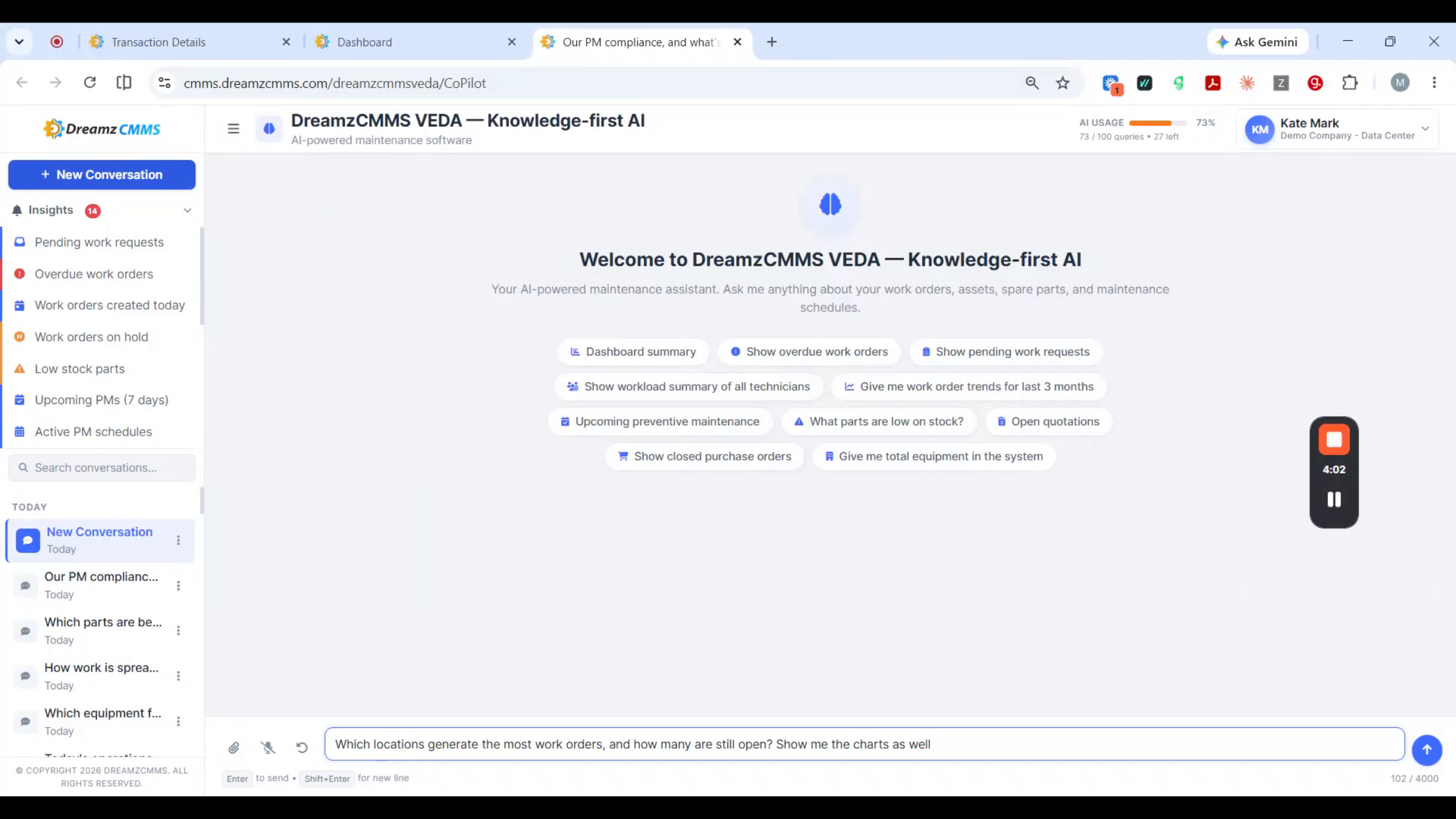
Step 11 – Workload Ranking by Location
Across your sites, VEDA ranks every location by workload, open versus closed, and draws it out as a chart — so people and budget go where the pressure actually is.
Purchasing and Finance Visibility
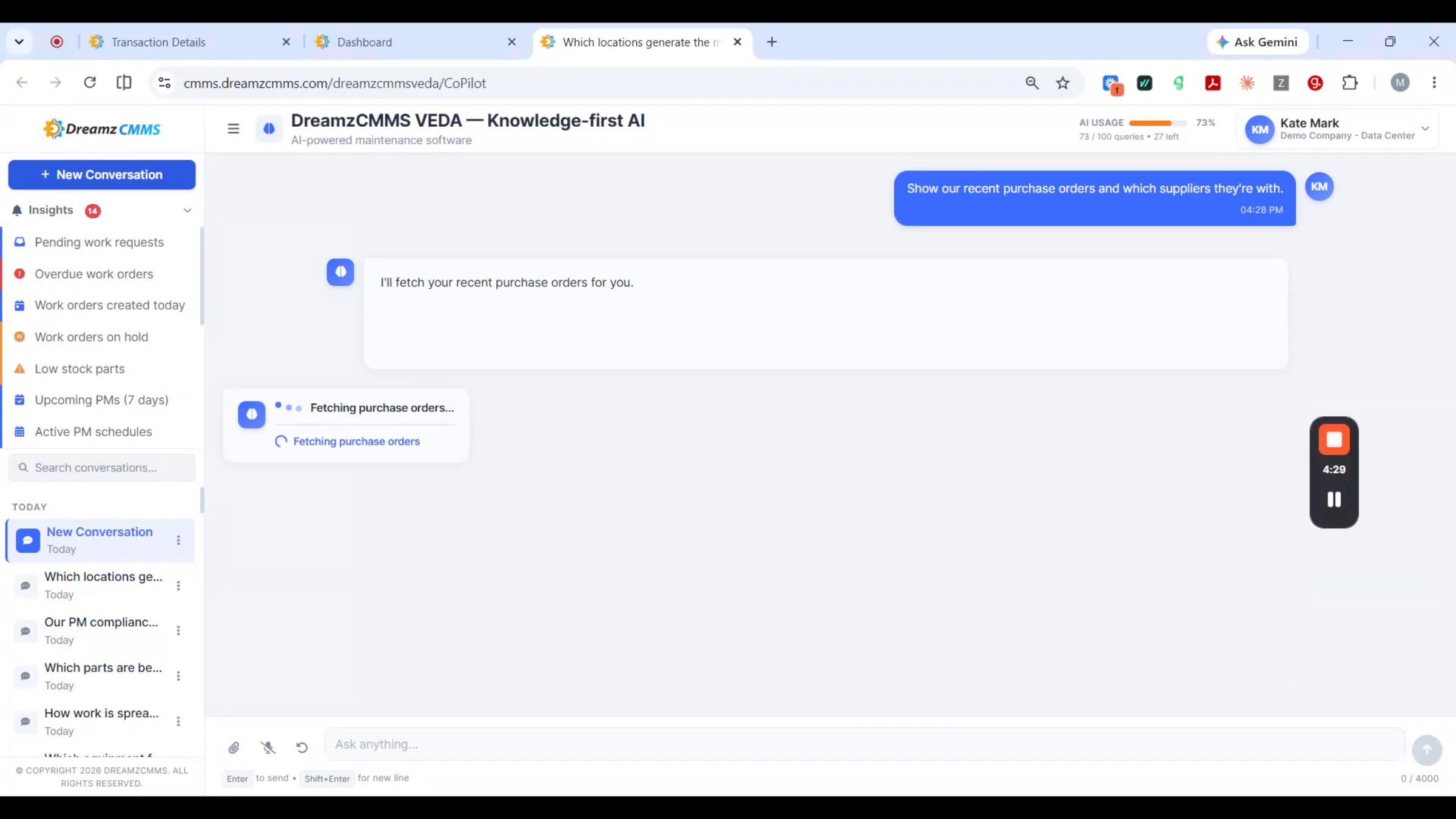
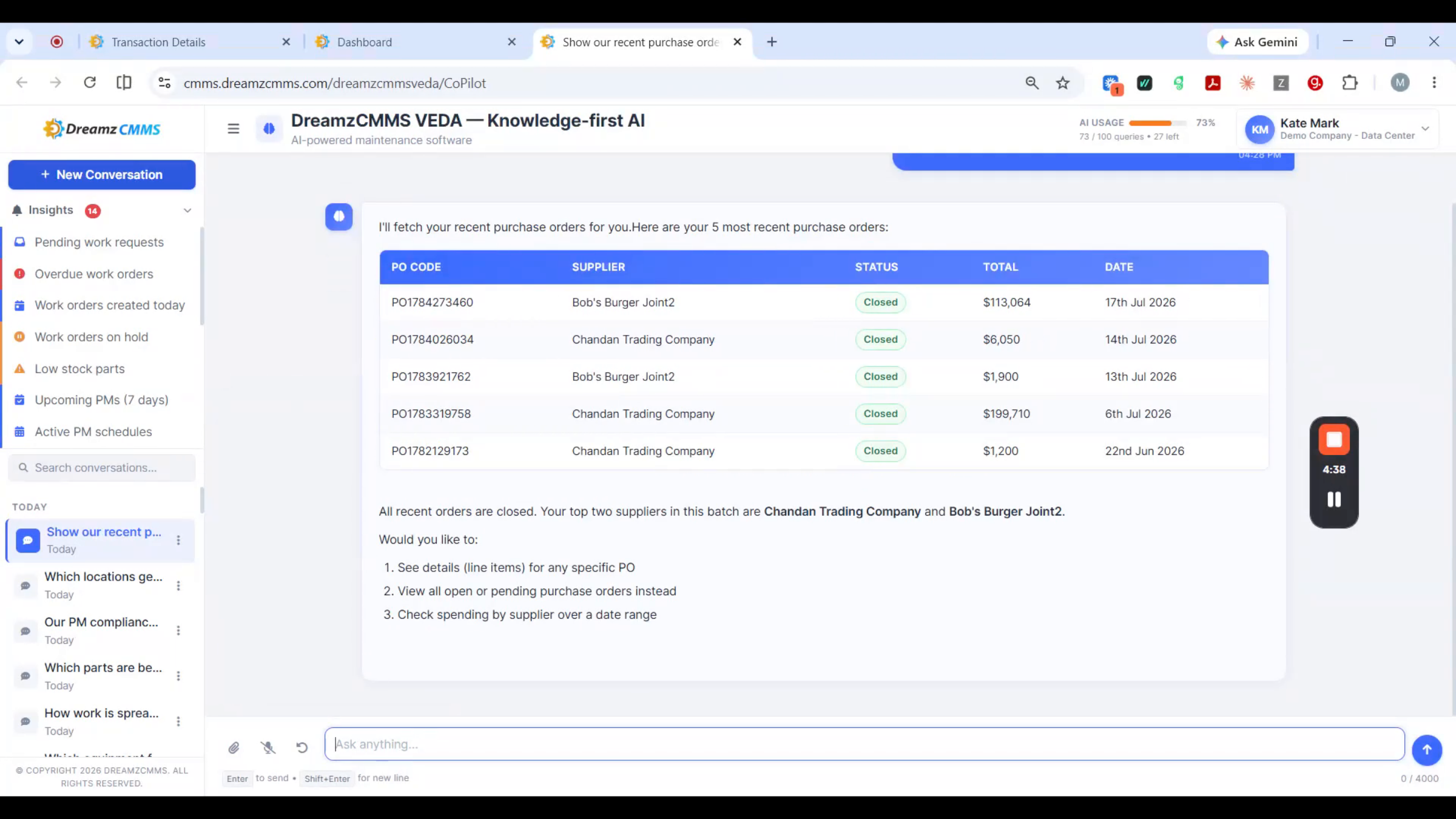
Step 12 – Purchasing Order Status
In purchasing, VEDA pulls recent orders — their value and status — in one answer.
Step 13 – One Assistant Across Every Role
From the field to the finance office, it's the same assistant answering the same way.
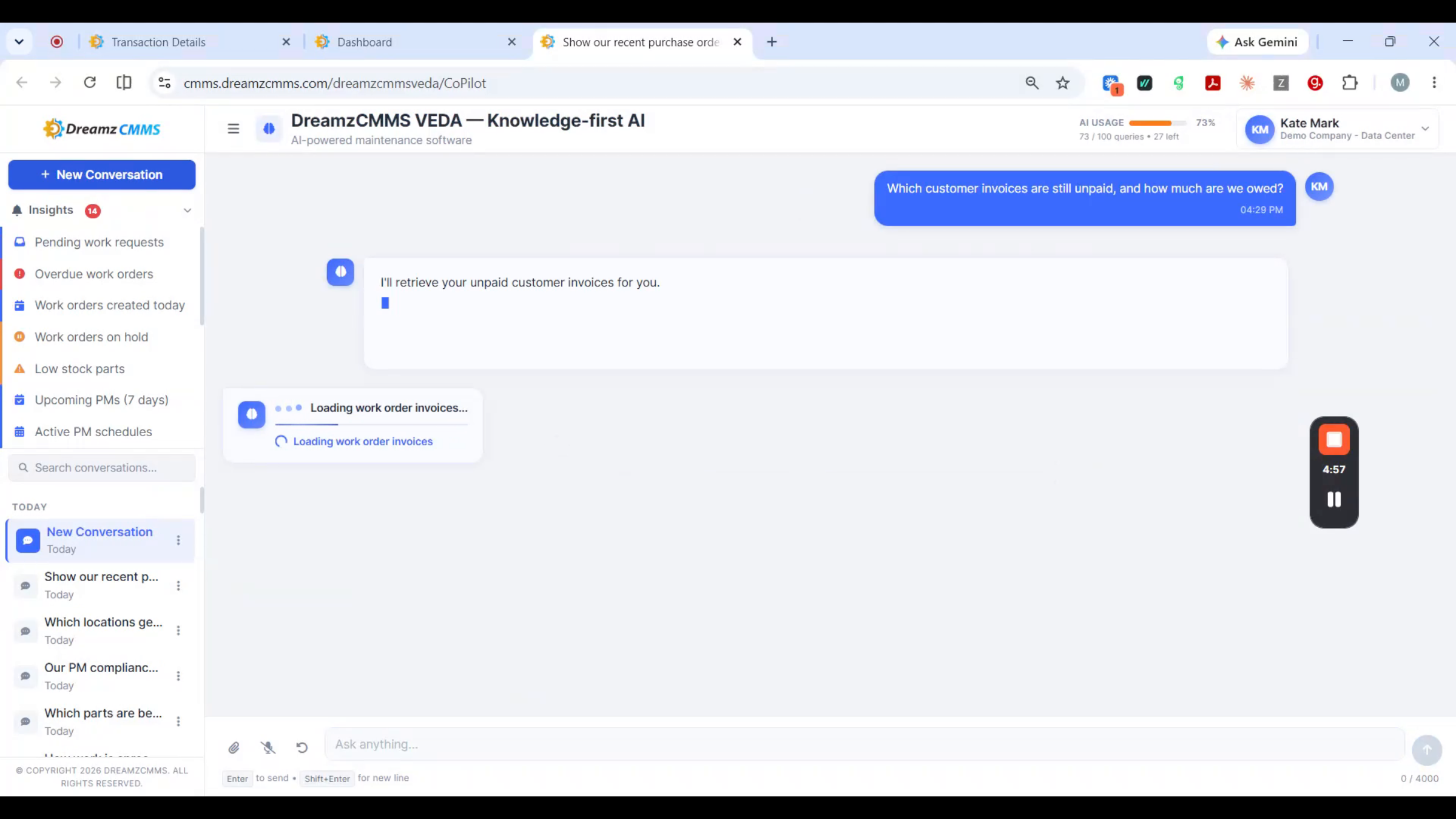
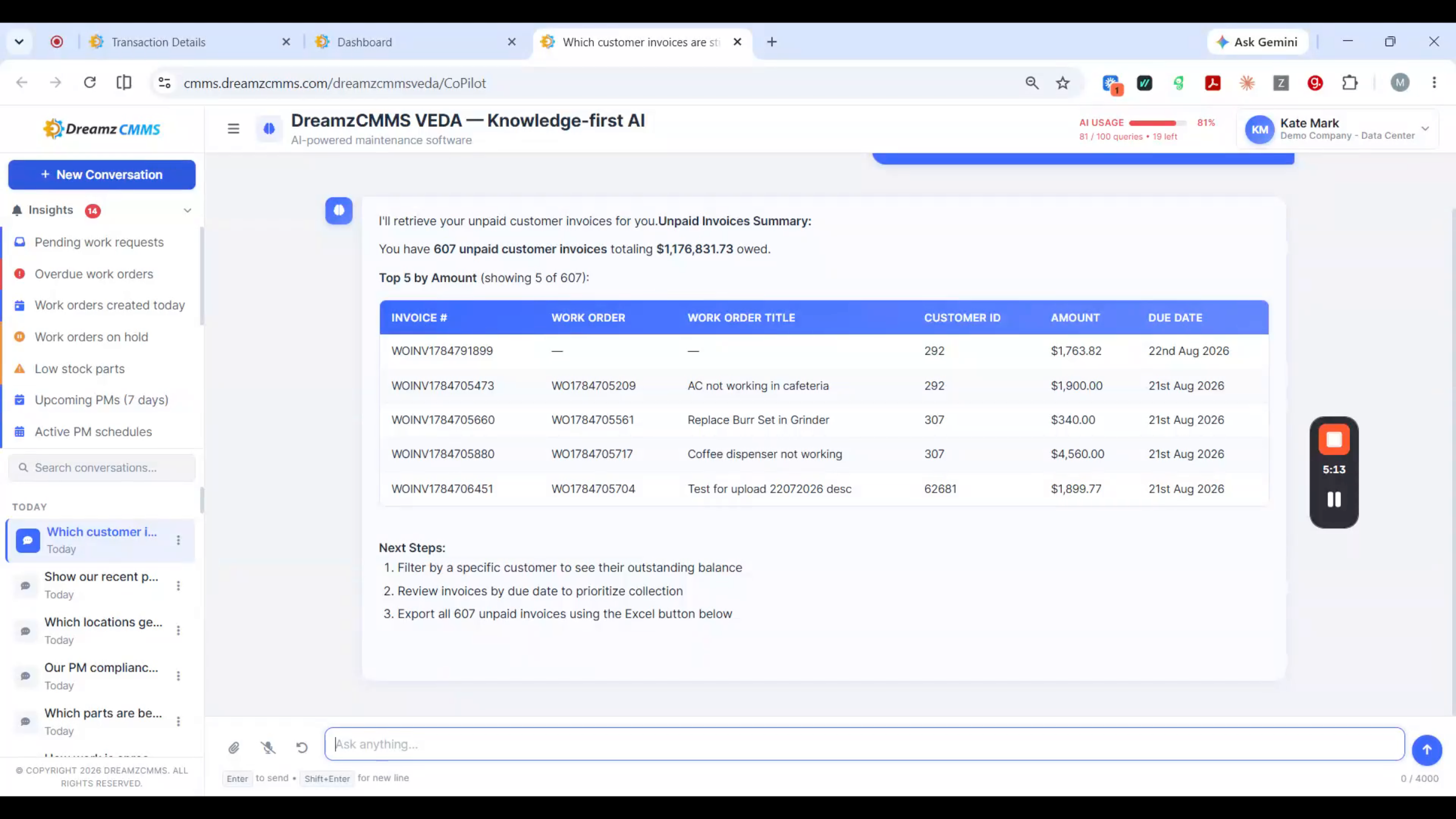
Step 14 – Unpaid Customer Invoices
Here's the one that pays for itself: ask which customer invoices are still unpaid, and VEDA lists them with amounts and due dates.
Step 15 – Full Quote-to-Cash Coverage
That's the whole quote-to-cash cycle covered — quote, sales order, invoice — and it reaches further still, into change orders, subcontractors, supplier bills, even an asset going offline. One box, every corner of the platform.
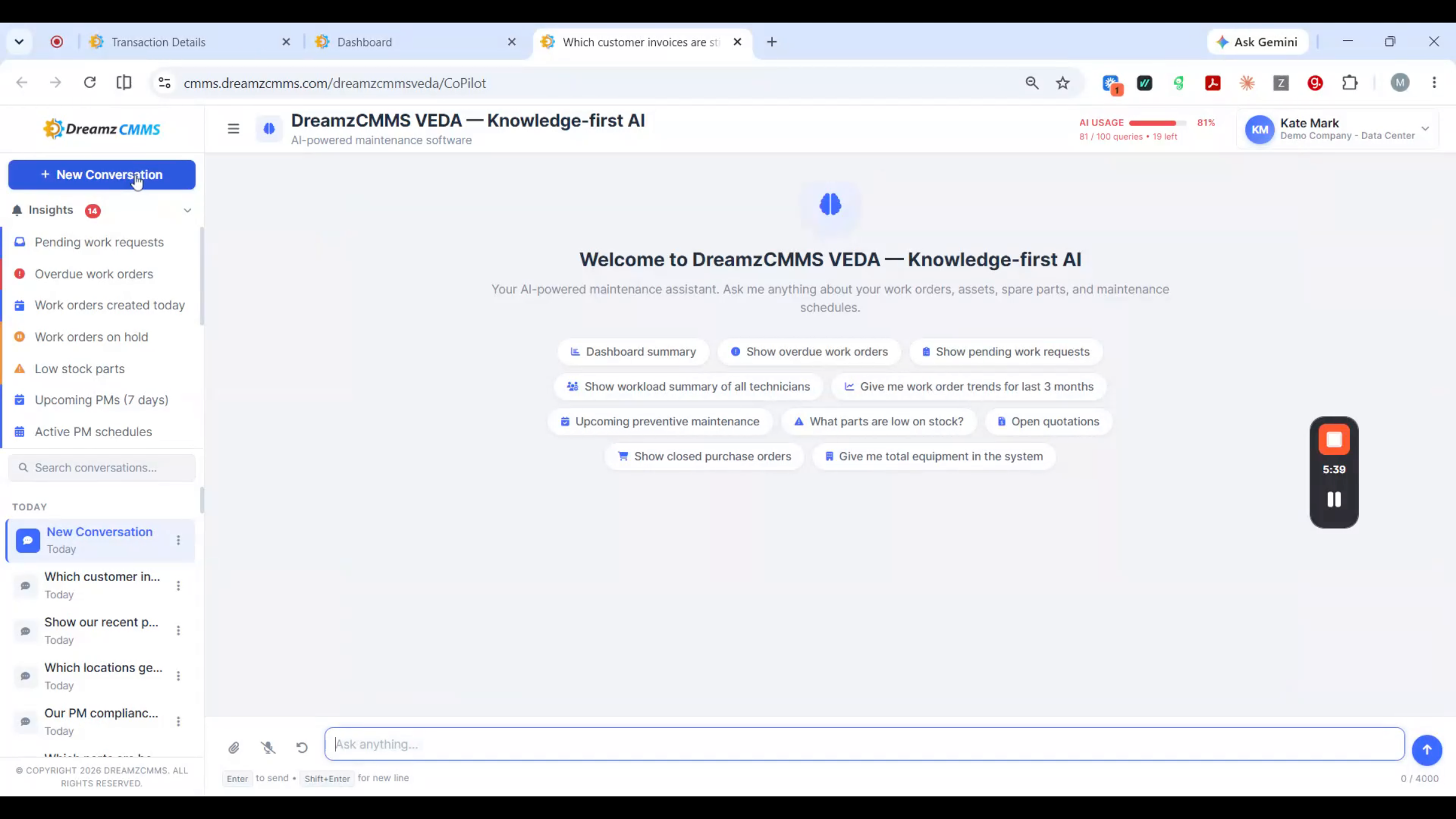
Your AI Command Center
Step 16 – Command Center Alerts
This is your command center, right in the app. Insights surface problems before they escalate — overdue work, low stock, maintenance due — and one click turns any alert into an answer.
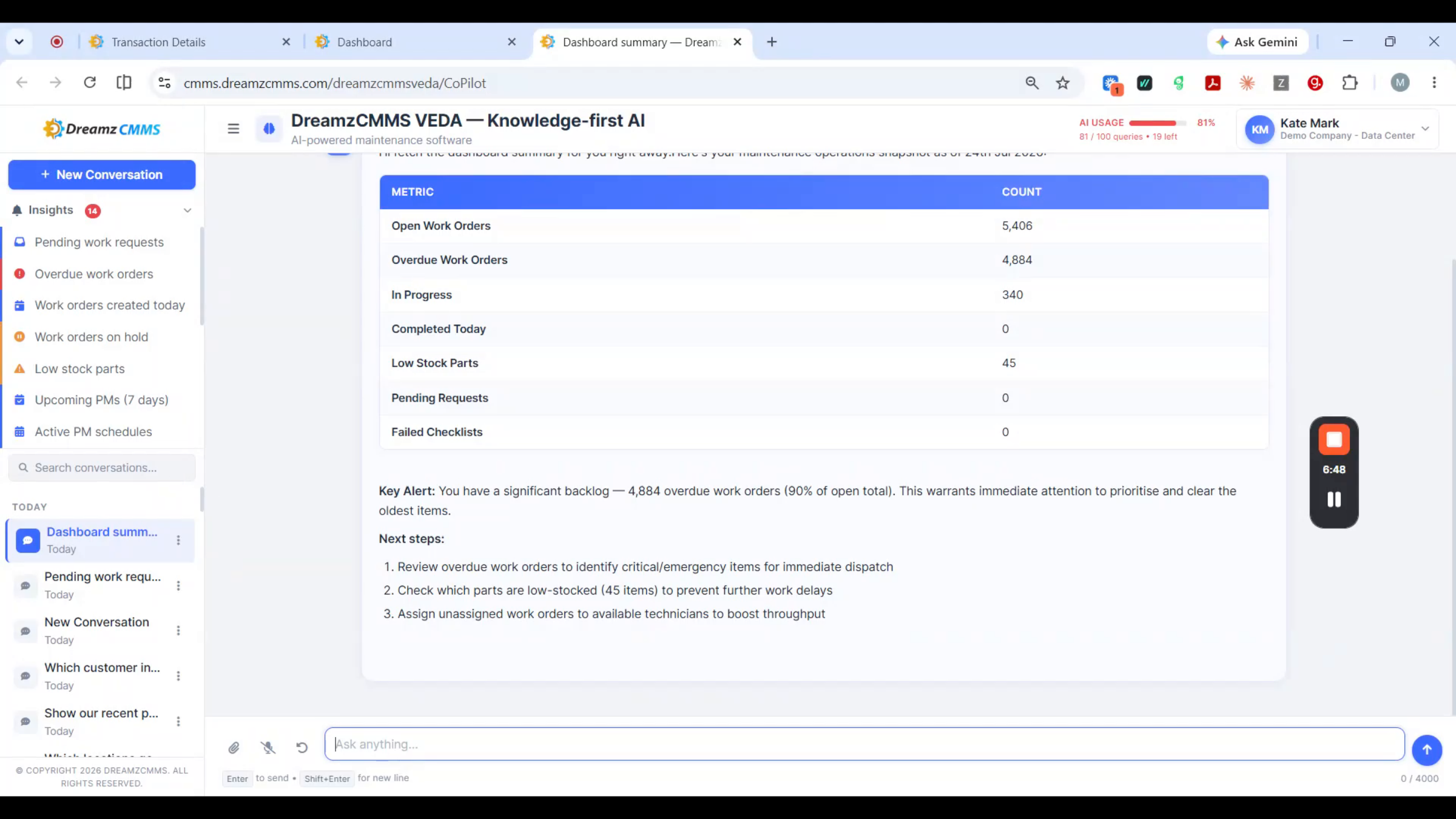
Step 17 – KPI Summary Display
Your dashboard lives here too — ask for a summary and VEDA lays out your KPIs as tiles and charts.
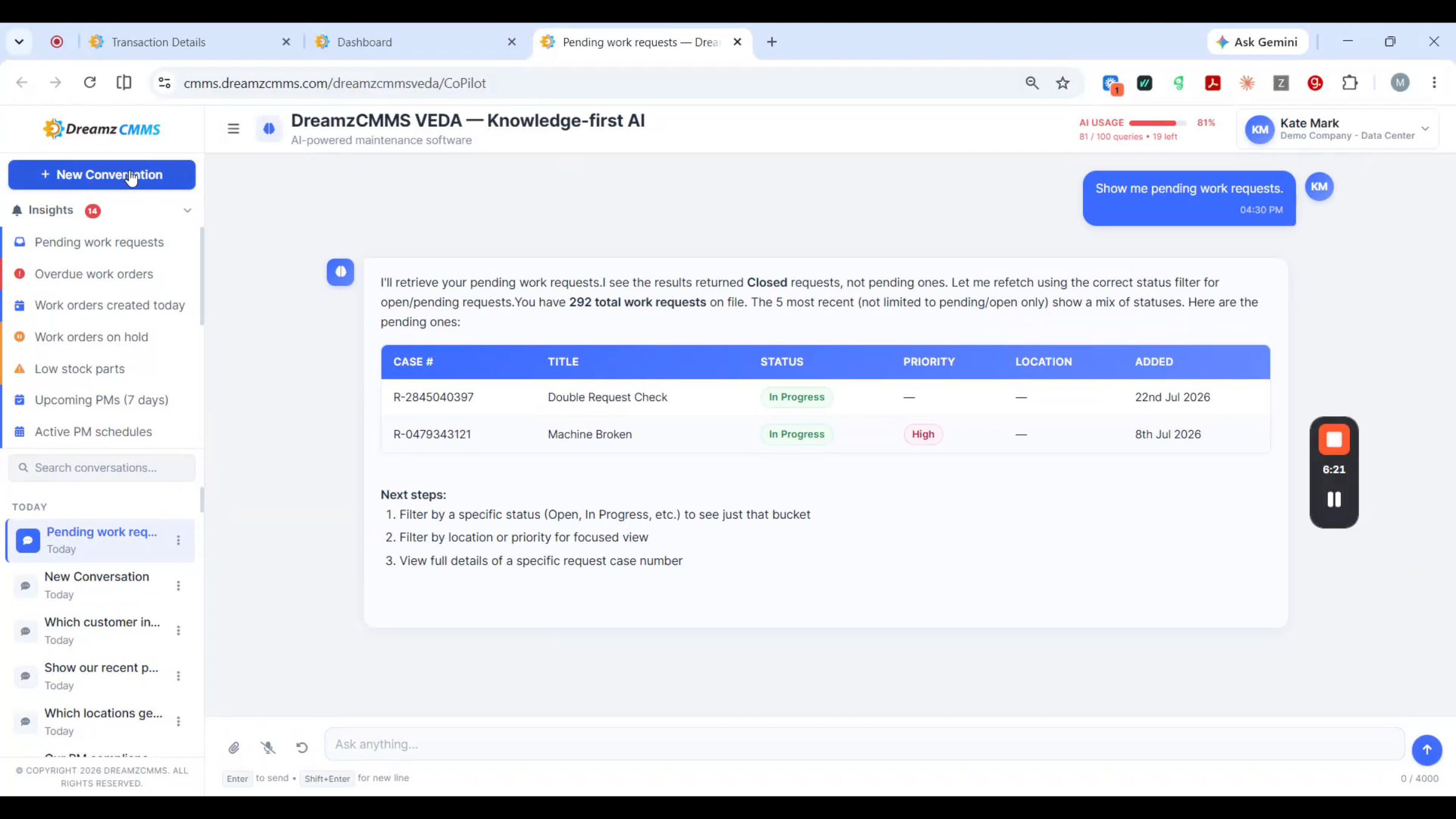
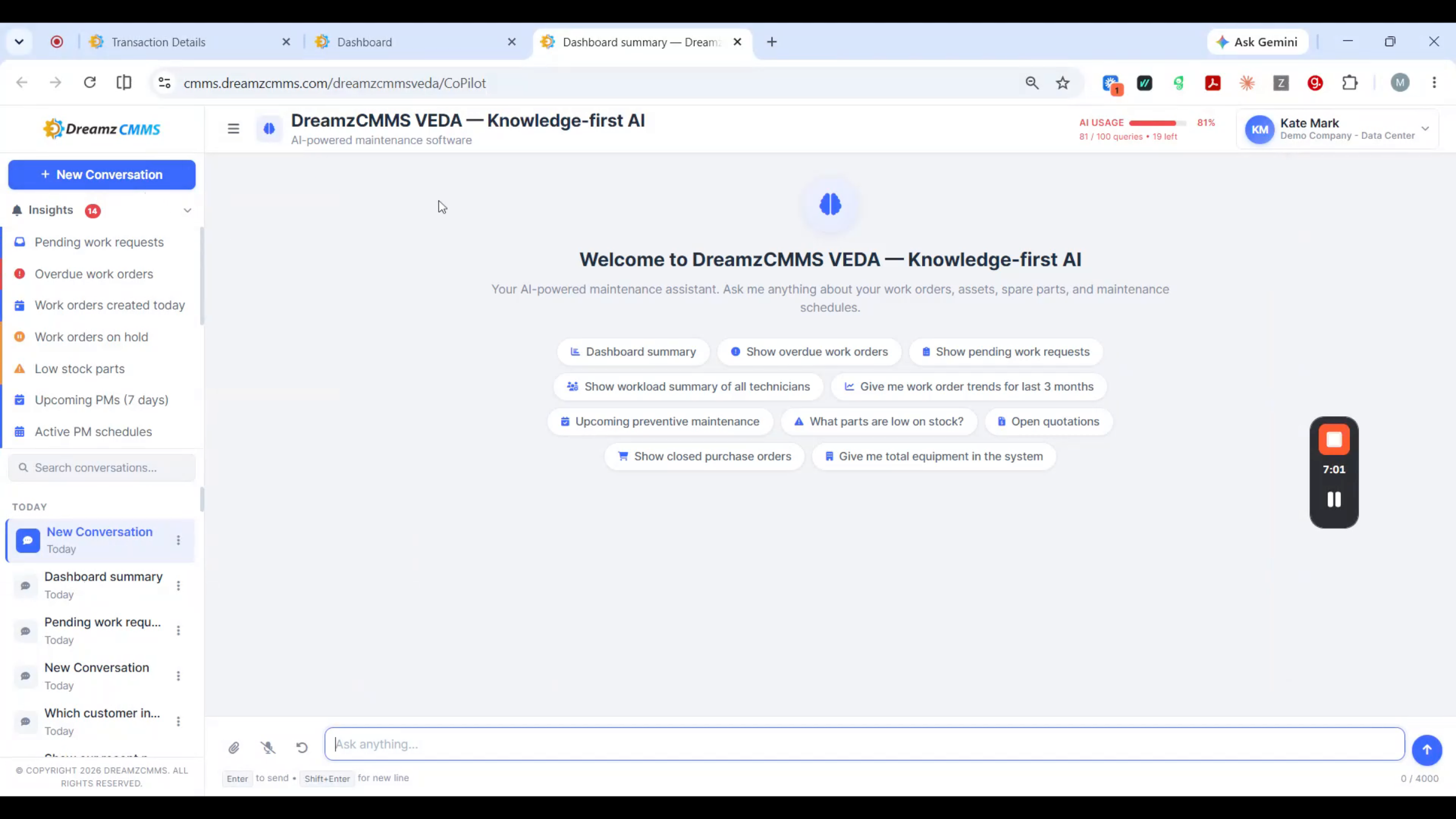
Step 18 – Searchable Conversation History
Every conversation is saved, grouped by date, and searchable, so you can find a past answer without asking the same question twice.
Step 19 – Transparent AI Usage
The usage bar at the top keeps your AI spend transparent, so you always know where it stands.
Ask However You Work
Step 20 – Voice and Text Interaction
VEDA works the way you do — ask by voice or just type.
Step 21 – Document Attachment Queries
Attach a document and ask questions about it directly in the chat.
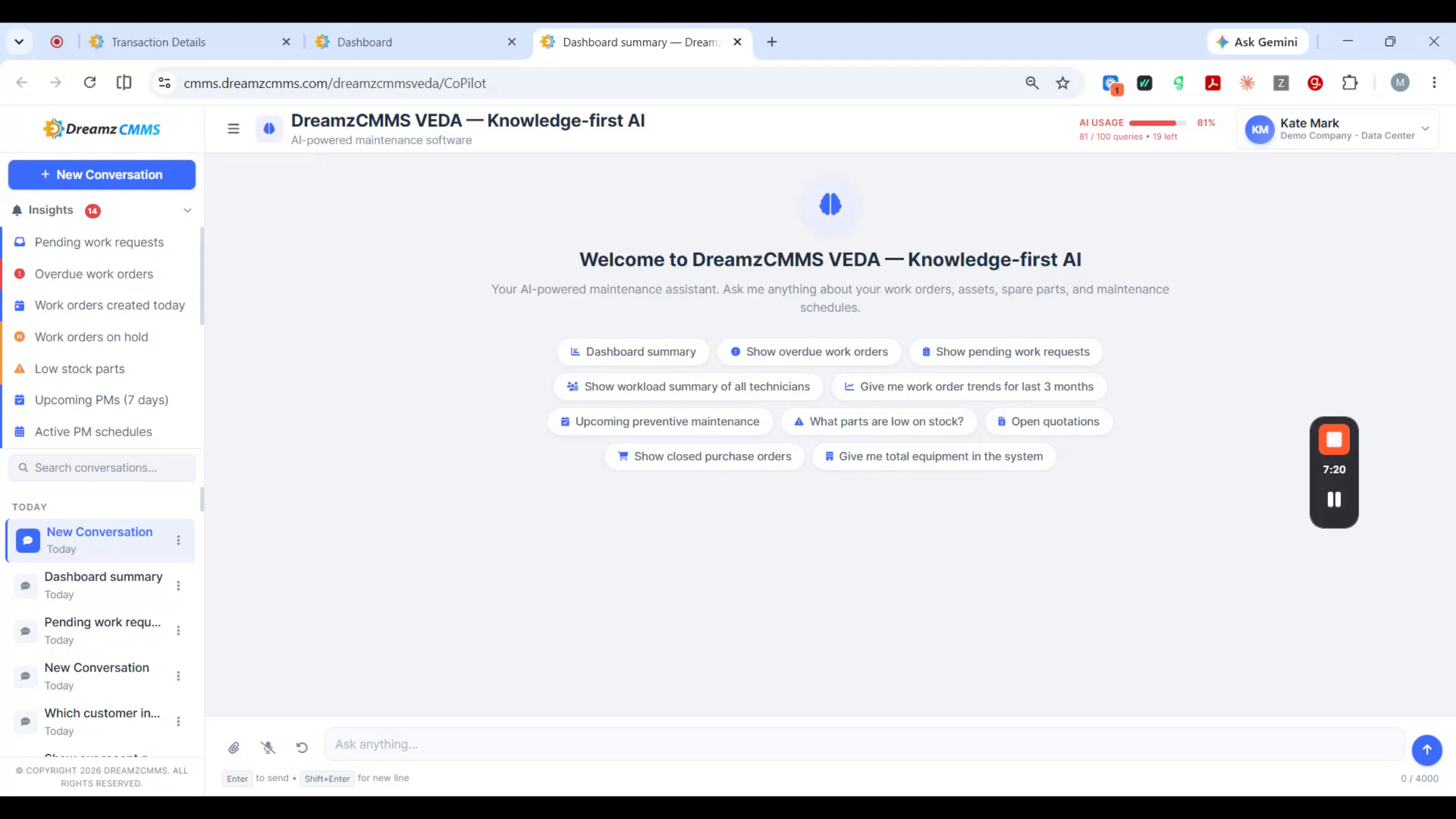
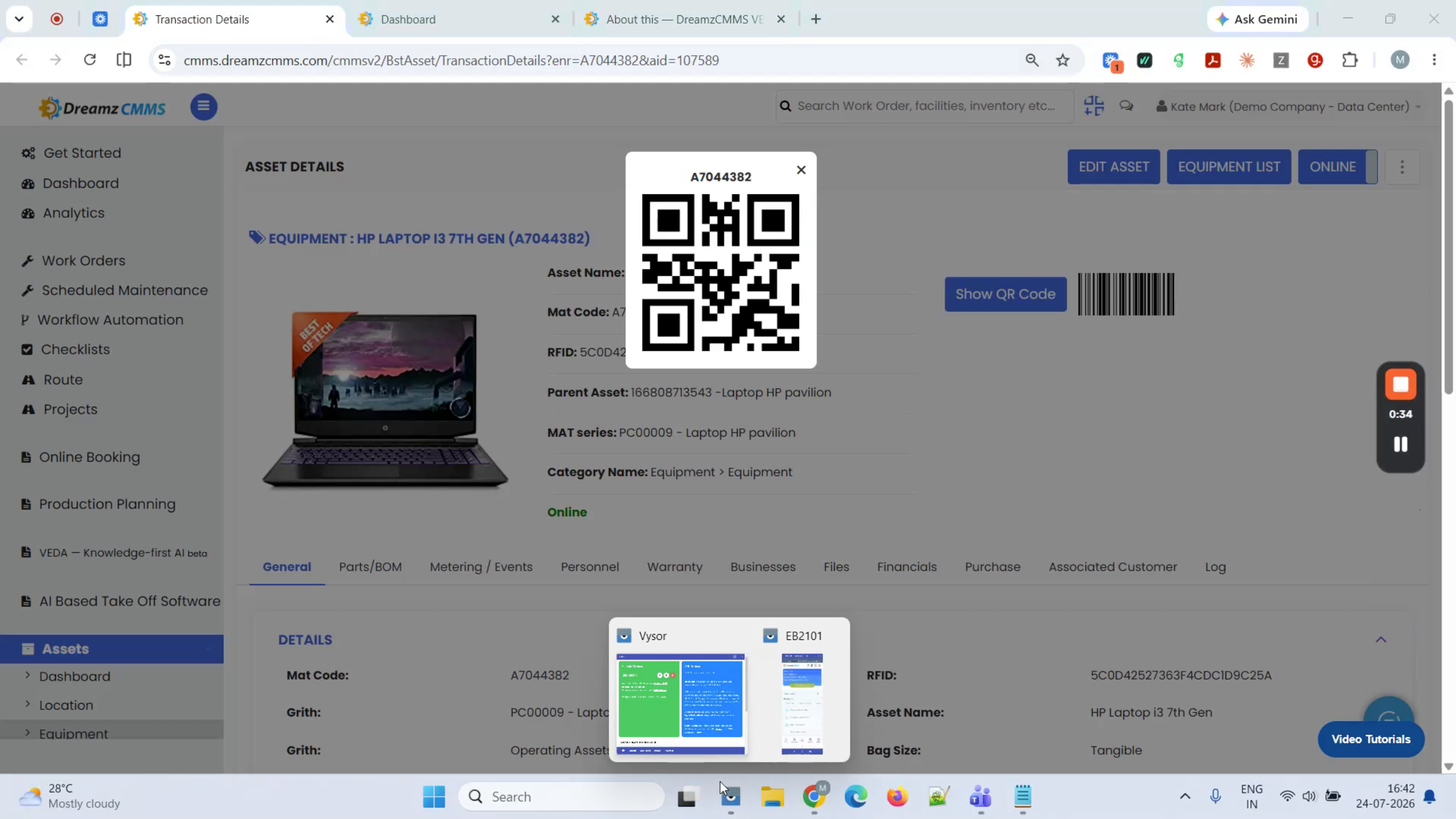
Step 22 – Asset Scanning in the Field
Or scan an asset's QR code out in the field to pull it up directly, no typing needed.
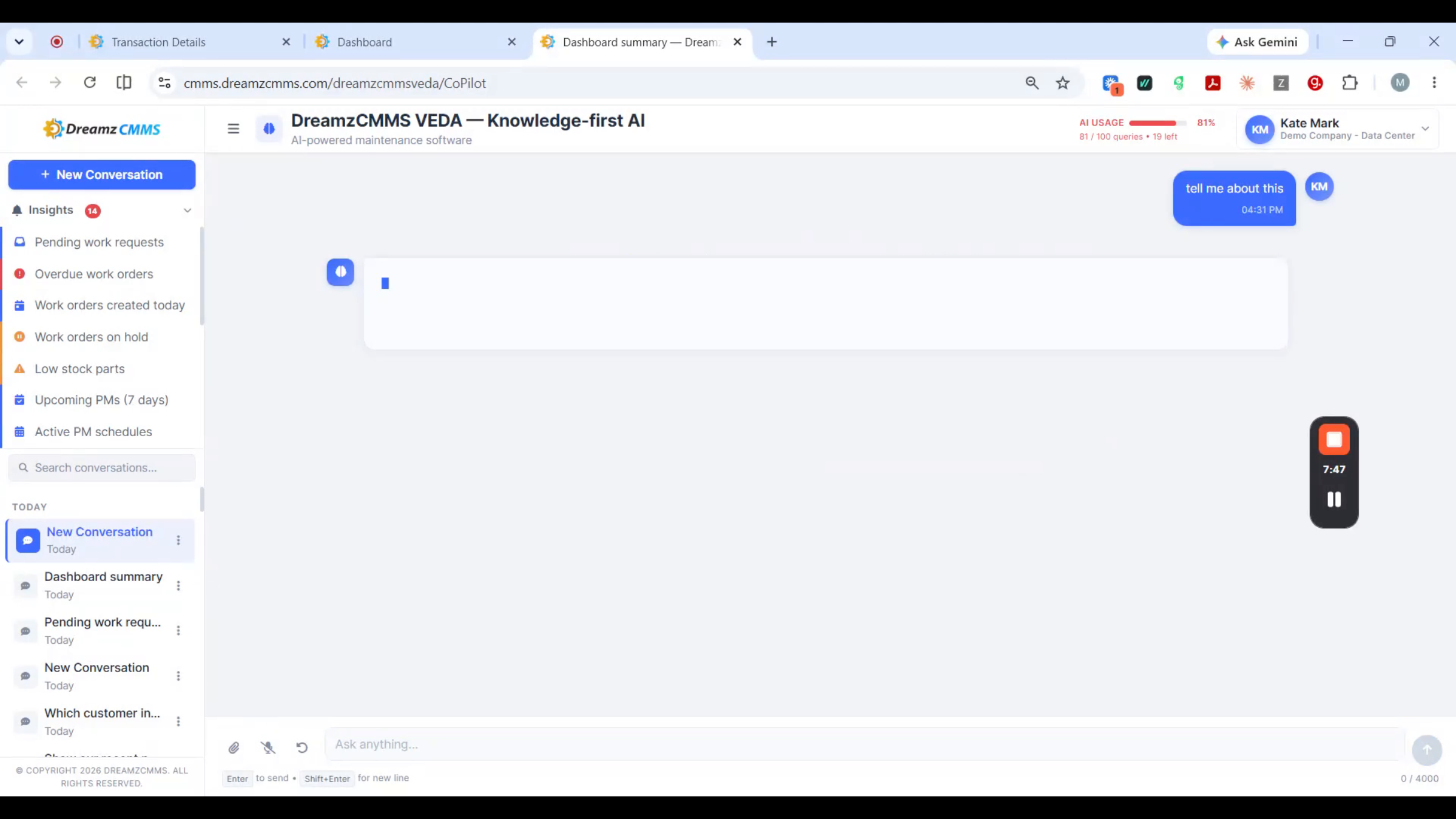
Step 23 – VEDA Acts, on Web or Mobile
Note: VEDA doesn't just answer — it acts, and it works the same on web and on mobile. If a laptop won't power on, scan its QR code in the field and VEDA pulls up that exact asset and opens a maintenance request already filled in; you just add a note and submit. Always take a quick look at the prefilled details before submitting, since you're still the one confirming the request.
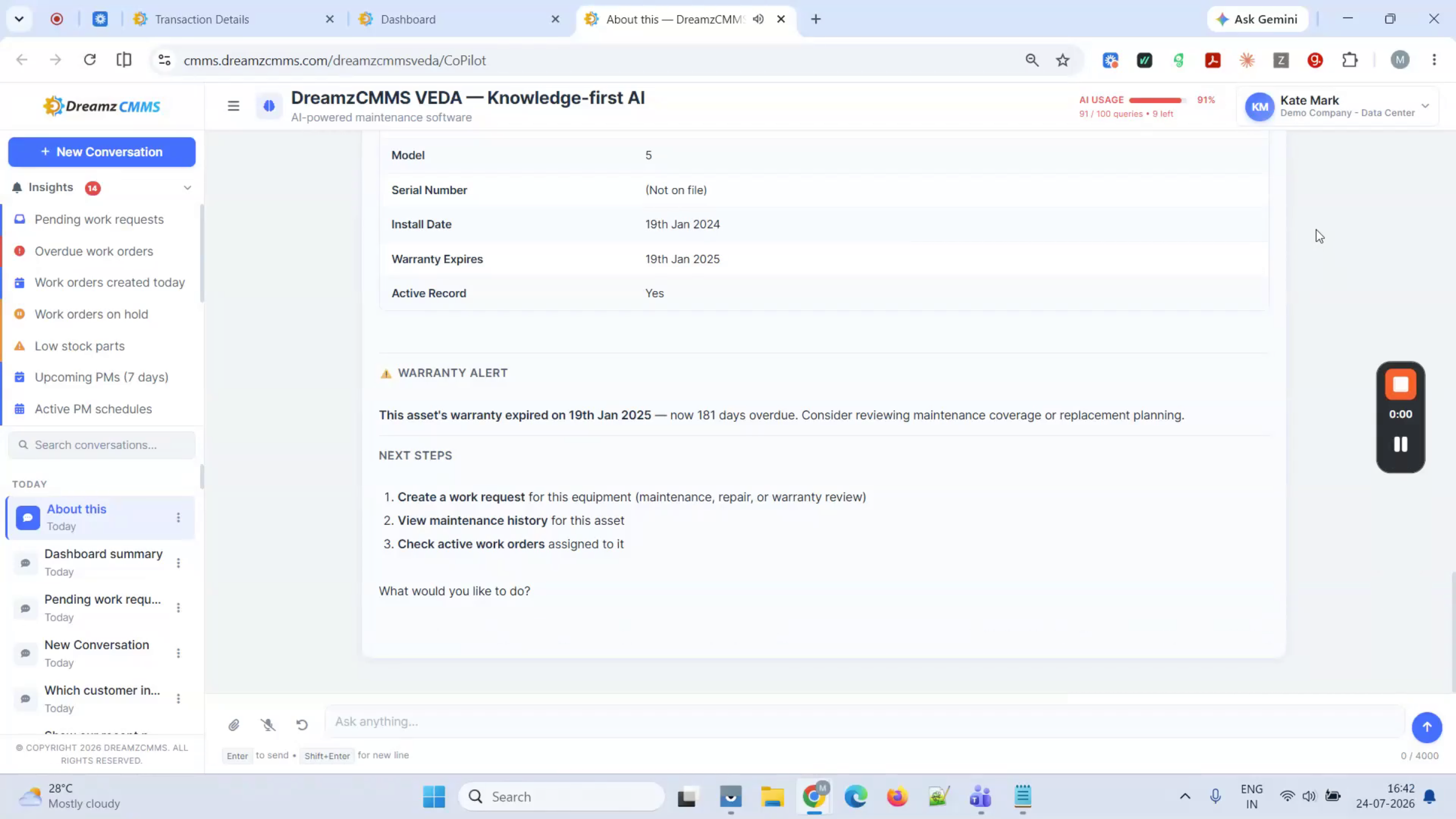
Step 24 – A Quick Look at the Assistant in Practice
A brief recap moment in the walkthrough before moving into the mobile work request example below.
From Field Request to Office View
Step 25 – Work Request Status View
You can also check the status of any work request directly through VEDA.
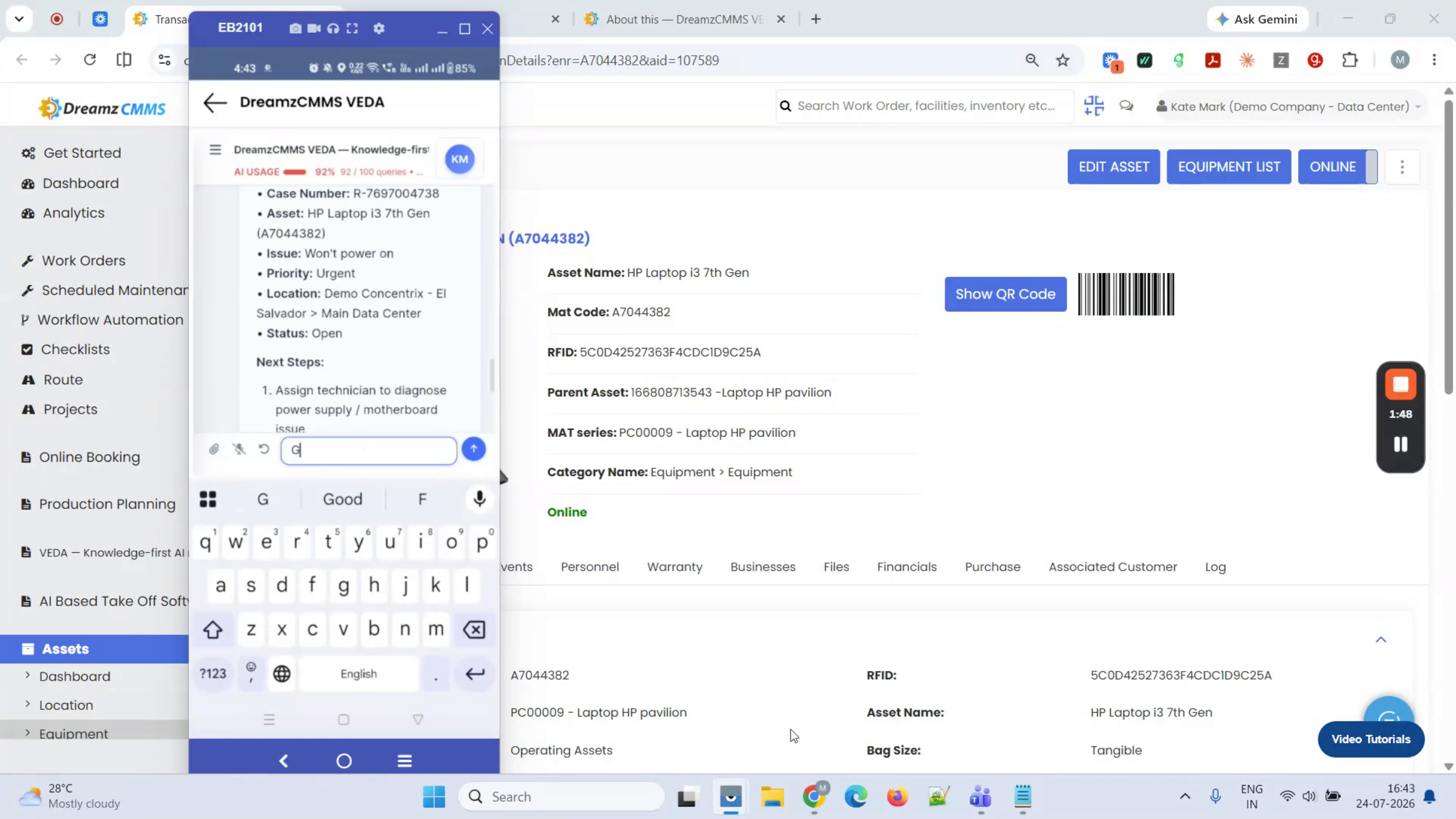
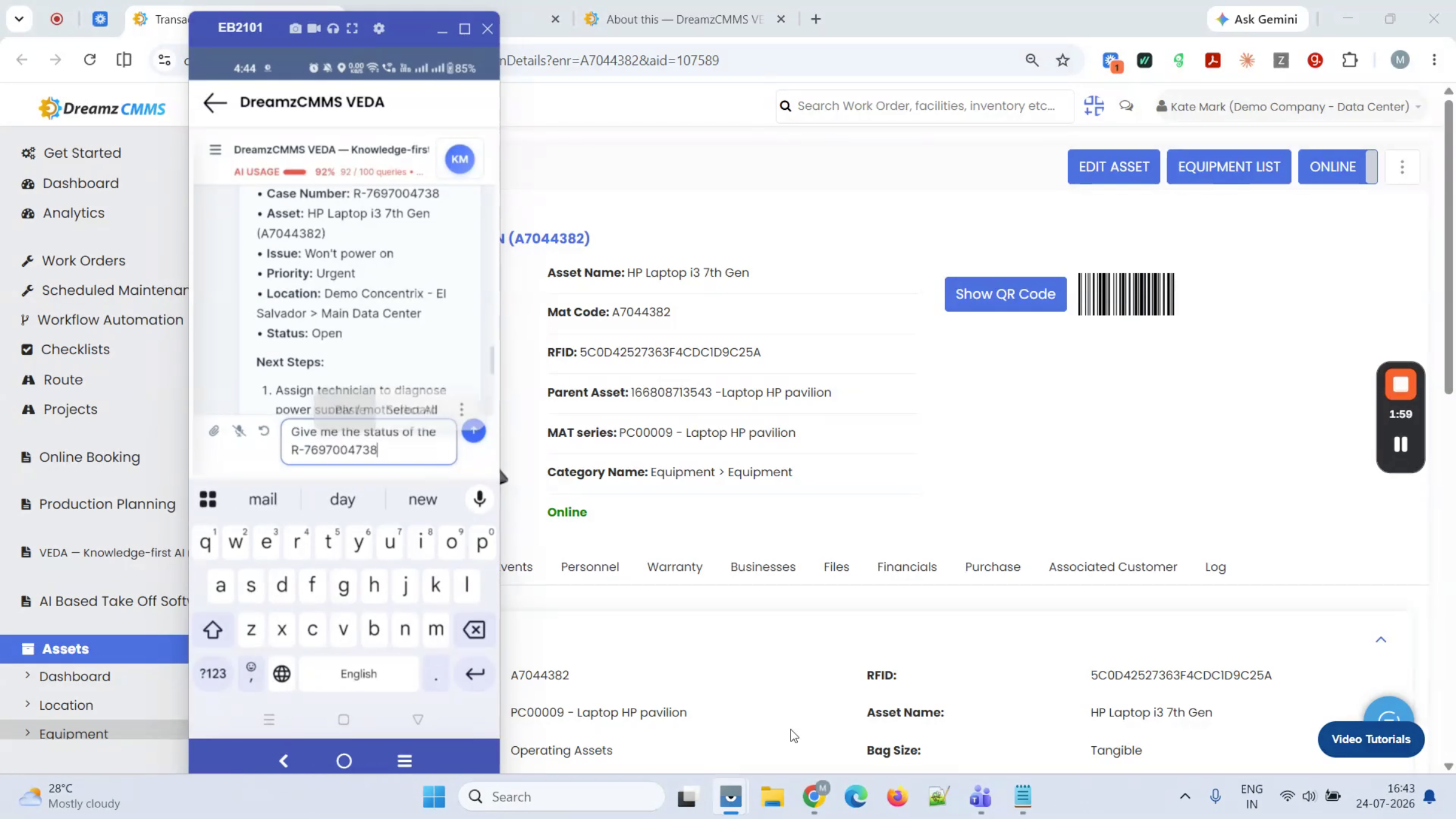
Step 26 – Creating a Request from the Technician App
From the technician mobile app, you can create a new request and add a note against any existing one.
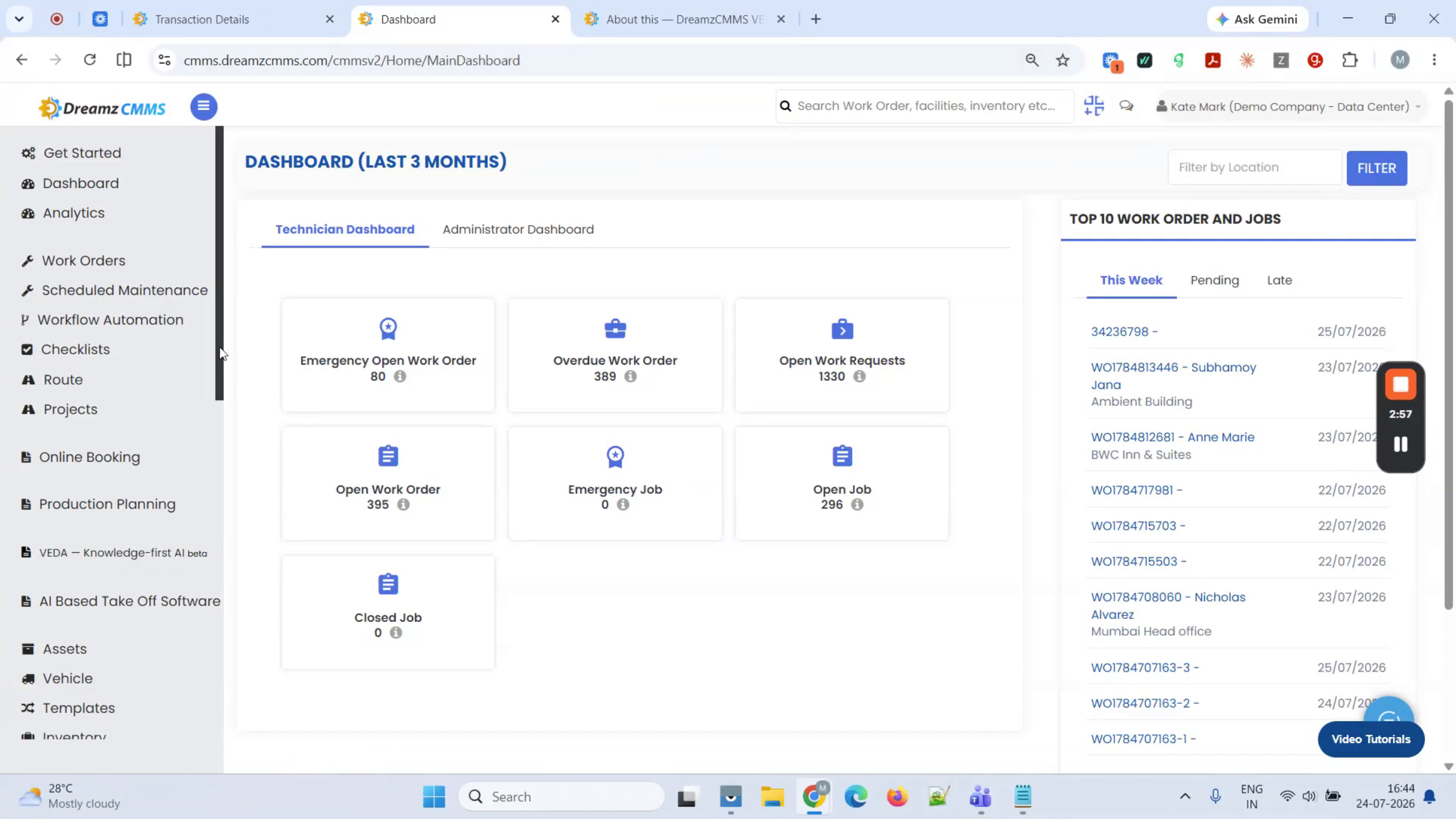
Step 27 – Requests Sync Instantly Between Apps
Open the web app back at the office, and the request created in the field is already there, fully synced.
One Assistant, Any Industry
Step 28 – Built for Every Kind of Operation
EAM, facilities, field service, RFID, construction, rental, sales — whichever modules you run, VEDA is the one place to ask. One platform, one AI assistant, any industry: ask, understand, decide.
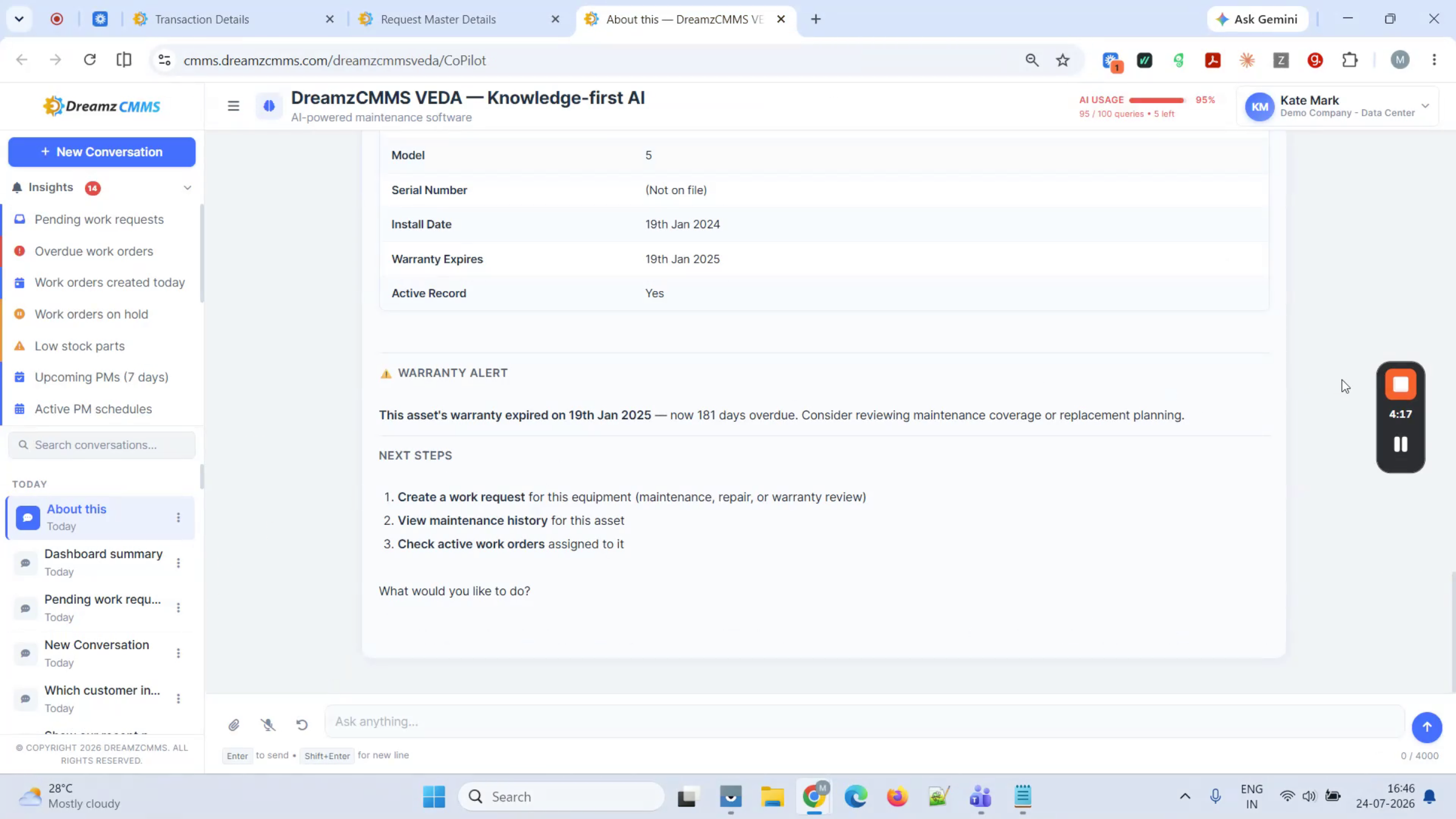
Step 29 – Stop Searching, Just Ask
That's the whole idea behind VEDA: stop searching across a dozen screens, and just ask.
After Setup — What's Next?
With VEDA connected across your assets, field service, inventory, purchasing, and finance data, one chat box can answer nearly any question about your operation. Once you're comfortable asking the basics, you can:
- Build a habit of starting the day with a VEDA summary instead of checking each module's dashboard separately.
- Print and post QR codes on key assets so field teams can pull up history and open requests without typing a thing.
- Revisit your saved conversation history when you need to recall a past answer instead of re-asking the same question.
Ready to see DreamzCMMS VEDA in action? Contact DreamzTech to schedule a personalized demonstration.
Tips for Getting the Most Out of VEDA
- Ask broad questions first ("give me a morning summary") before drilling into a specific module — VEDA is built to answer both.
- Use QR or barcode scanning in the field instead of searching for an asset by name; it pulls up the full history instantly.
- Keep an eye on the usage bar at the top of the chat so your AI spend stays predictable.
- Review any prefilled details VEDA generates — like a maintenance request opened from a QR scan — before submitting, since you're still the one confirming it.
Frequently Asked Questions
Which modules can I ask VEDA about?
Any module you run in DreamzCMMS — assets, field service, inventory, purchasing, and sales — all through the same chat box.
Can I use VEDA out in the field without typing?
Yes. You can ask by voice, or scan an asset's QR code to pull up its history or open a maintenance request directly from your phone.
Does VEDA only answer questions, or can it take action too?
It can act as well as answer — for example, opening a maintenance request already filled in from a scanned asset — though you always review and submit it yourself.
Can I find something I asked VEDA in a previous conversation?
Yes. Every conversation is saved, grouped by date, and searchable, so you can look up a past answer instead of asking again.