RFIDTracks: IoT-Powered Automation for Warehouse, Inventory, and Supply Chain
RFID Tracks is a module of DreamzCMMS's RFID solution, part of the Dreams IoT product suite, built to bring automation to warehouse, inventory, supply chain, logistics, manufacturing, and facility management operations. It works either with a handheld scanner or with a fully automated fixed setup — combining IoT sensors and RFID to automate asset tracking, asset movement, and stocking or dispatch processes.
Overview
RFID Tracks brings automation to a wide range of business verticals — manufacturing, facility management, food and beverage, retail, supply chain, and logistics — by pairing simple IoT hardware with RFID scanning. A pick sensor detects when an item or object is passing by and tells the RFID reader when to activate, so the reader isn't running constantly. An output device (a buzzer, light stack, or gate, for example) then gives an instant pass/fail signal — green for a valid, expected item, and red for something that shouldn't be there. The software layer is fully customizable and works as an open API framework, meaning it plugs into your existing ERP or inventory system rather than replacing it.
Here is a reference video:
Before You Begin
- You must have your RFID Tracks hardware installed — at minimum a pick sensor, an RFID reader (fixed or handheld), and an output device such as a light stack, buzzer, or gate.
- Know which existing ERP or inventory system you want RFID Tracks to integrate with, since it's designed to plug into your current software rather than replace it.
- Have your locations (factory, retail shop, or facility) defined ahead of time, since setup starts by selecting where the automation applies.
Understanding the Hardware
Despite common assumptions, automating with RFID Tracks doesn't require a lot of hardware. A pick sensor (an IoT sensor) detects whenever an object — a product, a person, or anything else — passes in front of the reader. Rather than running constantly, the reader only activates when the pick sensor signals that something is passing by, which then triggers the scan.

Note: An output device gives an instant, clear signal once a scan happens — this can be a buzzer, a light stack, a gate, or anything else your business needs. A light stack, for example, shows green when the right item is scanned and expected, or red when something unexpected or invalid is detected — effectively a simple pass/fail signal any team member can read at a glance, whether that's confirming correct stock on a conveyor belt or flagging an unpaid item leaving a retail store.
How to Set Up and Run RFID Tracks Automation
Step 1 – Configure Your Settings
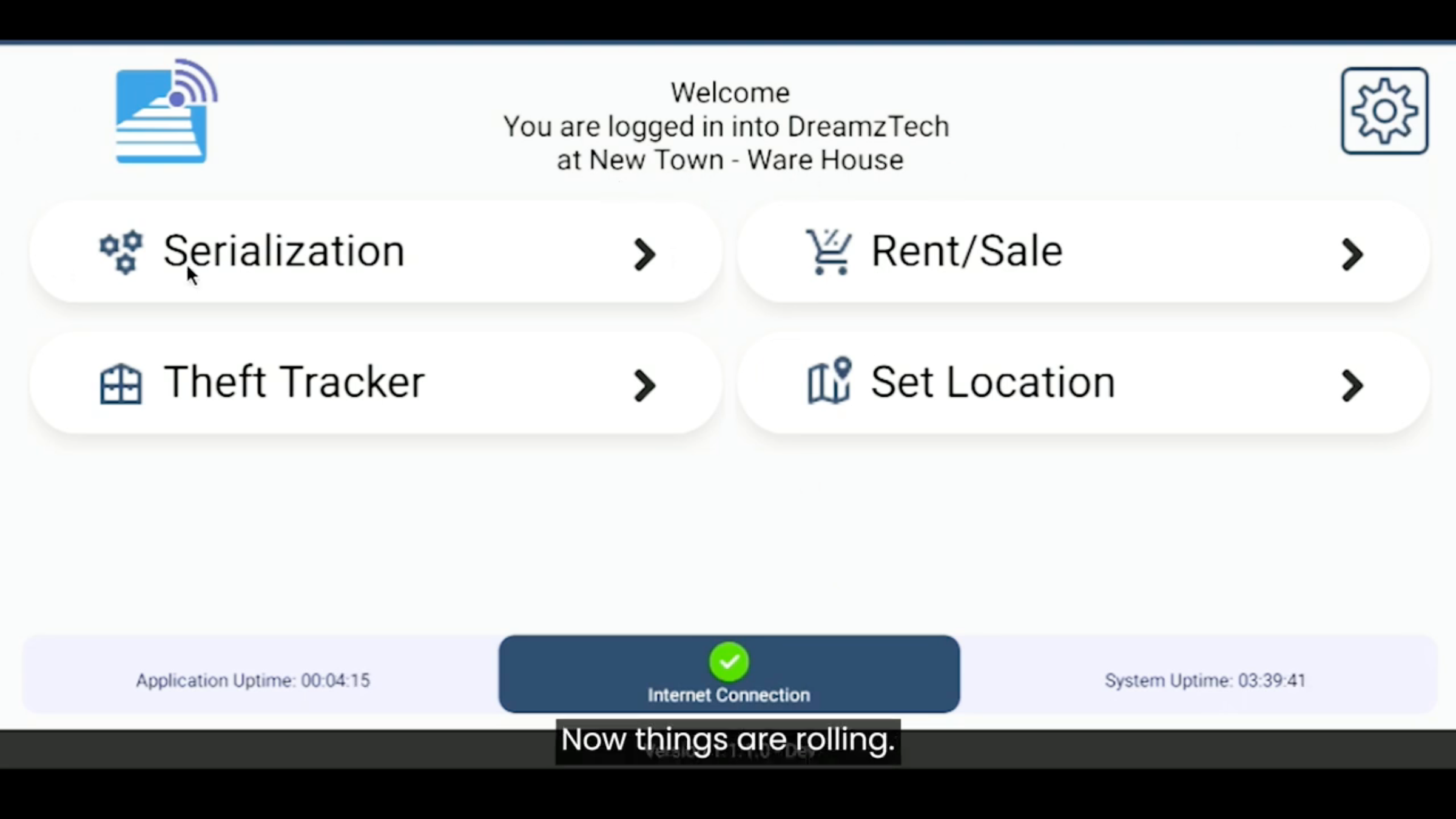
In Settings, you can turn the pick sensor on or off as needed, adjust the RFID scanner's strength (the small antenna that scans objects as they pass by), and configure your light stack output. Save your settings once configured. The software itself is customized to your specific use case and integrates with whatever ERP or inventory system you're already using through an open API framework — RFID Tracks plugs into your existing process rather than replacing it.

Step 2 – Set Your Locations
Set up whatever locations apply to your business — a factory, a retail shop, or any other facility — then click Continue to move into serialization.
Step 3 – Run a Simulated Stocking Process
You can simulate stocking either with or without a purchase order. With a purchase order selected, choose the item you expect to scan (for example, a specific product) as part of your stocking process. As items pass through — on a conveyor belt or through an RFID gate — the pick sensor tells the fixed reader to scan, and the output device shows the result instantly: red for an item that isn't expected as part of that purchase order, green for a valid match. The same setup works without a conveyor belt too — RFID gates work identically, and the same logic applies to scenarios like restricting employee access to certain facilities or locations.
Using the Handheld RFID Scanner
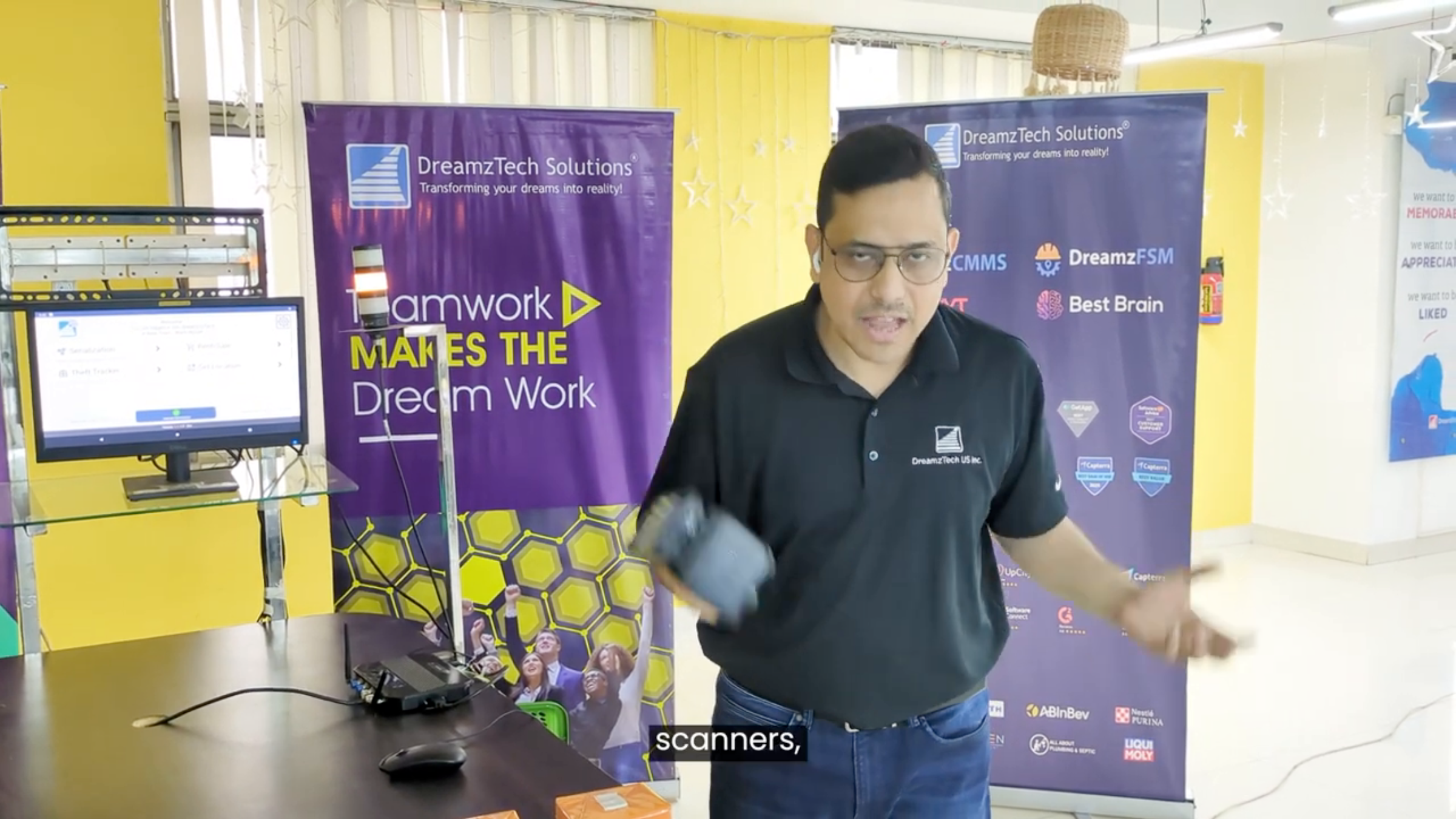
Alongside fixed automation, RFID Tracks also supports a handheld scanner — a gun-style device used to scan RFID stickers directly. Manual barcode and QR code scanning is time-consuming; the handheld scanner instead covers a 30-meter radius and can scan everything in range in under 10 seconds. For a facility with thousands of products, a full stock take that would otherwise take weeks can be completed in just a couple of hours — simply stand near the products and scan, no item-by-item handling required.
After Setup — What's Next?
RFID Tracks brings automation to inventory management, asset tracking, asset movement, and asset location tracking — cost-effectively, simply, and at scale, across manufacturing, retail, logistics, and beyond. Once your core setup is running, you can:
- Extend the same pick sensor + reader + output device pattern to new use cases, such as restricted-access gates or additional dispatch points.
- Use the handheld scanner for periodic full stock takes instead of relying solely on fixed automation points.
- Work with DreamzTech to customize the software framework further around your specific ERP or inventory system.
Ready to bring IoT and RFID automation into your business? Contact DreamzTech to schedule a personalized demonstration.
Tips for RFID Tracks Automation
- Start with the pick sensor turned on only where it's needed — it keeps the reader from scanning constantly and helps keep results accurate.
- Choose an output device that matches how your team actually works the floor — a light stack for a conveyor line, a gate for access control, a buzzer where sound carries better than sight.
- Run stocking simulations with a purchase order attached whenever possible, so mismatches are caught against an actual expected list.
- Use the handheld scanner's 30-meter range to your advantage during stock takes — you don't need to handle each item individually.
Frequently Asked Questions
Do I need a conveyor belt to use RFID Tracks automation?
No. The same setup works with RFID gates instead of a conveyor belt — items or people passing through are scanned and the output device shows the result the same way.
Will RFID Tracks replace my existing ERP or inventory system?
No. It's built as an open API framework that plugs into your existing software to add automation, rather than replacing what you already use.
How fast is the handheld RFID scanner?
It covers a 30-meter radius and can scan everything within that range in under 10 seconds, turning a stock take that could take weeks into a couple of hours.
Can RFID Tracks be used for something other than inventory, like access control?
Yes. The same pick sensor, reader, and output device pattern can be applied to scenarios like restricting employee access to certain facilities or locations.
Related Articles
- Managing Assets with the RFID Scanner in DreamzCMMS
- DreamzCMMS RFID Portal Overview: Master Data, Order Sync, and Reporting
- DreamzCMMS RFID App for Retail: From Registration to Sale
- Import Asset Locations