DreamzCMMS RFID Portal Overview: Master Data, Order Sync, and Reporting
While the RFID handheld scanner handles day-to-day scanning on the floor, the DreamzCMMS RFID portal is where everything behind the scenes comes together — master data, ERP order sync, hardware monitoring, and reporting. Between the app on the retail floor and this portal in the office, you get a complete, tamper-proof record of every asset from the day it arrives to the day it's sold.
Overview
Everything in the app is backed by master data managed here in the portal — facilities, products, and a live equipment registry. Purchase orders and sales orders sync automatically from your ERP system rather than being entered twice, driving the tagging and move-out workflows your team already uses in the field. An Antenna Monitor Dashboard keeps hardware issues from going unnoticed, and a full suite of reports lets you audit scans, transfers, inquiries, and sales down to the individual item.
Here is a reference video:
Before You Begin
- You must have access to the DreamzCMMS RFID portal, in addition to the RFID handheld scanner app used on the floor.
- Your ERP system should already be connected for purchase order and sales order sync, if you want tagging and move-out workflows to stay in sync automatically.
- Know which facilities have exit antennas installed, since the Antenna Monitor Dashboard reports on them by store.
Master Data
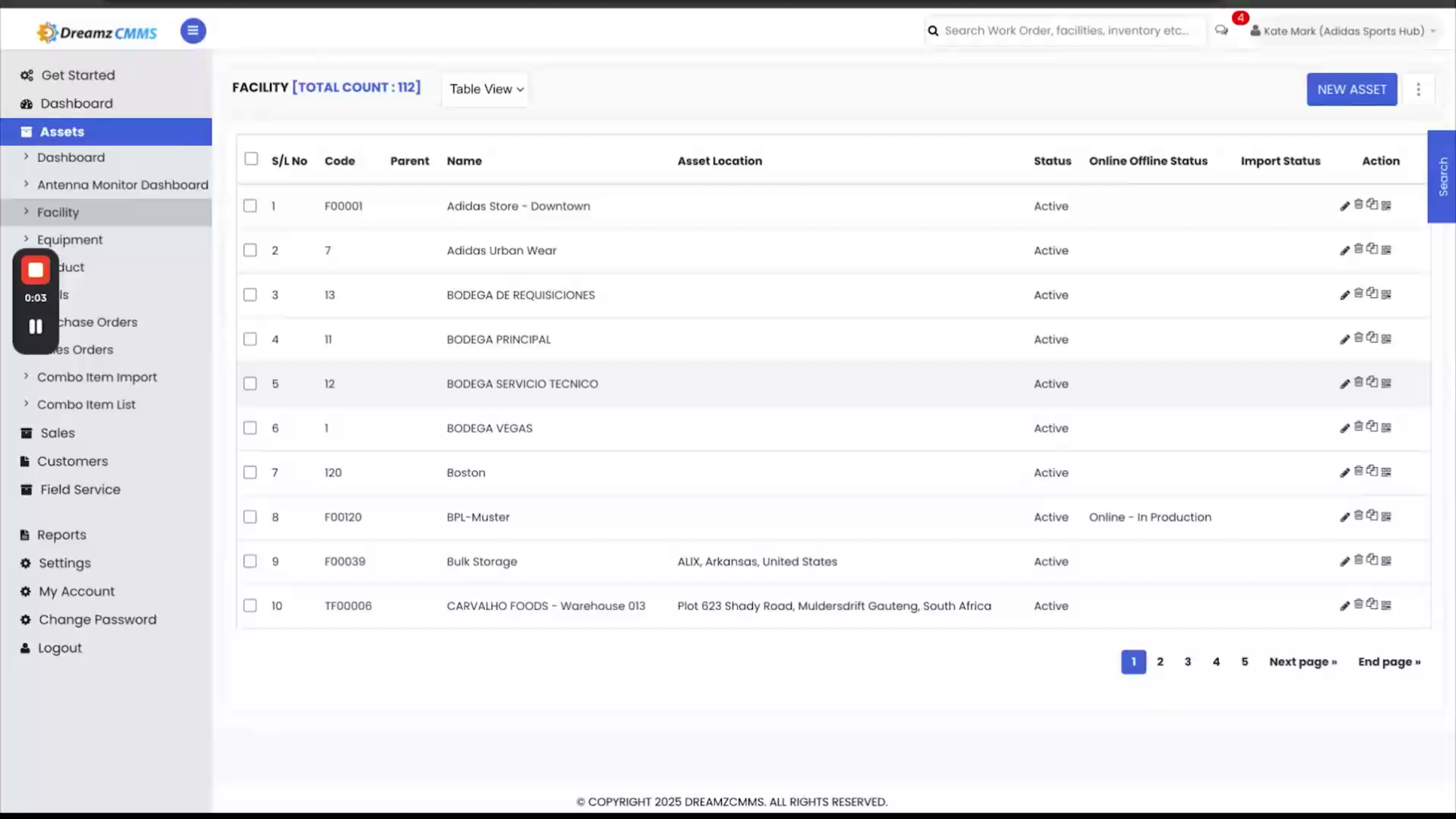
Everything in the app is backed by master data here in the portal. Facility lists every store and warehouse location your business operates. Product holds your full product catalog. Equipment is the live registry of every individual tagged asset, each with its own serial number, parent product, facility, warranty, condition, and status — and this is also where bulk tagging originates.
Bulk Tagging
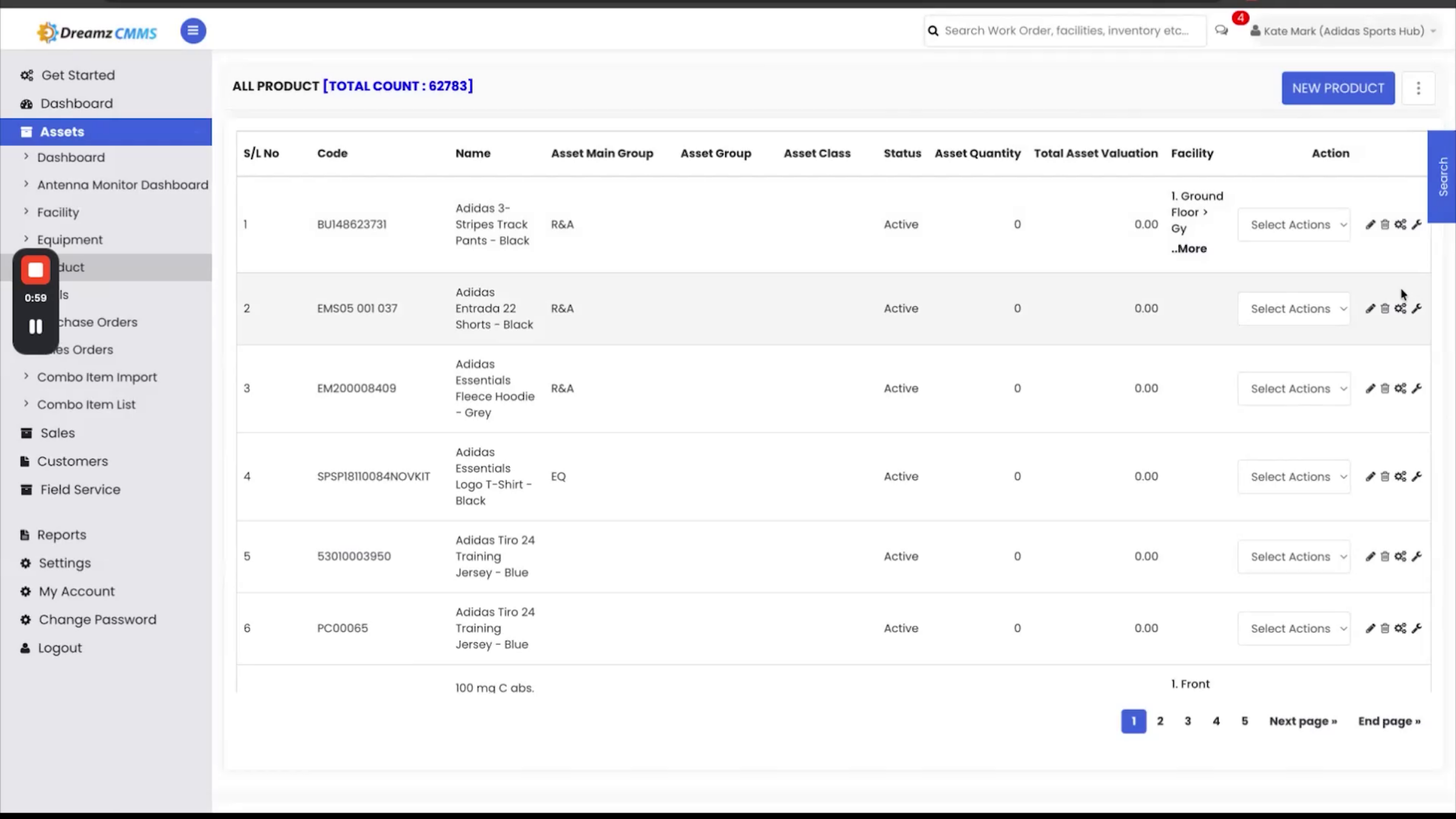
The Bulk Asset from Product screen lets your team generate serialized RFID tags directly from a product record. Set the facility, category, and quantity, and the batch is ready to print.
Order Sync and Workflow
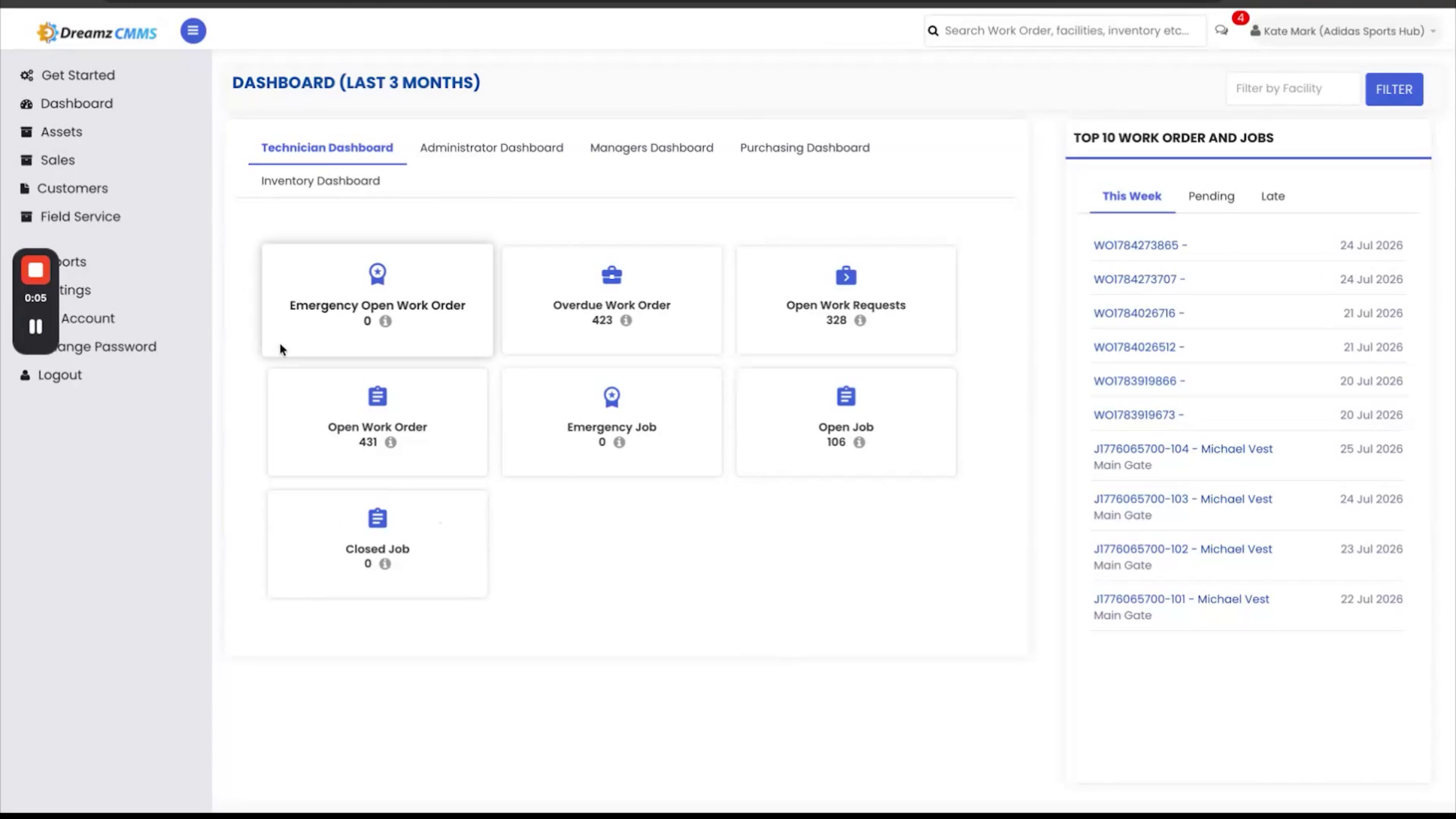
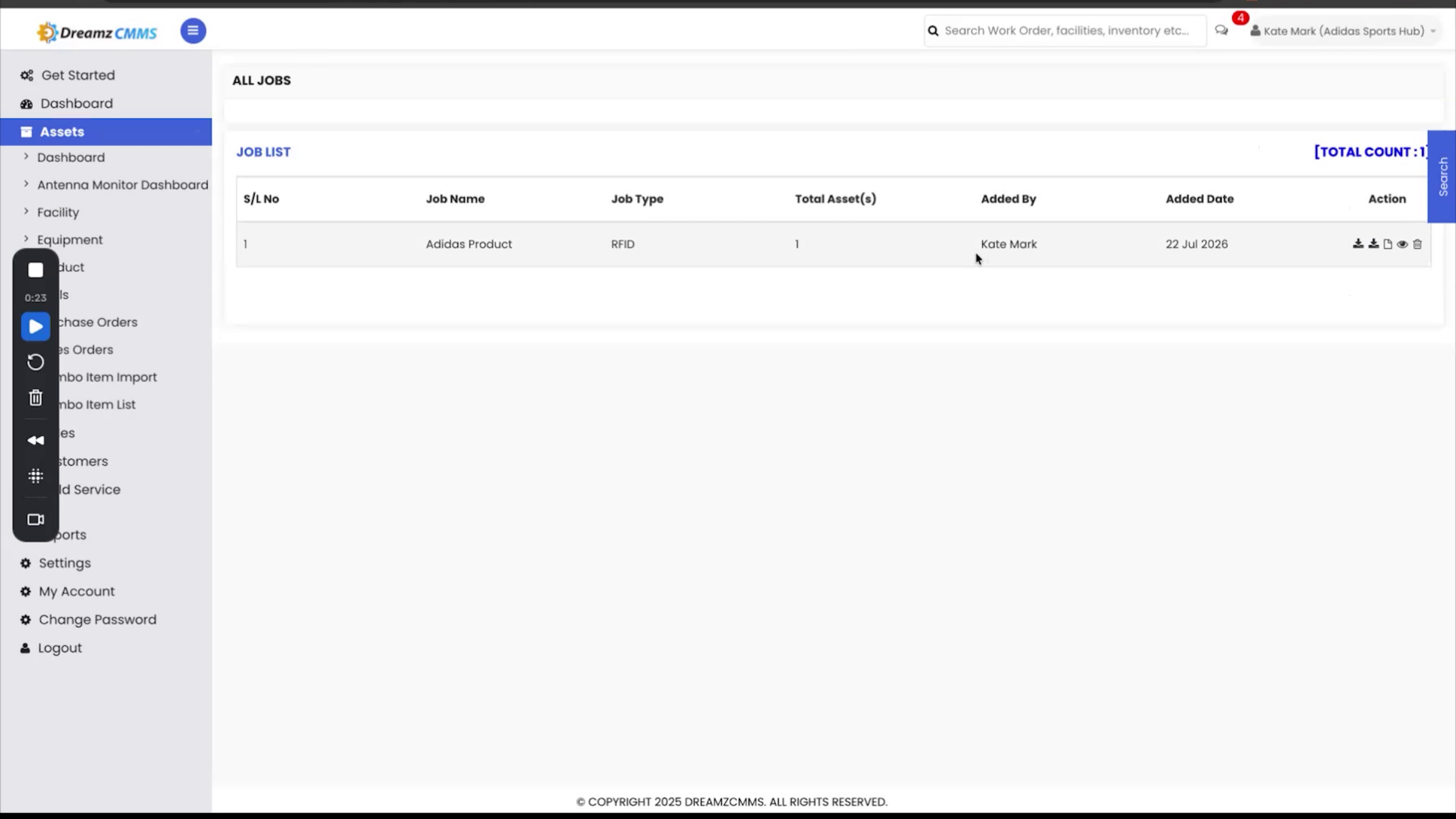
Note: Your purchase orders and sales orders aren't entered twice — they sync automatically from your ERP system, with the last sync time shown at the top of each screen. Purchase orders drive the Register and Bulk Serialization workflow used in the scanner app. Sales orders tie directly into Move Out, matching each dispatch against the original order down to the quantity per line item. Every batch of tags printed — whether from a purchase order or directly from a product — is logged in Print Jobs, so your team can reprint or audit any batch later.
Manual Sync and Combo Items
If anything needs a manual refresh, SyncMaster Data lets your team pull the latest facilities, items, purchase orders, invoices, or transfers on demand. For products sold as bundles, Combo Items maps each set to its individual components automatically.
Antenna Monitoring
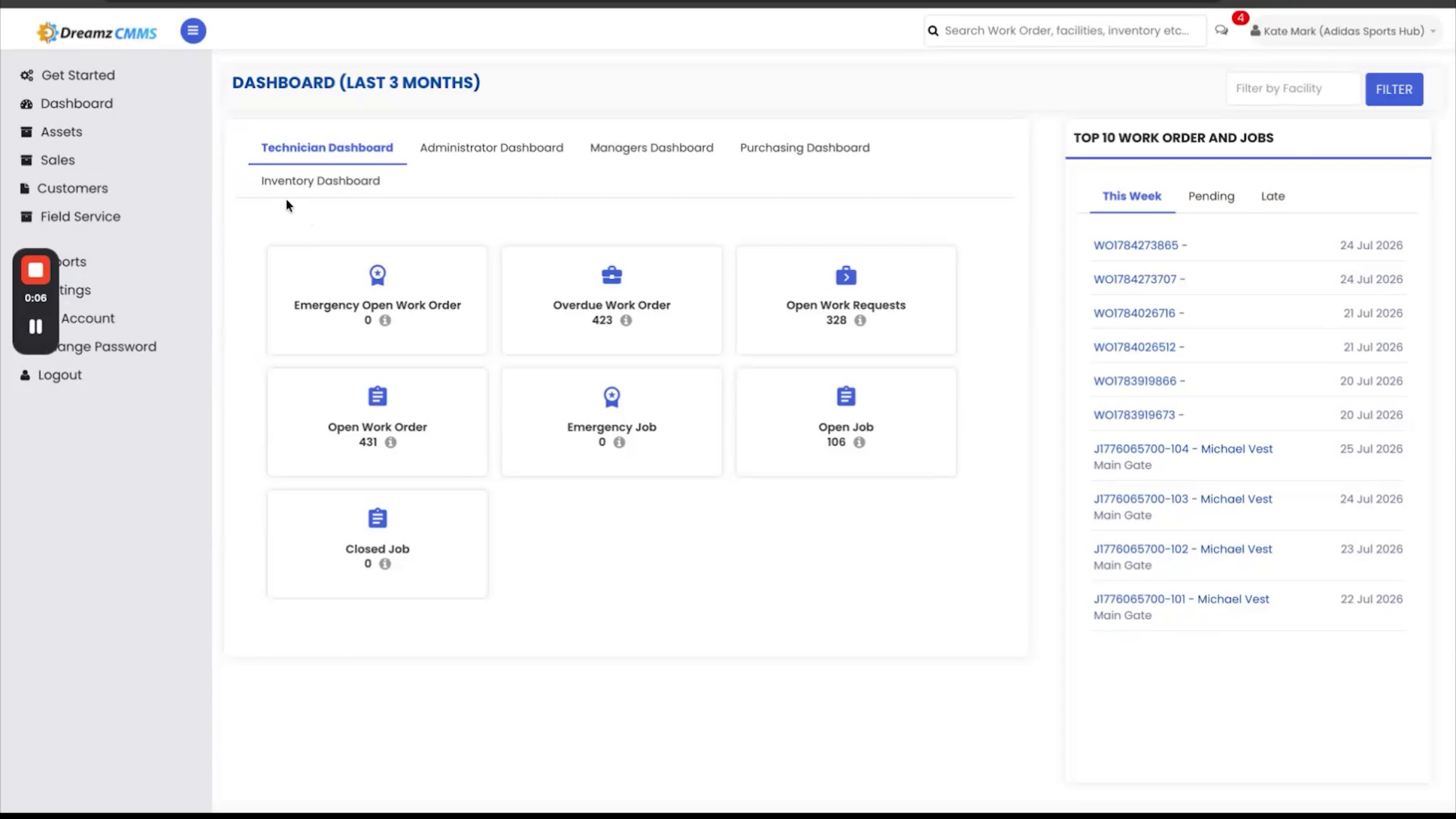
This is where your team monitors the exit antenna at each store. The Antenna Monitor Dashboard shows, at a glance, how many stores are covered, how many antennas are active right now, and which ones have gone offline — so a hardware issue never goes unnoticed. Drill into any store to see its antenna status and last activity. Every action in the app feeds a report here, so nothing happens without a paper trail.
Scan and Transfer Reports
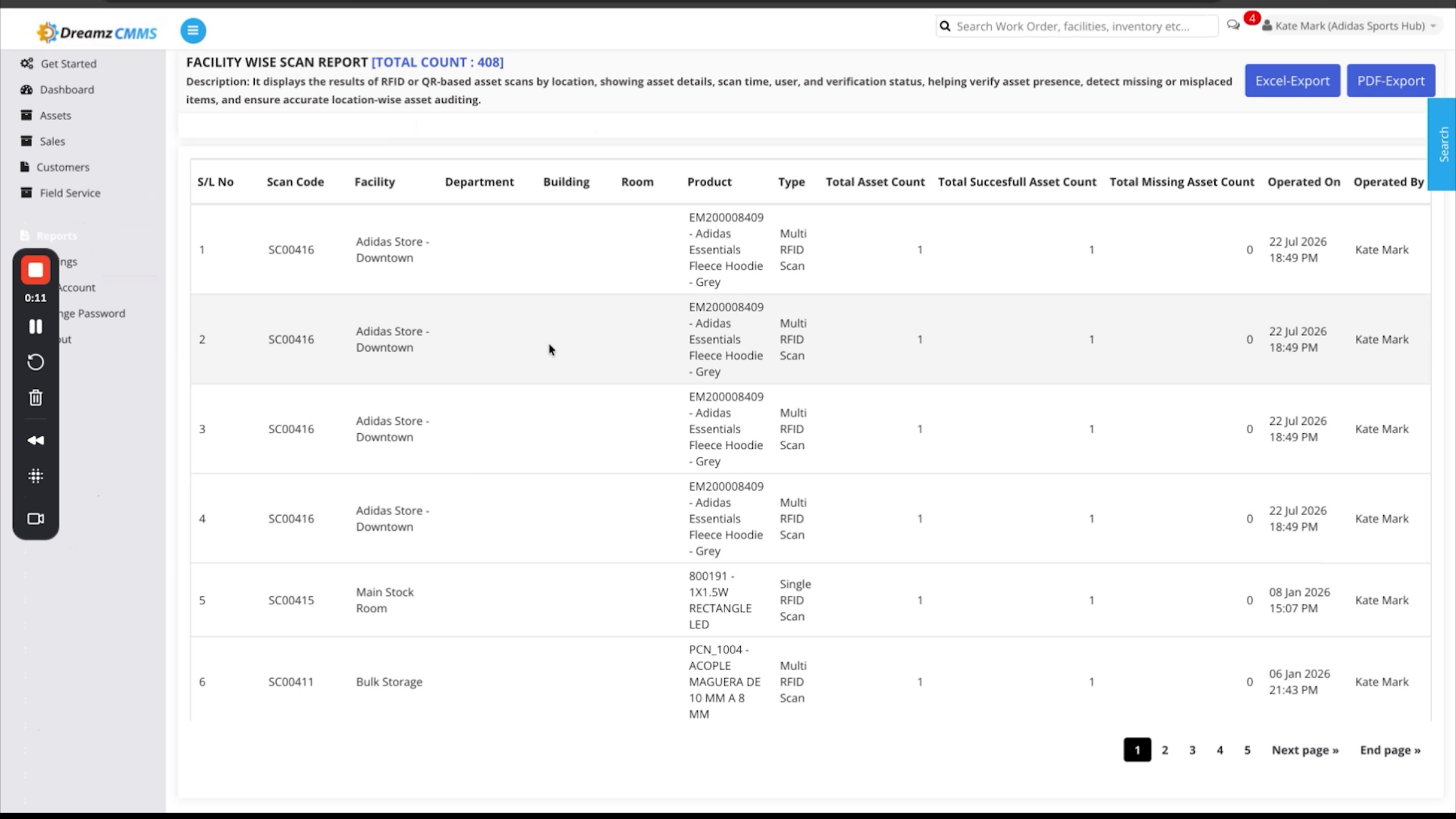
The FacilityWise Scan Report shows every scan by location — asset counts, successful reads, and anything missing — letting you audit accuracy store by store, right down to the department, building, and room.
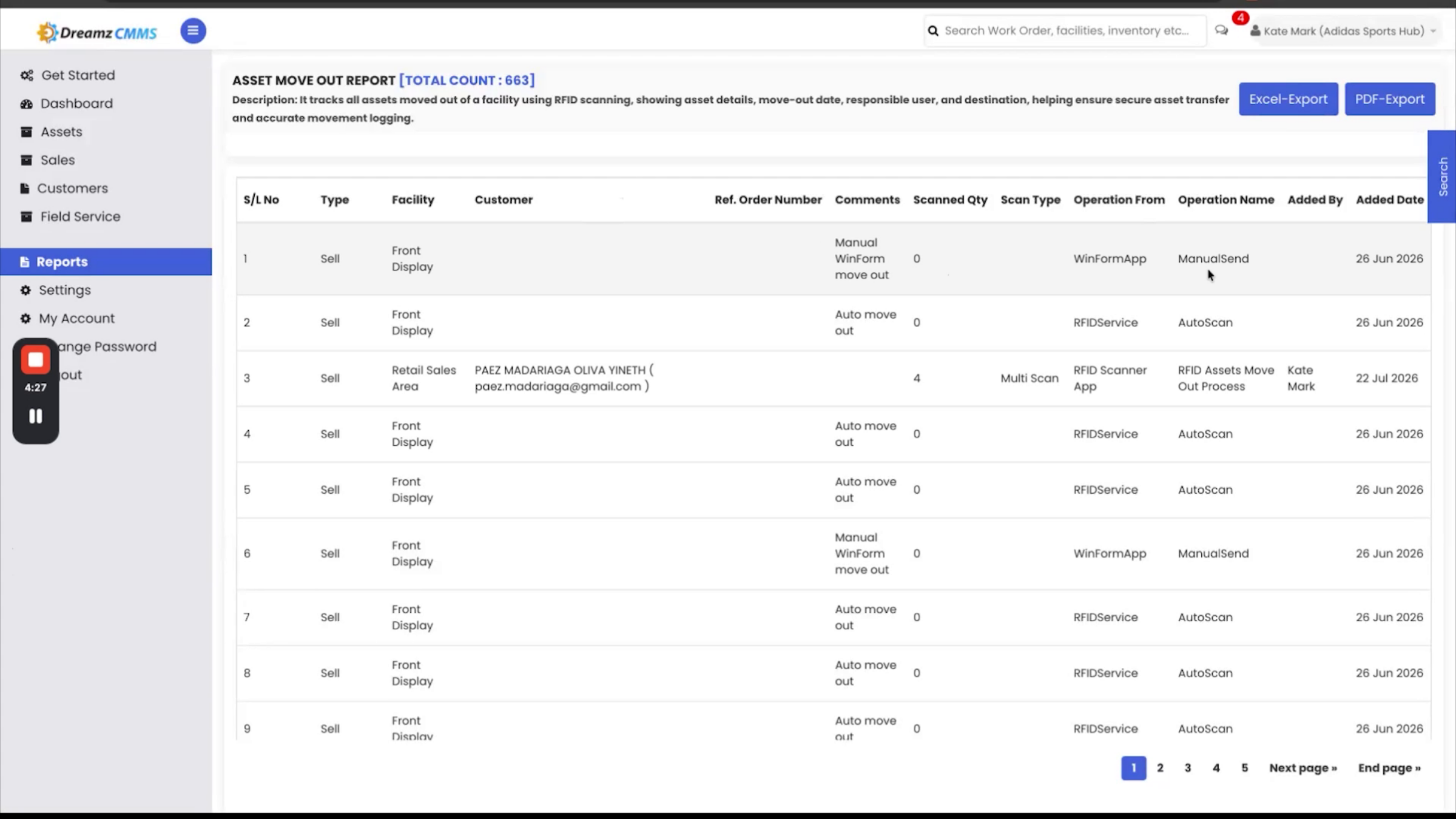
For transfers, the LocationWise Dispatch Report and the FacilityWise Dispatch Journey Report both track every transfer end to end: what was scanned out, what arrived, and any mismatch flagged automatically for follow-up. For stock checks, the LocationWise Inquiry Report and Inquiry Summary Report roll up every inquiry across all locations — valid assets, missing assets, and anything unexpected showing up where it shouldn't be. The Asset Move Out Report is your full sales audit trail: every item sold, by whom and when.
Exporting Reports
All reports export straight to Excel or PDF, with a dedicated SAP export available for dispatches.
After Setup — What's Next?
Between the RFID handheld app on the retail floor and the portal in the office, you get a complete, tamper-proof record of every asset from the day it arrives to the day it's sold — that's the full DreamzCMMS RFID platform, end to end. Once you're comfortable with the portal, you can:
- Confirm your ERP sync is current by checking the last sync time shown at the top of each order screen.
- Check the Antenna Monitor Dashboard regularly so hardware issues get caught before they affect scanning.
- Export scan, transfer, and inquiry reports on a regular cadence to keep an audit-ready record.
If you'd like your team walked through a live, hands-on session, DreamzTech would love to set that up — contact us to schedule a personalized demonstration.
Tips for Managing the RFID Portal
- Use SyncMaster Data for an on-demand refresh if you've just made a change in your ERP and don't want to wait for the next automatic sync.
- Set up Combo Items for any bundled products up front, so bundle sales map correctly to their individual components from day one.
- Check Print Jobs before reprinting a batch of tags — it may already be logged and ready to reprint rather than needing to regenerate.
- Use the SAP export specifically for dispatches if your downstream systems expect that format.
Frequently Asked Questions
Do I need to enter purchase and sales orders manually in the RFID portal?
No. Purchase orders and sales orders sync automatically from your ERP system, with the last sync time shown at the top of each screen.
What happens if an exit antenna goes offline?
The Antenna Monitor Dashboard shows which antennas are active or offline at a glance, so you can catch and address hardware issues quickly.
How are bundled products handled?
Combo Items automatically maps each bundled product to its individual components, so bundle sales are tracked accurately.
Can I export reports to my ERP or another system?
Yes. All reports export to Excel or PDF, and a dedicated SAP export is available specifically for dispatches.