Managing Assets with the RFID Scanner in DreamzCMMS
Confirming that assets are where they're supposed to be, and moving them between locations, shouldn't mean manually checking items off a spreadsheet. With an RFID handheld scanner connected to DreamzCMMS, you can inquire, move, dispatch, and locate tagged assets in seconds — with every scan instantly reflected back in the desktop platform.
Overview
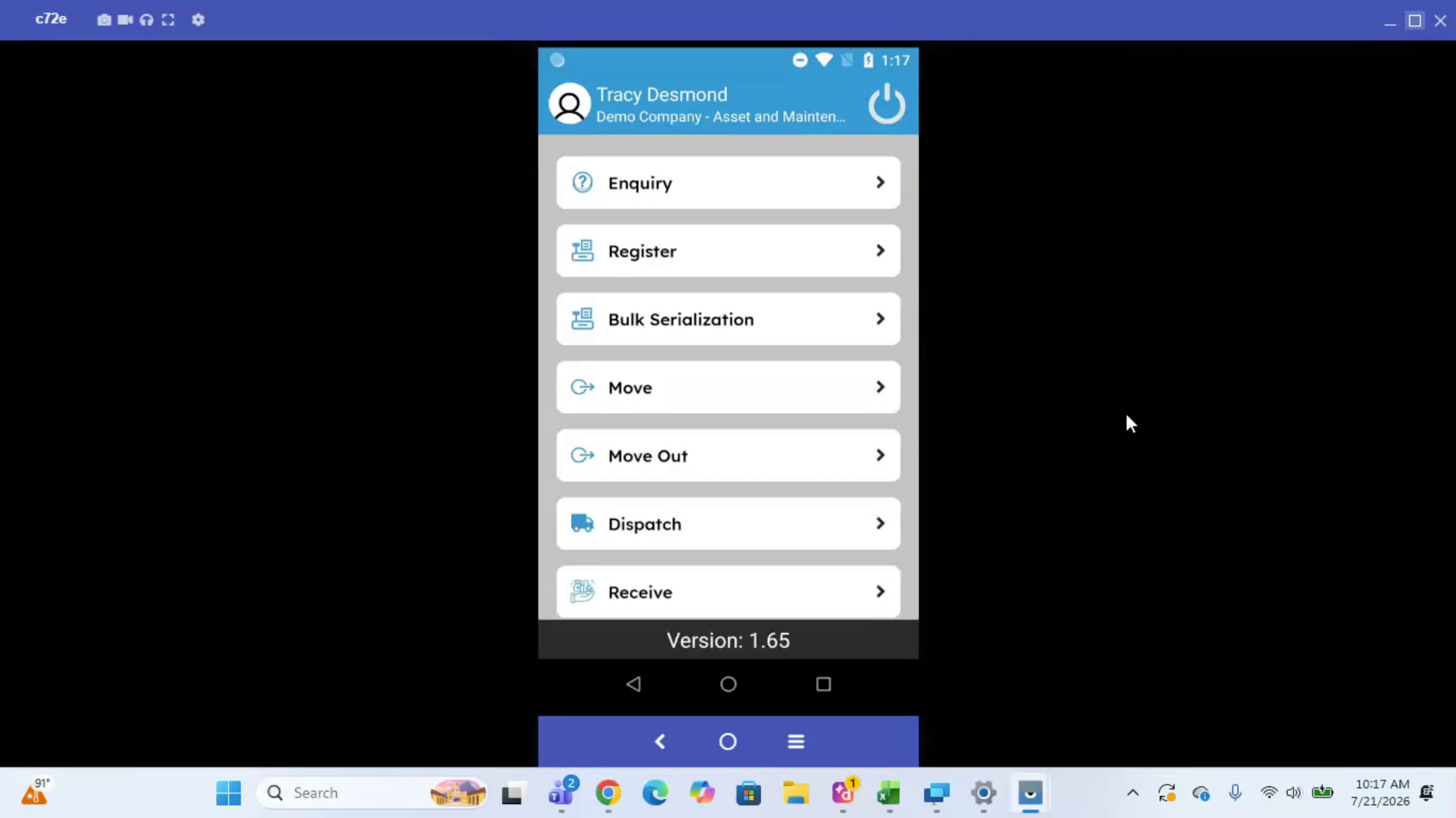
The RFID handheld scanner gives you several modules to interact with RFID tags placed on your assets: Register and Bulk Serialization to scan in new tags and connect them to assets, Move and Move Out to relocate or remove assets from the platform, Dispatch and Receive to send assets to a location and confirm their arrival, Return to send assets back to their dispatched location, Unregister to free up a tag for reuse, and Asset Locator to search for a specific asset by serial number and track signal strength as you walk around. Everything you scan syncs back to the desktop CMMS in real time, and RFID-specific reports let you validate what was scanned, where, and by whom.
Here is a reference video:
Before You Begin
- You must have an RFID handheld scanner (or fixed reader) paired with your DreamzCMMS account.
- Your assets should already have RFID tags registered and connected to their asset records — use the Register or Bulk Serialization function if you haven't done this yet.
- Know your facility's location hierarchy (facility → sub-location) in the Asset Tree View, since inquiries and moves are performed against specific locations.
How to Inquire, Move, and Track Assets with RFID
Step 1 – Understand Your Asset Tree View
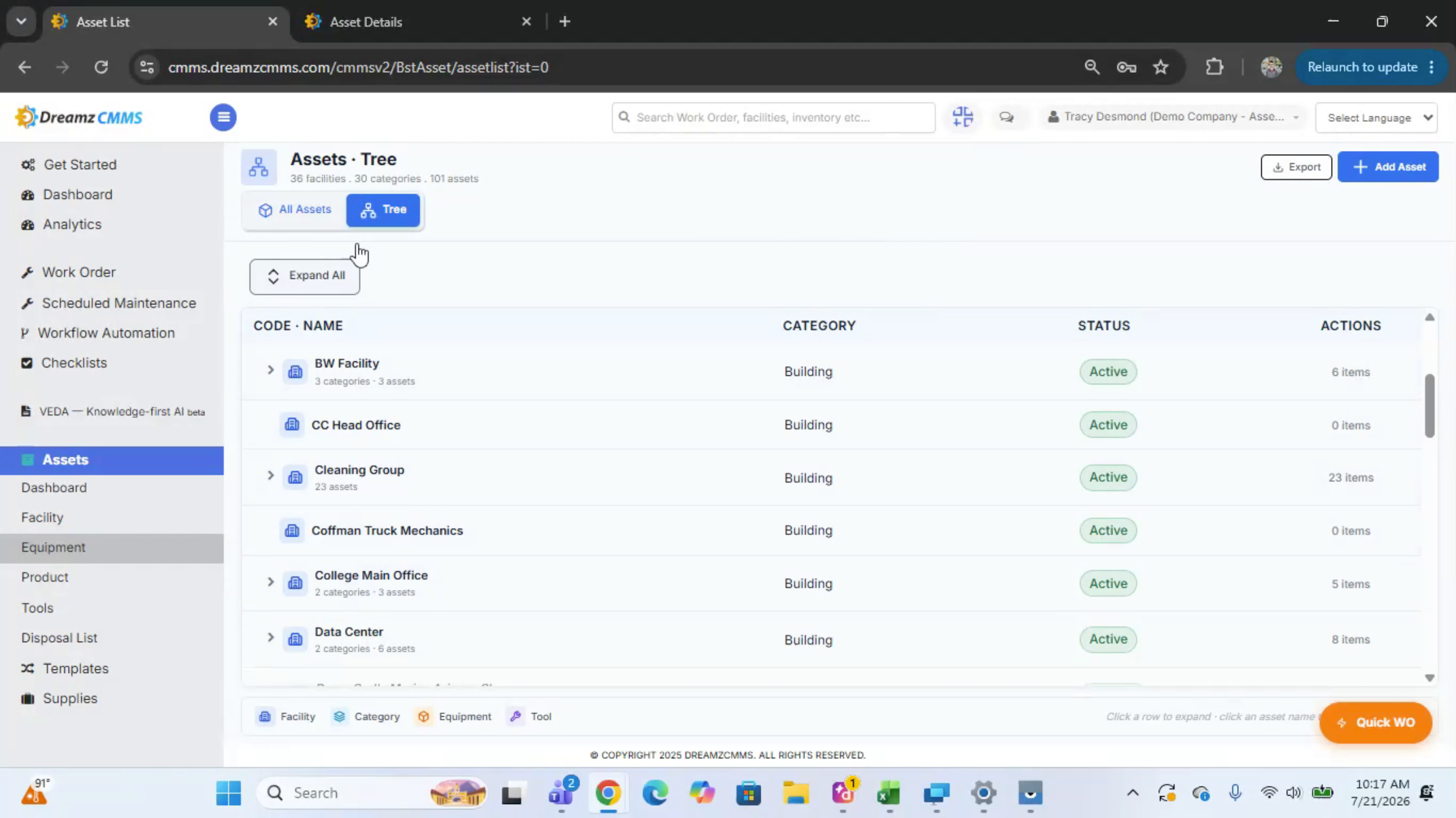
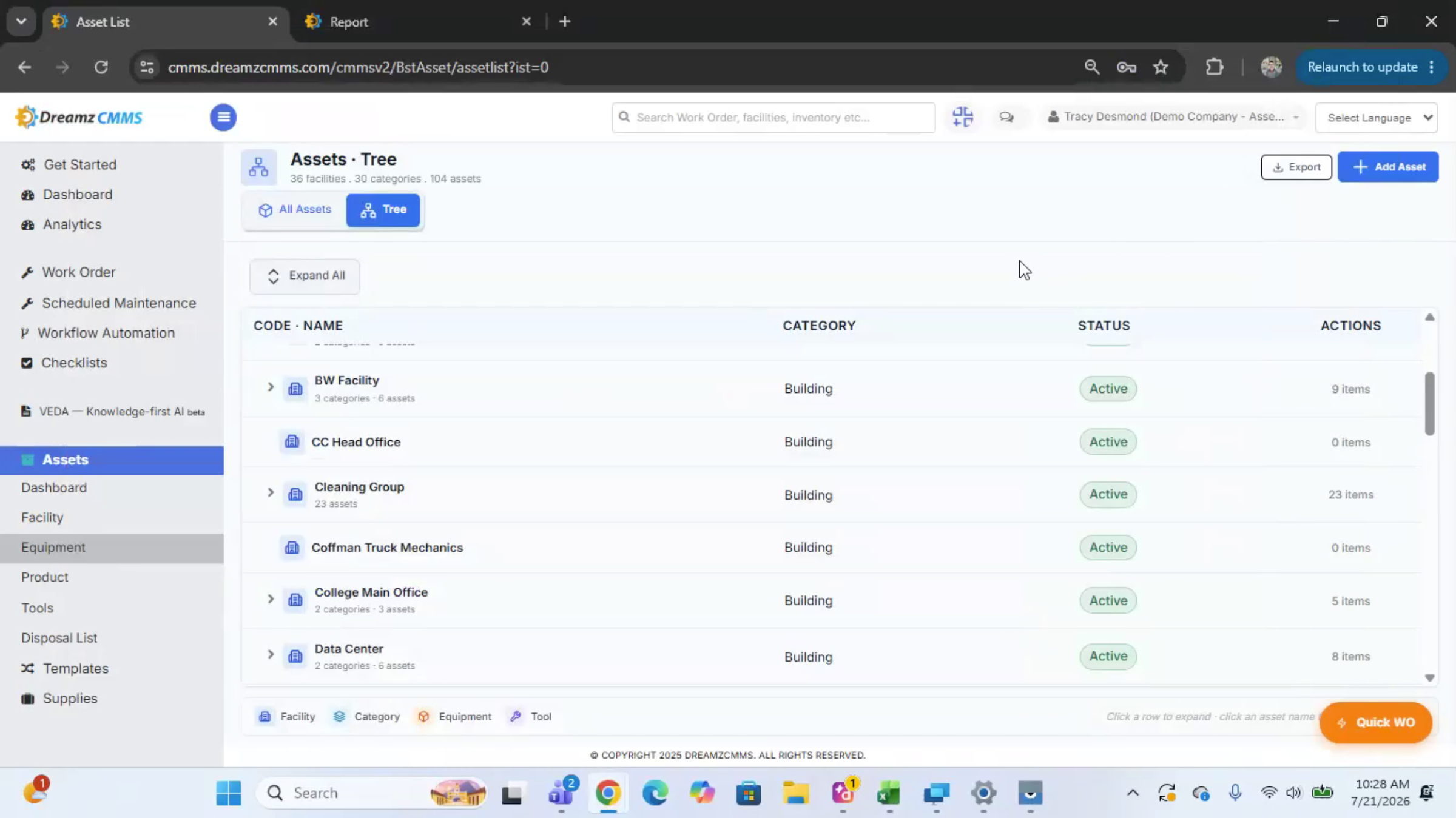
Before scanning, review the Asset Tree View to understand your facilities and sub-locations. For example, a facility might have an inventory room with several staged assets, such as computers and a cleaning tool — this is the baseline you'll confirm with a scan.
Step 2 – Know Your RFID Scanner Modules
The RFID handheld scanner offers several modules: Register and Bulk Serialization to scan in new tags and connect them to assets, Move and Move Out to relocate or remove assets from the platform, Dispatch and Receive to send assets to a location and confirm arrival, Return to send assets back to their dispatched location, Unregister to free up a tag, and Asset Locator to search for a specific asset by serial number, showing signal strength as you walk around to find it.
Step 3 – Run an Inquiry to Confirm Assets in a Location
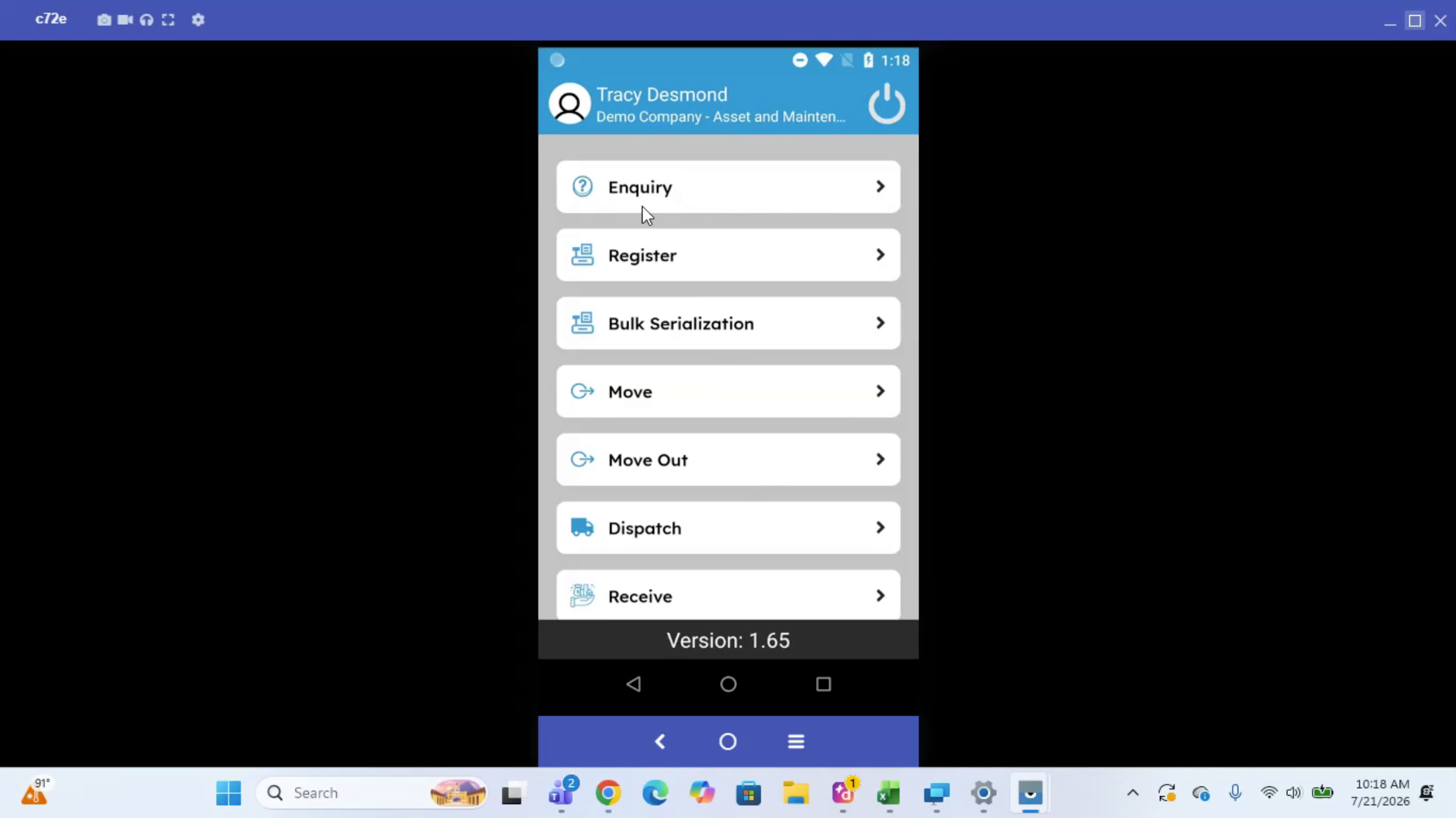
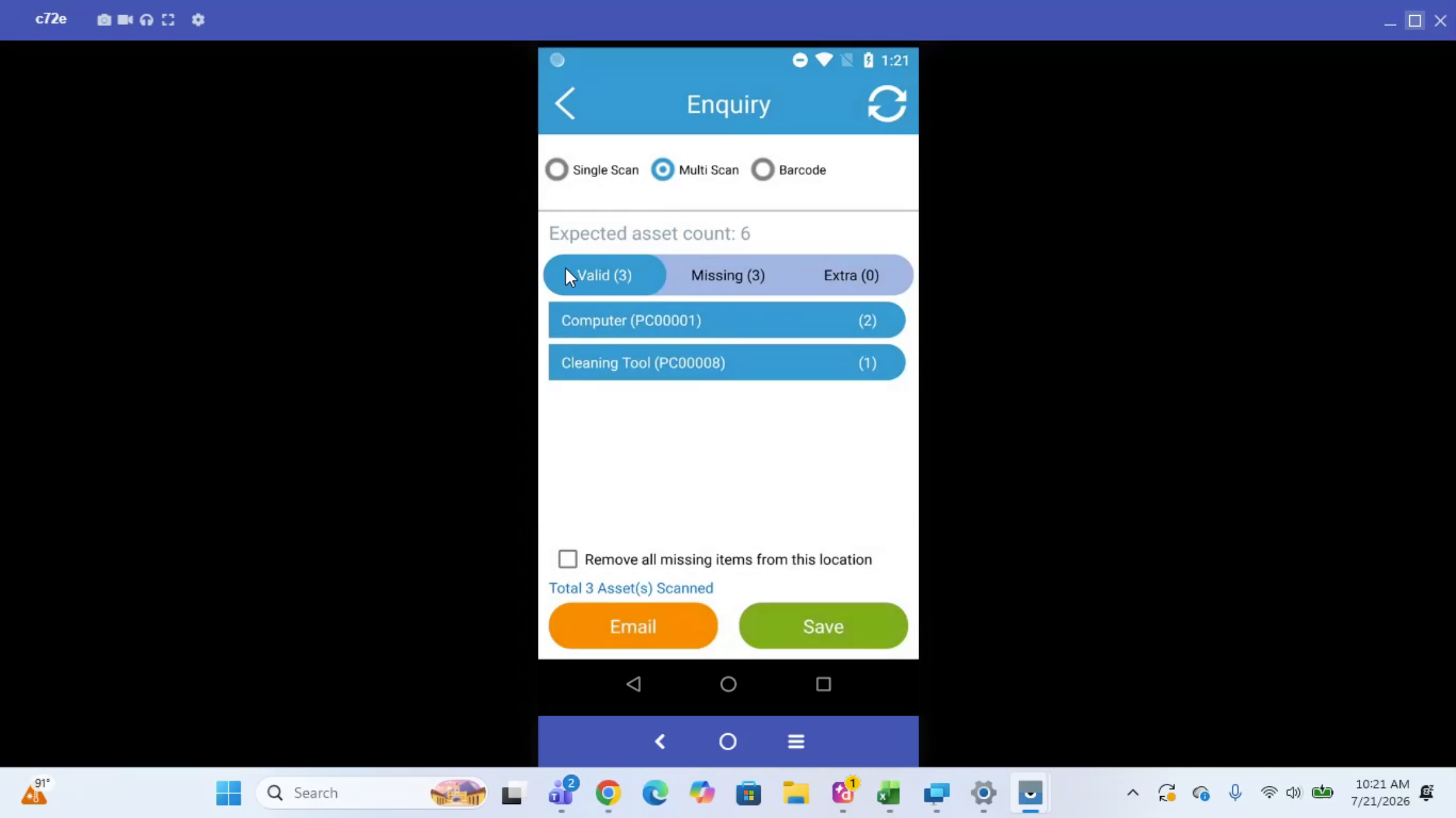
Note: In the Inquiry tab, select the location you want to check — for example, the inventory room — and choose Multi-Scan to scan the room, then stop the scan. Valid assets found appear below (for example, a cleaning tool and two computers). Click any asset to open its detail screen and edit options. Any tags or assets expected in the location but not found appear under Missing, and any unexpected assets appear under Extra. Save the inquiry when you're done so it can be reviewed later in the Inquiry Report.
Step 4 – Move Assets Between Locations
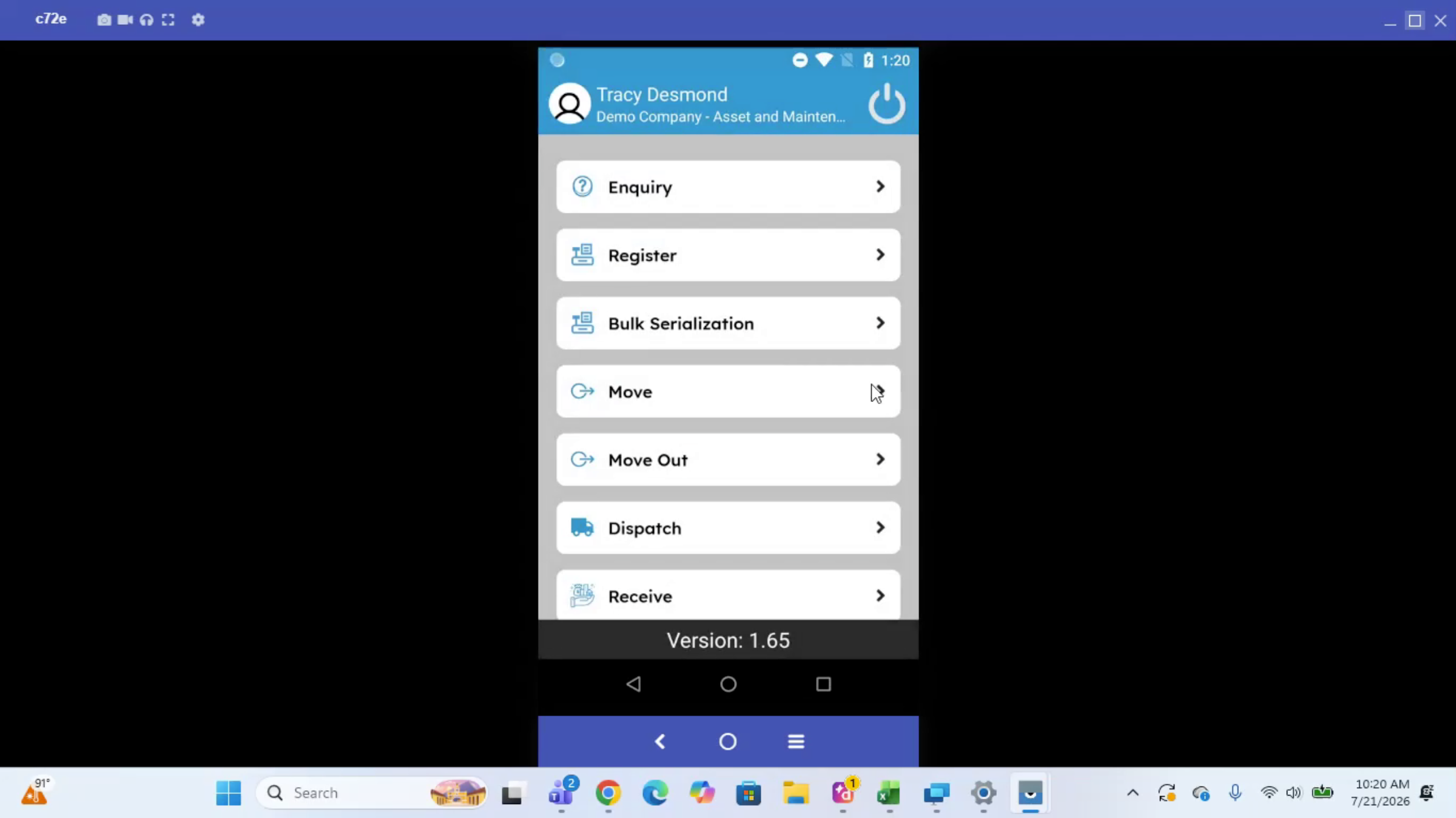
To move assets, select the destination location and scan the assets you want to relocate. Valid scanned assets are listed, and you can remove any you don't want to include before clicking Submit.
Step 5 – Confirm the Move with a Follow-Up Inquiry
Run an inquiry on the new location to confirm the moved assets are there. Any assets not yet scanned at the new location will still show as outstanding, and you can continue scanning to find them. Save the inquiry when finished, and continue using the tool as needed.
Viewing Results in the Desktop CMMS
Everything you do with the RFID handheld or a fixed reader shows up on the desktop CMMS. In the Equipment Tree View, open the destination facility to see the assets you moved. You can also use All Assets and filter by location to see the same assets, then click into any of them to view their details and log — including past transactions and a timeline of when the item was scanned and moved.
RFID Reports
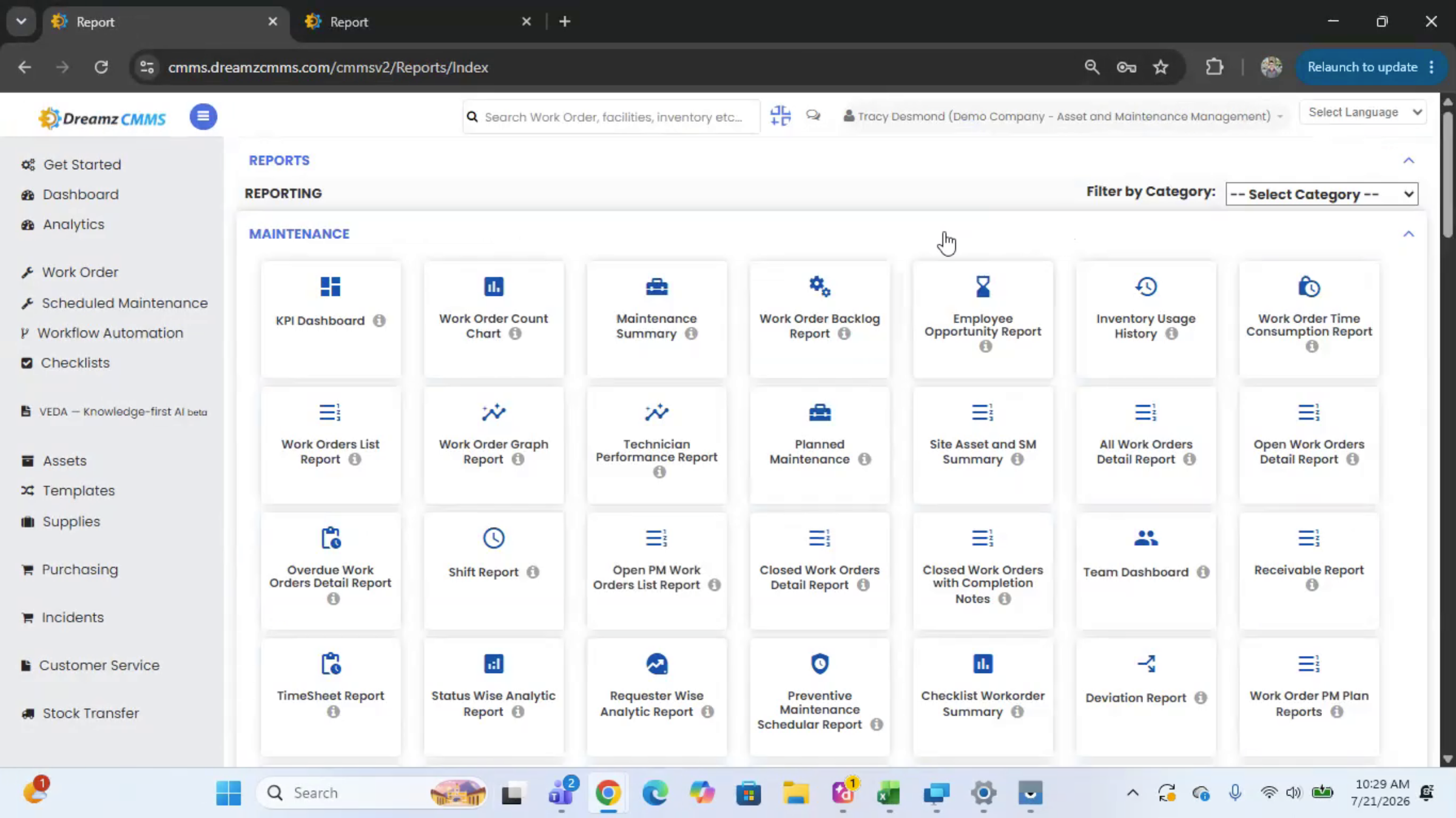
Use the Reports module and select the RFID category from the dropdown to see RFID-related reports, such as inquiry reports (by user or location) and current asset count per location. Click any report to see details, filter, and export it as needed — for example, an inquiry report will show each inquiry performed, which location it covered, and how many assets were scanned.
After Scanning — What's Next?
With assets tagged and your team scanning regularly, DreamzCMMS keeps an accurate, real-time record of where every asset is and when it last moved. Once you're comfortable with the core workflow, you can:
- Run regular inquiries on high-traffic locations to catch missing or misplaced assets early.
- Use Dispatch and Receive for assets moving between facilities, rather than a simple Move, so both ends confirm the transfer.
- Schedule inquiry and asset count reports so location accuracy is reviewed on a regular cadence.
Ready to see RFID asset tracking in action? Contact DreamzTech to schedule a personalized demonstration.
Tips for RFID Asset Tracking
- Register new tags as soon as assets arrive, rather than batching it later — it keeps your Missing/Extra results accurate from day one.
- Always run a follow-up inquiry after a move to confirm every asset actually arrived at the new location.
- Use the Asset Locator's signal strength when hunting for a specific misplaced item instead of scanning an entire facility.
- Save every inquiry, even routine ones — they build the historical record you'll rely on in the Inquiry Report later.
Frequently Asked Questions
What happens if an asset I expect isn't scanned during an inquiry?
It appears in the Missing tab, so you know immediately which expected assets weren't found in that location.
What if I scan an asset that isn't supposed to be in that location?
It appears in the Extra tab, flagging assets that are present but weren't expected there.
How do I find one specific asset in a large facility?
Use the Asset Locator and type in the asset's serial number — it will show scan signal strength as you walk around, helping you zero in on its location.
Do RFID scans update the desktop CMMS automatically?
Yes. Any interaction from the handheld scanner or a fixed reader is reflected in the desktop CMMS, including the Equipment Tree View, All Assets filters, and each asset's log and transaction history.