Using the RoutePilot Driver App: From Stop List to Proof of Delivery
The RoutePilot mobile app streamlines deliveries with guided navigation, live job updates, and digital proof of delivery. From logging in for the first time to submitting the last stop of the day, the app keeps drivers organized and keeps dispatch informed in real time.
Overview
Once dispatch has locked in the day’s optimized routes, drivers take it from there using the RoutePilot app. The app guides drivers through every stop — reviewing stop details, launching turn-by-turn navigation, starting and completing the service, and submitting proof of delivery or pickup. As stops are completed, they move automatically into a Completed section, giving drivers a clear view of what’s done and what’s still ahead, with optimized routes, turn-by-turn navigation, digital proof of delivery, and real-time job updates from the first stop to the last.
Here is a reference video:
Before You Begin
- You must have the RoutePilot mobile app installed on your device.
- Get the six-digit mobile app key from your administrator before opening the app for the first time — you'll need it to log in.
- Your routes must already be optimized and locked by dispatch — see How to Optimize Delivery Routes with DreamzCMMS — before stops will appear in your app.
- Make sure location services, camera access, and notifications are enabled on your device so navigation, photos, and job updates work correctly.
How to Complete a Route in the RoutePilot App
Step 1 – Log In with Your Mobile App Key
When you open the RoutePilot driver app for the first time, enter the six-digit mobile app key provided by your administrator to log in.
Step 2 – Review Your Orders Screen and Stop Details
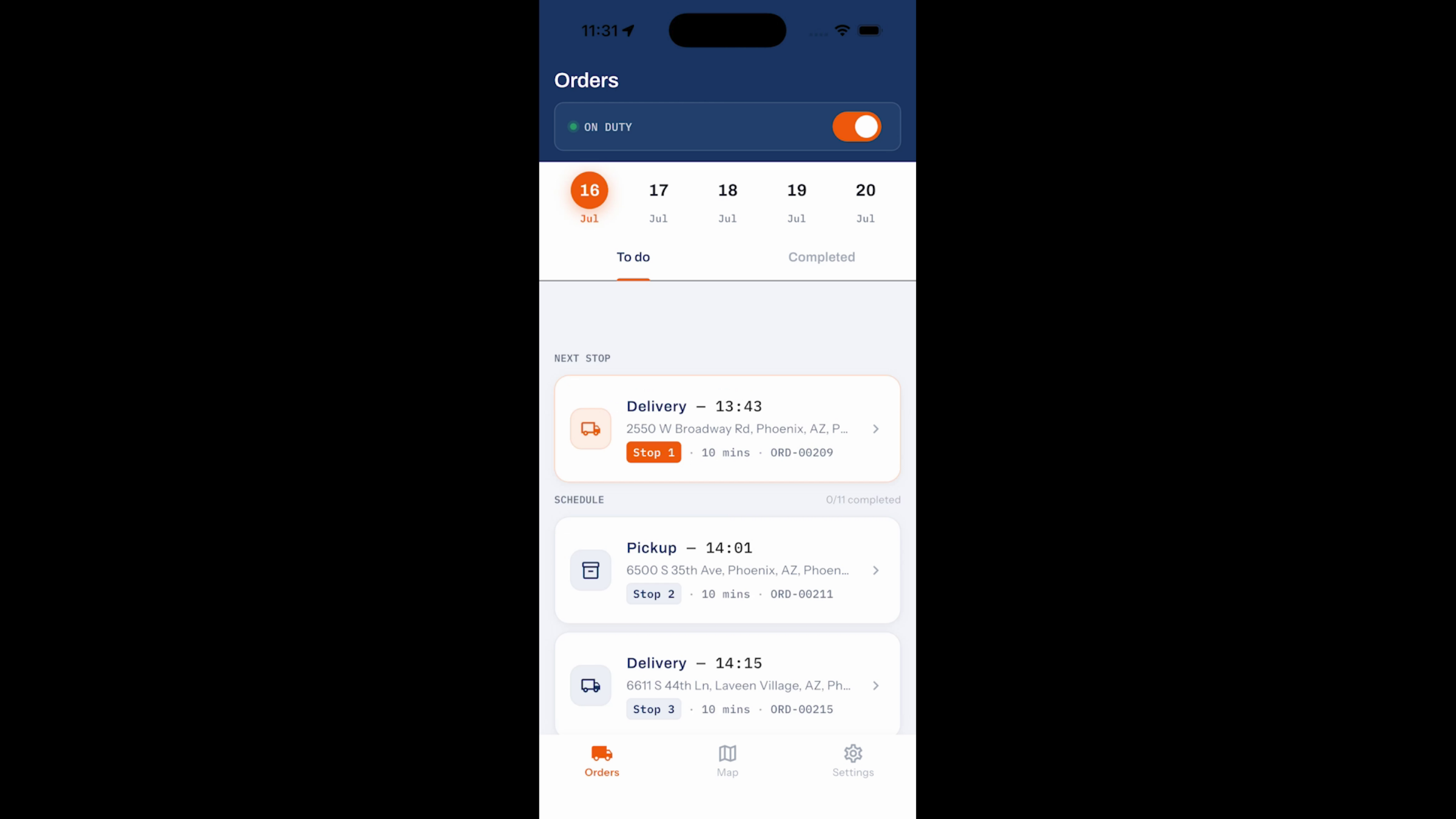
After logging in, you’ll arrive at the Orders screen, where all your assigned deliveries and pickups for the day are listed in sequence, with the next stop highlighted at the top. At the bottom of the screen, an interactive map displays every stop on your route — swipe the card left or right to move between stops, or tap any marker on the map to jump directly to that stop. Selecting a stop opens its details page, where you can review everything you need before starting the job, including the order type, scheduled time, customer information, delivery address, order ID, weight, and volume. From here, you can either start navigation or begin the service.
Step 3 – Start Navigation
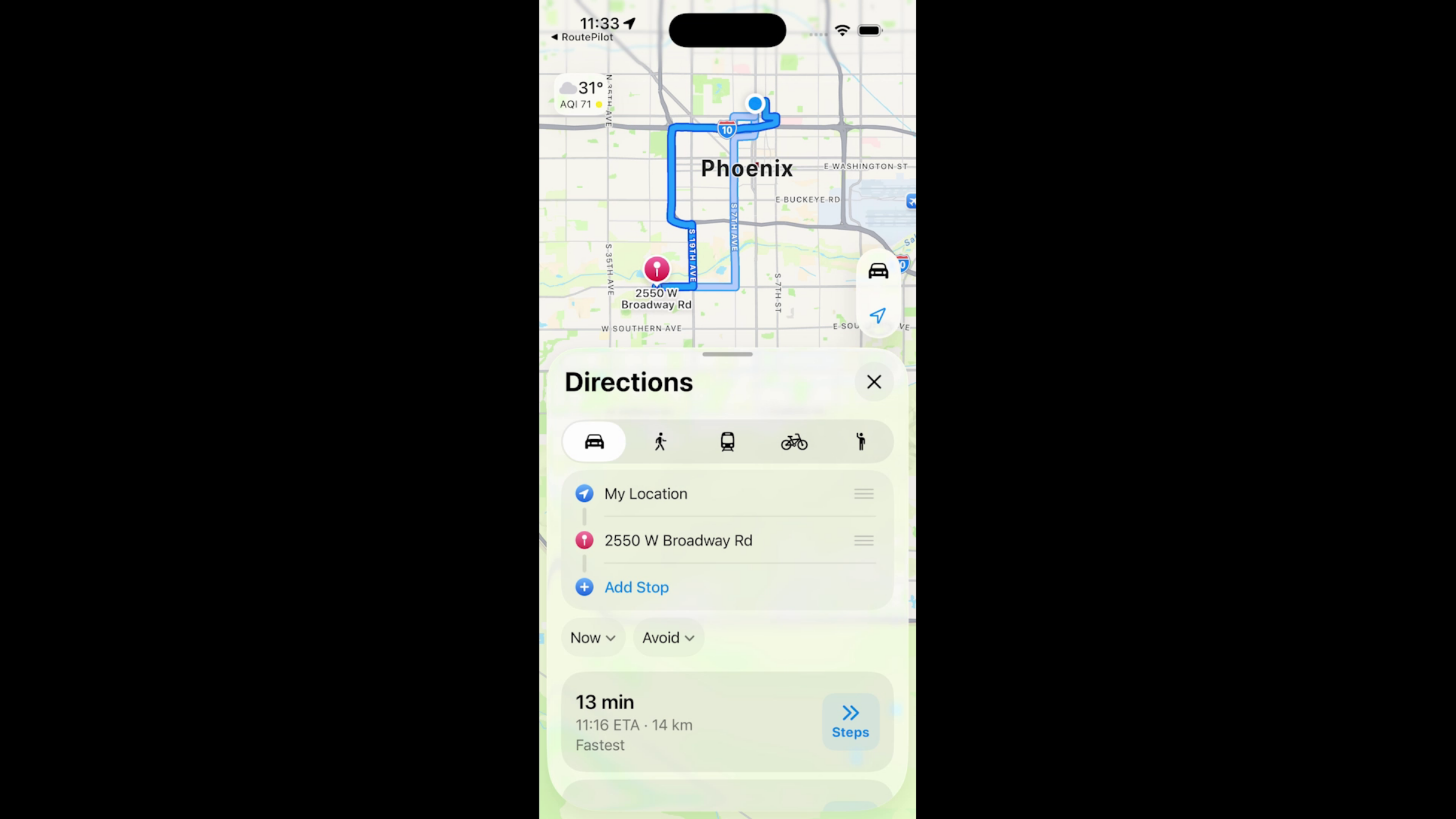
Tapping Start Navigation opens your device’s preferred navigation app with turn-by-turn directions to the selected destination.
Step 4 – Start and Complete the Service
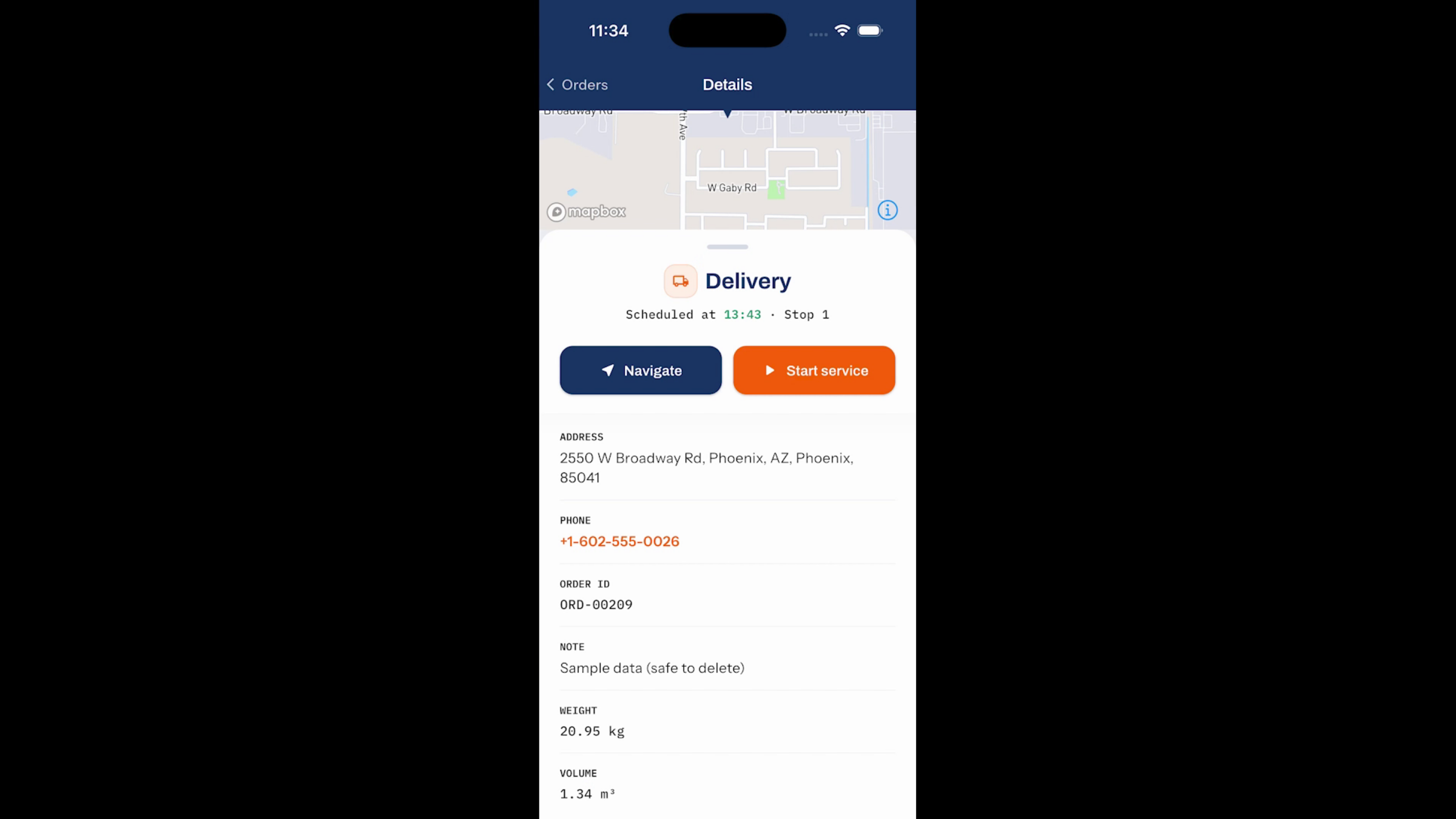
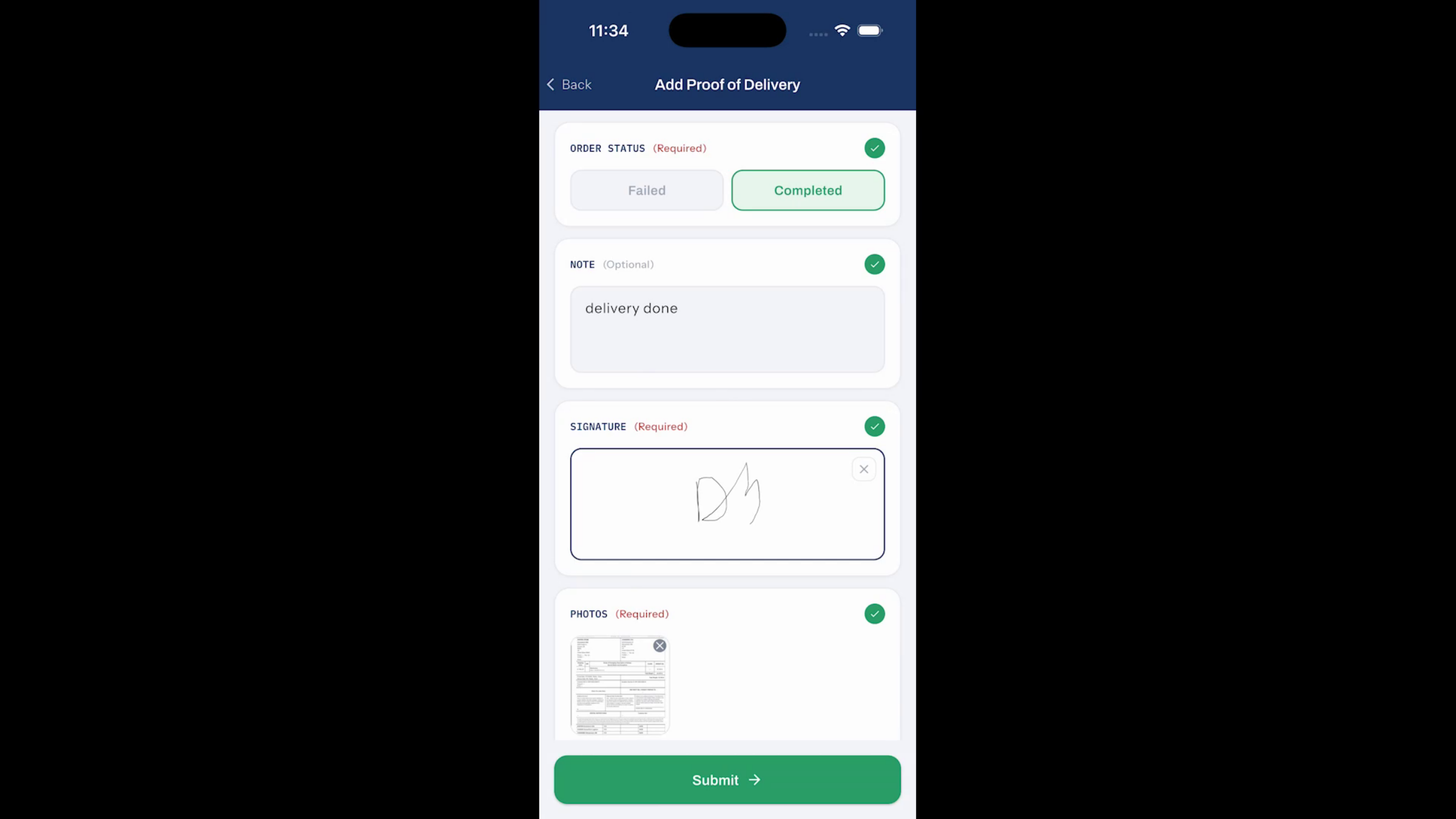
Note: Once you arrive, tap Start Service to begin the delivery or pickup process — this updates the job status and ensures the service activity is accurately tracked from start to finish. After completing the delivery or pickup, tap Done, then confirm the outcome by selecting Completed for a successful delivery, or Failed if it couldn’t be completed. For deliveries, you must complete the required fields: order status, customer signature, and at least one photo of the delivered package. For pickups, the photo is optional and no signature is needed.
Step 5 – Submit the Stop
Once everything is filled in, tap Submit to complete the stop. A successfully submitted stop automatically moves to the Completed section, giving you a clear view of finished deliveries while keeping the remaining assignments organized throughout the day.
After Submitting — What's Next?
With optimized routes, turn-by-turn navigation, digital proof of delivery, and real-time job updates, RoutePilot helps drivers stay organized, complete deliveries efficiently, and maintain accurate records from the first stop to the last. Once your stops are submitted, you can:
- Move on to the next stop in your sequence, using the same review → navigate → service → submit workflow.
- Check the Completed section any time for a quick view of everything you’ve wrapped up that day.
- Rely on dispatch to see your job updates in real time, since each submission syncs back automatically.
Ready to optimize your delivery operations? Contact DreamzTech to schedule a personalized demonstration.
Tips for Drivers
- Keep your six-digit mobile app key handy the first time you log in — get it from your administrator ahead of time if possible.
- Double-check stop details (address, order ID, weight/volume) before tapping Start Navigation to avoid detours.
- For deliveries, capture a clear photo of the package and get the signature before tapping Submit — both are required fields.
- If a delivery can’t be completed, select Failed and choose the correct reason right away — this keeps dispatch informed in real time.
Frequently Asked Questions
Where do I get my mobile app key?
Your administrator provides the six-digit mobile app key, which you enter the first time you open the RoutePilot driver app.
Do I need a signature for every stop?
No. A customer signature and photo are required for deliveries. For pickups, the photo is optional and no signature is needed.
What happens if I can’t complete a delivery?
Tap Done, then select Failed and choose the appropriate reason. This updates the job status for dispatch immediately.
Can I jump to a stop out of sequence?
Yes. Tap any marker on the map at the bottom of the Orders screen to jump directly to that stop, or swipe the stop card left or right.