BestBrain Vendor Quotation Intelligence: From RFQ to Purchase Order
Procurement teams lose hours chasing vendor quotes over email, re-keying numbers into spreadsheets, and manually comparing bids. BestBrain Vendor Quotation Intelligence handles the entire procurement process in one place — from raising a requirement and collecting vendor quotes by email, to reviewing, comparing, and issuing a purchase order.
Overview
The platform follows an RFQ from creation to close: a pre-flight check validates every line item against your material standards and stock before it ever reaches a vendor, vendor replies are ingested and parsed automatically from email, quotes are compared side-by-side with an AI-generated recommendation, and awards move through a configurable approval chain before a PO is issued. Every action is logged in a live, auditable activity trail along the way.
Here is a reference video:
Before You Begin
- You must have buyer-level access to create and manage RFQs, and admin access if you need to configure standards, approval matrices, or scoring.
- Your buyer email and vendor emails should already be connected, since the platform ingests vendor replies directly from email.
- Make sure your material standards, stock data, and approval matrix are configured in Admin before running your first RFQ — these drive the pre-flight check and approval routing.
How to Run an RFQ from Start to Purchase Order
Step 1 – Check Your Dashboard
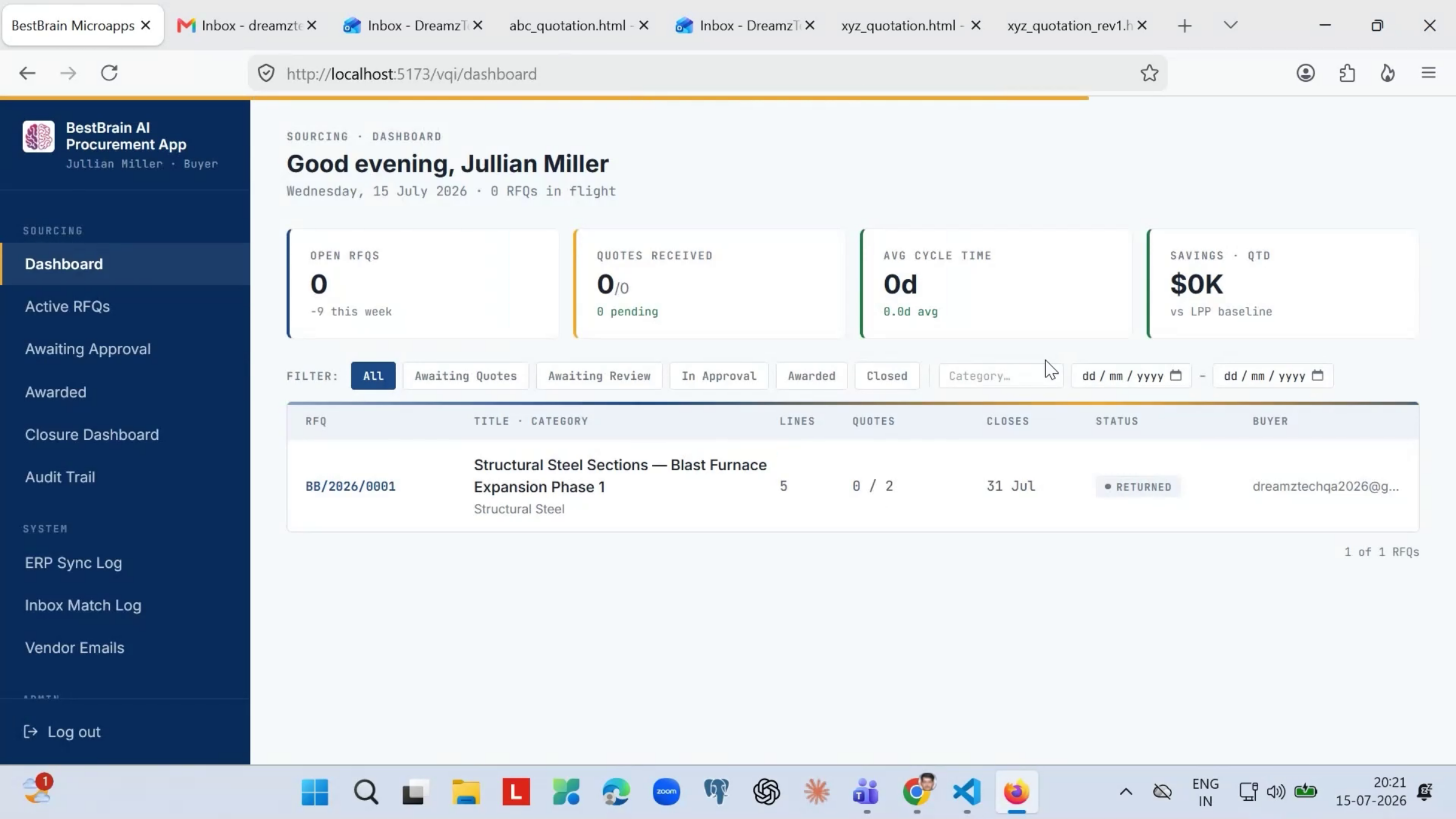
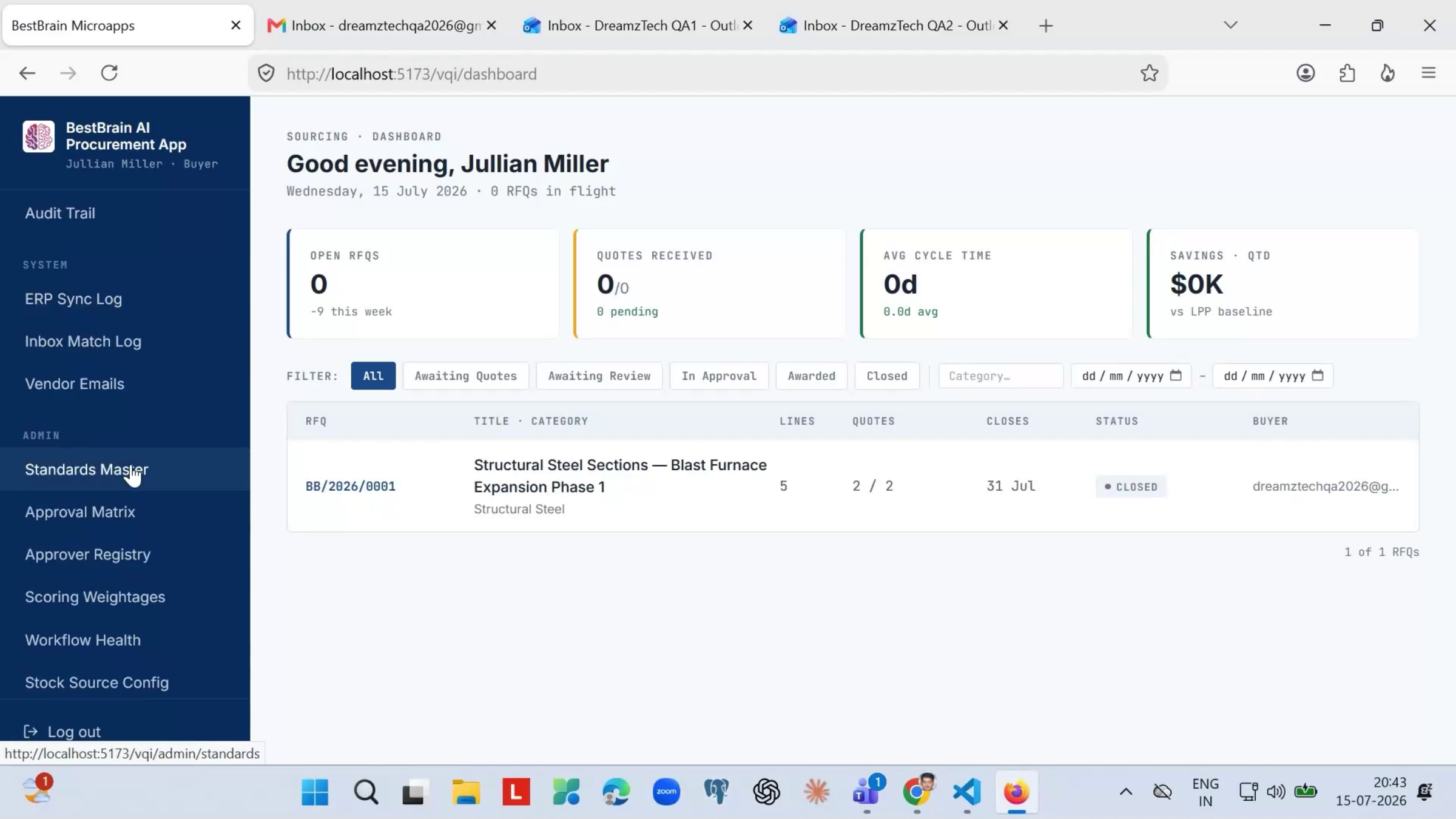
As soon as you log in, the dashboard shows how procurement is performing: Open RFQs, Quotes Received, Average Cycle Time, and Savings. Below that is your full list of active RFQs with their status, deadlines, and buyers — everything in one place.
Step 2 – Review RFQ Details and Run the Pre-Flight Check
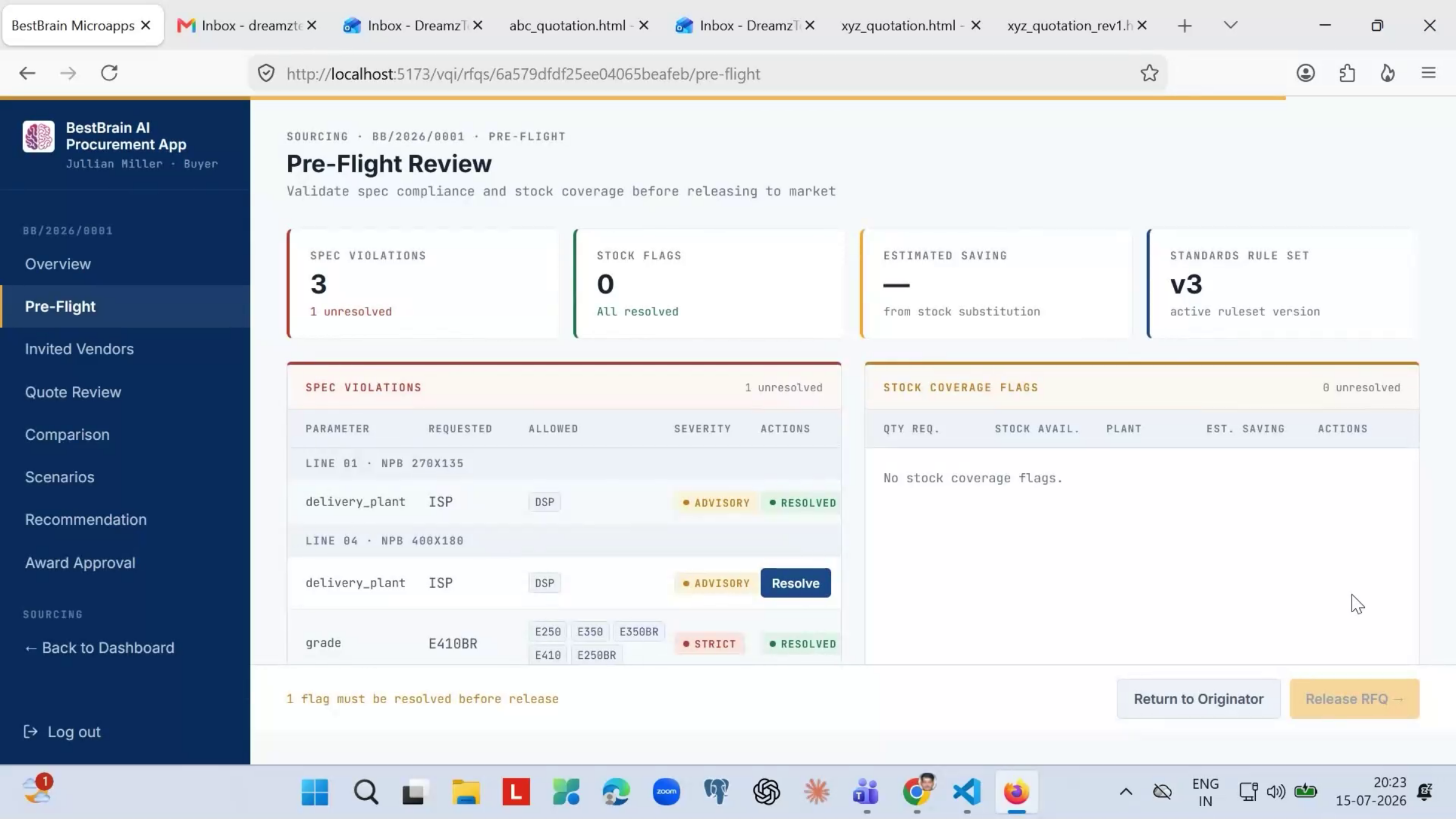
Opening an RFQ shows all key details on the Overview tab — reference number, category, delivery date, estimated value, and current status — along with every line item (item codes, descriptions, quantities, and delivery plans) and a live activity log of every action taken. Before any vendor is contacted, the system runs a pre-flight check: it validates every line item against your material standards and checks inventory for existing stock, flagging any violations or stock coverage opportunities. You can resolve each flag by dropping the line, adjusting the quantity, or proceeding with a documented reason — preventing bad orders from ever reaching vendors.
Step 3 – Resolve Spec Violations and Release to Vendors
Once all spec violations flagged by the pre-flight check are resolved, the RFQ is ready to be released to vendors.
Step 4 – Track Vendor Invitations and Responses
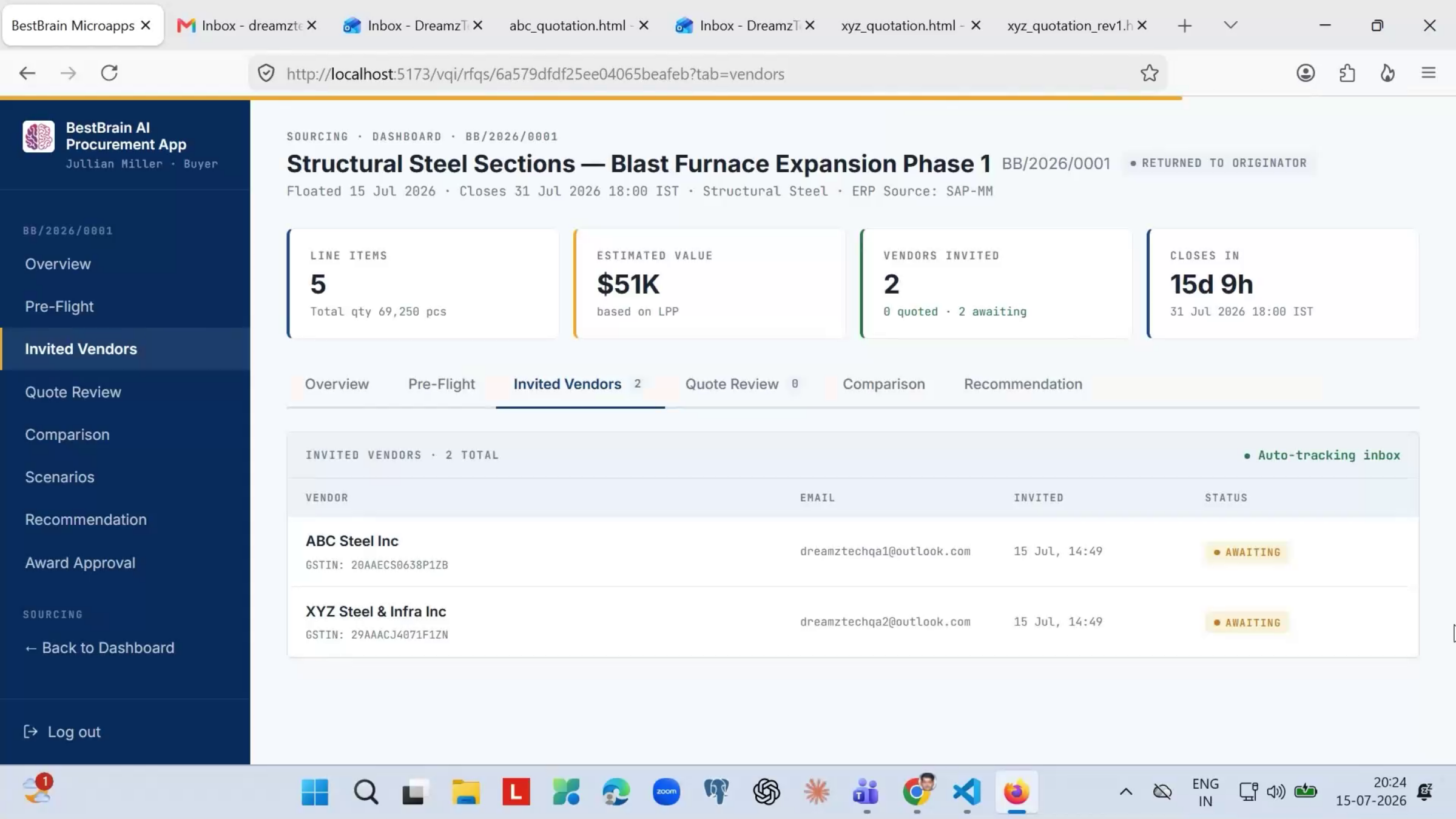
The Invited Vendors tab shows every vendor on the RFQ, along with their company information, when they were invited, and their current response status. As vendors reply by email, their status updates here automatically — no manual tracking needed.
Step 5 – Let the System Ingest Vendor Quotes Automatically
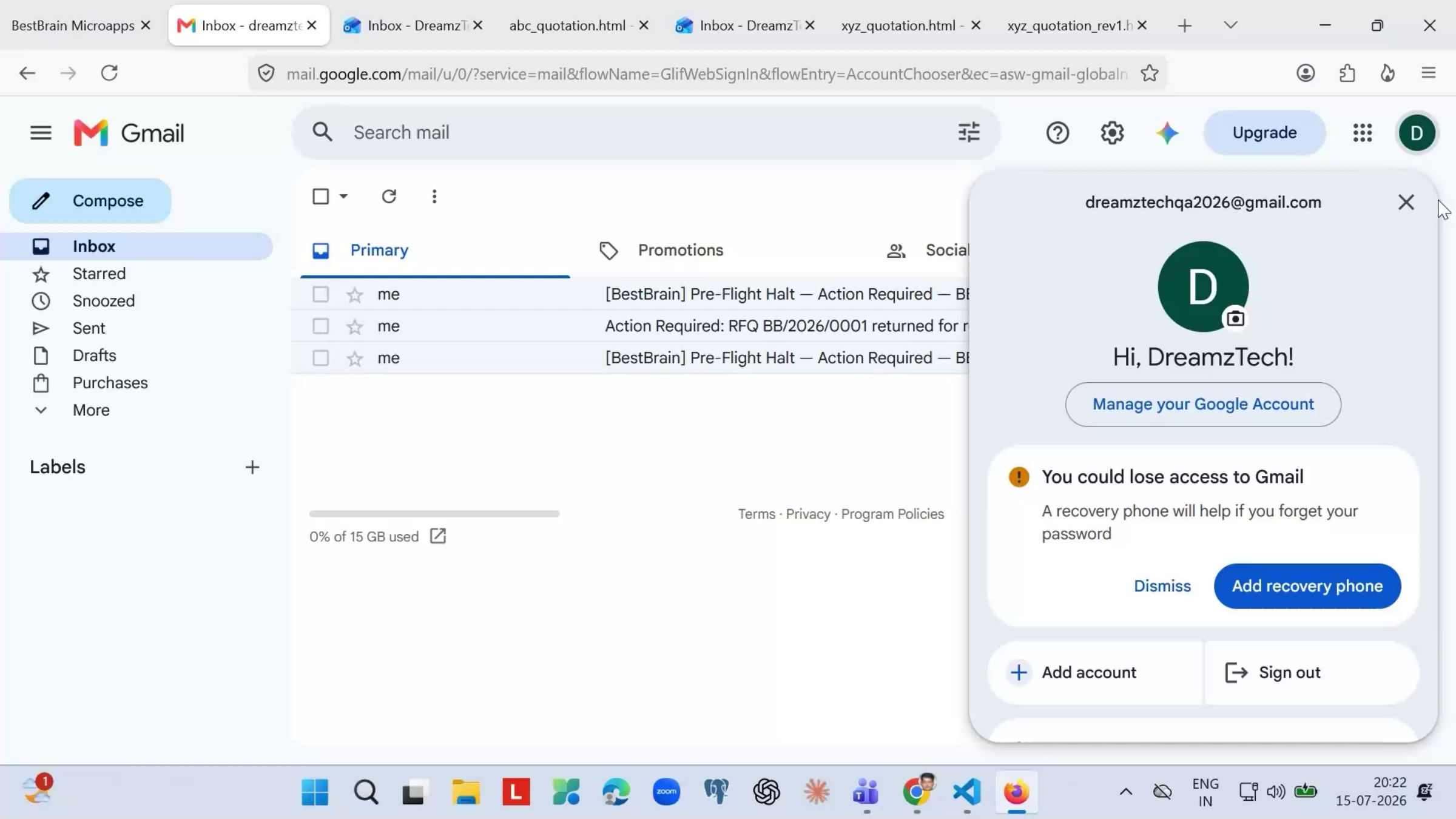
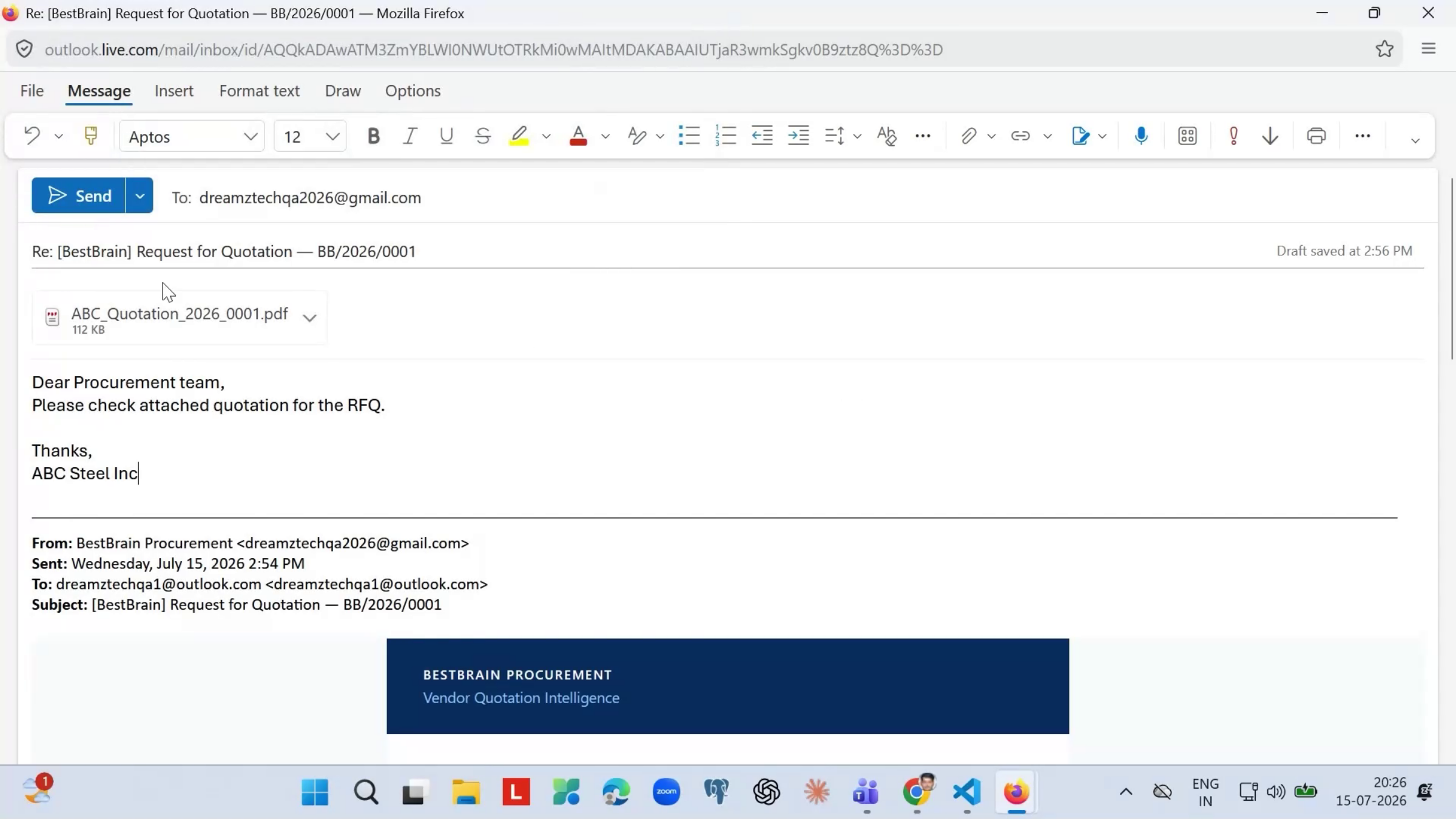
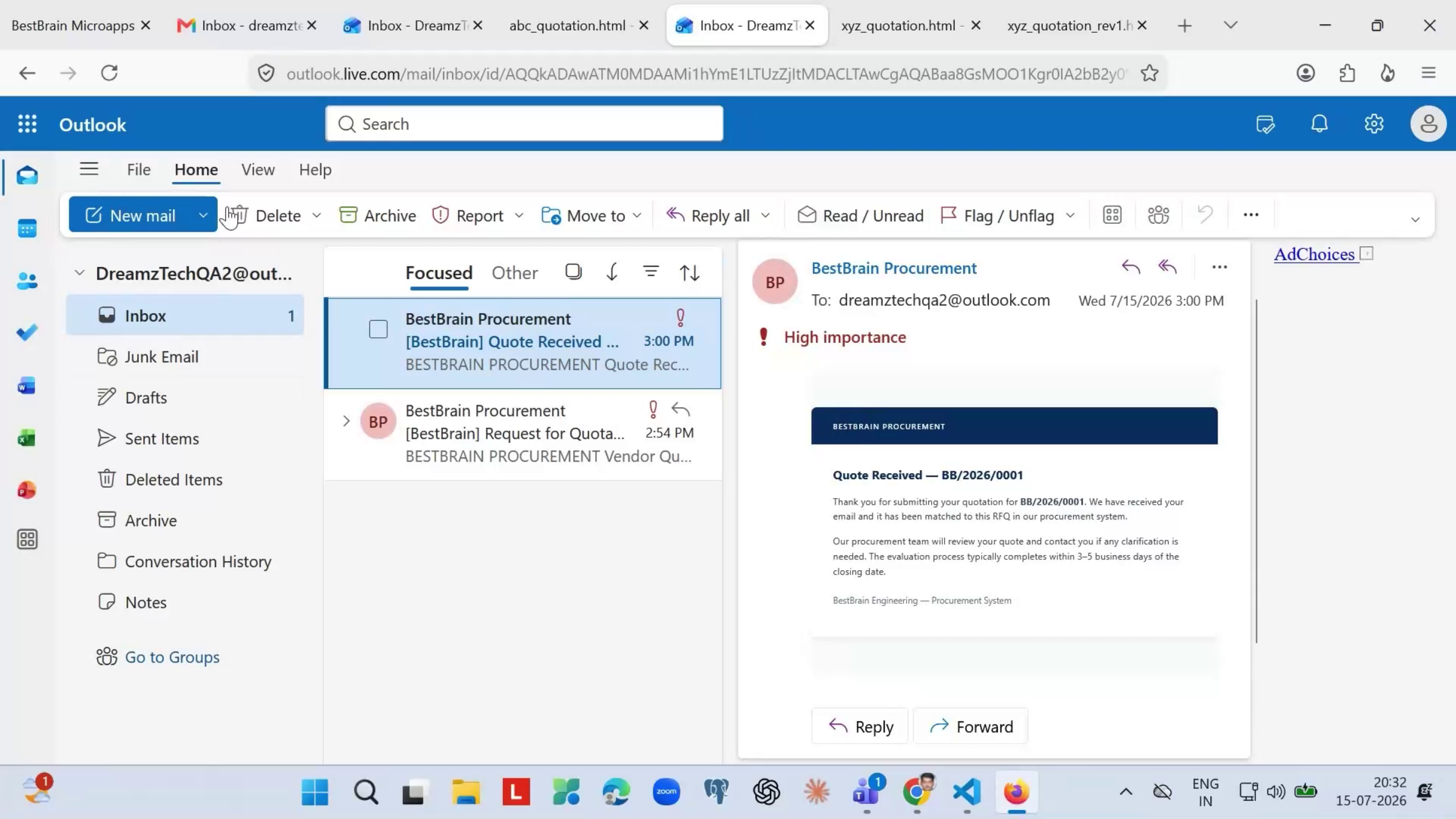
Once a vendor emails a quote, the workflow ingests the email, parses the email body, and extracts data from the attached file. The vendor then receives an automatic confirmation that their quote was received — the same process repeats for every vendor invited.
Step 6 – Review and Approve Quotes
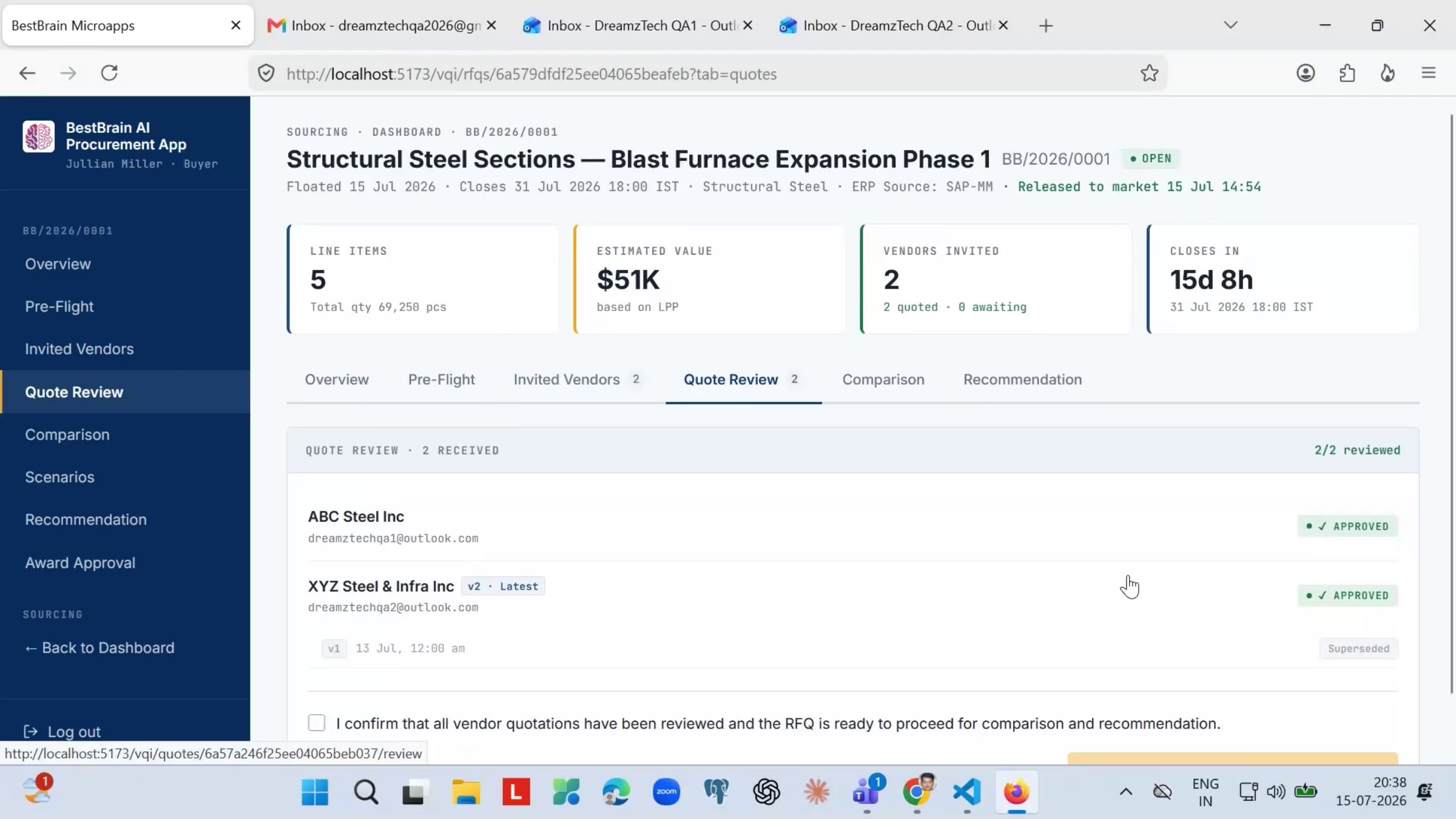
Note: Vendor emails appear in the Quote Review tab, where the system automatically matches each one to the right RFQ and extracts the quote from the PDF attachment. Opening a quote shows the original PDF alongside the extracted data, with a confidence score per field — green means the AI is confident, yellow means you should double-check against the source document. Click Approve once you're satisfied, or Reject with a reason if something's wrong. If a vendor sends a revised quote, all versions are preserved, with earlier versions marked superseded and the latest marked current.
Step 7 – Compare Quotes and Get a Recommendation
Once all quotes are reviewed, run the comparison for a side-by-side table of every vendor across all line items. Each vendor is ranked L1, L2, L3 based on landed cost, with the best value option highlighted per line, and you can see how each price compares to your last purchase price or budget rate. The system then generates a recommendation, suggesting the best vendor per line with a clear reason — lowest cost, MSME preference, or compliance — which you can override with your own choice and justification before submitting for approval.
Step 8 – Route the Recommendation Through Approval
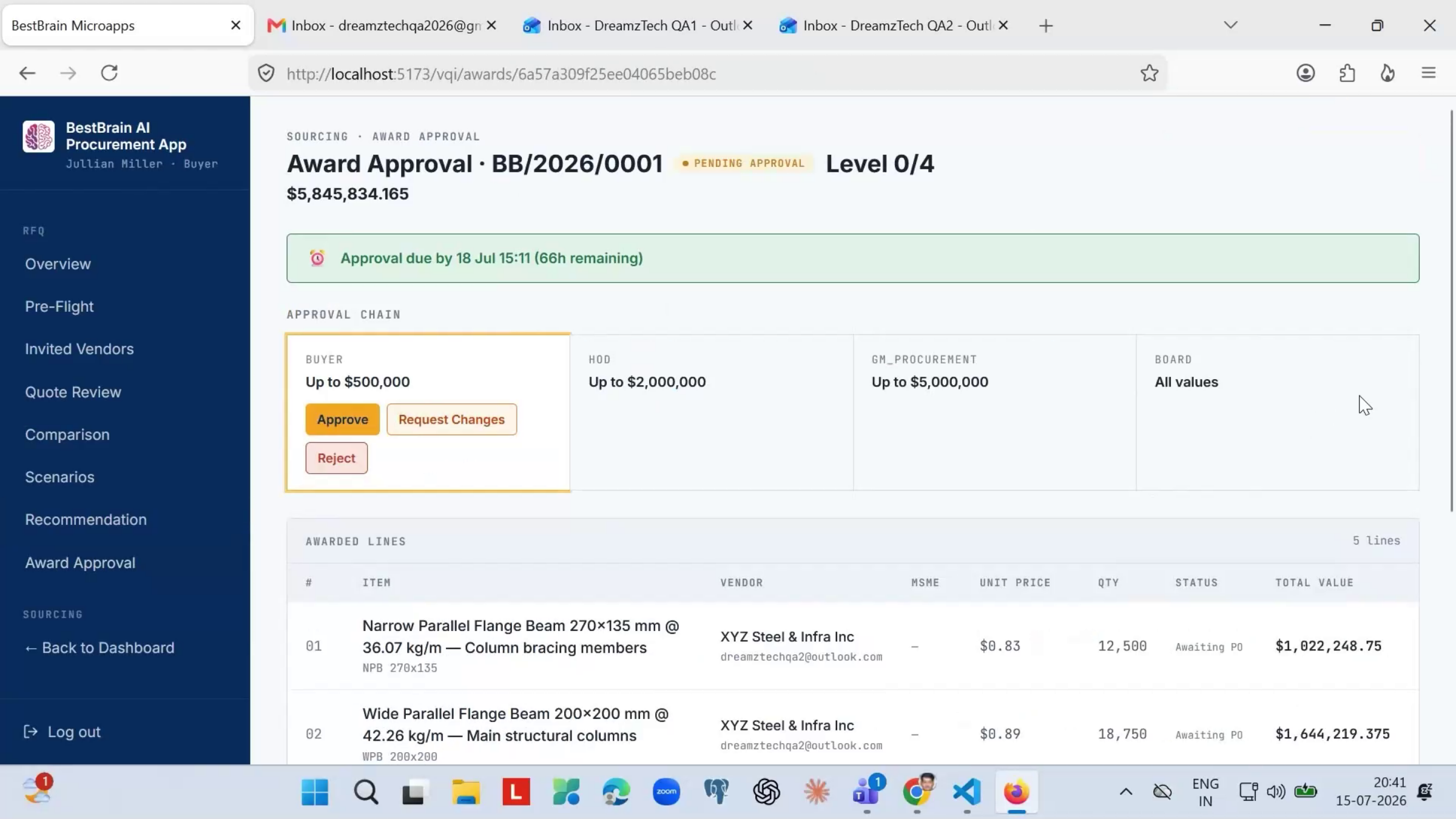
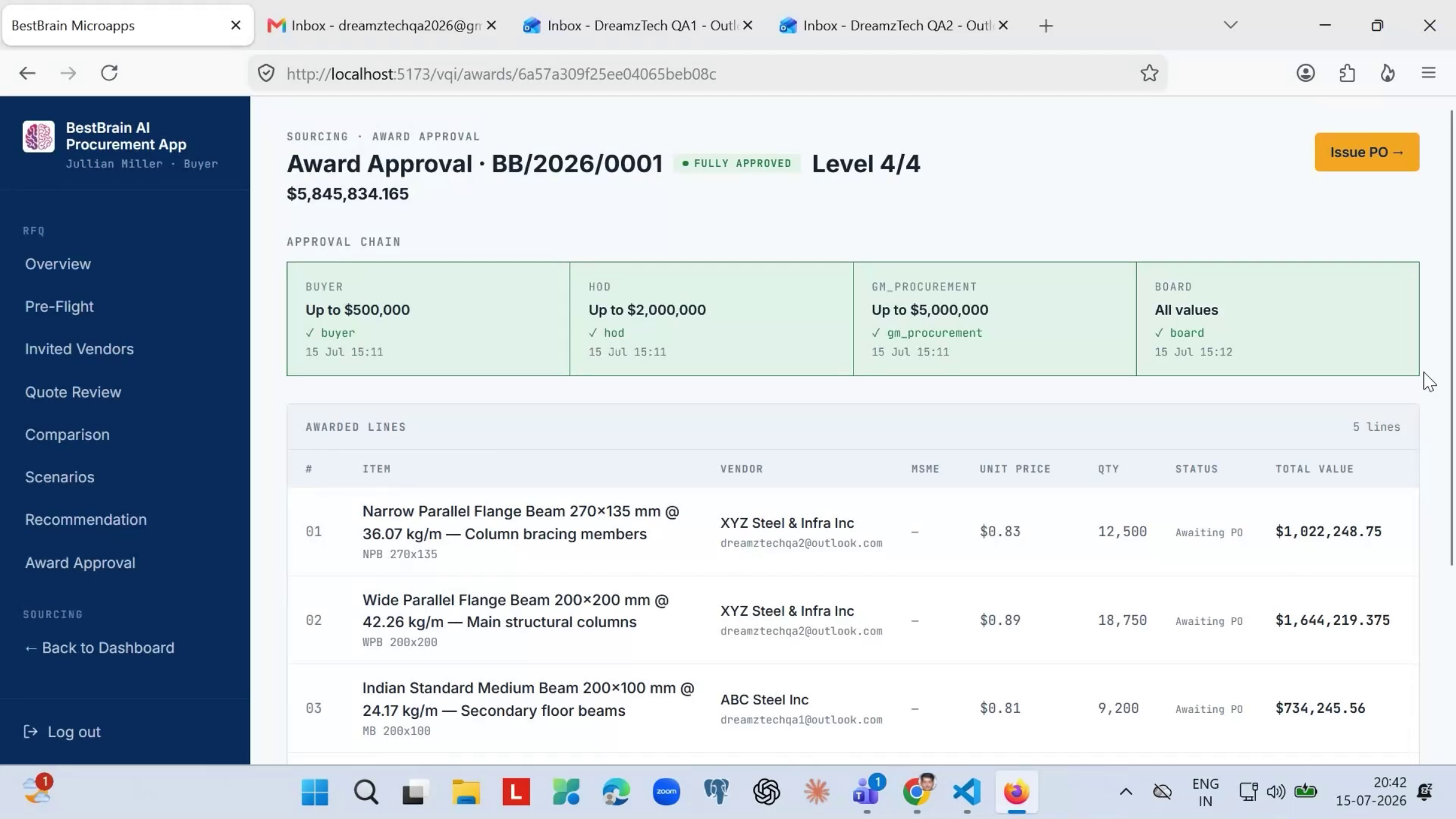
The recommendation routes through an approval chain based on value — buyer, finance, procurement head, and board as required. Each approver is notified, reviews the award, and approves or returns it with comments. Once every required level clears it, the award is marked fully approved.
Step 9 – Issue the Purchase Order
With full approval in place, click Issue PO. For split awards — where different vendors supply different lines — the system asks for a separate PO number per vendor. Enter the numbers and confirm; the system records them, closes the RFQ, and sends PO notifications to each vendor automatically.
Admin Configuration Overview
Several settings in Admin drive the behavior described above:
- Standard Master — view, edit, and version-control the material or quality standards (allowed values, severity, and category) used to auto-validate incoming RFQ specs.
- Approval Matrix (DOA) — define per plant/category spend thresholds that determine which approver level must sign off on an award.
- Approver Registry — maintain the roster of named approvers that the approval matrix routing and email notifications resolve against.
- Scoring Weightages — configure the vendor comparison scoring formula used to auto-rank quotes.
- Workflow Health — monitor workflow execution stats, with a fallback queue and configurable alert thresholds for ops visibility.
- Stock Source Configuration — choose how live inventory data is sourced for pre-flight checks.
- Alert Thresholds — set per-category SLA limits for RFQ closure.
- Fallback Queue — lists workflow calls that failed, with attempt or retry counts.
- Audit Trail — a full, immutable, filterable history of actions per RFQ with before-and-after JSON diffs for compliance review.
Tips for Getting the Most Out of Vendor Quotation Intelligence
- Set up Standard Master and Stock Source Configuration before your first RFQ — they drive the pre-flight check that keeps bad orders from reaching vendors.
- Double-check any field with a yellow confidence score against the source PDF before approving a quote.
- Use the Audit Trail's before-and-after JSON diffs when you need to explain a change during a compliance review.
- Check the Fallback Queue periodically if you notice vendor statuses aren’t updating — it surfaces workflow calls that failed and need attention.
Frequently Asked Questions
Do I need to manually track vendor responses?
No. As vendors reply by email, their status updates automatically in the Invited Vendors tab — no manual tracking needed.
What happens if a vendor sends a revised quote?
All versions are preserved. Earlier versions are marked superseded, and the latest version is marked current for review and approval.
How does the system decide which vendor to recommend?
It ranks vendors (L1, L2, L3) by landed cost and generates a recommendation per line with a clear reason, such as lowest cost, MSME preference, or compliance. You can override any line with your own choice and justification.
How are split awards handled at the PO stage?
For split awards, where different vendors supply different lines, the system asks for a separate PO number per vendor, then records them, closes the RFQ, and notifies each vendor automatically.