AI Document Processing System Overview: From Templates to Validated Data
Manually keying in data from scanned forms is slow, error-prone, and expensive at scale. The AI Document Processing System is an AI-enabled intelligent document processing platform, built on Microsoft Azure, that classifies, extracts, and validates data from documents automatically — handling multilingual documents, page stitching, quality gating, and translation to English extraction along the way.
Overview
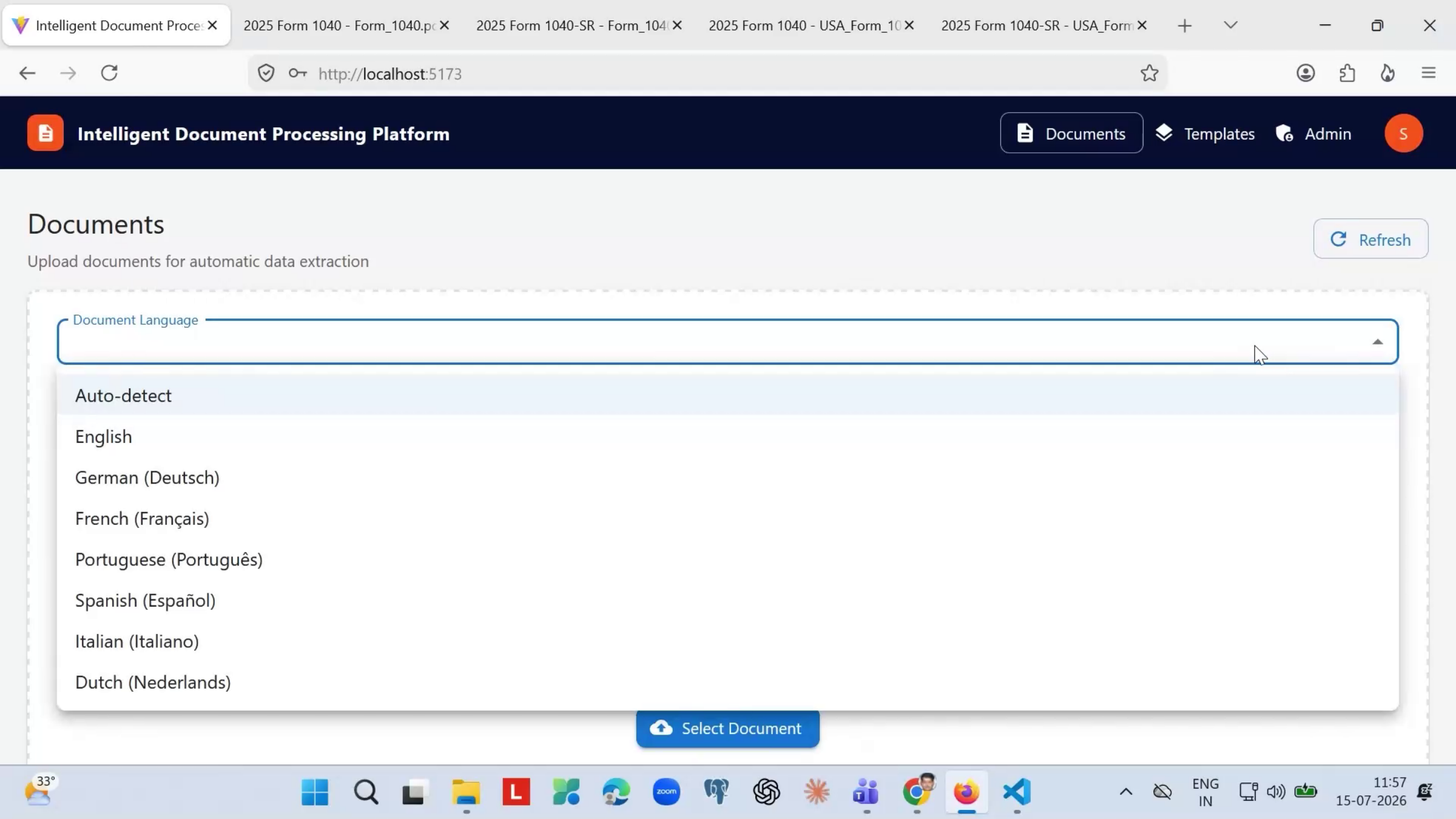
The platform is organized into three sections: Documents, Templates, and Admin. Every document you process starts with a template, which tells the system what the form looks like and what fields to extract. Once templates are in place, you can upload documents — single certificates or large merged PDFs — and the system will OCR, classify, extract, and validate them automatically. To help control AI token costs, the system won’t let you upload duplicate templates or documents, and it uses a quality gate to avoid extracting from scans that are too poor to read reliably.
Here is a reference video:
Before You Begin
- You must have access to the Documents, Templates, and Admin sections of the platform.
- Have a sample of the document type you want to process on hand — either to upload for AI-assisted template creation, or to reference while building a template manually.
- Know which fields and keywords you need extracted from each document type before you start, since these define the template.
How to Process Documents, Step by Step
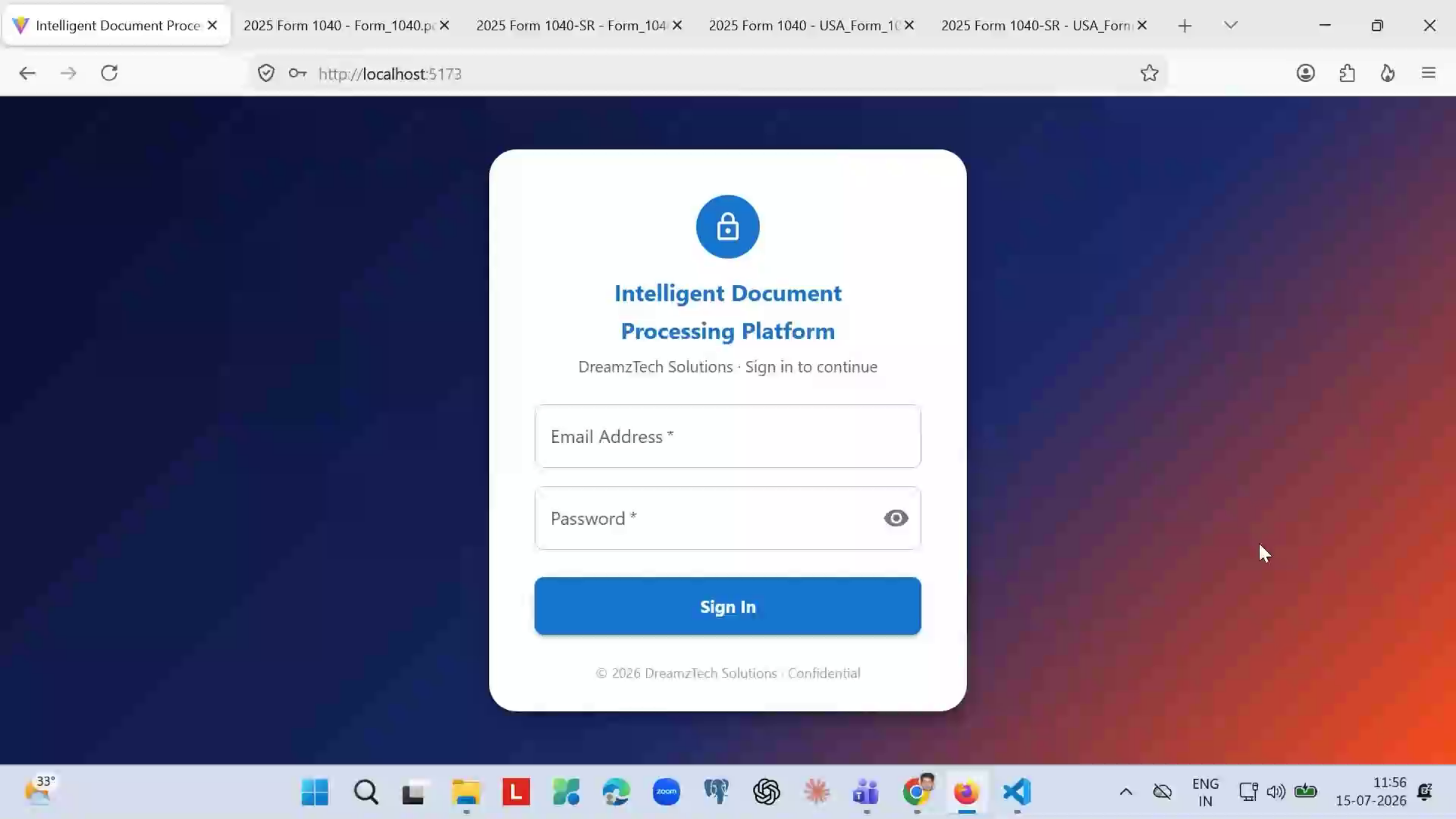
Step 1 – Understand the Platform Layout
The platform has three sections: Documents, Templates, and Admin. Templates define what a form looks like and what to extract, Documents is where you upload and process files, and Admin covers system-level configuration.
Step 2 – Understand Templates
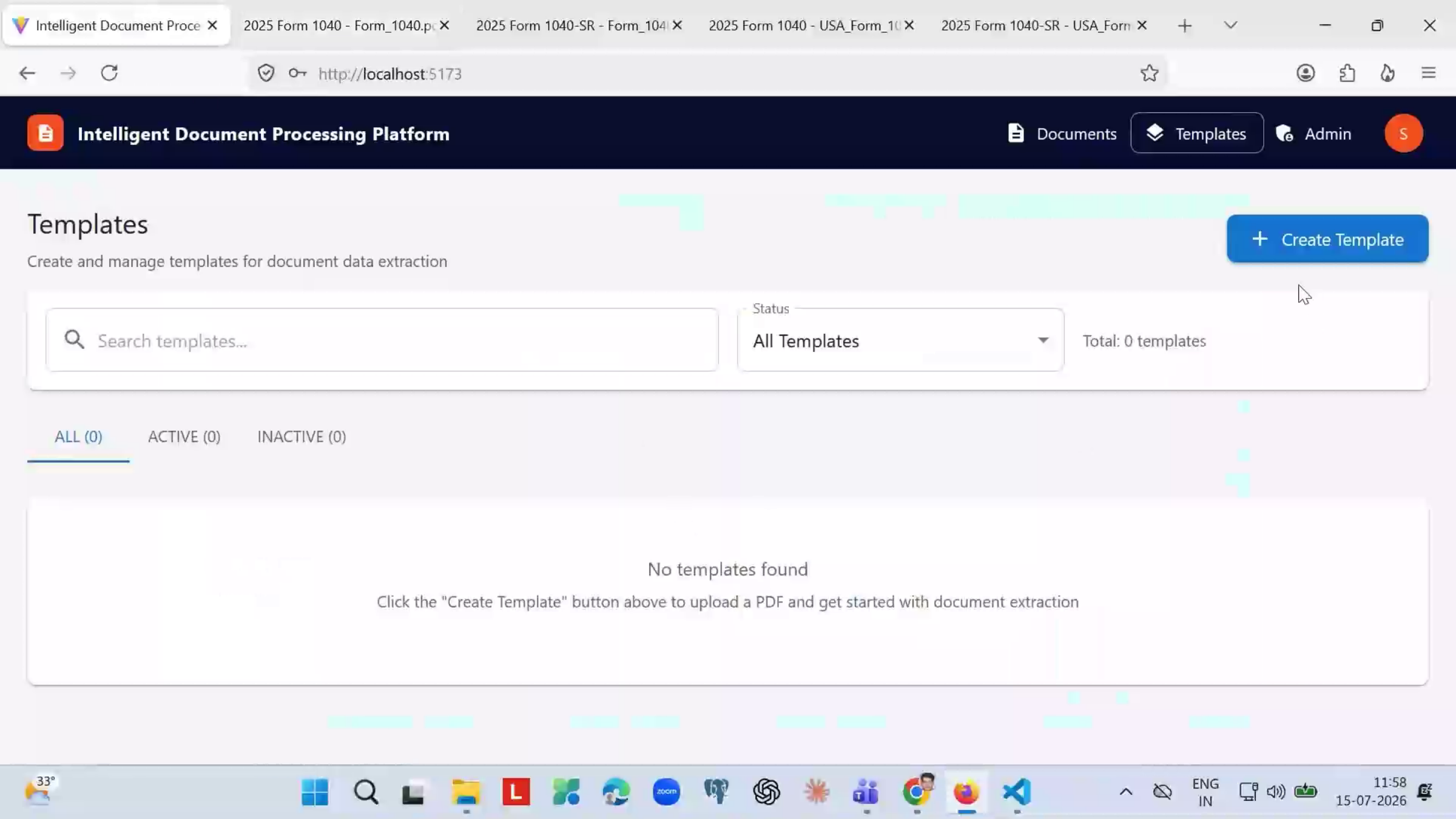
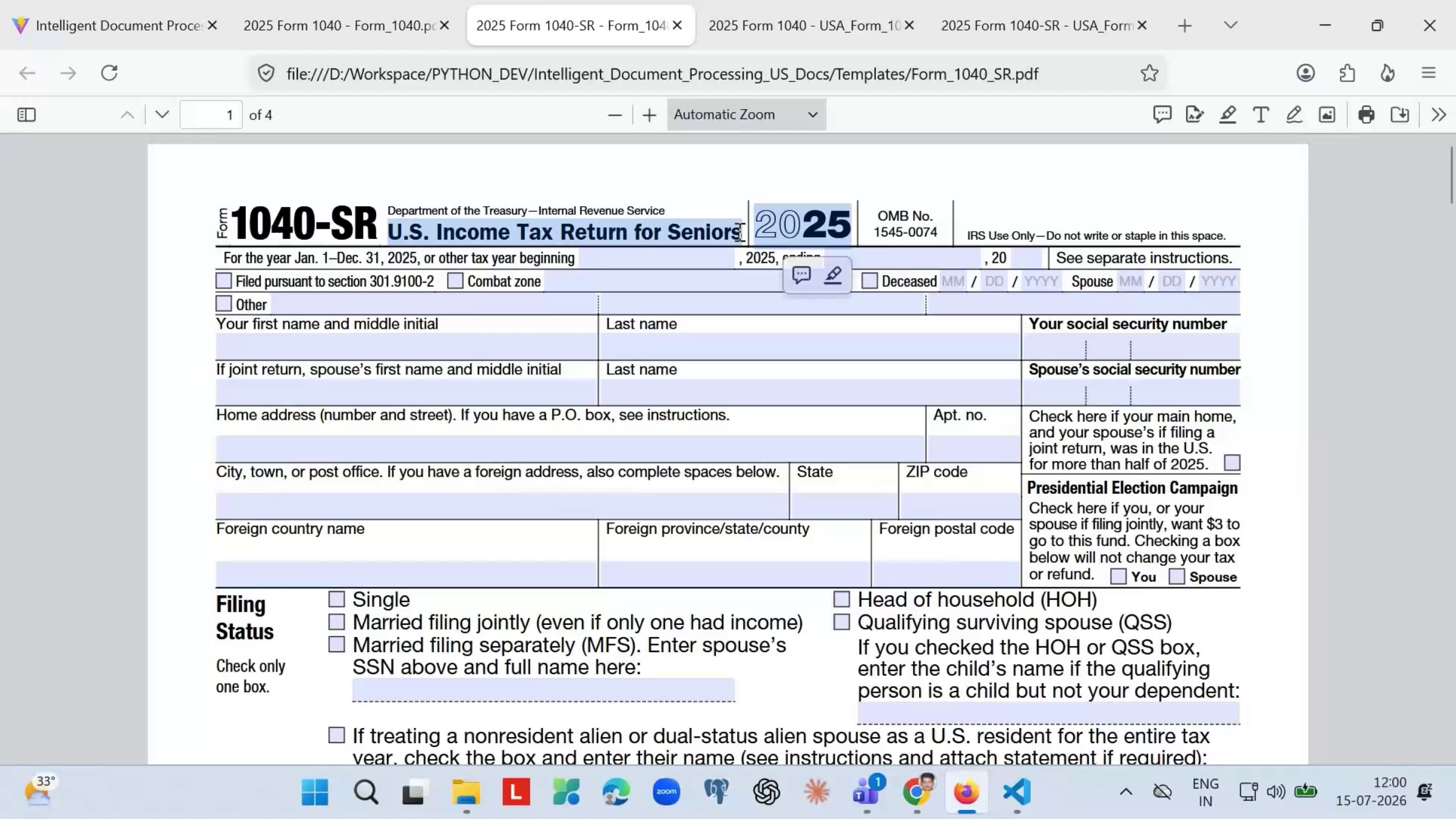
Every document starts with a template, which tells the system what the form looks like and what to extract. For example, you might set up separate templates for Form 1040 (U.S. Individual Income Tax Return) and Form 1040-SR (U.S. Tax Return for Seniors), each with its own set of fields.
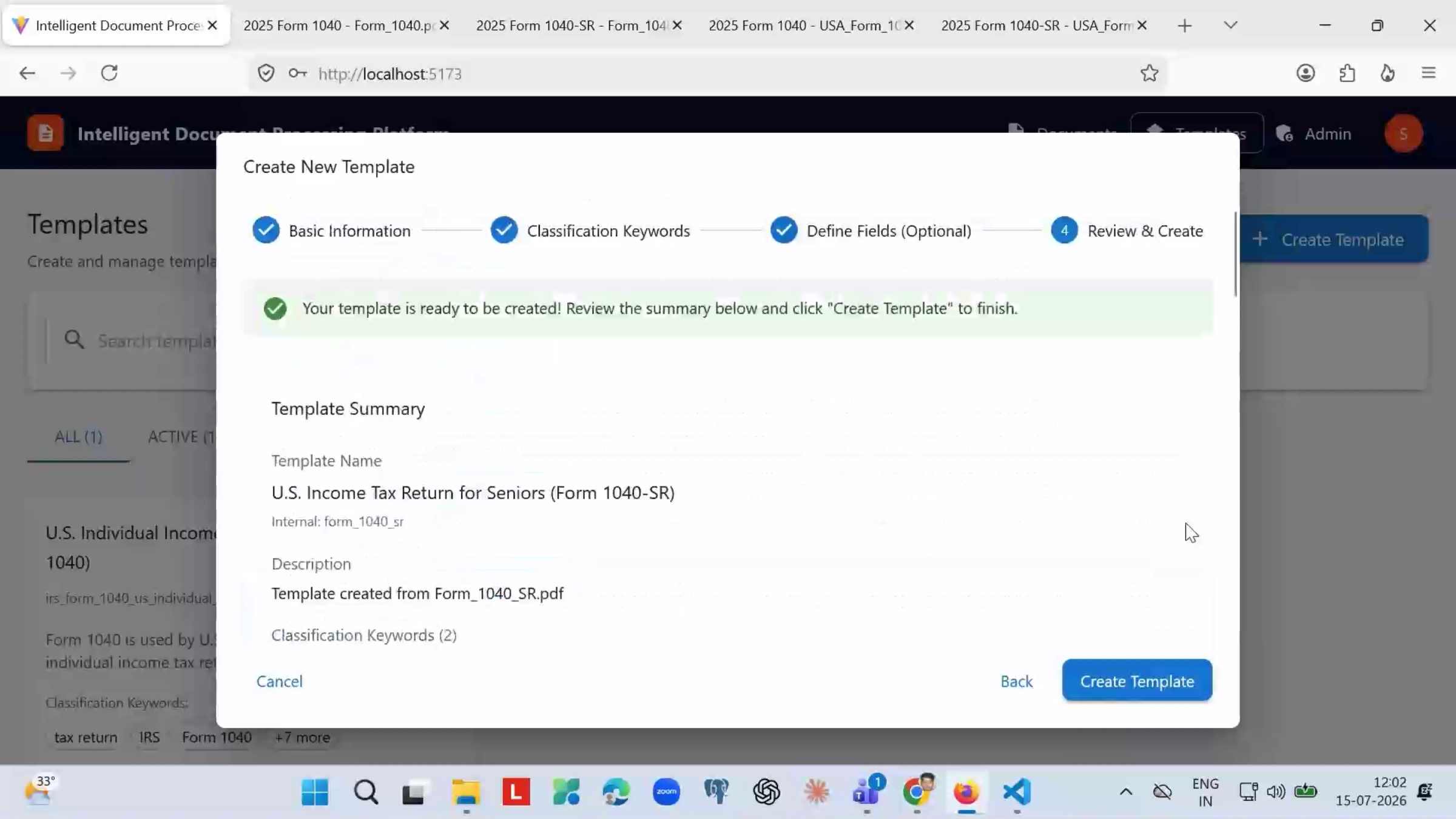
Step 3 – Create a Template
To create a template, either upload a sample of the form and let AI analyze and extract fields from it, or add the template manually. You can add additional keywords and fields as required, and edit or delete existing keywords and fields that were extracted by the AI.
Step 4 – Create Additional Templates as Needed
Repeat the process for each document type you need to support — for example, a second template for Form 1040-SR. You can rename any template manually. Once your required templates are in the system, you're ready to upload documents for OCR, classification, extraction, and validation.
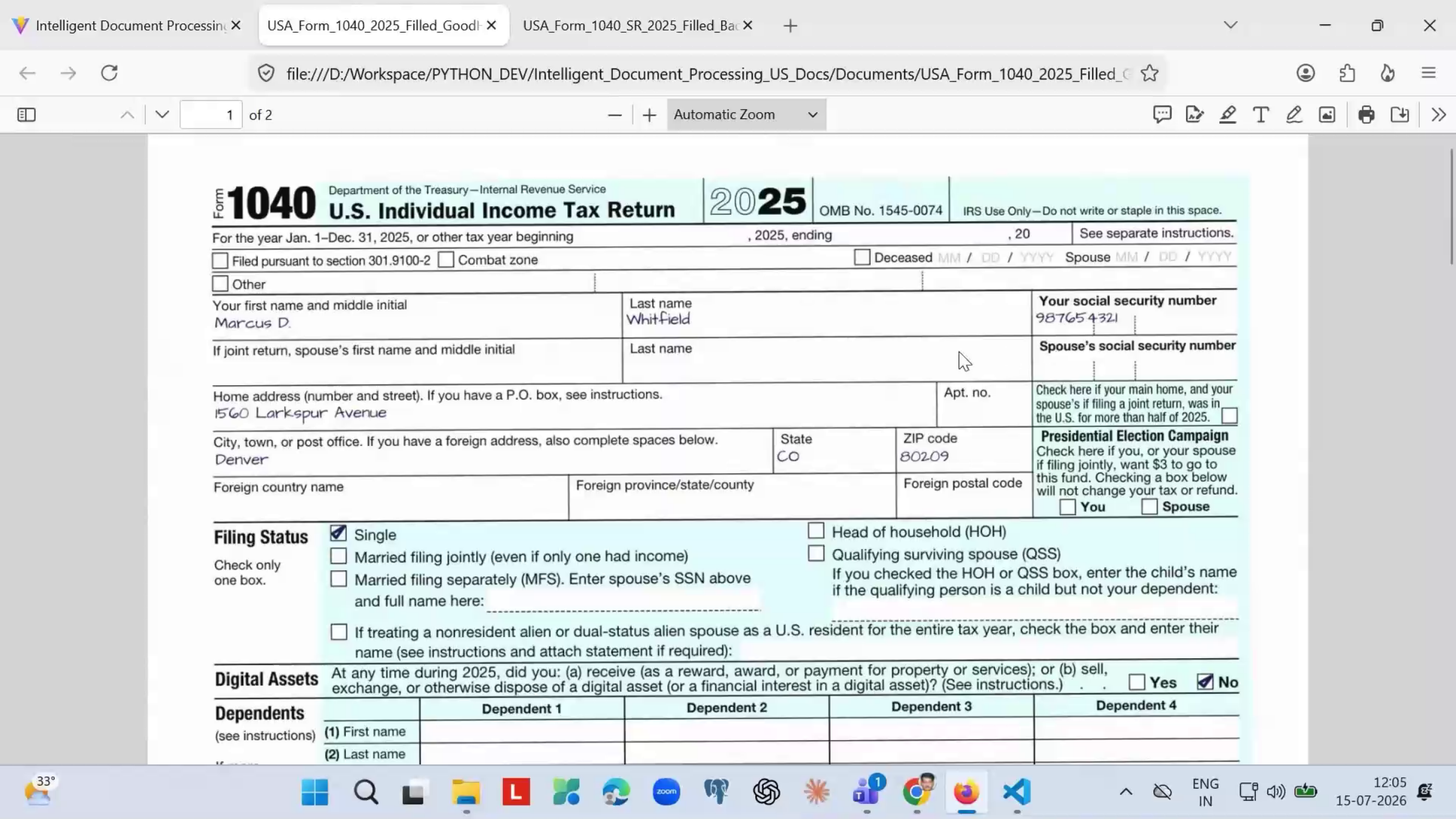
Step 5 – Upload Clean, Digital Documents
Start with clean, digitally completed documents — for example, a digitally filled Form 1040 and Form 1040-SR. These represent the straightforward, happy-path case the system handles by default.
Step 6 – Upload Handwritten or Scanned Documents
The platform also handles the same certificate types when they're handwritten and scanned rather than digitally filled, demonstrating its resilience beyond clean, digital input.
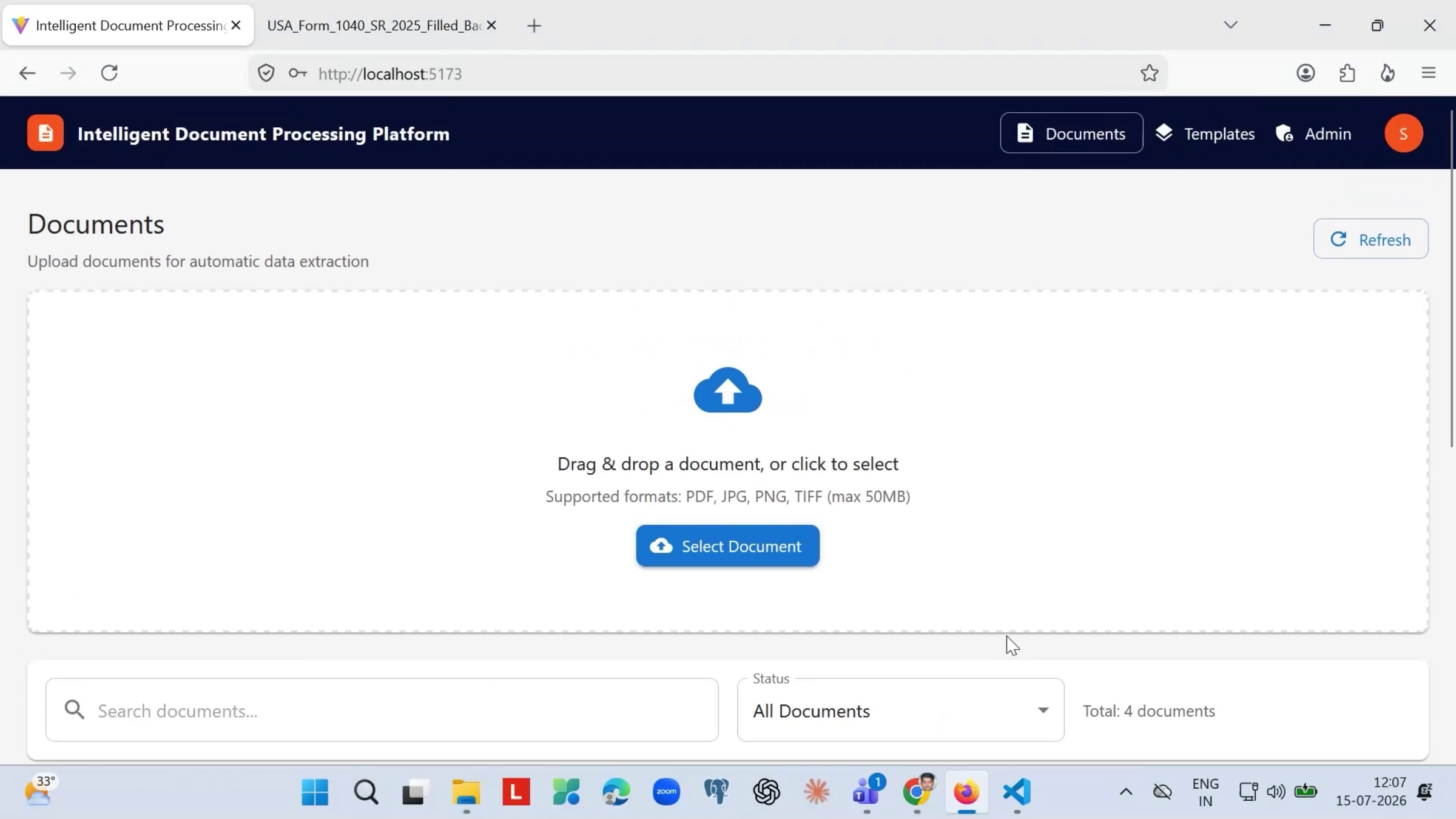
Step 7 – Process Multiple Certificates in One PDF
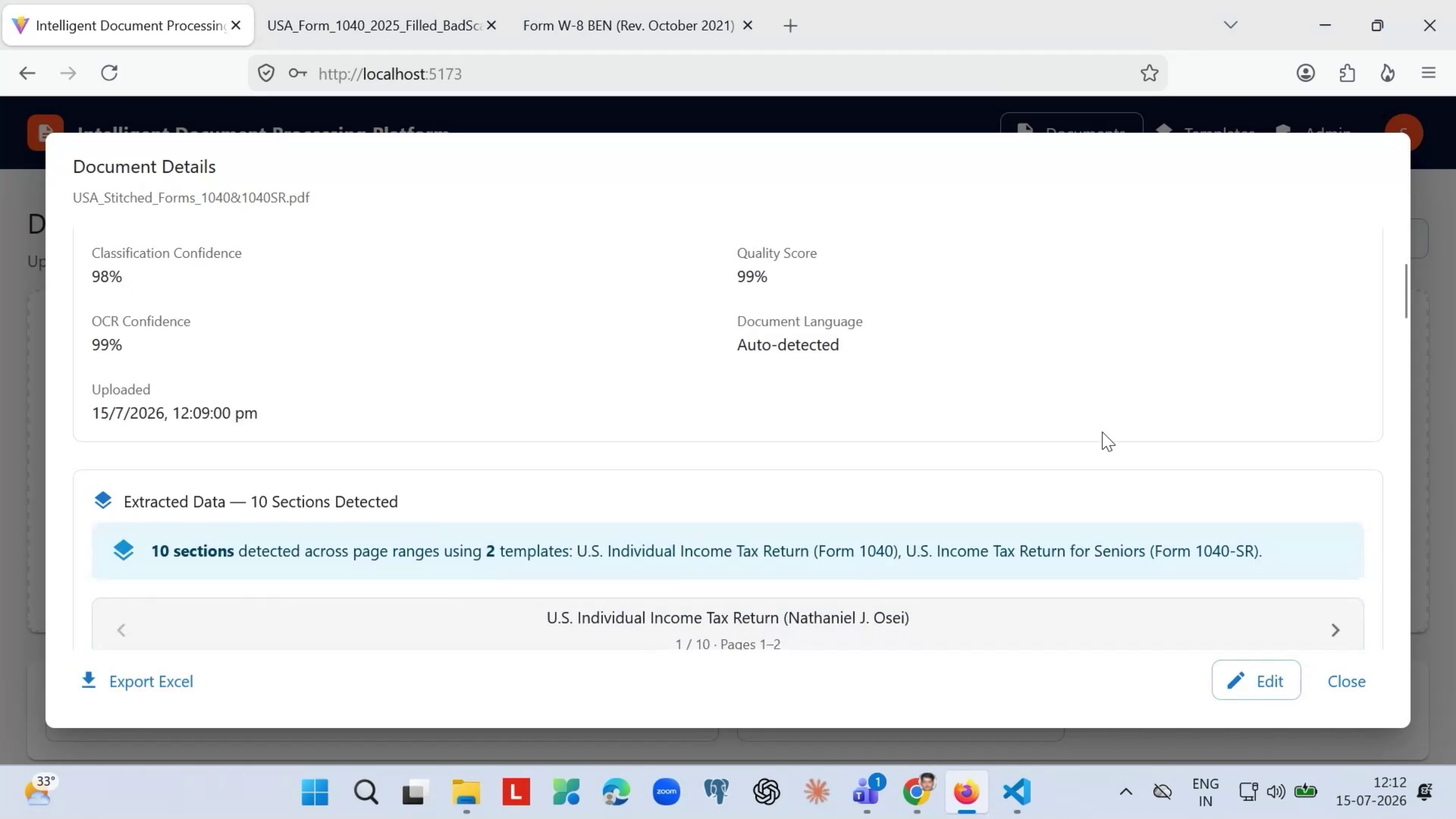
Note: You can upload a single PDF containing multiple certificates merged together, mixing Form 1040 and Form 1040-SR documents, clean digital copies and handwritten scans alike. The system will OCR, classify, extract, and validate each one using the matching template, and it's able to analyze 100-plus page PDF certificates at a time.
Step 8 – Let the System Classify Each Certificate
The system classifies each certificate to the correct existing template automatically, so mixed batches of different document types are sorted correctly without manual intervention.
Step 9 – Rely on the Quality Gate for Poor Scans
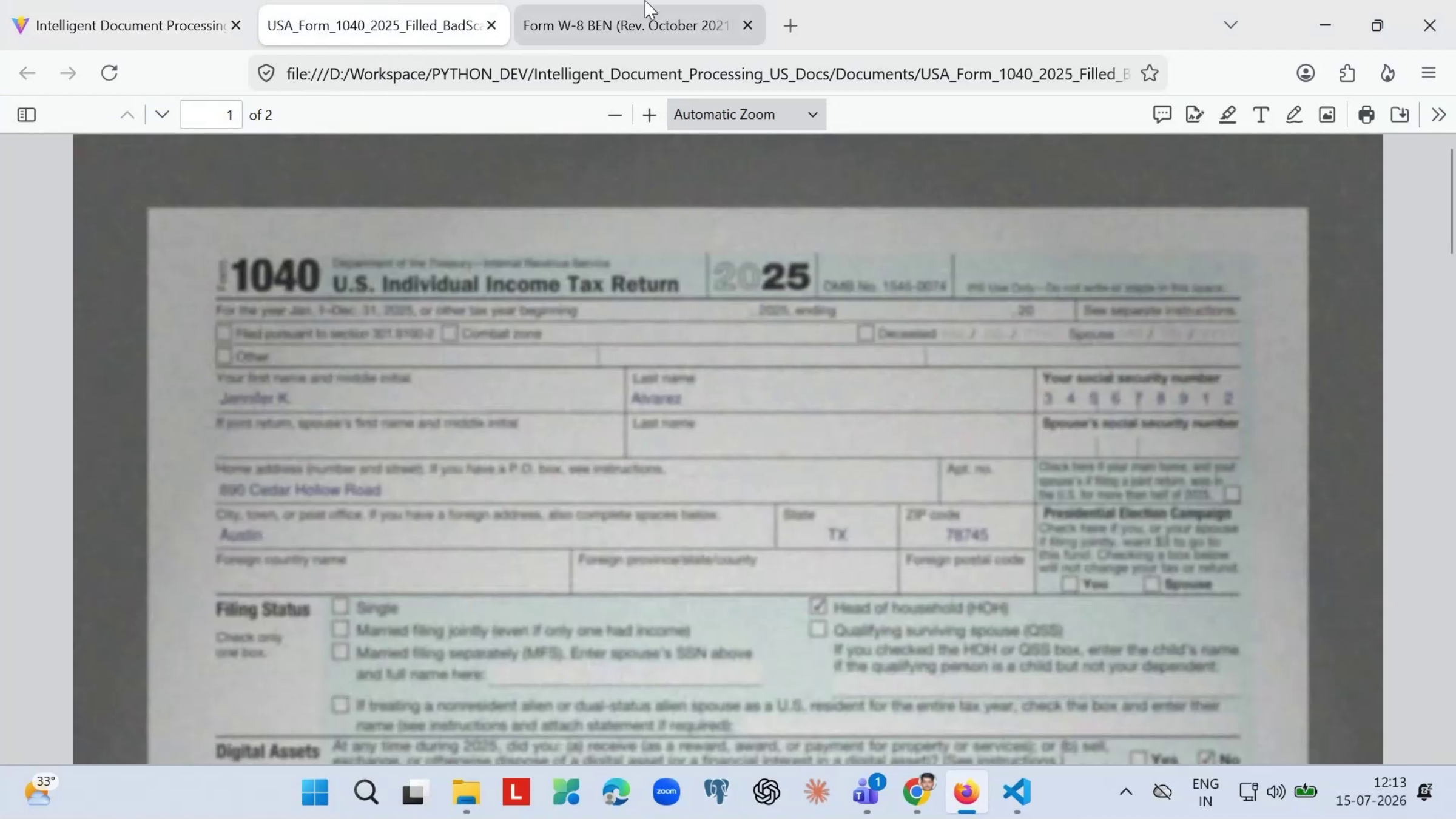
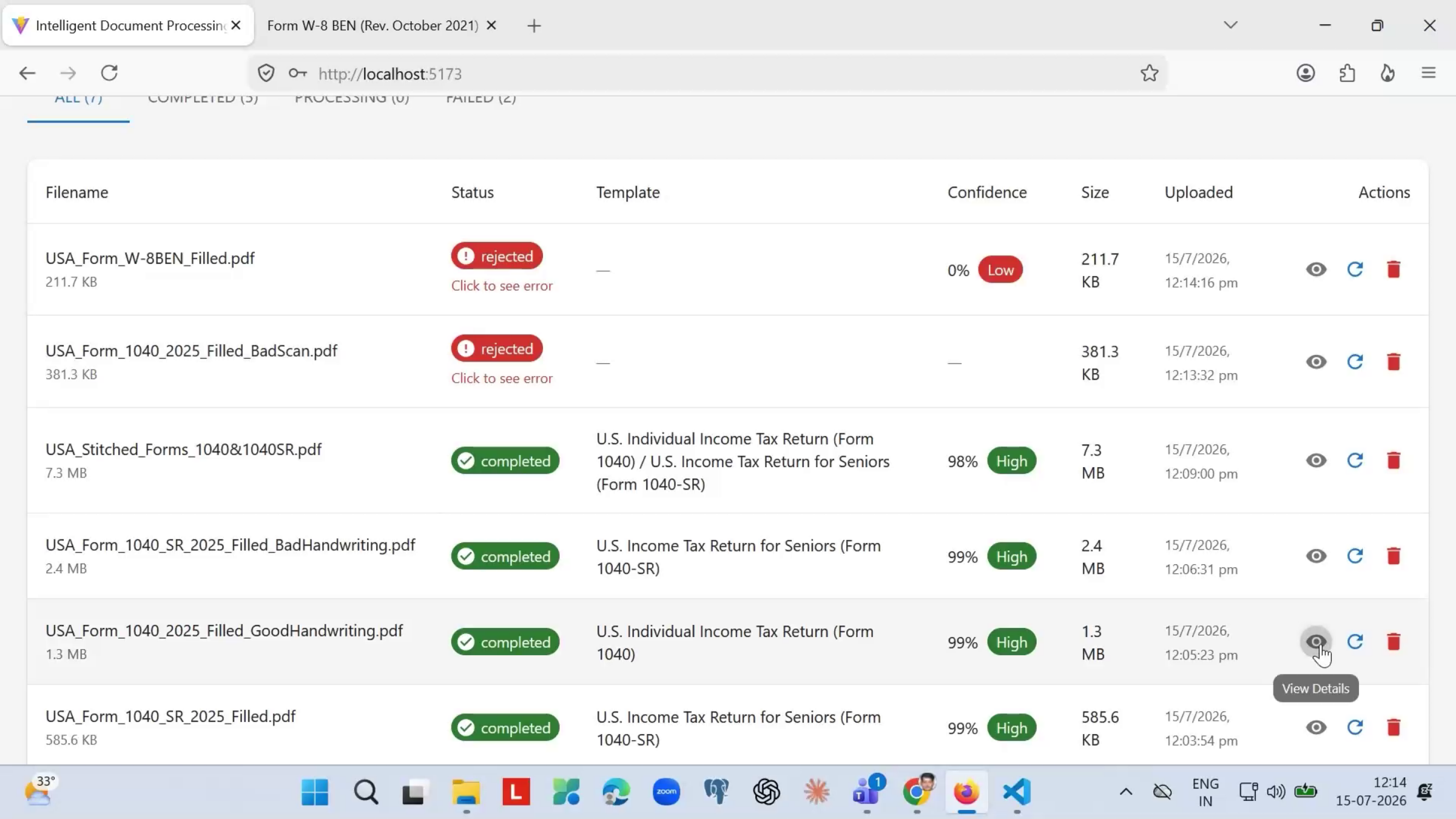
A deliberately poor-quality scan — low resolution or poor contrast — demonstrates the quality gate. Rather than silently extracting unreliable data from an unreadable scan, the system flags it, which also helps save AI token cost.
Step 10 – See How Unrelated Documents Are Flagged
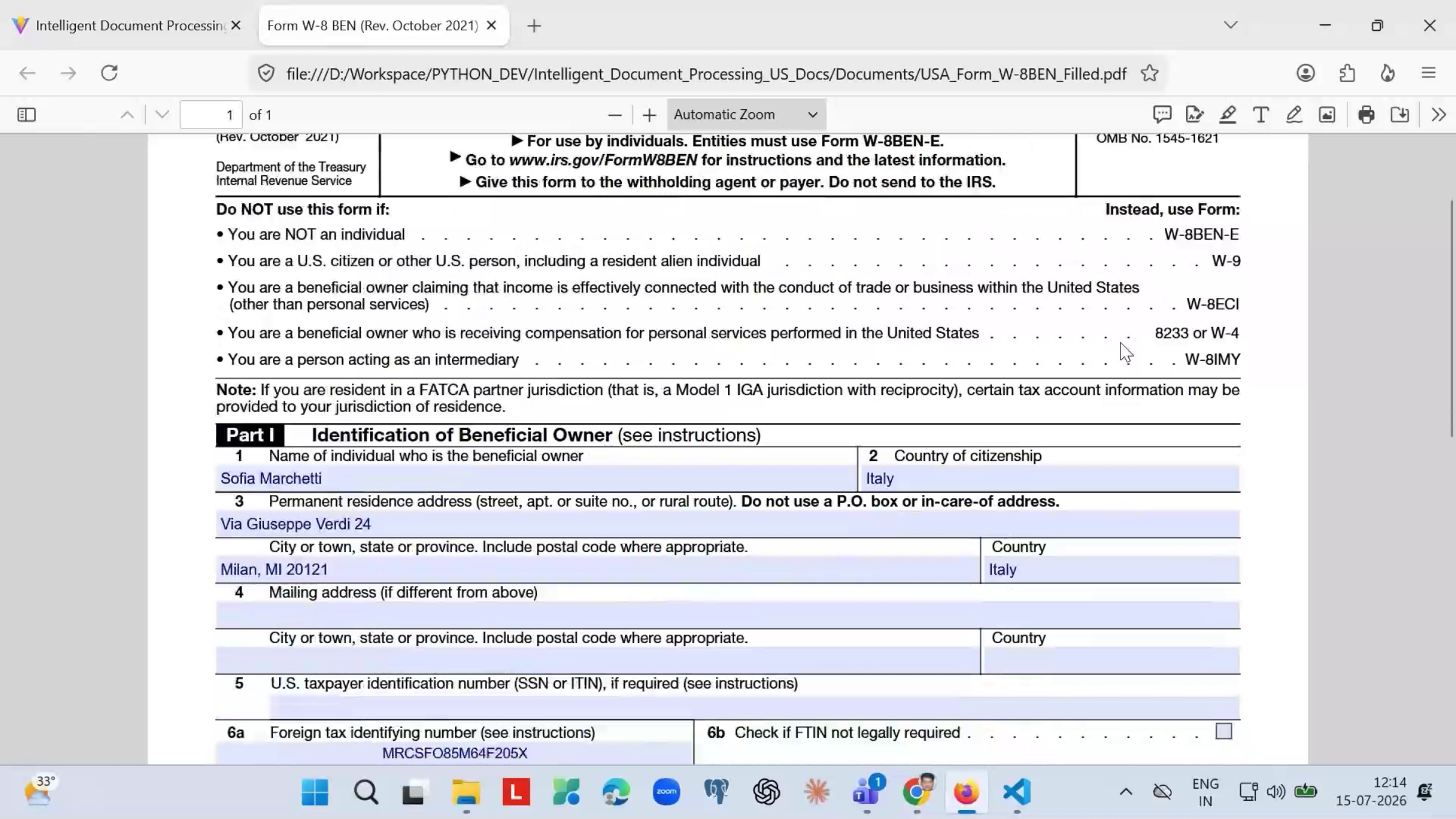
Uploading an entirely unrelated document shows the classifier’s precision. It recognizes that the document doesn’t match any existing template with sufficient confidence and flags it as unclassified rather than force-fitting it — again helping save AI token cost.
Step 11 – Edit and Export Extracted Data
Once a document has been classified and added to the system, you can edit the extracted information if needed, and export it to an Excel sheet for future reference. Any changes you make are saved back in the system.
After Processing — What's Next?
With templates in place, the AI Document Processing System can classify, extract, and validate documents at scale — whether they arrive clean and digital, handwritten and scanned, or bundled together in large merged PDFs. Once you're comfortable with the core workflow, you can:
- Build out templates for every document type your team regularly processes.
- Batch-upload large, merged PDFs instead of processing certificates one at a time.
- Export validated data to Excel on a regular cadence for downstream reporting.
Ready to see the AI Document Processing System in action? Contact DreamzTech to schedule a personalized demonstration.
Tips for Better Document Processing
- Let AI analyze an uploaded sample when creating a new template — it's usually faster than adding fields manually, and you can still edit the results.
- Avoid uploading duplicate templates or documents; the system blocks these to help control AI token costs.
- If a document gets flagged as unclassified, double-check it against your existing templates before creating a new one — it may just need a keyword added.
- Scan documents at good resolution and contrast where possible, so they don’t get held up by the quality gate.
Frequently Asked Questions
What happens if I upload a poor-quality scan?
The quality gate flags it rather than extracting unreliable data from it, which also helps save AI token cost.
What if I upload a document that doesn’t match any template?
The classifier flags it as unclassified rather than force-fitting it to the wrong template.
Can I upload one PDF with multiple different document types in it?
Yes. The system can classify, extract, and validate each certificate in a merged PDF using the correct template, and can analyze 100-plus page PDFs at a time.
Can I edit the data after it's been extracted?
Yes. Once a document is added to the system, you can edit the extracted information and export it to Excel — your changes are saved in the system.