TransKit Driver App: From Pickup to Proof of Delivery
Once TransKit AI has built the load and assigned the truck, drivers take it from there using the TransKit Driver app. From confirming a pickup to capturing a signature at the final stop, the app keeps every shipment tracked in real time — with no paperwork and no manual follow-ups.
Overview
The TransKit Driver app guides drivers through every stop on a trip — confirming pickups, navigating to delivery locations, and completing deliveries with a digital signature and photo. As each stop is completed, the shipment status updates immediately for dispatch, and once every stop on a trip is done, it automatically moves to the Completed tab — giving drivers and dispatchers a clear record of deliveries with full visibility into trip progress and performance.
Here is a reference video:
Before You Begin
- You must have the TransKit Driver app installed and be logged in with your driver account.
- Your trip must already be dispatched with a truck and driver assigned — see TransKit AI Overview: Smarter Shipment Management from Dispatch to Delivery — before stops will appear in your app.
- Make sure location services, camera access, and notifications are enabled on your device so navigation, photos, and signatures work correctly.
How to Complete a Trip in the TransKit Driver App
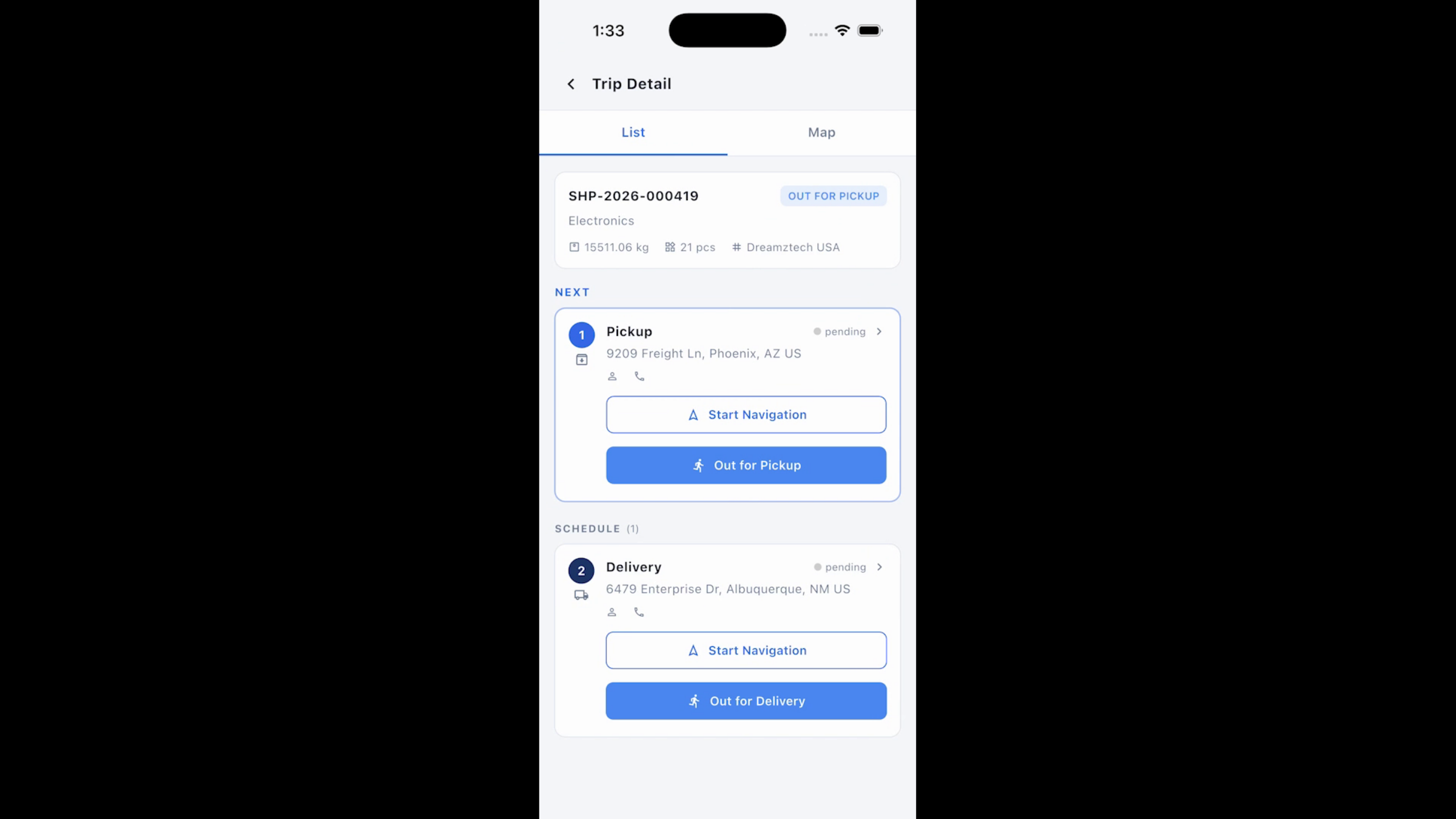
Step 1 – Complete the Pickup
Upon arrival, review the shipment details, verify the pickup, and capture photos if required. Once confirmed, mark the pickup as complete — this instantly updates dispatch and ensures every shipment is tracked accurately in real time.
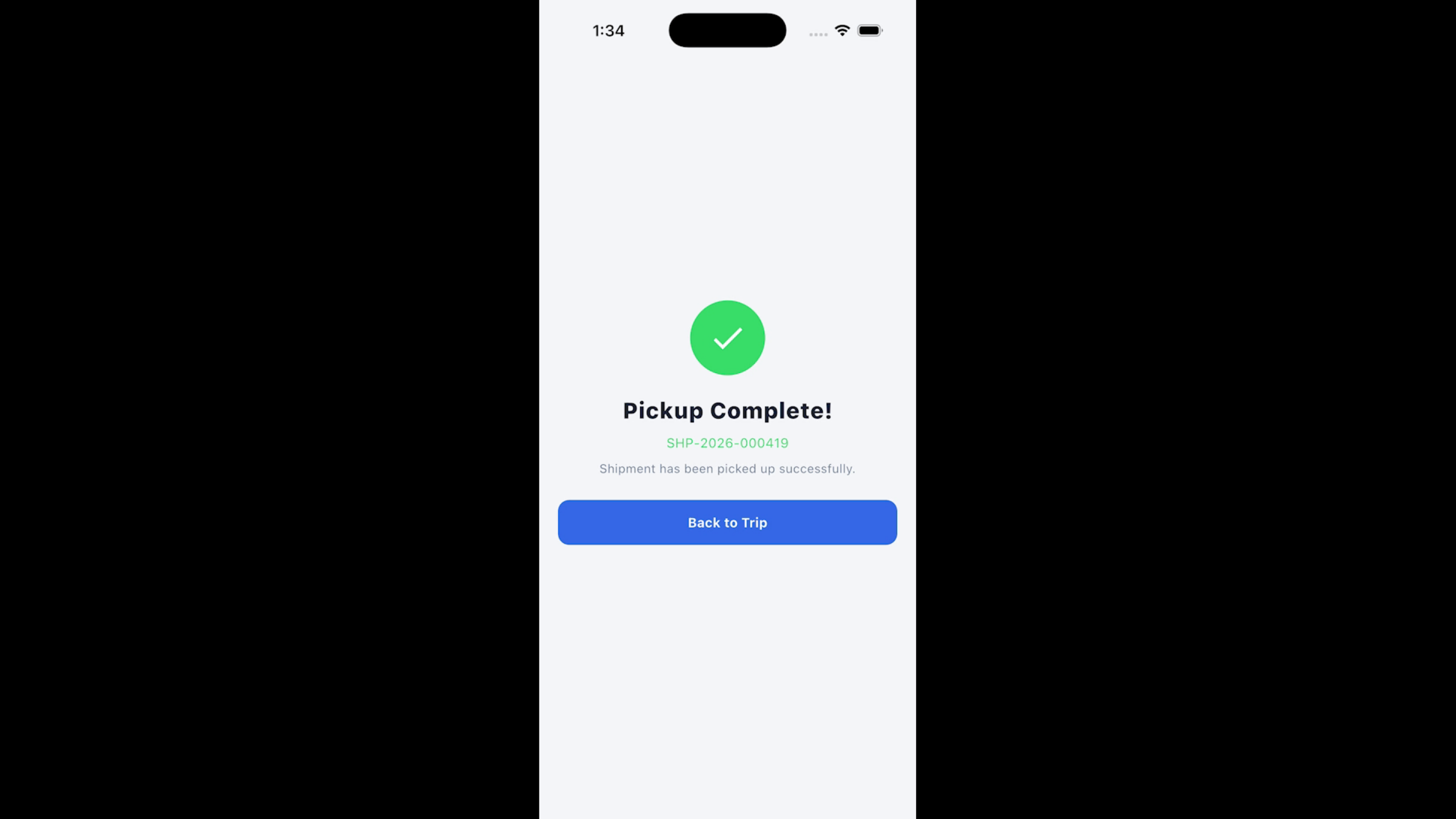
Step 2 – Navigate to the Delivery Stop
Once the pickup is confirmed, proceed to the delivery stop using the app’s guided navigation.
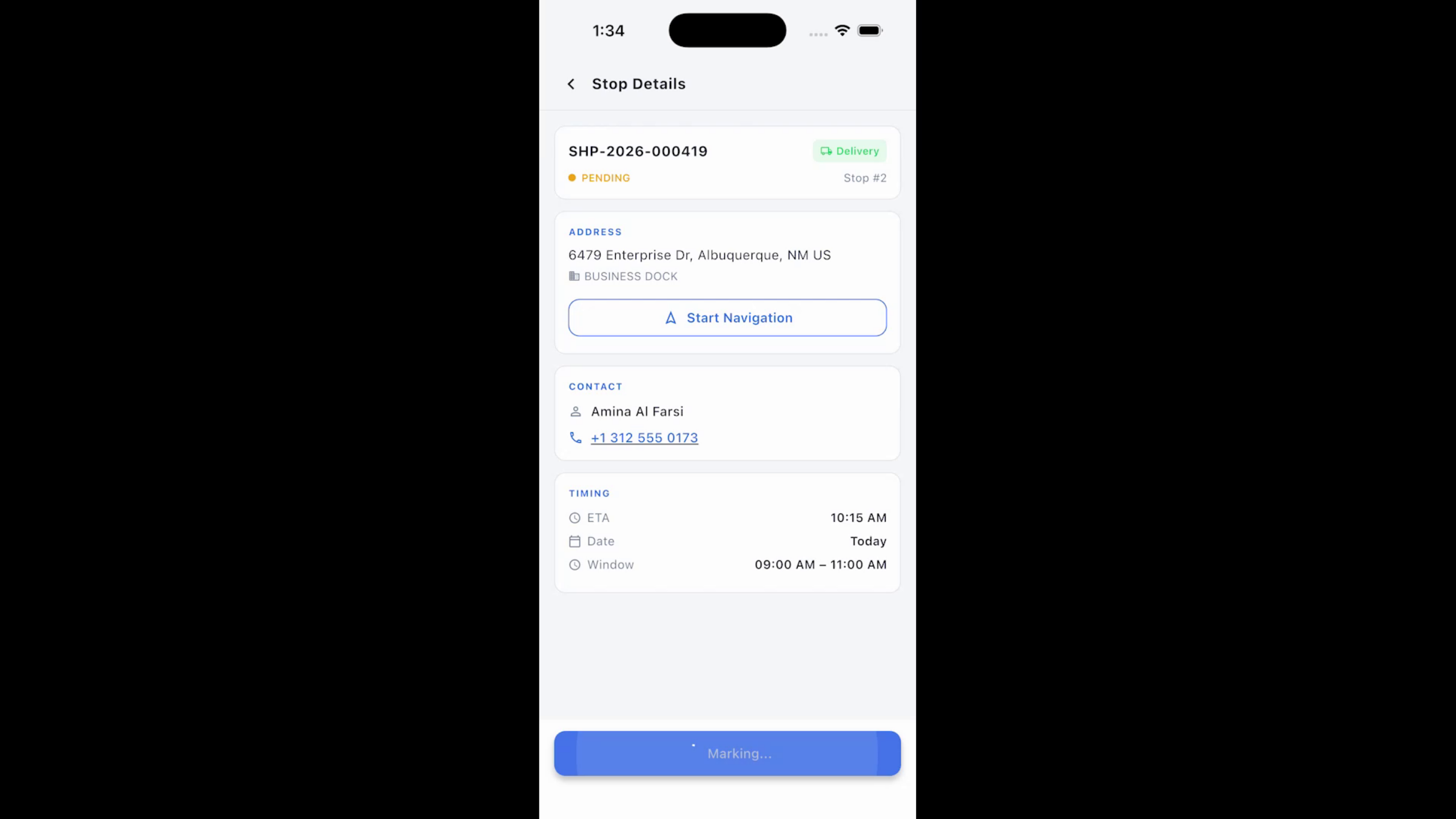
Step 3 – Complete the Delivery
Starting the delivery launches the delivery wizard, where you verify the recipient, capture a digital signature, add a delivery photo if required, and complete the delivery.
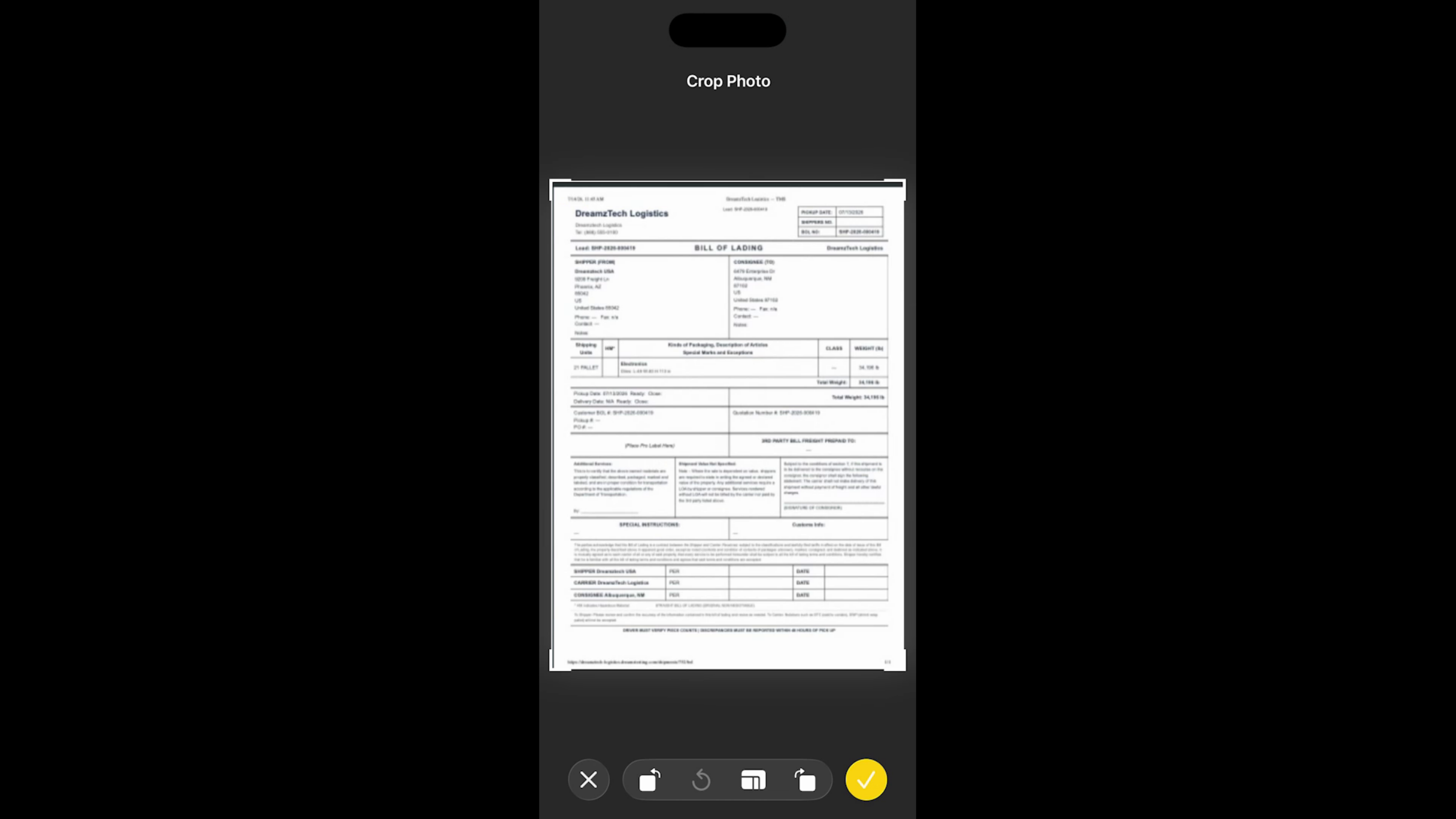
Step 4 – Track Shipment Status and Complete the Trip
Note: The shipment status updates immediately after each delivery, providing secure proof of delivery while eliminating paperwork and manual follow-ups. Once every stop on the trip has been completed, the trip automatically moves to the Completed tab — giving drivers and dispatchers a clear record of completed deliveries with full visibility into trip progress and operational performance.
After Completing a Trip — What's Next?
From guided navigation and live shipment updates to digital proof of delivery and complete trip visibility, the TransKit Driver app helps drivers stay productive while enabling faster, more accurate, and more reliable deliveries. Once a trip is completed, you can:
- Check the Completed tab any time for a clear record of finished pickups and deliveries.
- Move on to your next assigned trip, using the same pickup → navigate → deliver → track workflow.
- Rely on dispatch to see accurate, real-time status updates, since every confirmation syncs back automatically.
Ready to simplify your logistics operations? Contact DreamzTech to see how TransKit can streamline your transportation workflows.
Tips for Drivers
- Verify shipment details against the physical freight before confirming a pickup — it’s your first accuracy check of the trip.
- Capture clear photos at pickup and delivery whenever they’re required, since these serve as your proof of condition and delivery.
- Always verify the recipient before capturing a signature in the delivery wizard.
- Let each stop move to Completed automatically rather than manually tracking progress — the app keeps the record for you.
Frequently Asked Questions
Is a photo required at every stop?
Photos are captured if required for that stop — both pickups and deliveries can call for a photo depending on your configuration.
Does dispatch see updates in real time?
Yes. The shipment status updates immediately after each pickup and delivery confirmation, so dispatch always has an accurate, real-time view.
What happens once all stops on a trip are done?
The trip automatically moves to the Completed tab, giving drivers and dispatchers a clear record of the trip with full visibility into progress and performance.
Do I need paperwork for proof of delivery?
No. The delivery wizard captures a digital signature and photo, providing secure proof of delivery and eliminating paperwork and manual follow-ups.