Streamlining Order Management With Route Optimization
Manually grouping delivery orders, comparing addresses, and building driver schedules by hand can eat up hours of a dispatcher's day — and still leave routes inefficient. DreamzCMMS's Route Optimization feature turns raw order data into optimized, dispatch-ready routes in seconds, helping your team cut planning time, control delivery costs, and improve on-time performance.
Overview
Route Optimization sits at the center of your dispatch workflow. Whether orders arrive through a spreadsheet upload or flow in automatically via API from your ERP, WMS, CRM, or e-commerce platform, the engine organizes each order’s delivery windows, cargo weight, volume, priority, and service time into a structured workload. From there, it evaluates available drivers, vehicles, delivery locations, and operational rules to generate the most efficient delivery sequence — while still giving dispatchers full control to review, adjust, and lock the final plan.
Here is a reference video:
Before You Begin
- You must have the appropriate Admin or Dispatcher permissions to access Route Optimization.
- Have your order data ready — either as a spreadsheet (CSV) export or through an active API connection to your ERP, WMS, CRM, or e-commerce platform.
- Make sure your driver and vehicle records (capacity, shift hours, and territory) are up to date, since the optimization engine relies on this information to build accurate routes.
How to Optimize Delivery Routes
Step 1 – Upload or Sync Your Orders
Most dispatch teams start the day with orders in a spreadsheet. Upload the CSV file, and the system automatically reviews each record, validates the data, and highlights any missing or incorrect information before planning begins — reducing manual data entry and preventing avoidable delivery errors.
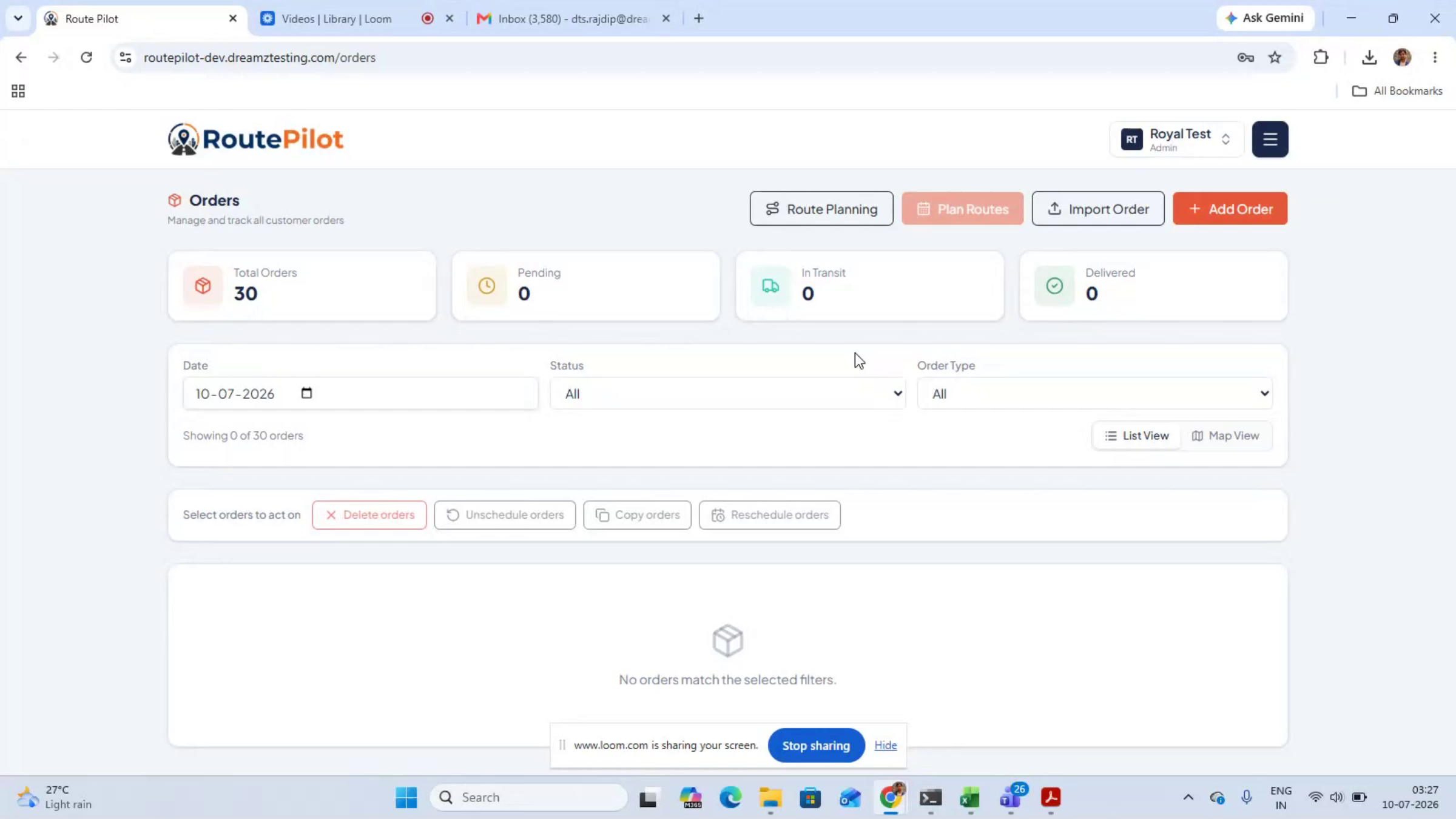
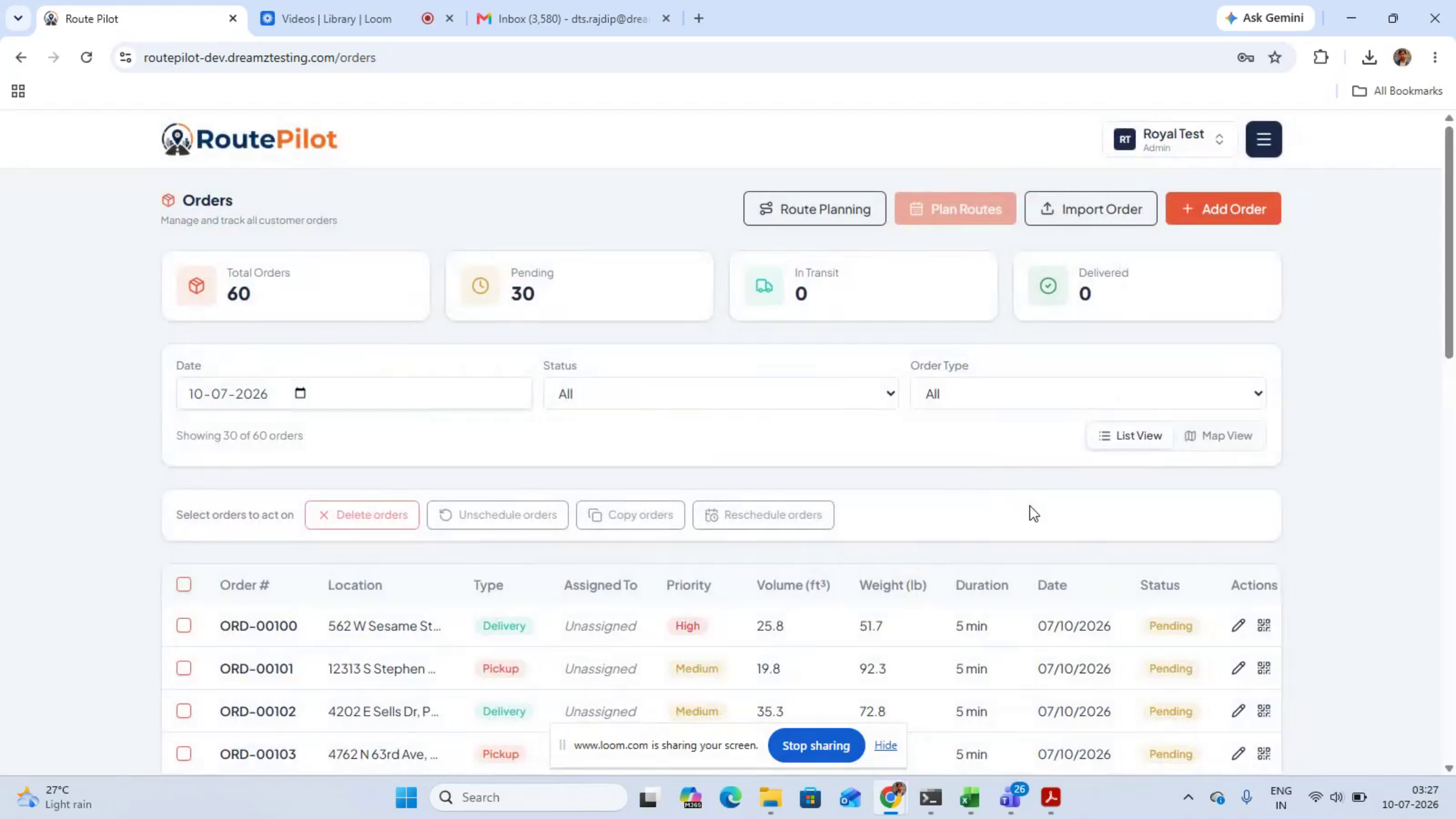
Step 2 – Review Order Details and Workload
Each order includes more than just an address. The system organizes delivery time windows, cargo weight, volume, priority, service time, and special requirements into a structured workload — giving dispatchers complete visibility and helping assign the right vehicle and driver to every delivery.
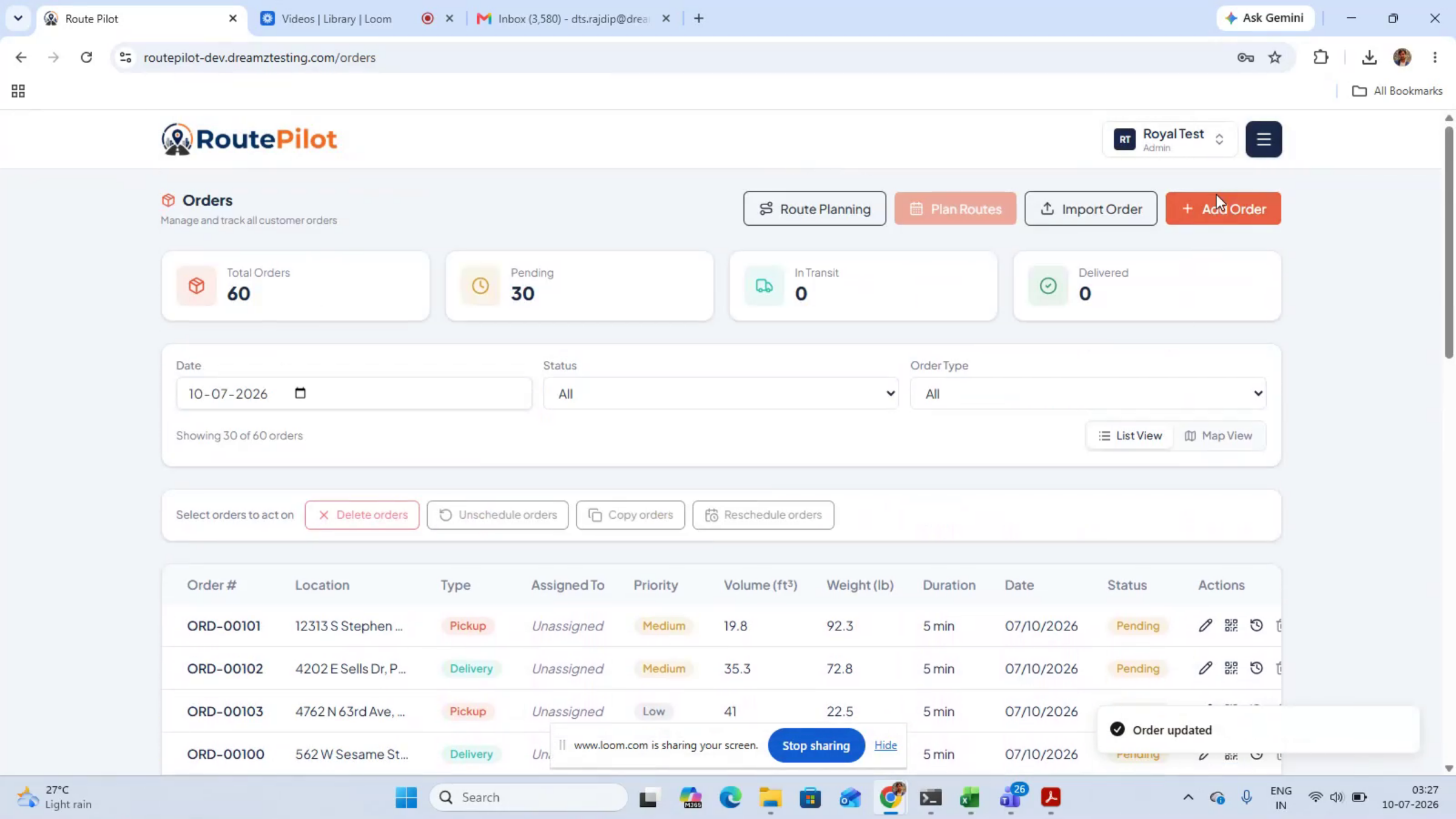
Step 3 – Connect Orders Automatically via API (Optional)
Orders can also flow directly into the platform through APIs from an ERP, WMS, CRM, e-commerce platform, or existing order management system. This removes duplicate data entry, keeps information synchronized, and supports a faster, more scalable dispatch process.
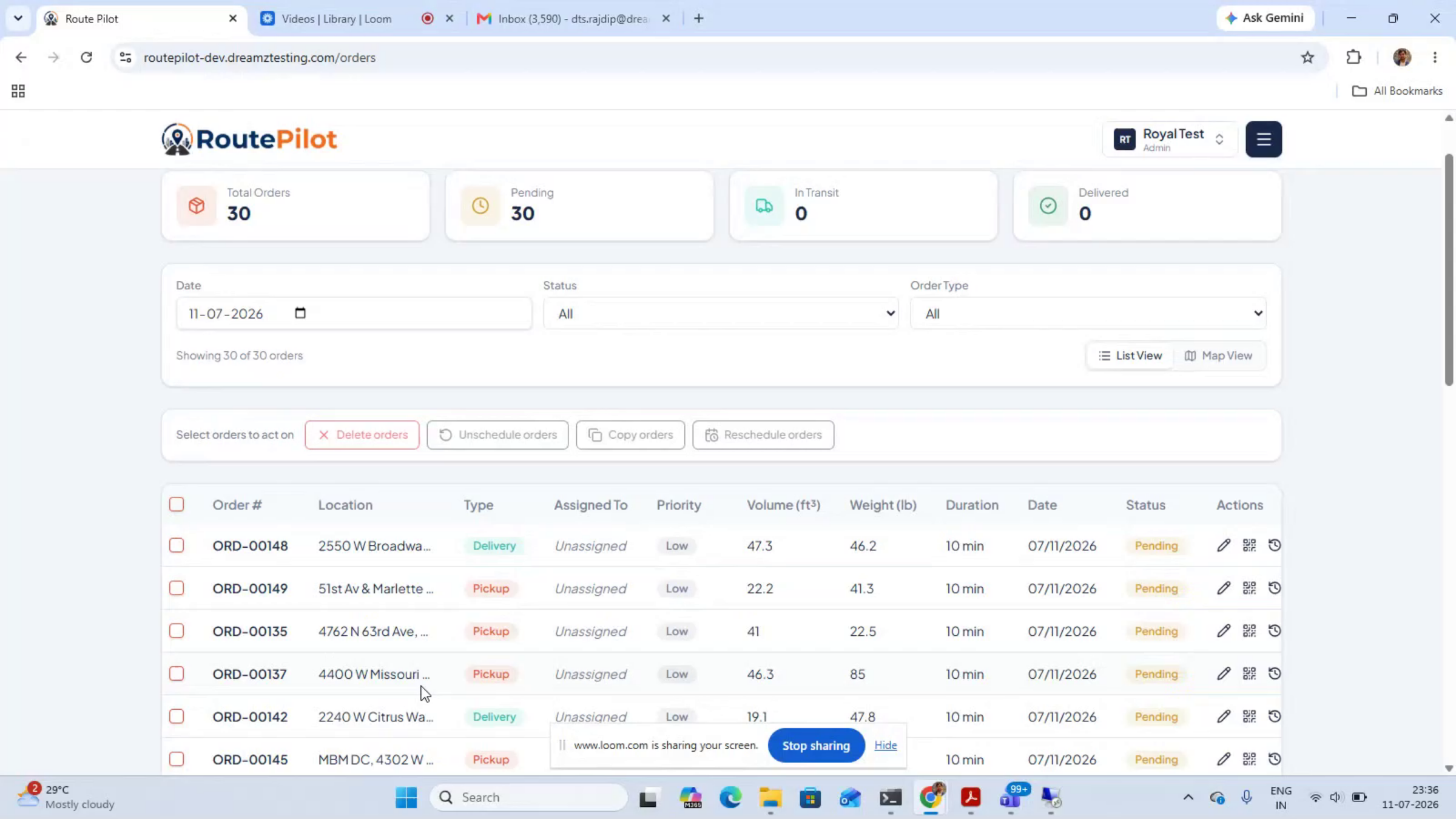
Step 4 – Prepare Deliveries Automatically
Instead of manually grouping orders and comparing addresses one by one, dispatchers can prepare large delivery volumes in seconds and respond to changes far more quickly.
Step 5 – Run the Route Optimization Engine
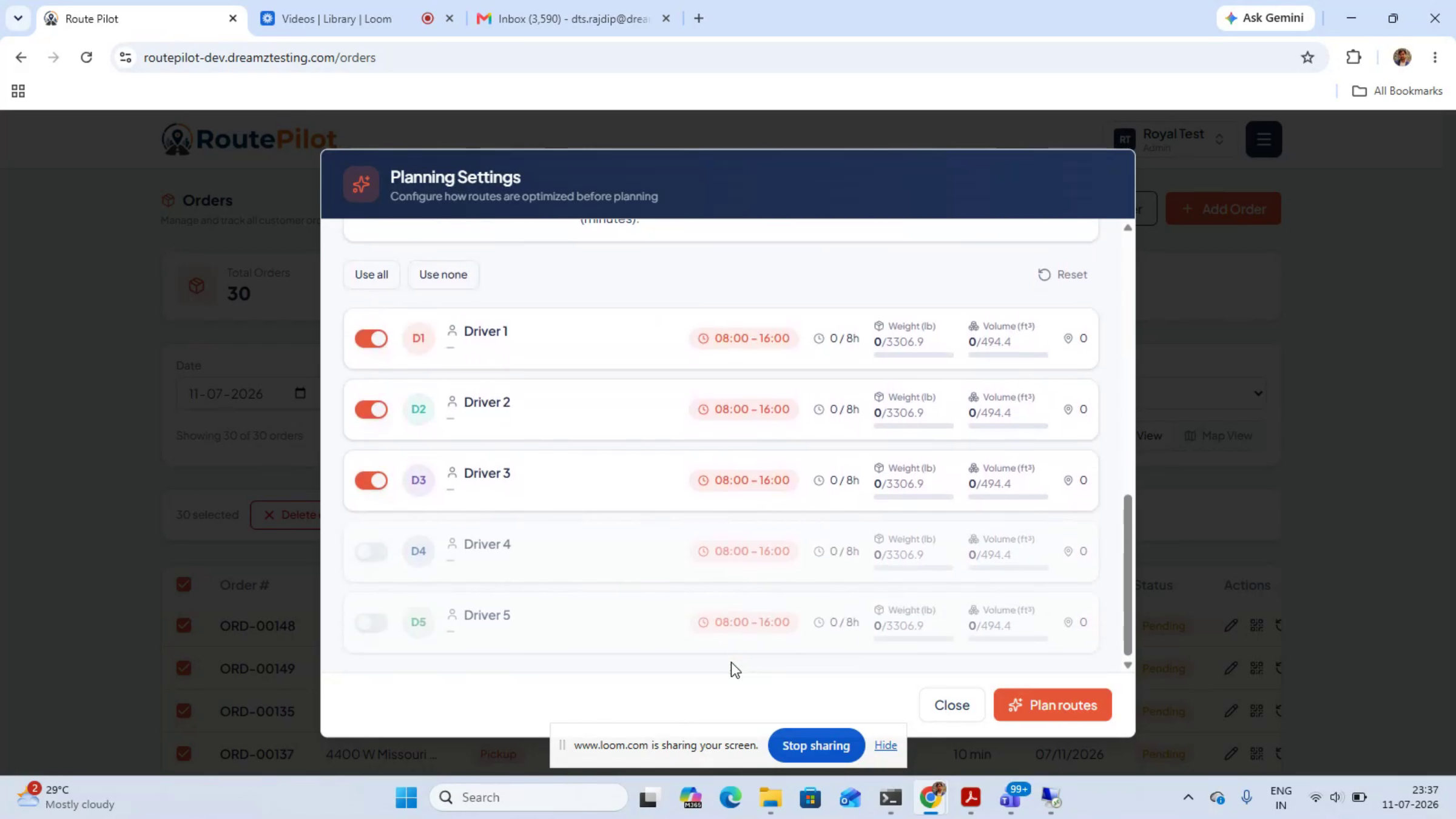
This is where the route optimization engine goes to work. It evaluates the selected orders, available drivers, vehicles, delivery locations, and operational rules to determine the most efficient delivery sequence. The system factors in real-world constraints such as vehicle weight and volume capacity, customer delivery windows, driver shifts and overtime rules, and service duration. Dispatchers can also decide whether orders should be distributed evenly by number or by time — and the plan reflects how your operation actually runs, allowing a driver to return to the depot to reload for a second or third trip within the same shift, or stay inside their own territory.
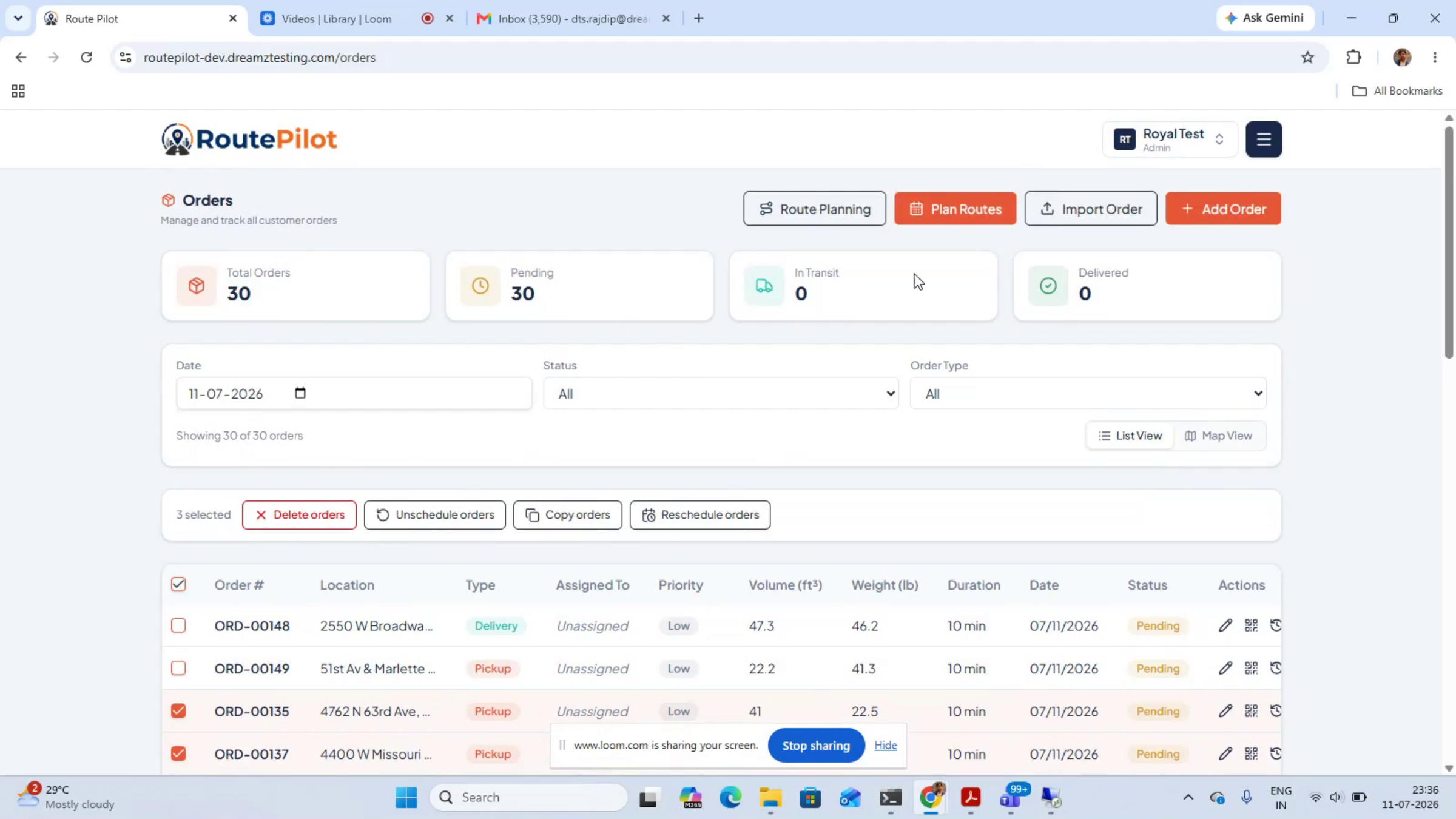
Note: Within about 10 seconds, dispatchers receive an optimized plan with improved routes, stop sequences, and driver assignments — turning hours of manual planning into a fast review process while improving fleet utilization, reducing overtime, and helping each driver complete more productive routes.
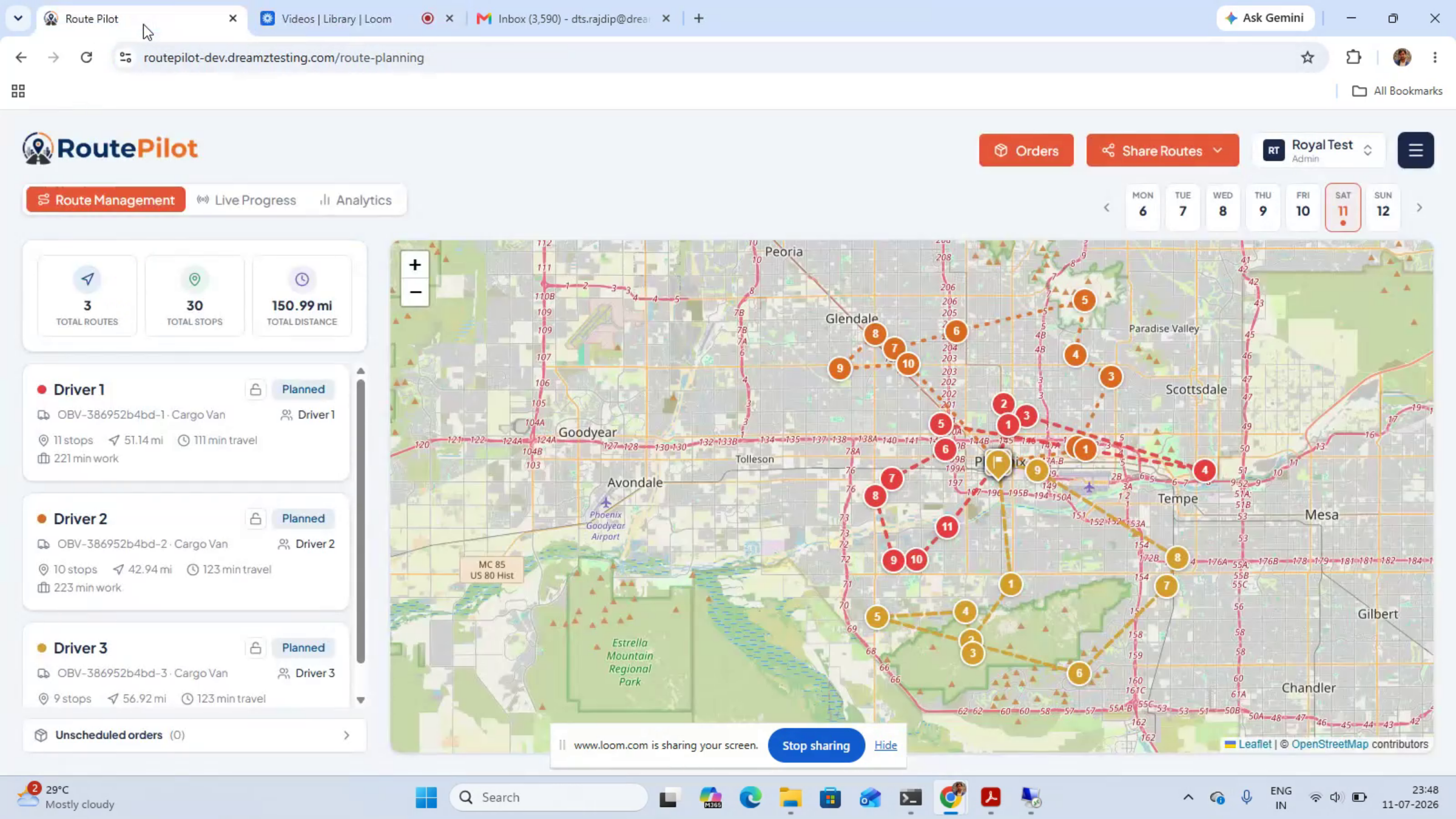
Step 6 – Review and Adjust the Optimized Plan
The platform displays the optimized delivery plan, including assigned drivers, stop sequences, route distance, estimated duration, and expected completion time. Dispatchers can review the recommendations, make adjustments when needed, and maintain full control before confirming the plan — they can even move a stop to a different driver.
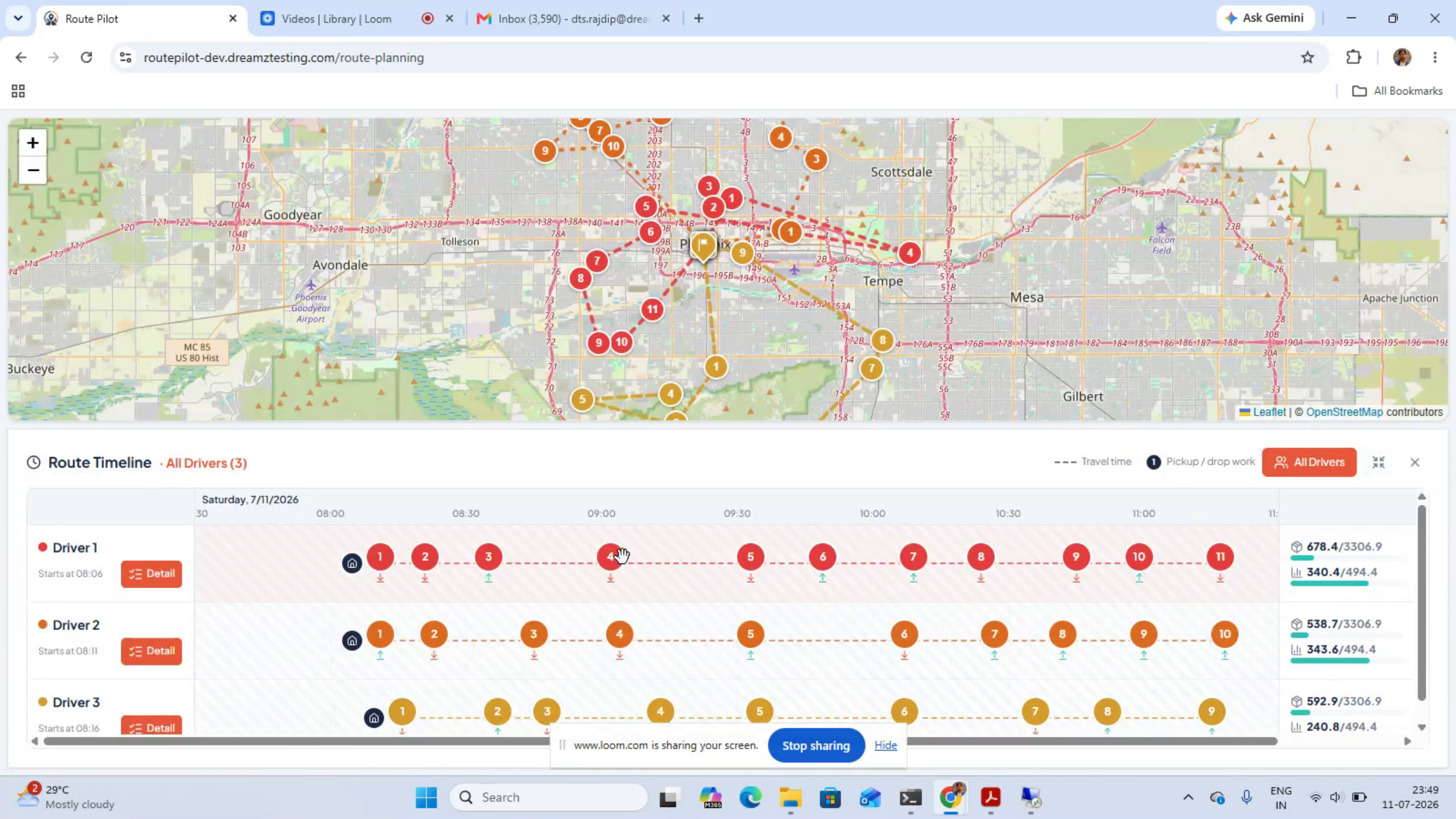
Step 7 – Lock Finalized Routes
To adjust a route, simply drag a stop to a different driver — travel times and load-against-capacity bars update instantly. Once a route is final, lock it. Locked routes are protected from further changes and won’t be touched if you re-plan the rest of the day.
After Optimizing — What's Next?
Once your routes are locked, dispatch is ready to roll. From here, you can:
- Push finalized routes to drivers’ mobile devices for turn-by-turn navigation and stop sequencing.
- Monitor live delivery progress against the planned schedule.
- Re-plan remaining, unlocked routes if new orders come in mid-day without disturbing locked routes.
- Review completed routes for on-time performance, mileage, and driver productivity reporting.
Take some time to review these reports regularly to keep improving route efficiency over time.
Tips for Better Route Optimization
- Keep driver and vehicle capacity data current — outdated capacity or shift information leads to less accurate route plans.
- Validate your spreadsheet before uploading. Fixing missing addresses or time windows up front saves rework later.
- Use API integration where possible. Real-time sync from your ERP, WMS, or CRM reduces manual entry and keeps orders current.
- Lock routes as soon as they’re confirmed. This protects finalized plans from being disturbed by later re-optimization runs.
Frequently Asked Questions
Can I edit a route after it has been optimized?
Yes. Before locking, you can drag any stop to a different driver, and travel times and capacity bars will update instantly.
What happens to locked routes if I re-optimize later in the day?
Locked routes are protected and will not be changed. Only unlocked routes are affected when you re-plan.
Do I need an API connection to use Route Optimization?
No. You can upload orders via a CSV spreadsheet, or connect an ERP, WMS, CRM, or e-commerce platform through the API for automatic order syncing — whichever fits your workflow.
Can a driver complete more than one trip in the same shift?
Yes. The engine supports drivers returning to the depot to reload and complete a second or third trip within the same shift.
Related Articles
RoutePilot Mobile App – Complete Workflow