Asset Settings
The Asset Settings section in DreamzCMMS allows administrators to define and manage the classification framework for all assets in your system. Setting up these categories, groups, types, and statuses correctly from the start ensures your assets are organised consistently, easy to filter, and accurately represented across work orders, reports, and the asset register.
Overview
Asset Settings is where you configure the building blocks of your asset hierarchy. Before adding assets to the system, it is recommended that you define your categories, groups, types, classifications, and statuses here. These settings apply across all asset records and help your team filter, report on, and manage assets efficiently.
Here is a reference video:
Before You Begin
- You must have Admin permissions to access and configure Asset Settings.
- Plan your asset hierarchy before making changes — define your top-level categories first, then sub-groups and types.
- Changes to these settings will apply to all assets across the system, so coordinate with your team before modifying existing entries.
How to Access Asset Settings
From the left-hand navigation panel, click on Settings. Scroll down to the Assets section. All asset configuration options are listed here. 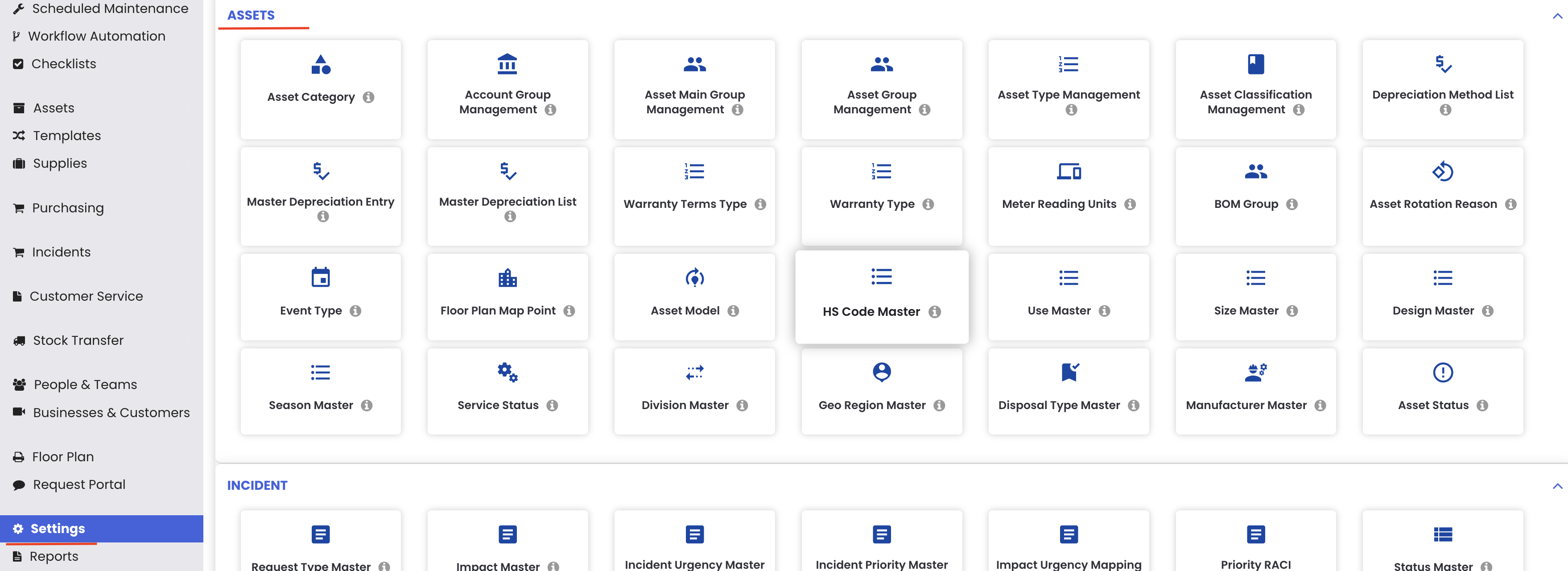
Asset Category
Asset Categories define the top-level type of each asset in the system. Navigate to Settings → Asset Category.
Here you can define what kind of asset you are recording — for example:
- Tool — for handheld or portable tools.
- Equipment — for machinery and fixed plant equipment.
- Parts and Supplies — for inventory and consumable items.
You also need to select the Parent Category when creating each category. The Parent Category determines how the asset appears and behaves in the system:
- If the asset is a piece of equipment, select Equipment as the Parent Category.
- If the asset is a physical location or facility, select Location as the Parent Category.
- If the asset is an inventory item or tool, select the appropriate parent category accordingly.
Note: The Asset Category you assign to an asset directly affects how it is displayed and managed throughout DreamzCMMS. Always select the correct Parent Category to ensure the asset appears in the right section of the system.
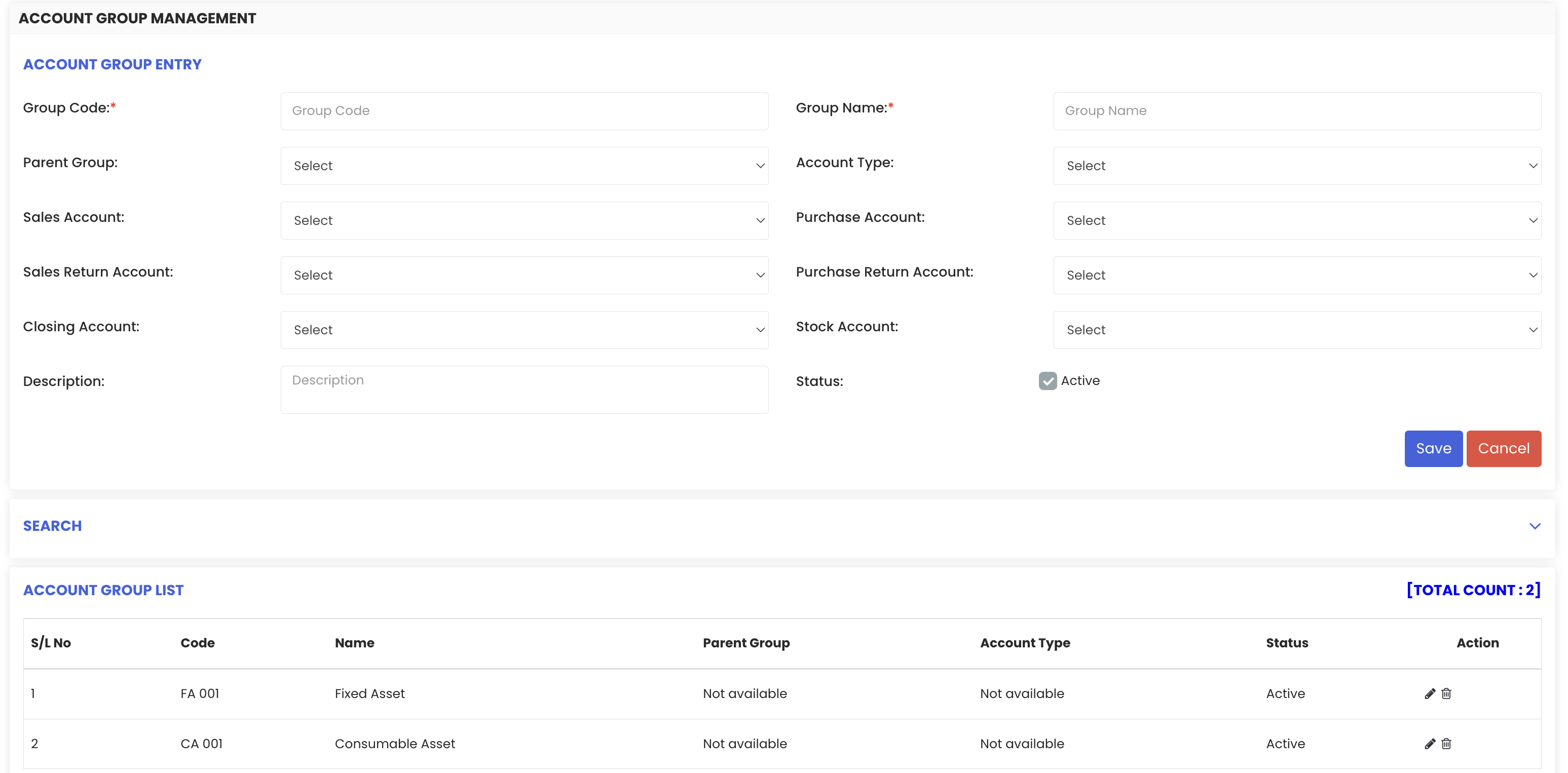
Account Group Management
Navigate to Settings → Account Group Management.
Account Groups allow you to classify your assets based on their accounting category. This is used for financial tracking and reporting purposes. Examples include:
- Fixed Assets — assets with a long useful life that are capitalised on the balance sheet.
- Consumable Assets — items that are used up in operations and expensed rather than capitalised.
Asset Main Group Management
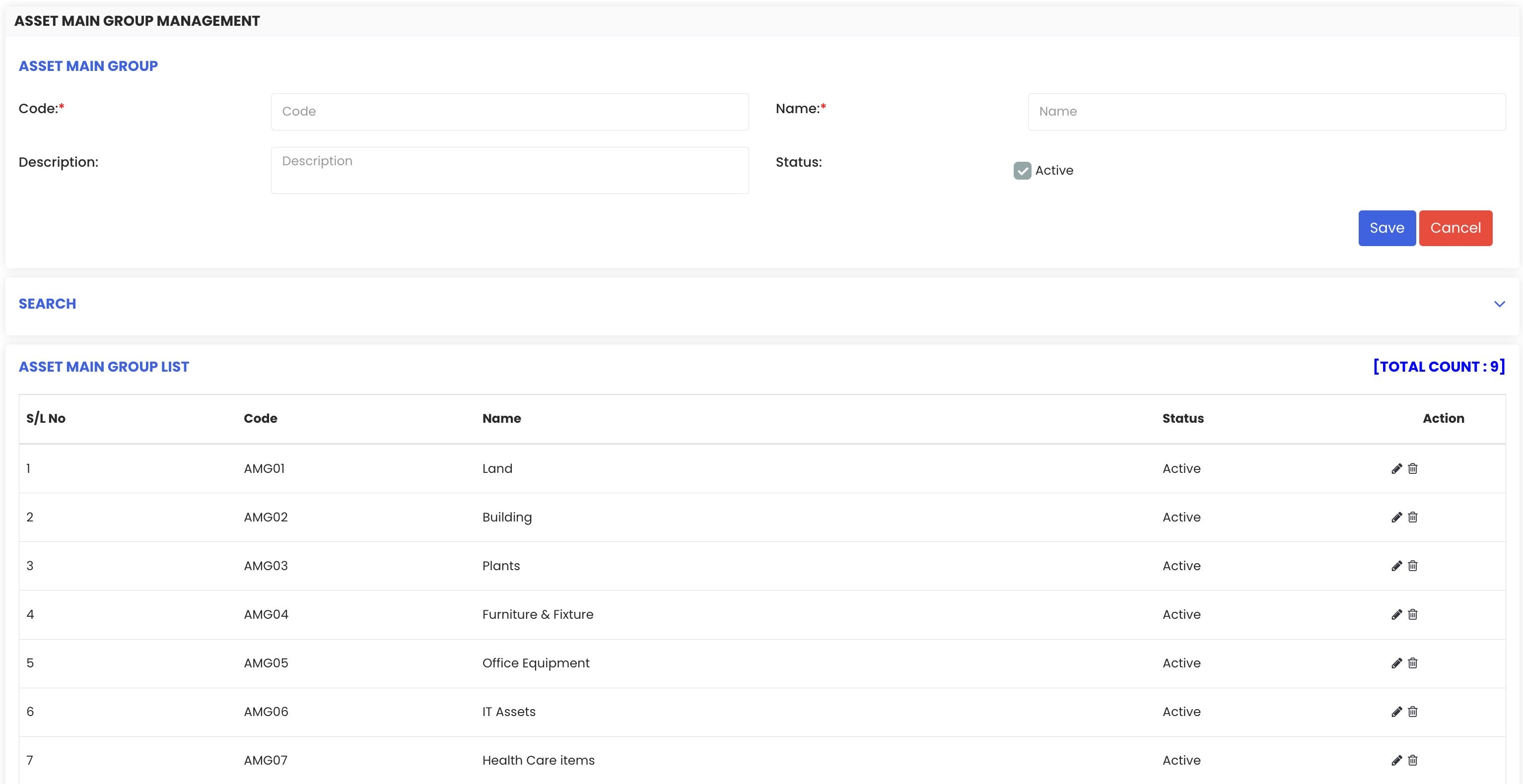
Navigate to Settings → Asset Main Group Management.
Asset Main Groups provide a broader classification of your assets beyond the account group. This level is useful for high-level reporting and organisation. Examples include:
- Buildings
- Land
- Machines
- Healthcare Equipmen
Asset Group Management
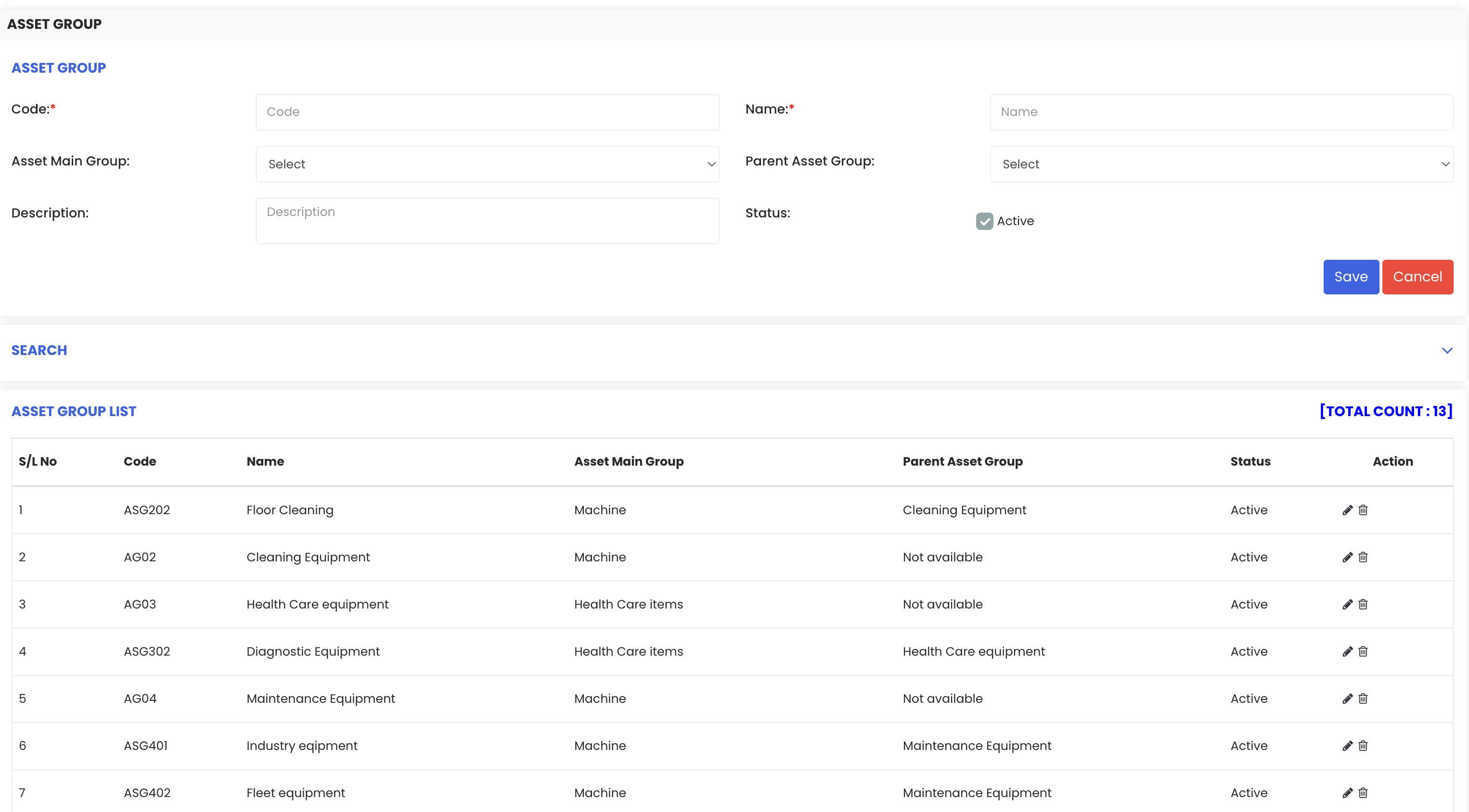
Navigate to Settings → Asset Group Management.
Asset Groups sit beneath the Main Group and allow you to group assets into more specific categories within each main group. Examples include:
- Industrial Equipment
- Fleet Equipment
This level of grouping is useful for filtering assets in reports and the asset register.
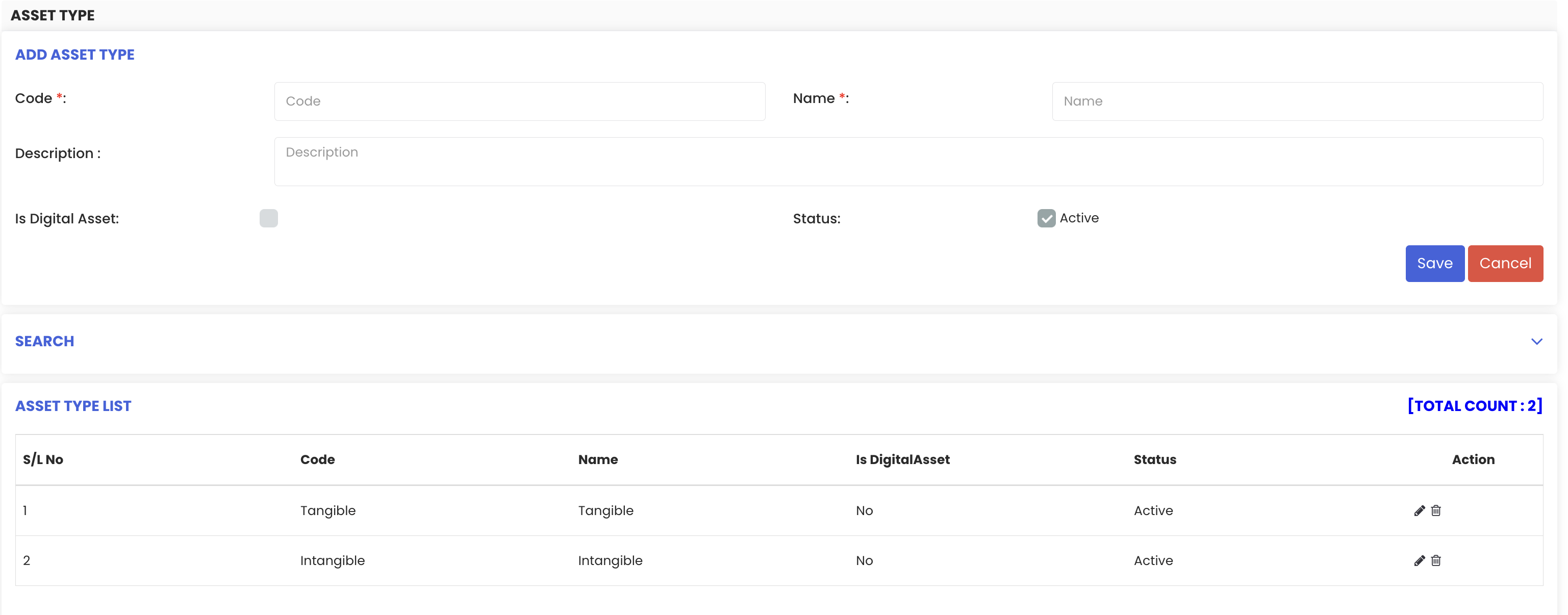
Asset Type
Navigate to Settings → Asset Type.
Asset Types define the physical or conceptual nature of your assets. The two standard types are:
- Tangible Asset — a physical asset you can touch and see, such as a machine, vehicle, or building.
- Intangible Asset — a non-physical asset such as software licences, patents, or goodwill.
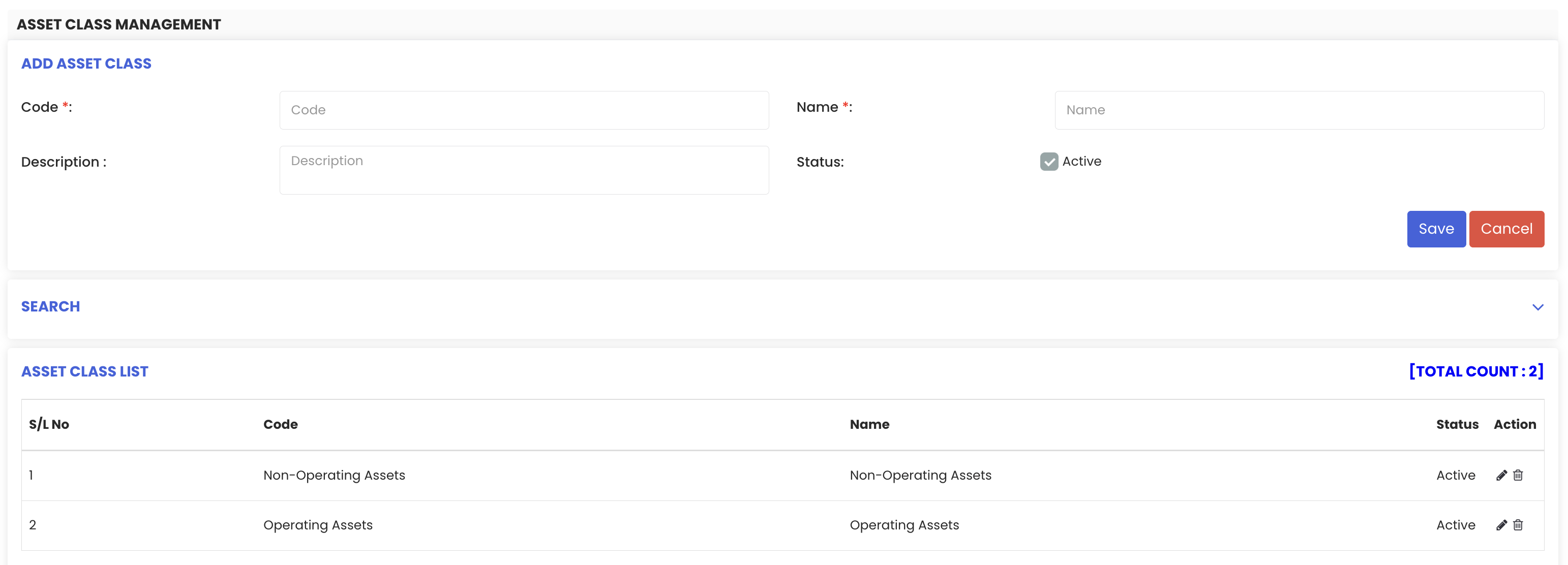
Asset Classification Management
Navigate to Settings → Asset Classification Management.
Asset Classifications define how an asset is used within the organisation. The two standard classifications are:
- Operating Assets — assets actively used in day-to-day operations.
- Non-Operating Assets — assets not currently in use, held in reserve, or awaiting disposal.
Asset Status
Navigate to Settings → Asset Status.
Asset Statuses allow you to create custom lifecycle stages for your assets and assign a colour code to each one. When an asset is assigned a status, it will appear with the corresponding colour throughout the system — making it immediately recognisable at a glance.
For example, you can create a status for assets that are scheduled for disposal and assign it a specific colour. Any asset with that status will display that colour in the asset register, helping your team take the right action quickly.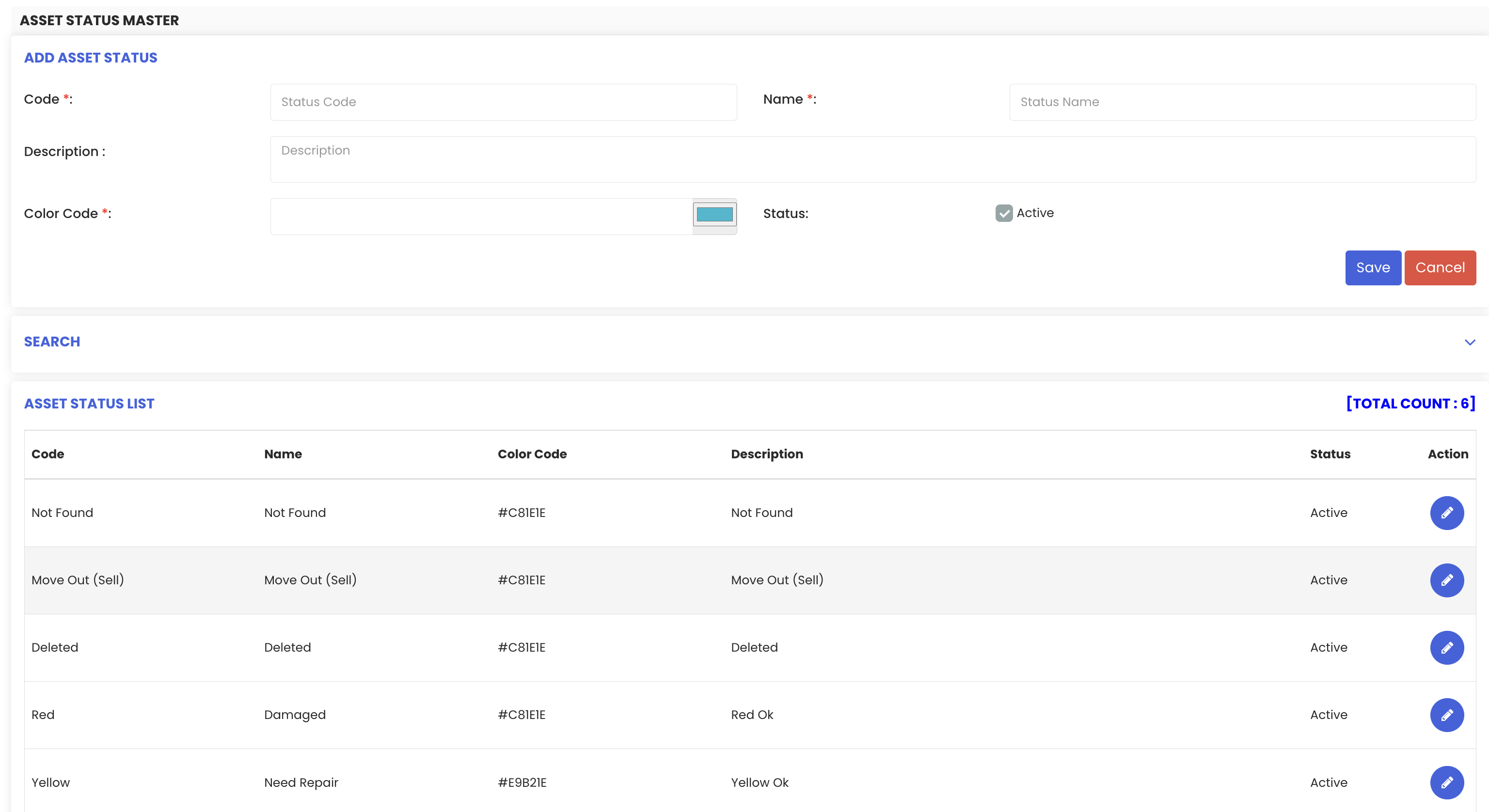
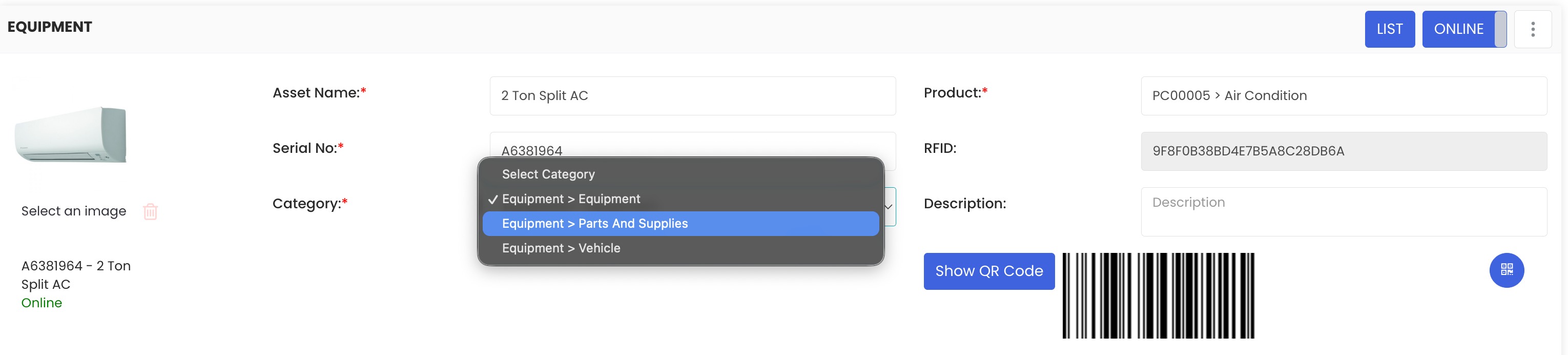
How Asset Category Applies to Equipment Records
When you go to Assets → Equipment and open or edit an equipment record, the Asset Category field becomes especially important. It determines how the asset is categorised and where it appears in the system.
Always ensure you select the correct category and parent category when creating or editing an asset:
- If the asset is a piece of equipment, select Equipment as the category.
- If the asset is a tool, select Tool as the category.
- If the asset is a physical location or facility, select Facility as the category.
Tips for Configuring Asset Settings
- Set up all Asset Settings before importing or creating asset records — retroactively changing categories can affect how existing assets are displayed.
- Use a consistent naming convention across all groups and categories to avoid duplicates (e.g., always use "Equip" or always use "Equipment" — pick one).
- Keep the hierarchy simple. Main Group → Group → Category is typically enough for most organisations.
- Use colour-coded Asset Statuses to give your team instant visual cues — particularly useful for assets that are in maintenance, pending disposal, or inactive.
- Review your Account Groups with your finance team to ensure they align with your organisation's chart of accounts.
Frequently Asked Questions
What is the difference between Asset Main Group and Asset Group?
Asset Main Group is the higher-level classification (e.g., Machines), while Asset Group sits beneath it with more specific groupings (e.g., Industrial Equipment). Together they allow for a two-tier grouping structure within your asset hierarchy.
Can I create custom asset categories?
Yes. You can create as many categories as needed in the Asset Category section. Always make sure to assign the correct Parent Category so the asset behaves correctly in the system.
What happens if I assign the wrong category to an asset?
The asset may appear in the wrong section of the system or behave unexpectedly. You can correct this by editing the asset record and selecting the appropriate category and parent category.
Can I assign a colour to any asset status?
Yes. When creating or editing an asset status, you can assign any colour code. That colour will then appear alongside the asset wherever that status is displayed in the system.
Do I need to fill in all asset settings before adding assets?
It is strongly recommended. Setting up your categories, groups, types, and statuses beforehand ensures your assets are classified correctly from the start and avoids the need for bulk edits later.
Who can access and modify Asset Settings?
Only users with Admin permissions can access the Settings menu and make changes to Asset Settings.