Associated Item Warranty Mapping
The Associated Item Warranty Mapping feature in DreamzCMMS ensures that warranties linked to specific assets are properly recorded, tracked, and monitored in real time. It eliminates missed warranty expirations, improves accountability across your asset base, and gives your team timely notifications before warranties lapse.
Overview
An Associated Item Warranty Mapping records the warranty details of a part or item linked to a specific asset in your system. Each mapping captures the associated item, the warranty start and end dates, and notification settings — giving you a complete warranty trail for every asset in your inventory.
If you haven't set up your assets yet, see Create Asset Locations first.
Before You Begin
- You must have the appropriate permissions to access and edit asset details.
- The asset you want to map must already exist in the system under Equipment.
- The item you wish to associate must already be available in the system (e.g., EMR Zone 4 RAC).
- Ensure the recipient email for warranty notifications is configured in Settings.
Here is a reference video:
How to Map an Associated Item Warranty
Step 1 – Navigate to Assets
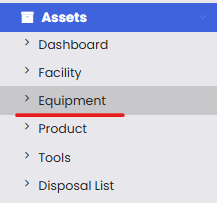
From the main menu, go to Assets → Equipment. Search for the equipment you want to associate and open its details page.
Step 2 – Go to the Warranty Section
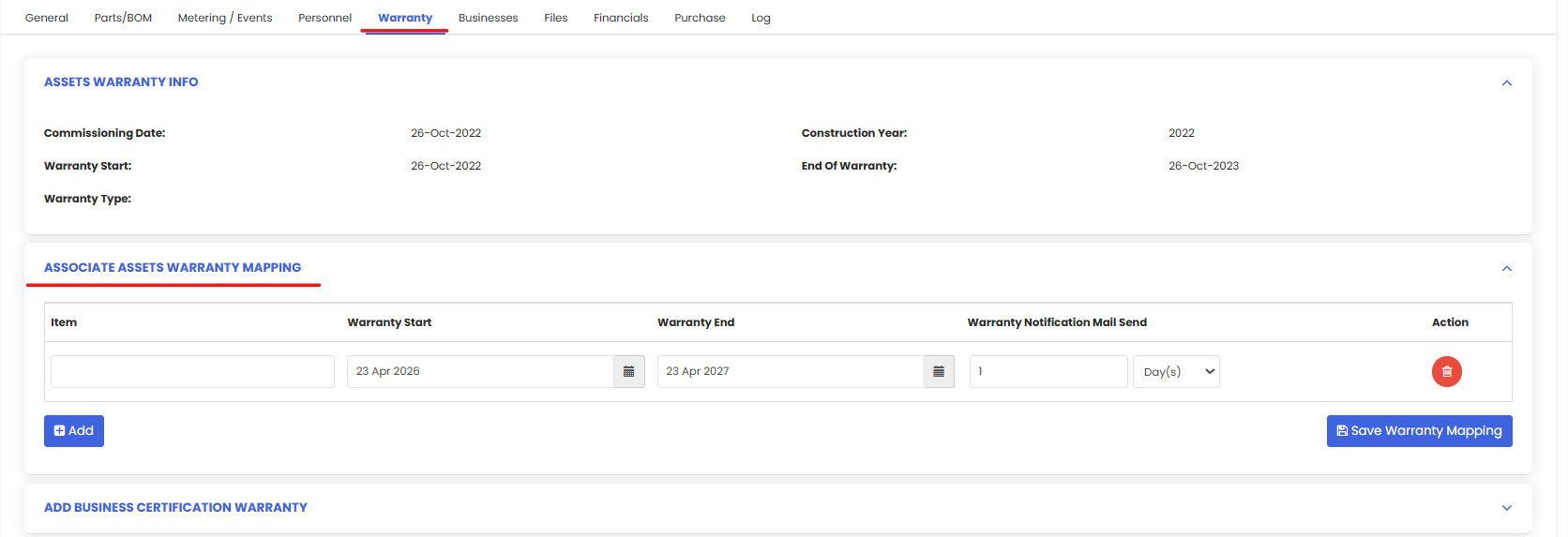
Once inside the asset details page, scroll to and open the Warranty section.
Step 3 – Select the Item to Map
Under Associated Assets Warranty Mapping, use the search field to find the item you want to link. For example, search for EMR Zone 4 RAC and select it from the results.
Step 4 – Enter Warranty Dates
After selecting the item, fill in the following fields:
- Warranty Start Date — Enter the date the warranty begins.
- Warranty End Date — Enter the date the warranty expires.
Step 5 – Set the Warranty Notification
Use the Warranty Notification option to specify how many days before the warranty end date a reminder email should be sent to the designated recipient.
Step 6 – Save the Warranty Mapping
Once all details are filled in, click Save to complete the warranty mapping.
Step 7 – Configure the Notification Recipient
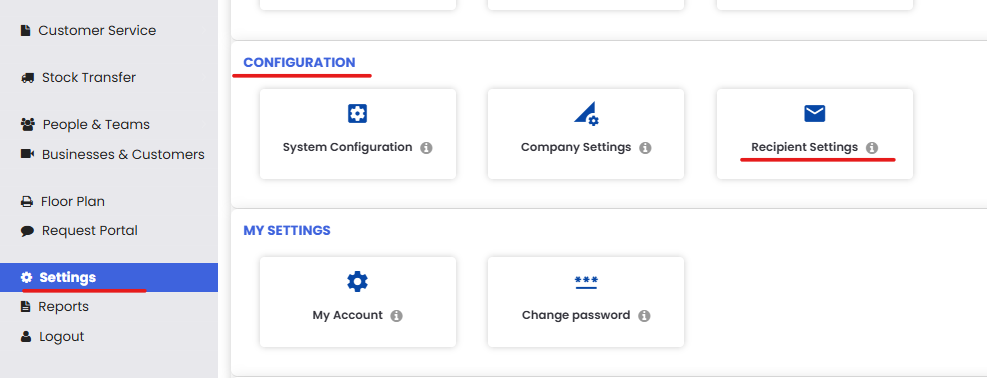
To ensure warranty reminder emails are received, go to Settings → Configuration → Recipient Settings. Locate the Asset and Parts Warranty Recipient Email field and enter the appropriate email address.

Viewing Warranty Data
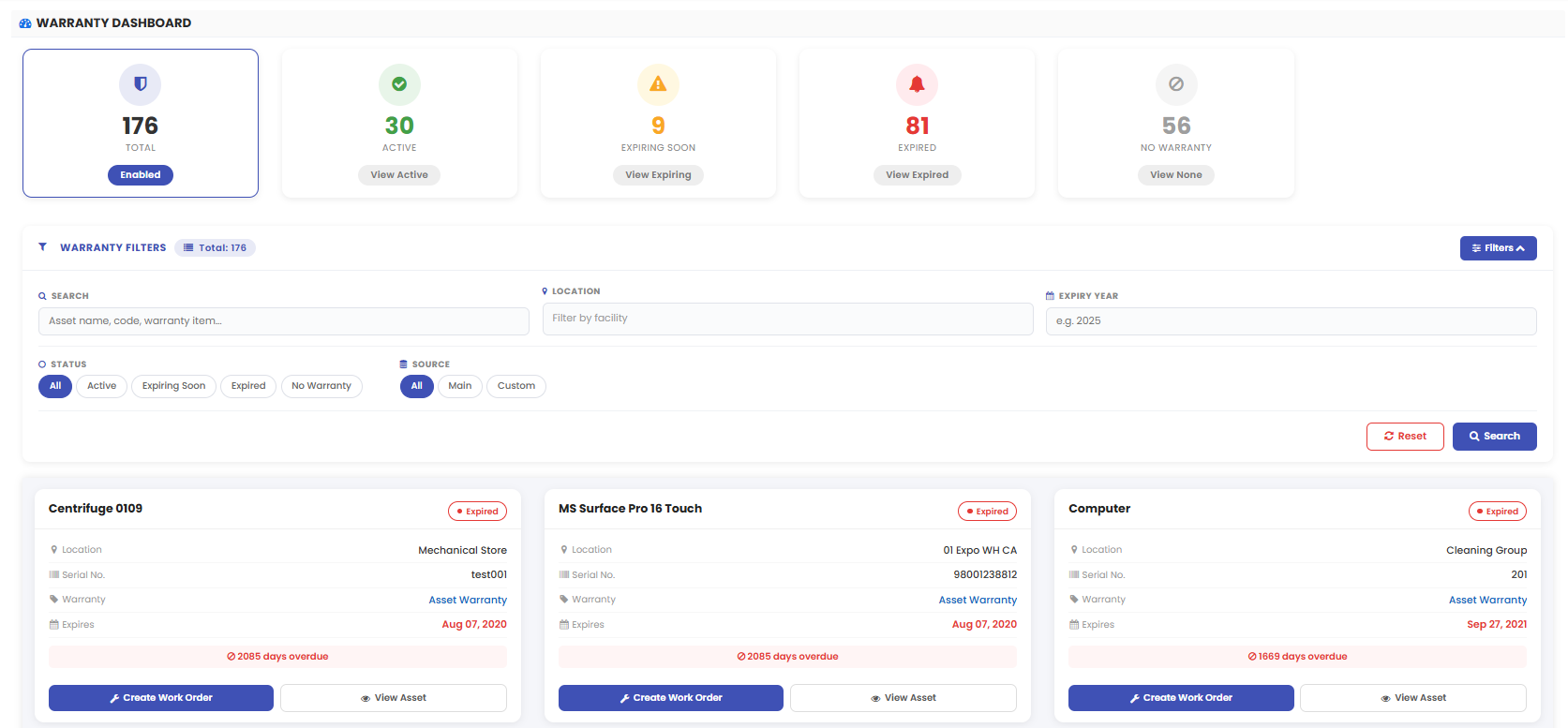
Warranty Dashboard
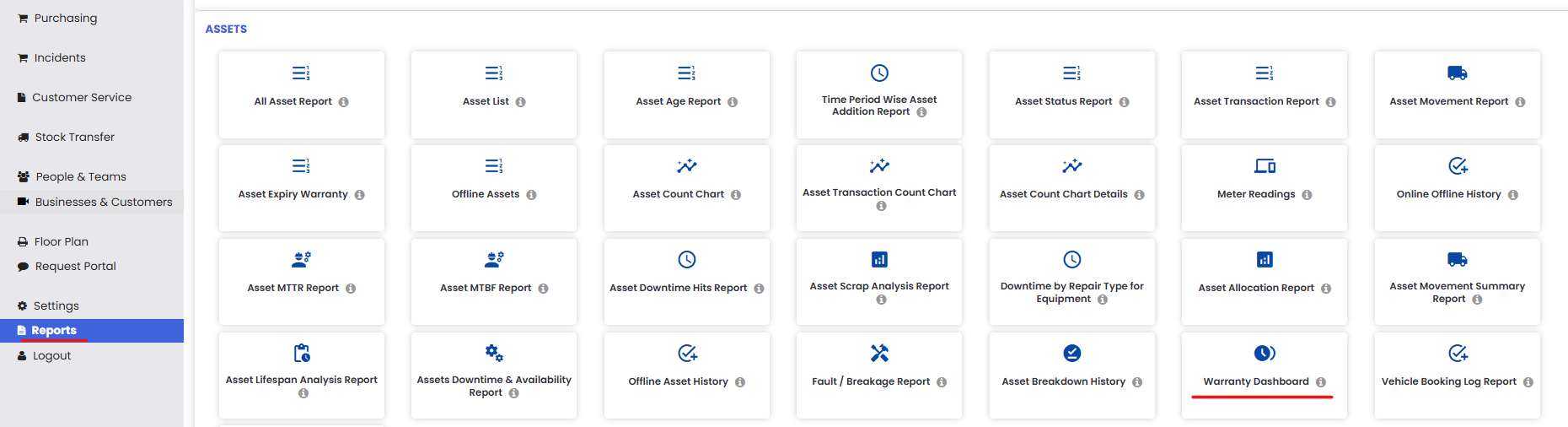
To access the Warranty Dashboard, go to Reports → Asset → Warranty Dashboard. Here you can view:
- Total number of enabled assets
- Assets with active warranties
- Assets with warranties expiring soon
- Assets with already expired warranties
You can search for a specific asset to see its warranty details, including the expiry date and associated item information, reflected as per the values entered during mapping.
Asset Expiry Warranty Report
To access this report, go to Reports → Asset → Asset Expiry Warranty. Search for the asset that was previously mapped. The report displays:
- The main asset along with its associated item
- Warranty expiry date
- Current warranty status
The report also supports export in Excel or PDF format for download and record-keeping.


Tips for Managing Warranty Mappings
- Set notifications early. Configure reminders well in advance of expiry to allow time for renewal or procurement.
- Keep recipient emails up to date. Outdated email addresses in Recipient Settings will result in missed notifications.
- Use the Warranty Dashboard regularly. Monitor expiring warranties proactively to avoid lapses.
- Check the Expiry Warranty Report for exports. Use the Excel or PDF export options for audits or vendor communications.
Frequently Asked Questions
Can I map multiple items to a single asset?
Yes. You can add multiple associated item warranty mappings within the Warranty section of a single asset.
What triggers the warranty notification email?
The system sends a reminder email the specified number of days before the warranty end date, to the email address configured under Recipient Settings.
Where can I see all warranties expiring soon?
Use the Warranty Dashboard under Reports → Asset to view assets with warranties that are expiring soon.
Can I export warranty data?
Yes. The Asset Expiry Warranty report supports export in both Excel and PDF formats.