Gantt Chart – DreamzFSM
The Gantt Chart in DreamzFSM provides a visual, timeline-based view of all jobs, making it easy to plan, schedule, and manage field service operations. With drag-and-drop functionality, multiple view options, and the ability to add jobs directly from the chart, it is a powerful tool for resource management and operational planning. Key highlights include:
- View all jobs on a visual timeline with daily, weekly, 15-day, and monthly view options
- Use drag-and-drop to reschedule jobs and adjust durations directly on the chart
- Manage job dependencies and hierarchical structure across projects, maintenance, and job levels
- Add new jobs directly from the Gantt Chart using the quick creation pop-up or advanced job option
Overview
The Gantt Chart is accessible from the Jobs menu in DreamzFSM. It offers a timeline-based visual representation of all jobs, enabling field service teams to understand job start and end dates, durations, progress, days remaining, and dependencies at a glance. The chart supports multiple time views — daily, weekly, 15-day, and monthly — and features drag-and-drop rescheduling for quick adjustments. Its hierarchical structure organises jobs across project, maintenance, and job levels, keeping operations well structured. Teams can also create new jobs directly from the Gantt Chart view, either using a quick pop-up or the advanced job creation option.
Here is a reference video:
Step by Step Description to Use the Gantt Chart
Step 1 – Navigate to the Gantt Chart
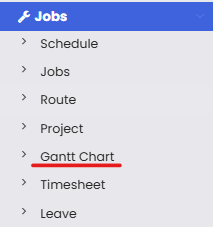
From the menu, click on Jobs and then select Gantt Chart. This will open the Gantt Chart view.
Step 2 – Choose Your Timeline View
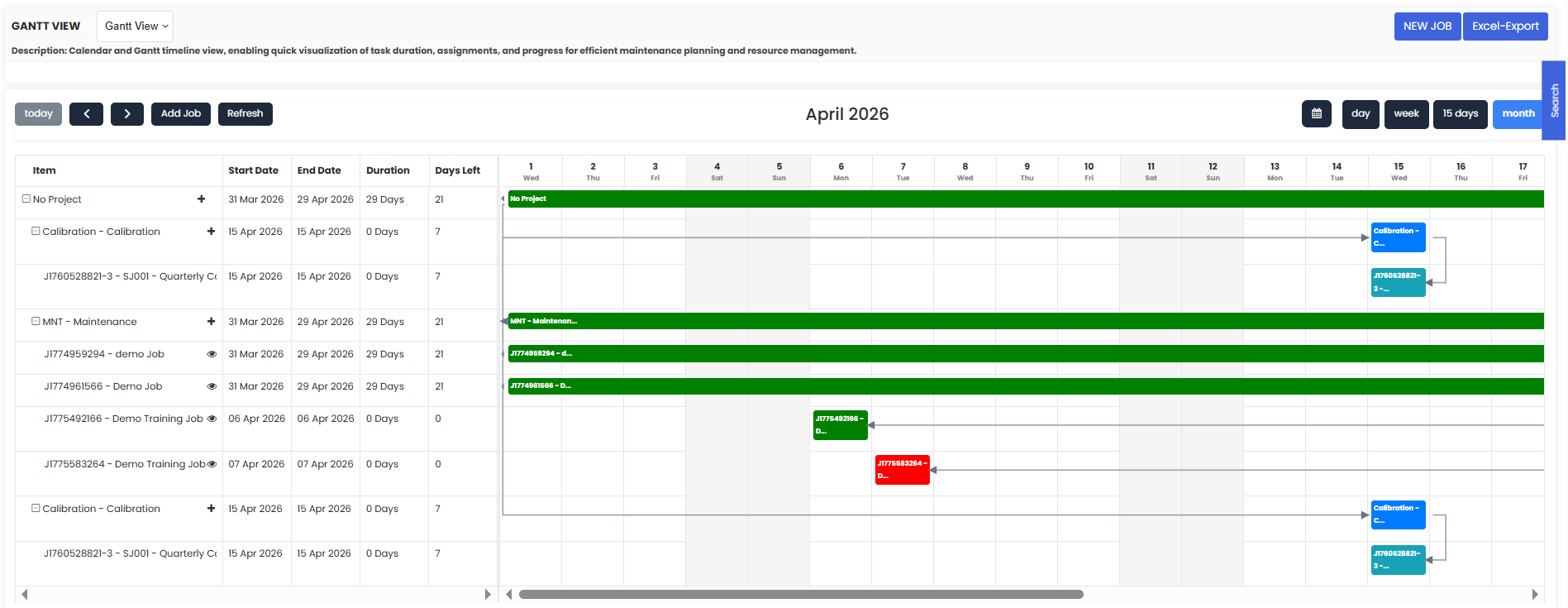
Switch between available timeline views based on your planning needs:
- Daily – view jobs scheduled for each day
- Weekly – view jobs across a full week
- 15-Day – view a two-week rolling schedule
- Monthly – view all jobs for the month (default view)

Step 3 – Review Job Details on the Timeline
The Gantt Chart displays key information for each job including the start and end dates, duration, progress, and number of days remaining. Use this view to get a complete picture of your team's workload at any given time.
Step 4 – Reschedule Jobs Using Drag and Drop
To reschedule a job, simply drag it to a new position on the timeline. You can also extend or shorten the duration of a job by dragging its end point. This makes adjustments quick and intuitive without needing to open individual job records.
Step 5 – Manage Job Dependencies and Structure
Use job dependencies to ensure tasks follow the correct sequence. The hierarchical structure — spanning project, maintenance, and job levels — keeps all related work organised and easy to navigate.
Step 6 – Add a New Job from the Gantt Chart
You can add new jobs directly from the Gantt Chart view using one of the following methods:
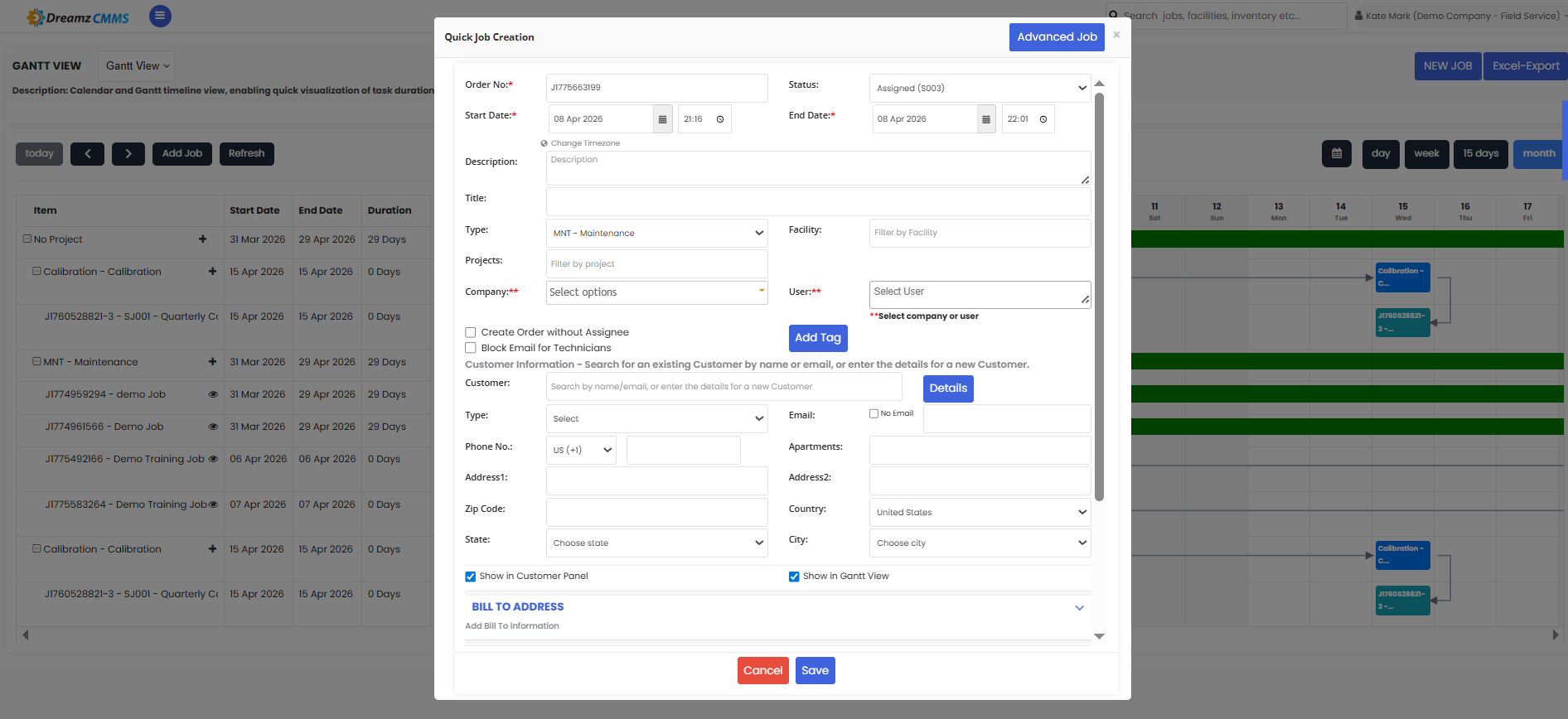
- Click the Add Job option to open a quick creation pop-up, fill in the required details, and click Save
- Use the Advanced Job option for more detailed job creation
- Click the plus icon within a project section to open the same quick creation pop-up
Tips for Using the Gantt Chart
- Use the monthly view for high-level planning and switch to the daily or weekly view when managing immediate scheduling or resource conflicts.
- Take advantage of drag-and-drop rescheduling to quickly resolve conflicts or adjust timelines without navigating away from the chart.
- Set up job dependencies for complex projects to ensure tasks are completed in the correct order and downstream work is not impacted by delays.
- Use the Gantt Chart to spot overbooking — if a technician has overlapping jobs, it will be immediately visible on the timeline, allowing you to reassign work promptly.
- Add quick jobs using the plus icon or Add Job pop-up directly from the chart to avoid context switching and keep your scheduling workflow efficient.
Frequently Asked Questions
How do I access the Gantt Chart in DreamzFSM?
Click on Jobs from the menu and select Gantt Chart. This will open the Gantt Chart view displaying all jobs on a timeline.
What timeline views are available in the Gantt Chart?
The Gantt Chart supports daily, weekly, 15-day, and monthly views. You can switch between these views based on your planning and scheduling requirements.
Can I reschedule jobs directly from the Gantt Chart?
Yes. You can drag and drop jobs to new positions on the timeline or extend their duration by dragging the end point, making rescheduling quick and visual.
Can I add new jobs from the Gantt Chart?
Yes. You can add jobs using the Add Job option (which opens a quick creation pop-up), the Advanced Job option for more detailed creation, or the plus icon within a project section.
What is the default view when opening the Gantt Chart?
The Gantt Chart may open in the monthly view by default, but you can switch to any other available view — daily, weekly, or 15-day — based on your requirements.
Related Articles
- Workflow Automation – Asset Rental Module
- Jobs and Work Orders – Asset Rental Module
- Metering Schedule – DreamzFSM
- Metering Schedule – Asset Rental Module
- Assets – Asset Rental Module