Metering Schedule – DreamzFSM
The Metering Schedule in DreamzFSM allows you to set up meter-based scheduled maintenance for your equipment. By defining meter readings and intervals, the system automatically triggers work orders when the specified thresholds are reached — ensuring timely and consistent asset maintenance. Key highlights include:
- Create meter-based maintenance schedulers with custom intervals and starting meter readings
- Apply a single metering schedule across multiple equipment items
- Configure overdue settings, technician assignments, and checklists for each scheduler
- Manage schedulers from the listing page with options to edit, duplicate, view, or delete
Overview
The Metering Schedule feature is accessible from the Scheduled Maintenance menu in DreamzFSM. It enables teams to automate maintenance work orders based on meter readings — such as kilometres travelled or hours of operation — rather than fixed calendar dates. When a defined meter interval is reached, the system automatically generates a work order. Schedulers can be applied to multiple assets simultaneously, and each scheduler supports full work order configuration including descriptions, technician assignments, task checklists, financial settings, file attachments, and notification preferences.
Here is a reference video:
Step by Step Description to Create a Metering Schedule
Step 1 – Navigate to Metering Schedule
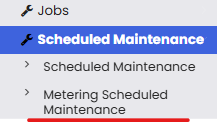
From the menu, click on Scheduled Maintenance and then select Metering Scheduled Maintenance. This will open the Metering Schedule listing page.
Step 2 – Create a New Scheduler
Click on the Add New Scheduler button to open the scheduler creation page.

Step 3 – Configure the Scheduler Settings
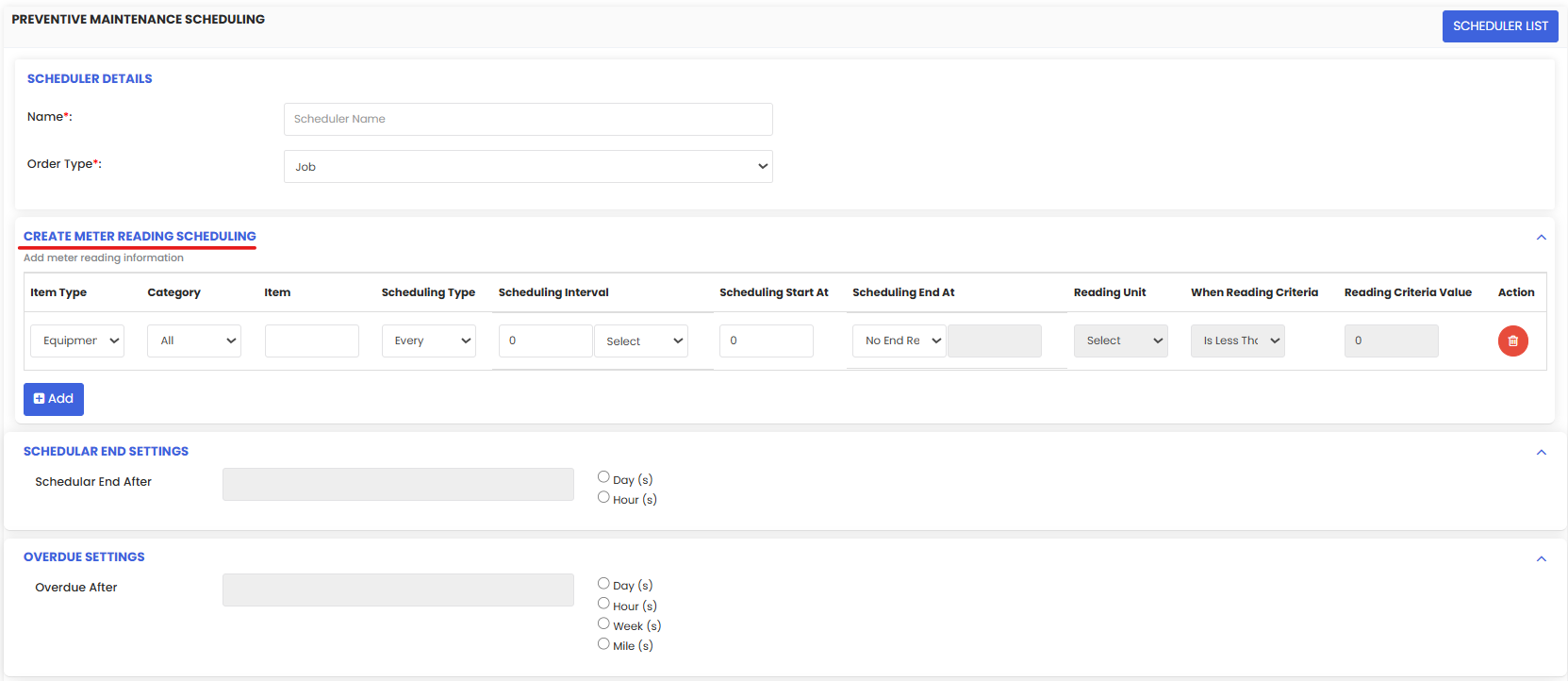
Fill in the core scheduler settings:
- Scheduler Name – enter a descriptive name for the scheduler
- Scheduling Interval – define the meter interval at which maintenance should be triggered (e.g. every 5000 km)
- Starting Meter Reading – set the meter reading from which the interval count begins
- End Reading – optionally define a meter reading at which the scheduler should stop
Step 4 – Add Equipment
Add one or more equipment items to the scheduler. This allows the same metering schedule to be applied across multiple assets simultaneously.
Step 5 – Configure End and Overdue Settings
Define when the scheduler should end — for example, after a certain number of days or hours. Then set the overdue settings to specify how long after generation a work order should be marked as overdue (e.g. after 3 days).
Step 6 – Add Work Order Details
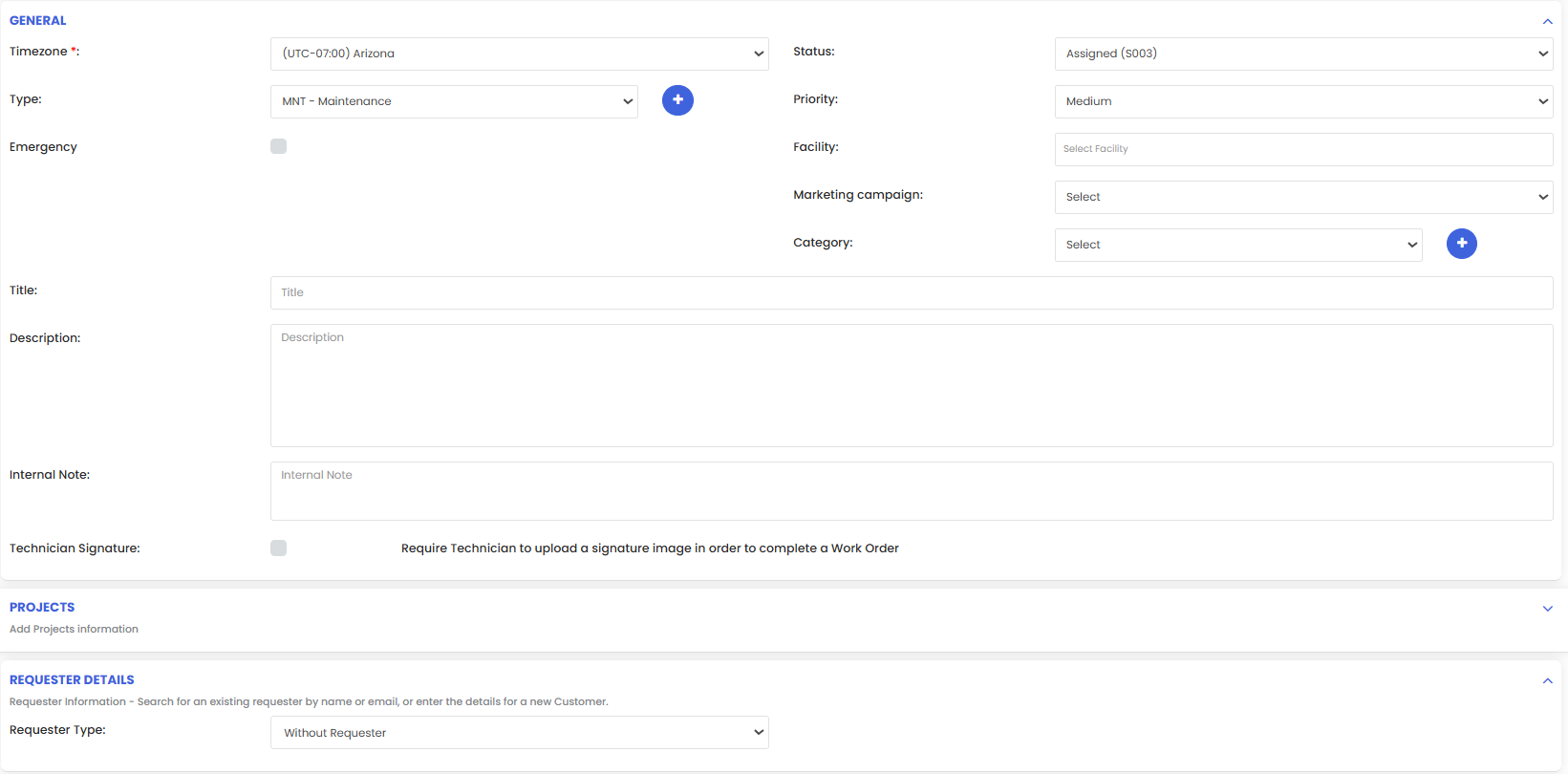
Complete the work order configuration for the scheduler:
- Description and Internal Notes – add relevant details about the maintenance task
- Technician Signature – enable if a technician signature is required upon completion
- Project Link – optionally link the scheduler to a project
- Requester Details – select an employee, customer, subcontractor, or leave unassigned
Step 7 – Assign Technicians and Add Tasks
Assign technicians or subcontractors to the scheduler. In the labour tasks section, add tasks or checklists — for example, a Car Maintenance Checklist. You can add tasks without asset assignment or link them directly to specific assets and assign individual technicians to each task.
Step 8 – Configure Financial Settings and Attachments
Set the financial settings for the scheduler, such as fixed budget or hourly work. Attach any relevant files related to the scheduler if required.
Step 9 – Set Messaging Notifications
In the messaging settings, select the users who should receive notifications for events such as assignment, status changes, and task completion.
Step 10 – Save the Scheduler
Once all details are configured, click Save. The metering scheduler will appear on the listing page, where you can edit, duplicate, view details, or delete it as needed.
Tips for Using the Metering Schedule
- Set an accurate starting meter reading to ensure the first maintenance trigger occurs at the correct threshold and not before or after.
- Apply the scheduler to multiple equipment items at once when the same maintenance interval applies to a fleet of similar assets — this saves time and ensures consistency.
- Configure the overdue settings carefully to give technicians a realistic window to complete work orders without them being marked overdue prematurely.
- Use checklists in the labour tasks section to standardise maintenance procedures and ensure nothing is missed during each scheduled service.
- Use the duplicate option on the listing page to quickly create similar schedulers for other equipment without starting from scratch.
Frequently Asked Questions
How do I access the Metering Schedule in DreamzFSM?
Click on Scheduled Maintenance from the menu and select Metering Schedule. This will open the Metering Schedule listing page.
How does the meter-based interval work?
You define a starting meter reading and a scheduling interval. The system will trigger a maintenance work order every time the meter reaches the defined interval from the starting reading — for example, every 5000 km from a starting reading of 2547.
Can I apply one scheduler to multiple assets?
Yes. You can add multiple equipment items to a single metering scheduler, allowing the same maintenance schedule to be applied across an entire fleet or group of assets.
What are overdue settings used for?
Overdue settings define how long after a work order is generated before it is marked as overdue in the system — for example, if a work order is not completed within 3 days, it will be flagged as overdue.
Can I edit or duplicate a metering scheduler after saving it?
Yes. From the Metering Schedule listing page, you have options to edit, duplicate, view details, or delete any existing scheduler.
Related Articles
- Metering Schedule – Asset Rental Module
- Workflow Automation – Asset Rental Module
- Gantt Chart – DreamzFSM
- Jobs and Work Orders – Asset Rental Module
- Assets – Asset Rental Module