Purchasing Module – Asset Rental Module
The Purchasing module in DreamzCMMS Asset Rentals provides a complete end-to-end procurement workflow — from raising a purchase request and comparing vendor quotations, to creating purchase orders, managing multi-level approvals, and generating receipts and invoices. Key highlights include:
- Create and manage Purchase Requests with department, facility, and item details
- Generate Requests for Quotation (RFQ) and compare vendor quotes side by side
- Create Purchase Orders (PO) and manage a multi-level approval workflow
- Process receipts and invoices once a purchase order is fully approved
Overview
The Purchasing module is accessible from the left-hand panel in DreamzCMMS and provides a structured procurement workflow for the Asset Rental module. The process begins with a Purchase Request, which captures the required items, quantities, and department details. Once approved internally, an RFQ is generated and sent to multiple vendors, whose quotes can be compared side by side to identify the best price. The selected vendor's quote is then used to create a Purchase Order, which goes through a configurable multi-level approval process — with each approver notified by email. Once fully approved, a receipt and invoice can be created to complete the procurement cycle.
Here is a reference video:
Step by Step Description of the Purchasing Module
Step 1 – Navigate to the Purchasing Module
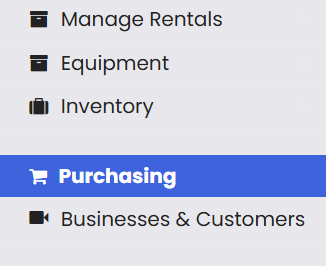
From the left-hand panel, click on the Purchasing menu. You will be redirected to the Purchase Dashboard.
Step 2 – Create a Purchase Request
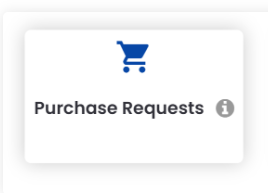
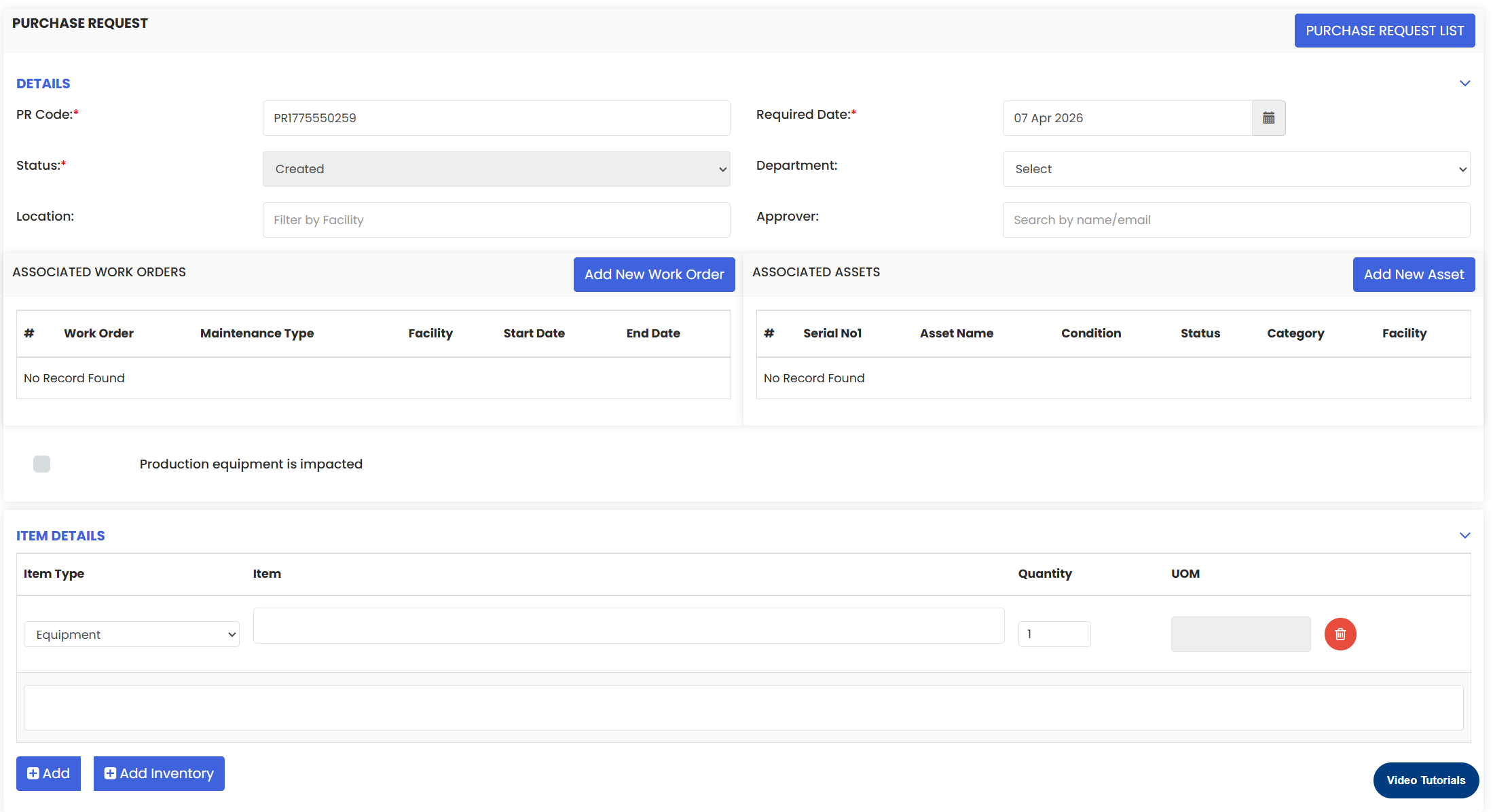
From the Purchase Dashboard, go to Purchase and select Purchase Request. On the Purchase Request listing page, click New Purchase Request and fill in the required details:
- Department – select the relevant department
- Facility – specify the facility for the request
- Required Date – enter the date by which the items are needed
- Item Details – select the item and enter the required quantity
Once all details are entered, click Save to create the purchase request.
Step 3 – Create a Request for Quotation (RFQ)
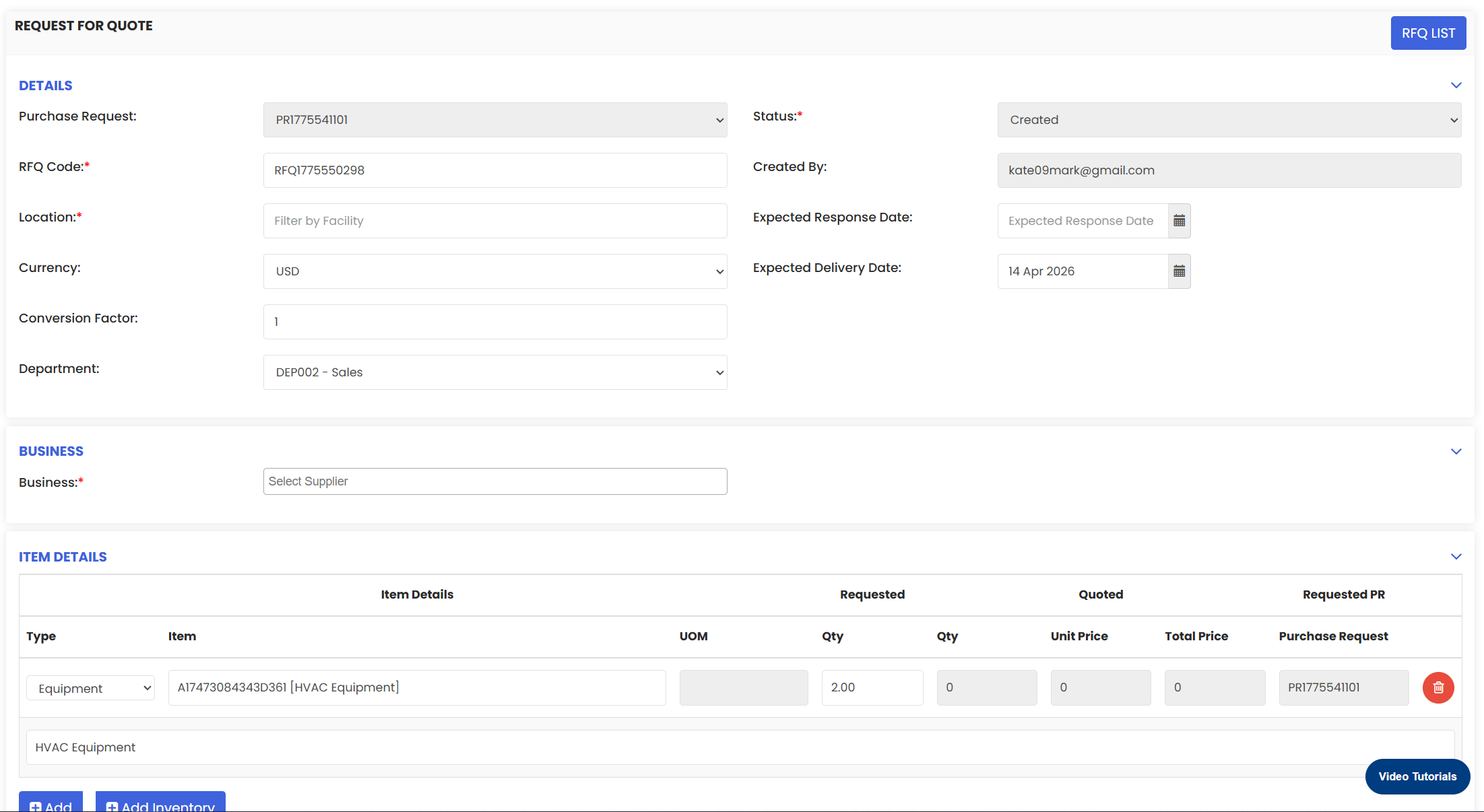
After saving the purchase request, proceed to create an RFQ. Most details will be pre-filled from the purchase request. Select the business (vendor) and click Save. The RFQ will appear on the RFQ listing page.
Step 4 – Update Vendor Quotation Details
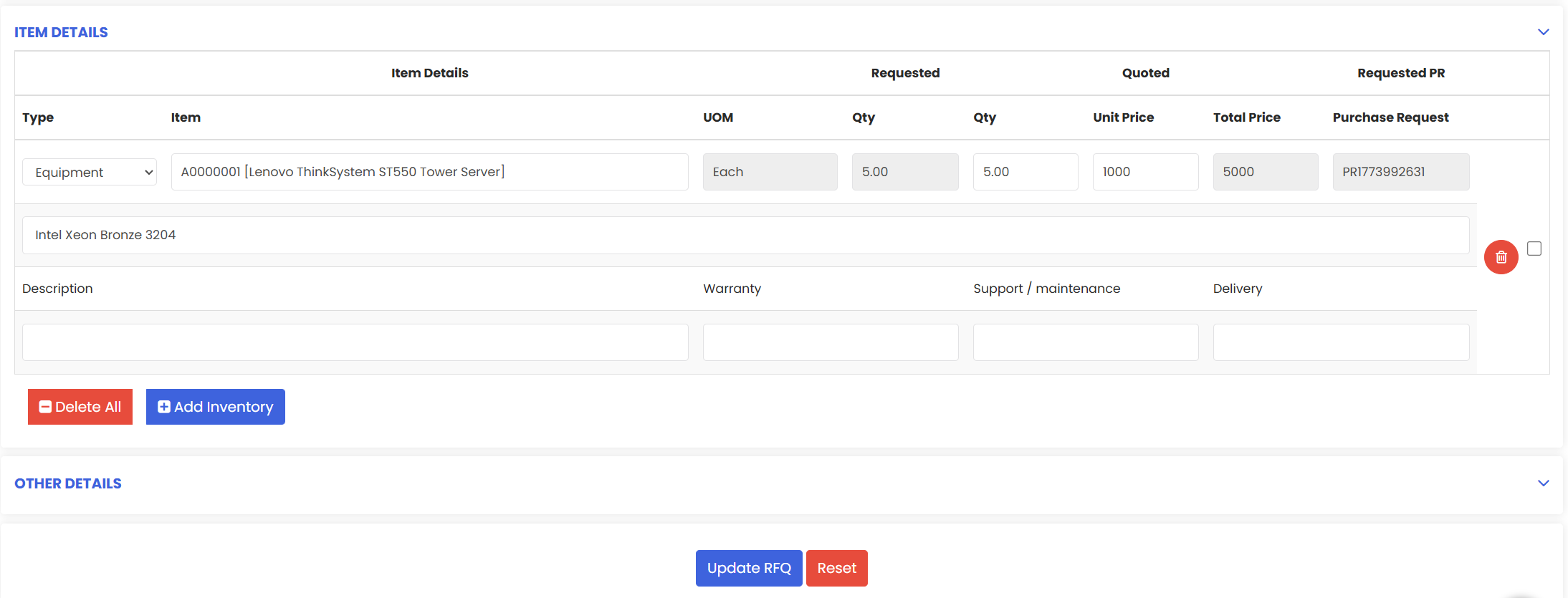
From the RFQ listing page, update the quotation details received from each vendor by entering the unit price provided by each supplier and saving the update. Repeat this for all vendors.
Step 5 – Compare RFQ Quotes
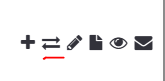
Once all vendor quotes have been entered, use the RFQ Compare option to view a side-by-side comparison of all quotes. Evaluate the prices and select the vendor offering the best value to finalise the business.

Step 6 – Create a Purchase Order (PO)
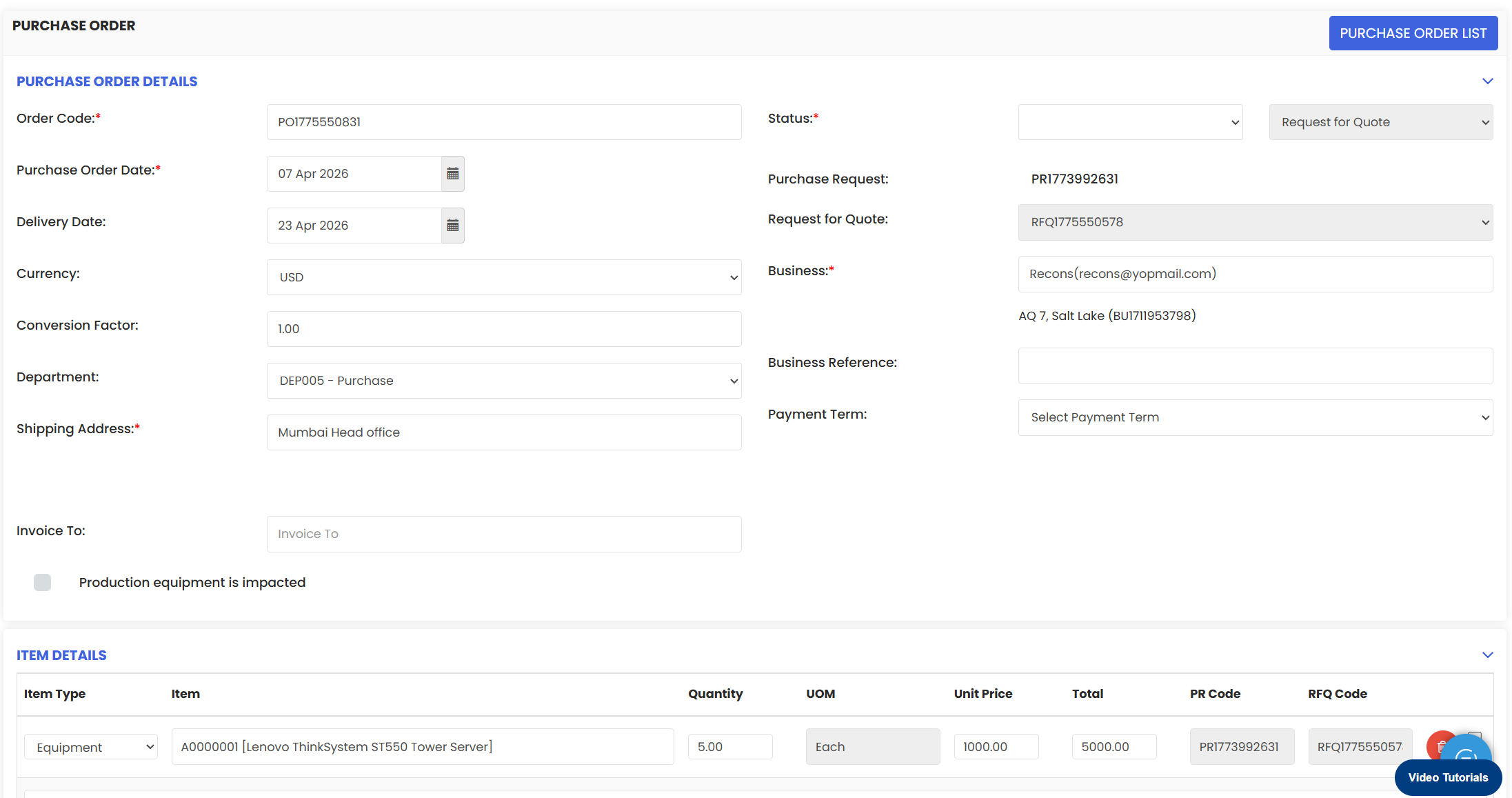
Navigate to Purchase Orders from the Purchasing menu and click New Purchase Order. Fill in the following details:
- Business (Vendor) – select the finalised vendor
- Department – select the relevant department
- Shipping Address – provide the delivery address
- Invoice To – enter the billing address
- Items and Quantity – add the required equipment or items and enter quantities
- Unit Price – enter the unit price; the system will automatically calculate the net total
The status will be set to Waiting for Approval by default. Click Submit to create the purchase order.
Step 7 – Level 1 Approval
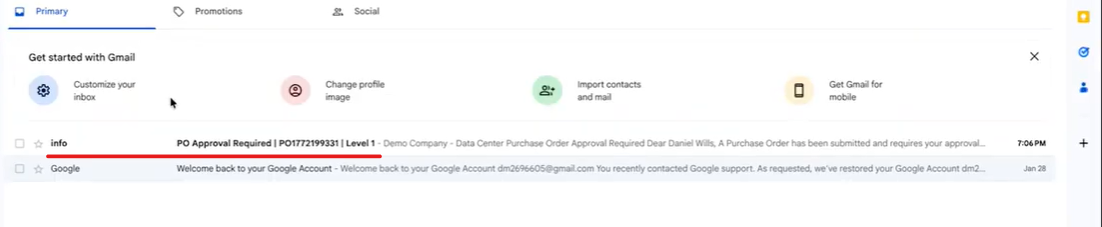
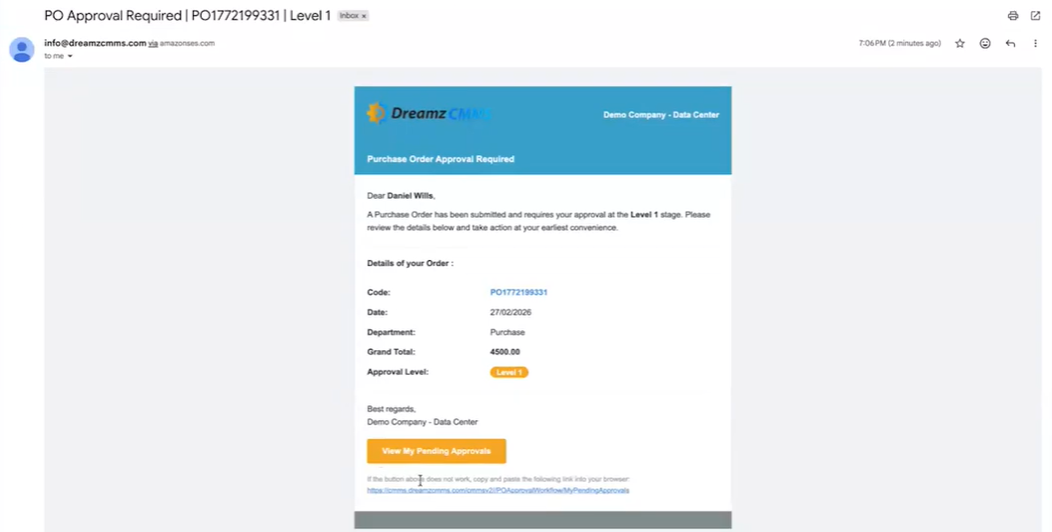
Once the purchase order is submitted, the Level 1 approver receives an email notification. The approver clicks View My Pending Approvals from the email, logs in, and reviews the purchase order. Upon approval, the system updates the status and notifies the next approver. The PO is removed from the Level 1 approver's pending list.
Step 8 – Level 2 and Further Approvals
The Level 2 approver receives an email notification and follows the same process — log in, view pending approvals, and approve the purchase order. If additional approval levels are configured, the process continues until all levels are completed.
Step 9 – Final Approval and Status Update
Once the final approver (e.g. Level 3) approves the purchase order, the system updates the status to Fully Approved. The purchase order will reflect an Approved status in the system.
Step 10 – Create a Receipt and Invoice
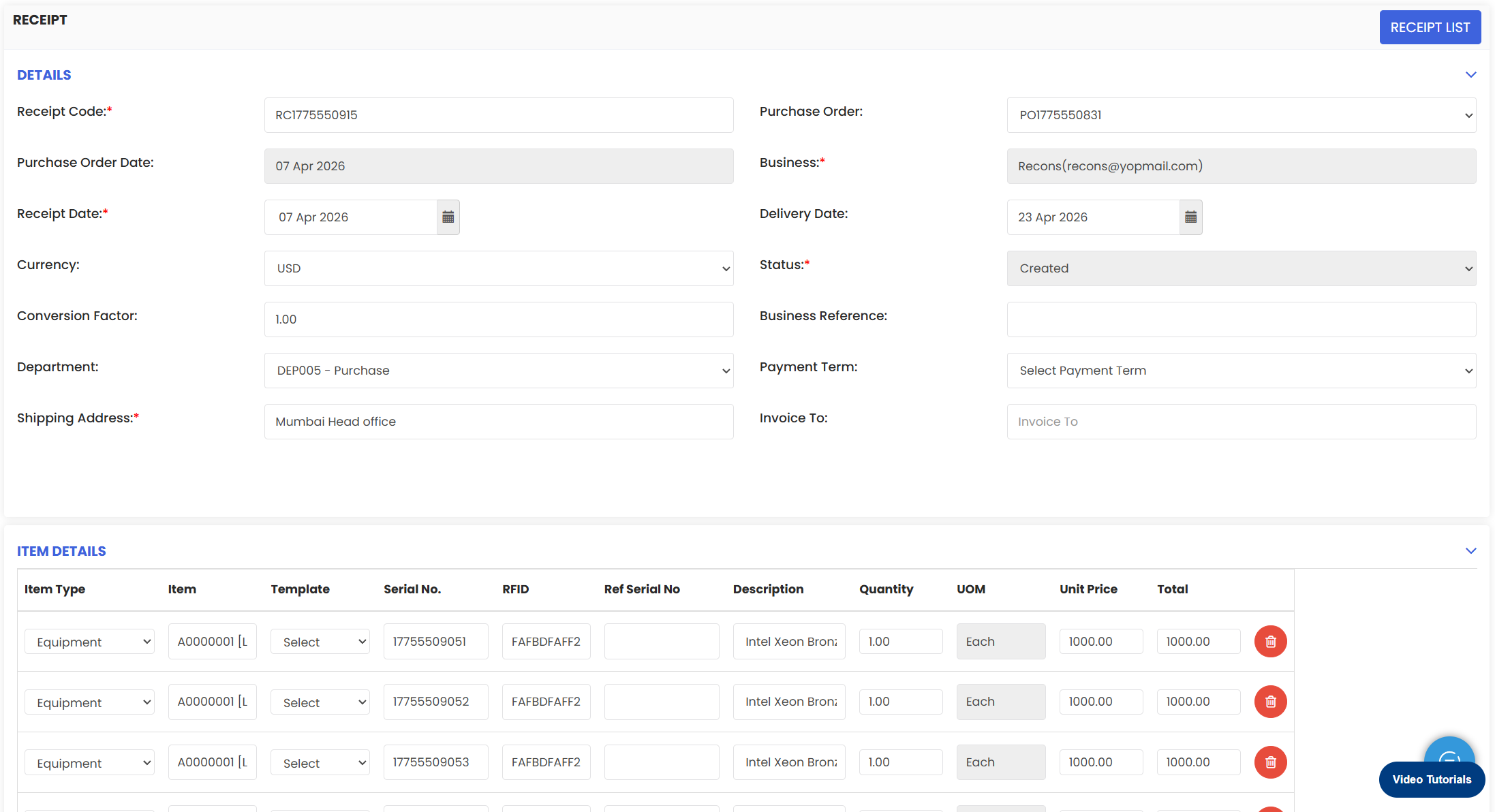
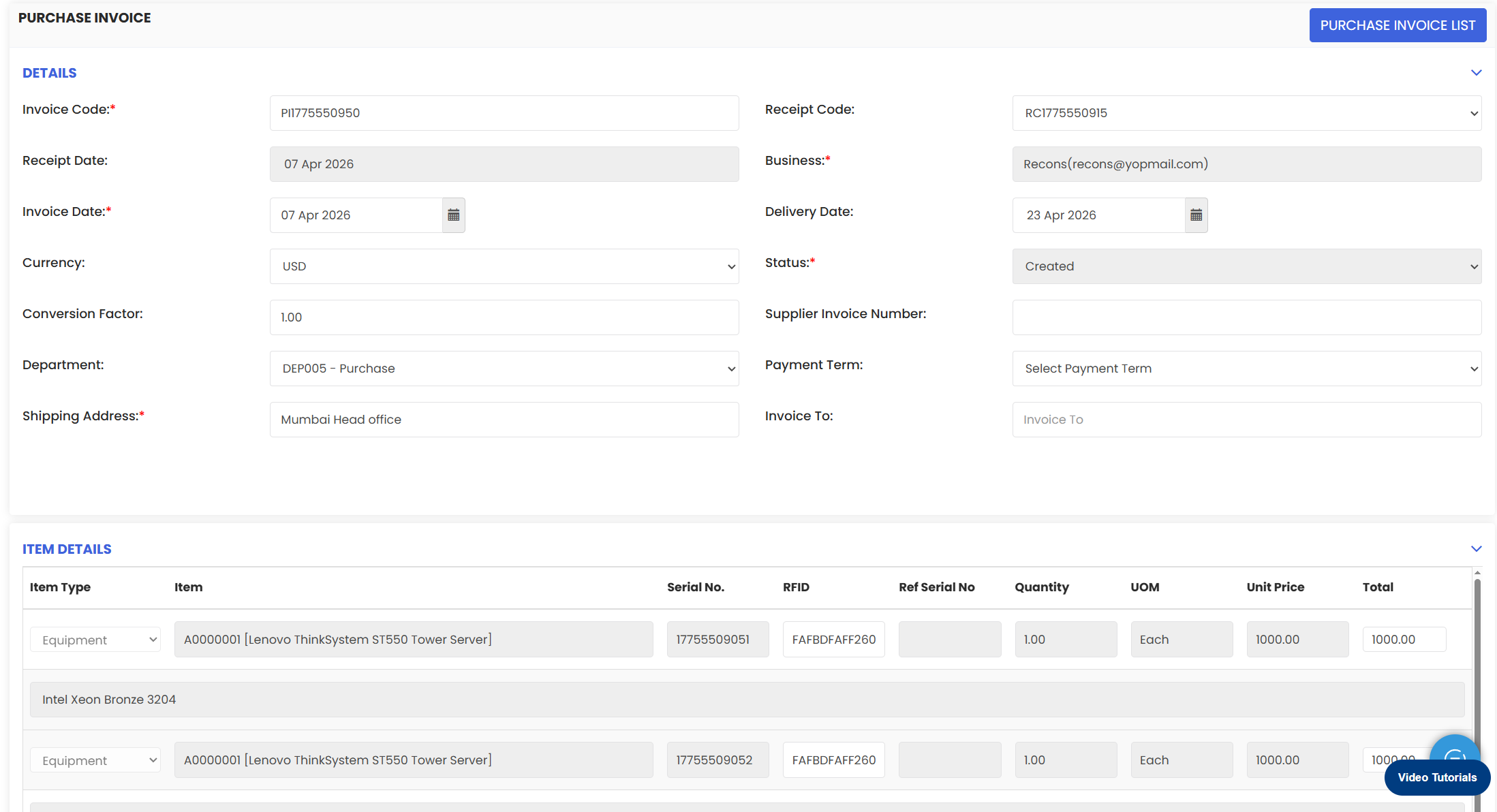
After full approval, proceed to create a receipt. Most details will be pre-filled including the total amount. Review the information and click Save. You will be redirected to the receipt list page, from where you can also create an invoice for the purchase order.
Tips for Using the Purchasing Module
- Always use the RFQ Compare feature before finalising a vendor — comparing quotes side by side ensures you select the most cost-effective option.
- Ensure all department, facility, and item details are accurately filled in the purchase request to avoid delays during the approval process.
- Approvers should act promptly on email notifications to keep the purchase order workflow moving without unnecessary delays.
- Review the net total calculated by the system before submitting a purchase order to confirm all quantities and unit prices are correct.
- After full approval, create the receipt promptly to maintain an accurate record of received goods and facilitate timely invoice processing.
Frequently Asked Questions
How do I access the Purchasing module?
Click on the Purchasing menu from the left-hand panel. You will be redirected to the Purchase Dashboard, from where you can access Purchase Requests, RFQs, and Purchase Orders.
What is an RFQ and how is it used?
An RFQ (Request for Quotation) is generated after a purchase request is created. It is sent to multiple vendors to collect price quotes, which can then be compared side by side using the RFQ Compare feature to identify the best offer.
What is the default status of a new purchase order?
When a new purchase order is created and submitted, its status is set to Waiting for Approval by default until it progresses through the approval workflow.
How does the multi-level approval process work?
Each approver receives an email notification when it is their turn to review the purchase order. They log in, view their pending approvals, and approve the order. The system then notifies the next approver until all levels are completed and the status is updated to Fully Approved.
Can I create a receipt and invoice after a purchase order is approved?
Yes. Once the purchase order is fully approved, you can create a receipt with pre-filled details and then proceed to generate an invoice directly from the receipt list page.
Related Articles
- Add a Business – Asset Rental Module
- Invoice – Asset Rental Module
- Sales Order – Asset Rental Module
- Quotation – Asset Rental Module
- Assets – Asset Rental Module