Add a Business – Asset Rental Module
The Business section in DreamzCMMS Asset Rentals allows you to manage all businesses associated with your account. You can view existing businesses, edit or delete records, and add new businesses with full contact and login details. Key highlights include:
- Access the Business Listing page to view, edit, or delete existing business records
- Business codes are auto-generated when creating a new business
- Add key details including company name, business type, website, and address
- Set up login credentials and grant access to the vendor portal if required
Overview
The Businesses section is accessible from the Business and Customers menu in the left-hand side panel of DreamzCMMS. It provides a centralised place to manage all business records within the Asset Rental module. From the Business Listing page, you can view, edit, or delete existing entries, or create a new business by clicking the New Business button. The business creation form auto-generates a business code and allows you to enter the company name, business type, website, address details, and contact person information. You can also upload relevant files and configure login credentials, including granting vendor portal access where applicable.
Here is a reference video:
Step by Step Description to Add a Business
Step 1 – Navigate to the Businesses Section
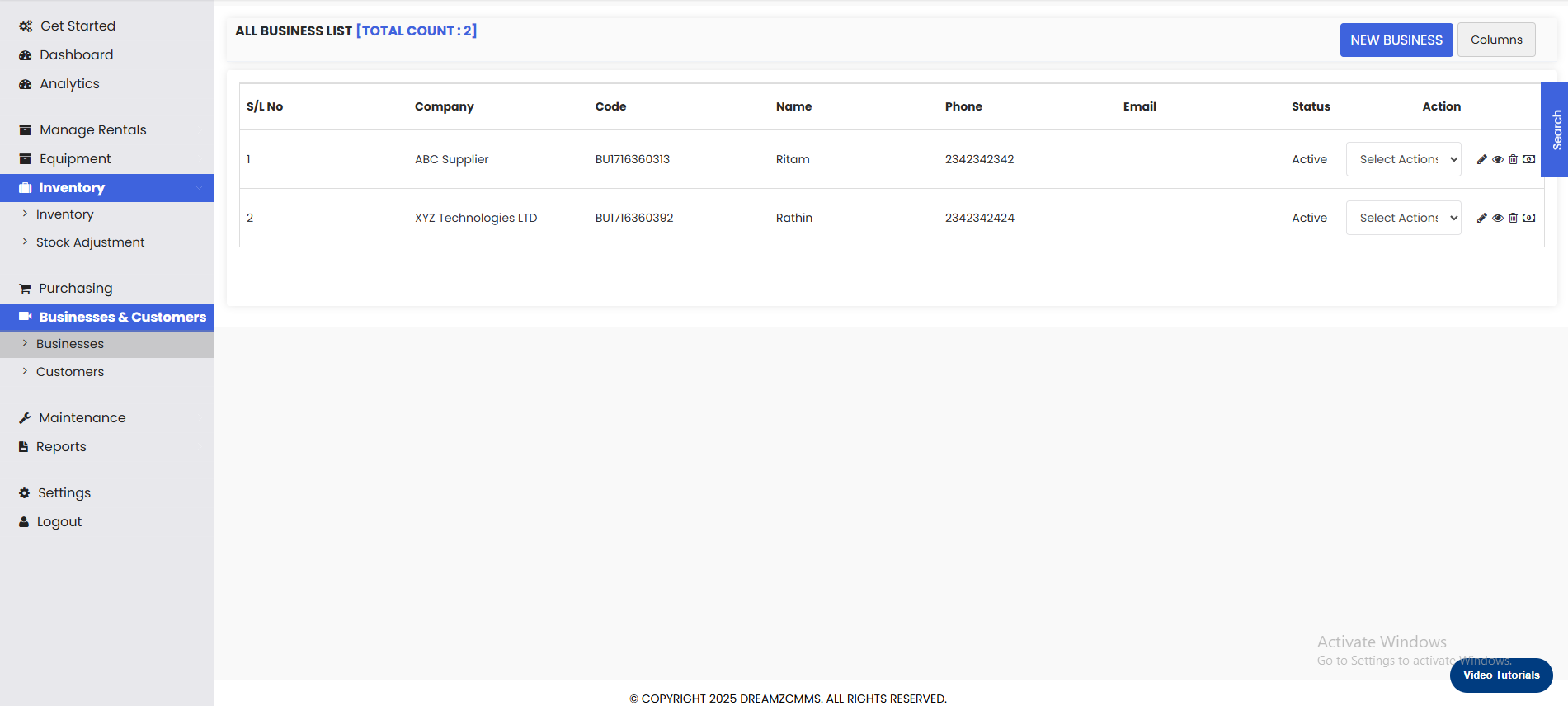
From the left-hand side panel, click on Business and Customers and then select Businesses. You will be redirected to the Business Listing page.
Step 2 – View Existing Businesses
On the Business Listing page, you can view all existing businesses in your account. From here, you can also edit or delete existing business records as needed.

Step 3 – Click New Business
To add a new business, click on the New Business button. You will be taken to the Add New Business page.
Step 4 – Enter Business Details
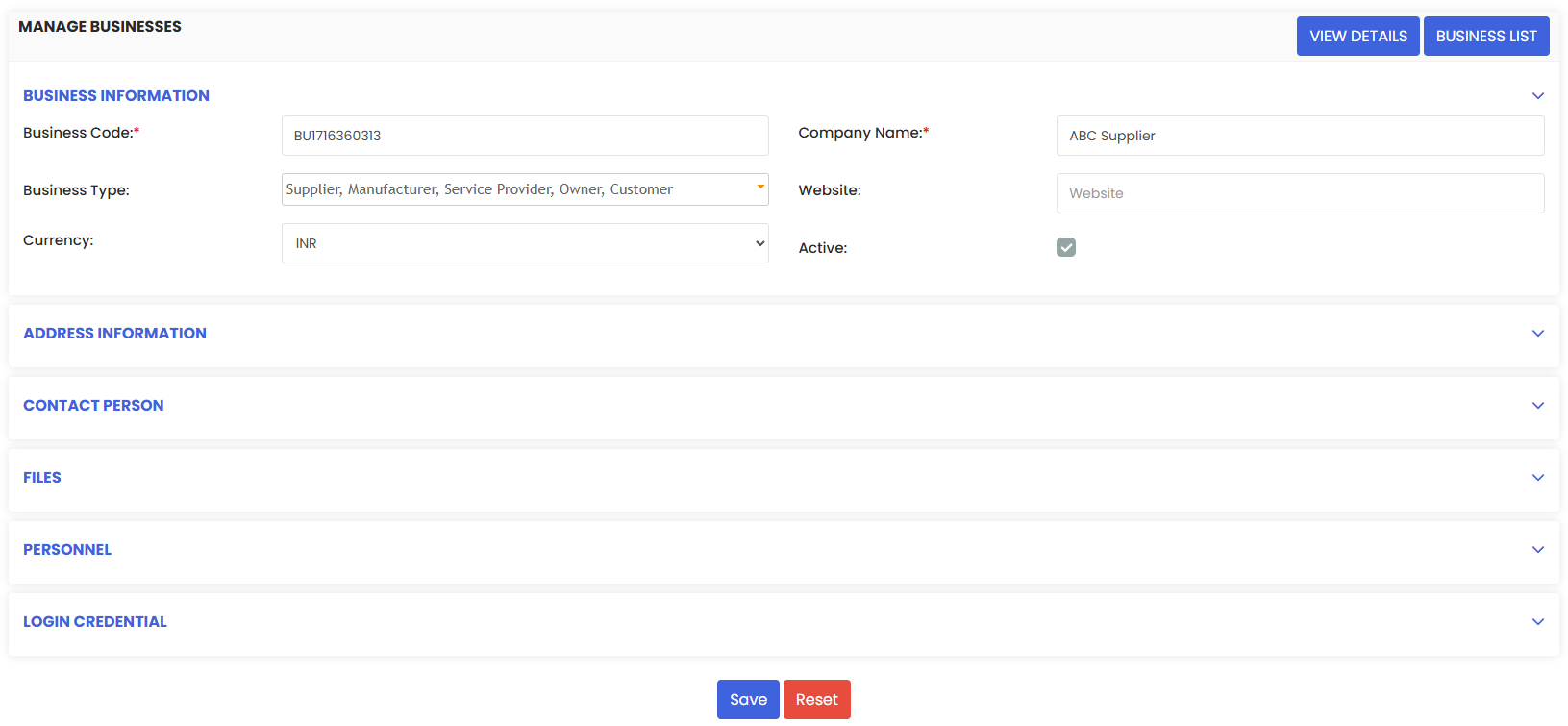
On the Add New Business page, fill in the following details:
- Business Code – auto-generated by the system; no manual entry required
- Company Name – enter the full name of the business
- Business Type – select the appropriate business type
- Website – enter the business website URL if applicable
- Address Details – provide the full address of the business
Step 5 – Add Contact Person Information
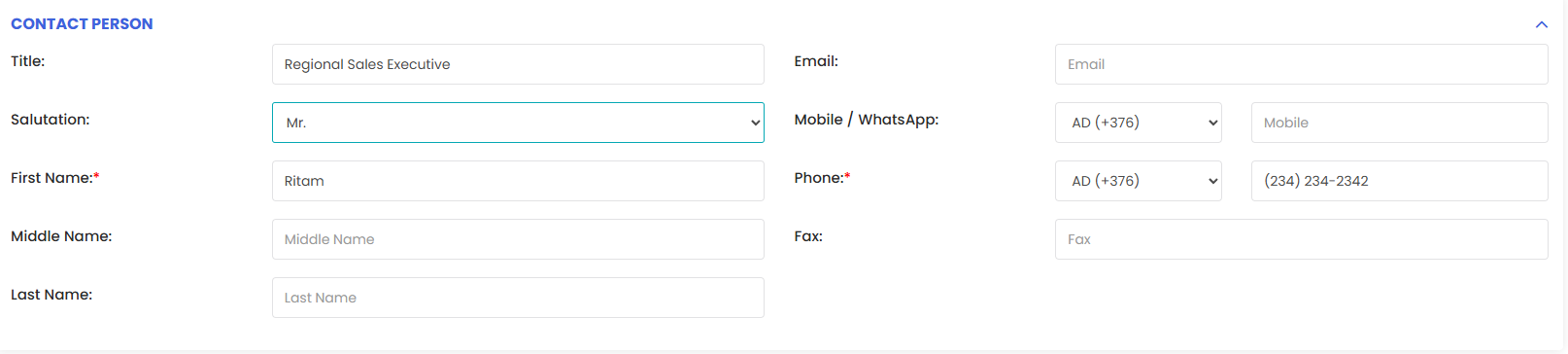
Enter the contact person details for the business. This includes the name, email, and any other relevant contact information for the primary business representative.
Step 6 – Upload Relevant Files (Optional)
If there are any documents or files related to the business, you can upload them on this page for easy reference and record-keeping.
Step 7 – Configure Login Credentials
In the Login Credentials section, set a username for the business. You can also grant access to the vendor portal if the business requires it.

Step 8 – Save the Business
Once all details have been filled in, click the Save button. The new business will be added and will appear on the Business Listing page.
Tips for Adding a Business
- Always enter an accurate company name and business type as these are key fields used across quotations, sales orders, and invoices linked to the business.
- Add complete contact person details to ensure the right person can be reached quickly when needed.
- Use the file upload option to attach relevant documents such as contracts, agreements, or registration certificates directly to the business record.
- Only grant vendor portal access to businesses that require it, to maintain appropriate access control within the system.
- Review the Business Listing page before adding a new business to avoid creating duplicate records.
Frequently Asked Questions
How do I access the Businesses section in DreamzCMMS?
Click on Business and Customers from the left-hand side panel and select Businesses. This will take you to the Business Listing page.
Is the business code automatically generated?
Yes. When you create a new business, the business code is automatically generated by the system. You do not need to enter it manually.
What details can I add when creating a new business?
You can add the company name, business type, website, address details, contact person information, relevant files, and login credentials including vendor portal access.
Can I grant vendor portal access when adding a business?
Yes. In the Login Credentials section of the Add New Business page, you can set a username and grant vendor portal access to the business if required.
Can I edit or delete a business after it has been created?
Yes. From the Business Listing page, you can view, edit, or delete any existing business record as needed.
Related Articles
- Customers – Asset Rental Module
- Quotation – Asset Rental Module
- Sales Order – Asset Rental Module
- Invoice – Asset Rental Module
- Assets – Asset Rental Module