FSM Reporting
The Reporting section in DreamzFSM provides a centralised view of all reports across your account. Within the FSM Reporting category, you can access a range of reports that help you monitor activity, track performance, and gain insights into what is happening across your field service operations. Reports can be filtered by time and category, and exported to Excel for further analysis.
- Access all FSM reports from a single reporting section
- Filter reports by time period and report category
- View detailed data and insights for each report
- Export any report to Excel for further analysis or record-keeping
Overview
The Reporting section is accessible from the left-hand navigation menu. Once inside, you can browse reports organised by category. The FSM Reporting category contains various report types that cover different aspects of your field service operations. Each report can be opened to view detailed data and exported to Excel as needed.
How to Access FSM Reports
Step 1 – Navigate to Reporting
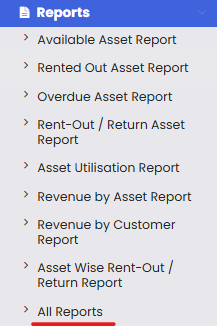
From the left-hand menu, click on Report. You will be taken to the reporting section where all available reports are listed.
Step 2 – Apply Filters
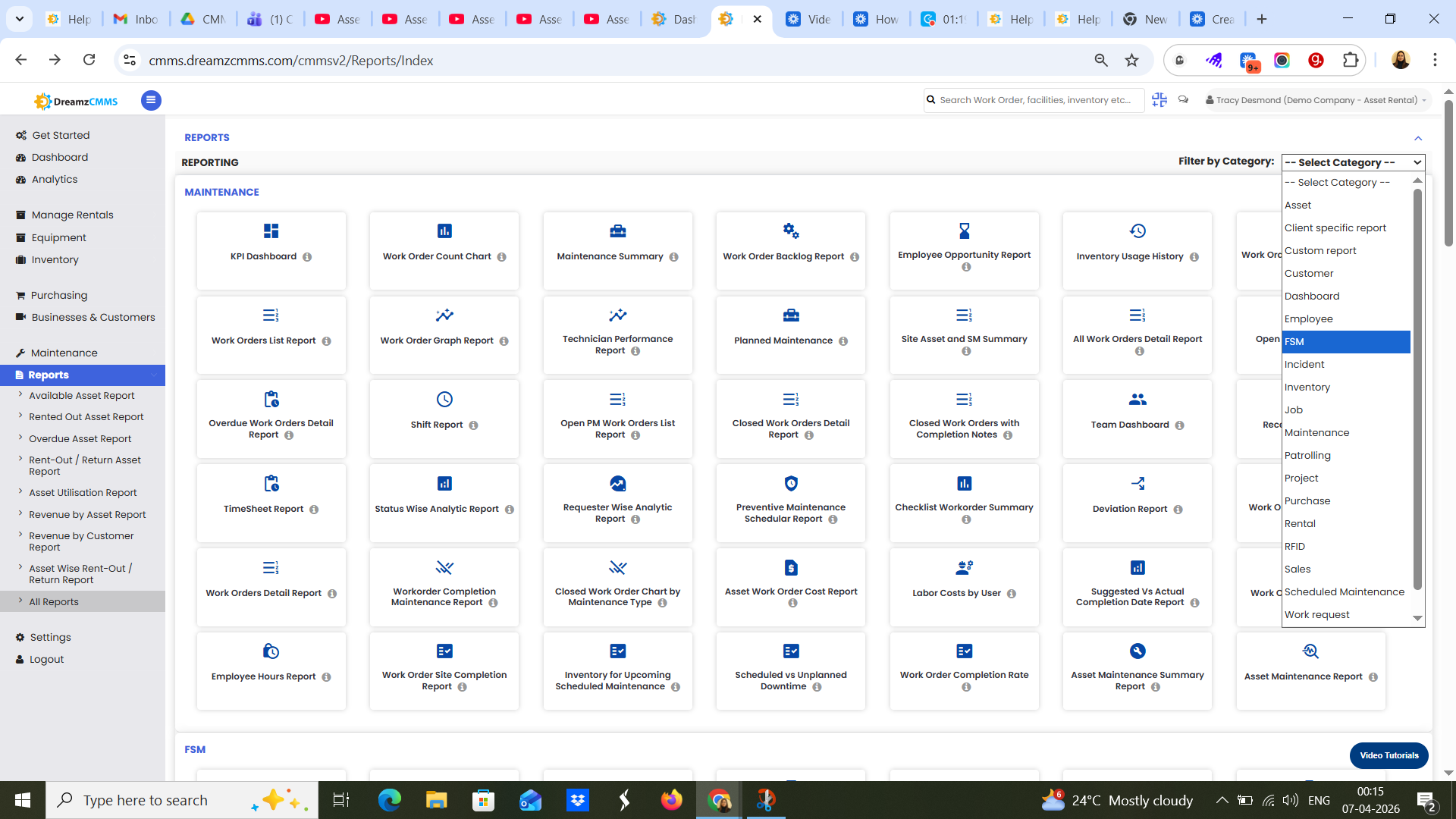
Use the available filter options to narrow down the reports by time period and report category. This helps you focus on the data most relevant to your current needs.
Step 3 – Open an FSM Report
Under the FSM Reporting category, you will find various report types. Click on any report to open it and view the detailed data and insights it contains.
Step 4 – Export the Report
Each report includes an option to export the data to Excel. Use this to save the report data for further analysis, sharing, or record-keeping purposes.
Tips for Using FSM Reports
- Use time-based filters to compare performance across different periods, such as weekly, monthly, or quarterly views.
- Export reports regularly to maintain a historical record of your field service performance outside the system.
- Explore all report types within the FSM Reporting category to get a complete picture of your operations — different reports highlight different aspects of activity.
Frequently Asked Questions
Where do I find the FSM reports?
Click on Reporting from the left-hand menu, then look for the FSM Reporting category on the reporting page.
Can I export FSM reports?
Yes. Each report includes an export option that allows you to download the data as an Excel file.
Can I filter reports by date range?
Yes. The reporting section supports time-based filters so you can view data for a specific period.