Create a Request for Renting Assets – Asset Rental Module
The DreamzCMMS mobile app allows you to create requests for rental assets directly from the Assets page. Whether you need more information about an asset, want to report an incident, or raise a service request, the process is quick and straightforward. Key highlights include:
- Create asset requests directly from the Assets page using the three-dot menu
- Choose from multiple request types including Request for Information, Incident, and Service Request
- The asset is automatically tagged to the request upon creation
- Set priority levels, add descriptions, and attach relevant files before submitting
Overview
The Create Request feature within the Assets section of the DreamzCMMS mobile app allows users to raise requests against specific rental assets without leaving the Assets page. When creating a request, the asset is automatically tagged, saving time and ensuring accuracy. You can select the appropriate request type — such as Request for Information, Incident, or Service Request — set a priority level, add a title and description, include additional assets via scanning or QR code, and attach supporting files. Once all details are complete, submitting the request logs it in the system for follow-up and resolution.
Here is a reference video:
Step by Step Description to Create a Request for a Rental Asset
Step 1 – Navigate to the Assets Page
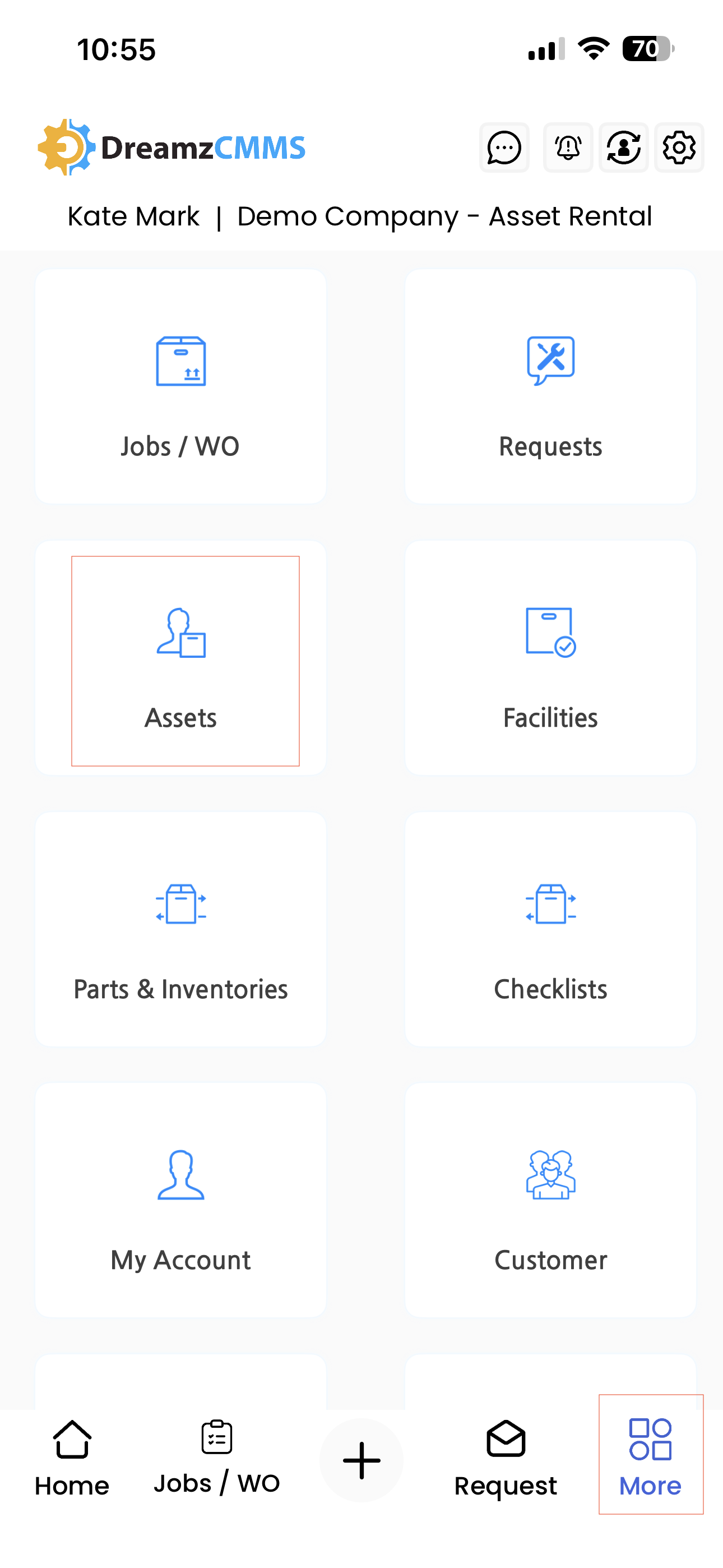
Launch the DreamzCMMS mobile app. From the dashboard, tap on More in the header section and select Assets to open the Assets page.
Step 2 – Browse Assets Using the Available Tabs
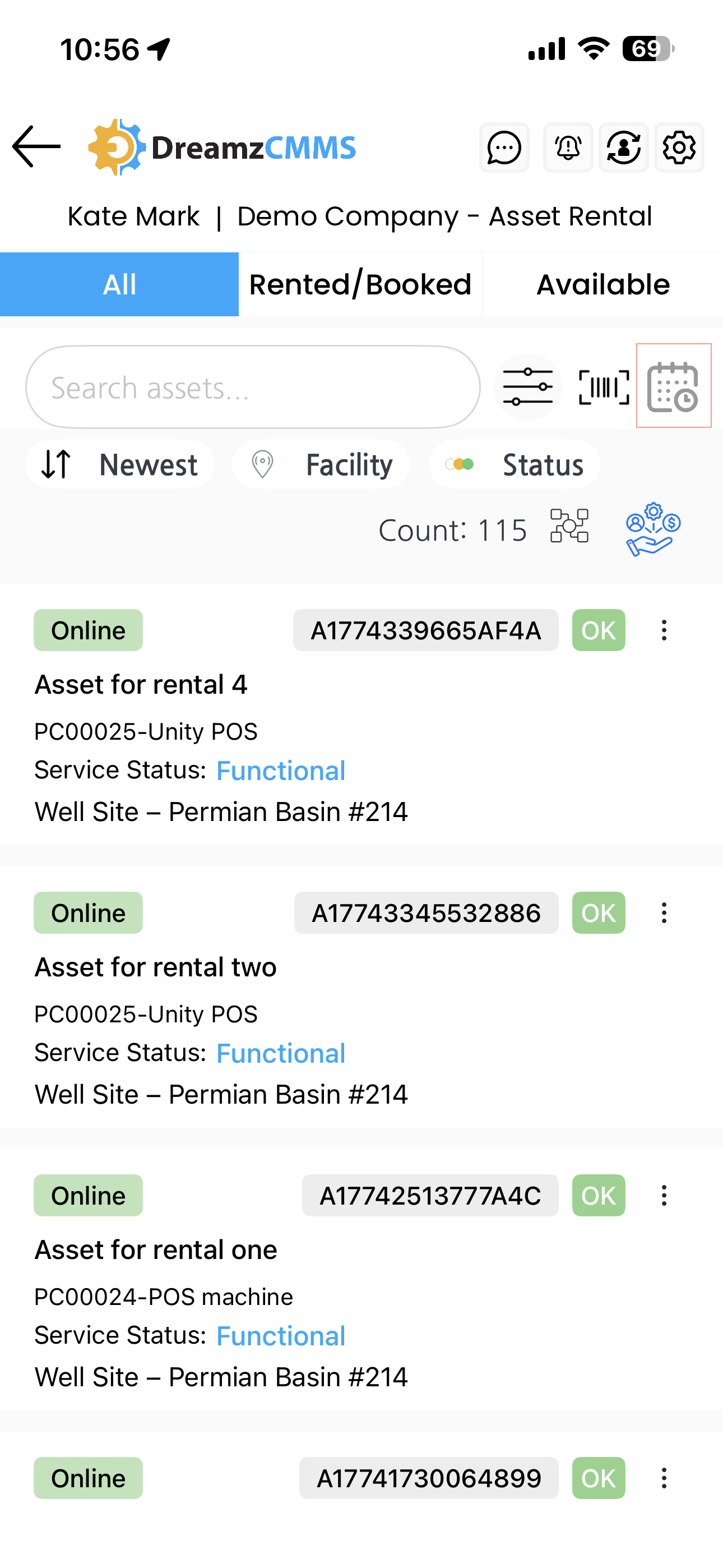
On the Assets page, use the three tabs to find the asset you need:
- All – displays every asset available in the system
- Rented or Booked – shows assets that are currently rented or have an active booking
- Available – shows assets that are currently free and available for rent
Step 3 – Initiate a Request for an Asset
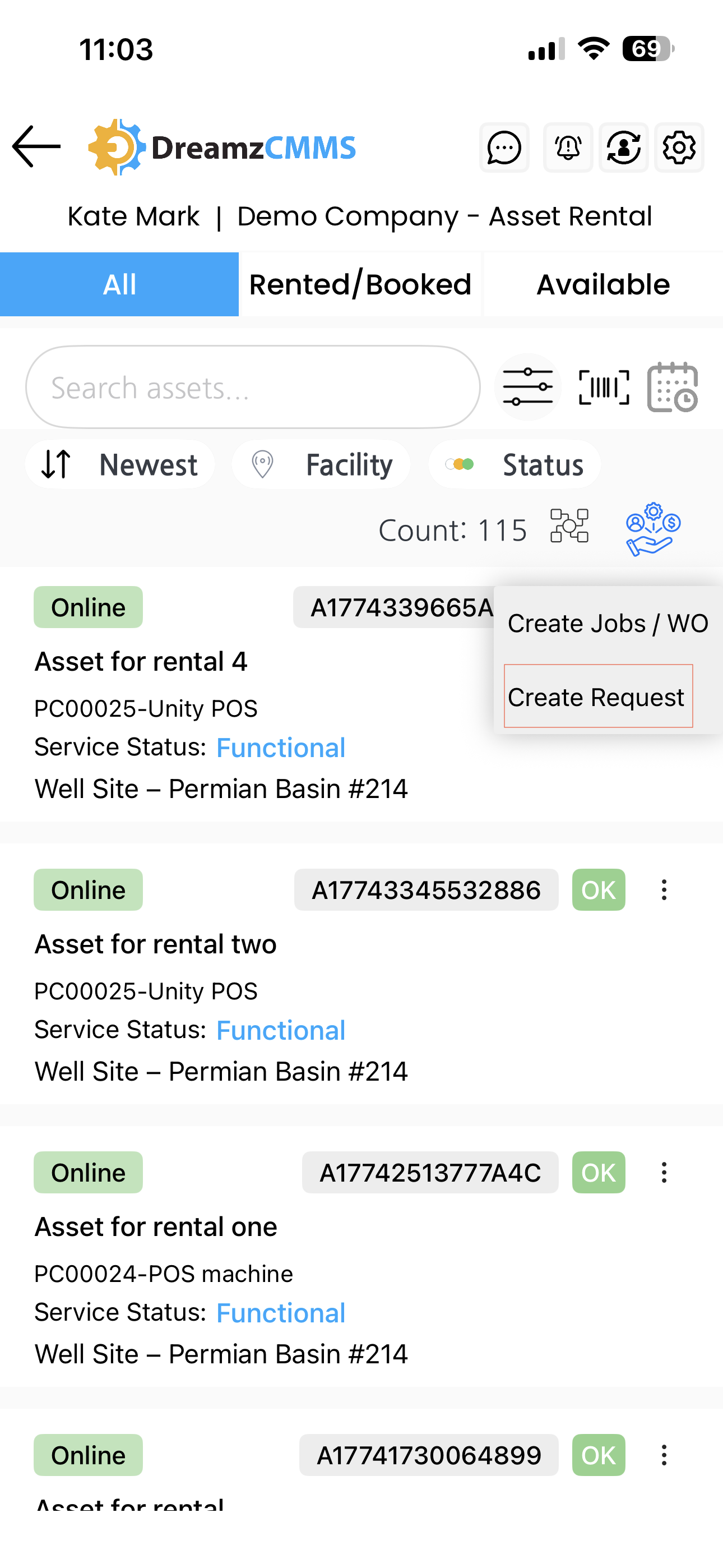
Tap the three dots next to the asset you want to raise a request for and select Create Request. The request type will be pre-set to Request by default.
Step 4 – Select the Request Type
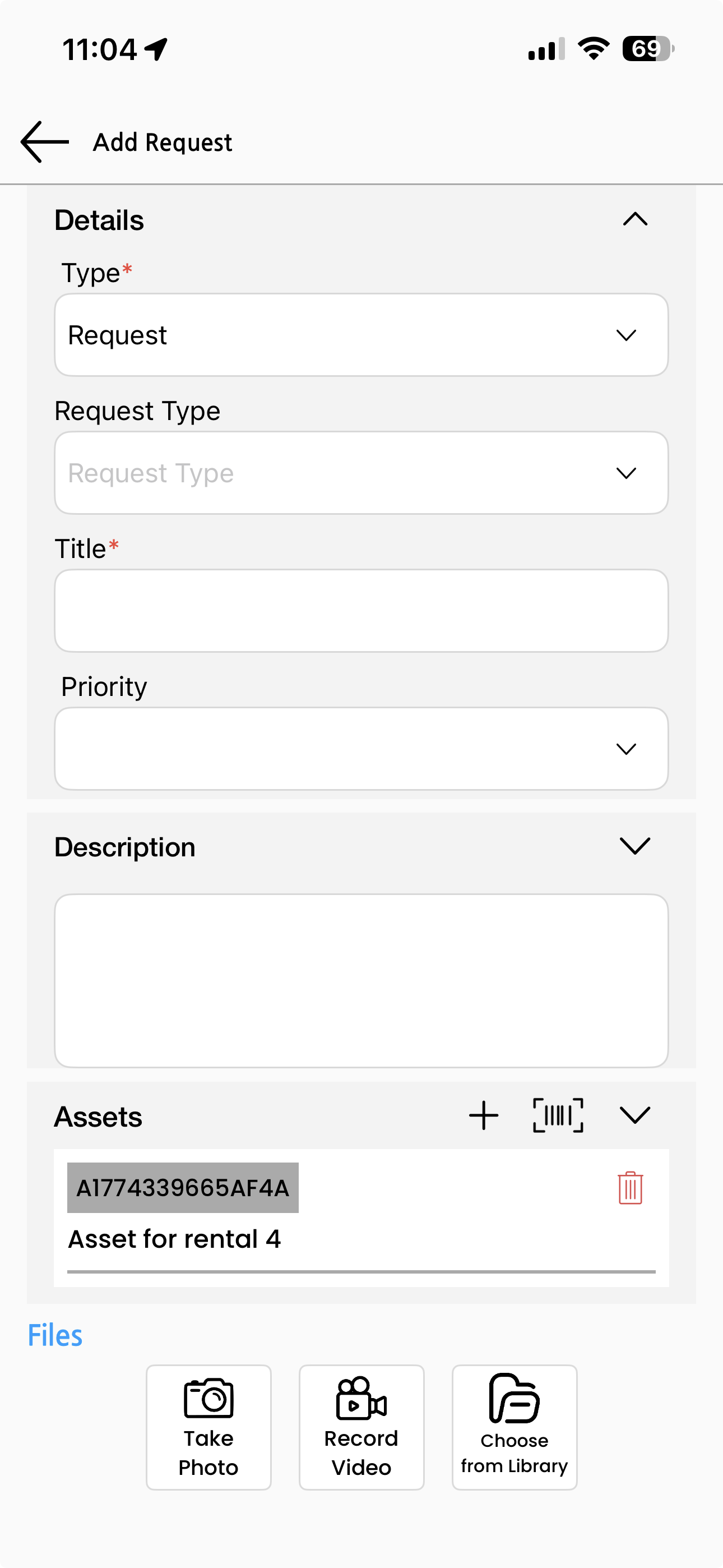
Choose the appropriate Request Type from the available options:
- Request for Information – use this when you need more details about the asset
- Incident – use this to report an issue or incident related to the asset
- Service Request – use this to raise a service-related request for the asset
Step 5 – Enter the Request Details
Fill in the following details for the request:
- Title – enter a clear and descriptive title for the request
- Priority – set the priority level such as High, Medium, or Low
- Asset – the asset will already be tagged; add more assets using the plus icon or by scanning a QR code if needed
- Description – provide additional context or details about the request
- Attachments – attach any relevant files if required
Step 6 – Submit the Request
Once all details have been filled in, tap the Submit button. The request will be logged in the system and will be available for follow-up and resolution.
Tips for Creating Asset Requests
- Always choose the correct request type — using the right category ensures the request is routed to the appropriate team and resolved faster.
- Write a clear and specific title for each request so that the team handling it can immediately understand what is needed without having to read the full description.
- Set an accurate priority level to help the team triage and address urgent requests ahead of lower-priority ones.
- Attach supporting files such as photos or documents whenever possible — visual evidence or reference materials can significantly speed up resolution.
- If a request involves multiple assets, use the plus icon or QR scan to tag all relevant assets at the time of creation to keep the request complete and accurate.
Frequently Asked Questions
How do I create a request for a rental asset?
Go to the Assets page via the More menu, tap the three dots next to the asset, and select Create Request. Fill in the required details and tap Submit.
What request types are available?
You can choose from Request for Information, Incident, and Service Request depending on the nature of your request.
Is the asset automatically linked to the request?
Yes. When you create a request from the Assets page, the selected asset is automatically tagged to the request. You can add additional assets using the plus icon or by scanning a QR code.
Can I attach files to a request?
Yes. The request creation form includes an option to attach relevant files before submitting the request.
Can I set a priority level for my request?
Yes. You can set the priority level — such as High, Medium, or Low — when creating the request to indicate its urgency.
Related Articles
- Assets – Asset Rental Module
- Request – Asset Rental Module
- Rental Calendar – Asset Rental Module
- Jobs and Work Orders – Asset Rental Module
- Sales Order – Asset Rental Module