Rental Calendar – Asset Rental Module
The Rental Calendar in DreamzCMMS Asset Rentals provides a visual overview of all rented assets, their rental periods, and current statuses — directly from the mobile app. Using colour-coded indicators, you can instantly understand the state of each asset on any given date. Key highlights include:
- View all rented assets along with their rent-out dates, return dates, and asset details
- Track asset statuses including Booked, Requested, Rented Out, and Returned
- Use colour codes to instantly identify asset status — red for rented out, blue for active rentals, green for returned
- Tap on a specific date to view all assets associated with that date
Overview
The Rental Calendar is accessible from the Assets page in the DreamzCMMS mobile app. It offers a date-based visual representation of your rental activity, making it easy to track which assets are rented, booked, requested, or returned at any point in time. The calendar uses a colour-coded system — red for rented-out dates, blue for active rentals pending return, and green for returned assets — allowing teams to plan and schedule asset rentals more efficiently. Tapping on any date refreshes the view to show all assets and their statuses associated with that specific date.
Here is a reference video:
Step by Step Description to Use the Rental Calendar
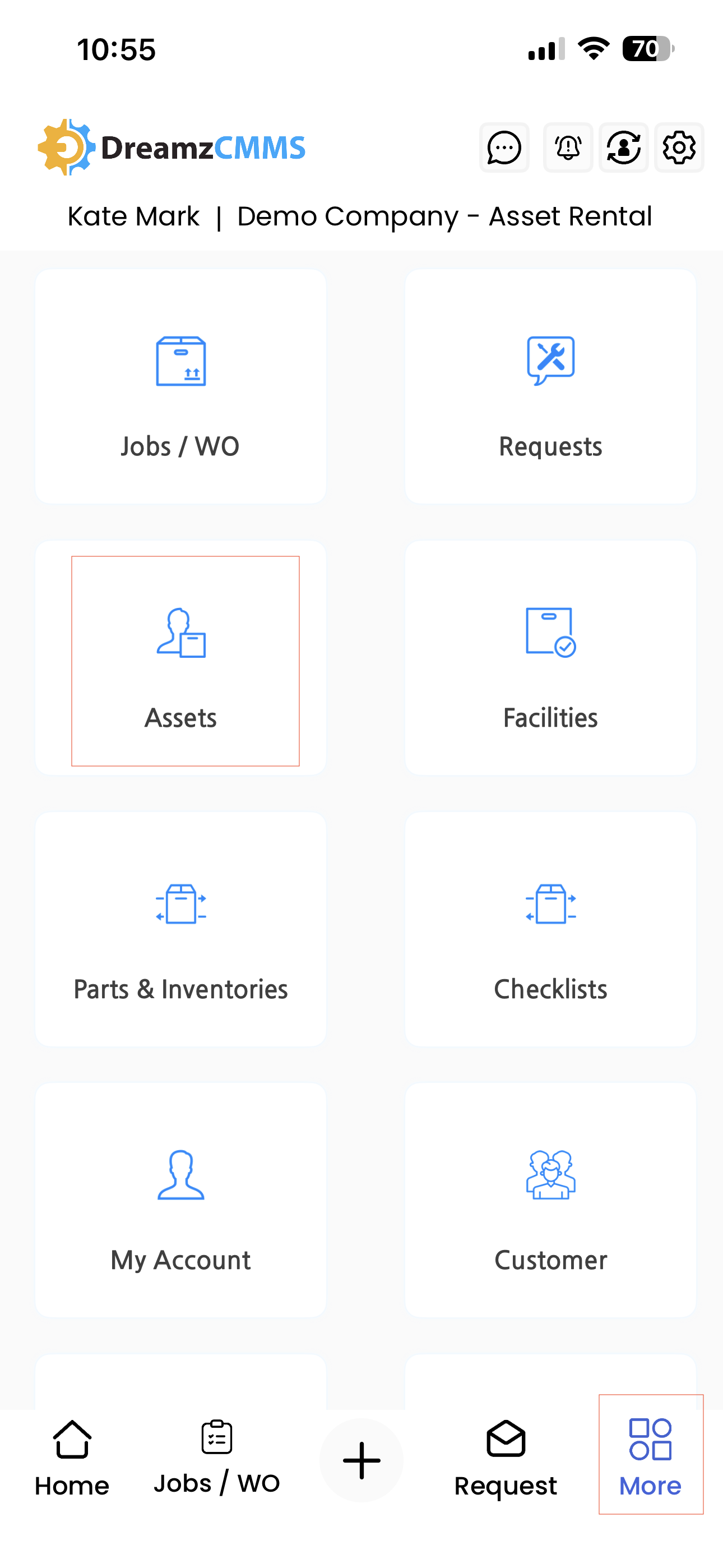
Step 1 – Navigate to the Assets Section
Launch the DreamzCMMS mobile app. From the dashboard, tap on More in the bottom menu and select Assets to open the Assets page.
Step 2 – Open the Rental Calendar
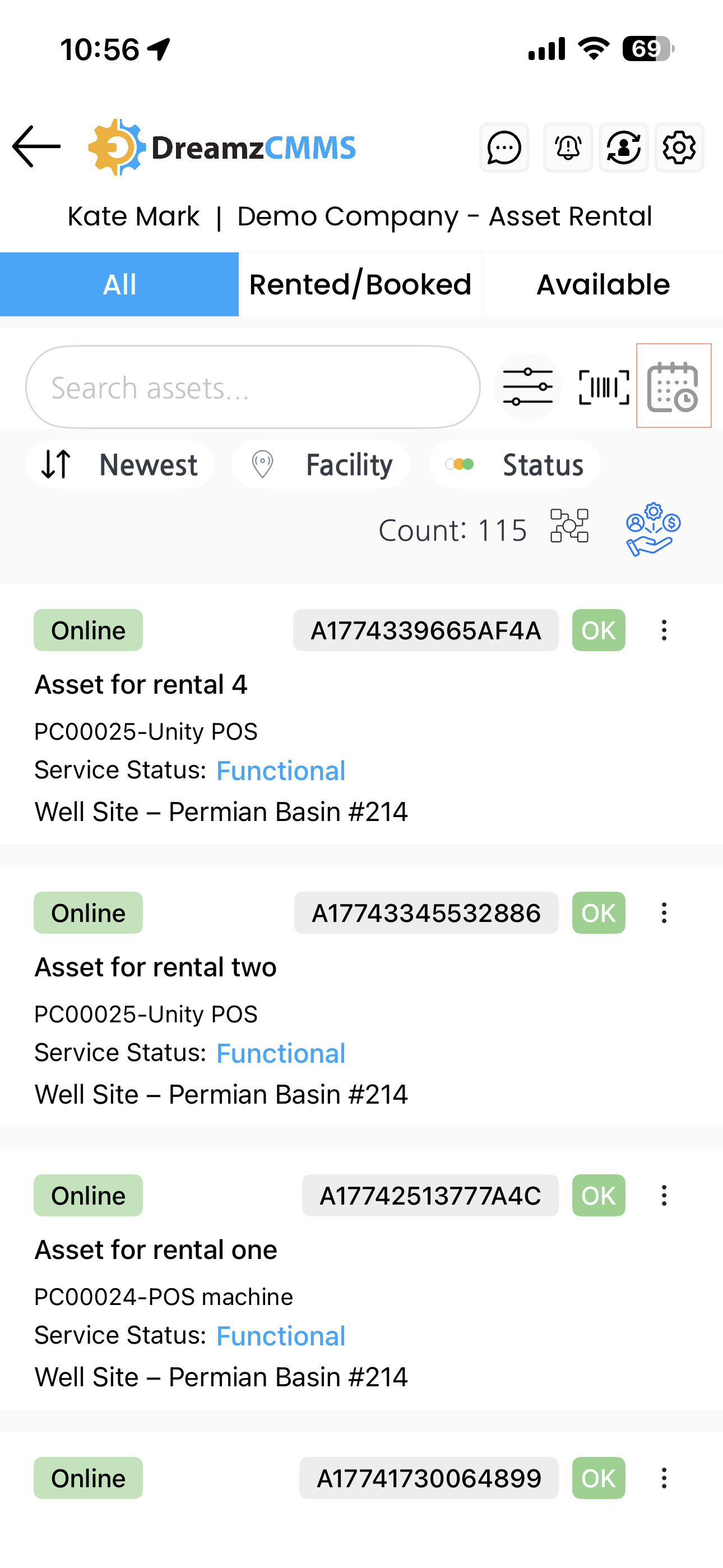
On the Assets page, tap the calendar icon to open the Asset Rental Calendar.
Step 3 – View Rented Assets and Details
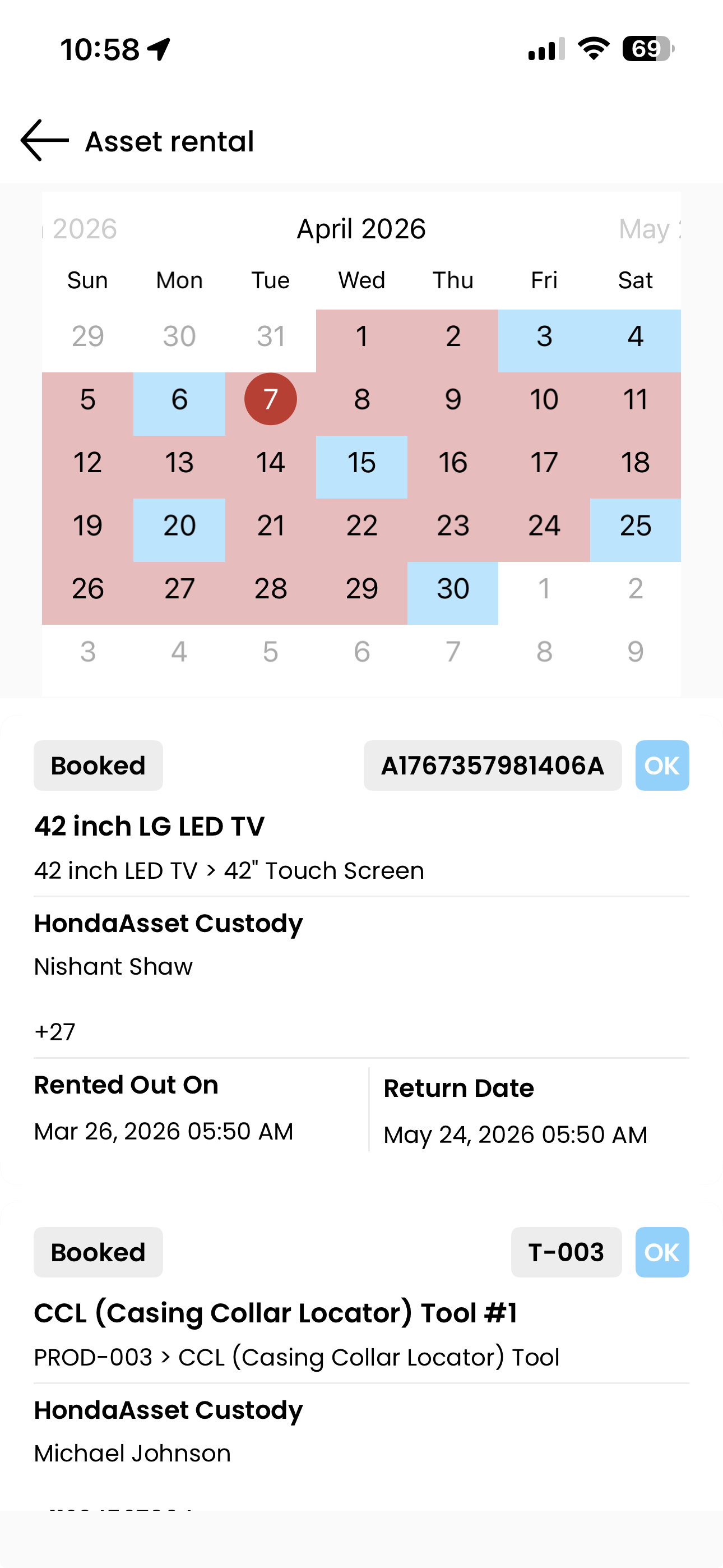
The calendar will display all assets that have been rented out, along with key information including:
- Rent-out date – the date the asset was rented out
- Return date – the scheduled date for the asset to be returned
- Asset information – details about each rented asset
Step 4 – Understand the Colour Codes
The calendar uses colour codes to represent different asset statuses:
- Red – indicates dates on which assets are rented out
- Blue – indicates an asset that is currently rented out and pending return on a specific date
- Green – indicates that the asset has been returned
Step 5 – Tap on a Specific Date
Tap on any date on the calendar to refresh the page and view all assets associated with that date, including their current status and rental details.
Tips for Using the Rental Calendar
- Use the colour codes as a quick visual reference — a glance at the calendar is often enough to understand the current state of your rental fleet without needing to open individual records.
- Tap on upcoming return dates to see which assets are due back soon, helping you plan ahead for new bookings or maintenance.
- Regularly check the calendar to ensure no rental gaps or overlaps exist in your scheduling, particularly during peak periods.
- Use the calendar alongside the Assets page filters (Available, Rented and Booked) for a comprehensive view of your rental inventory status.
Frequently Asked Questions
How do I access the Rental Calendar in the mobile app?
Navigate to the Assets page via the More menu, then tap the calendar icon to open the Asset Rental Calendar.
What statuses are shown on the Rental Calendar?
The calendar displays four statuses: Booked, Requested, Rented Out, and Returned. Each status is represented by a different colour for easy identification.
What do the colour codes on the calendar mean?
Red indicates dates on which assets are rented out. Blue indicates an asset that is currently rented out and has a scheduled return date. Green indicates that the asset has been returned.
Can I view assets for a specific date?
Yes. Tap on any date on the calendar and the page will refresh to display all assets and their associated statuses for that selected date.
Can I see both the rent-out date and the return date on the calendar?
Yes. The Rental Calendar displays both the rent-out date and the scheduled return date for each asset, giving you a complete view of each rental period.
Related Articles
- Assets – Asset Rental Module
- Request – Asset Rental Module
- Sales Order – Asset Rental Module
- Quotation – Asset Rental Module
- Invoice – Asset Rental Module