Customers – Asset Rental Module
The Customers section in DreamzCMMS Asset Rentals allows you to view and manage all your customers directly from the mobile app. You can browse the full customer listing and add new customers quickly with auto-populated codes and detailed contact information. Key highlights include:
- View the complete list of all customers from the Customer listing page
- Customer codes are auto-populated when creating a new customer record
- Add detailed customer information including contact name, email, phone, and address
- Include ship-to details and other relevant customer information during creation
Overview
The Customers section is accessible from the More menu in the DreamzCMMS mobile app. It provides a centralised directory of all customers associated with your Asset Rental account. From the listing page, you can browse existing customer records or create new ones on the go. The customer creation form simplifies data entry by auto-populating the customer code, while allowing you to enter all key contact and address details — including ship-to information — to ensure complete and accurate customer records are maintained in the system.
Here is a reference video:
Step by Step Description to View and Add Customers
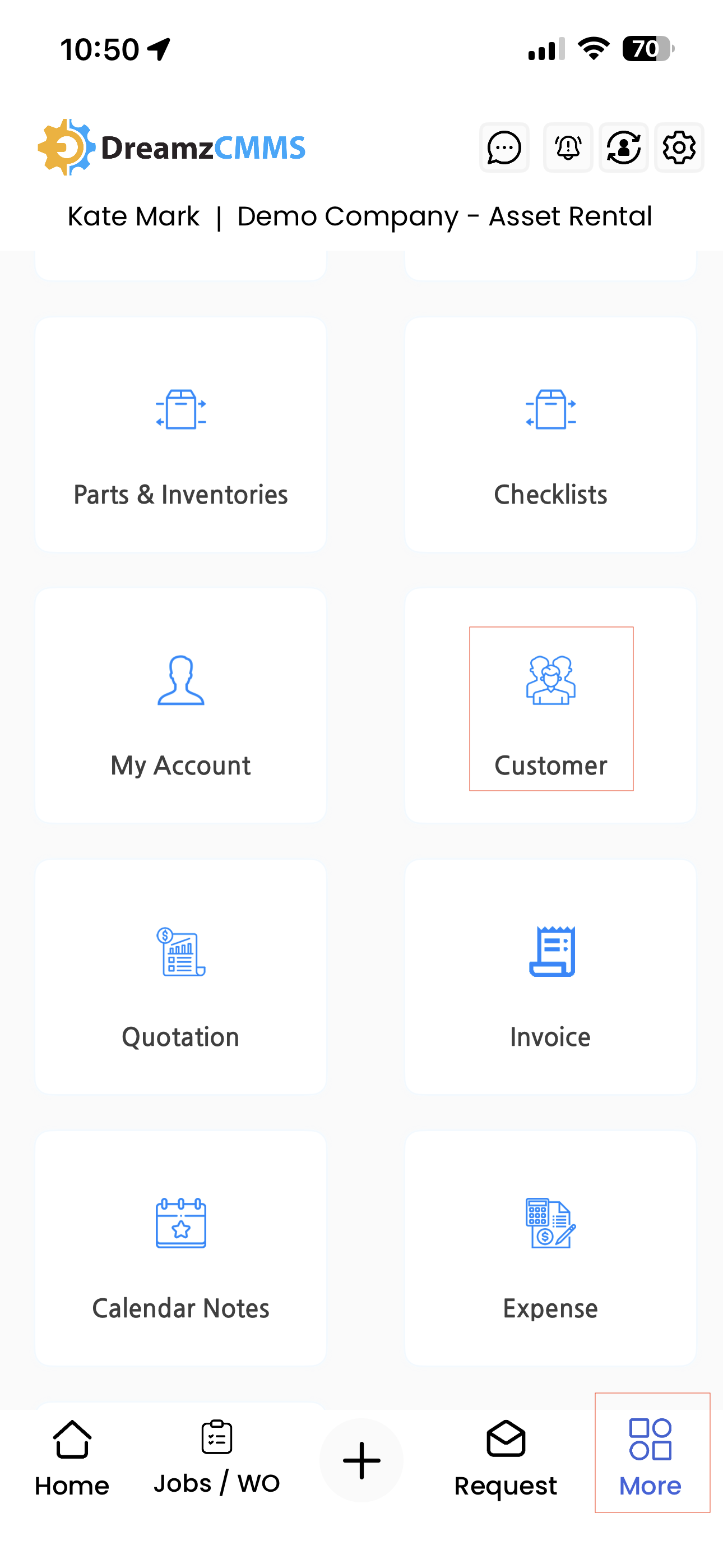
Step 1 – Navigate to the Customer Section
Open the DreamzCMMS mobile app and tap on the More menu. From the list of options, select Customer to open the customer section.
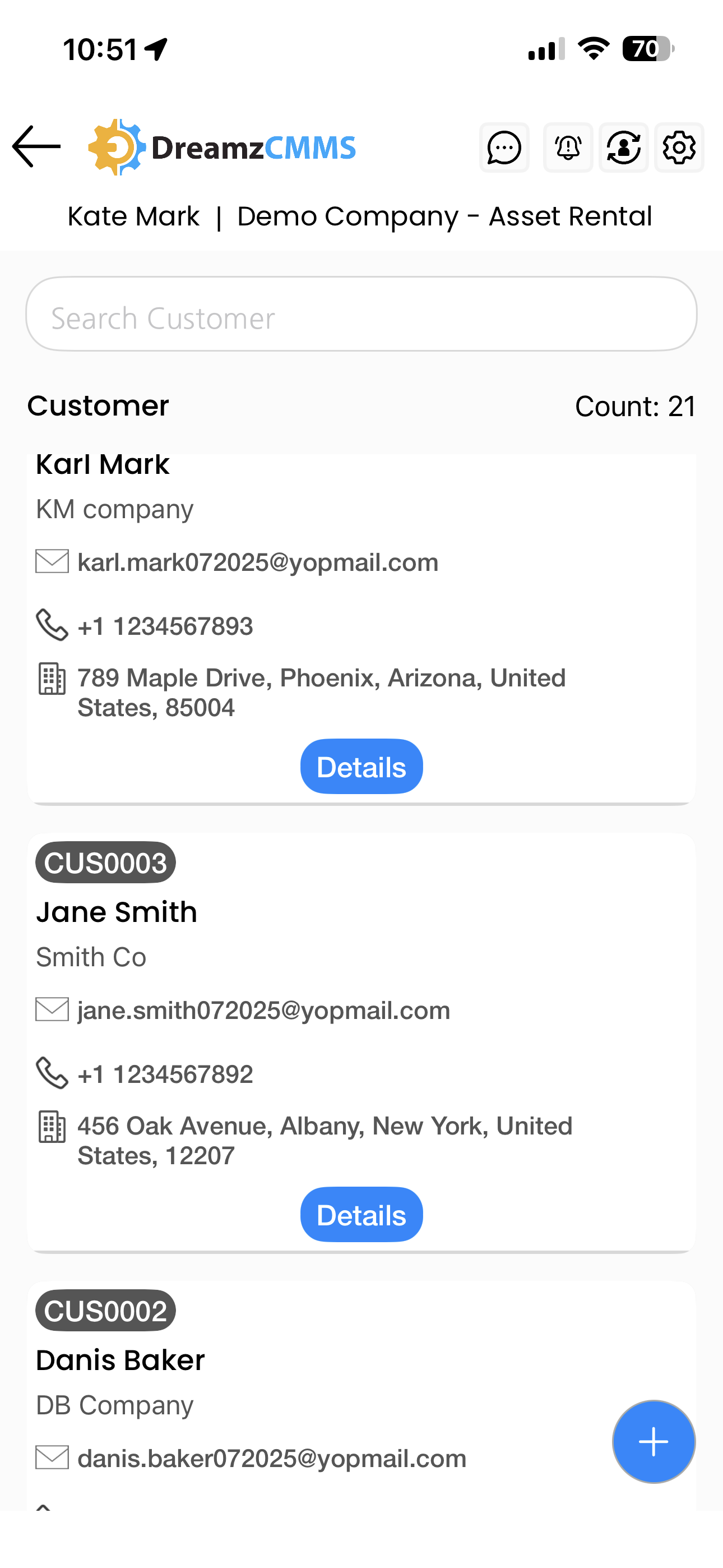
Step 2 – View the Customer Listing Page
Once inside the Customer section, you will see the listing of all customers associated with your account. Browse through existing customer records from this page.
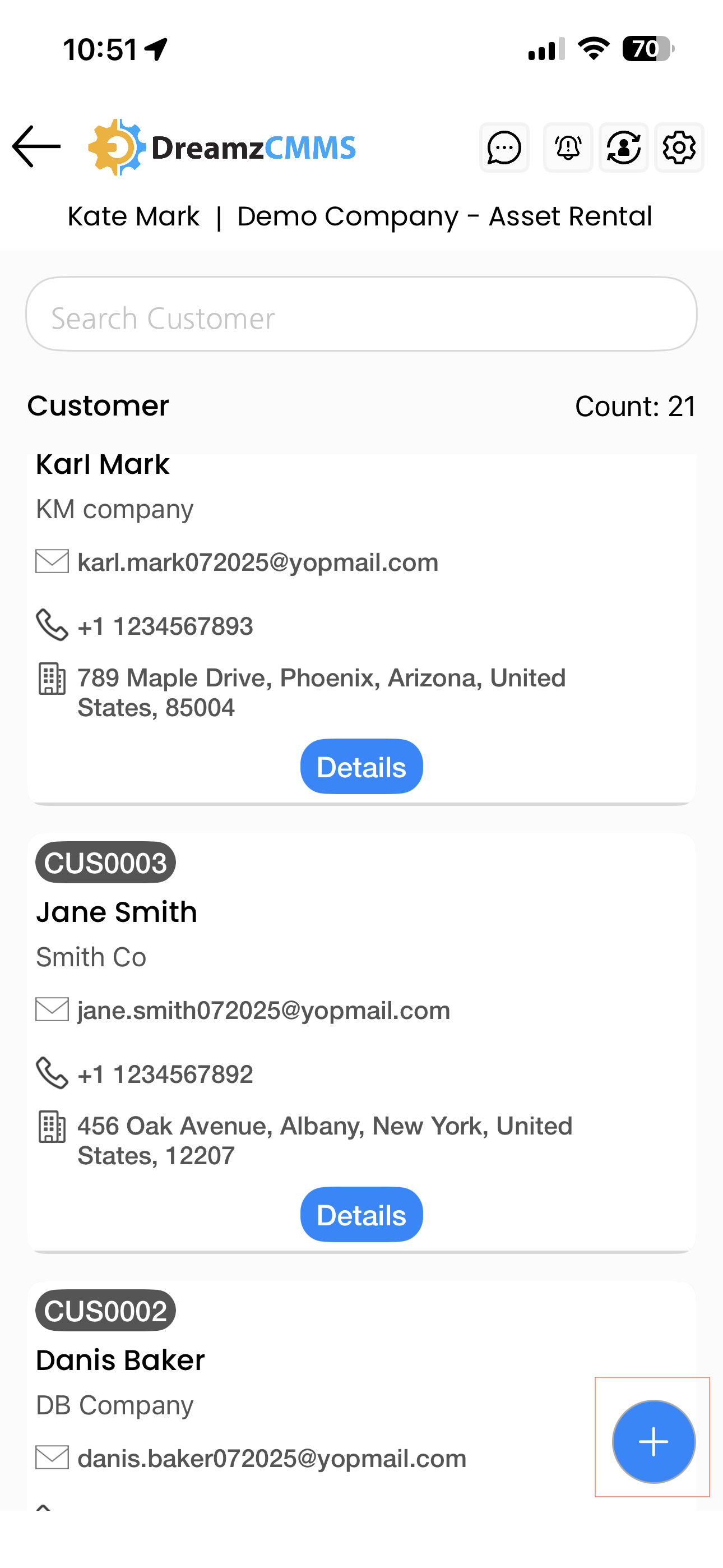
Step 3 – Create a New Customer
To add a new customer, tap the plus icon on the listing page. You will be redirected to the Customer Addition page where the customer code will be auto-populated by the system.
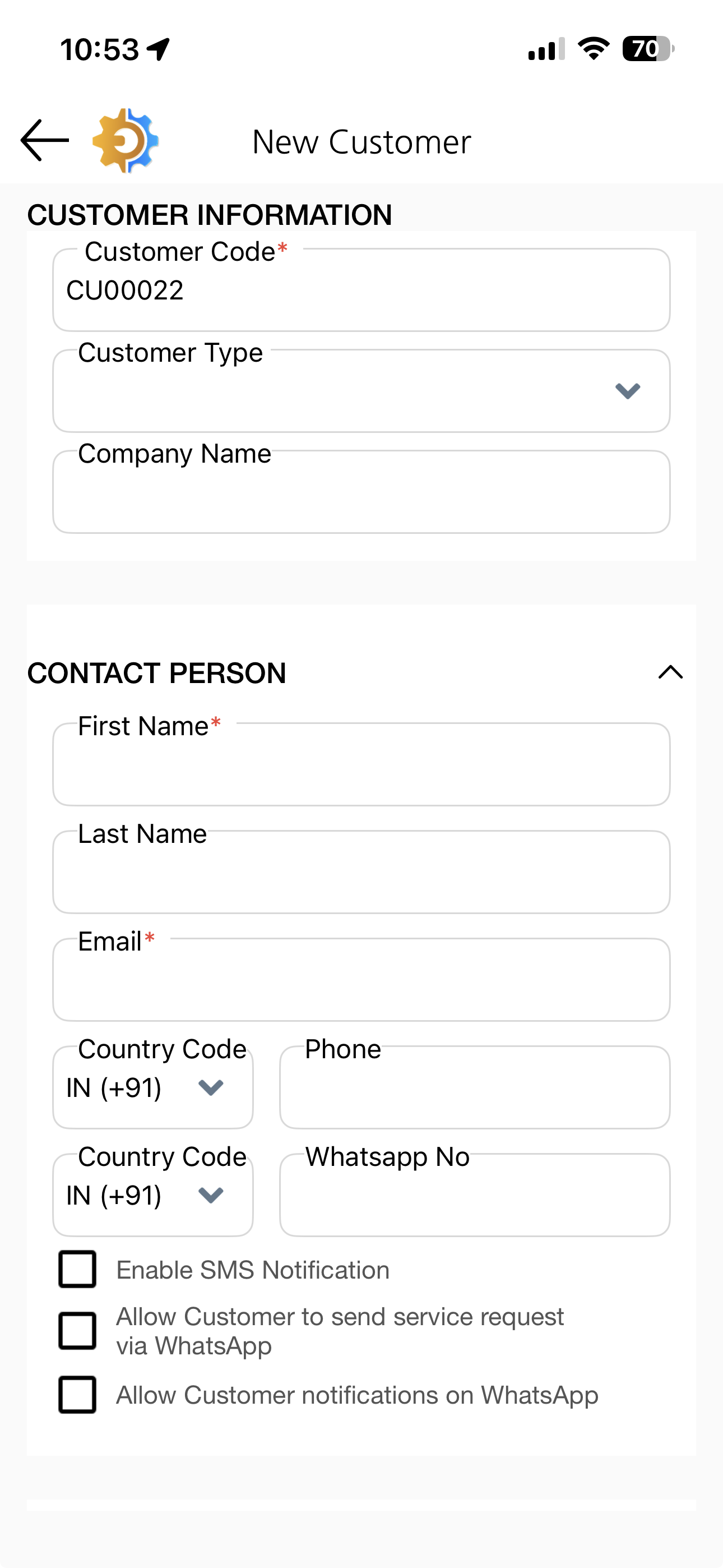
Step 4 – Fill in the Customer Details
Complete the customer form with the following information:
- First Name – enter the contact person's first name
- Email – provide the customer's email address
- Phone Number – enter the customer's contact number
- Address Details – fill in the customer's primary address
- Ship-To Details – enter the shipping address if different from the primary address
- Any other relevant customer information
Step 5 – Save the Customer Record
Once all details have been filled in, tap the Save button. The new customer record will be saved and will appear on the Customer Listing page.
Tips for Using the Customers Section
- Always ensure the contact person's details — name, email, and phone — are accurately entered when creating a new customer, as these are essential for communication and invoicing.
- Fill in the ship-to details if the delivery address differs from the billing address to avoid errors in dispatches and deliveries.
- Use the customer listing page to search for an existing customer before creating a new record, to avoid duplicates in the system.
- Keep customer records up to date so that quotations, sales orders, and invoices always reflect the correct customer information.
Frequently Asked Questions
How do I access the Customers section in the mobile app?
Tap on the More menu in the DreamzCMMS mobile app and select Customer from the list of available options. This will take you to the customer listing page.
Is the customer code automatically generated?
Yes. When you create a new customer, the customer code is automatically populated by the system. You do not need to enter it manually.
What details can I add when creating a new customer?
You can add the contact person's first name, email address, phone number, primary address details, ship-to details, and any other relevant customer information.
Can I add a separate shipping address for a customer?
Yes. The customer creation form includes a Ship-To Details field where you can enter a delivery address that is different from the customer's primary billing address.
Where can I view a customer record after saving it?
Once saved, the customer record will appear on the Customer Listing page, where all customers associated with your account are displayed.
Related Articles
- Quotation – Asset Rental Module
- Sales Order – Asset Rental Module
- Invoice – Asset Rental Module
- Request – Asset Rental Module
- Assets – Asset Rental Module