Assets – Asset Rental Module
The Assets section in DreamzCMMS Asset Rentals gives you a complete view of all your assets directly from the mobile app. You can filter assets by their availability status — viewing all assets, rented and booked assets, or only available assets — making it easy to manage your rental inventory at a glance. Key highlights include:
- View all assets in your account from a single Assets page
- Filter assets by Rented and Booked status to see currently engaged assets
- View only Available assets to quickly identify what is ready for rental
- Access the Assets section easily via the More menu in the mobile app
Overview
The Assets section is accessible from the More menu in the DreamzCMMS mobile app. It provides a real-time view of your entire asset inventory within the Asset Rental module. Assets are organised under clear status headers — All, Rented and Booked, and Available — allowing you to quickly understand the current state of your rental fleet. This makes it straightforward to check asset availability, identify what is currently out on rental, and make informed decisions about new bookings or dispatches.
Here is a reference video:
Step by Step Description to View Assets
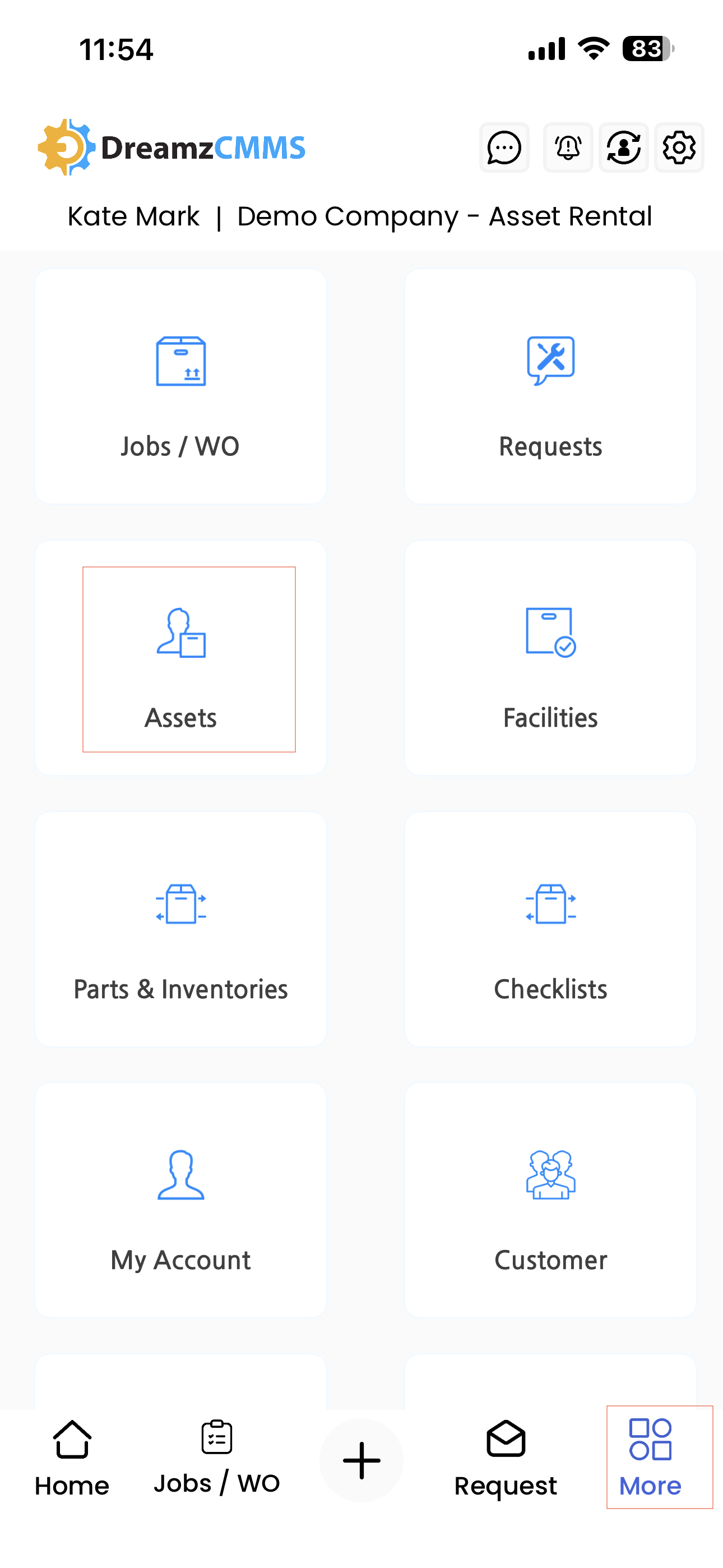
Step 1 – Navigate to the Assets Section
Open the DreamzCMMS mobile app and tap on the More menu. From the list of options, select Assets to open the assets section.
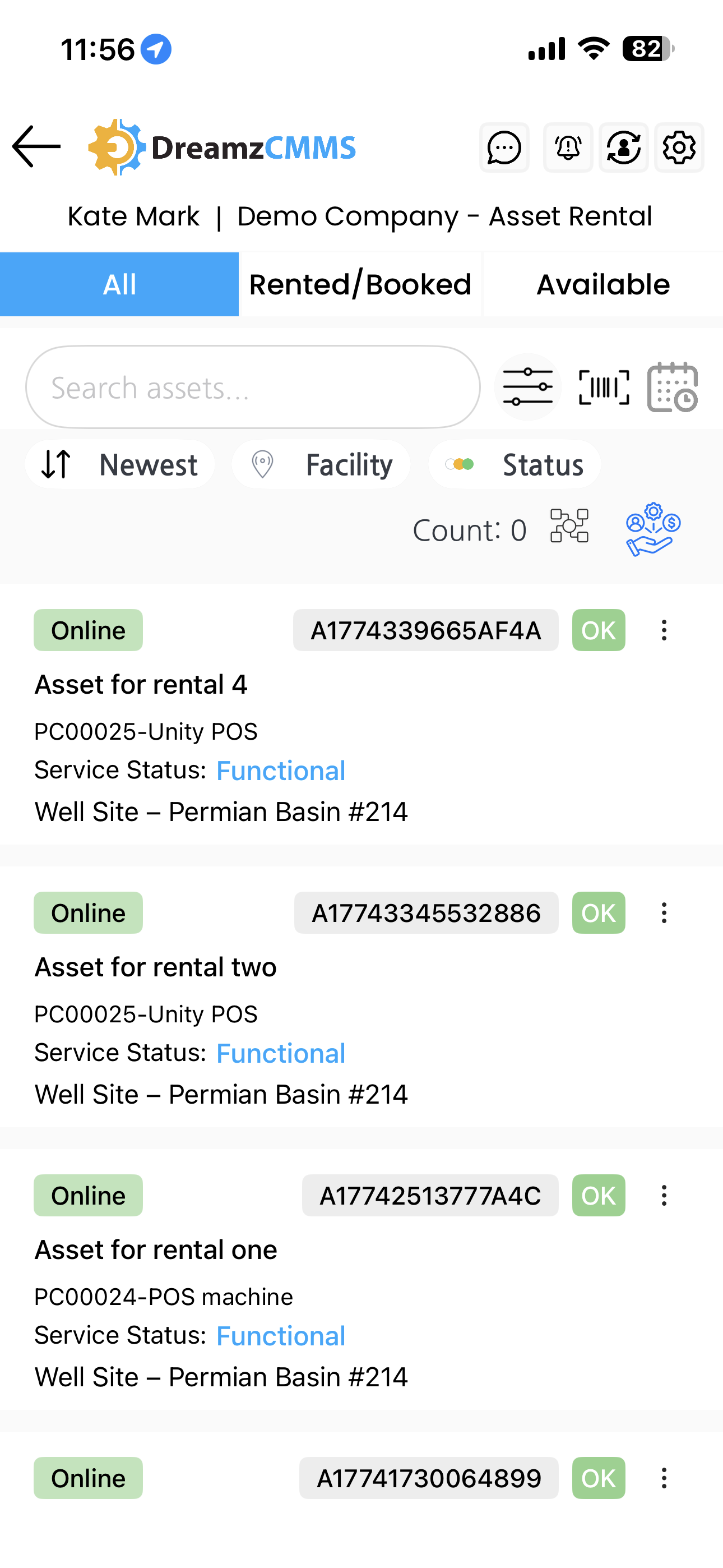
Step 2 – View All Assets
Once inside the Assets page, you will see the All header selected by default, displaying every asset in your account regardless of their current status.
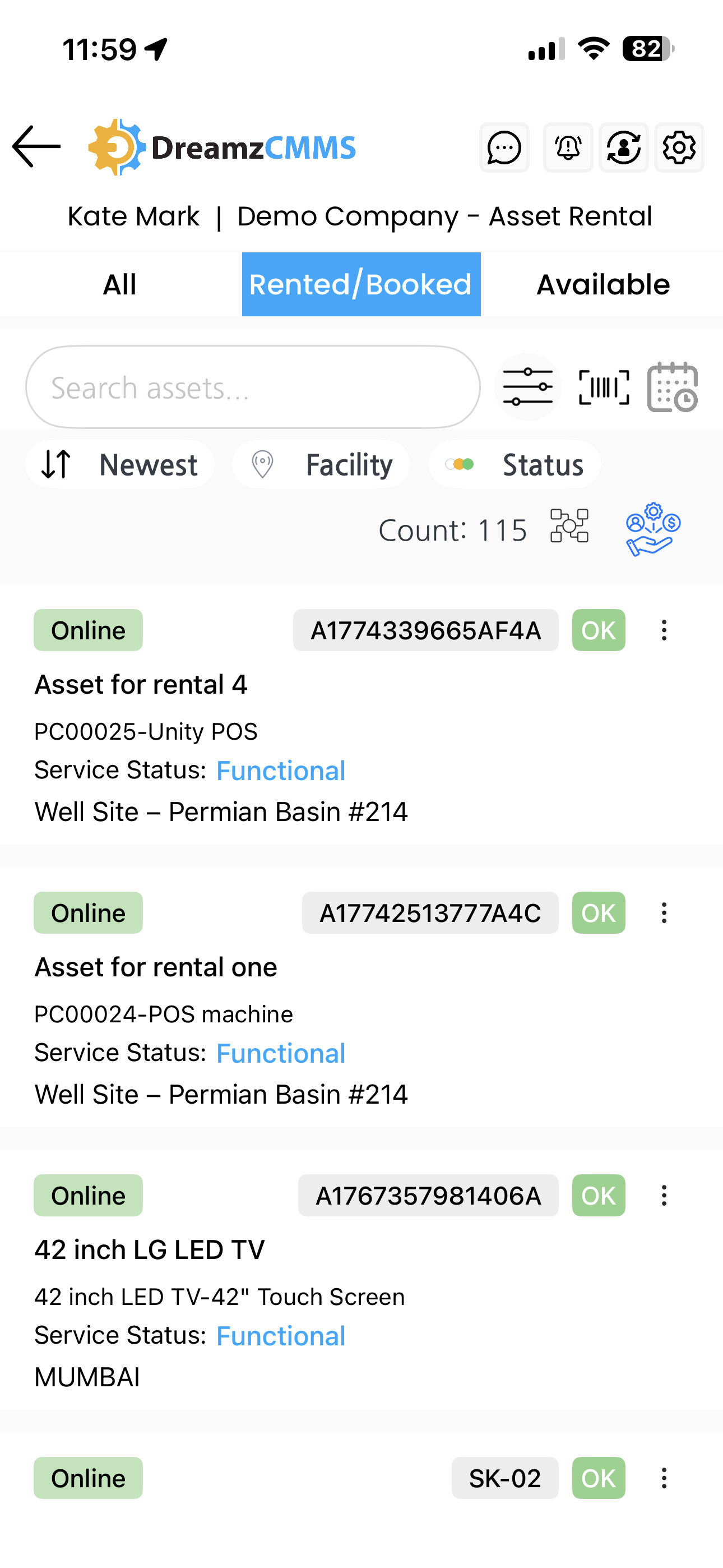
Step 3 – Filter by Rented and Booked Assets
Tap on the Rented and Booked tab to filter the list and view only assets that are currently rented out or have an active booking against them.
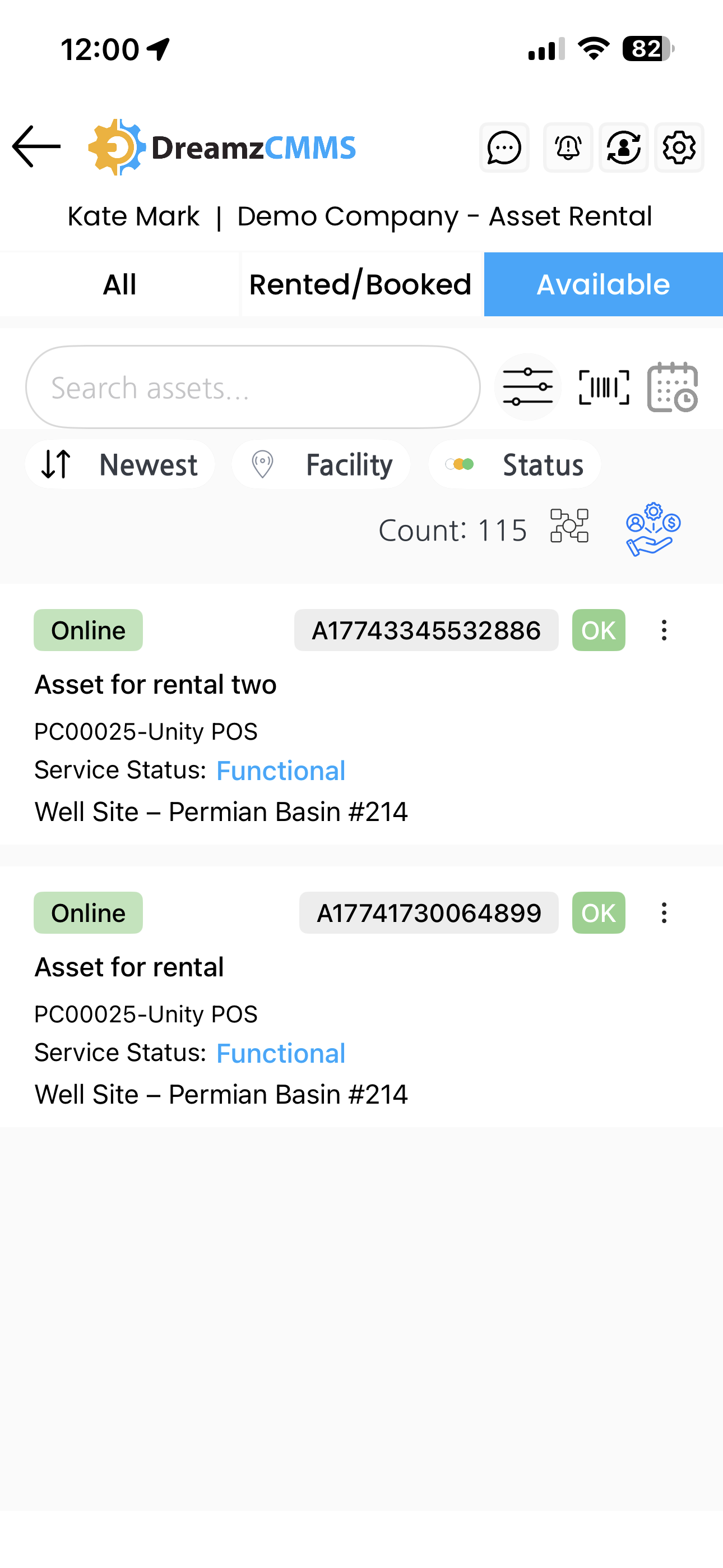
Step 4 – Filter by Available Assets
Tap on the Available tab to filter the list and view only assets that are currently free and ready for rental or booking.
Tips for Using the Assets Section
- Use the Available tab before creating a new quotation or sales order to quickly confirm which assets can be offered to customers without conflicts.
- Check the Rented and Booked tab to get a real-time picture of your fleet utilisation and identify assets that are due to return soon.
- Regularly review the All Assets view to maintain an overview of your complete inventory and spot any discrepancies in asset status.
- Use asset availability information to plan dispatches and bookings more efficiently and reduce the risk of double-booking assets.
Frequently Asked Questions
How do I access the Assets section in the mobile app?
Tap on the More menu in the DreamzCMMS mobile app and select Assets from the list of available options. This will take you to the Assets page.
What asset status filters are available?
The Assets page provides three filters: All (showing every asset), Rented and Booked (showing currently engaged assets), and Available (showing assets ready for rental).
How do I see only the assets that are available for rental?
Tap the Available tab on the Assets page to filter the list and display only assets that are currently free and ready for rental or booking.
Can I see all rented and booked assets in one view?
Yes. Tap the Rented and Booked tab on the Assets page to see all assets that are currently out on rental or have an active booking.
Is the asset status updated in real time?
Yes. The asset status displayed on the Assets page reflects the current state of your inventory based on the latest data in the system.
Related Articles
- Quotation – Asset Rental Module
- Sales Order – Asset Rental Module
- Jobs and Work Orders – Asset Rental Module
- Invoice – Asset Rental Module
- Customers – Asset Rental Module