Invoice – Asset Rental Module
The Invoice section in DreamzCMMS Asset Rentals allows you to create and manage invoices directly from the mobile app. You can view all existing invoices, generate new ones linked to jobs or work orders, and include full rental and cost details. Key highlights include:
- Access the complete list of all invoices from the Invoice listing page
- Invoice codes are auto-generated by the system upon creation
- Link invoices to specific jobs or work orders for accurate billing
- Include asset rental details, miscellaneous costs, and labour costs in each invoice
Overview
The Invoice section is accessible from the More menu in the DreamzCMMS mobile app. It provides a centralised place to view and manage all invoices within the Asset Rental module. The invoice creation page simplifies the billing process by auto-generating an invoice code, allowing you to link the invoice to an existing job or work order, and providing fields for all cost components including asset rental details, miscellaneous charges, and labour costs. Once saved, invoices appear immediately on the listing page for easy tracking and reference.
Here is a reference video:
Step by Step Description to Create and View Invoices
Step 1 – Navigate to the Invoice Section
Open the DreamzCMMS mobile app and tap on the More menu. From the list of options, select Invoice to open the invoice section.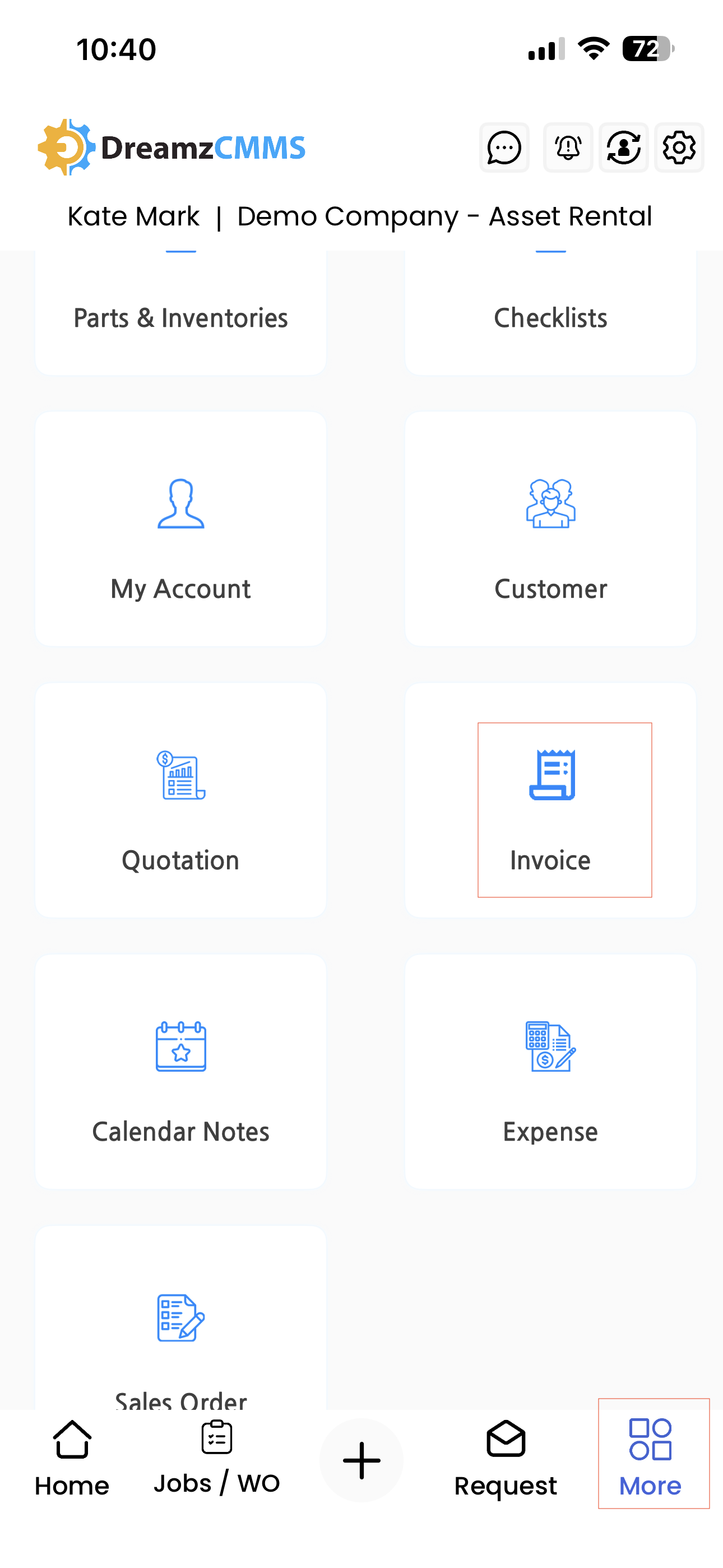
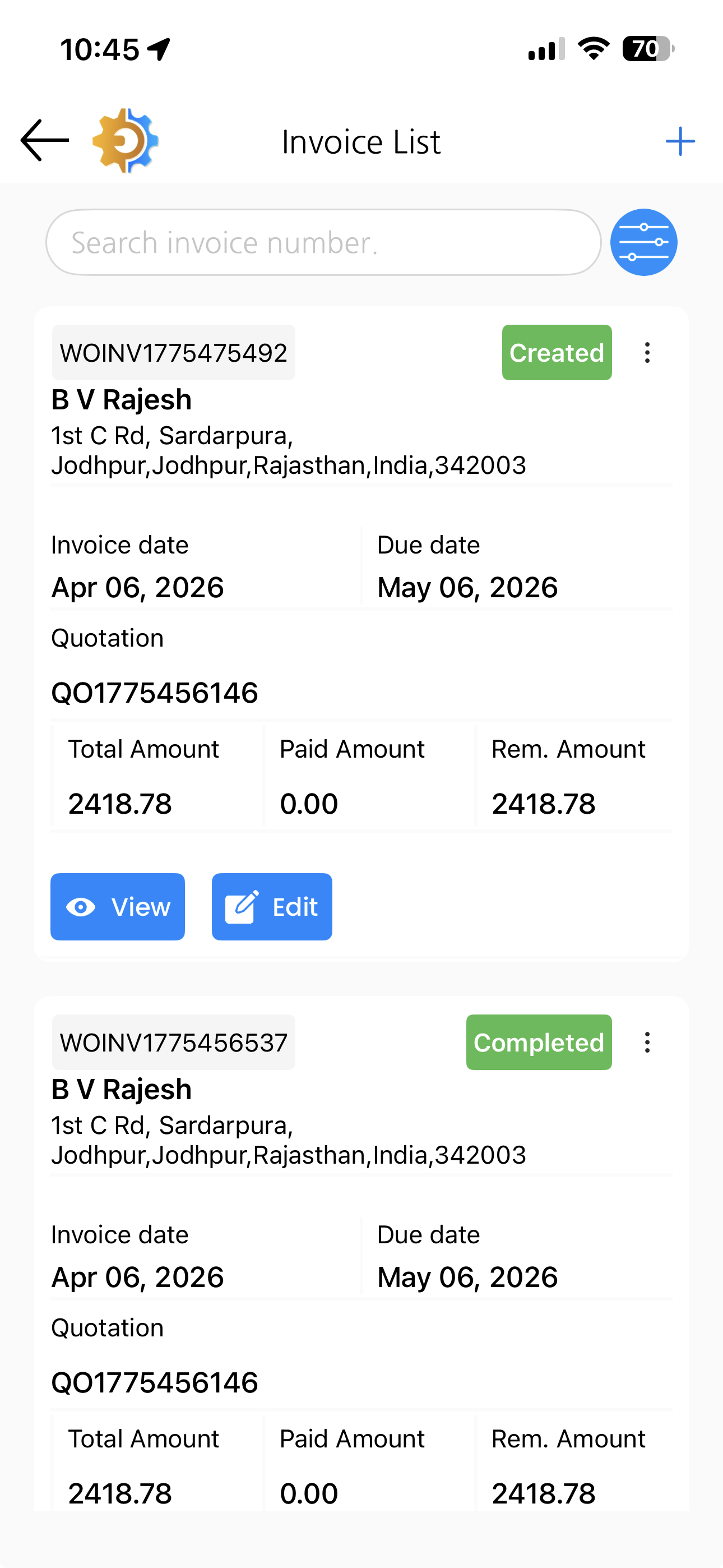
Step 2 – View the Invoice Listing Page
Once inside the Invoice section, you will see the listing of all invoices created for your account. Browse through existing invoices from this page.
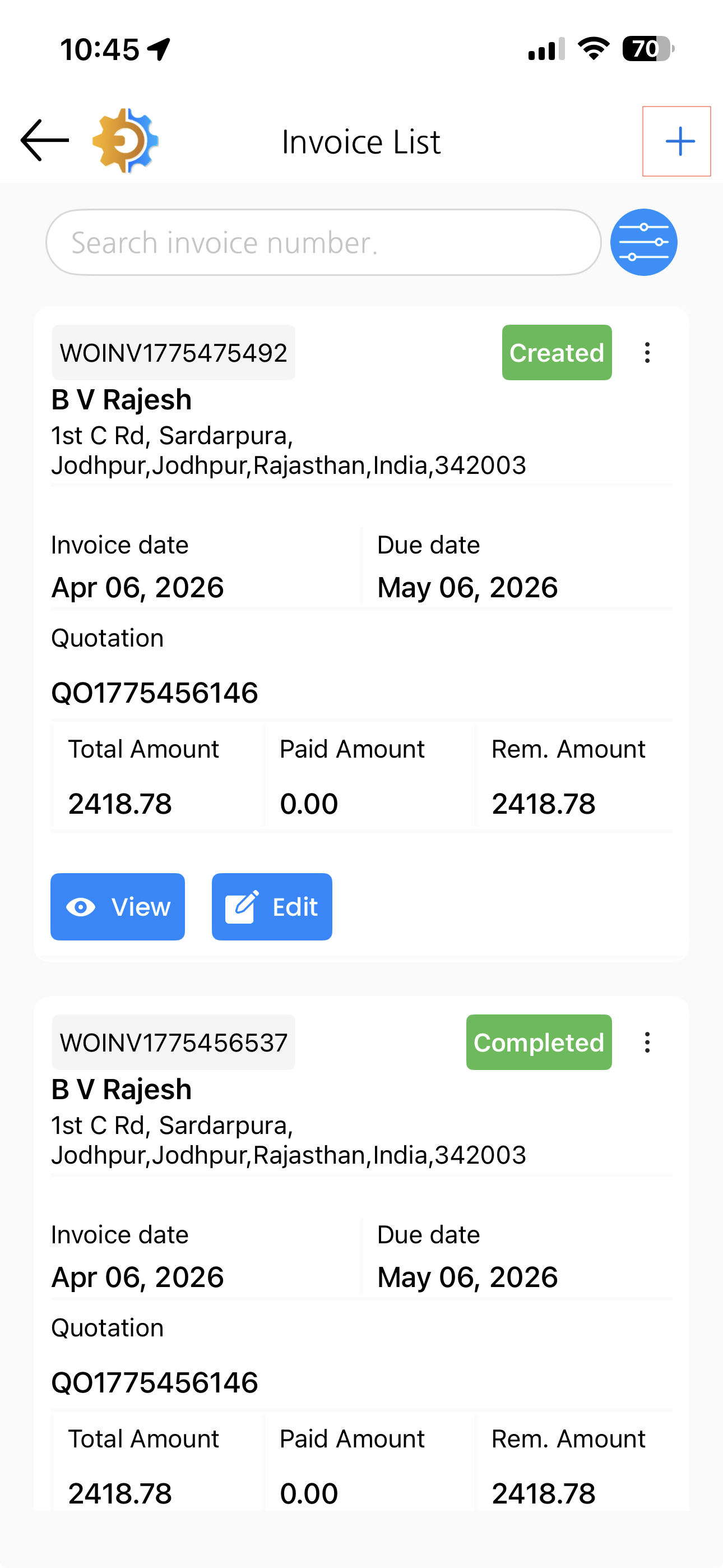
Step 3 – Create a New Invoice
To add a new invoice, tap the plus icon on the listing page. You will be redirected to the Invoice edition page where the invoice code will be auto-generated by the system.
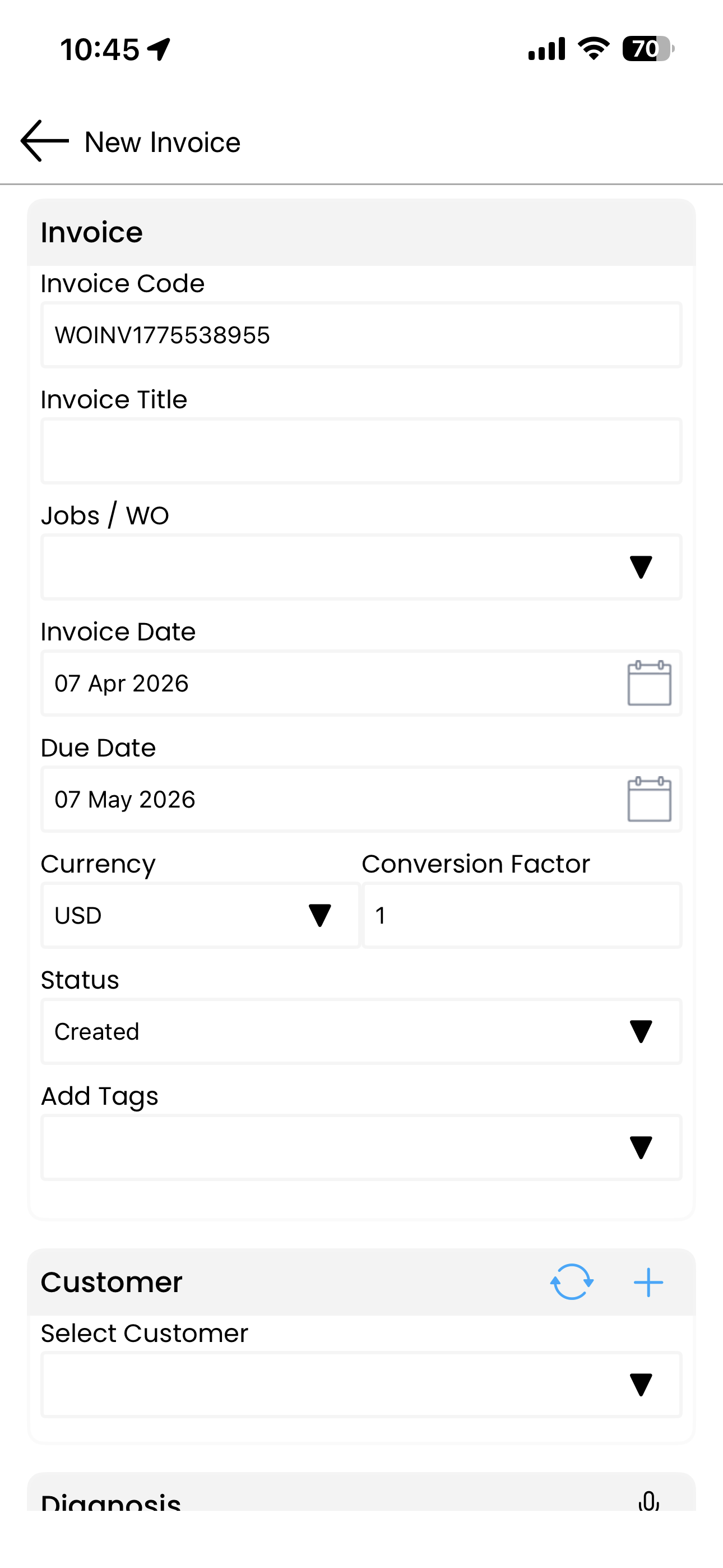
Step 4 – Fill in the Invoice Details
Complete the invoice form with the following information:
- Invoice Title – provide a descriptive title for the invoice
- Job or Work Order – select the job or work order against which the invoice is being created
- Invoice Date – specify the date of the invoice
- Customer – select the customer the invoice is being raised for
- Asset Details – add the relevant asset information
- Asset Rental Details – include rental-specific details for each asset
- Miscellaneous Costs – add any additional charges applicable to the invoice
- Labour Costs – include any labour charges associated with the invoice
Step 5 – Save the Invoice
Once all details have been filled in, tap the Save button. You will be redirected to the Invoice Listing page where your newly created invoice will be visible.
Tips for Using the Invoice Section
- Always link the invoice to the correct job or work order to maintain a clear and traceable connection between the work performed and the billing raised.
- Include all asset rental details, miscellaneous costs, and labour charges to ensure the invoice is complete and accurate before sending it to the customer.
- Note the auto-generated invoice code as it serves as a unique reference for tracking and communication with customers.
- Review the invoice listing page regularly to monitor outstanding invoices and ensure timely follow-up on payments.
Frequently Asked Questions
How do I access the Invoice section in the mobile app?
Tap on the More menu in the DreamzCMMS mobile app and select Invoice from the list of available options. This will take you to the invoice listing page.
Is the invoice code automatically generated?
Yes. When you create a new invoice, the invoice code is automatically generated by the system. You do not need to enter it manually.
Can I link an invoice to a specific job or work order?
Yes. During invoice creation, you can select the job or work order against which the invoice is being raised, ensuring accurate billing and traceability.
What cost details can I include in an invoice?
You can include asset details, asset rental details, miscellaneous costs, and labour costs in each invoice.
Where can I view an invoice after saving it?
Once saved, the invoice will appear on the Invoice Listing page, where all invoices created for your account are displayed.
Related Articles
- Sales Order – Asset Rental Module
- Quotation – Asset Rental Module
- Jobs and Work Orders – Asset Rental Module
- Customers – Asset Rental Module
- Request – Asset Rental Module