Jobs and Work Orders – Asset Rental Module
The Jobs and Work Orders section in DreamzCMMS Asset Rentals allows you to view and manage all jobs and work orders directly from the mobile app. You can access them from the home screen or the More menu, and create new entries quickly with all the relevant details. Key highlights include:
- View all jobs and work orders from the home screen tab or the More menu
- Create new jobs or work orders with auto-populated fields and full detail entry
- Add assets to a job or work order using the scanning feature
- Fill in details including category, status, type, dates, and requested information
Overview
The Jobs and Work Orders section is accessible from the home screen and the More menu in the DreamzCMMS mobile app. It provides a complete view of all jobs and work orders in the system, enabling field teams to quickly access active tasks and create new ones on the go. When creating a new job or work order, key fields such as the port are auto-populated to speed up the process, while additional details including category, status, dates, type, and requested information can be entered manually. Assets can also be added directly to a job or work order using the built-in scanning functionality.
Here is a reference video:
Step by Step Description to View and Create Jobs and Work Orders
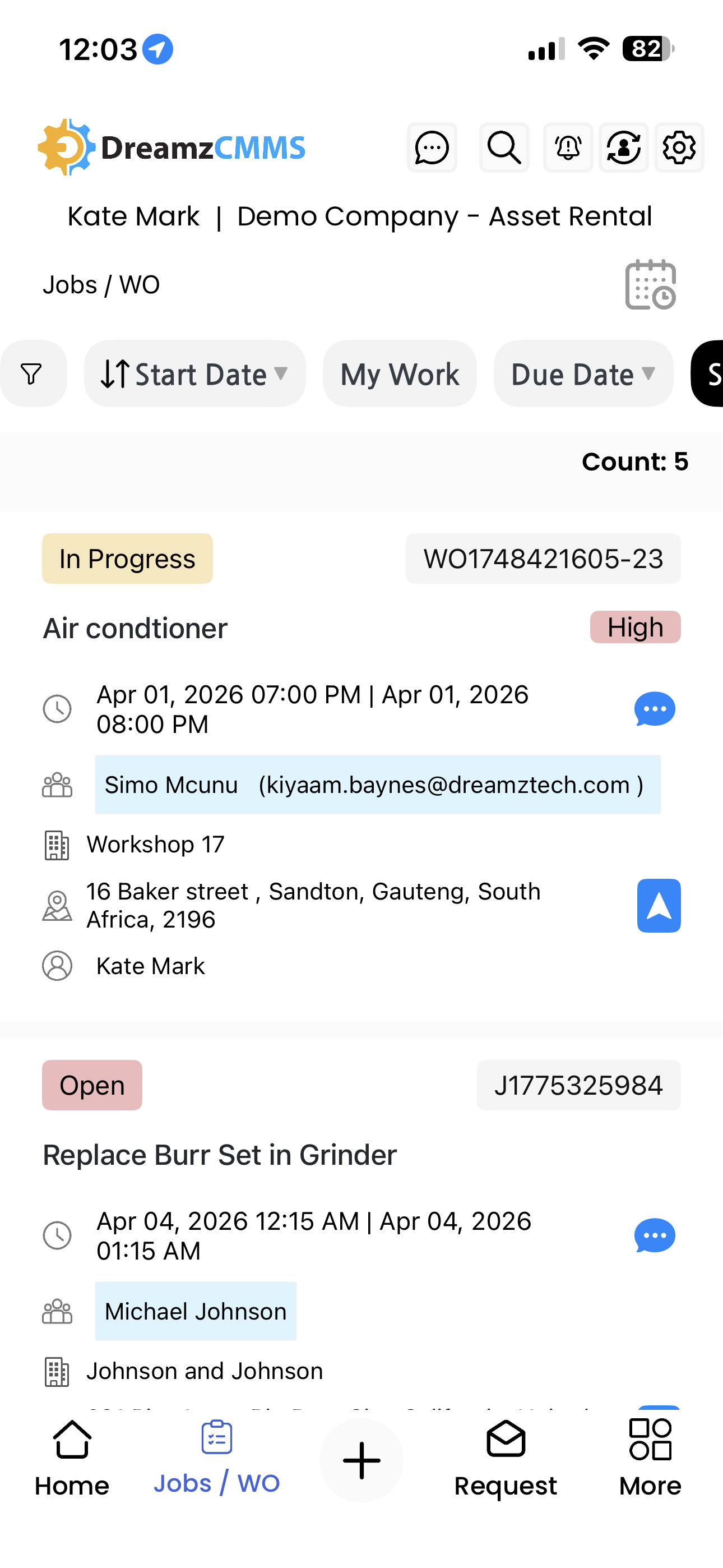
Step 1 – Access Jobs and Work Orders from the Home Screen
On the home screen of the DreamzCMMS mobile app, tap on the All Jobs and Work Order tab. This will display a listing of all jobs and work orders currently in the system.
Step 2 – Alternatively, Navigate via the More Menu
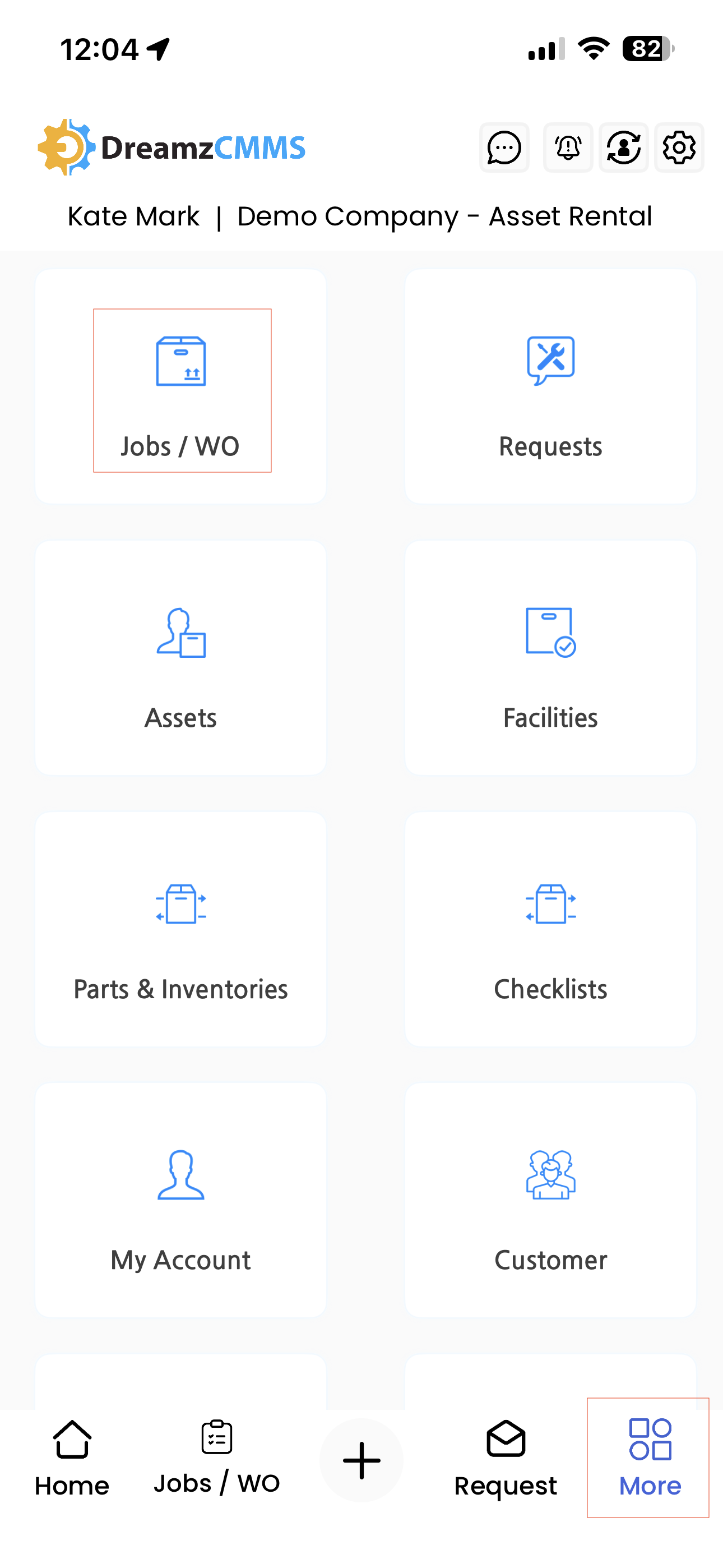
You can also access Jobs and Work Orders by tapping the More menu and selecting Jobs and Work Order from the list. This will take you to the same listing page.
Step 3 – Create a New Job or Work Order
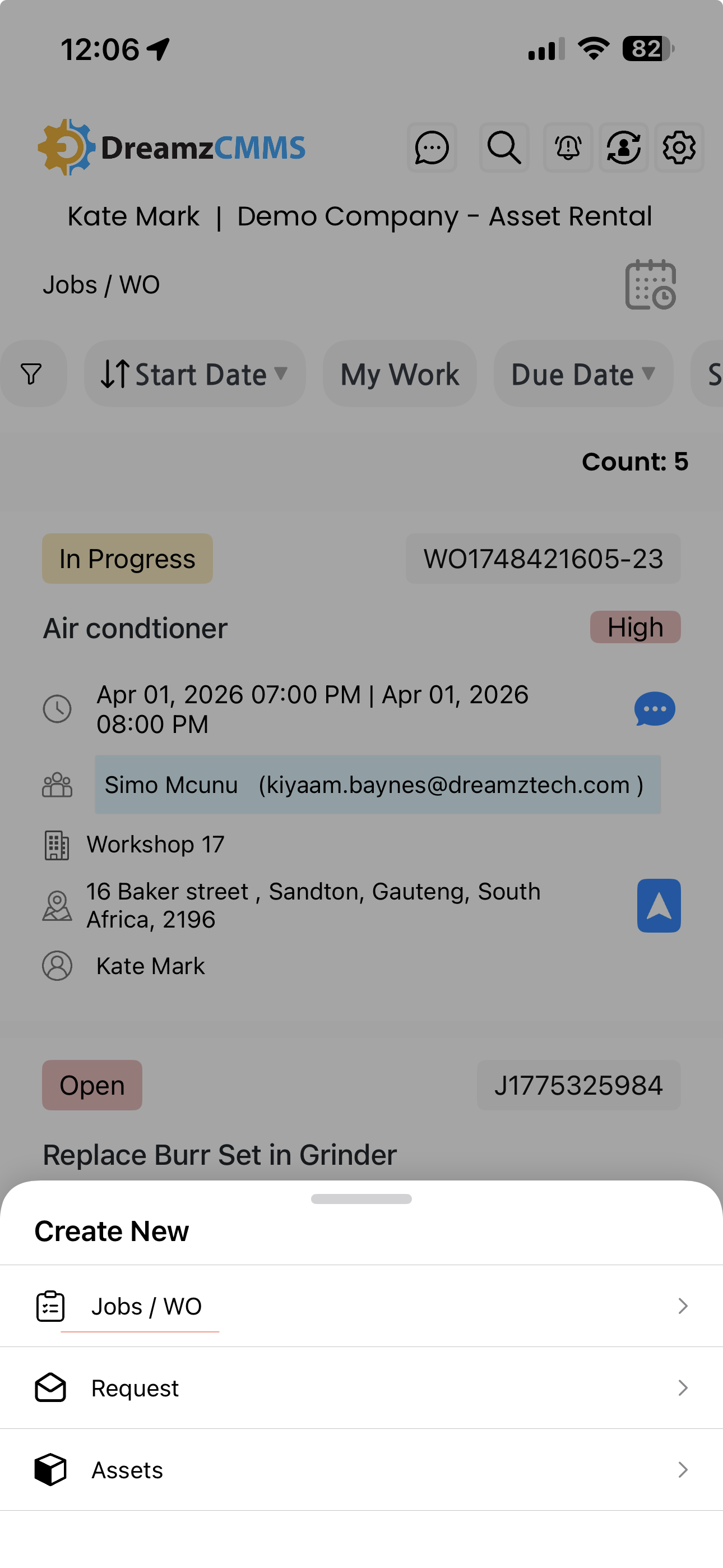
To add a new job or work order, tap the plus icon and select Jobs Work Order. You will be redirected to the job or work order creation page.
Step 4 – Fill in the Required Details
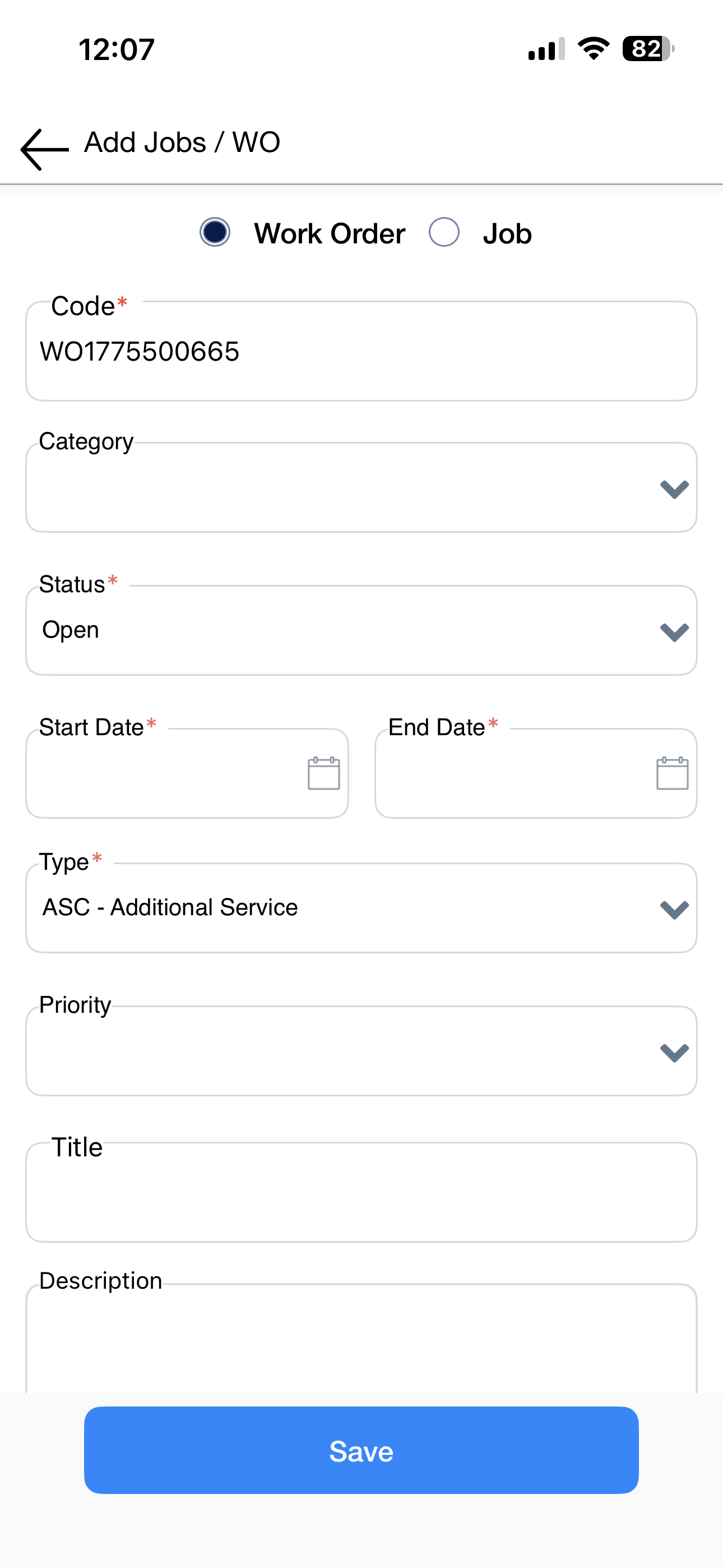
Complete the job or work order form with the following information:
- Port – auto-populated by the system
- Category – select the relevant category for the job
- Status – set the current status of the job or work order
- Opened and Ended dates – specify the start and end dates
- Type – select the type of job or work order
- Requested details – enter any additional requested information
Step 5 – Add Assets to the Job or Work Order
Use the scanning feature to add assets directly to the job or work order from within the creation page.
Step 6 – Save the Job or Work Order
Once all details have been entered, tap the Save button. The job or work order will be saved and will appear on the Jobs and Work Orders listing page.
Tips for Using Jobs and Work Orders
- Use the home screen tab for the fastest access to your jobs and work orders without navigating through additional menus.
- Take advantage of the auto-populated port field to save time when creating new jobs, and focus on filling in the details that require manual input.
- Always scan and add the relevant assets to a job or work order at the time of creation to maintain accurate asset-to-job associations in the system.
- Set the correct status and dates when creating jobs to ensure accurate tracking and reporting of open versus completed work orders.
Frequently Asked Questions
How do I access Jobs and Work Orders in the mobile app?
You can access them by tapping the All Jobs and Work Order tab on the home screen, or by going to the More menu and selecting Jobs and Work Order.
How do I create a new job or work order?
Tap the plus icon and select Jobs Work Order. Fill in all required fields including category, status, dates, type, and requested details, then tap Save.
Can I add assets to a job or work order?
Yes. You can add assets to a job or work order using the scanning feature available on the creation page.
Is the port field filled in automatically?
Yes. The port field is auto-populated by the system when you create a new job or work order, reducing manual data entry.
Where can I view a job or work order after saving it?
Once saved, it will appear on the Jobs and Work Orders listing page, accessible from both the home screen tab and the More menu.
Related Articles
- Request – Asset Rental Module
- Sales Order – Asset Rental Module
- Invoice – Asset Rental Module
- Assets – Asset Rental Module
- Quotation – Asset Rental Module