Sales Order – Asset Rental Module
The Sales Order section in DreamzCMMS Asset Rentals allows you to view and create sales orders directly from the mobile app. It provides a streamlined workflow for managing rental sales orders, from creation through to saving. Key highlights include:
- Access the complete list of all sales orders from the Sales Order listing page
- Create new sales orders by filling in mandatory details from the mobile app
- Add assets, parts, and miscellaneous costs to each sales order
- Attach signatures and files before saving the sales order
Overview
The Sales Order section is accessible from the More menu in the DreamzCMMS mobile app. It serves as the central place to manage all sales orders within the Asset Rental module. The listing page gives you a complete view of all sales orders created for your account. When creating a new sales order, you can include detailed information such as assets, parts, miscellaneous costs, customer signatures, and file attachments — ensuring every sales order is comprehensive and ready for processing.
Here is a reference video:
Step by Step Description to Create and View Sales Orders
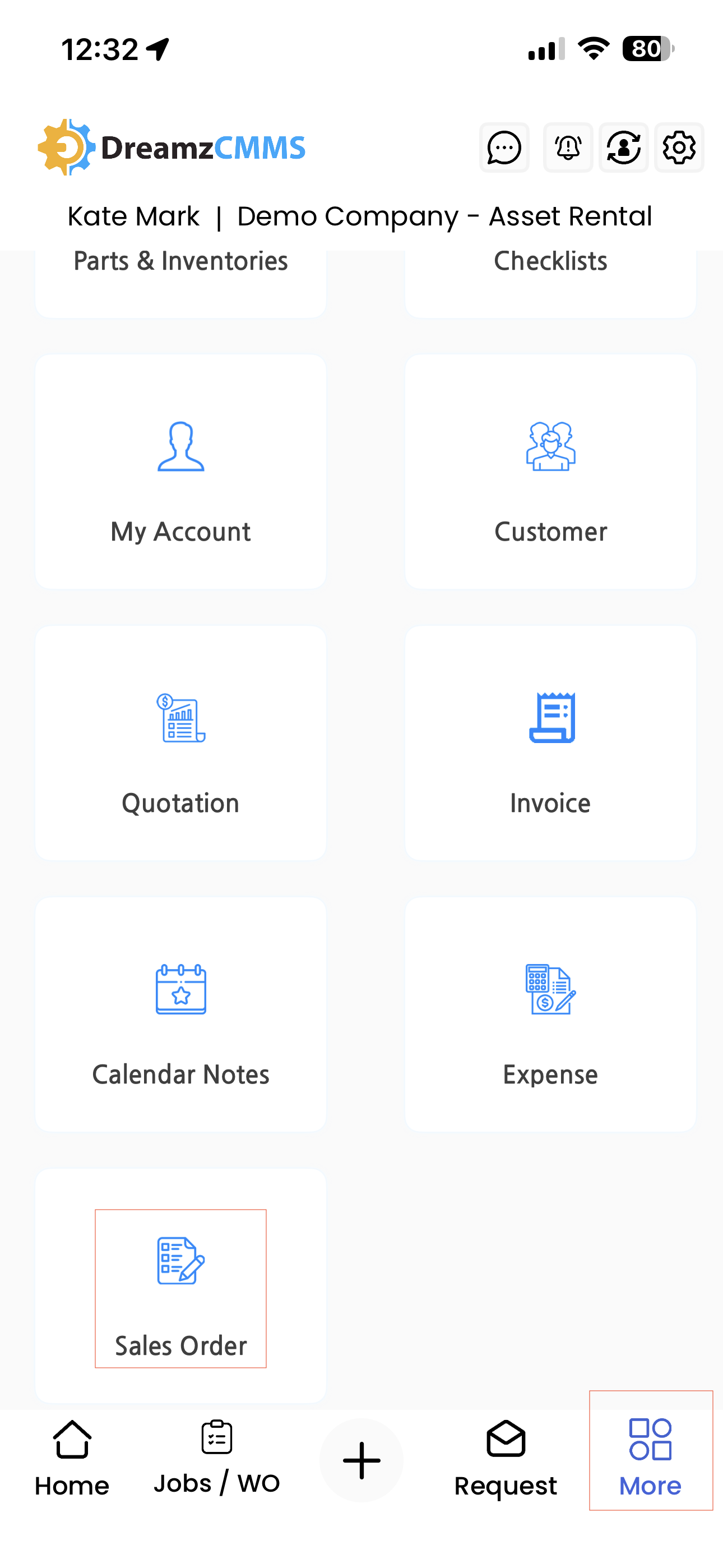
Step 1 – Navigate to the Sales Order Section
Open the DreamzCMMS mobile app and tap on the More menu. From the list of options, select Sales Order to open the sales order section.
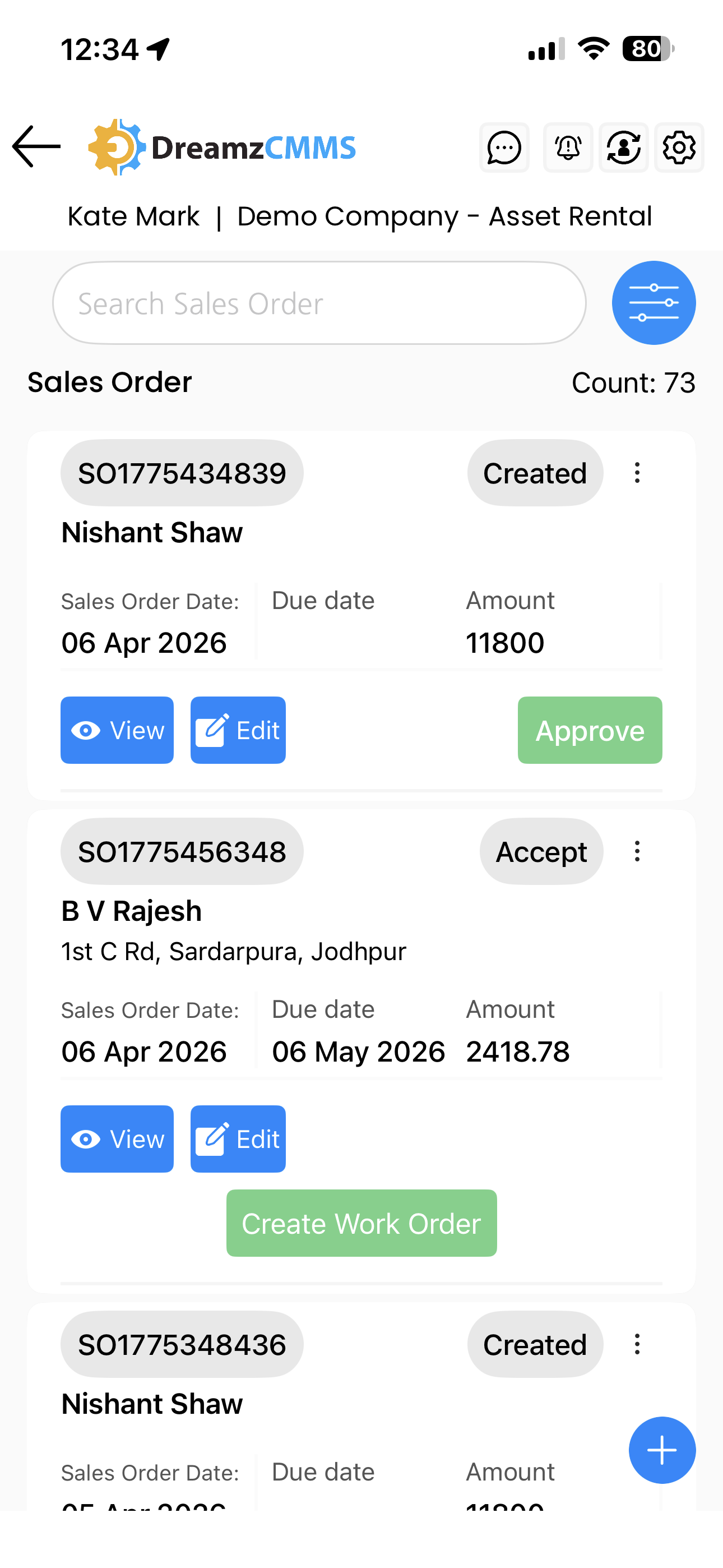
Step 2 – View the Sales Order Listing Page
Once inside the Sales Order section, you will see the listing of all sales orders created for your account. Browse through existing sales orders from this page.
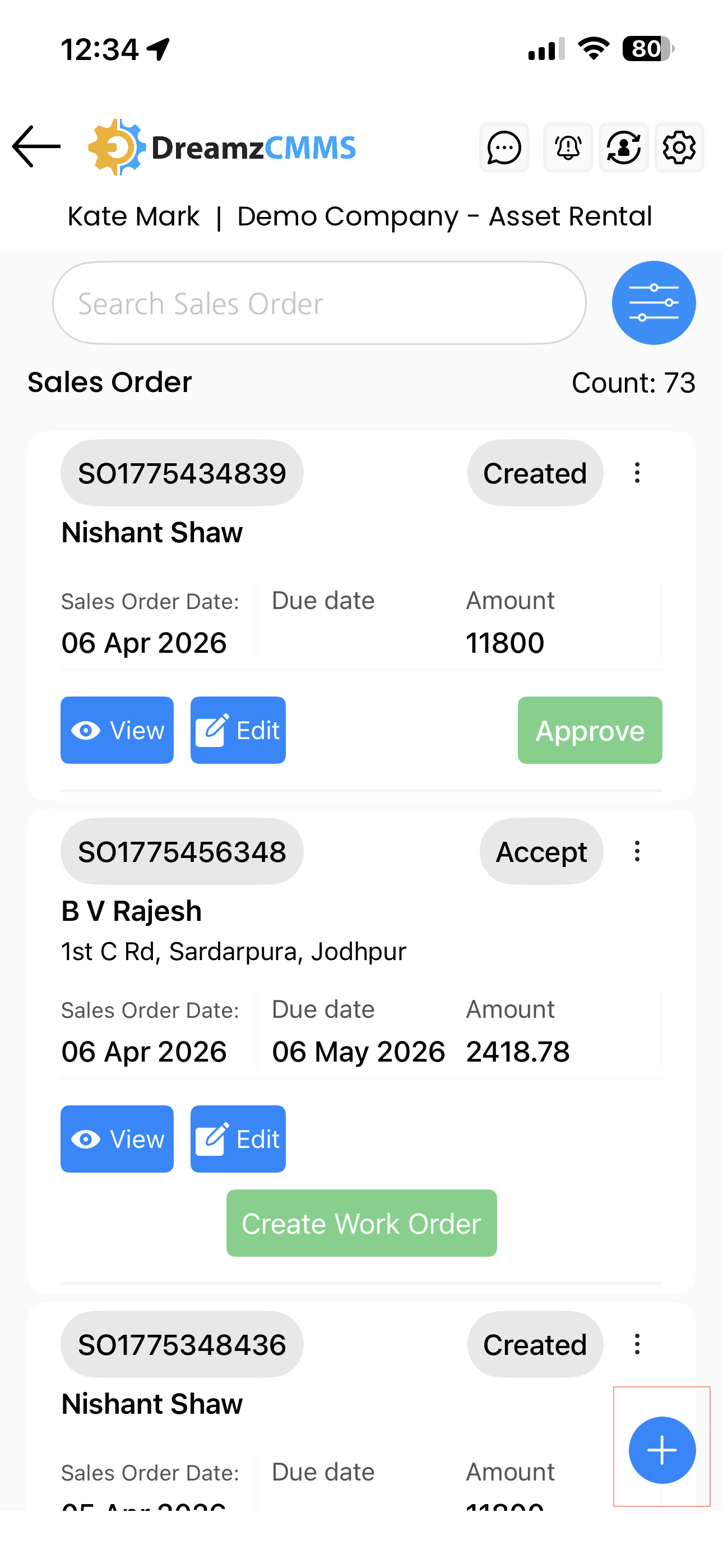
Step 3 – Create a New Sales Order
To create a new sales order, tap the plus icon on the listing page. You will be redirected to the Sales Order creation page where you can begin filling in the required details.
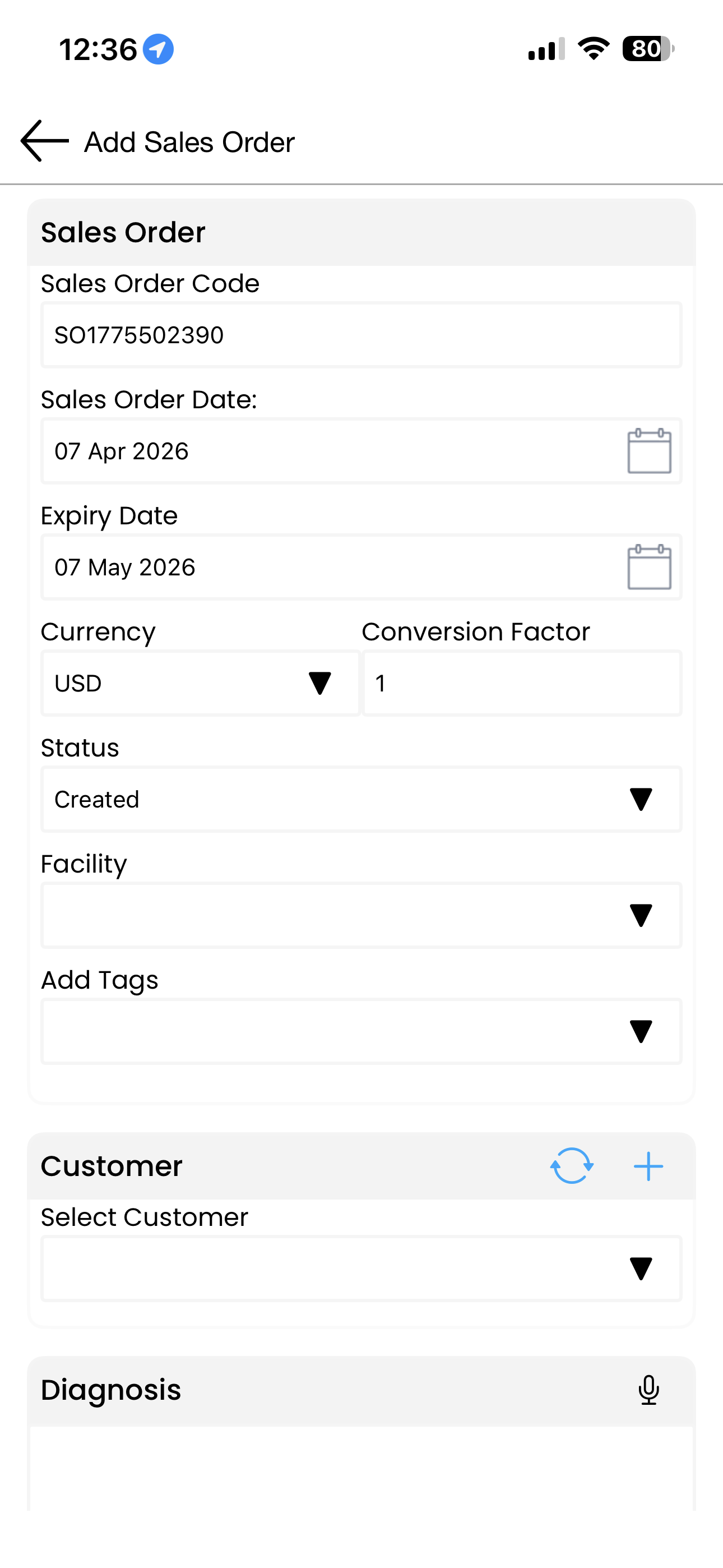
Step 4 – Fill in the Mandatory Details
Complete all mandatory fields on the sales order form. Ensure all required information is accurately entered before proceeding.
Step 5 – Add Additional Information
Enhance the sales order by adding the following details as applicable:
- Assets – the rental assets to be included in the sales order
- Parts – any parts associated with the order
- Miscellaneous Costs – any additional charges applicable to the order
- Signature – capture a customer signature directly within the app
- Attached Files – upload any relevant supporting documents
Step 6 – Save the Sales Order
Once all details have been filled in, tap the Save button. The sales order will be saved and will immediately appear on the Sales Order Listing page.
Tips for Using the Sales Order Section
- Always capture a customer signature at the time of creating the sales order to ensure the agreement is formally acknowledged and documented.
- Include all assets and associated costs in the sales order to ensure accurate billing when generating invoices later in the process.
- Use the sales order listing page to review existing orders before creating a new one, to avoid duplication.
- Attach any supporting documents such as contracts or delivery notes directly to the sales order for easy reference.
Frequently Asked Questions
How do I access the Sales Order section in the mobile app?
Tap on the More menu in the DreamzCMMS mobile app and select Sales Order from the list of available options. This will take you to the sales order listing page.
How do I create a new sales order?
From the Sales Order listing page, tap the plus icon. You will be redirected to the sales order creation page where you can fill in all necessary details and save.
What information can I add to a sales order?
You can add assets, parts, miscellaneous costs, a customer signature, and file attachments to each sales order.
Can I capture a customer signature within the app?
Yes. The sales order creation page includes an option to capture a customer signature directly within the mobile app before saving the order.
Where can I view a sales order after saving it?
Once saved, the sales order will appear on the Sales Order Listing page, where all sales orders created for your account are displayed.
Related Articles
- Quotation – Asset Rental Module
- Invoice – Asset Rental Module
- Request – Asset Rental Module
- Jobs and Work Orders – Asset Rental Module
- Customers – Asset Rental Module