Request – Asset Rental Module
The Request section in DreamzCMMS Asset Rentals allows you to raise and manage requests directly from the mobile app. You can view all existing requests, create new ones, and attach supporting files such as photos or videos. Key highlights include:
- Access the complete list of all requests from the Request listing page
- Navigate to Requests via the bottom menu or through the More menu
- Create new requests by filling in mandatory fields and saving
- Attach files, photos, or videos to requests for additional context and assistance
Overview
The Request section is accessible from both the bottom navigation menu and the More menu in the DreamzCMMS mobile app. It provides a centralised place to view and manage all requests within the Asset Rental module. Requests can be raised quickly by filling in the required details, and supporting media such as photos, videos, or files can be attached to provide greater clarity. Once submitted, requests appear instantly on the listing page, making it easy to track and follow up on all open and completed requests.
Here is a reference video:
Step by Step Description to Create and View Requests
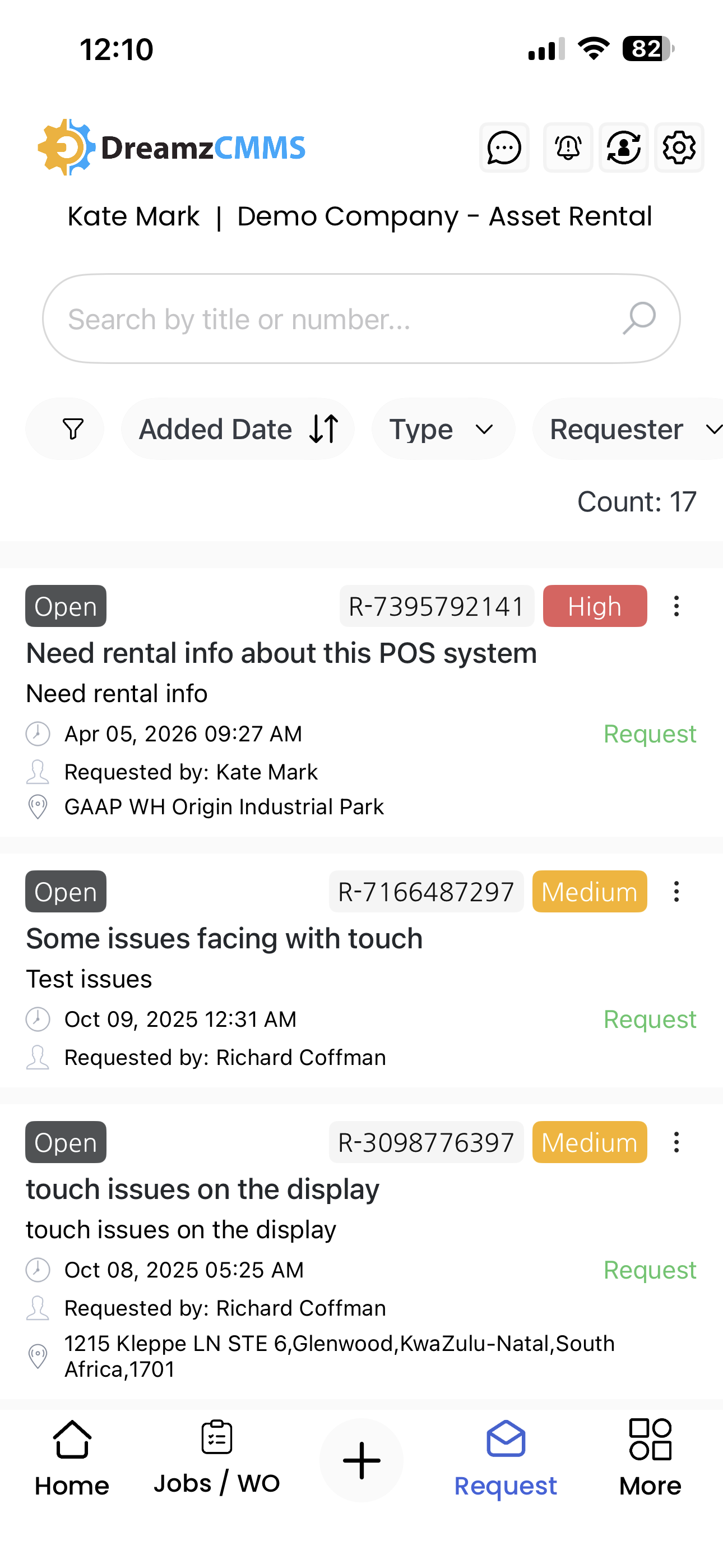
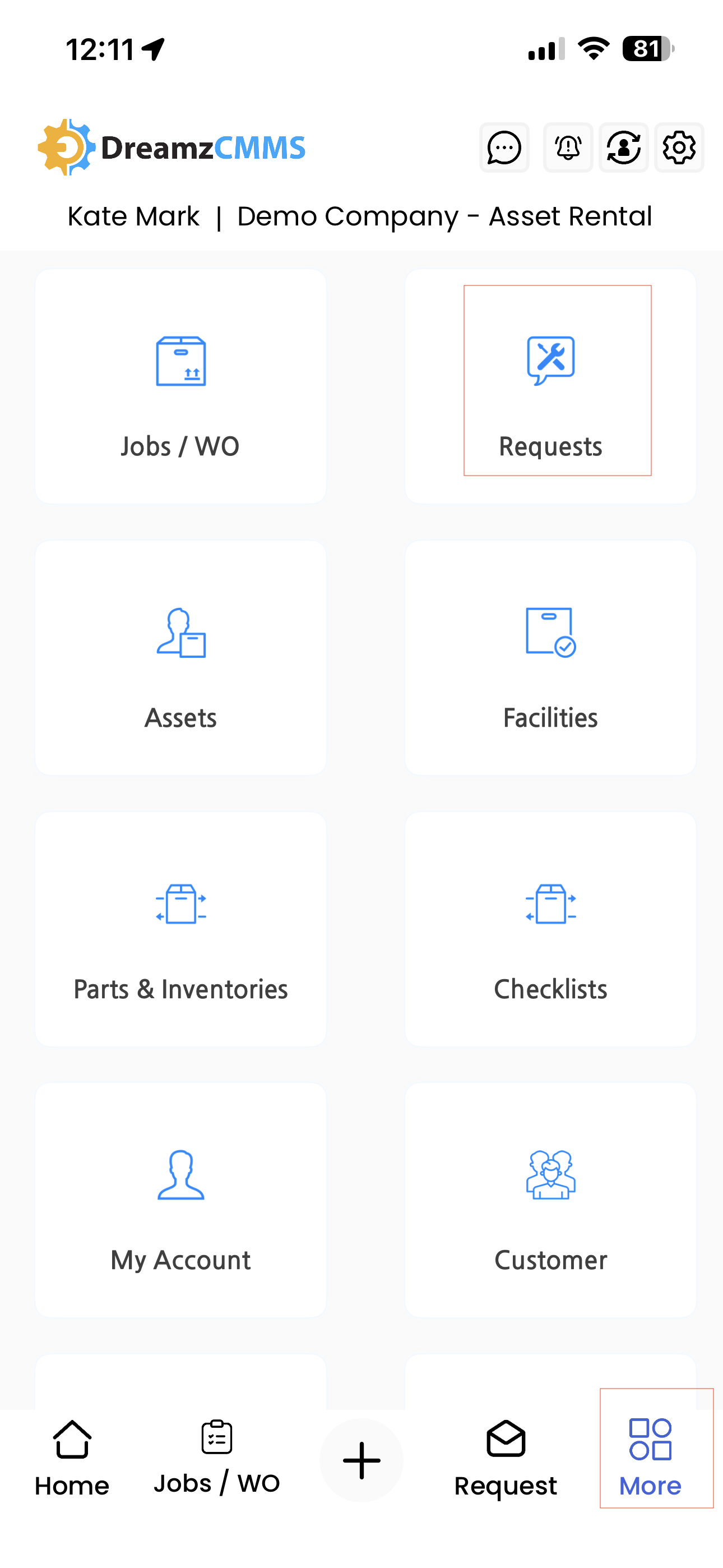
Step 1 – Navigate to the Request Section
Open the DreamzCMMS mobile app and tap on Request from the bottom navigation menu. Alternatively, tap on the More menu and select Requests from the list of options.
Step 2 – View the Request Listing Page
Once inside the Request section, you will see the listing of all requests that have been created in your account. Browse through existing requests from this page.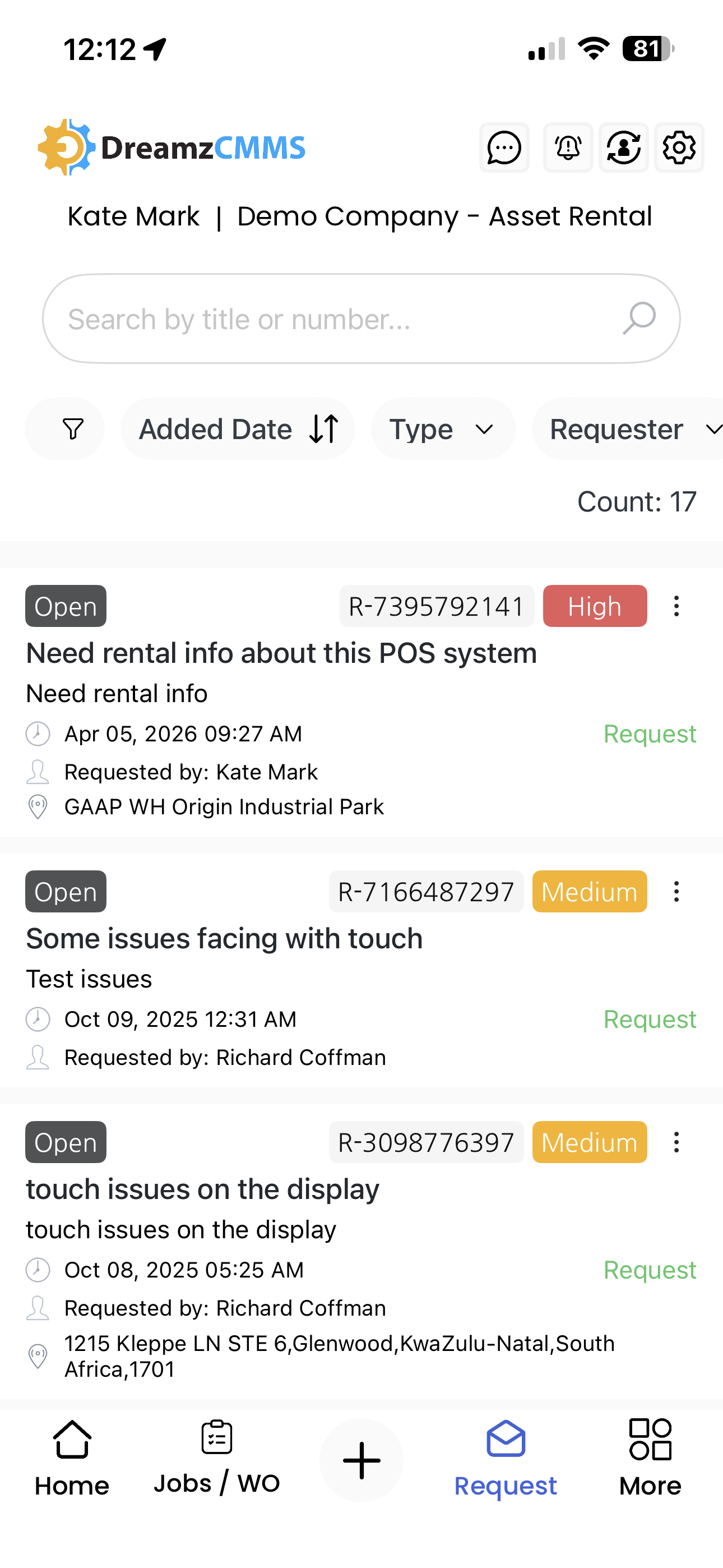
Step 3 – Create a New Request
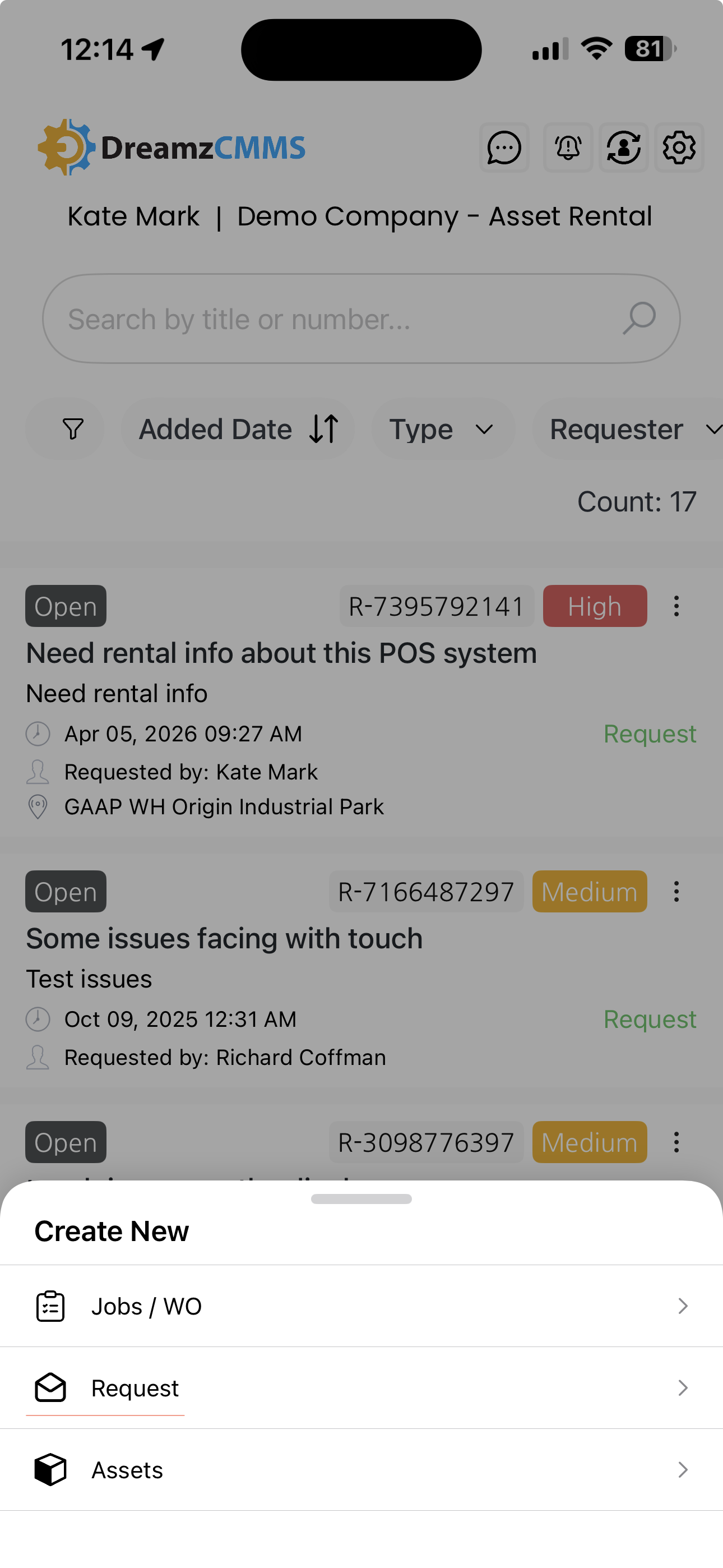
To add a new request, tap the plus icon and select Request. You will be taken to the request creation page where you can begin entering the required details.
Step 4 – Fill in the Mandatory Fields
Complete all mandatory fields on the request form. Ensure all required information is accurately entered before proceeding to save.
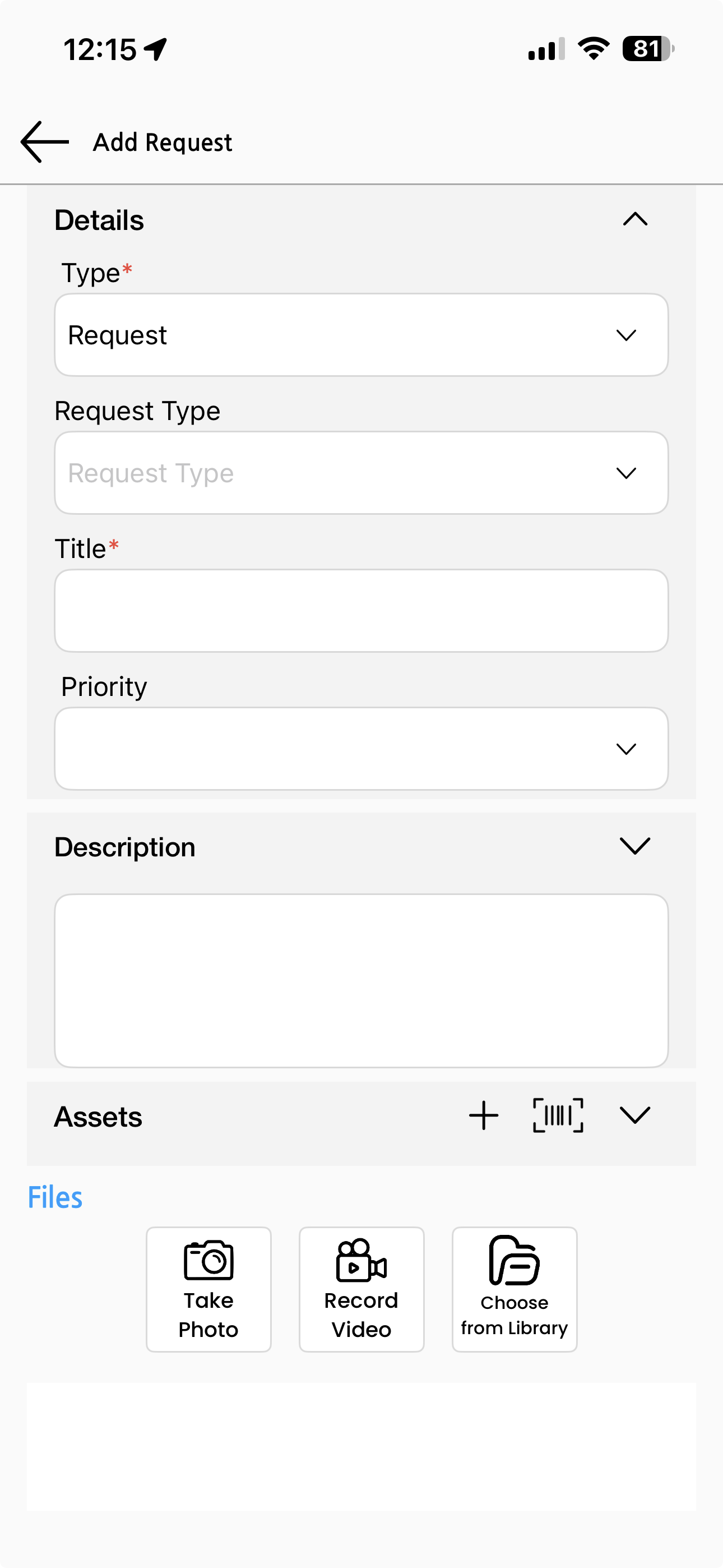
Step 5 – Attach Supporting Files (Optional)
If needed, you can enhance your request by attaching supporting media:
- Upload files – attach relevant documents or images from your device
- Take a photo – capture a photo directly from the app
- Record a video – record a video to provide additional context for the request
Step 6 – Save the Request
Once all details and any attachments are in place, tap the Save button. The request will be saved and will immediately appear on the Request Listing page.
Tips for Using the Request Section
- Use the bottom menu shortcut for quick access to the Request section without navigating through the More menu.
- Always attach a photo or video when raising a request for a physical asset issue — visual context helps the team respond faster and more accurately.
- Review the request listing page regularly to monitor the status of open requests and ensure nothing is left unresolved.
- Fill in all mandatory fields carefully before saving to avoid incomplete records that may delay processing.
Frequently Asked Questions
How do I access the Request section in the mobile app?
You can access the Request section by tapping on Request from the bottom navigation menu, or by going to the More menu and selecting Requests.
How do I create a new request?
Tap the plus icon from the Request listing page and select Request. Fill in all mandatory fields, optionally attach files or media, and tap Save to submit the request.
Can I attach files or media to a request?
Yes. When creating a request, you can upload files, take a photo, or record a video directly within the app to attach as supporting information.
Where can I view a request after saving it?
Once saved, the request will appear on the Request Listing page, where all requests created in your account are displayed.
Are there mandatory fields when creating a request?
Yes. Certain fields are mandatory and must be completed before the request can be saved. Ensure all required fields are filled in to successfully submit the request.
Related Articles
- Quotation – Asset Rental Module
- Jobs and Work Orders – Asset Rental Module
- Sales Order – Asset Rental Module
- Invoice – Asset Rental Module
- Assets – Asset Rental Module