Quotation – Asset Rental Module
The Quotation section in DreamzCMMS Asset Rentals allows you to create and manage quotations directly from the mobile app. Whether you are generating a new quote for a customer or reviewing existing ones, the module provides a simple and efficient workflow. Key highlights include:
- Access the complete list of all quotations created in your account from a single listing page
- Create new quotations quickly using the plus icon from the mobile app
- Add assets, parts, miscellaneous costs, and labour costs to each quotation
- Save quotations and have them instantly appear on the quotation listing page
Overview
The Quotation section is accessible from the More menu in the DreamzCMMS mobile app. It serves as a centralised place to view and manage all quotations created for your company within the Asset Rental module. From the listing page, you can review existing quotations at a glance or initiate the creation of a new one. The quotation creation form allows you to include detailed cost breakdowns — covering assets, parts, miscellaneous charges, and labour — making it a comprehensive tool for providing accurate rental estimates to your customers.
Here is a reference video:
Step by Step Description to Create and View Quotations
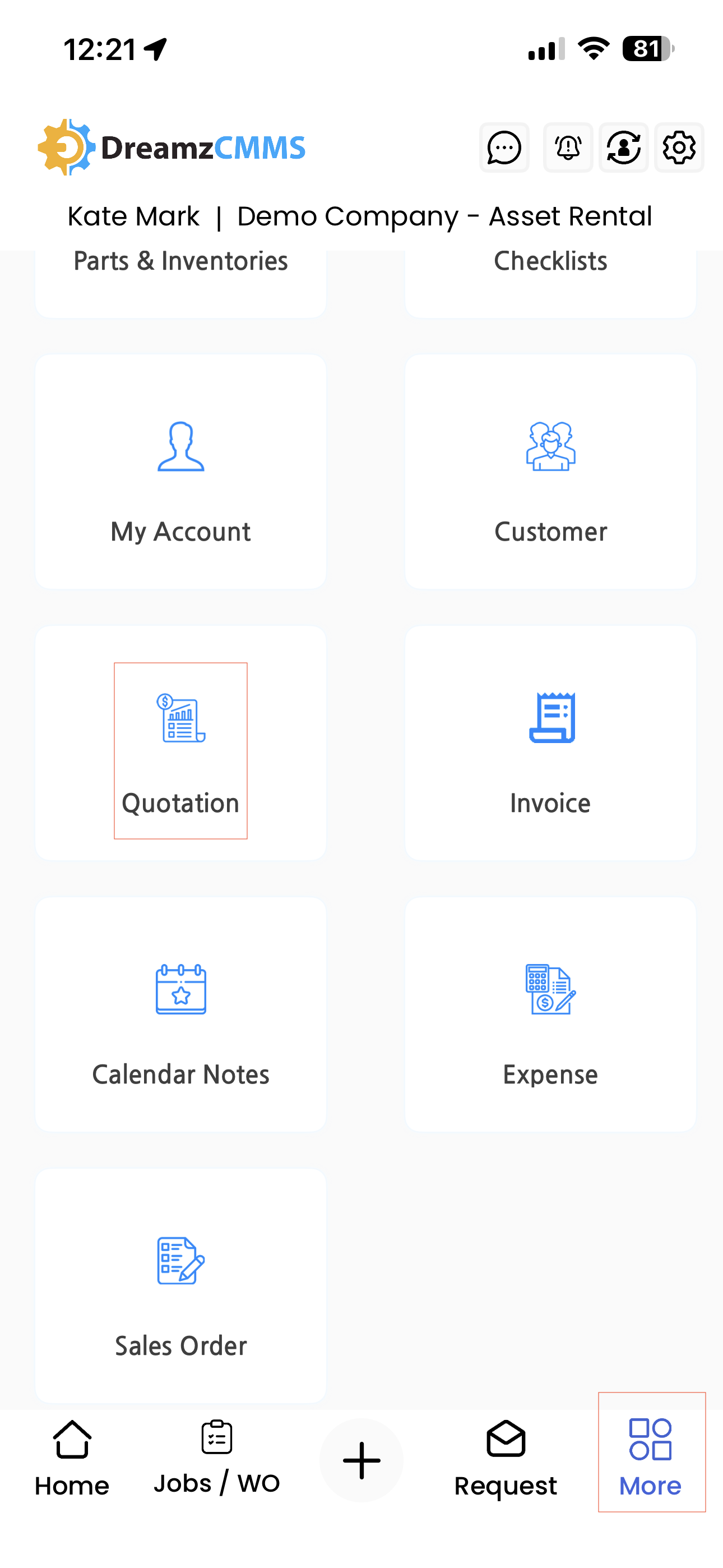
Step 1 – Navigate to the Quotation Section
Open the DreamzCMMS mobile app and tap on the More menu. From the list of options, select Quotation to open the quotation section.
Step 2 – View the Quotation Listing Page
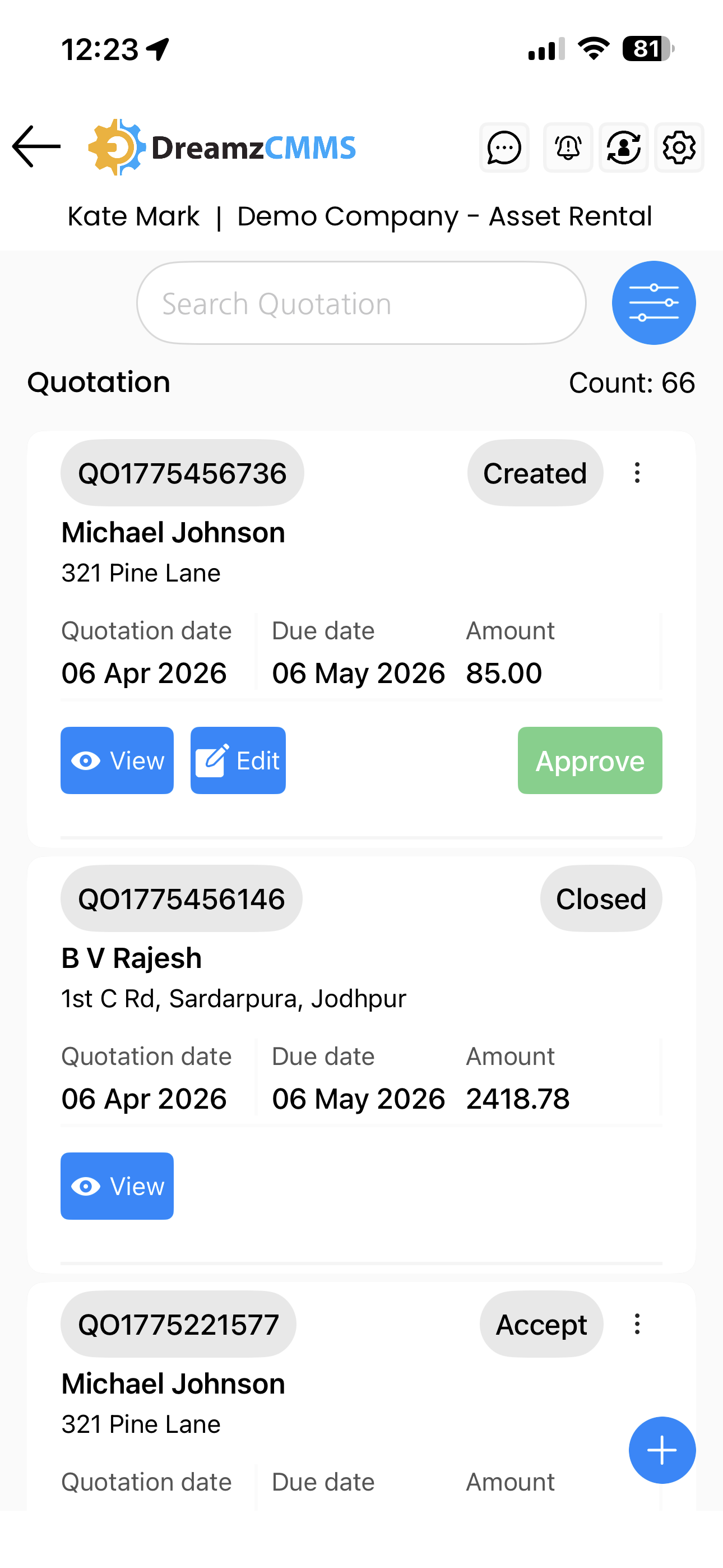
Once inside the Quotation section, you will see the listing of all quotations that have been created for your account. Browse through existing quotations from this page.
Step 3 – Create a New Quotation
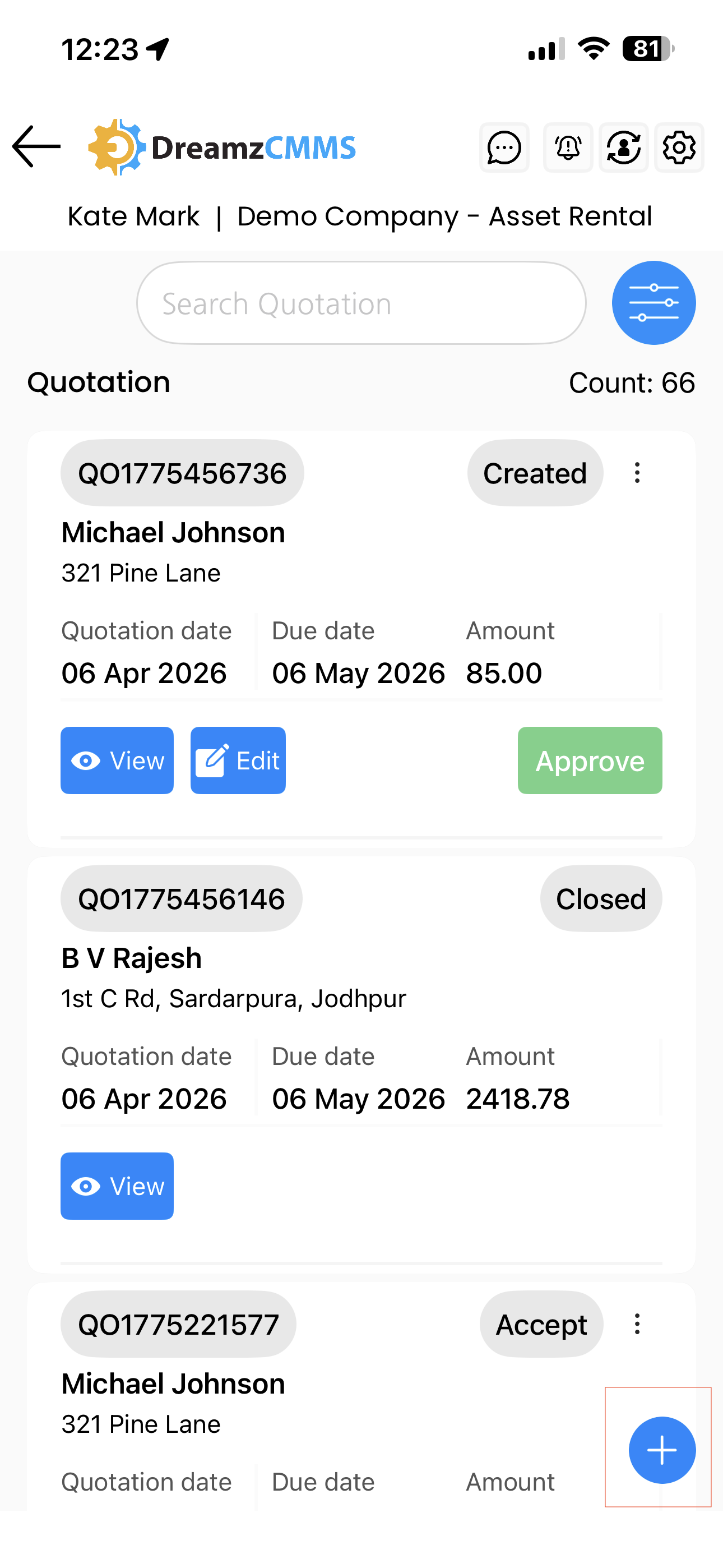
To create a new quotation, tap the plus icon on the listing page. You will be redirected to the Quotation Add page where you can begin filling in the quotation details.
Step 4 – Add Details to the Quotation
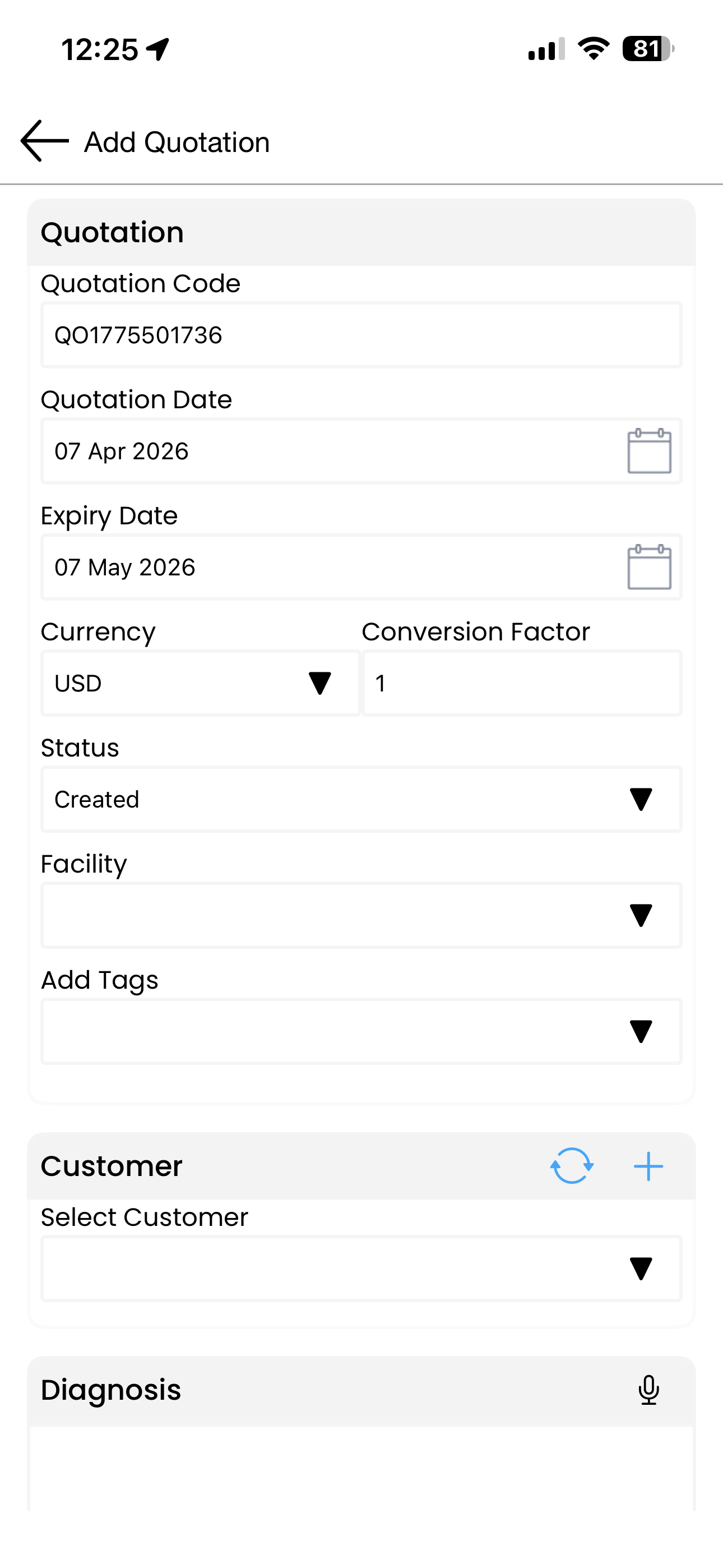
On the quotation creation page, add all the relevant information including:
- Assets – the rental assets to be included in the quote
- Parts – any parts associated with the rental
- Miscellaneous Costs – additional charges applicable to the quotation
- Labour Costs – any labour charges to be included
- Any other important information relevant to the quotation
Step 5 – Save the Quotation
Once all details have been filled in, tap the Save button. The quotation will be saved and will immediately appear on the Quotation Listing page for future reference.
Tips for Using the Quotation Section
- Always include all applicable cost categories — assets, parts, miscellaneous, and labour — to ensure your quotation reflects the full scope of the rental and avoids unexpected charges later.
- Use the quotation listing page to review previously created quotes before generating a new one, to avoid duplication or inconsistencies.
- Once a quotation is approved by the customer, use it as the basis for creating a Sales Order to maintain a consistent and traceable workflow.
- Keep quotation details accurate and up to date, as they may be referenced when generating invoices later in the rental process.
Frequently Asked Questions
How do I access the Quotation section in the mobile app?
Tap on the More menu in the DreamzCMMS mobile app and select Quotation from the list of available options. This will take you directly to the quotation listing page.
What information can I add to a quotation?
You can add assets, parts, miscellaneous costs, labour costs, and any other relevant information required for the rental quotation.
How do I create a new quotation?
From the Quotation listing page, tap the plus icon. You will be redirected to the Quotation Add page where you can fill in all necessary details and save the quotation.
Where can I view a quotation after saving it?
Once saved, the quotation will appear on the Quotation Listing page, where all quotations created for your account are displayed.
Can I create a quotation without filling in all fields?
Some fields may be mandatory and must be completed before saving. Ensure all required information is filled in to successfully save the quotation.
Related Articles
- Sales Order – Asset Rental Module
- Invoice – Asset Rental Module
- Request – Asset Rental Module
- Jobs and Work Orders – Asset Rental Module
- Customers – Asset Rental Module