All Reports – Inventory Reports
The Inventory Reports section within All Reports in DreamzCMMS Asset Rentals provides a comprehensive set of reports to help you monitor stock levels, track inventory distribution, and manage your inventory efficiently. All inventory reports are accessible from a single location, making it easy to get the data you need quickly. Key highlights include:
- Access all inventory-related reports from the All Reports page
- View current stock levels with the Current Inventory Report
- Identify low stock items using the Low Inventory Report
- Analyse stock distribution with the Category-wise Current Inventory Report
- Track spare parts and components with the Spare Inventory Report
Overview
The Inventory Reports in DreamzCMMS are accessible from the All Reports page within the Reports menu. Scrolling to the Inventory section reveals a range of reports designed to help teams stay on top of stock levels, identify shortfalls, and understand how inventory is distributed across categories. Whether you need a real-time snapshot of current stock, a list of items running low, or a category-level breakdown, the Inventory Reports section has everything needed to manage inventory effectively from one centralised reporting hub.
Here is a reference video:
Step by Step Description to Access Inventory Reports
Step 1 – Navigate to All Reports
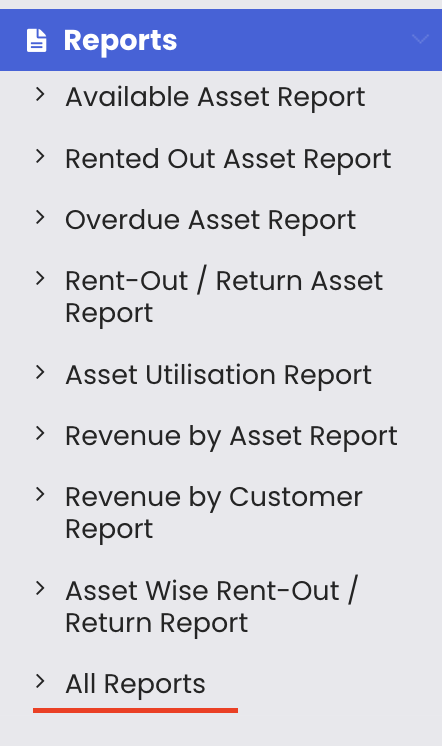
Click on Reports from the left-hand menu and select "All Reports." This opens the centralised reports library.
Step 2 – Scroll to the Inventory Section
On the All Reports page, scroll down until you reach the Inventory section. This section groups all inventory-related reports together for easy access.
Step 3 – Access the Available Inventory Reports
Under the Inventory section, you will find the following reports:
- Current Inventory Report – provides a real-time view of current stock levels across all inventory items
- Low Inventory Report – highlights inventory items that have fallen below minimum stock thresholds
- Category-wise Current Inventory Report – shows current stock levels broken down by inventory category
- Spare Inventory Report – tracks spare parts and component inventory separately
- Other related inventory reports
Step 4 – Open and Use a Report
Click on any report from the Inventory section to open it. The selected report will display the relevant inventory data, which can typically be exported in Excel or PDF format.
Tips for Using Inventory Reports
- Run the Current Inventory Report at the start of each week to get an up-to-date snapshot of stock levels before planning any procurement or stock adjustments.
- Check the Low Inventory Report regularly to proactively raise purchase requests before stock runs out and disrupts rental or maintenance operations.
- Use the Category-wise Current Inventory Report to understand how stock is distributed across different categories and identify any imbalances in your inventory mix.
- Review the Spare Inventory Report before scheduled maintenance windows to ensure sufficient spare parts are available for technicians without last-minute shortages.
- Export inventory reports to Excel periodically to build historical stock records that can be used for forecasting and budget planning.
Frequently Asked Questions
Where can I find the Inventory Reports in DreamzCMMS?
Inventory Reports are found in the All Reports page, accessible by clicking "Reports" from the left-hand menu and selecting "All Reports." Scroll down to the Inventory section to see all available inventory reports.
What does the Current Inventory Report show?
The Current Inventory Report provides a real-time view of current stock levels for all inventory items in your system, helping you understand how much stock is on hand at any given time.
What is the Low Inventory Report used for?
The Low Inventory Report highlights items that have fallen below their minimum stock threshold, enabling teams to take prompt action such as raising a purchase request to restock before levels become critical.
What does the Category-wise Current Inventory Report show?
This report breaks down current stock levels by inventory category, giving you a clear picture of how inventory is distributed across different item types or groups within your system.
What is the Spare Inventory Report?
The Spare Inventory Report specifically tracks spare parts and component inventory, making it easier for maintenance and operations teams to monitor the availability of parts needed for servicing and repairs.
Related Articles
- All Reports – RFID Asset Tracking Reports
- All Reports – Maintenance Reports
- All Reports – Rental Reports and Category Filter
- Inventory Management
- Stock Adjustment