Asset-wise Rent-Out Return Report
The Asset-wise Rent-Out Return Report in DreamzCMMS Asset Rentals provides the most granular view of rental performance by combining transaction details, customer information, rental duration, and financial data at the individual asset level. It is an essential report for tracking asset-level rental history and financials in one place. Key highlights include:
- View asset name and invoice transaction number for each rental
- See customer details, rental status, rent-out date, and expected return date
- Track the rental meter showing total time on rent in days and hours
- View invoiced amount and total rent collected per transaction
- Export the report in Excel or PDF format
Overview
The Asset-wise Rent-Out Return Report is accessible from the Reports menu in the Asset Rentals module of DreamzCMMS. It provides a detailed, transaction-level breakdown of rental activity for each asset, including the asset name, invoice number (transaction number), customer details, rental status, rent-out date, and expected return date. A key feature of this report is the rental meter, which shows how long each asset has been in a rented state, measured in both days and hours. The report also includes the invoiced amount and total rent collected, making it one of the most comprehensive reports for tracking asset-level rental performance and financials. The report supports Excel and PDF export.
Here is a reference video:
Step by Step Description to View the Asset-wise Rent-Out Return Report
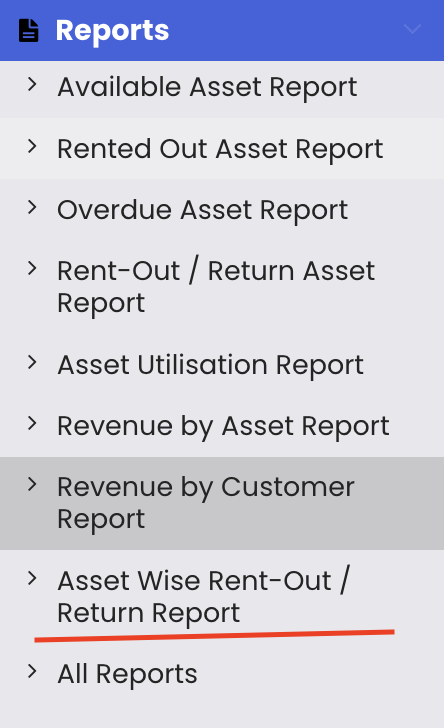
Step 1 – Navigate to Reports
Click on Reports from the left-hand panel to access the reports section of the Asset Rentals module.
Step 2 – Select the Asset-wise Rent-Out Return Report
From the reports list, select "Asset-wise Rent-Out Return Report." The report will load and display detailed transaction-level data for each asset.
Step 3 – Review Asset-Level Transaction Details
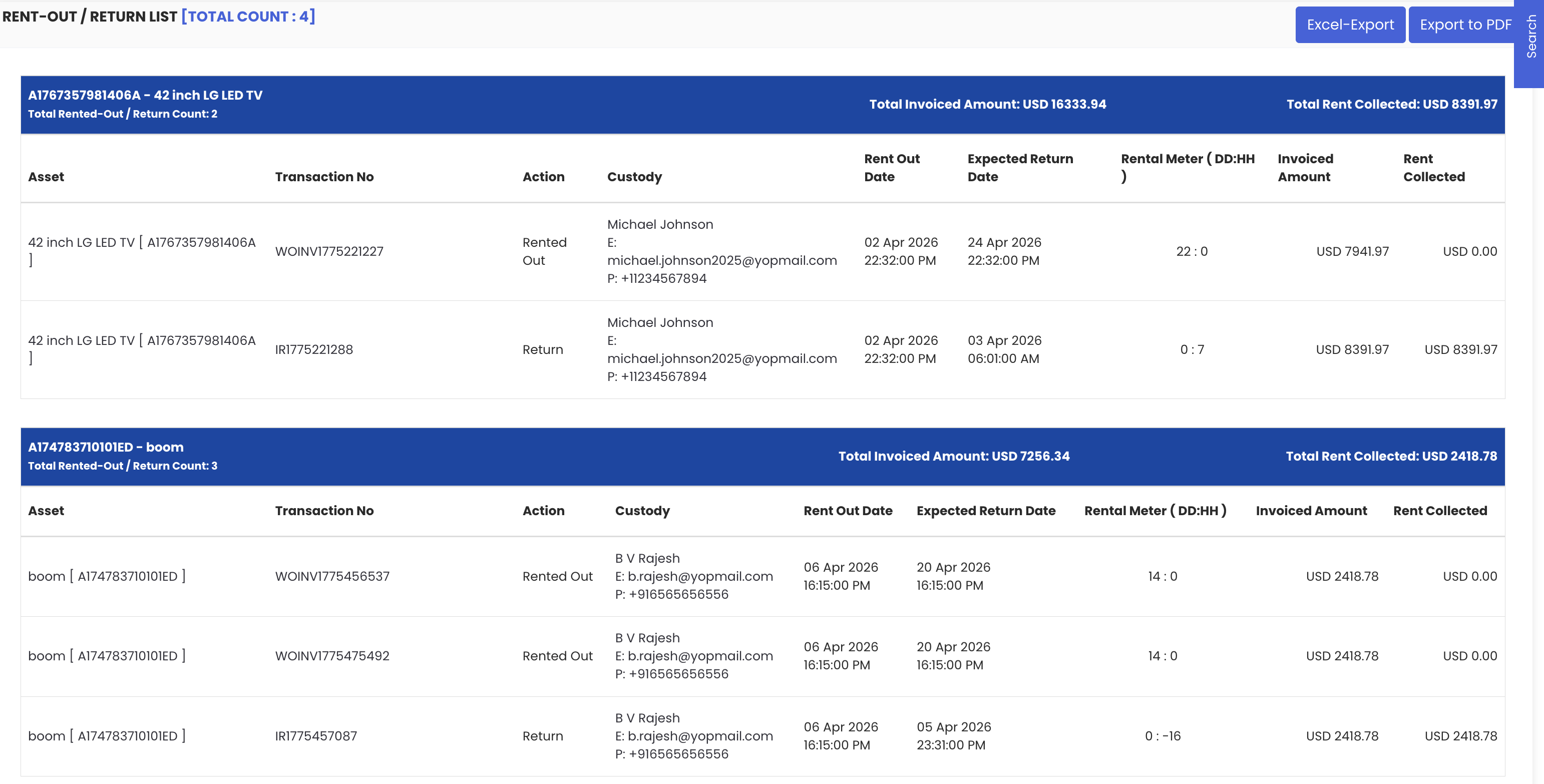
The report displays the following information for each asset transaction:
- Asset name – the name of the rented asset
- Transaction number – the invoice number associated with the rental
- Customer details – the customer who rented the asset
- Status – the current status of the rental transaction
- Rent-out date – when the asset was rented out
- Expected return date – the agreed return date
Step 4 – Review the Rental Meter and Financial Details
The report also includes:
- Rental meter – the total duration the asset has been in a rented state, displayed in both days and hours
- Invoiced amount – the value of the invoice raised for the rental
- Total rent collected – the amount that has been received for the transaction
Step 5 – Export the Report
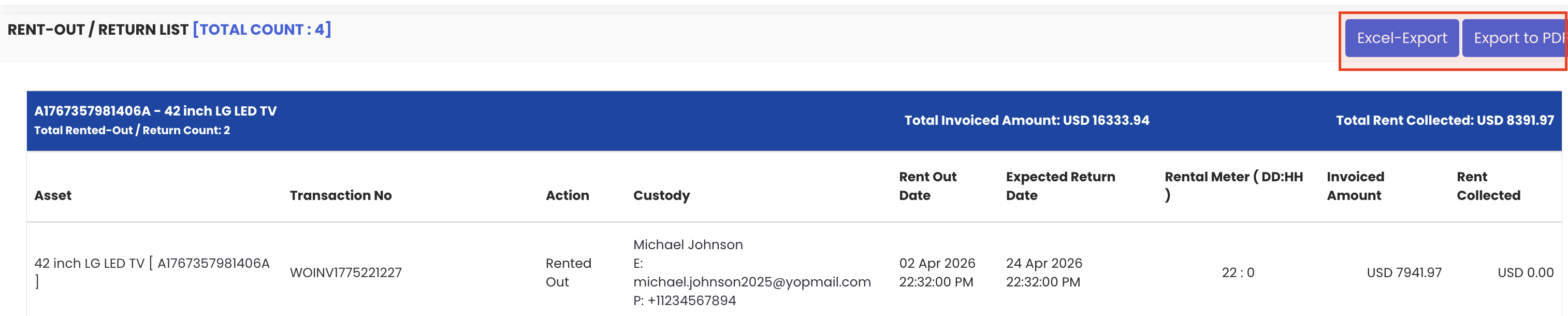
Use the available export options to save or share the report:
- Excel export – download the data as a spreadsheet for further analysis
- PDF export – export as a PDF for sharing or record-keeping
Tips for Using the Asset-wise Rent-Out Return Report
- Use the transaction number in this report to quickly cross-reference specific invoices within the Invoices section, especially when resolving billing queries.
- Review the rental meter to verify that the rental duration charged in the invoice accurately reflects the actual time the asset was on rent.
- Filter or sort by status to separate active rentals from completed ones and focus your review on the transactions most relevant to your needs.
- Use the invoiced amount vs. total rent collected columns together to quickly identify transactions with outstanding balances that require follow-up.
- Export the report to Excel to build detailed asset-level performance summaries for management reporting or fleet review presentations.
Frequently Asked Questions
What does the Asset-wise Rent-Out Return Report show?
This report provides transaction-level detail for each asset, including the asset name, invoice number, customer details, status, rent-out and return dates, rental meter (days and hours), invoiced amount, and total rent collected.
What is the rental meter in this report?
The rental meter shows the total duration for which each asset has been in a rented state, expressed in both days and hours. It helps verify that billing aligns with the actual rental period.
What does the transaction number refer to?
The transaction number refers to the invoice number that was created when the asset was rented out. It allows you to trace each rental record back to its corresponding invoice in the system.
How does this report differ from the Rent-Out Return Asset Report?
The Rent-Out Return Asset Report provides a customer-focused summary of completed rentals. The Asset-wise Rent-Out Return Report goes further by including invoice transaction numbers, rental meter data, invoiced amounts, and collected rent — making it more suited for detailed financial and operational analysis at the asset level.
Can I export this report?
Yes. The report supports both Excel and PDF export options for easy download, sharing, and further analysis.
Related Articles
- Rent-Out Return Asset Report
- Revenue by Asset Report
- Revenue by Customer Report
- Asset Utilization Report
- Rental Invoice