Revenue by Asset Report
The Revenue by Asset Report in DreamzCMMS Asset Rentals provides a financial overview of each asset's performance by showing invoiced amounts, collected rent, and outstanding balances. It helps finance and operations teams quickly assess which assets are generating revenue and which have pending payments. Key highlights include:
- View the total invoiced amount for each asset
- See the total rent collected per asset
- Identify the outstanding amount still pending for each asset
- Get a clear financial overview of asset-level performance
- Export the report in Excel or PDF format
Overview
The Revenue by Asset Report is accessible from the Reports menu in the Asset Rentals module of DreamzCMMS. It provides a concise financial summary at the asset level, displaying the total invoiced amount, total rent collected, and the outstanding amount still pending payment for each asset. This report is particularly useful for finance teams who need to monitor revenue generation and identify assets with unpaid balances. The data can be exported in Excel or PDF format for further analysis or sharing with stakeholders.
Here is a reference video:
Step by Step Description to View the Revenue by Asset Report
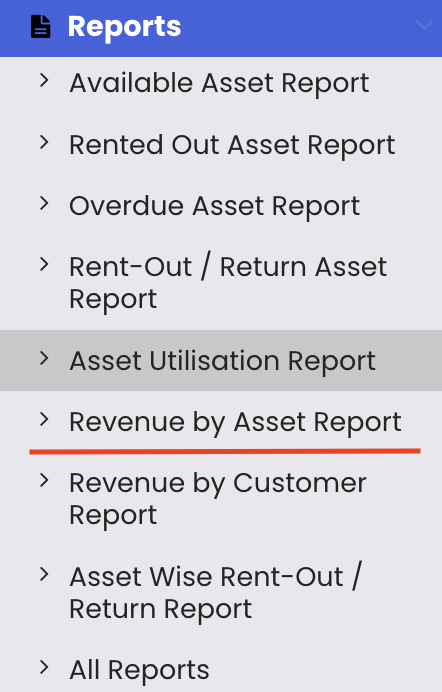
Step 1 – Navigate to Reports
Click on Reports from the left-hand panel to access the reports section of the Asset Rentals module.
Step 2 – Select the Revenue by Asset Report
From the reports list, select "Revenue by Asset Report." The report will load and display financial performance data for each asset.
Step 3 – Review Financial Performance by Asset
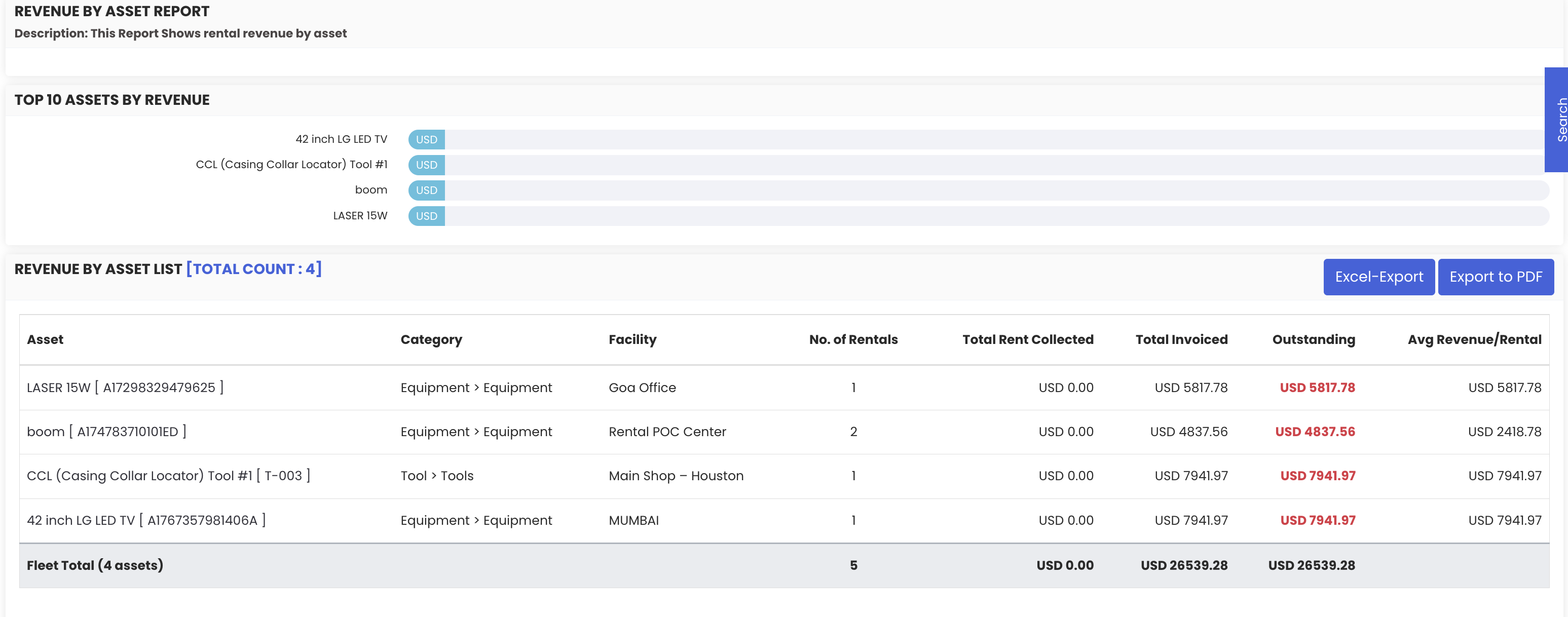
The report displays the following financial details for each asset:
- Total invoiced amount – the full value of invoices raised for the asset
- Total rent collected – the amount that has actually been received
- Outstanding amount – the balance still pending payment
Step 4 – Export the Report
Use the available export options to save or share the report:
- Excel export – download the data as a spreadsheet for further analysis
- PDF export – export as a PDF for reporting or sharing

Tips for Using the Revenue by Asset Report
- Use the outstanding amount column to identify assets with unpaid balances and prioritise follow-up with the relevant customers to improve cash flow.
- Compare total invoiced amount against total rent collected to measure overall collection efficiency across your rental fleet.
- Use this report alongside the Asset Utilization Report to identify assets that are both highly utilised and generating strong revenue — your top-performing assets.
- Export the report to Excel regularly to track revenue trends by asset over time and build a financial performance history for your fleet.
- Use the PDF export to create ready-to-share financial summaries for management reviews or investor reporting.
Frequently Asked Questions
What does the Revenue by Asset Report show?
The report displays the total invoiced amount, total rent collected, and outstanding amount for each asset, giving a clear financial overview of each asset's rental performance.
How do I access the Revenue by Asset Report?
Click on "Reports" from the left-hand panel in the Asset Rentals module and select "Revenue by Asset Report" from the list.
What is the difference between total invoiced amount and total rent collected?
The total invoiced amount is the full value of all invoices raised for an asset, while the total rent collected is the actual amount received from customers. The difference between the two is the outstanding amount still pending payment.
Can I export the Revenue by Asset Report?
Yes. The report supports both Excel and PDF export options for easy sharing and further financial analysis.
How does this report compare to the Revenue by Customer Report?
The Revenue by Asset Report breaks down financial performance at the asset level. The Revenue by Customer Report provides the same financial view but organised by customer, showing how much each customer owes or has paid across their rentals.
Related Articles
- Revenue by Customer Report
- Asset Utilization Report
- Asset-wise Rent-Out Return Report
- Rental Invoice
- Rental Dashboard Overview