Asset Utilization Report
The Asset Utilization Report in DreamzCMMS Asset Rentals gives you a clear picture of how effectively each asset in your fleet is being used. By comparing rented days against total available days in a selected period, the system calculates a utilization percentage and total rent collected — helping you make data-driven decisions about your rental fleet. Key highlights include:
- View the total number of days each asset has been rented out
- See the total days in the selected period and available days for each asset
- View the utilization percentage calculated automatically by the system
- Track total rent collected per asset
- Export the report in Excel or PDF format
Overview
The Asset Utilization Report is accessible from the Reports menu in the Asset Rentals module of DreamzCMMS. It provides a performance-focused view of each asset in your fleet by calculating how many days each asset has been rented out within a selected period. Based on the total days in the period and the rented days, the system automatically calculates the number of available days and the overall utilization percentage. The report also shows the total rent collected for each asset, giving managers a combined view of both usage efficiency and revenue performance. The report supports Excel and PDF export.
Here is a reference video:
Step by Step Description to View the Asset Utilization Report
Step 1 – Navigate to Reports
Click on Reports from the left-hand panel to access the reports section of the Asset Rentals module.
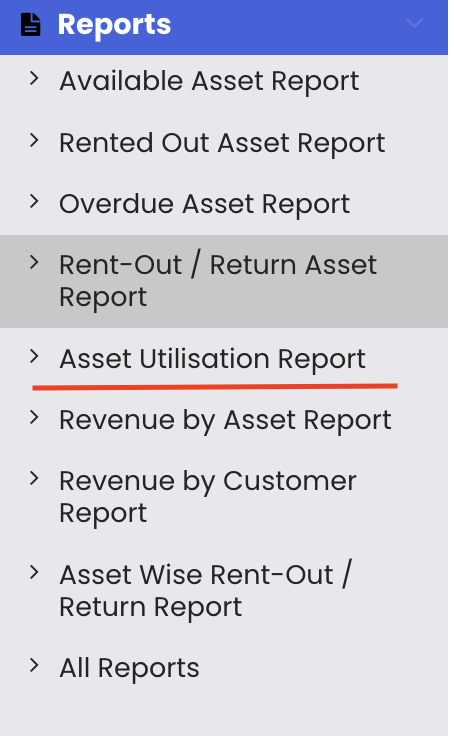
Step 2 – Select the Asset Utilization Report
From the reports list, select "Asset Utilization Report." The report will load and display utilization data for all assets in your fleet.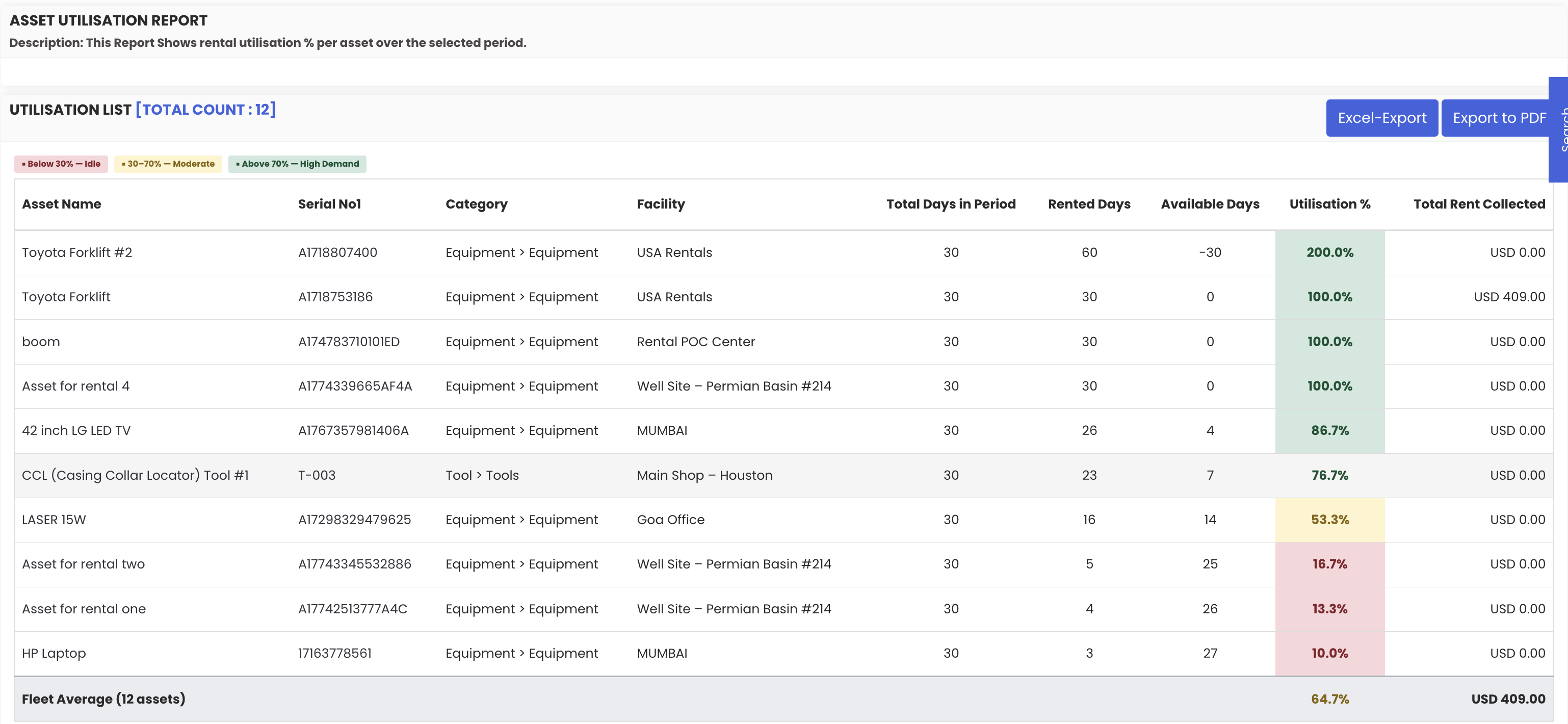
Step 3 – Review Utilization Data
The report displays the following information for each asset:
- Total days rented out – the number of days the asset has been on rent in the selected period
- Total days in the period – the full length of the selected time period
- Available days – the number of days the asset was not on rent
- Utilization percentage – automatically calculated based on rented days vs. total days
- Total rent collected – the revenue generated by the asset during the selected period

Step 4 – Export the Report
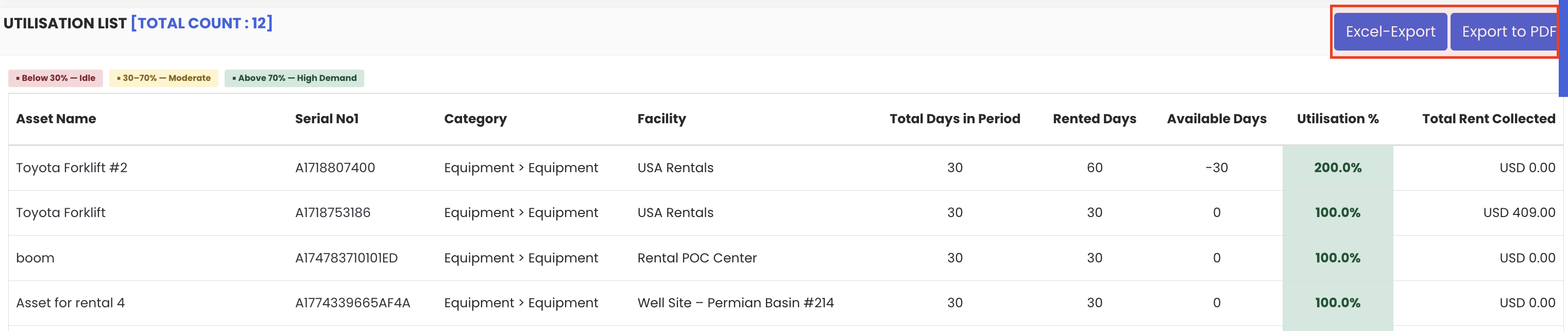
Use the available export options to save or share the report:
- Excel export – download the data as a spreadsheet for further analysis
- PDF export – export as a PDF for sharing or reporting purposes
Tips for Using the Asset Utilization Report
- Use the utilization percentage to identify underperforming assets in your fleet and consider strategies to improve their rental frequency or review their continued inclusion in the fleet.
- Review the report across different date ranges (monthly, quarterly, annually) to identify seasonal trends in asset utilization and plan your fleet capacity accordingly.
- Compare total rent collected alongside the utilization percentage to identify assets that are highly utilised but generating lower revenue — which may signal a pricing review opportunity.
- Use the available days column to spot assets with long idle periods and consider whether targeted marketing or promotional offers could improve their utilization.
- Export the report to Excel to create custom utilization dashboards or share performance data with senior management during fleet review meetings.
Frequently Asked Questions
What does the Asset Utilization Report show?
The report shows the total days each asset has been rented out, the total days in the selected period, the available days, the utilization percentage, and the total rent collected — giving a complete view of each asset's performance.
How is the utilization percentage calculated?
The system calculates the utilization percentage by dividing the total number of days an asset was rented out by the total number of days in the selected period, then expressing this as a percentage.
How do I access the Asset Utilization Report?
Click on "Reports" from the left-hand panel in the Asset Rentals module and select "Asset Utilization Report" from the list.
Can I view this report for a specific date range?
Yes. The report can be filtered by a selected period, allowing you to view utilization data for a specific date range such as a month, quarter, or custom period.
Can I export the Asset Utilization Report?
Yes. The report supports both Excel and PDF export options for easy sharing and further analysis.
Related Articles
- Revenue by Asset Report
- Revenue by Customer Report
- Available Asset Report
- Rented-Out Asset Report
- Equipment Dashboard